wttr.in — the right way to check curl the weather!
wttr.in is a console-oriented weather forecast service that supports various information
representation methods like terminal-oriented ANSI-sequences for console HTTP clients
(curl, httpie, or wget), HTML for web browsers, or PNG for graphical viewers.
Originally started as a small project, a wrapper for wego,
intended to demonstrate the power of the console-oriented services,
wttr.in became a popular weather reporting service, handling tens of millions¹ of queries daily.
You can see it running here: wttr.in.
Documentation | Usage | One-line output | Data-rich output format | Map view | Output formats | Moon phases | Internationalization | Installation
Usage
You can access the service from a shell or from a Web browser like this:
$ curl wttr.in
Weather for City: Paris, France

     \   /     Clear
      .-.      10 – 11 °C
   ― (   ) ―   ↑ 11 km/h
      `-’      10 km
     /   \     0.0 mm
Here is an example weather report:
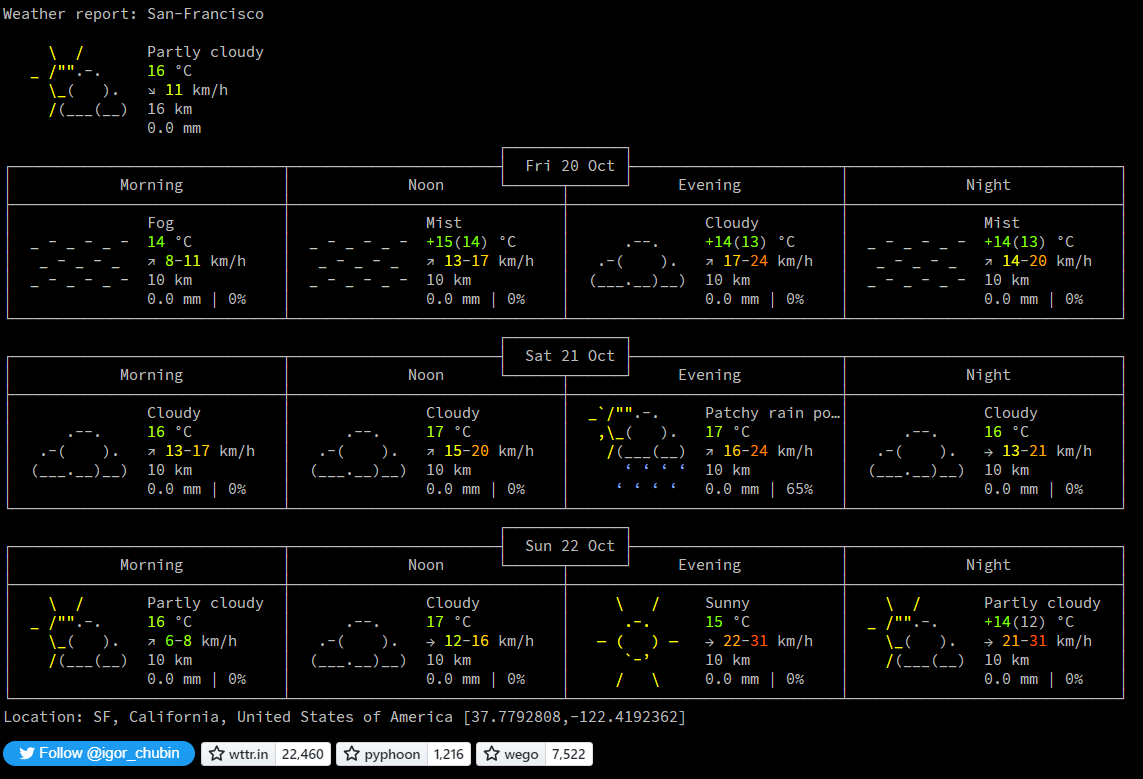
Or in PowerShell:
Invoke-RestMethod https://wttr.in
Want to get the weather information for a specific location? You can add the desired location to the URL in your
request like this:
$ curl wttr.in/London
$ curl wttr.in/Moscow
$ curl wttr.in/Salt+Lake+City
If you omit the location name, you will get the report for your current location based on your IP address.
Use 3-letter airport codes in order to get the weather information at a certain airport:
$ curl wttr.in/muc      # Weather for IATA: muc, Munich International Airport, Germany
$ curl wttr.in/ham      # Weather for IATA: ham, Hamburg Airport, Germany
Let's say you'd like to get the weather for a geographical location other than a town or city - maybe an attraction
in a city, a mountain name, or some special location:
$ curl wttr.in/Vostok+Station
$ curl wttr.in/Eiffel+Tower
$ curl wttr.in/Kilimanjaro
For these examples, you'll see a line below the weather forecast output that shows the geolocation
results of looking up the location:
Location: Vostok Station, станция Восток, AAT, Antarctica [-78.4642714,106.8364678]
Location: Tour Eiffel, Paris, Île-de-France, 75007, France [48.8582602,2.29449905432]
Location: Kilimanjaro, Northern, Tanzania [-3.4762789,37.3872648]
You can also use IP-addresses (direct) or domain names (prefixed with @) to specify a location:
$ curl wttr.in/@github.com
$ curl wttr.in/@msu.ru
To get detailed information online, you can access the /:help page:
$ curl wttr.in/:help
Weather Units
By default the USCS units are used for the queries from the USA and the metric system for the rest of the world.
You can override this behavior by adding ?u, ?m or ?M to a URL like this:
$ curl wttr.in/Amsterdam?u  # USCS (used by default in US)
$ curl wttr.in/Amsterdam?m  # metric (SI) (used by default everywhere except US)
$ curl wttr.in/Amsterdam?M  # metric (SI), but show wind speed in m/s
If you have several options to pass, write them without delimiters in between for the one-letter options,
and use & as a delimiter for the long options with values:
$ curl 'wttr.in/Amsterdam?m2&lang=nl'
It would be a rough equivalent of -m2 --lang nl for the GNU CLI syntax.
wttr.in currently supports five output formats:
- ANSI for the terminal;
- Plain-text for the terminal and scripts;
- HTML for the browser;
- PNG for the graphical viewers;
- JSON for scripts and APIs;
- Prometheus metrics for scripts and APIs.
The ANSI and HTML formats are selected based on the User-Agent string.
To force plain text, which disables colors:
$ curl wttr.in/?T
To restrict output to glyphs available in standard console fonts (e.g. Consolas and Lucida Console):
$ curl wttr.in/?d
The PNG format can be forced by adding .png to the end of the query:
$ wget wttr.in/Paris.png
You can use all of the options with the PNG-format like in an URL, but you have
to separate them with _ instead of ? and &:
$ wget wttr.in/Paris_0tqp_lang=fr.png
Useful options for the PNG format:
t for transparency (transparency=150);- transparency=0..255 for a custom transparency level.
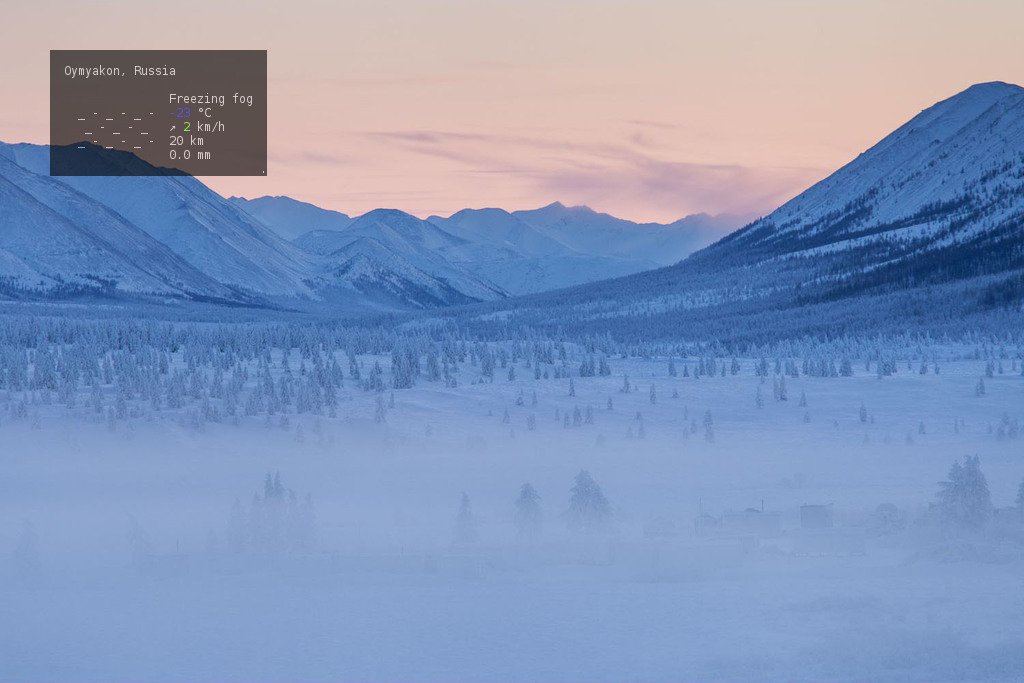
Transparency is a useful feature when weather PNGs are used to add weather data to pictures:
$ convert source.jpg <( curl wttr.in/Oymyakon_tqp0.png ) -geometry +50+50 -composite target.jpg
In this example:
source.jpg - source file;target.jpg - target file;Oymyakon - name of the location;tqp0 - options (recommended).
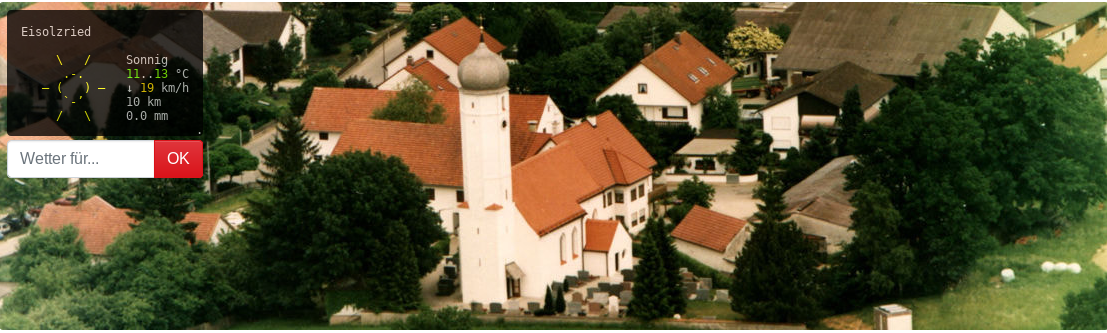
You can embed a special wttr.in widget, that displays the weather condition for the current or a selected location, into a HTML page using the wttr-switcher. That is how it looks like: wttr-switcher-example or on a real world web site: https://feuerwehr-eisolzried.de/.
One-line output
One-line output format is convenient to be used to show weather info
in status bar of different programs, such as tmux, weechat, etc.
For one-line output format, specify additional URL parameter format:
$ curl wttr.in/Nuremberg?format=3
Nuremberg: 🌦 +11⁰C
Available preconfigured formats: 1, 2, 3, 4 and the custom format using the percent notation (see below).
- 1: Current weather at location:
🌦 +11⁰C
- 2: Current weather at location with more details:
🌦 🌡️+11°C 🌬️↓4km/h
- 3: Name of location and current weather at location:
Nuremberg: 🌦 +11⁰C
- 4: Name of location and current weather at location with more details:
Nuremberg: 🌦 🌡️+11°C 🌬️↓4km/h
You can specify multiple locations separated with : (for repeating queries):
$ curl wttr.in/Nuremberg:Hamburg:Berlin?format=3
Nuremberg: 🌦 +11⁰C
Or to process all this queries at once:
$ curl -s 'wttr.in/{Nuremberg,Hamburg,Berlin}?format=3'
Nuremberg: 🌦 +11⁰C
Hamburg: 🌦 +8⁰C
Berlin: 🌦 +8⁰C
To specify your own custom output format, use the special %-notation:
    c    Weather condition,
    C    Weather condition textual name,
    x    Weather condition, plain-text symbol,
    h    Humidity,
    t    Temperature (Actual),
    f    Temperature (Feels Like),
    H    Temperature (High),
    L    Temperature (Low),
    w    Wind,
    l    Location,
    m    Moon phase 🌑🌒🌓🌔🌕🌖🌗🌘,
    M    Moon day,
    p    Precipitation (mm/3 hours),
    P    Pressure (hPa),
    e    Dew point,
    u    UV index (1-12),

    D    Dawn*,
    S    Sunrise*,
    z    Zenith*,
    s    Sunset*,
    d    Dusk*,
    T    Current time*,
    Z    Local timezone.

(*times are shown in the local timezone)
So, these two calls are the same:
    $ curl wttr.in/London?format=3
    London: ⛅️ +7⁰C
    $ curl wttr.in/London?format="%l:+%c+%t\n"
    London: ⛅️ +7⁰C
Domains & Reliability
- Primary: wttr.in
- Fallback: wttr.is — fully equivalent drop-in replacement
You can safely use wttr.is anywhere you currently use wttr.in.
Both domains are served from the same backend and kept in sync.
We recommend using wttr.is in scripts, status bars, monitoring tools, and CI/CD pipelines for improved reliability.
Integrations
Thanks to the ease of integrating wttr.in into any program, there are a
plethora of popular integrations across various libraries, programming
languages, and systems.
wttr.in is compatible with:
- terminal managers,
- window managers,
- editors,
- chat clients,
and more, these integrations enhance workflow efficiency by embedding weather information directly into user interfaces.
See the full list of integrations here: wttr.in integrations
and some of them below.
tmux
When using in tmux.conf, you have to escape % with %, i.e. write there %% instead of %.
The output does not contain new line by default, when the %-notation is used, but it does contain it when preconfigured format (1,2,3 etc.)
are used. To have the new line in the output when the %-notation is used, use '\n' and single quotes when doing a query from the shell.
In programs, that are querying the service automatically (such as tmux), it is better to use some reasonable update interval. In tmux, you can configure it with status-interval.
If several, : separated locations, are specified in the query, specify update period
as an additional query parameter period=:
set -g status-interval 60
WEATHER='#(curl -s wttr.in/London:Stockholm:Moscow\?format\="%%l:+%%c%%20%%t%%60%%w&period=60")'
set -g status-right "$WEATHER ..."

WeeChat
To embed in to an IRC (WeeChat) client's existing status bar:
/alias add wttr /exec -pipe "/mute /set plugins.var.wttr" url:wttr.in/Montreal?format=%l:+%c+%f+%h+%p+%P+%m+%w+%S+%s;/wait 3 /item refresh wttr
/trigger add wttr timer 60000;0;0 "" "" "/wttr"
/item add wttr "" "${plugins.var.wttr}"
/eval /set weechat.bar.status.items ${weechat.bar.status.items},spacer,wttr
/eval /set weechat.startup.command_after_plugins ${weechat.startup.command_after_plugins};/wttr
/wttr

conky
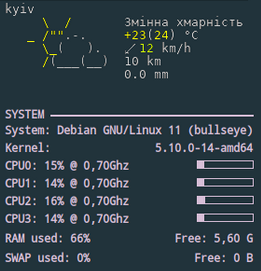
Conky usage example:
${texeci 1800 curl wttr.in/kyiv_0pq_lang=uk.png
  | convert - -transparent black $HOME/.config/conky/out.png}
${image $HOME/.config/conky/out.png -p 0,0}
IRC
IRC integration example:
Emojis support
To see emojis in terminal, you need:
- Terminal support for emojis (was added to Cairo 1.15.8);
- Font with emojis support.
For the emoji font, we recommend Noto Color Emoji, and a good alternative option would be the Emoji One font;
both of them support all necessary emoji glyphs.
Font configuration:
$ cat ~/.config/fontconfig/fonts.conf
<?xml version="1.0" encoding="UTF-8"?>
<!DOCTYPE fontconfig SYSTEM "fonts.dtd">
<fontconfig>
  <alias>
    <family>serif</family>
    <prefer>
      <family>Noto Color Emoji</family>
    </prefer>
  </alias>
  <alias>
    <family>sans-serif</family>
    <prefer>
      <family>Noto Color Emoji</family>
    </prefer>
  </alias>
  <alias>
    <family>monospace</family>
    <prefer>
      <family>Noto Color Emoji</family>
    </prefer>
  </alias>
</fontconfig>
(to apply the configuration, run fc-cache -f -v).
In some cases, tmux and the terminal understanding of some emoji characters may differ, which may
cause strange effects similar to that described in #579.
Squeak
To embed into the world main docking bar:
wttr := (UpdatingStringMorph on: [(WebClient httpGet: 'https://wttr.in/?format=%20%20%l:%20%C+%t') content] selector: #value)
	stepTime: 60000;
	useStringFormat;
	yourself.
dockingBar := World mainDockingBars first.
dockingBar addMorph: wttr after: (dockingBar findA: ClockMorph).

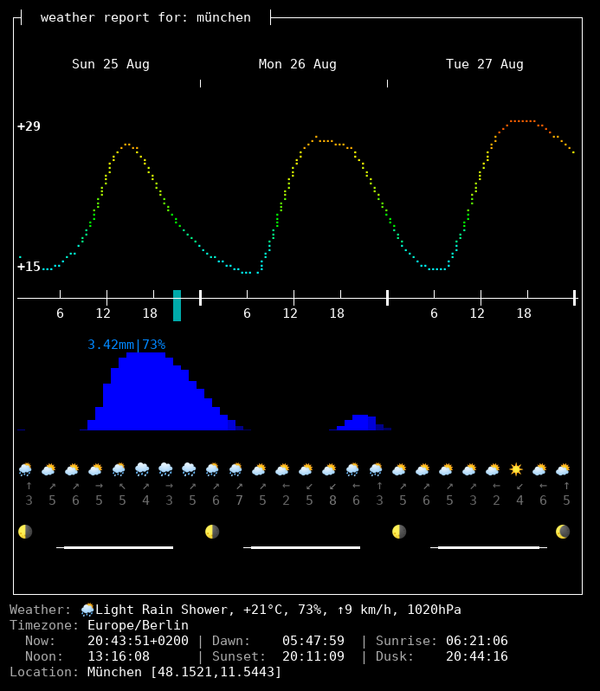
In the experimental data-rich output format, that is available under the view code v2,
a lot of additional weather and astronomical information is available:
- Temperature, and precipitation changes forecast throughout the days;
- Moonphase for today and the next three days;
- The current weather condition, temperature, humidity, wind speed and direction, pressure;
- Timezone;
- Dawn, sunrise, noon, sunset, dusk time for he selected location;
- Precise geographical coordinates for the selected location.
$ curl v2.wttr.in/München
or
$ curl wttr.in/München?format=v2
or, if you prefer Nerd Fonts instead of Emoji, v2d (day) or v2n (night):
$ curl v2d.wttr.in/München
(The mode is experimental, and it has several limitations currently:
- It works only in terminal;
- Only English is supported).
Currently, you need some tweaks for some terminals, to get the best possible visualization.
URXVT
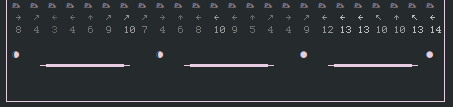
Depending on your configuration you might be taking all steps, or only a few. URXVT currently doesn't support emoji related fonts, but we can get almost the same effect using Font-Symbola. So add to your .Xresources file the following line:
xft:symbola:size=10:minspace=False
You can add it after your preferred font and it will only show up when required.
Then, if you see or feel like you're having spacing issues, add this: URxvt.letterSpace: 0
For some reason URXVT sometimes stops deciding right the word spacing and we need to force it this way.
The result, should look like:
Map view (v3)
In the experimental map view, that is available under the view code v3,
weather information about a geographical region is available:
$ curl v3.wttr.in/Bayern.sxl
or directly in browser:
The map view currently supports three formats:
- PNG (for browser and messengers);
- Sixel (terminal inline images support);
- IIP (terminal with iterm2 inline images protocol support).
Terminal with inline images protocols support:
⟶ Detailed article: Images in terminal
| Terminal |
Environment |
Images support |
Protocol |
| uxterm |
X11 |
yes |
Sixel |
| mlterm |
X11 |
yes |
Sixel |
| kitty |
X11 |
yes |
Kitty |
| wezterm |
X11 |
yes |
IIP |
| Darktile |
X11 |
yes |
Sixel |
| Jexer |
X11 |
yes |
Sixel |
| GNOME Terminal |
X11 |
in-progress |
Sixel |
| alacritty |
X11 |
in-progress |
Sixel |
| foot |
Wayland |
yes |
Sixel |
| DomTerm |
Web |
yes |
Sixel |
| Yaft |
FB |
yes |
Sixel |
| iTerm2 |
Mac OS X |
yes |
IIP |
| mintty |
Windows |
yes |
Sixel |
| Windows Terminal |
Windows |
in-progress |
Sixel |
| RLogin |
Windows |
yes |
Sixel |
JSON output
The JSON format is a feature providing access to wttr.in data through an easy-to-parse format, without requiring the user to create a complex script to reinterpret wttr.in's graphical output.
To fetch information in JSON format, use the following syntax:
$ curl wttr.in/Detroit?format=j1
This will fetch information on the Detroit region in JSON format. The j1 format code is used to allow for the use of other layouts for the JSON output.
The result will look something like the following:
{
	"current_condition": [
		{
		    "FeelsLikeC": "25",
		    "FeelsLikeF": "76",
		    "cloudcover": "100",
		    "humidity": "76",
		    "observation_time": "04:08 PM",
		    "precipMM": "0.2",
		    "pressure": "1019",
		    "temp_C": "22",
		    "temp_F": "72",
		    "uvIndex": 5,
		    "visibility": "16",
		    "weatherCode": "122",
		    "weatherDesc": [
			{
			    "value": "Overcast"
			}
		    ],
		    "weatherIconUrl": [
			{
			    "value": ""
			}
		    ],
		    "winddir16Point": "NNE",
		    "winddirDegree": "20",
		    "windspeedKmph": "7",
		    "windspeedMiles": "4"
		}
	],
...
Most of these values are self-explanatory, aside from weatherCode. The weatherCode is an enumeration which you can find at either the WorldWeatherOnline website or in the wttr.in source code.
A smaller version format=j2 without hourly data is also available. Can work well for microcontrollers with limited memory.
Prometheus Metrics Output
The Prometheus Metrics format is a feature providing access to wttr.in data through an easy-to-parse format for monitoring systems, without requiring the user to create a complex script to reinterpret wttr.in's graphical output.
To fetch information in Prometheus format, use the following syntax:
$ curl wttr.in/Detroit?format=p1
This will fetch information on the Detroit region in Prometheus Metrics format. The p1 format code is used to allow for the use of other layouts for the Prometheus Metrics output.
A possible configuration for Prometheus could look like this:
    - job_name: 'wttr_in_detroit'
        static_configs:
            - targets: ['wttr.in']
        metrics_path: '/Detroit'
        params:
            format: ['p1']
The result will look something like the following:
# HELP temperature_feels_like_celsius Feels Like Temperature in Celsius
temperature_feels_like_celsius{forecast="current"} 7
# HELP temperature_feels_like_fahrenheit Feels Like Temperature in Fahrenheit
temperature_feels_like_fahrenheit{forecast="current"} 45
[truncated]
...
Moon phases
wttr.in can also be used to check the phase of the Moon. This example shows how to see the current Moon phase
in the full-output mode:
$ curl wttr.in/Moon
Get the moon phase for a particular date by adding @YYYY-MM-DD:
$ curl wttr.in/Moon@2016-12-25
The moon phase information uses pyphoon as its backend.
To get the moon phase information in the one-line mode, use %m:
$ curl wttr.in/London?format=%m
🌖
Keep in mind that the Unicode representation of moon phases suffers 2 caveats:
With some fonts, the representation 🌘 is ambiguous, for it either seem
almost-shadowed or almost-lit, depending on whether your terminal is in
light mode or dark mode. Relying on colored fonts like noto-fonts works
around this problem.
The representation 🌘 is also ambiguous, for it means "last quarter" in
northern hemisphere, but "first quarter" in souther hemisphere. It also means
nothing in tropical zones. This is a limitation that
Unicode is aware about.
But it has not been worked around at wttr.in yet.
See #247, #364 for the corresponding tracking issues,
and [pyphoon#1](https://github.com/chubin/p

 wttr.in 是一个面向命令行的天气预报服务:你可以在终端里用 curl 查天气,也可以直接在浏览器中打开,它会以适合终端的 ASCII 字符画、适合浏览器的 HTML 或适合图形界面查看的 PNG 图片来展示天气预报。