reinstall




一键 VPS 系统重装脚本 English
介绍
- 一键重装到 Linux,支持 20 种常见发行版
- 一键重装到 Windows,使用官方原版 ISO 而非自制镜像,支持自动查找 ISO 链接、自动安装
VirtIO 等公有云驱动
- 支持任意方向重装,即
Linux to Linux、Linux to Windows、Windows to Windows、Windows to Linux
- 自动设置 IP,智能设置动静态,支持
/32、/128、网关不在子网范围内、纯 IPv6、IPv4/IPv6 在不同网卡
- 专门适配低配小鸡,比官方 netboot 需要更少的内存
- 全程用分区表 ID 识别硬盘,确保不会写错硬盘
- 支持 BIOS、EFI 引导,支持 ARM 服务器
- 不含自制包,所有资源均实时从镜像源获得
请我喝奶茶:


反馈


快速开始
系统要求
原系统可以是表格中的任意系统
目标系统的配置要求如下:
| 系统 |
版本 |
内存 |
硬盘 |
 Alpine Alpine |
3.21, 3.22, 3.23, 3.24 |
256 MB |
1 GB |
 Debian Debian |
9 ELTS - 11 ELTS, 12, 13 |
256 MB |
1 ~ 1.5 GB ^ |
 Kali Kali |
Last-Snapshot, Rolling (滚动) |
256 MB |
1 ~ 1.5 GB ^ |
 Ubuntu Ubuntu |
18.04 LTS - 26.04 LTS |
512 MB * |
2 GB |
 Anolis Anolis |
7, 8, 23 |
512 MB * |
5 GB |
 RHEL RHEL  AlmaLinux AlmaLinux  Rocky Rocky  Oracle Oracle |
8, 9, 10 |
512 MB * |
5 GB |
 OpenCloudOS OpenCloudOS |
8, 9, Stream 23 |
512 MB * |
5 GB |
 CentOS Stream CentOS Stream |
9, 10 |
512 MB * |
5 GB |
 Fedora Fedora |
43, 44 |
512 MB * |
5 GB |
 openEuler openEuler |
20.03 LTS - 24.03 LTS |
512 MB * |
5 GB |
 openSUSE openSUSE |
Leap 16.0, Tumbleweed (滚动) |
512 MB * |
5 GB |
 NixOS NixOS |
26.05 |
512 MB |
5 GB |
 Arch Linux / Arch Linux ARM Arch Linux / Arch Linux ARM |
滚动 |
512 MB |
5 GB |
 Gentoo Gentoo |
滚动 |
512 MB |
5 GB |
 安同 OS 安同 OS |
滚动 |
512 MB |
5 GB |
 飞牛 fnOS 飞牛 fnOS  FygoOS FygoOS |
1 |
512 MB |
10 GB |
 Windows (DD) Windows (DD) |
任何 |
512 MB |
取决于镜像 |
| Windows (ISO) |
Vista, 7, 8.x (Server 2008 - 2012 R2) |
512 MB |
25 GB |
| Windows (ISO) |
10, 11 (Server 2016 - 2025) |
1 GB |
25 GB |
* 表示使用云镜像安装,非传统网络安装
^ 表示需要 256 MB 内存 + 1.5 GB 硬盘,或 512 MB 内存 + 1 GB 硬盘
[!WARNING]
本脚本理论上支持独服和 PC
但如果能使用 IPMI 或 U 盘,则不建议使用本脚本
[!WARNING]
❌ 本脚本不支持 OpenVZ、LXC 虚拟机
请改用 https://github.com/LloydAsp/OsMutation
下载(当前系统是  Linux)
国外服务器:
curl -O https://raw.githubusercontent.com/bin456789/reinstall/main/reinstall.sh || wget -O ${_##*/} $_
国内服务器:
curl -O https://cnb.cool/bin456789/reinstall/-/git/raw/main/reinstall.sh || wget -O ${_##*/} $_
下载(当前系统是 Windows)
[!IMPORTANT]
请先关闭 Windows Defender 的 实时保护 功能。该功能会阻止 certutil 下载任何文件。
解决 Windows 7 下无法下载脚本
由于不支持 TLS 1.2、SHA-256、根证书没有更新等原因,Vista,7 和 Server 2008 (R2) 可能无法自动下载脚本,因此需要手动下载,具体操作如下:
用 IE 下载 (先在 IE 高级设置里启用 TLS 1.2),或者通过远程桌面,将这两个文件保存到同一个目录
使用时运行下载的 reinstall.bat
国外服务器:
certutil -urlcache -f -split https://raw.githubusercontent.com/bin456789/reinstall/main/reinstall.bat
国内服务器:
certutil -urlcache -f -split https://cnb.cool/bin456789/reinstall/-/git/raw/main/reinstall.bat
使用
所有功能 都可在 Linux / Windows 下运行
- Linux 下运行
bash reinstall.sh ...
- Windows 下先运行
cmd,再运行 reinstall.bat ...
- 如果参数中的链接包含特殊字符,要用
"" 将链接包裹起来,不能用 ''
功能 1: 安装 Linux
[!CAUTION]
此功能会清除当前系统整个硬盘的全部数据(包含其它分区)!
如果不小心运行了脚本,可以在重启前运行 bash reinstall.sh reset 取消重装
- 脚本会提示输入用户名和密码,不输入则使用
root 和随机密码
- 不输入版本号则安装最新版
- 最大化利用磁盘空间:不含 boot 和 swap 分区
- 自动根据机器类型和商家安装优化内核
- 安装 Red Hat 时需填写 https://access.redhat.com/downloads/content/rhel 得到的
qcow2 镜像链接,也可以安装其它类 RHEL 系统的 qcow2,例如 Alibaba Cloud Linux 和 TencentOS Server
- 重装后如需修改 SSH 端口或者改成密钥登录,注意还要修改
/etc/ssh/sshd_config.d/ 里面的文件
- 为了快速安装,重装时不会对新系统进行更新,请在重装后自行更新
- 安装飞牛 fnOS/FygoOS 时设置的用户名、密码、密钥仅用于安装期间登录 SSH 查看日志,不会应用到新系统。系统安装后需到后台面板 http://IP:5666 创建用户和开启 SSH
bash reinstall.sh anolis      7|8|23
                  rocky       8|9|10
                  oracle      8|9|10
                  almalinux   8|9|10
                  opencloudos 8|9|23
                  centos      9|10
                  fnos        1
                  fygoos      1
                  nixos       26.05
                  fedora      43|44
                  debian      9|10|11|12|13
                  opensuse    16.0|tumbleweed
                  openeuler   20.03|22.03|24.03
                  alpine      3.21|3.22|3.23|3.24
                  kali        last-snapshot|rolling
                  ubuntu      18.04|20.04|22.04|24.04|26.04 [--minimal]
                  arch
                  gentoo
                  aosc
                  redhat      --img="http://access.cdn.redhat.com/xxx.qcow2"
可选参数
--username USERNAME 设置用户名--password PASSWORD 设置密码--ssh-key KEY 设置 SSH 登录公钥,格式如下。当使用公钥时,密码为空--ssh-port PORT 修改 SSH 端口--web-port PORT 修改 Web 端口(安装期间观察日志用)--frpc-config PATH 添加 frpc 内网穿透,参数填配置文件的本地路径或 HTTP 链接--no-cloud-kernel 不使用云内核,避免部分机器黑屏/花屏,适用于 Debian、Ubuntu、Alpine--hold 1 仅重启到安装环境,不运行安装,用于 SSH 登录验证网络连通性--hold 2 安装结束后不重启,用于 SSH 登录修改系统内容,Debian/Kali 会挂载在 /target,其它系统会挂载在 /os
[!TIP]
可通过多种方式(SSH、HTTP 80 端口、商家后台 VNC、串行控制台)查看安装进度。
即使安装过程出错,也能连接 SSH 手动救砖。
目标系统非 Debian/Kali 时,可以运行 /trans.sh alpine 自动救砖成 Alpine 系统。
已弃用的功能
云镜像安装 Debian
bash reinstall.sh debian --ci
ISO 安装 CentOS, AlmaLinux, Rocky, Fedora
- 仅支持内存大于 2G 且为动态 IP 的机器
- 用户名
root,密码 123@@@,SSH 端口 22,不支持用参数修改
bash reinstall.sh centos --installer
bash reinstall.sh almalinux --installer
bash reinstall.sh rocky --installer
bash reinstall.sh fedora --installer
ISO 安装 Ubuntu
- 仅支持内存大于 1G 且为动态 IP 的机器
- 用户名
root,密码 123@@@,SSH 端口 22,不支持用参数修改
bash reinstall.sh ubuntu --installer
功能 2: DD RAW 镜像到硬盘
[!CAUTION]
此功能会清除当前系统整个硬盘的全部数据(包含其它分区)!
如果不小心运行了脚本,可以在重启前运行 bash reinstall.sh reset 取消重装
- 支持
raw 和固定大小的 vhd 镜像。未压缩或者压缩成 .gz .xz .zst .tar .tar.gz .tar.xz .tar.zst
- DD Windows 镜像时,会自动扩展系统盘,静态 IP 的机器会配置好 IP,可能首次开机几分钟后才生效
- DD Linux 镜像时,不会修改镜像的任何内容
- 脚本会提示输入用户名和密码,用于安装时 SSH 登录观察日志,不输入则使用
root 和随机密码
bash reinstall.sh dd --img "https://example.com/xxx.xz"
可选参数
--username USERNAME 设置用户名(安装期间观察日志用)--password PASSWORD 设置密码(安装期间观察日志用)--ssh-key KEY 设置 SSH 登录公钥(安装期间观察日志用),格式如下。当使用公钥时,密码为空--ssh-port PORT 修改 SSH 端口(安装期间观察日志用)--rdp-port PORT 修改 RDP 端口(仅限 DD Windows)--web-port PORT 修改 Web 端口(安装期间观察日志用)--allow-ping 设置 Windows 防火墙允许被 Ping(仅限 DD Windows)--frpc-config PATH 添加 frpc 内网穿透(仅限 DD Windows),参数填配置文件的本地路径或 HTTP 链接--cloud-data PATH_OR_URL 为 DD Linux 镜像注入 cloud-init NoCloud 配置(仅限 DD Linux)--hold 1 仅重启到安装环境,不运行安装,用于 SSH 登录验证网络连通性--hold 2 DD 结束后不重启,用于 SSH 登录修改系统内容,Windows 系统会挂载在 /os,Linux 系统不会自动挂载
[!TIP]
--cloud-data 参数为本地目录或 HTTP 基础 URL,目录须包含 user-data 文件,meta-data、network-config 可选:
seed/
├── user-data      # 必须
├── meta-data      # 可选
└── network-config # 可选
# 使用本地目录
bash reinstall.sh dd --img "https://example.com/xxx.xz" --cloud-data /path/to/seed/
# 使用 HTTP 目录
bash reinstall.sh dd --img "https://example.com/xxx.xz" --cloud-data "https://example.com/seed/"
[!TIP]
可通过多种方式(SSH、HTTP 80 端口、商家后台 VNC、串行控制台)查看安装进度。
即使安装过程出错,也能连接 SSH 手动救砖
也可以运行 /trans.sh alpine 自动救砖成 Alpine 系统。
功能 3: 重启到 Alpine Live OS(内存系统)
- 可用 ssh 连接,进行备份/恢复硬盘、手动 DD、修改分区、手动安装 Alpine 等操作
- 脚本会提示输入用户名和密码,不输入则使用
root 和随机密码
[!TIP]
虽然运行的脚本叫 reinstall,但是此功能不会删除任何数据和进行自动重装,而是要用户手动操作
如果用户手动操作没有破坏原系统,再次重启将回到原系统
bash reinstall.sh alpine --hold 1
可选参数
--username USERNAME 设置用户名--password PASSWORD 设置密码--ssh-key KEY 设置 SSH 登录公钥,格式如下。当使用公钥时,密码为空--ssh-port PORT 修改 SSH 端口--frpc-config PATH 添加 frpc 内网穿透,参数填配置文件的本地路径或 HTTP 链接
功能 4: 重启到  netboot.xyz
[!TIP]
虽然运行的脚本叫 reinstall,但是此功能不会删除任何数据和进行自动重装,而是要用户手动操作
如果用户手动操作没有破坏原系统,再次重启将回到原系统
bash reinstall.sh netboot.xyz
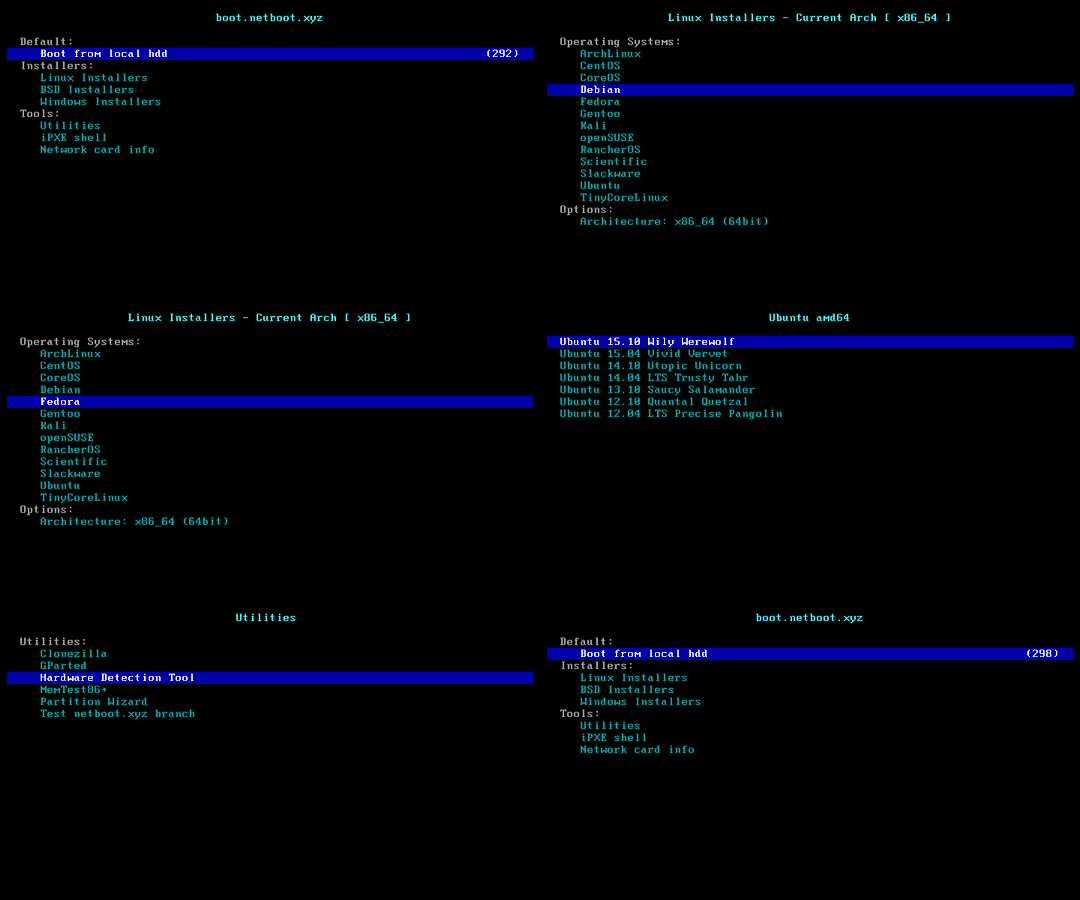
功能 5: 安装 Windows ISO

[!CAUTION]
此功能会清除当前系统整个硬盘的全部数据(包含其它分区)!
如果不小心运行了脚本,可以在重启前运行 bash reinstall.sh reset 取消重装
- 脚本会提示输入用户名和密码,不输入则使用
administrator 和随机密码
- 如果远程登录失败,请尝试在用户名前添加
.\,例如 .\administrator
- 少数语言的系统管理员账号不是
administrator 详情
- 静态机器会自动配置好 IP,可能首次开机几分钟后才生效
- 支持任意语言的 ISO
- 自动绕过 Windows 11 硬件限制
支持的系统
- Windows (Vista ~ 11)
- Windows Server (2008 ~ 2025)
- Windows Server Essentials
- Windows Server (Semi) Annual Channel
- Hyper-V Server
- Azure Local (Azure Stack HCI)
方法 1: 让脚本自动查找 ISO
bash reinstall.sh windows \
     --image-name "Windows 11 Enterprise LTSC 2024" \
     --lang zh-cn
--image-name 列表
以下版本支持自动查找,其它版本请用方法 2 手动指定 ISO 链接安装
Windows Vista Starter
Windows Vista HomeBasic
Windows Vista HomePremium
Windows Vista Business
Windows Vista Ultimate
Windows Vista Enterprise

Windows 7 Starter
Windows 7 HomeBasic
Windows 7 HomePremium
Windows 7 Professional
Windows 7 Ultimate
Windows 7 Enterprise

Windows 8
Windows 8 Pro
Windows 8 Enterprise

Windows 8.1
Windows 8.1 Pro
Windows 8.1 Enterprise

Windows 10 Home
Windows 10 Home Single Language
Windows 10 Pro
Windows 10 Pro Education
Windows 10 Pro for Workstations
Windows 10 Education
Windows 10 Enterprise
Windows 10 Enterprise 2015 LTSB
Windows 10 Enterprise 2016 LTSB
Windows 10 Enterprise LTSC 2019
Windows 10 Enterprise LTSC 2021
Windows 10 IoT Enterprise
Windows 10 IoT Enterprise 2015 LTSB
Windows 10 IoT Enterprise 2016 LTSB
Windows 10 IoT Enterprise LTSC 2019
Windows 10 IoT Enterprise LTSC 2021

Windows 11 Home
Windows 11 Home Single Language
Windows 11 Pro
Windows 11 Pro Education
Windows 11 Pro for Workstations
Windows 11 Education
Windows 11 Enterprise
Windows 11 Enterprise LTSC 2024
Windows 11 IoT Enterprise
Windows 11 IoT Enterprise LTSC 2024
Windows 11 IoT Enterprise Subscription
Windows 11 IoT Enterprise Subscription LTSC 2024

Windows Longhorn ServerWeb
Windows Longhorn ServerWebCore
Windows Longhorn ServerStandard
Windows Longhorn ServerStandardCore
Windows Longhorn ServerEnterprise
Windows Longhorn ServerEnterpriseCore
Windows Longhorn ServerDatacenter
Windows Longhorn ServerDatacenterCore

Windows Server 2008 R2 ServerWeb
Windows Server 2008 R2 ServerWebCore
Windows Server 2008 R2 ServerStandard
Windows Server 2008 R2 ServerStandardCore
Windows Server 2008 R2 ServerEnterprise
Windows Server 2008 R2 ServerEnterpriseCore
Windows Server 2008 R2 ServerDatacenter
Windows Server 2008 R2 ServerDatacenterCore

Windows Server 2012 ServerStandard
Windows Server 2012 ServerStandardCore
Windows Server 2012 ServerDatacenter
Windows Server 2012 ServerDatacenterCore

Windows Server 2012 R2 ServerStandard
Windows Server 2012 R2 ServerStandardCore
Windows Server 2012 R2 ServerDatacenter
Windows Server 2012 R2 ServerDatacenterCore

Windows Server 2016 ServerStandard
Windows Server 2016 ServerStandardCore
Windows Server 2016 ServerDatacenter
Windows Server 2016 ServerDatacenterCore

Windows Server 2019 ServerStandard
Windows Server 2019 ServerStandardCore
Windows Server 2019 ServerDatacenter
Windows Server 2019 ServerDatacenterCore

Windows Server 2022 ServerStandard
Windows Server 2022 ServerStandardCore
Windows Server 2022 ServerDatacenter
Windows Server 2022 ServerDatacenterCore

Windows Server 2025 ServerStandard
Windows Server 2025 ServerStandardCore
Windows Server 2025 ServerDatacenter
Windows Server 2025 ServerDatacenterCore
--lang 列表
支持这三种语言代码格式,不区分大小写
| CC 格式 |
CC-CC 格式 |
语言 |
| ar |
ar-sa |
Arabic |
| bg |
bg-bg |
Bulgarian |
| cs |
cs-cz |
Czech |
| da |
da-dk |
Danish |
| de |
de-de |
German |
| el |
el-gr |
Greek |
| gb |
en-gb |
Eng_Intl |
| en |
en-us |
English |
| es |
es-es |
Spanish |
| mx |
es-mx |
Spanish_Latam |
| et |
et-ee |
Estonian |
| fi |
fi-fi |
Finnish |
|
fr-ca |
FrenchCanadian |
| fr |
fr-fr |
French |
| he |
he-il |
Hebrew |
| hr |
hr-hr |
Croatian |
| hu |
hu-hu |
Hungarian |
| it |
it-it |
Italian |
| ja |
ja-jp |
Japanese |
| ko |
ko-kr |
Korean |
| lt |
lt-lt |
Lithuanian |
| lv |
lv-lv |
Latvian |
| no |
nb-no |
Norwegian |
| nl |
nl-nl |
Dutch |
| pl |
pl-pl |
Polish |
| pp |
pt-pt |
Portuguese |
| pt |
pt-br |
Brazilian |
| ro |
ro-ro |
Romanian |
| ru |
ru-ru |
Russian |
| sk |
sk-sk |
Slovak |
| sl |
sl-si |
Slovenian |
| sr |
sr-latn / sr-latn-rs |
Serbian_Latin |
| sv |
sv-se |
Swedish |
| th |
th-th |
Thai |
| tr |
tr-tr |
Turkish |
| uk |
uk-ua |
Ukrainian |
| cn |
zh-cn |
ChnSimp |
| tw |
zh-tw |
ChnTrad |
| hk |
zh-hk |
ChnTrad_Hong_Kong |
方法 2: 自行指定 ISO 连接
- 如果不知道
--image-name,可以随便填,在重启后连接 SSH,根据错误提示重新输入正确的值
bash reinstall.sh windows \
     --image-name "Windows 11 Enterprise LTSC 2024 Evaluation" \
     --iso "https://go.microsoft.com/fwlink/?linkid=2289029"
或者磁力链接
bash reinstall.sh windows \
     --image-name "Windows 11 Enterprise LTSC 2024" \
     --iso "magnet:?xt=urn:btih:7352bd2db48c3381dffa783763dc75aa4a6f1cff"
以下网站可找到 ISO 链接
可选参数
--username USERNAME 设置用户名--password PASSWORD 设置密码--rdp-port PORT 修改 RDP 端口--ssh-port PORT 修改 SSH 端口(安装期间观察日志用)--web-port PORT 修改 Web 端口(安装期间观察日志用)--allow-ping 设置 Windows 防火墙允许被 Ping--add-driver INF_OR_DIR 添加额外驱动,填写 .inf 路径,或者 .inf 所在的文件夹
- 需先下载驱动到当前系统
- 可多次设置该参数以添加不同的驱动
--no-auto-drivers 禁止脚本自动下载驱动,你需要用 --add-driver 补全驱动--frpc-config PATH 添加 frpc 内网穿透,参数填配置文件的本地路径或 HTTP 链接--hold 1 仅重启到安装环境,不运行安装,用于 SSH 登录验证网络连通性--hold 2 用于在进入 Windows 官方安装程序之前,SSH 登录修改 boot.wim、install.wim 或者其它内容,硬盘挂载在 /os
以下驱动会自动按需下载安装,使用 --no-auto-drivers 可禁止此功能
- VirtIO (社区版, 阿里云, 腾讯云, GCP, GCP (Win7/2008 SHA-1))
- XEN (
社区版 (未签名), Citrix, AWS)
- AWS (ENA 网卡, NVMe 存储控制器, VMClock 虚拟时钟, PCI 串口)
- GCP (gVNIC 网卡, GGA 显卡)
- Azure (MANA 网卡)
- Intel (VMD 存储控制器: 11代酷睿, 12-15代酷睿, 酷睿 Ultra 3, 网卡: 7, 8.x, 10, 11, 2008 R2, 2012, 2012 R2, 2016, 2019, 2022, 2025)
如何填写映像名称 --image-name
一个 ISO 通常包含多个系统版本,例如家庭版、专业版。因此需要用 --image-name 指定要安装的系统版本(映像名称),不区分大小写
可以用 DISM、DISM++、Wimlib 等工具查询 ISO 包含的映像名称
如何用 DISM++ 查询 ISO 包含的映像名称
打开文件菜单 > 打开映像文件,选择要安装的 iso,即可得到映像名称,所有映像名称都可以安装

[!WARNING]
Vista、Server 2008 和 32 位系统可能会缺少驱动
[!WARNING]
安装 Vista、7、Server 2008、Server 2008 R2 时
EFI 引导的机器要开启 CSM
Hyper-V / Azure 需选择第 1 代虚拟机
[!WARNING]
Windows 10 LTSC 2021 中文版镜像 zh-cn_windows_10_enterprise_ltsc_2021_x64_dvd_033b7312.iso 的 wsappx 进程会长期占用 CPU
解决方法是更新系统补丁,或者手动安装 VCLibs 库 https://www.google.com/search?q=ltsc+wsappx
[!WARNING]
在 GCP 上安装 2022年5月 和之后发布的 Windows ISO,在引导 Windows 安装界面 (PE) 时会不断反复重启。解决方法如下,二选一
添加 --force-boot-mode bios 参数,脚本将以 BIOS 引导 + MBR 分区表 方式安装 Windows
(可选) 安装完成后用 MBR2GPT /convert /allowFullOS 命令转为 EFI 引导 + GPT 分区表
自制 RAW 镜像并通过 DD 安装
ARM 安装 Windows 的注意事项
大部分 ARM 云服务器支持安装 Windows 11
安装过程可能会黑屏,串行控制台可能会显示 ConvertPages: failed to find range,均不影响正常安装
| 兼容性 |
云服务商 |
实例类型 |
问题 |
| ✔️ |
Azure |
B2pts_v2 |
|
| ✔️ |
AWS |
T4g |
|
| ✔️ |
Scaleway |
COPARM1 |
|
| ✔️ |
Gcore |
|
|
| ❔ |
阿里云 |
g6r, c6r, g8y, c8y, r8y |
有几率重启时卡开机 Logo,强制重启即可 |
| ❔ |
甲骨文云 |
A1.Flex |
不一定能安装成功,越新创建的实例越容易成功 |
| ❌ |
谷歌云 |
t2a |
缺少网卡驱动 |
取消重装
- 如果不小心运行了脚本,可以运行以下命令取消重装
- 需要在重启前运行
bash reinstall.sh reset
参数格式
--ssh-key
--ssh-key "ssh-rsa ..."--ssh-key "ssh-ed25519 ..."--ssh-key "ecdsa-sha2-nistp256/384/521 ..."--ssh-key http://path/to/public_key--ssh-key github:your_username 或 --ssh-key gh:your_username--ssh-key gitlab:your_username 或 --ssh-key gl:your_username--ssh-key /path/to/public_key--ssh-key C:\path\to\public_key
如何使用旧版本
根据 Bug 守恒定律,修复旧 Bug 的同时会引入新的 Bug
如果脚本出现问题,可以试下旧版本是否正常
从 https://github.com/bin456789/reinstall/commits/main 右侧找到旧版本的 commit_id
将下面脚本的 xxxxxxxx 替换成旧版本的 commit_id 并运行脚本
commit_id=xxxxxxxx
curl -O https://raw.githubusercontent.com/bin456789/reinstall/$commit_id/reinstall.sh || wget -O ${_##*/} $_
sed -i "/^confhome.*main$/s/main/$commit_id/" reinstall.sh
bash reinstall.sh ...
如何修改脚本自用
- Fork 本仓库
- 修改
reinstall.sh 和 reinstall.bat 开头的 confhome 和 confhome_cn
- 修改其它代码
- 下载并运行你的
reinstall.sh 或 reinstall.bat
感谢
感谢以下商家提供白嫖机器


 A one-click script that reinstalls a VPS's operating system over the network: about 20 common Linux distros, or Windows from official ISOs — and the machine can currently be running either Linux or Windows.