[!IMPORTANT]
Whoogle has reached the end of the road — 24 Jul 2026
Whoogle no longer returns search results, and that isn't something this project can fix.
Since early 2025, Google has steadily shut the door on search queries made without JavaScript, banning working User-Agent strings as fast as they were found. Fetching results without JavaScript was the foundation Whoogle was built on. Google has now killed the last User-Agent string that still worked, and with it the only way Whoogle had to reach search results.
The Google Custom Search (BYOK) fallback described below is no longer a workable alternative either, so there's nothing left to fall back to. Google closed both doors; there's no third one to try.
Because of that, active work on this repository has come to an end:
- No further commits or releases
- No bug fixes
- No pull requests or contributions will be reviewed or merged
- No new translations or feature requests
- No ongoing support for existing deployments, public instances, or Docker images
The code stays up for reference, and it's still MIT licensed — fork it and take it wherever you like. Everything below this notice describes how Whoogle worked while Google still allowed it to, and is kept as a record of that. Please don't expect any of it to work today.
To everyone who used, deployed, translated, packaged, and contributed to Whoogle over the years: thank you. It was a good run, and it ended on Google's terms, not ours. Although not free, many of us have switched to Kagi as our new alternative.






(Historical description — see the notice above.) Get Google search results, but without any ads, JavaScript, AMP links, cookies, or IP address tracking. Easily deployable in one click as a Docker app, and customizable with a single config file. Quick and simple to implement as a primary search engine replacement on both desktop and mobile.
Contents
- Features
- Install/Deploy Options
- Heroku Quick Deploy
- Render.com
- Repl.it
- Fly.io
- Koyeb
- pipx
- pip
- Manual
- Docker
- Arch/AUR
- Helm/Kubernetes
- Environment Variables and Configuration
- Google Custom Search (BYOK)
- Usage
- Extra Steps
- Set Primary Search Engine
- Custom Redirecting
- Custom Bangs
- Prevent Downtime (Heroku Only)
- Manual HTTPS Enforcement
- Using with Firefox Containers
- Reverse Proxying
- Nginx
- Contributing
- FAQ
- Public Instances
- Screenshots
Features
- No ads or sponsored content
- No JavaScript*
- No cookies**
- No tracking/linking of your personal IP address***
- No AMP links
- No URL tracking tags (i.e. utm=%s)
- No referrer header
- Tor and HTTP/SOCKS proxy support
- Autocomplete/search suggestions
- POST request search and suggestion queries (when possible)
- View images at full res without site redirect (currently mobile only)
- Light/Dark/System theme modes (with support for custom CSS theming)
- Auto-generated Safari User Agents with random rotation
- 10 unique Safari-based UAs generated on startup from 115 language variants
- Randomly rotated for each search request to avoid detection patterns
- Cached across restarts with configurable refresh options
- Fallback to safe default UA if generation fails
- Optional display of current UA in search results footer
- Easy to install/deploy
- DDG-style bang (i.e.
!<tag> <query>) searches
- User-defined custom bangs
- Optional location-based searching (i.e. results near <city>)
- Optional NoJS mode to view search results in a separate window with JavaScript blocked
- JSON output for results via content negotiation (see "JSON results (API)")
*No third party JavaScript. Whoogle can be used with JavaScript disabled, but if enabled, uses JavaScript for things like presenting search suggestions.
**No third party cookies. Whoogle uses server side cookies (sessions) to store non-sensitive configuration settings such as theme, language, etc. Just like with JavaScript, cookies can be disabled and not affect Whoogle's search functionality.
***If deployed to a remote server, or configured to send requests through a VPN, Tor, proxy, etc.
Install
Official Docker images are built for:
- linux/amd64 (x86_64)
- linux/arm64 (ARM 64-bit, Raspberry Pi 3/4/5, Apple Silicon)
Note: ARMv7 support (32-bit ARM, Raspberry Pi 2) was dropped in v1.2.0 due to incompatibility with modern security libraries on Alpine Linux. Users with ARMv7 devices can either:
- Use an older version (v1.1.x or earlier)
- Build locally with pinned dependencies (see notes in Dockerfile)
- Upgrade to a 64-bit OS if hardware supports it (Raspberry Pi 3+)
There are a few different ways to begin using the app, depending on your preferences:

Provides:
- Easy Deployment of App
- A HTTPS url (https://<your app name>.herokuapp.com)
Notes:
- Requires a PAID Heroku Account.
- Sometimes has issues with auto-redirecting to
https. Make sure to navigate to the https version of your app before adding as a default search engine.
Create an account on render.com and import the Whoogle repo with the following settings:
- Runtime:
Python 3
- Build Command:
pip install -r requirements.txt
- Run Command:
./run

Note: Requires a (free) Replit account
Provides:
- Free deployment of app
- Free HTTPS url (https://<app name>.<username>.repl.co)
- Downtime after periods of inactivity (solution)
You will need a Fly.io account to deploy Whoogle.
Deploy the app
flyctl auth login
flyctl launch --image benbusby/whoogle-search:latest
The first deploy won't succeed because the default internal_port is wrong.
To fix this, open the generated fly.toml file, set services.internal_port to 5000 and run flyctl launch again.
Your app is now available at https://<app-name>.fly.dev.
Notes:
- Requires a PAID Fly.io Account.
Use one of the following guides to install Whoogle on Koyeb:
- Using GitHub: https://www.koyeb.com/docs/quickstart/deploy-with-git
- Using Docker: https://www.koyeb.com/docs/quickstart/deploy-a-docker-application

- Sign up for a free RepoCloud account and receive free credits to get started.
- Click "Deploy" to launch the app and access it instantly via your RepoCloud URL.
Persistent install:
pipx install https://github.com/benbusby/whoogle-search/archive/refs/heads/main.zip
Sandboxed temporary instance:
pipx run --spec git+https://github.com/benbusby/whoogle-search.git whoogle-search
pip
pip install whoogle-search
$ whoogle-search --help
usage: whoogle-search [-h] [--port <port number>] [--host <ip address>] [--debug] [--https-only] [--userpass <username:password>]
                      [--proxyauth <username:password>] [--proxytype <socks4|socks5|http>] [--proxyloc <location:port>]

Whoogle Search console runner

optional arguments:
  -h, --help            Show this help message and exit
  --port <port number>  Specifies a port to run on (default 5000)
  --host <ip address>   Specifies the host address to use (default 127.0.0.1)
  --debug               Activates debug mode for the server (default False)
  --https-only          Enforces HTTPS redirects for all requests
  --userpass <username:password>
                        Sets a username/password basic auth combo (default None)
  --proxyauth <username:password>
                        Sets a username/password for a HTTP/SOCKS proxy (default None)
  --proxytype <socks4|socks5|http>
                        Sets a proxy type for all connections (default None)
  --proxyloc <location:port>
                        Sets a proxy location for all connections (default None)
See the available environment variables for additional configuration.
Manual
Note: Content-Security-Policy headers can be sent by Whoogle if you set WHOOGLE_CSP.
Dependencies
- Python3
libcurl4-openssl-dev and libssl-dev
- macOS:
brew install openssl curl-openssl
- Ubuntu:
sudo apt-get install -y libcurl4-openssl-dev libssl-dev
- Arch:
pacman -S curl openssl
Install
Clone the repo and run the following commands to start the app in a local-only environment:
git clone https://github.com/benbusby/whoogle-search.git
cd whoogle-search
python3 -m venv venv
source venv/bin/activate
pip install -r requirements.txt
./run
See the available environment variables for additional configuration.
systemd Configuration
After building the virtual environment, you can add something like the following to /lib/systemd/system/whoogle.service to set up a Whoogle Search systemd service:
[Unit]
Description=Whoogle

[Service]
# Basic auth configuration, uncomment to enable
#Environment=WHOOGLE_USER=<username>
#Environment=WHOOGLE_PASS=<password>
# Proxy configuration, uncomment to enable
#Environment=WHOOGLE_PROXY_USER=<proxy username>
#Environment=WHOOGLE_PROXY_PASS=<proxy password>
#Environment=WHOOGLE_PROXY_TYPE=<proxy type (http|https|proxy4|proxy5)
#Environment=WHOOGLE_PROXY_LOC=<proxy host/ip>
# Site alternative configurations, uncomment to enable
# Note: If not set, the feature will still be available
# with default values.
#Environment=WHOOGLE_ALT_TW=farside.link/nitter
#Environment=WHOOGLE_ALT_YT=farside.link/invidious
#Environment=WHOOGLE_ALT_RD=farside.link/libreddit
#Environment=WHOOGLE_ALT_MD=farside.link/scribe
#Environment=WHOOGLE_ALT_TL=farside.link/lingva
#Environment=WHOOGLE_ALT_IMG=farside.link/rimgo
#Environment=WHOOGLE_ALT_WIKI=farside.link/wikiless
#Environment=WHOOGLE_ALT_IMDB=farside.link/libremdb
#Environment=WHOOGLE_ALT_QUORA=farside.link/quetre
#Environment=WHOOGLE_ALT_SO=farside.link/anonymousoverflow
# Load values from dotenv only
#Environment=WHOOGLE_DOTENV=1
# specify dotenv location if not in default location
#Environment=WHOOGLE_DOTENV_PATH=<path/to>/whoogle.env
Type=simple
User=<username>
# If installed as a package, add:
ExecStart=<python_install_dir>/python3 <whoogle_install_dir>/whoogle-search --host 127.0.0.1 --port 5000
# For example:
# ExecStart=/usr/bin/python3 /home/my_username/.local/bin/whoogle-search --host 127.0.0.1 --port 5000
# Otherwise if running the app from source, add:
ExecStart=<whoogle_repo_dir>/run
# For example:
# ExecStart=/var/www/whoogle-search/run
WorkingDirectory=<whoogle_repo_dir>
ExecReload=/bin/kill -HUP $MAINPID
Restart=always
RestartSec=3
SyslogIdentifier=whoogle

[Install]
WantedBy=multi-user.target
Then,
sudo systemctl daemon-reload
sudo systemctl enable whoogle
sudo systemctl start whoogle
Tor Configuration optional
If routing your request through Tor you will need to make the following adjustments.
Due to the nature of interacting with Google through Tor we will need to be able to send signals to Tor and therefore authenticate with it.
There are two authentication methods, password and cookie. You will need to make changes to your torrc:
Cookie
Uncomment or add the following lines in your torrc:
ControlPort 9051CookieAuthentication 1DataDirectoryGroupReadable 1CookieAuthFileGroupReadable 1
Make the tor auth cookie readable:
- This is assuming that you are using a dedicated user to run whoogle. If you are using a different user replace
whoogle with that user.
chmod tor:whoogle /var/lib/torchmod tor:whoogle /var/lib/tor/control_auth_cookie
Restart the tor service:
Set the Tor environment variable to 1, WHOOGLE_CONFIG_TOR. Refer to the Environment Variables section for more details.
- This may be added in the systemd unit file or env file
WHOOGLE_CONFIG_TOR=1
Password
Run this command:
tor --hash-password {Your Password Here}; put your password in place of {Your Password Here}.- Keep the output of this command, you will be placing it in your torrc.
- Keep the password input of this command, you will be using it later.
Uncomment or add the following lines in your torrc:
ControlPort 9051HashedControlPassword {Place output here}; put the output of the previous command in place of {Place output here}.
Now take the password from the first step and place it in the control.conf file within the whoogle working directory, ie. misc/tor/control.conf
- If you want to place your password file in a different location set this location with the
WHOOGLE_TOR_CONF environment variable. Refer to the Environment Variables section for more details.
Heavily restrict access to control.conf to only be readable by the user running whoogle:
Finally set the Tor environment variable and use password variable to 1, WHOOGLE_CONFIG_TOR and WHOOGLE_TOR_USE_PASS. Refer to the Environment Variables section for more details.
- These may be added to the systemd unit file or env file:
WHOOGLE_CONFIG_TOR=1WHOOGLE_TOR_USE_PASS=1
Manual (Docker)
- Ensure the Docker daemon is running, and is accessible by your user account
- To add user permissions, you can execute
sudo usermod -aG docker yourusername
- Running
docker ps should return something besides an error. If you encounter an error saying the daemon isn't running, try sudo systemctl start docker (Linux) or ensure the docker tool is running (Windows/macOS).
- Clone and deploy the docker app using a method below:
Docker CLI
Through Docker Hub:
docker pull benbusby/whoogle-search
docker run --publish 5000:5000 --detach --name whoogle-search benbusby/whoogle-search:latest
or with docker-compose:
git clone https://github.com/benbusby/whoogle-search.git
cd whoogle-search
docker-compose up
or by building yourself:
git clone https://github.com/benbusby/whoogle-search.git
cd whoogle-search
docker build --tag whoogle-search:1.0 .
docker run --publish 5000:5000 --detach --name whoogle-search whoogle-search:1.0
Optionally, you can also enable some of the following environment variables to further customize your instance:
docker run --publish 5000:5000 --detach --name whoogle-search \
  -e WHOOGLE_USER=username \
  -e WHOOGLE_PASS=password \
  -e WHOOGLE_PROXY_USER=username \
  -e WHOOGLE_PROXY_PASS=password \
  -e WHOOGLE_PROXY_TYPE=socks5 \
  -e WHOOGLE_PROXY_LOC=ip \
  whoogle-search:1.0
And kill with: docker rm --force whoogle-search
heroku login
heroku container:login
git clone https://github.com/benbusby/whoogle-search.git
cd whoogle-search
heroku create
heroku container:push web
heroku container:release web
heroku open
This series of commands can take a while, but once you run it once, you shouldn't have to run it again. The final command, heroku open will launch a tab in your web browser, where you can test out Whoogle and even set it as your primary search engine.
You may also edit environment variables from your app’s Settings tab in the Heroku Dashboard.
Arch Linux & Arch-based Distributions
There is an AUR package available, as well as a pre-built and daily updated package available at Chaotic-AUR.
Helm chart for Kubernetes
To use the Kubernetes Helm Chart:
- Ensure you have Helm
>=3.0.0 installed
- Clone this repository
- Update charts/whoogle/values.yaml as desired
- Run
helm upgrade --install whoogle ./charts/whoogle
Using your own server, or alternative container deployment
There are other methods for deploying docker containers that are well outlined in this article, but there are too many to describe set up for each here. Generally it should be about the same amount of effort as the Heroku deployment.
Depending on your preferences, you can also deploy the app yourself on your own infrastructure. This route would require a few extra steps:
- A server (I personally recommend Digital Ocean or Linode, their cheapest tiers will work fine)
- Your own URL (I suppose this is optional, but recommended)
- SSL certificates (free through Let's Encrypt)
- A bit more experience or willingness to work through issues
Environment Variables
There are a few optional environment variables available for customizing a Whoogle instance. These can be set manually, or copied into whoogle.env and enabled for your preferred deployment method:
- Local runs: Set
WHOOGLE_DOTENV=1 before running
- With
docker-compose: Uncomment the env_file option
- With
docker build/run: Add --env-file ./whoogle.env to your command
| Variable |
Description |
| WHOOGLE_URL_PREFIX |
The URL prefix to use for the whoogle instance (i.e. "/whoogle") |
| WHOOGLE_DOTENV |
Load environment variables in whoogle.env |
| WHOOGLE_DOTENV_PATH |
The path to whoogle.env if not in default location |
| WHOOGLE_USER |
The username for basic auth. WHOOGLE_PASS must also be set if used. |
| WHOOGLE_PASS |
The password for basic auth. WHOOGLE_USER must also be set if used. |
| WHOOGLE_PROXY_USER |
The username of the proxy server. |
| WHOOGLE_PROXY_PASS |
The password of the proxy server. |
| WHOOGLE_PROXY_TYPE |
The type of the proxy server. Can be "socks5", "socks4", or "http". |
| WHOOGLE_PROXY_LOC |
The location of the proxy server (host or ip). |
| WHOOGLE_USER_AGENT |
The desktop user agent to use when using 'env_conf' option. Leave empty to use auto-generated Safari UAs. |
| WHOOGLE_USER_AGENT_MOBILE |
The mobile user agent to use when using 'env_conf' option. Leave empty to use auto-generated Safari UAs. |
| WHOOGLE_USE_CLIENT_USER_AGENT |
Enable to use your own user agent for all requests. Defaults to false. |
| WHOOGLE_UA_CACHE_PERSISTENT |
Whether to persist auto-generated UAs across restarts. Set to '0' to regenerate on each startup. Default '1'. |
| WHOOGLE_UA_CACHE_REFRESH_DAYS |
Auto-refresh UA cache after N days. Set to '0' to never refresh (cache persists indefinitely). Default '0'. |
| WHOOGLE_UA_LIST_FILE |
Path to text file containing custom UA strings (one per line). When set, uses these instead of auto-generated UAs. |
| WHOOGLE_REDIRECTS |
Specify sites that should be redirected elsewhere. See custom redirecting. |
| EXPOSE_PORT |
The port where Whoogle will be exposed. |
| HTTPS_ONLY |
Enforce HTTPS. (See here) |
| WHOOGLE_ALT_TW |
The twitter.com alternative to use when site alternatives are enabled in the config. Set to "" to disable. |
| WHOOGLE_ALT_YT |
The youtube.com alternative to use when site alternatives are enabled in the config. Set to "" to disable. |
| WHOOGLE_ALT_RD |
The reddit.com alternative to use when site alternatives are enabled in the config. Set to "" to disable. |
| WHOOGLE_ALT_TL |
The Google Translate alternative to use. This is used for all "translate ____" searches. Set to "" to disable. |
| WHOOGLE_ALT_MD |
The medium.com alternative to use when site alternatives are enabled in the config. Set to "" to disable. |
| WHOOGLE_ALT_IMG |
The imgur.com alternative to use when site alternatives are enabled in the config. Set to "" to disable. |
| WHOOGLE_ALT_WIKI |
The wikipedia.org alternative to use when site alternatives are enabled in the config. Set to "" to disable. |
| WHOOGLE_ALT_IMDB |
The imdb.com alternative to use when site alternatives are enabled in the config. Set to "" to disable. |
| WHOOGLE_ALT_QUORA |
The quora.com alternative to use when site alternatives are enabled in the config. Set to "" to disable. |
| WHOOGLE_ALT_SO |
The stackoverflow.com alternative to use when site alternatives are enabled in the config. Set to "" to disable. |
| WHOOGLE_AUTOCOMPLETE |
Controls visibility of autocomplete/search suggestions. Default on -- use '0' to disable. |
| WHOOGLE_MINIMAL |
Remove everything except basic result cards from all search queries. |
| WHOOGLE_CSP |
Sets a default set of 'Content-Security-Policy' headers |
| WHOOGLE_TOR_SERVICE |
Enable/disable the Tor service on startup. Default on -- use '0' to disable. |
| WHOOGLE_TOR_USE_PASS |
Use password authentication for tor control port. |
| WHOOGLE_TOR_CONF |
The absolute path to the config file containing the password for the tor control port. Default: ./misc/tor/control.conf WHOOGLE_TOR_PASS must be 1 for this to work. |
| WHOOGLE_SHOW_FAVICONS |
Show/hide favicons next to search result URLs. Default on. |
| WHOOGLE_UPDATE_CHECK |
Enable/disable the automatic daily check for new versions of Whoogle. Default on. |
| WHOOGLE_FALLBACK_ENGINE_URL |
Set a fallback Search Engine URL when there is internal server error or instance is rate-limited. Search query is appended to the end of the URL (eg. https://duckduckgo.com/?k1=-1&q=). |
| WHOOGLE_BUNDLE_STATIC |
When set to 1, serve a single bundled CSS and JS file generated at startup to reduce requests. Default off. |
| WHOOGLE_HTTP2 |
Enable HTTP/2 for upstream requests (via httpx). Default on — set to 0 to force HTTP/1.1. |
Config Environment Variables
These environment variables allow setting default config values, but can be overwritten manually by using the home page config menu. These allow a shortcut for destroying/rebuilding an instance to the same config state every time.
| Variable |
Description |
| WHOOGLE_CONFIG_DISABLE |
Hide config from UI and disallow changes to config by client |
| WHOOGLE_CONFIG_COUNTRY |
Filter results by hosting country |
| WHOOGLE_CONFIG_LANGUAGE |
Set interface language |
| WHOOGLE_CONFIG_SEARCH_LANGUAGE |
Set search result language |
| WHOOGLE_CONFIG_BLOCK |
Block websites from search results (use comma-separated list) |
| WHOOGLE_CONFIG_BLOCK_TITLE |
Block search result with a REGEX filter on title |
| WHOOGLE_CONFIG_BLOCK_URL |
Block search result with a REGEX filter on URL |
| WHOOGLE_CONFIG_THEME |
Set theme mode (light, dark, or system) |
| WHOOGLE_CONFIG_SAFE |
Enable safe searches |
| WHOOGLE_CONFIG_ALTS |
Use social media site alternatives (nitter, invidious, etc) |
| WHOOGLE_CONFIG_NEAR |
Restrict results to only those near a particular city |
| WHOOGLE_CONFIG_TOR |
Use Tor routing (if available) |
| WHOOGLE_CONFIG_NEW_TAB |
Always open results in new tab |
| WHOOGLE_CONFIG_VIEW_IMAGE |
Enable View Image option |
| WHOOGLE_CONFIG_GET_ONLY |
Search using GET requests only |
| WHOOGLE_CONFIG_URL |
The root url of the instance (https://<your url>/) |
| WHOOGLE_CONFIG_STYLE |
The custom CSS to use for styling (should be single line) |
| WHOOGLE_CONFIG_PREFERENCES_ENCRYPTED |
Encrypt preferences token, requires preferences key |
| WHOOGLE_CONFIG_PREFERENCES_KEY |
Key to encrypt preferences in URL (REQUIRED to show url) |
| WHOOGLE_CONFIG_ANON_VIEW |
Include the "anonymous view" option for each search result |
| WHOOGLE_CONFIG_SHOW_USER_AGENT |
Display the User Agent string used for search in results footer |
Google Custom Search (BYOK) Environment Variables
These environment variables configure the "Bring Your Own Key" feature for Google Custom Search API:
| Variable |
Description |
| WHOOGLE_CSE_API_KEY |
Your Google API key with Custom Search API enabled |
| WHOOGLE_CSE_ID |
Your Custom Search Engine ID (cx parameter) |
| WHOOGLE_USE_CSE |
Enable Custom Search API by default (set to '1' to enable) |
Google Custom Search (BYOK)
[!IMPORTANT]
This path is no longer viable. CSE was the last fallback left after Google blocked no-JS results, and Google has since closed that option off as a practical way to run Whoogle. The rest of this section is kept for reference only — please don't expect it to work, and there's no need to open issues about it.
If Google blocks traditional search scraping (captchas, IP bans), you can use your own Google Custom Search Engine credentials as a fallback. This uses Google's official API with your own quota.
Why Use This?
- Reliability: Official API never gets blocked or rate-limited (within quota)
- Speed: Direct JSON responses are faster than HTML scraping
- Fallback: Works when all scraping workarounds fail
- Privacy: Your searches still don't go through third parties—they go directly to Google with your own API key
Limitations vs Standard Whoogle
| Feature |
Standard Scraping |
CSE API |
| Daily limit |
None (until blocked) |
100 free, then paid |
| Image search |
✅ Full support |
✅ Supported |
| News/Videos tabs |
✅ |
❌ Web results only |
| Speed |
Slower (HTML parsing) |
Faster (JSON) |
| Reliability |
Can be blocked |
Always works |
Setup Steps
1. Create a Custom Search Engine
- Go to Programmable Search Engine
- Click "Add" to create a new search engine
- Under "What to search?", select "Search the entire web"
- Give it a name (e.g., "My Whoogle CSE")
- Click "Create"
- Copy your Search Engine ID
2. Get an API Key
- Go to Google Cloud Console
- Create a new project or select an existing one
- Go to APIs & Services → Library
- Search for "Custom Search API" and click Enable
- Go to APIs & Services → Credentials
- Click "Create Credentials" → "API Key"
- Copy your API key (looks like
AIza...)
3. (Recommended) Restrict Your API Key
To prevent misuse if your key is exposed:
- Click on your API key in Credentials
- Under "API restrictions", select "Restrict key"
- Choose only "Custom Search API"
- Under "Application restrictions", consider adding IP restrictions if using on a server
- Click Save
Option A: Via Settings UI
- Open your Whoogle instance
- Click the Config button
- Scroll to "Google Custom Search (BYOK)" section
- Enter your API Key and CSE ID
- Check "Use Custom Search API"
- Click Apply
Option B: Via Environment Variables
WHOOGLE_CSE_API_KEY=AIza...
WHOOGLE_CSE_ID=23f...
WHOOGLE_USE_CSE=1
Pricing & Avoiding Charges
| Tier |
Queries |
Cost |
| Free |
100/day |
$0 |
| Paid |
Up to 10,000/day |
$5 per 1,000 queries |
⚠️ To avoid unexpected charges:
- Don't add a payment method to Google Cloud (safest option—API stops at 100/day)
- Set a billing budget alert: Billing → Budgets & Alerts
- Cap API usage: APIs & Services → Custom Search API → Quotas → Set "Queries per day" to 100
- Monitor usage: APIs & Services → Custom Search API → Metrics
Troubleshooting
| Error |
Cause |
Solution |
| "API key not valid" |
Invalid or restricted key |
Check key in Cloud Console, ensure Custom Search API is enabled |
| "Quota exceeded" |
Hit 100/day limit |
Wait until midnight PT, or enable billing |
| "Invalid CSE ID" |
Wrong cx parameter |
Copy ID from Programmable Search Engine control panel |
Usage
Same as most search engines, with the exception of filtering by time range.
To filter by a range of time, append ":past " to the end of your search, where can be hour, day, month, or year. Example: coronavirus updates :past hour
JSON results (API)
Whoogle can return filtered results as JSON using the same sanitization rules as the HTML view.
- Send
Accept: application/json or append format=json to the search URL.
- Example:
/search?q=whoogle with Accept: application/json, or /search?q=whoogle&format=json.
- Response shape:
{
  "query": "whoogle",
  "search_type": "",
  "results": [
    {"href": "https://example.com/page", "text": "Example Page"},
    ...
  ]
}
Special cases:
- Feeling Lucky returns HTTP 303 with body
{ "redirect": "<url>" }.
- Temporary blocks (captcha) return HTTP 503 with
{ "blocked": true, "error_message": "...", "query": "..." }.
Set Whoogle as your primary search engine
Note: If you're using a reverse proxy to run Whoogle Search, make sure the "Root URL" config option on the home page is set to your URL before going through these steps.
Browser settings:
- Firefox (Desktop)
- Version 89+
- Navigate to your app's url, right click the address bar, and select "Add Search Engine".
- Previous versions
- Navigate to your app's url, and click the 3 dot menu in the address bar. At the bottom, there should be an option to "Add Search Engine".
- Once you've added the new search engine, open your Firefox Preferences menu, click "Search" in the left menu, and use the available dropdown to select "Whoogle" from the list.
- Note: If your Whoogle instance uses Firefox Containers, you'll need to go through the steps here to get it working properly.
- Firefox (iOS)
- In the mobile app Settings page, tap "Search" within the "General" section. There should be an option titled "Add Search Engine" to select. It should prompt you to enter a title and search query url - use the following elements to fill out the form:
- Title: "Whoogle"
- URL:
http[s]://\<your whoogle url\>/search?q=%s
- Firefox (Android)
- Version <79.0.0
- Navigate to your app's url
- Long-press on the search text field
- Click the "Add Search Engine" menu item
- Select a name and click ok
- Click the 3 dot menu in the top right
- Navigate to the settings menu and select the "Search" sub-menu
- Select Whoogle and press "Set as default"
- Version >=79.0.0
- Click the 3 dot menu in the top right
- Navigate to the settings menu and select the "Search" sub-menu
- Click "Add search engine"
- Select the 'Other' radio button
- Name: "Whoogle"
- Search string to use:
https://\<your whoogle url\>/search?q=%s
- Alfred (Mac OS X)
Go to Alfred Preferences > Features > Web Search and click Add Custom Search. Then configure these settings
- Search URL:
https://\<your whoogle url\>/search?q={query}
- Title:
Whoogle for '{query}' (or whatever you want)
- Keyword:
whoogle
Go to Default Results and click the Setup fallback results button. Click + and add Whoogle, then drag it to the top.
- Chrome/Chromium-based Browsers
- Automatic
- Visit the home page of your Whoogle Search instance -- this will automatically add the search engine if the requirements are met (GET request, no OnSubmit script, no path). If not, you can add it manually.
- Manual
- Under search engines > manage search engines > add, manually enter your Whoogle instance details with a
<whoogle url>/search?q=%s formatted search URL.
Custom Redirecting
You can set custom site redirects using the WHOOGLE_REDIRECTS environment
variable. A lot of sites, such as Twitter, Reddit, etc, have built-in redirects
to Farside links, but you may want to define
your own.
To do this, you can use the following syntax:
WHOOGLE_REDIRECTS="<parent_domain>:<new_domain>"
For example, if you want to redirect from "badsite.com" to "goodsite.com":
WHOOGLE_REDIRECTS="badsite.com:goodsite.com"
This can be used for multiple sites as well, with comma separation:
WHOOGLE_REDIRECTS="badA.com:goodA.com,badB.com:goodB.com"
NOTE: Do not include "http(s)://" when defining your redirect.
Custom Bangs
You can create your own custom bangs. By default, bangs are stored in
app/static/bangs. See 00-whoogle.json
for an example. These are parsed in alphabetical order with later files
overriding bangs set in earlier files, with the exception that DDG bangs
(downloaded to app/static/bangs/bangs.json) are always parsed first. Thus,
any custom bangs will always override the DDG ones.
Prevent Downtime (Heroku only)
Part of the deal with Heroku's free tier is that you're allocated 550 hours/month (meaning it can't stay active 24/7), and the app is temporarily shut down after 30 minutes of inactivity. Once it becomes inactive, any Whoogle searches will still work, but it'll take an extra 10-15 seconds for the app to come back online before displaying the result, which can be frustrating if you're in a hurry.
A good solution for this is to set up a simple cronjob on any device at your home that is consistently powered on and connected to the internet (in my case, a PiHole worked perfectly). All the device needs to do is fetch app content on a consistent basis to keep the app alive in whatever ~17 hour window you want it on (17 hrs * 31 days = 527, meaning you'd still have 23 leftover hours each month if you searched outside of your target window).
For instance, adding */20 7-23 * * * curl https://<your heroku app name>.herokuapp.com > /home/<username>/whoogle-refresh will fetch the home page of the app every 20 minutes between 7am and midnight, allowing for downtime from midnight to 7am. And again, this wouldn't be a hard limit - you'd still have plenty of remaining hours of uptime each month in case you were searching after this window has closed.
Since the instance is destroyed and rebuilt after inactivity, config settings will be reset once the app enters downtime. If you have configuration settings active that you'd like to keep between periods of downtime (like dark mode for example), you could instead add */20 7-23 * * * curl -d "dark=1" -X POST https://<your heroku app name>.herokuapp.com/config > /home/<username>/whoogle-refresh to keep these settings more or less permanent, and still keep the app from entering downtime when you're using it.
HTTPS Enforcement
Only needed if your setup requires Flask to redirect to HTTPS on its own -- generally this is something that doesn't need to be handled by Whoogle Search.
Note: You should have your own domain name and an https certificate in order for this to work properly.
- Heroku: Ensure that the
Root URL configuration on the home page begins with https:// and not http://
- Docker build: Add
--build-arg use_https=1 to your run command
- Docker image: Set the environment variable HTTPS_ONLY=1
- Pip/Pipx: Add the
--https-only flag to the end of the whoogle-search command
- Default
run script: Modify the script locally to include the --https-only flag at the end of the python run command
Using with Firefox Containers
Unfortunately, Firefox Containers do not currently pass through POST requests (the default) to the engine, and Firefox caches the opensearch template on initial page load. To get around this, you can take the following steps to get it working as expected:
- Remove any existing Whoogle search engines from Firefox settings
- Enable
GET Requests Only in Whoogle config
- Clear Firefox cache
- Restart Firefox
- Navigate to Whoogle instance and re-add the engine
Reverse Proxying
Nginx
Here is a sample Nginx config for Whoogle:
server {
	server_name your_domain_name.com;
	access_log /dev/null;
	error_log /dev/null;

	location / {
	    proxy_set_header X-Real-IP $remote_addr;
	    proxy_set_header X-Forwarded-For $proxy_add_x_forwarded_for;
	    proxy_set_header X-Forwarded-Proto $scheme;
	    proxy_set_header Host $host;
	    proxy_set_header X-NginX-Proxy true;
	    proxy_set_header X-Forwarded-Host $http_host;
	    proxy_pass http://localhost:5000;
	}
}
You can then add SSL support using LetsEncrypt by following a guide such as this one.
Static asset bundling (optional)
Whoogle can optionally serve a single bundled CSS and JS to reduce the number of HTTP requests.
- Enable by setting
WHOOGLE_BUNDLE_STATIC=1 and restarting the app.
- On startup, Whoogle concatenates local CSS/JS into hashed files under
app/static/build/ and templates will prefer those bundles.
- When disabled (default), templates load individual CSS/JS files for easier development.
- Note: Theme CSS (
*-theme.css) are still loaded separately to honor user theme selection.
A standalone command-line tool is available for generating Safari User Agent strings on demand:
# Generate 10 User Agent strings (default)
python misc/generate_uas.py

# Generate custom number of UAs
python misc/generate_uas.py 20
This tool is useful for:
- Testing different UA strings
- Generating UAs for other projects
- Verifying UA generation patterns
- Debugging UA-related issues
Using Custom User Agent Lists
Instead of using auto-generated Safari UA strings, you can provide your own list of User Agent strings for Whoogle to use.
Setup
- Create a text file with your preferred UA strings (one per line):
Safari/9.80 (J2ME/MIDP; Safari Mini/4.2.13337/22.478; U; en) Presto/2.4.15 Version/10.00
Safari/9.80 (Android; Linux; Safari Mobi/498; U; en) Presto/2.12.423 Version/10.1
- Set the
WHOOGLE_UA_LIST_FILE environment variable to point to your file:
# Docker
docker run -e WHOOGLE_UA_LIST_FILE=/config/my_user_agents.txt ...

# Docker Compose
environment:
  - WHOOGLE_UA_LIST_FILE=/config/my_user_agents.txt

# Manual/systemd
export WHOOGLE_UA_LIST_FILE=/path/to/my_user_agents.txt
Priority Order
Whoogle uses the following priority when loading User Agent strings:
- Custom UA list file (if
WHOOGLE_UA_LIST_FILE is set and valid)
- Cached auto-generated UAs (if cache exists and is valid)
- Newly generated UAs (if no cache or cache expired)
Tips
- You can use the output from
misc/check_google_user_agents.py as your custom UA list
- Generate a list with
python misc/generate_uas.py 50 2>/dev/null > my_uas.txt
- Mix different UA types (Safari, Firefox, Chrome) for more variety
- Keep the file readable by Whoogle (proper permissions)
- One UA string per line, blank lines are ignored
Example Workflow
# Generate and test UAs, save working ones
python misc/generate_uas.py 100 2>/dev/null > candidate_uas.txt
python misc/check_google_user_agents.py candidate_uas.txt --output working_uas.txt

# Use the working UAs with Whoogle
export WHOOGLE_UA_LIST_FILE=./working_uas.txt
./run
Whoogle now includes a comprehensive testing tool (misc/check_google_user_agents.py) to verify which User Agent strings successfully return Google search results without triggering blocks, JavaScript-only pages, or browser upgrade prompts.
Usage
# Test all UAs from a file
python misc/check_google_user_agents.py UAs.txt

# Save working UAs to a file (appends incrementally)
python misc/check_google_user_agents.py UAs.txt --output working_uas.txt

# Use a specific search query
python misc/check_google_user_agents.py UAs.txt --query "python programming"

# Verbose mode to see detailed results
python misc/check_google_user_agents.py UAs.txt --output working.txt --verbose

# Adjust delay between requests (default: 0.5 seconds)
python misc/check_google_user_agents.py UAs.txt --delay 1.0

# Set request timeout (default: 10 seconds)
python misc/check_google_user_agents.py UAs.txt --timeout 15.0
Features
- Incremental Results: Working UAs are saved immediately to the output file (append mode), so progress is preserved even if interrupted
- Duplicate Detection: Automatically skips UAs already in the output file when resuming
- Random Query Cycling: By default, cycles through diverse search queries to simulate realistic usage patterns
- Rate Limit Detection: Detects and reports Google rate limiting with recovery instructions
- Comprehensive Validation: Checks for:
- HTTP status codes (blocks, server errors, rate limits)
- Block markers (unusual traffic, upgrade browser messages)
- Success markers (actual search result HTML elements)
- JavaScript-only pages and redirects
- Response size validation
Testing Methodology
The tool evaluates UAs against multiple criteria:
- HTTP Status: Rejects 4xx/5xx errors, detects 429 rate limits
- Block Detection: Searches for Google's block messages (CAPTCHA, unusual traffic, etc.)
- JavaScript Detection: Identifies JS-only pages and noscript redirects
- Result Validation: Confirms presence of actual search result HTML elements
- Content Analysis: Validates response size and structure
This tool was used to discover and validate the working Safari UA patterns that power Whoogle's auto-generation feature.
Known Issues
User Agent Strings and Image Search
Issue: Most, if not all, of the auto-generated Safari User Agent strings may fail when performing image searches on Google. This appears to be a limitation with how Google's image search validates User Agent strings.
Impact:
- Regular web searches work correctly with generated UAs
- Image search may return errors or no results
Contributing
[!IMPORTANT]
This project is no longer taking contributions. With Google having cut off the only ways Whoogle could fetch results, there's nothing left to build on here, so issues, pull requests, translations, and feature requests won't be reviewed or merged. If you'd like to carry the idea forward, please fork it — the MIT license means you don't need anyone's permission. The structure notes below are kept to make that easier.
Under the hood, Whoogle is a basic Flask app with the following structure:
app/
routes.py: Primary app entrypoint, contains all API routesrequest.py: Handles all outbound requests, including proxied/Tor connectivityfilter.py: Functions and utilities used for filtering out content from upstream Google search resultsutils/
bangs.py: All logic related to handling DDG-style "bang" queriesresults.py: Utility functions for interpreting/modifying individual search resultssearch.py: Creates and handles new search queriessession.py: Miscellaneous methods related to user sessionsua_generator.py: Auto-generates Safari User Agent strings with pattern-based randomization
templates/
index.html: The home page templatedisplay.html: The search results templateheader.html: A general "top of the page" query header for desktop and mobilesearch.html: An iframe-able search pagelogo.html: A template consisting mostly of the Whoogle logo as an SVG (separated to help keep index.html a bit cleaner)opensearch.xml: A template used for supporting OpenSearch.imageresults.html: An "experimental" template used for supporting the "Full Size" image feature on desktop.
static/<css|js>
- CSS/JavaScript files, should be self-explanatory
static/settings
- Key-value JSON files for establishing valid configuration values
The project follows the PEP 8 Style Guide, but is liable to change. Static typing should always be used when possible. Function documentation is greatly appreciated, and typically follows the below format:
def contains(x: list, y: int) -> bool:
    """Check a list (x) for the presence of an element (y)

    Args:
        x: The list to inspect
        y: The int to look for

    Returns:
        bool: True if the list contains the item, otherwise False
    """

    return y in x
Translating
Whoogle supports translations using translations.json. Language values in this file need to match the "value" of the according language in languages.json (i.e. "lang_en" for English, "lang_es" for Spanish, etc). Translation PRs are no longer being merged here, but the format is documented above if you'd like to add languages in a fork.
FAQ
What's the difference between this and Searx?
Whoogle is intended to only ever be deployed to private instances by individuals of any background, with as little effort as possible. Prior knowledge of/experience with the command line or deploying applications is not necessary to deploy Whoogle, which isn't the case with Searx. As a result, Whoogle is missing some features of Searx in order to be as easy to deploy as possible.
Whoogle also only uses Google search results, not Bing/Quant/etc, and uses the existing Google search UI to make the transition away from Google search as unnoticeable as possible.
I'm a huge fan of Searx though and encourage anyone to use that instead if they want access to other search engines/a different UI/more configuration.
Why does the image results page look different?
A lot of the app currently piggybacks on Google's existing support for fetching results pages with JavaScript disabled. To their credit, they've done an excellent job with styling pages, but it seems that the image results page - particularly on mobile - is a little rough. Moving forward, with enough interest, I'd like to transition to fetching the results and parsing them into a unique Whoogle-fied interface that I can style myself.
Public Instances
Note: this list is no longer maintained, and the instances below are unlikely to still be working now that Google has blocked the underlying requests. Use public instances at your own discretion. The maintainers of Whoogle do not personally validate the integrity of any other instances.
- A checkmark in the "Cloudflare" category here refers to the use of the reverse proxy, Cloudflare. The checkmark will not be listed for a site which uses Cloudflare DNS but rather the proxying service which grants Cloudflare the ability to monitor traffic to the website.
Onion Instances
| Website |
Country |
Language |
| NONE of the existing Onion accessible sites appear to be live anymore |
|
|
Screenshots
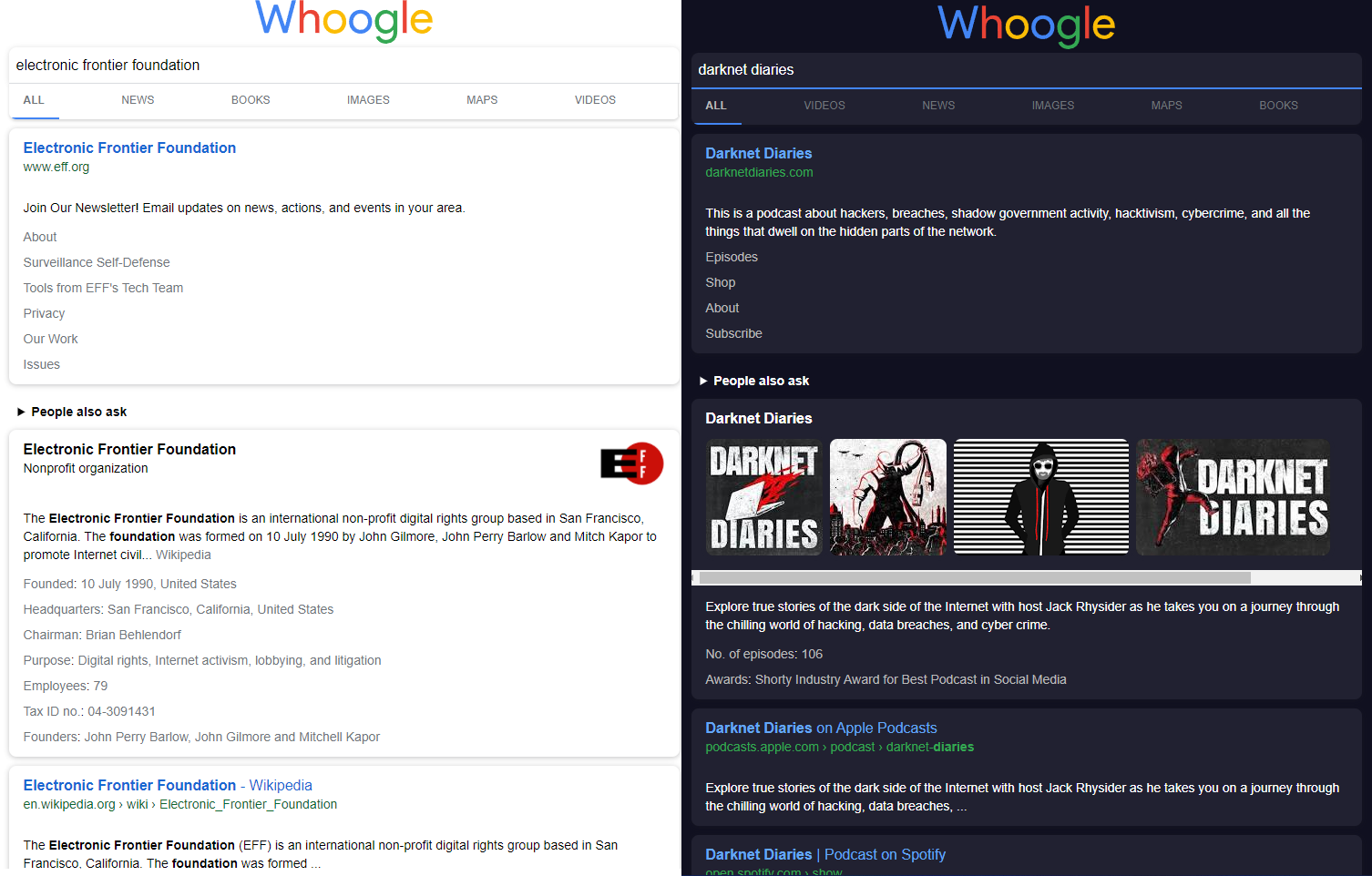
Desktop
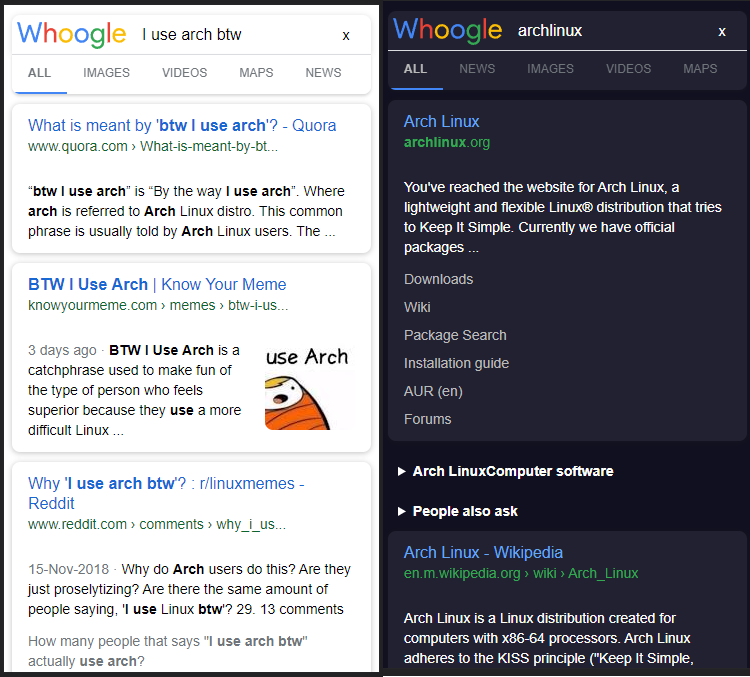
Mobile

 Whoogle 是一个可自行部署的元搜索引擎,它会抓取 Google 的搜索结果,并去除广告、JavaScript、AMP 链接、Cookie 和 IP 追踪。截至 2026 年 7 月,它已正式停止运行:Google 关闭了最后一种无需 JavaScript 即可获取结果的途径,因此该应用不再返回任何搜索结果。