






451 ·GitHub
What is this?
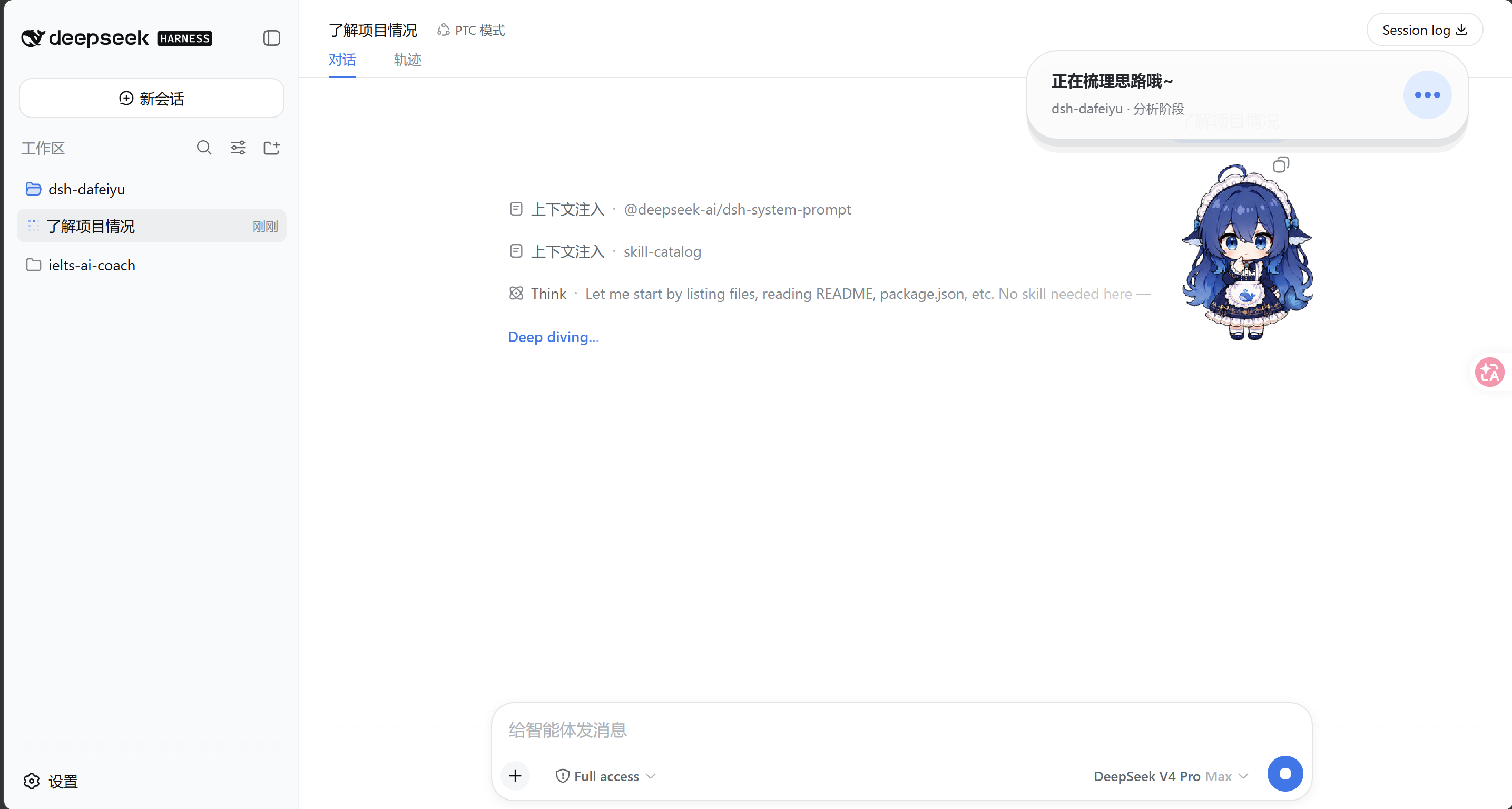
 DSH BigFish (大肥鱼) is a desktop companion character that lives on your screen and visually reflects the real-time working status of DeepSeek Harness (DSH) agent sessions - thinking, working, waiting, error or done - shown as an always-on-top transparent window.
DSH BigFish (大肥鱼) is a desktop companion character that lives on your screen and visually reflects the real-time working status of DeepSeek Harness (DSH) agent sessions - thinking, working, waiting, error or done - shown as an always-on-top transparent window.Is this a standalone desktop-pet app or does it need DSH installed?It is not a standalone desktop-pet app - it is a plugin enabled by DSH itself. It starts and exits together with the DSH Host process and only renders as a native overlay window; closing the browser tab does not close it.
It is not a standalone desktop-pet app - it is a plugin enabled by DSH itself. It starts and exits together with the DSH Host process and only renders as a native overlay window; closing the browser tab does not close it.What do I need before installing it?You need a working DeepSeek Harness WebUI already installed, with a CLI that supports the plugin --profile web command. Regular users don't need Python, PySide6, or Xcode - the Windows, Linux and macOS Helper binaries are already bundled inside the release package.
You need a working DeepSeek Harness WebUI already installed, with a CLI that supports the plugin --profile web command. Regular users don't need Python, PySide6, or Xcode - the Windows, Linux and macOS Helper binaries are already bundled inside the release package.Does it work the same way on every platform?No - Windows 10/11 and WSL2 are the primary targets, Linux desktop support requires glibc 2.35+ and has only been verified on Ubuntu 24.04, and macOS support (Apple Silicon or Intel, 12.0+) is explicitly experimental, shipped as an ad-hoc-signed build that isn't notarized.
No - Windows 10/11 and WSL2 are the primary targets, Linux desktop support requires glibc 2.35+ and has only been verified on Ubuntu 24.04, and macOS support (Apple Silicon or Intel, 12.0+) is explicitly experimental, shipped as an ad-hoc-signed build that isn't notarized.How does BigFish know what DSH is doing?It only reacts to DSH's own agent events - project name, current phase, active to-do, and real completion counts - it never watches VS Code, the browser, other windows, or takes screenshots.
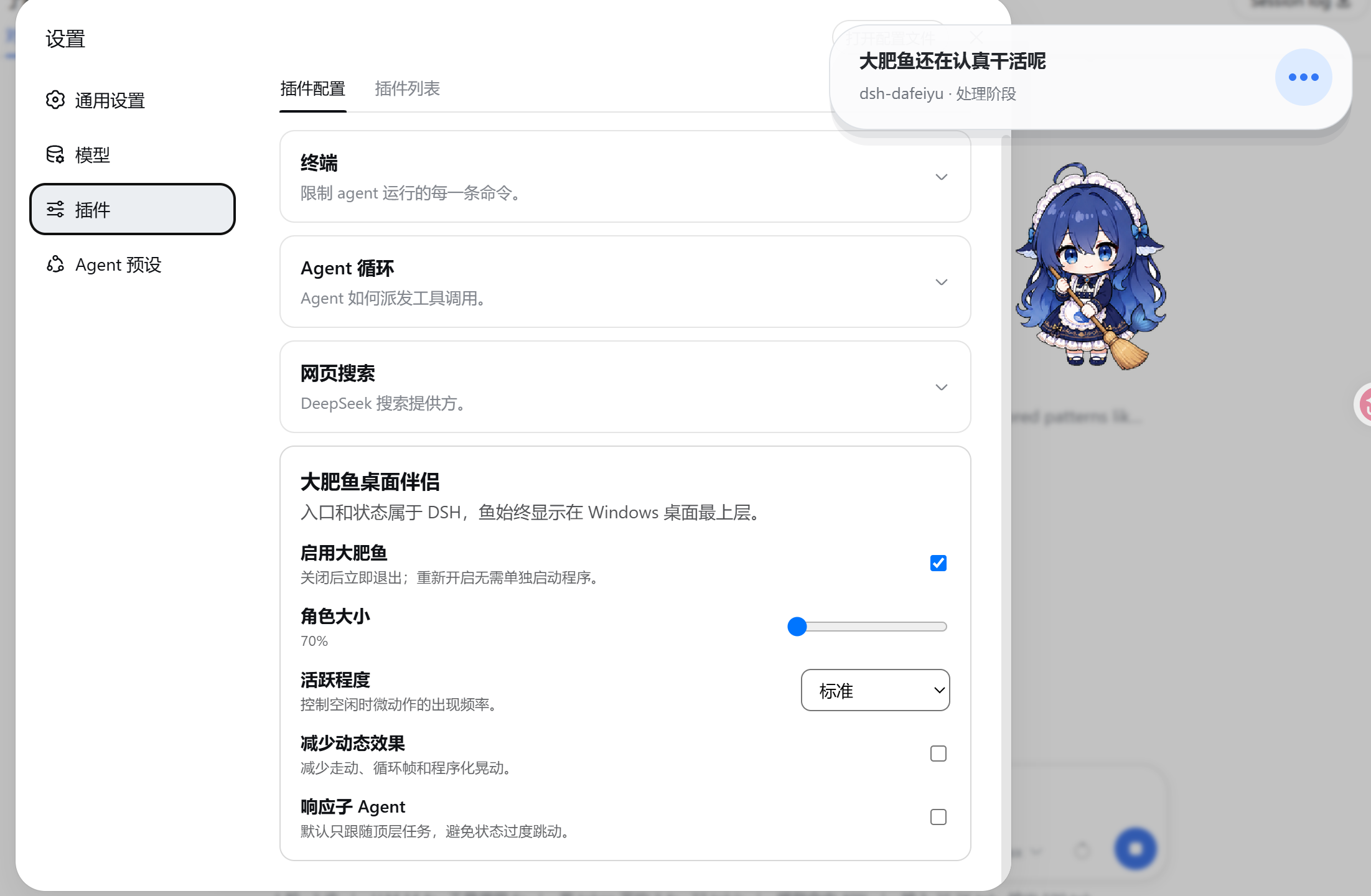
It only reacts to DSH's own agent events - project name, current phase, active to-do, and real completion counts - it never watches VS Code, the browser, other windows, or takes screenshots.What can I customize?Character size (55%-140%), status bubble size and visibility, idle-animation activity level, a 'reduce motion' mode, completion/error sound alerts, and whether sub-agent status affects priority; all settings are saved by DSH itself.
Character size (55%-140%), status bubble size and visibility, idle-animation activity level, a 'reduce motion' mode, completion/error sound alerts, and whether sub-agent status affects priority; all settings are saved by DSH itself.Why might macOS Gatekeeper block it?Only if you unzip the downloaded .app with Finder, which adds a quarantine flag. Installing via npm, downloading through the terminal, or running the .tgz installer directly never triggers Gatekeeper.
Only if you unzip the downloaded .app with Finder, which adds a quarantine flag. Installing via npm, downloading through the terminal, or running the .tgz installer directly never triggers Gatekeeper.What happens if I close the DSH browser tab?Nothing - BigFish is tied to the DSH Host process lifecycle, not the browser tab, so it keeps running on the desktop until DSH Host itself fully quits.
Nothing - BigFish is tied to the DSH Host process lifecycle, not the browser tab, so it keeps running on the desktop until DSH Host itself fully quits.What are similar projects?dsh_desktop, dsh-pet, deepseek-harness-desktop, Bigfish, dsh-tavern, pilot-harness, dsh-damage-pulse, dsh-plugin-agent-workflow
dsh_desktop, dsh-pet, deepseek-harness-desktop, Bigfish, dsh-tavern, pilot-harness, dsh-damage-pulse, dsh-plugin-agent-workflowWhich topics is it in?desktop-pet, dsh, dsh-plugin, deepseek-harness, apple-silicon, swift, deepseek, customization, monitoring, plugin, desktop, ai-agent
desktop-pet, dsh, dsh-plugin, deepseek-harness, apple-silicon, swift, deepseek, customization, monitoring, plugin, desktop, ai-agent