



kimi-cli README

The project's README from github.com/MoonshotAI/kimi-cli. As one markdown file: README.md.

Kimi CLI

Commit Activity Checks Version Downloads Ask DeepWiki

Kimi Code | Documentation | 文档

[!IMPORTANT] Kimi CLI is evolving into Kimi Code CLI — the next-generation terminal AI agent from the same team. Installing Kimi Code CLI automatically migrates your configuration and sessions. This project will be gradually wound down; the docs and existing installations remain available.

Kimi CLI is an AI agent that runs in the terminal, helping you complete software development tasks and terminal operations. It can read and edit code, execute shell commands, search and fetch web pages, and autonomously plan and adjust actions during execution.

Getting Started

See Getting Started for how to install and start using Kimi CLI.

Key Features

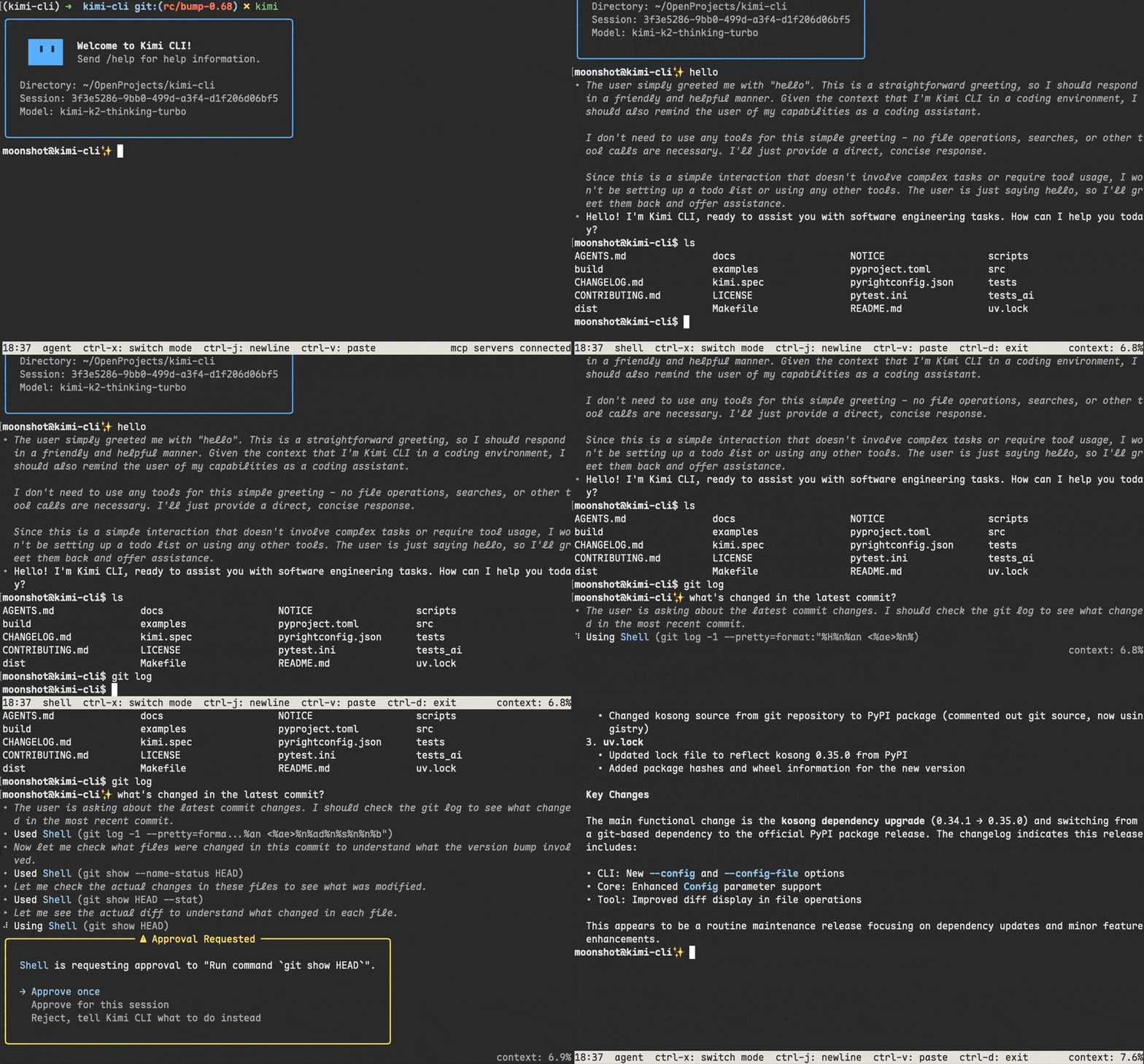
Shell command mode

Kimi CLI is not only a coding agent, but also a shell. You can switch the shell command mode by pressing Ctrl-X. In this mode, you can directly run shell commands without leaving Kimi CLI.

[!NOTE] Built-in shell commands like cd are not supported yet.

VS Code extension

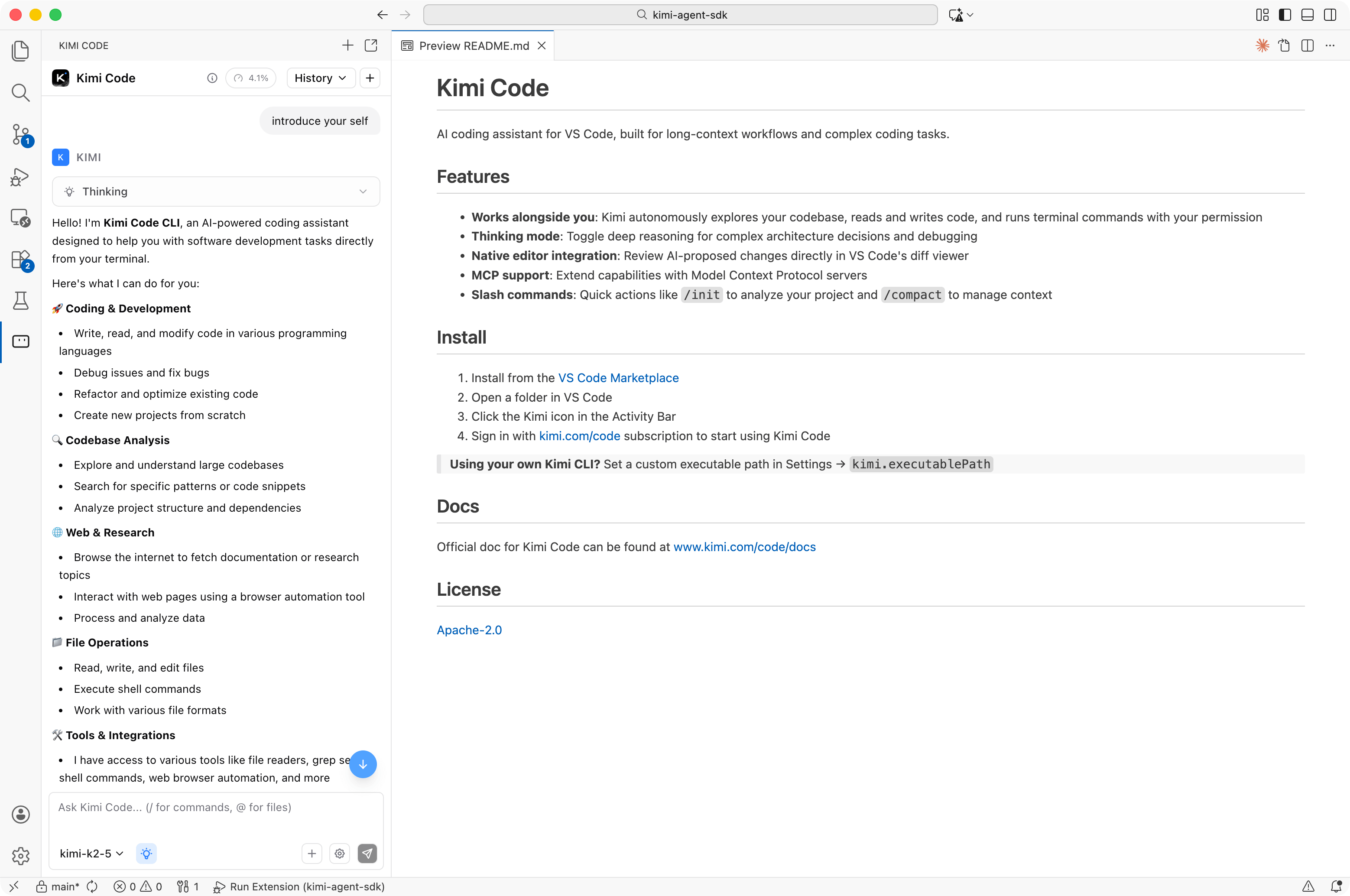
Kimi CLI can be integrated with Visual Studio Code via the Kimi Code VS Code Extension.

VS Code Extension

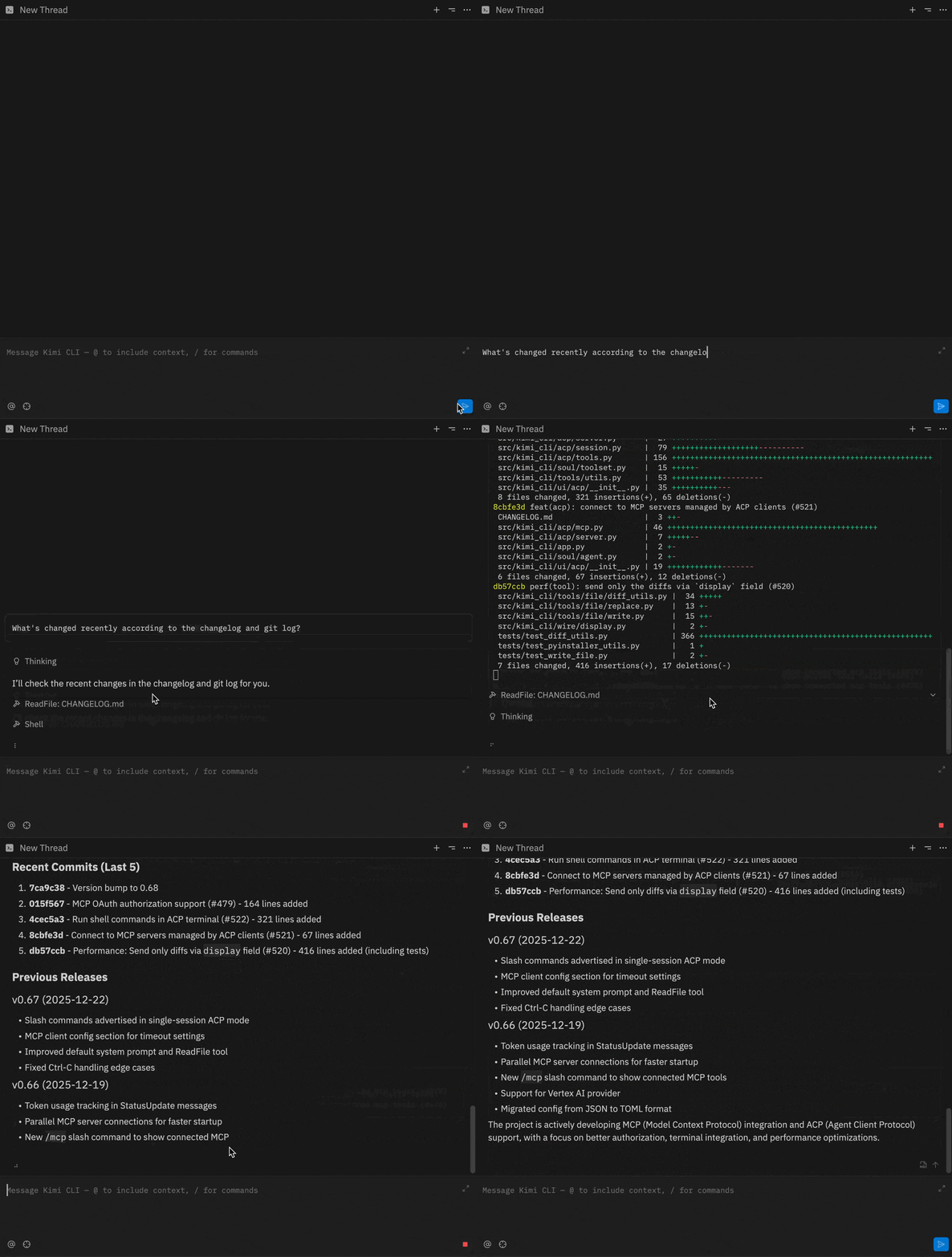
IDE integration via ACP

Kimi CLI supports Agent Client Protocol out of the box. You can use it together with any ACP-compatible editor or IDE.

To use Kimi CLI with ACP clients, make sure to run Kimi CLI in the terminal and send /login to complete the login first. Then, you can configure your ACP client to start Kimi CLI as an ACP agent server with command kimi acp.

For example, to use Kimi CLI with Zed or JetBrains, add the following configuration to your ~/.config/zed/settings.json or ~/.jetbrains/acp.json file:

{
  "agent_servers": {
    "Kimi CLI": {
      "type": "custom",
      "command": "kimi",
      "args": ["acp"],
      "env": {}
    }
  }
}

Then you can create Kimi CLI threads in IDE's agent panel.

Zsh integration

You can use Kimi CLI together with Zsh, to empower your shell experience with AI agent capabilities.

Install the zsh-kimi-cli plugin via:

git clone https://github.com/MoonshotAI/zsh-kimi-cli.git \
  ${ZSH_CUSTOM:-~/.oh-my-zsh/custom}/plugins/kimi-cli

[!NOTE] If you are using a plugin manager other than Oh My Zsh, you may need to refer to the plugin's README for installation instructions.

Then add kimi-cli to your Zsh plugin list in ~/.zshrc:

plugins=(... kimi-cli)

After restarting Zsh, you can switch to agent mode by pressing Ctrl-X.

MCP support

Kimi CLI supports MCP (Model Context Protocol) tools.

kimi mcp sub-command group

You can manage MCP servers with kimi mcp sub-command group. For example:

# Add streamable HTTP server:
kimi mcp add --transport http context7 https://mcp.context7.com/mcp --header "CONTEXT7_API_KEY: ctx7sk-your-key"

# Add streamable HTTP server with OAuth authorization:
kimi mcp add --transport http --auth oauth linear https://mcp.linear.app/mcp

# Add stdio server:
kimi mcp add --transport stdio chrome-devtools -- npx chrome-devtools-mcp@latest

# List added MCP servers:
kimi mcp list

# Remove an MCP server:
kimi mcp remove chrome-devtools

# Authorize an MCP server:
kimi mcp auth linear

Ad-hoc MCP configuration

Kimi CLI also supports ad-hoc MCP server configuration via CLI option.

Given an MCP config file in the well-known MCP config format like the following:

{
  "mcpServers": {
    "context7": {
      "url": "https://mcp.context7.com/mcp",
      "headers": {
        "CONTEXT7_API_KEY": "YOUR_API_KEY"
      }
    },
    "chrome-devtools": {
      "command": "npx",
      "args": ["-y", "chrome-devtools-mcp@latest"]
    }
  }
}

Run kimi with --mcp-config-file option to connect to the specified MCP servers:

kimi --mcp-config-file /path/to/mcp.json

More

See more features in the Documentation.

Development

To develop Kimi CLI, run:

git clone https://github.com/MoonshotAI/kimi-cli.git
cd kimi-cli

make prepare  # prepare the development environment

Then you can start working on Kimi CLI.

Refer to the following commands after you make changes:

uv run kimi  # run Kimi CLI

make format  # format code
make check  # run linting and type checking
make test  # run tests
make test-kimi-cli  # run Kimi CLI tests only
make test-kosong  # run kosong tests only
make test-pykaos  # run pykaos tests only
make build-web  # build the web UI and sync it into the package (requires Node.js/npm)
make build  # build python packages
make build-bin  # build standalone binary
make help  # show all make targets

Note: make build and make build-bin automatically run make build-web to embed the web UI.

kimi-cli (MoonshotAI/kimi-cli)

Searching Database…

11.4K ·GitHub
archived
这是什么?Kimi CLI 是一个运行在终端里的 AI 智能体,可以帮你阅读和编辑代码、执行 Shell 命令、搜索和抓取网页,并在完成软件开发任务的过程中自主规划和调整操作。
它是编程助手,还是能直接替代 Shell 的工具?两者都是。它是一个基于终端的编程智能体,同时也能当 Shell 用。你可以用 Ctrl-X 切换到 Shell 命令模式,无需离开 CLI 就能直接运行命令。
我该怎么让它运行起来?请按照项目的 Getting Started 文档完成安装和首次使用;README 本身没有直接列出安装命令。
使用它还需要额外安装别的东西吗?它是一个基于 Python 的命令行工具。如果要集成 Zsh,需要安装 zsh-kimi-cli 插件(通过 Oh My Zsh 或其他插件管理器安装)。MCP 服务器连接可以通过配置文件或命令行选项进行设置。
这个项目还在维护吗?不再维护。该仓库已归档,Kimi CLI 正在逐步停止,转由 Kimi Code CLI 接替。不过文档和已有的安装仍可使用,安装接替者后,配置会自动迁移。
它能在 Windows、macOS 和 Linux 上运行吗?CLI 本身没有明确说明。不过项目提供了跨平台的打包方式,其 Zsh 插件面向类 Unix 的 Shell,因此主要面向 macOS 和 Linux,同时也可以通过通用的命令行分发方式在 Windows 上使用。
我能在 IDE 里使用 Kimi CLI,而不用单独开终端吗?可以。它开箱即支持 Agent Client Protocol(ACP)。你可以在终端登录后,配置 Zed 或 JetBrains 以 ACP 智能体服务器的方式启动 Kimi CLI(即运行 kimi acp)。
有 VS Code 集成吗?有。Kimi CLI 通过专用的 Kimi Code VS Code Extension 与 VS Code 集成。
它支持 MCP 工具吗?支持。它支持 Model Context Protocol(MCP)服务器,可以通过 kimi mcp 子命令组进行管理,也可以通过 --mcp-config-file 选项临时指定 MCP 配置文件。
我应该用它来开始新项目吗?不建议。由于它已归档并即将被替代,新用户应直接使用 Kimi Code CLI。这是同一团队推出的、仍在积极维护的接替者。
Creator
MoonshotAI
Size
25.5 MB
Stars
11.4K
Age
1y
Commits · 90 Days