




What is this?
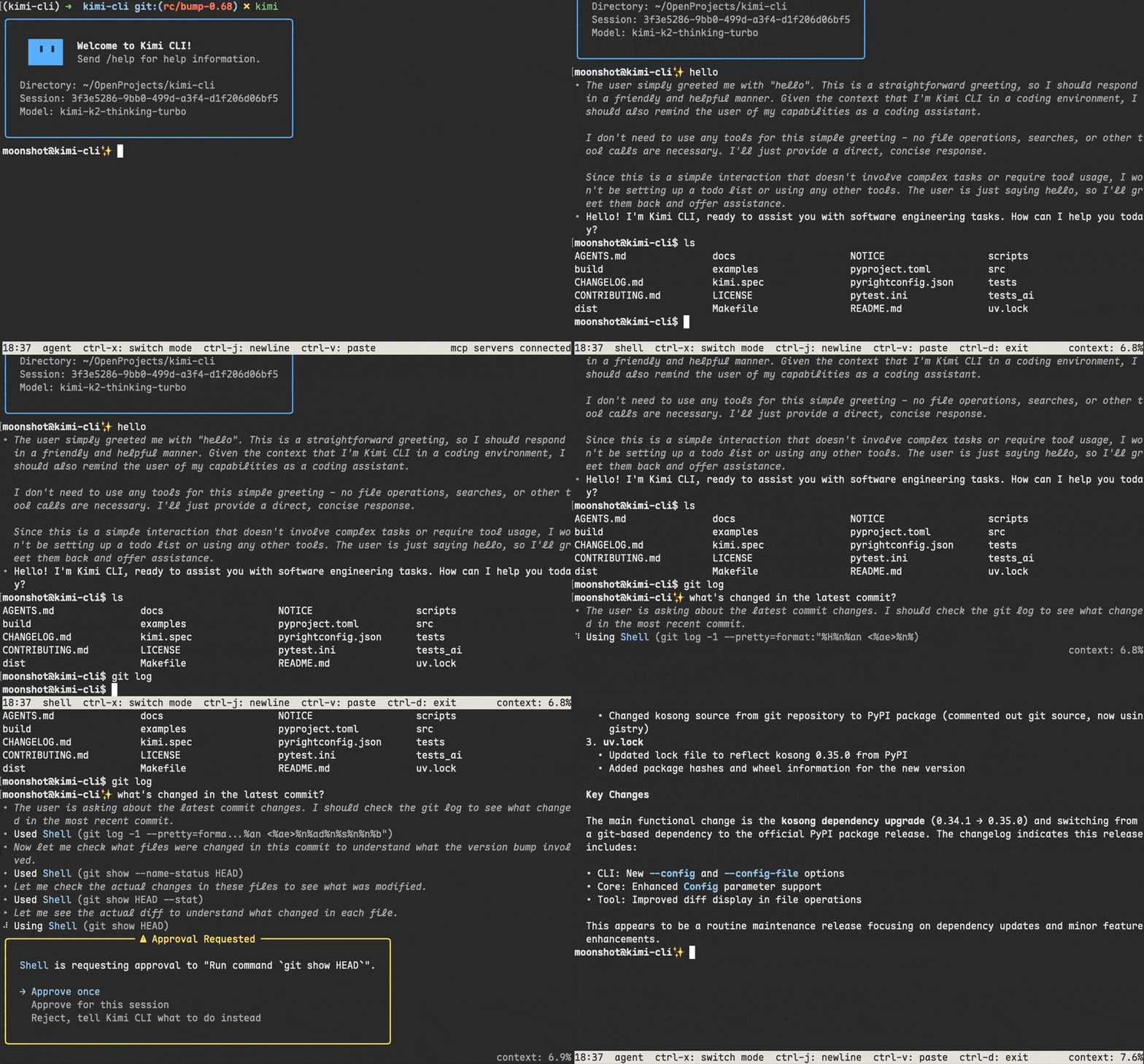
 Kimi CLI is an AI agent that runs in the terminal, helping you read and edit code, execute shell commands, search and fetch web pages, and autonomously plan and adjust actions while completing software development tasks.
Kimi CLI is an AI agent that runs in the terminal, helping you read and edit code, execute shell commands, search and fetch web pages, and autonomously plan and adjust actions while completing software development tasks.Is this a coding assistant or a full shell replacement?It is both: a terminal-based coding agent that also doubles as a shell, letting you switch into a shell command mode with Ctrl-X to run commands directly without leaving the CLI.
It is both: a terminal-based coding agent that also doubles as a shell, letting you switch into a shell command mode with Ctrl-X to run commands directly without leaving the CLI.How do I get it running?Follow the project's Getting Started documentation for installation and first use; the README itself does not list install commands directly.
Follow the project's Getting Started documentation for installation and first use; the README itself does not list install commands directly.Do I need anything else installed to use it?It's a Python-based CLI; for Zsh integration you install the zsh-kimi-cli plugin (via Oh My Zsh or another plugin manager), and MCP server connections can be configured via a config file or CLI option.
It's a Python-based CLI; for Zsh integration you install the zsh-kimi-cli plugin (via Oh My Zsh or another plugin manager), and MCP server connections can be configured via a config file or CLI option.Is this project still maintained?No — the repository is archived and Kimi CLI is being wound down in favor of Kimi Code CLI, though docs and existing installs remain available and configs migrate automatically when you install the successor.
No — the repository is archived and Kimi CLI is being wound down in favor of Kimi Code CLI, though docs and existing installs remain available and configs migrate automatically when you install the successor.Does it work on Windows, macOS, and Linux?Not explicitly stated for the CLI itself, but the project ships cross-platform packaging and its Zsh plugin targets Unix-like shells, implying macOS and Linux as primary targets alongside Windows via general CLI distribution.
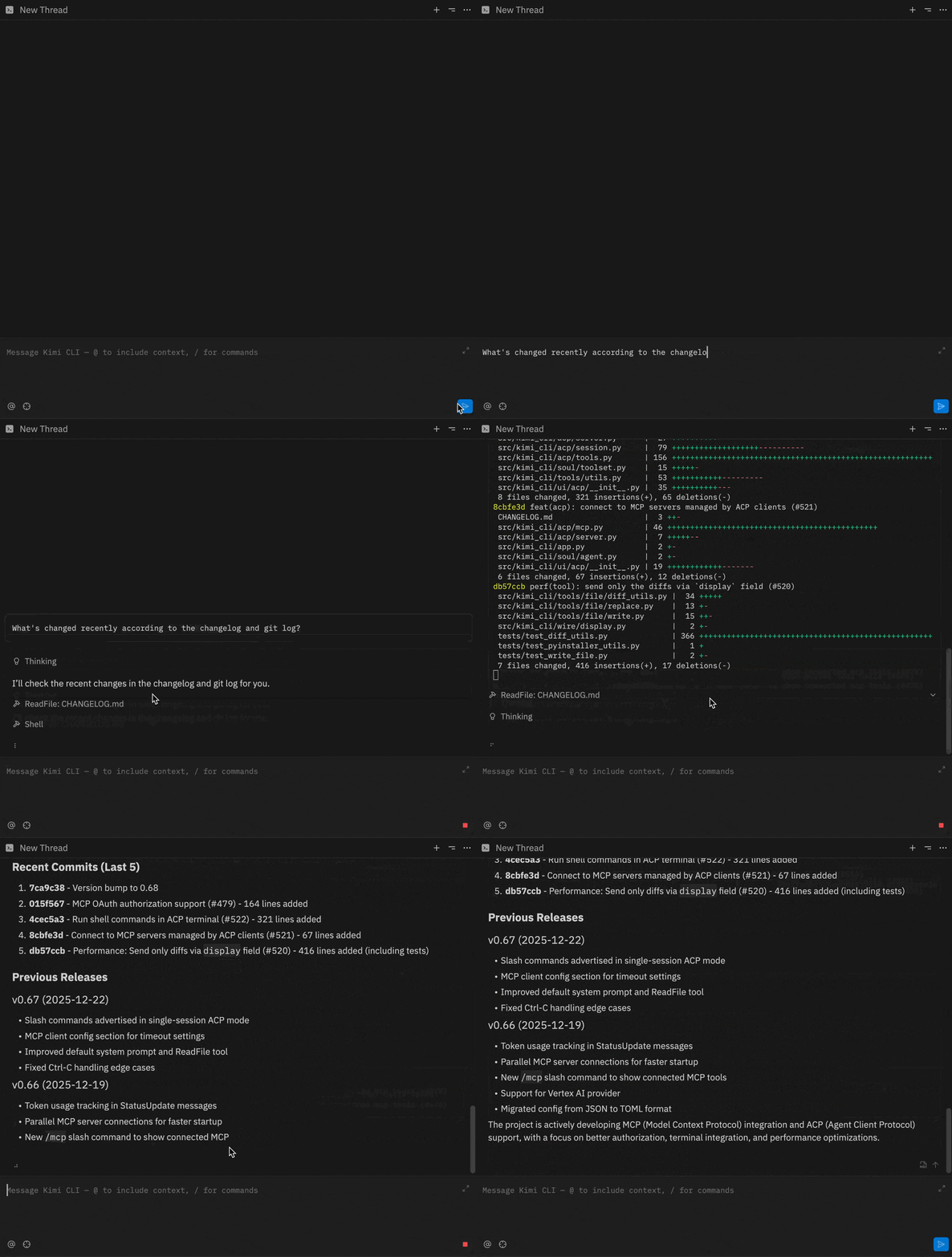
Not explicitly stated for the CLI itself, but the project ships cross-platform packaging and its Zsh plugin targets Unix-like shells, implying macOS and Linux as primary targets alongside Windows via general CLI distribution.Can I use Kimi CLI inside my IDE instead of a separate terminal?Yes, it supports the Agent Client Protocol (ACP) out of the box, so you can configure Zed or JetBrains to start Kimi CLI as an ACP agent server (kimi acp) after logging in via the terminal.
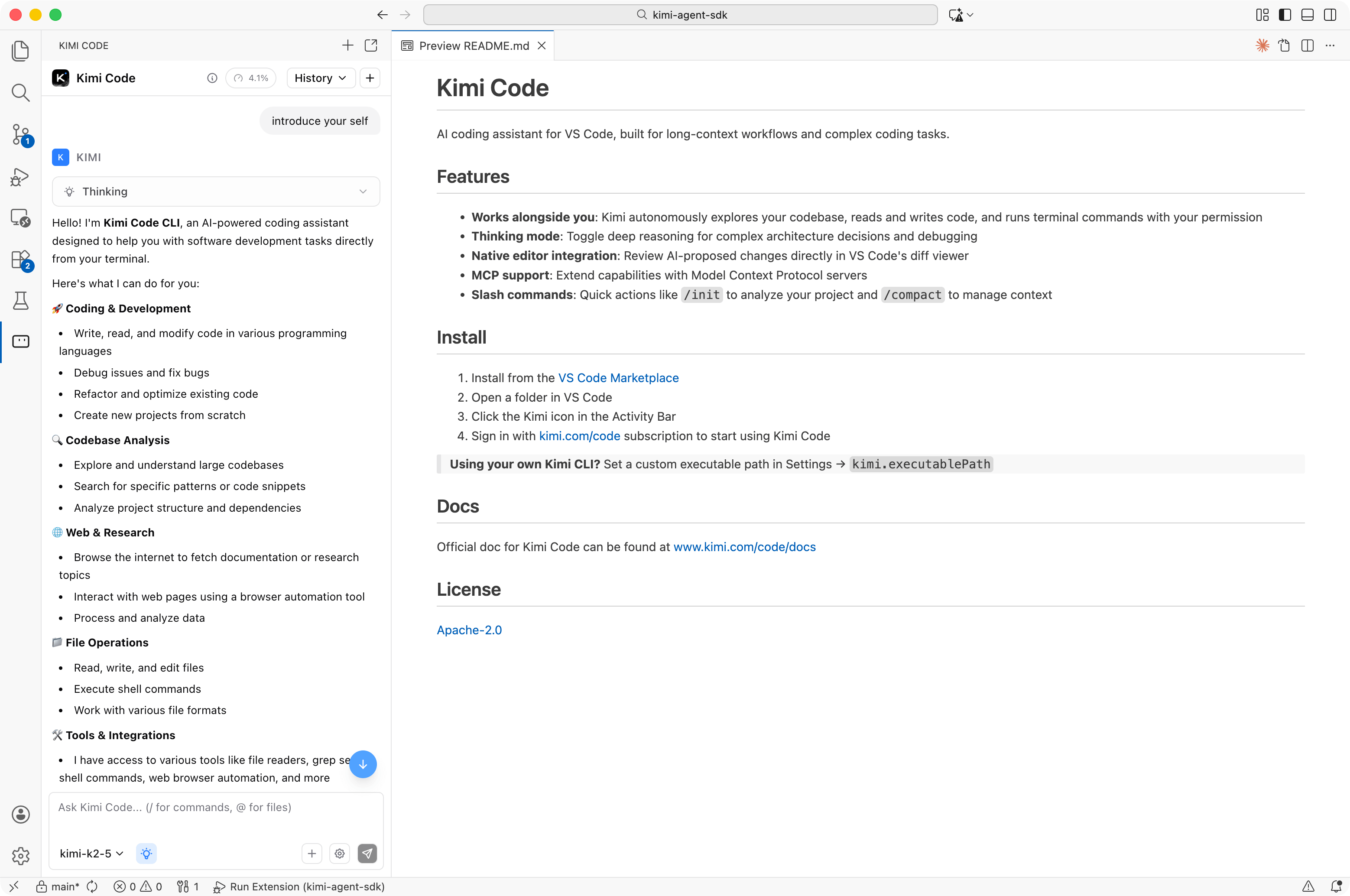
Yes, it supports the Agent Client Protocol (ACP) out of the box, so you can configure Zed or JetBrains to start Kimi CLI as an ACP agent server (kimi acp) after logging in via the terminal.Is there a VS Code integration?Yes, Kimi CLI integrates with VS Code through the dedicated Kimi Code VS Code Extension.
Yes, Kimi CLI integrates with VS Code through the dedicated Kimi Code VS Code Extension.Does it support MCP tools?Yes, it supports Model Context Protocol servers, managed via the kimi mcp sub-command group or ad-hoc via an MCP config file with the --mcp-config-file option.
Yes, it supports Model Context Protocol servers, managed via the kimi mcp sub-command group or ad-hoc via an MCP config file with the --mcp-config-file option.Should I start a new project with this?No — since it's archived and being replaced, new users should go straight to Kimi Code CLI, the actively maintained successor from the same team.
No — since it's archived and being replaced, new users should go straight to Kimi Code CLI, the actively maintained successor from the same team.What are similar projects?headroom, graphicle, gemini-cli, Benzi, trae-agent, DeepSeek-Reasonix, coral, void
headroom, graphicle, gemini-cli, Benzi, trae-agent, DeepSeek-Reasonix, coral, voidWhich topics is it in?agent-client-protocol, web-search, zsh, vscode-extension, vscode, model-context-protocol, deprecated, mcp-server, coding-agent, command-line-tool, agent, mcp
agent-client-protocol, web-search, zsh, vscode-extension, vscode, model-context-protocol, deprecated, mcp-server, coding-agent, command-line-tool, agent, mcp