F1 Race Replay 🏎️ 🏁
A Python application for visualizing Formula 1 race telemetry and replaying race events with interactive controls and a graphical interface.
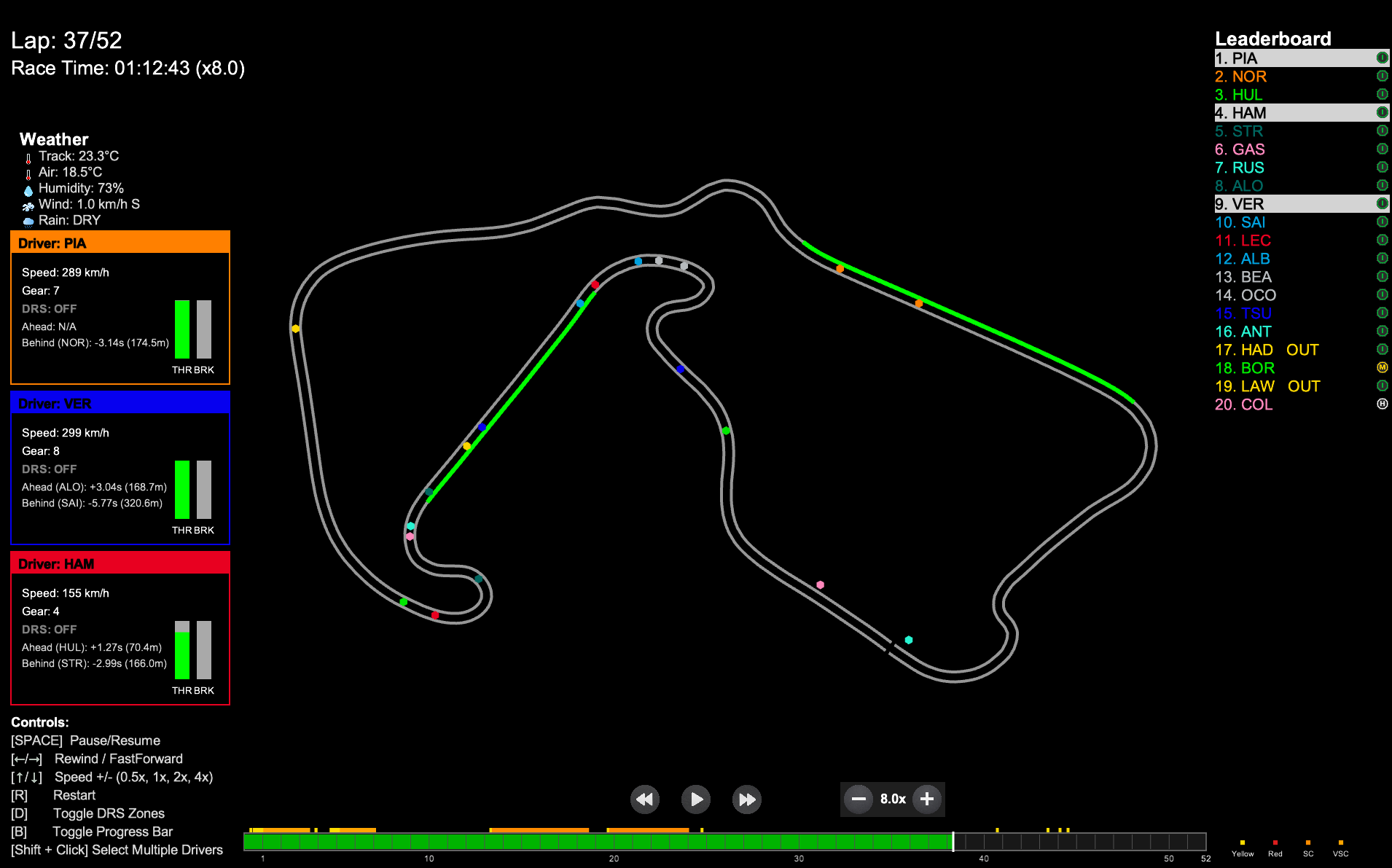
HUGE NEWS: The telemetry stream feature is now in a usable state. See the telemetry demo documentation for access instructions, data format details, and usage ideas.
Features
- Race Replay Visualization: Watch the race unfold with real-time driver positions on a rendered track.
- Safety Car Visualization: See the Safety Car deploy from pit lane, lead the field, and return to pits — with animated transitions and pulsing glow effects.
- Insights Menu: Floating menu for quick access to telemetry analysis tools (launches automatically with replay).
- Leaderboard: See live driver positions and current tyre compounds.
- Lap & Time Display: Track the current lap and total race time.
- Driver Status: Drivers who retire or go out are marked as "OUT" on the leaderboard.
- Interactive Controls: Pause, rewind, fast forward, and adjust playback speed using on-screen buttons or keyboard shortcuts.
- Legend: On-screen legend explains all controls.
- Driver Telemetry Insights: View speed, gear, DRS status, and current lap for selected drivers when selected on the leaderboard.
Controls
- Pause/Resume: SPACE or Pause button
- Rewind/Fast Forward: ← / → or Rewind/Fast Forward buttons
- Playback Speed: ↑ / ↓ or Speed button (cycles through 0.5x, 1x, 2x, 4x)
- Set Speed Directly: Keys 1–4
- Restart: R to restart replay
- Toggle DRS Zone: D to hide/show DRS Zone
- Toggle Progress Bar: B to hide/show progress bar
- Toggle Driver Names: L to hide/show driver names on track
- Select driver/drivers: Click to select driver or shift click to select multiple drivers
Safety Car
The replay includes a simulated Safety Car that appears on track whenever the F1 data indicates a Safety Car deployment (track status code 4). Since the F1 API does not provide GPS telemetry for the actual Safety Car, its position is simulated based on the race leader's position.
How it works
- Data source: The Safety Car deployment timing comes from the real F1 track status data via FastF1 (
session.track_status).
- Position simulation: The SC is placed ~500 meters ahead of the race leader on the track reference polyline. This approximates where the real SC would be relative to the field.
- Three animation phases:
- Deploying — The SC animates from the pit lane onto the track over ~3 seconds, with a pulsing glow and "SC DEPLOYING" label.
- On Track — The SC drives ahead of the leader with a steady amber glow and "SC" label.
- Returning — The SC animates back to the pit lane over ~3 seconds, with a fading pulsing glow and "SC IN" label.
- Visual appearance: The SC is drawn as a larger orange/amber circle (8px radius vs 6px for regular cars) with an orange outline ring and always-visible "SC" label.
Technical details
The SC position computation happens in _compute_safety_car_positions() in src/f1_data.py. Each frame gets a safety_car field:
{
  "safety_car": {
    "x": 1234.56,
    "y": 7890.12,
    "phase": "on_track",
    "alpha": 1.0
  }
}
| Field |
Description |
x, y |
World coordinates of the SC |
phase |
"deploying", "on_track", or "returning" |
alpha |
Opacity value from 0.0 (invisible) to 1.0 (fully visible), used for fade in/out animation |
Note: If you have existing cached .pkl files from previous runs, you must re-run with --refresh-data to generate SC position data. Older cached files will simply show no Safety Car.
Qualifying Session Support (in development)
Recently added support for Qualifying session replays with telemetry visualization including speed, gear, throttle, and brake over the lap distance. This feature is still being refined.
Requirements
Install dependencies:
pip install -r requirements.txt
FastF1 cache folder will be created automatically on first run. If it is not created, you can manually create a folder named .fastf1-cache in the project root
First Run Notice: Loading a session for the first time may take noticeably longer because telemetry data must be downloaded, processed, and cached locally. Subsequent launches of the same session are significantly faster..
Environment Setup
To get started with this project locally, you can follow these steps:
Clone the Repository:
git clone https://github.com/IAmTomShaw/f1-race-replay
 cd f1-race-replay
Create a Virtual Environment:
This process differs based on your operating system.
Install Dependencies:
pip install -r requirements.txt
Run the Application:
You can now run the application using the instructions in the Usage section below.
Troubleshooting
If the pull data proccess fails, run:
pip install --upgrade fastf1
Usage
DEFAULT GUI MENU: To use the new GUI menu system, you can simply run:
python main.py
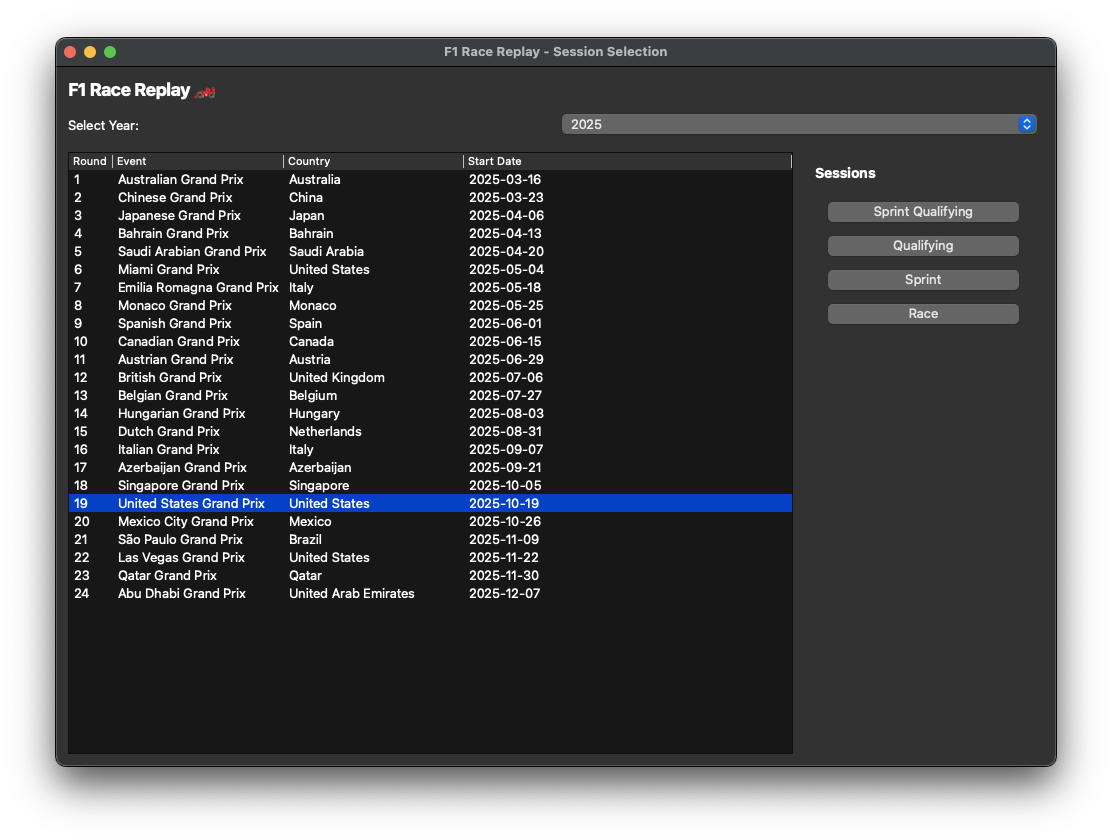
This will open a graphical interface where you can select the year and round of the race weekend you want to replay. This is still a new feature, so please report any issues you encounter.
OPTIONAL CLI MENU: To use the CLI menu system, you can simply run:
python main.py --cli
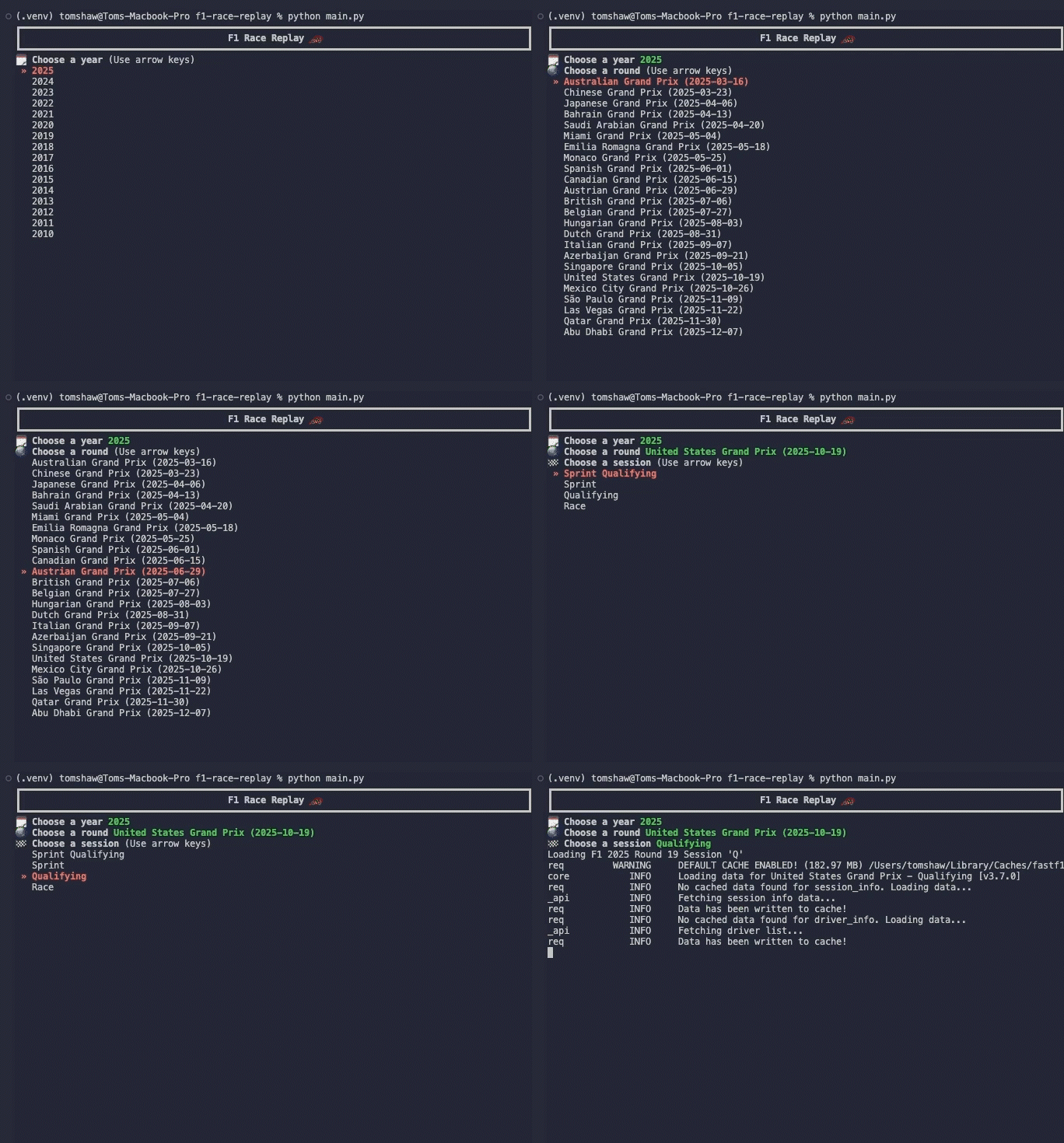
This will prompt you with series of questions and a list of options to make your choice from using the arrow keys and enter key.
If you would already know the year and round number of the session you would like to watch, you run the commands directly as follows:
Run the main script and specify the year and round:
python main.py --viewer --year 2025 --round 12
To run without HUD:
python main.py --viewer --year 2025 --round 12 --no-hud
To run a Sprint session (if the event has one), add --sprint:
python main.py --viewer --year 2025 --round 12 --sprint
The application will load a pre-computed telemetry dataset if you have run it before for the same event. To force re-computation of telemetry data, use the --refresh-data flag:
python main.py --viewer --year 2025 --round 12 --refresh-data
Qualifying Session Replay
To run a Qualifying session replay, use the --qualifying flag:
python main.py --viewer --year 2025 --round 12 --qualifying
To run a Sprint Qualifying session (if the event has one), add --sprint:
python main.py --viewer --year 2025 --round 12 --qualifying --sprint
File Structure
f1-race-replay/
├── main.py                    # Entry point, handles session loading and starts the replay
├── requirements.txt           # Python dependencies
├── README.md                  # Project documentation
├── roadmap.md                 # Planned features and project vision
├── resources/
│   └── preview.png           # Race replay preview image
├── src/
│   ├── f1_data.py            # Telemetry loading, processing, frame generation & SC position simulation
│   ├── arcade_replay.py      # Visualization and UI logic
│   └── ui_components.py      # UI components like buttons and leaderboard
│   ├── interfaces/
│   │   └── qualifying.py     # Qualifying session interface and telemetry visualization
│   │   └── race_replay.py    # Race replay interface, SC rendering & telemetry visualization
│   └── lib/
│       └── tyres.py          # Type definitions for telemetry data structures
│       └── time.py           # Time formatting utilities
└── .fastf1-cache/            # FastF1 cache folder (created automatically upon first run)
└── computed_data/            # Computed telemetry data (created automatically upon first run)
Building Custom Telemetry Windows
When you start a race replay, an Insights Menu automatically appears, providing quick access to various telemetry analysis tools. You can easily create custom insight windows that receive live telemetry data using the PitWallWindow base class:
from src.gui.pit_wall_window import PitWallWindow

class MyInsightWindow(PitWallWindow):
    def setup_ui(self):
        # Create your custom UI
        pass

    def on_telemetry_data(self, data):
        # Process telemetry data
        pass
The PitWallWindow base class handles all telemetry stream connection logic automatically, allowing you to focus solely on your window's functionality.
Key Features:
- Automatic connection to telemetry stream
- Built-in status bar with connection state
- Proper cleanup on window close
- Simple API - just implement
setup_ui() and on_telemetry_data()
Documentation & Examples:
- See docs/PitWallWindow.md for complete guide
- See docs/InsightsMenu.md for adding insights to the menu
- Run the example:
python -m src.gui.example_pit_wall_window
- Test the menu:
python -m src.gui.insights_menu
Customization
- Change track width, colors, and UI layout in
src/arcade_replay.py.
- Adjust telemetry processing in
src/f1_data.py.
- Create custom telemetry windows using
PitWallWindow base class (see above).
Contributing
There have been several contributions from the community that have helped enhance this project. I have added a contributors.md file to acknowledge those who have contributed features and improvements.
If you would like to contribute, feel free to:
- Open pull requests for UI improvements or new features.
- Report issues on GitHub.
Please see roadmap.md for planned features and project vision.
Known Issues
- If you are using a
conda environment, you might need to install a few extra packages if you get this error:
arcade.application.NoOpenGLException: Unable to create an OpenGL 3.3+ context. Check to make sure your system supports OpenGL 3.3 or higher
You can easily fix this by running this command:
$ conda install -c conda-forge libstdcxx-ng
Thanks to @el-mandaloriano for showing how to resolve this issue: #12
- The leaderboard appears to be inaccurate for the first few corners of the race. The leaderboard is also temporarily affected by a driver going in the pits. At the end of the race, the leaderboard is sometimes affected by the drivers' final x,y positions being further ahead than other drivers. These are known issues caused by inaccuracies in the telemetry and are being worked on for future releases. It's likely that these issues will be fixed in stages as improving the leaderboard accuracy is a complex task.
📝 License
This project is licensed under the MIT License.
⚠️ Disclaimer
No copyright infringement intended. Formula 1 and related trademarks are the property of their respective owners. All data used is sourced from publicly available APIs and is used for educational and non-commercial purposes only.
Built with ❤️ by Tom Shaw

 F1 Race Replay 是一款 Python 桌面应用,可以可视化真实的一级方程式赛车遥测数据,并通过带有动画效果的交互式赛道视图回放比赛事件。