6.8K ·GitHub
Что это такое?
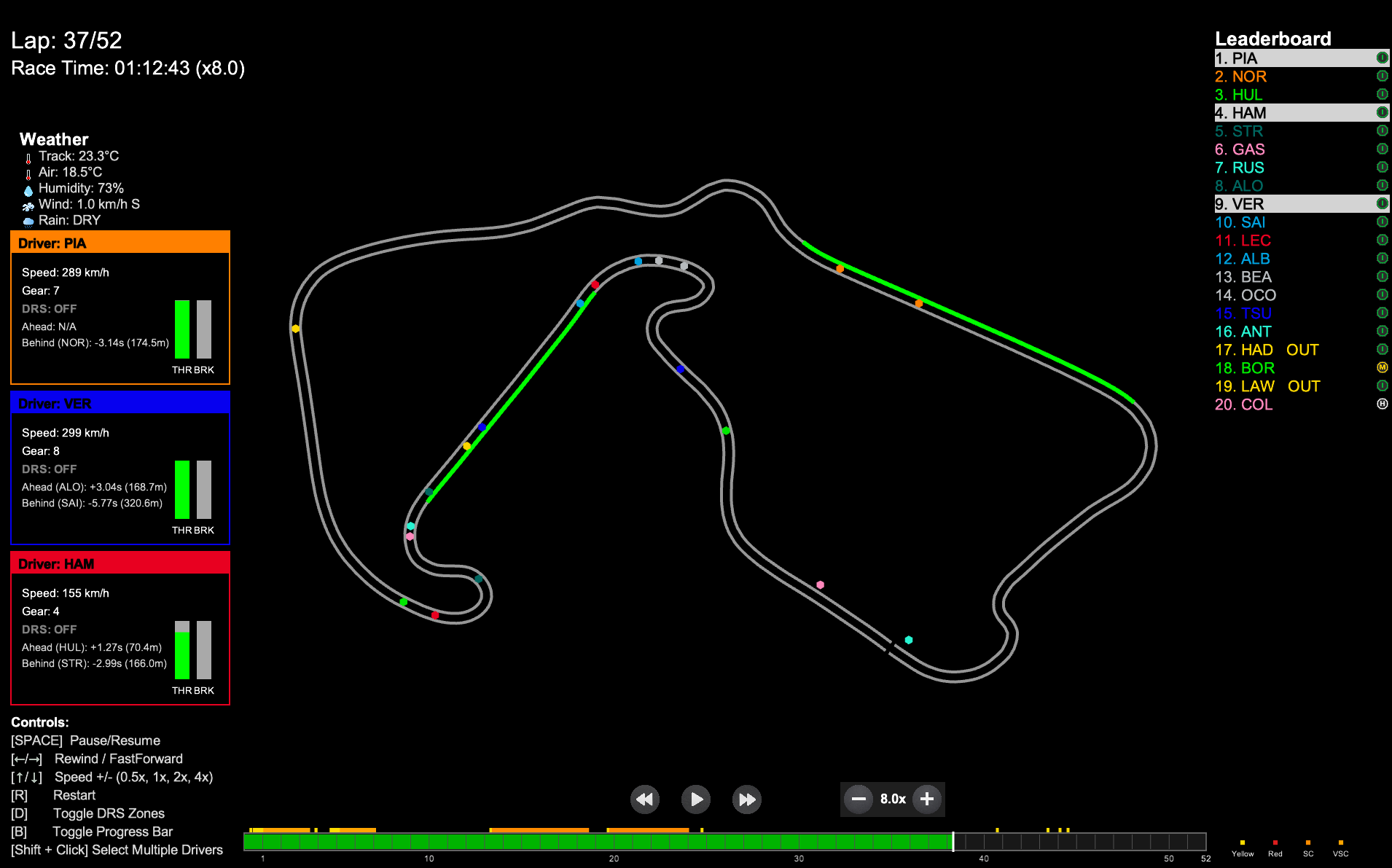
 F1 Race Replay — это настольное приложение на Python, которое визуализирует реальную телеметрию гонок Формулы 1 и позволяет воспроизводить события гонки на интерактивной анимированной карте трассы.
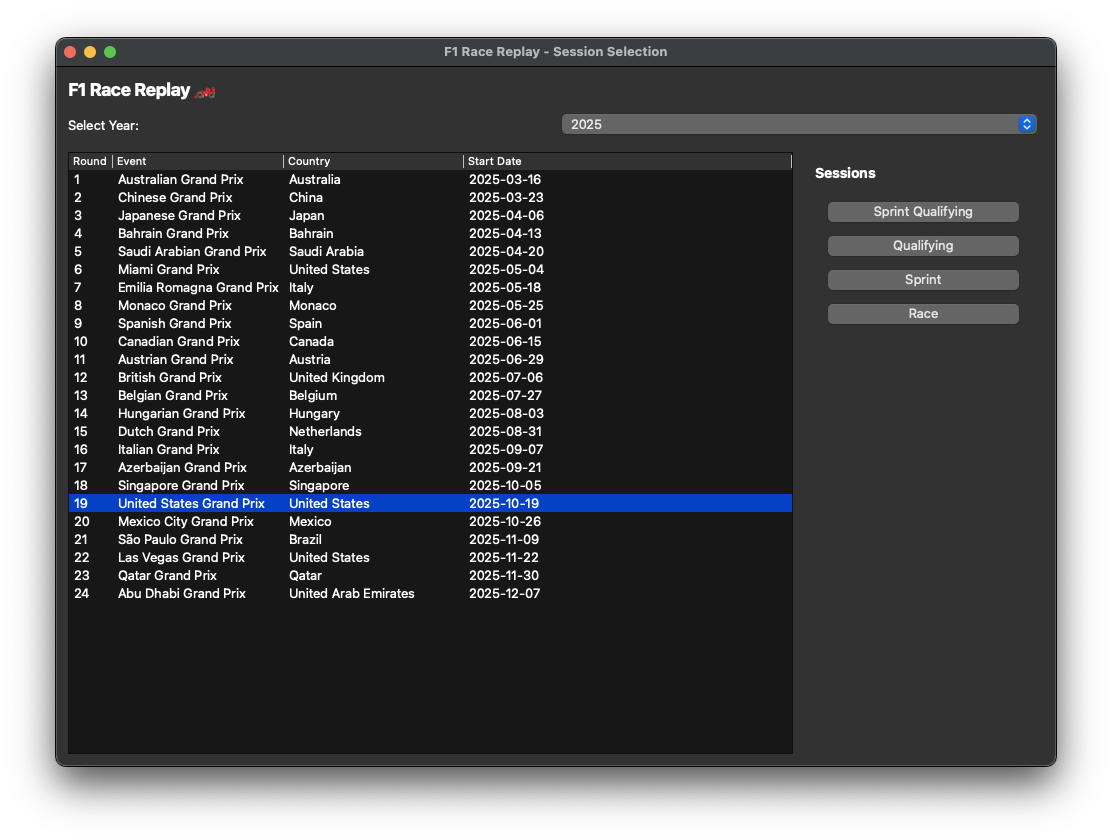
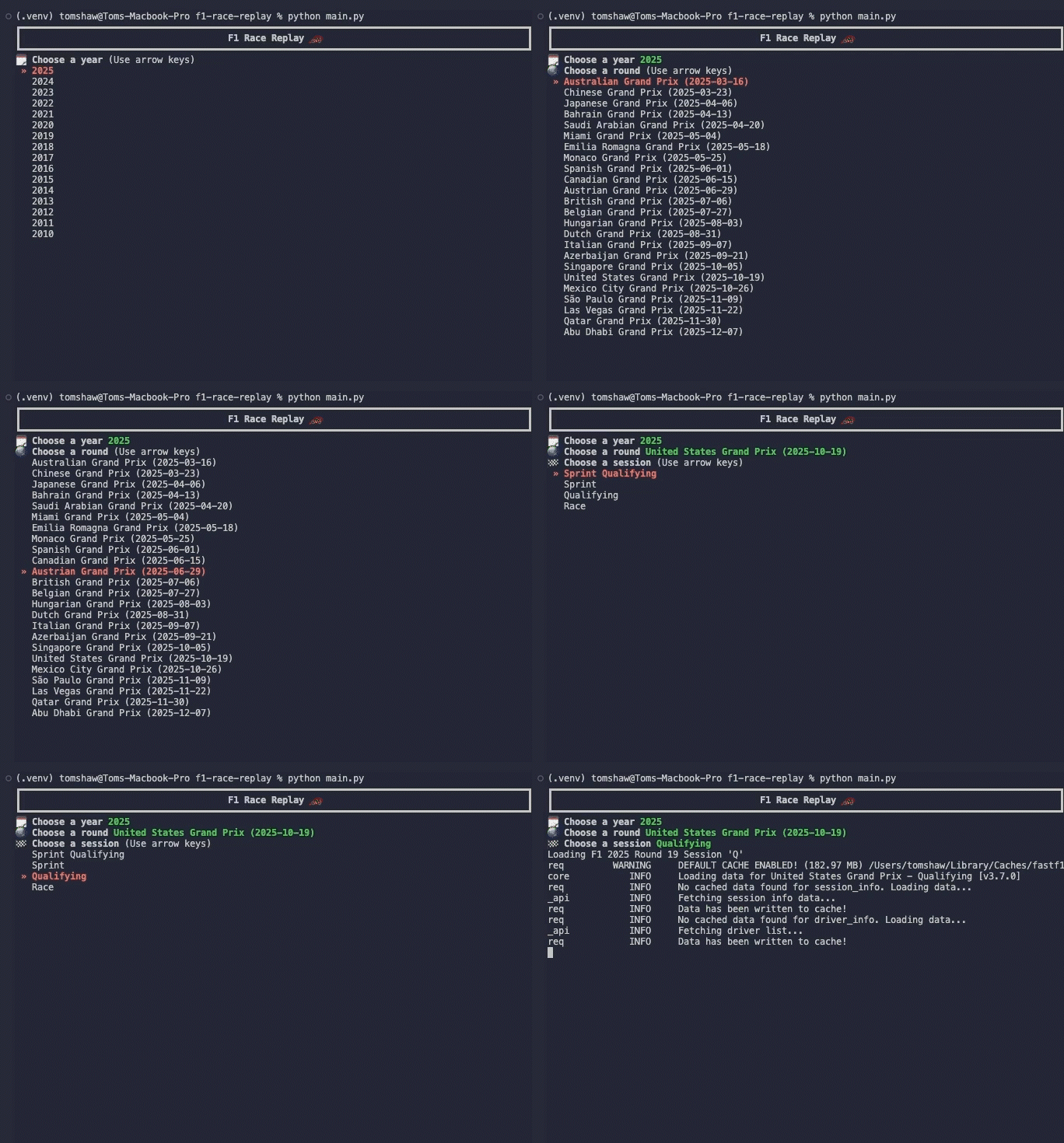
F1 Race Replay — это настольное приложение на Python, которое визуализирует реальную телеметрию гонок Формулы 1 и позволяет воспроизводить события гонки на интерактивной анимированной карте трассы.Это приложение с графическим интерфейсом или просто CLI-скрипт?Это настольное приложение с графическим интерфейсом, созданное на основе игровой библиотеки Arcade, though также предлагает необязательное текстовое меню CLI для выбора сессии для воспроизведения.
Это настольное приложение с графическим интерфейсом, созданное на основе игровой библиотеки Arcade, though также предлагает необязательное текстовое меню CLI для выбора сессии для воспроизведения.Как его запустить?Клонируйте репозиторий, создайте виртуальное окружение (шаги немного отличаются для macOS/Linux и Windows), установите зависимости, затем запустите меню GUI или передайте --year и --round напрямую основному скрипту.
Клонируйте репозиторий, создайте виртуальное окружение (шаги немного отличаются для macOS/Linux и Windows), установите зависимости, затем запустите меню GUI или передайте --year и --round напрямую основному скрипту.Что нужно установить в первую очередь?Нужен Python 3.11+ и библиотеки FastF1, Arcade и numpy; FastF1 также создаёт локальную папку кэша при первом запуске для хранения загруженной телеметрии.
Нужен Python 3.11+ и библиотеки FastF1, Arcade и numpy; FastF1 также создаёт локальную папку кэша при первом запуске для хранения загруженной телеметрии.Таблица лидеров всегда точная?Нет — таблица лидеров может ошибаться на первых поворотах, во время пит-стопов и на финише из-за неточностей в расчёте позиций пилотов по телеметрии; команда всё ещё работает над исправлением этого.
Нет — таблица лидеров может ошибаться на первых поворотах, во время пит-стопов и на финише из-за неточностей в расчёте позиций пилотов по телеметрии; команда всё ещё работает над исправлением этого.Нужен ли Apple Silicon или что-то особенное?Нет, приложение работает на macOS, Linux и Windows; единственный шаг, зависящий от оборудования, — первый запуск любой гонки, который медленнее, потому что телеметрию нужно загрузить и закэшировать.
Нет, приложение работает на macOS, Linux и Windows; единственный шаг, зависящий от оборудования, — первый запуск любой гонки, который медленнее, потому что телеметрию нужно загрузить и закэшировать.Как Safety Car отображается в повторах, если F1 не передаёт его GPS-данные?Его положение симулируется примерно в 500 метрах впереди лидера гонки по ломаной трассы, с анимированными фазами выезда, движения по трассе и возврата, а также пульсирующим оранжевым свечением; данные основаны на реальных таймингах Safety Car из данных статуса трассы FastF1.
Его положение симулируется примерно в 500 метрах впереди лидера гонки по ломаной трассы, с анимированными фазами выезда, движения по трассе и возврата, а также пульсирующим оранжевым свечением; данные основаны на реальных таймингах Safety Car из данных статуса трассы FastF1.Можно ли смотреть и квалификации, а не только гонки?Да, есть поддержка повторов квалификации (и спринт-квалификации) в разработке: скорость, передача, газ и тормоз по дистанции круга; включается флагом --qualifying.
Да, есть поддержка повторов квалификации (и спринт-квалификации) в разработке: скорость, передача, газ и тормоз по дистанции круга; включается флагом --qualifying.Можно ли создать собственные виджеты телеметрии?Да, можно наследоваться от базового класса PitWallWindow, который автоматически управляет подключением к телеметрии в реальном времени и очисткой ресурсов, так что нужно реализовать только setupui() и ontelemetrydata().
Да, можно наследоваться от базового класса PitWallWindow, который автоматически управляет подключением к телеметрии в реальном времени и очисткой ресурсов, так что нужно реализовать только setupui() и ontelemetrydata().Какие клавиши управляют воспроизведением?ПРОБЕЛ — пауза/продолжение, стрелки перематывают назад/вперёд и меняют скорость, клавиши 1–4 переключают на заранее заданные скорости, R — перезапуск, а D/B/L включают и выключают зону DRS, полосу прогресса и имена пилотов.
ПРОБЕЛ — пауза/продолжение, стрелки перематывают назад/вперёд и меняют скорость, клавиши 1–4 переключают на заранее заданные скорости, R — перезапуск, а D/B/L включают и выключают зону DRS, полосу прогресса и имена пилотов.What are similar projects?live-panel-skill, Gource, hypoarena, word_cloud, ninjatracing, vistep, duckdb, miller
live-panel-skill, Gource, hypoarena, word_cloud, ninjatracing, vistep, duckdb, millerWhich topics is it in?simulation, analytics, visualization, data-visualization, data-science, animation, gui, education, desktop-app, terminal, tool, cli
simulation, analytics, visualization, data-visualization, data-science, animation, gui, education, desktop-app, terminal, tool, cli