
Hero is a library for building iOS view controller transitions. It provides a declarative layer on top of the UIKit's cumbersome transition APIs—making custom transitions an easy task for developers.







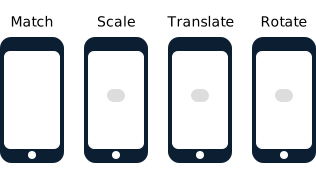
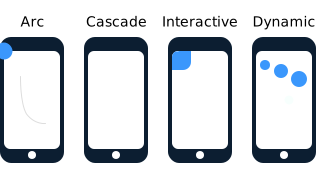
Hero is similar to Keynote's Magic Move. It checks the heroID property on all source and destination views. Every matched view pair is then automatically transitioned from its old state to its new state.
Hero can also construct animations for unmatched views. It is easy to define these animations via the heroModifiers property. Hero will run these animations alongside the Magic Move animations. All of these animations can be interactively controlled by user gestures.
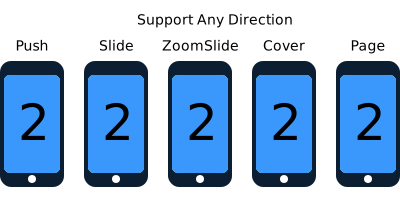
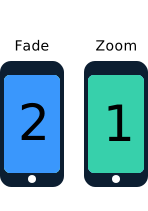
At view controller level, Hero provides several template transitions that you can set through heroModalAnimationType, heroNavigationAnimationType, and heroTabBarAnimationType. These can be used as the foundation of your custom transitions. Combine with heroID & heroModifiers to make your own unique transitions.
By default, Hero provides dynamic duration based on the Material Design Motion Guide. Duration is automatically determined by changes to distance and size—saving you the hassle, while providing consistent and delightful animations.
Hero doesn't make any assumptions about how the view is built or structured. It won't modify any of your views' states other than hiding them during the animation. This makes it work with Auto Layout, programmatic layout, UICollectionView (without modifying its layout object), UITableView, UINavigationController, UITabBarController, etc...
Usage Example 1

View Controller 1
redView.hero.id = "ironMan"
blackView.hero.id = "batMan"
View Controller 2
self.hero.isEnabled = true
redView.hero.id = "ironMan"
blackView.hero.id = "batMan"
whiteView.hero.modifiers = [.translate(y:100)]
Usage Example 2
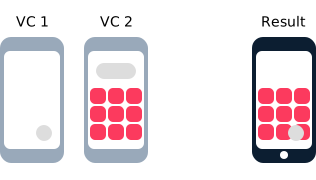
View Controller 1
greyView.hero.id = "skyWalker"
View Controller 2
self.hero.isEnabled = true
greyView.hero.id = "skyWalker"

// collectionView is the parent view of all red cells
collectionView.hero.modifiers = [.cascade]
for cell in redCells {
    cell.hero.modifiers = [.fade, .scale(0.5)]
}
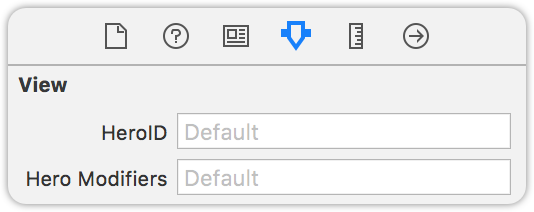
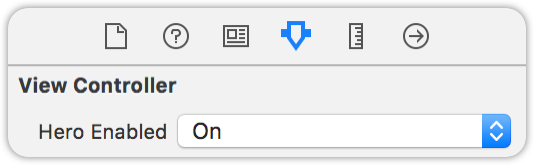
You can do these in the storyboard too!
Installation
CocoaPods
Add the following entry to your Podfile:
pod 'Hero'
Then run pod install.
Don't forget to import Hero in every file you'd like to use Hero.
Carthage
Add the following entry to your Cartfile:
github "HeroTransitions/Hero"
Then run carthage update.
If this is your first time using Carthage in the project, you'll need to go through some additional steps as explained over at Carthage.
Accio
Add the following to your Package.swift:
.package(url: "https://github.com/HeroTransitions/Hero.git", .upToNextMajor(from: "1.4.0")),
Next, add Hero to your App targets dependencies like so:
.target(
    name: "App",
    dependencies: [
        "Hero",
    ]
),
Then run accio update.
Swift Package Manager
To integrate using Apple's Swift package manager, add the following as a dependency to your Package.swift:
.package(url: "https://github.com/HeroTransitions/Hero.git", .upToNextMajor(from: "1.3.0"))
and then specify "Hero" as a dependency of the Target in which you wish to use Hero.
Here's an example PackageDescription:
// swift-tools-version:4.0
import PackageDescription

let package = Package(
    name: "MyPackage",
    products: [
        .library(
            name: "MyPackage",
            targets: ["MyPackage"]),
    ],
    dependencies: [
        .package(url: "https://github.com/HeroTransitions/Hero.git", .upToNextMajor(from: "1.6.3"))
    ],
    targets: [
        .target(
            name: "MyPackage",
            dependencies: ["Hero"])
    ]
)
Manually
- Drag the Sources folder anywhere in your project.
Documentations
Checkout the WIKI PAGES (Usage Guide) for documentations.
For more up-to-date ones, please see the header-doc. (use alt+click in Xcode)
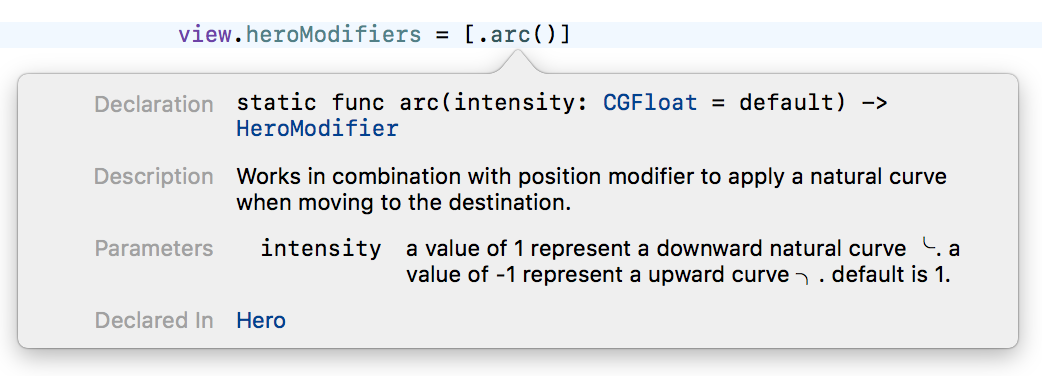
Dash compatible API docs: https://HeroTransitions.github.io/Hero/
Interactive Transition Tutorials
Interactive transitions with Hero (Part 1)
FAQ
Not able to use Hero transition even when self.hero.isEnabled is set to true
Make sure that you have also enabled self.hero.isEnabled on the navigation controller if you are doing a push/pop inside the navigation controller.
Views being covered by another matched view during the transition
Matched views use global coordinate space while unmatched views use local coordinate space by default. Local coordinate spaced views might be covered by other global coordinate spaced views. To solve this, use the useGlobalCoordinateSpace modifier on the views being covered. Checkout Coordinate Space Wiki page for details.
Push animation is shown along side my custom animation
This is the default animation for navigation controller provided by Hero. To disable the push animation, set self.hero.navigationAnimationType to .fade or .none on the navigation controller.
How do I use a different default animation when dismissing
You can use the animation type .selectBy(presenting:dismissing) to specify a different default animation for dismiss.
For example:
self.hero.modalAnimationType = .selectBy(presenting:.zoom, dismissing:.zoomOut)
Contribute
We welcome any contributions. Please read the Contribution Guide.

 Hero 是一个用于构建 iOS 视图控制器转场动画的 Swift 库——它在 UIKit 那套繁琐的转场 API 之上提供了一层声明式封装,让自定义转场变得简单。