







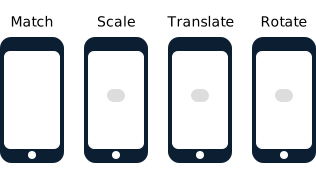
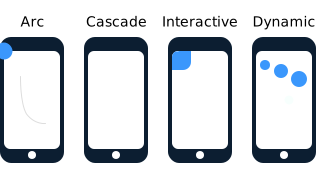
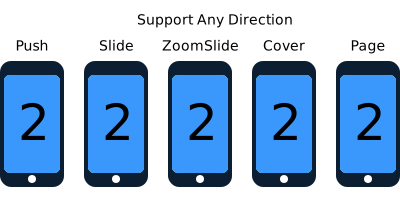
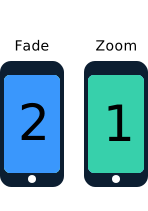

Что это такое?
 Hero — это Swift-библиотека для создания переходов между экранами (view controller) в iOS — декларативная надстройка над громоздкими API переходов UIKit, которая сильно упрощает создание собственных анимаций переходов.
Hero — это Swift-библиотека для создания переходов между экранами (view controller) в iOS — декларативная надстройка над громоздкими API переходов UIKit, которая сильно упрощает создание собственных анимаций переходов.То есть это не приложение — как оно встраивается в мой проект?Это библиотека: вы добавляете её как зависимость в свой Xcode-проект, а затем пишете import Hero в каждом файле, где хотите объявлять или использовать переходы.
Это библиотека: вы добавляете её как зависимость в свой Xcode-проект, а затем пишете import Hero в каждом файле, где хотите объявлять или использовать переходы.Как добавить её в свой проект?Пять способов: CocoaPods (добавьте Hero в Podfile, затем pod install), Carthage (Cartfile, затем carthage update), Accio, Swift Package Manager или вручную перетащите папку Sources в свой проект.
Пять способов: CocoaPods (добавьте Hero в Podfile, затем pod install), Carthage (Cartfile, затем carthage update), Accio, Swift Package Manager или вручную перетащите папку Sources в свой проект.Она самодостаточная или тянет за собой другие зависимости?Она самодостаточная: сторонних зависимостей нет — это просто надстройка над UIKit, так что всё, что нужно, — это Xcode-проект под iOS или tvOS.
Она самодостаточная: сторонних зависимостей нет — это просто надстройка над UIKit, так что всё, что нужно, — это Xcode-проект под iOS или tvOS.Есть ли подводные камни, о которых стоит знать?Для push/pop внутри навигационного контроллера нужно также включить hero.isEnabled на этом navigation controller, а стандартная анимация push у Hero может проигрываться вместе с вашей — задайте navigationAnimationType значение .fade или .none, чтобы её отключить.
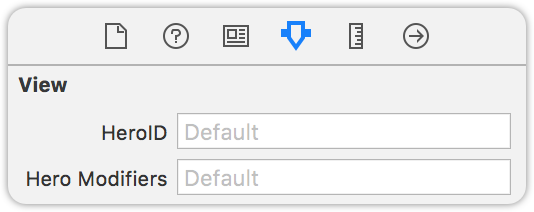
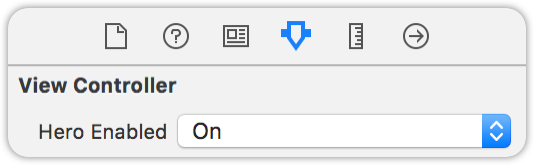
Для push/pop внутри навигационного контроллера нужно также включить hero.isEnabled на этом navigation controller, а стандартная анимация push у Hero может проигрываться вместе с вашей — задайте navigationAnimationType значение .fade или .none, чтобы её отключить.Всё это нужно писать в коде или можно настроить переходы в storyboards?Можно и в storyboard — примеры использования из README работают как в виде кода, так и в storyboard.
Можно и в storyboard — примеры использования из README работают как в виде кода, так и в storyboard.Работает ли это за пределами iOS — на macOS, Android, в вебе?Нет — библиотека рассчитана на iOS и tvOS. Поскольку она оборачивает API переходов UIKit, она подходит только для мобильных и ТВ-платформ Apple.
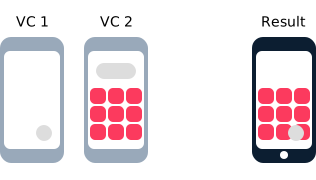
Нет — библиотека рассчитана на iOS и tvOS. Поскольку она оборачивает API переходов UIKit, она подходит только для мобильных и ТВ-платформ Apple.Как работают совпадающие представления (matched views), когда переход происходит между двумя экранами?Представления, которые должны «переехать» с одного экрана на другой, сопоставляются между двумя view controllers. По умолчанию совпадающие представления анимируются в глобальном пространстве координат, поэтому обычные (локальные) представления могут оказаться перекрытыми — чтобы это исправить, примените к перекрываемым представлениям модификатор useGlobalCoordinateSpace.
Представления, которые должны «переехать» с одного экрана на другой, сопоставляются между двумя view controllers. По умолчанию совпадающие представления анимируются в глобальном пространстве координат, поэтому обычные (локальные) представления могут оказаться перекрытыми — чтобы это исправить, примените к перекрываемым представлениям модификатор useGlobalCoordinateSpace.Может ли анимация закрытия отличаться от анимации открытия?Да — используйте тип анимации .selectBy(presenting:dismissing), чтобы задать разную анимацию по умолчанию для закрытия и для открытия.
Да — используйте тип анимации .selectBy(presenting:dismissing), чтобы задать разную анимацию по умолчанию для закрытия и для открытия.Hero до сих пор поддерживается?Похоже, что да: репозиторий не архивирован, в нём работают CI-процессы на сборку, тесты и линтинг, проект развивается с 2016 года и собрал более 22 тысяч звёзд на GitHub.
Похоже, что да: репозиторий не архивирован, в нём работают CI-процессы на сборку, тесты и линтинг, проект развивается с 2016 года и собрал более 22 тысяч звёзд на GitHub.What are similar projects?lottie-ios, NVActivityIndicatorView, SVProgressHUD, SkeletonView, SwiftyJSON, FSCalendar, SnapKit, Alamofire
lottie-ios, NVActivityIndicatorView, SVProgressHUD, SkeletonView, SwiftyJSON, FSCalendar, SnapKit, AlamofireWhich topics is it in?ios-swift, ios-animation, animations, carthage, layout, tvos, cocoapods, material-design, xcode, apple, swift, animation
ios-swift, ios-animation, animations, carthage, layout, tvos, cocoapods, material-design, xcode, apple, swift, animation