








What is this?
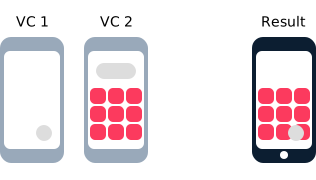
 Hero is a Swift library for building iOS view controller transitions — a declarative layer on top of UIKit's cumbersome transition APIs that makes custom transitions easy.
Hero is a Swift library for building iOS view controller transitions — a declarative layer on top of UIKit's cumbersome transition APIs that makes custom transitions easy.So it's not an app — how does it fit into my project?It's a library: you add it as a dependency to your Xcode project, then import Hero in every file where you want to declare or use transitions.
It's a library: you add it as a dependency to your Xcode project, then import Hero in every file where you want to declare or use transitions.How do I add it to my project?Five ways: CocoaPods (add Hero to your Podfile, then pod install), Carthage (Cartfile, then carthage update), Accio, Swift Package Manager, or manually drag the Sources folder into your project.
Five ways: CocoaPods (add Hero to your Podfile, then pod install), Carthage (Cartfile, then carthage update), Accio, Swift Package Manager, or manually drag the Sources folder into your project.Is it self-contained, or does it pull in other dependencies?It's self-contained: no third-party dependencies are listed — just a layer over UIKit, so all you need is an iOS or tvOS Xcode project.
It's self-contained: no third-party dependencies are listed — just a layer over UIKit, so all you need is an iOS or tvOS Xcode project.Are there any gotchas I should know about?For push/pop inside a navigation controller you must also enable hero.isEnabled on that navigation controller, and Hero's default push animation can play alongside yours — set navigationAnimationType to .fade or .none to disable it.
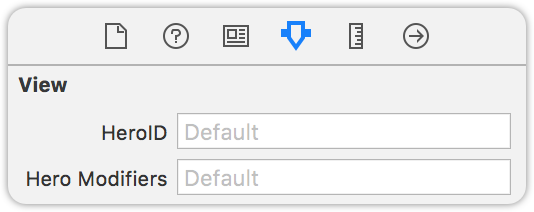
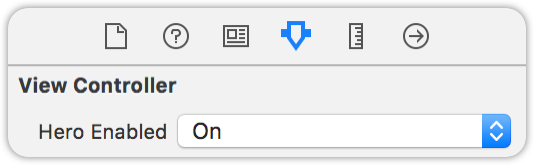
For push/pop inside a navigation controller you must also enable hero.isEnabled on that navigation controller, and Hero's default push animation can play alongside yours — set navigationAnimationType to .fade or .none to disable it.Do I have to write all of this in code, or can I set transitions up in storyboards?You can do it in the storyboard too — the README's usage examples work in both code and storyboard form.
You can do it in the storyboard too — the README's usage examples work in both code and storyboard form.Does it work outside iOS — macOS, Android, the web?No — it targets iOS and tvOS. Since it wraps UIKit's transition APIs, it's for Apple's mobile and TV platforms only.
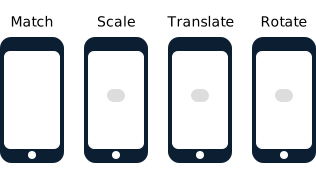
No — it targets iOS and tvOS. Since it wraps UIKit's transition APIs, it's for Apple's mobile and TV platforms only.How do matched views work when a transition runs between two screens?Views you want to carry over are matched between the two view controllers. Matched views animate in the global coordinate space by default, so unmatched local-space views can end up covered — apply the useGlobalCoordinateSpace modifier to the covered views to fix that.
Views you want to carry over are matched between the two view controllers. Matched views animate in the global coordinate space by default, so unmatched local-space views can end up covered — apply the useGlobalCoordinateSpace modifier to the covered views to fix that.Can the dismiss animation differ from the present animation?Yes — use the .selectBy(presenting:dismissing) animation type to specify a different default animation for dismissing than for presenting.
Yes — use the .selectBy(presenting:dismissing) animation type to specify a different default animation for dismissing than for presenting.Is Hero still maintained?It looks healthy: the repository isn't archived, runs CI workflows for build, test and lint, has been developed since 2016 and has 22k+ GitHub stars.
It looks healthy: the repository isn't archived, runs CI workflows for build, test and lint, has been developed since 2016 and has 22k+ GitHub stars.What are similar projects?lottie-ios, NVActivityIndicatorView, SVProgressHUD, SkeletonView, SwiftyJSON, FSCalendar, SnapKit, Alamofire
lottie-ios, NVActivityIndicatorView, SVProgressHUD, SkeletonView, SwiftyJSON, FSCalendar, SnapKit, AlamofireWhich topics is it in?ios-swift, ios-animation, animations, carthage, layout, tvos, cocoapods, material-design, xcode, apple, swift, animation
ios-swift, ios-animation, animations, carthage, layout, tvos, cocoapods, material-design, xcode, apple, swift, animation