Streaming RealTime Demo
English | 简体中文
This browser demo generates talking-head video in real time. Animate an image using uploaded audio or a live microphone, dub a source video while preserving its pose and timing, or connect a chat agent for interactive speech-driven animation. Preset habit IDs let you switch between speaking styles without a reference video.
On an NVIDIA RTX 3090, the demo achieves 30+ FPS generation throughput while using less than 12 GB of GPU memory, with high-clarity facial details.
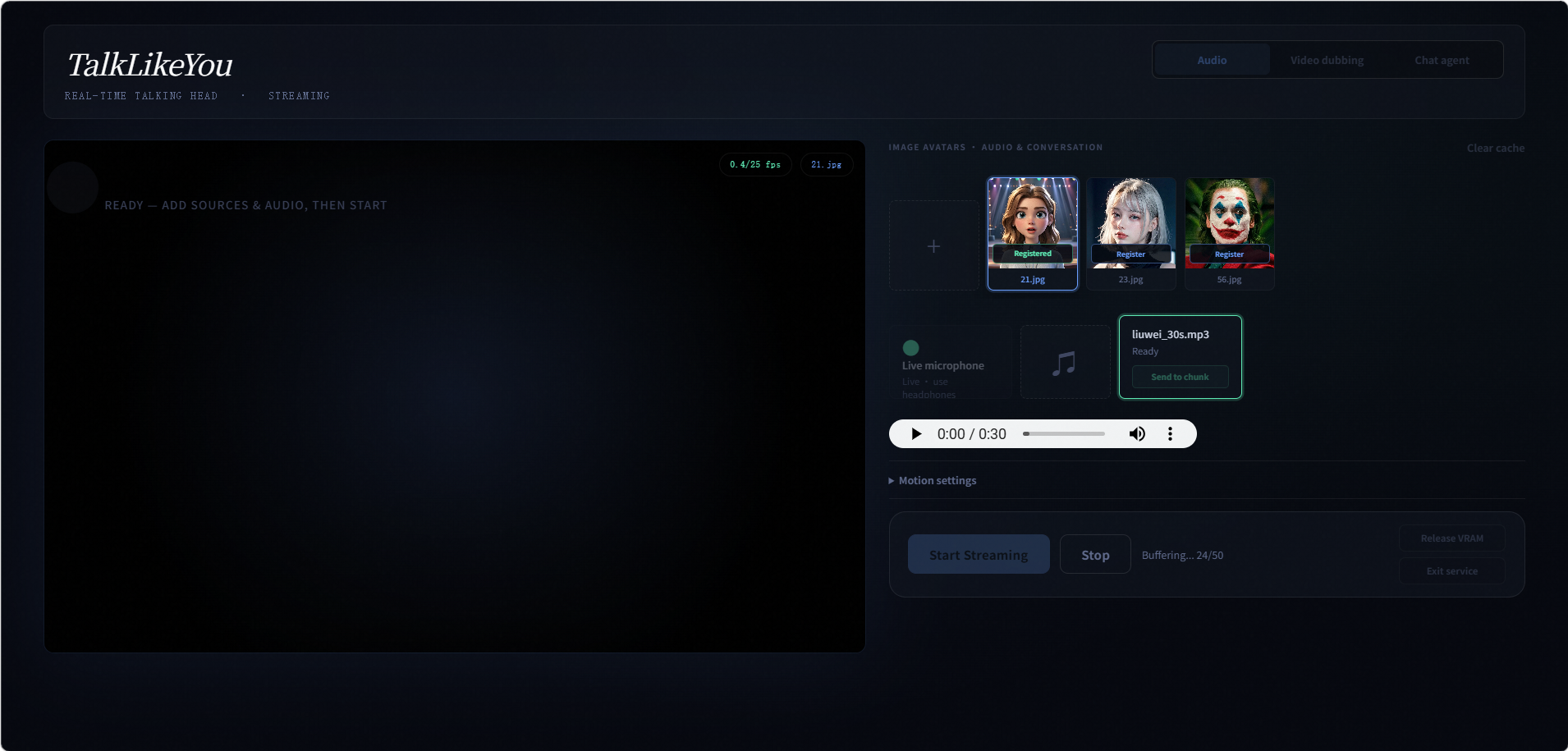




The source release includes the inference code, portrait runtime, and frontend. Model checkpoints are installed separately under the local checkpoints/ directory; runtime code never reads files from another repository.
Features
The interface provides three modes:
- Audio animates an image from an uploaded audio file or live microphone.
- Video dubbing replaces the speech motion of a source video while retaining its original pose and timing.
- Chat agent connects text or recorded speech to an OpenAI-compatible chat/STT service and streams synthesized speech through the avatar.
All three modes share cached avatar preprocessing and the same streaming renderer. Audio and Chat agent accept image avatars; Video dubbing accepts video avatars and does not require a motion-reference or habit-reference file.
Installation
Linux, an NVIDIA GPU, and FFmpeg are required. The tested environment uses Python 3.10, CUDA 12.1, and cuDNN 9.
conda env create -f environment.yaml
conda activate talklikeyou-demo
Alternatively, install a CUDA-compatible PyTorch build and then run:
pip install -r requirements.txt
Run
cd TalkLikeYou-Streaming-RealTime-Demo
CUDA_VISIBLE_DEVICES=0 python app.py --host 0.0.0.0 --port 5070
Open http://127.0.0.1:5070. Uploading a source starts one-time avatar registration; subsequent runs reuse the cached features. Image sources are used by Audio and Chat agent, while video sources are used by Video dubbing. No motion-reference file is required for a video source.
Audio
Select Audio, upload an image avatar, then choose an audio file or Live microphone. Once registration finishes, click Start Streaming. Recommended preset habit IDs are 192, 166, and 202.
Video dubbing
Select Video dubbing, upload a source video, choose an audio file, and start streaming. The source video's pose and timing are retained while its speech motion is replaced. The bundled data/neutral.pkl motion shell supplies the neutral mouth expression; no neutral reference image is required.
Chat agent
Configure the services below, select Chat agent, upload an image avatar, and enter text or record speech. The response text, synthesized speech, and avatar frames are streamed incrementally. Browser speech recognition may be used when available; otherwise the configured STT endpoint handles recorded audio.
The equivalent launcher is:
CUDA_VISIBLE_DEVICES=0 ./run.sh
The command-line client covers Audio and Video dubbing:
python demo_client.py --source path/to/source.jpg --audio path/to/audio.wav
python demo_client.py --source path/to/source.mp4 --audio path/to/audio.wav
UI controls
| Control |
Description |
| Audio |
Uses an image avatar with an uploaded audio file or live microphone. |
| Video dubbing |
Uses a source video, keeps its original pose and timing, and replaces its speech-related lip motion. |
| Chat agent |
Sends typed or recorded input to the configured conversation service and streams the reply, synthesized speech, and avatar frames. |
| Add source |
Uploads image avatars in Audio/Chat agent mode or video avatars in Video dubbing mode. Click a source card to make it active. |
| Register |
Detects the selected face and caches its portrait features. Image registration also prepares neutral assets automatically. |
| Neutralize |
Appears on video source cards. Run it before playback when Neutral is enabled; it applies the bundled neutral motion to every source frame and caches the result. |
| Add audio |
Uploads one or more audio files. Click an audio card to select it. |
| Live microphone |
Streams microphone audio in Audio mode. Headphones are recommended to avoid feedback. |
| Clear cache |
Deletes registered avatar feature bundles. Sources must be registered again afterward. |
Motion settings
| Parameter |
Default |
Description |
| Lip person ID |
192 |
Selects a preset speaking habit for lip generation. Recommended IDs are 192, 166, and 202. |
| Lip guidance |
1.3 |
Classifier-free guidance strength for the lip generator. Higher values emphasize the selected habit more strongly but may exaggerate motion. |
| Pose person ID |
274 |
Selects the preset pose habit used by the Flow Matching pose branch. It is available only for image avatars when Ditto pose is disabled. |
| Pose guidance |
1.5 |
Guidance strength for the Flow Matching pose branch. It is ignored while Ditto pose is enabled. |
| Sampling steps |
1 |
Number of Flow Matching sampling steps. The paper and recommended real-time setting is one step. This value also controls Ditto pose sampling when enabled; additional steps increase latency. |
| Motion chunk (frames) |
50 |
Number of motion frames generated per streaming batch. Smaller chunks can reduce response delay but increase scheduling overhead; larger chunks favor throughput. |
| Preview FPS |
25 |
Browser playback and rendering rate, limited to 1–50. The native motion rate is 25 FPS. |
| Max image size (long edge) |
1024 |
Downscales newly uploaded images whose longest edge exceeds this value. It does not upscale smaller images or resize video sources. Re-upload an image after changing it. |
| Face index |
0 |
Selects a face when multiple faces are detected, ordered from left to right starting at zero. Changing it invalidates existing registrations. |
| Crop scale |
2.3 |
Controls how much area around the selected face is included; a larger value gives a wider crop. Changing it requires registration again. |
| Playback buffer (frames) |
75 |
Requested number of frames to buffer before playback. It is capped by the available motion chunk; live microphone uses one frame and streamed Chat agent speech uses at most ten frames. |
| Audio chunk (seconds) |
1.0 |
Amount of 16 kHz audio submitted to motion generation at a time. Smaller values improve responsiveness but increase per-chunk overhead. |
| Stage0 |
On |
Generates lip motion relative to the neutral motion shell and enables lip normalization. This is recommended for stable transitions from the source mouth. |
| Neutral |
On |
Renders the source with the neutral mouth expression before animation. Image avatars prepare this automatically during registration; video avatars require the Neutralize action. |
| Per-frame normalize ΔE |
Off |
Computes a separate lip-normalization offset for every source-video frame. It is available only in Video dubbing when Stage0 is on and Neutral is off, and requires registering the video with this option enabled. |
| Ditto pose |
On |
Uses Ditto's audio-driven pose generator for image avatars. Disable it to enable Pose person ID and Pose guidance. Video dubbing always uses the source video's pose. |
| Paste back |
On |
Composites the animated face crop back into the original source frame. Disable it to preview the cropped portrait output. |
| Continuous idle |
Off |
Continues generating idle motion after finite uploaded audio ends. It is disabled for Video dubbing, live microphone, and streamed Chat agent speech. |
| Play microphone audio |
On |
Plays the local microphone monitor in Audio mode. This option appears only after selecting Live microphone. |
data/neutral.pkl stores only the pre-extracted portrait motion shell and expression. It replaces the previous neutral reference image, avoids an extra face-detection pass during registration, and can be overridden with --neutral_motion or the NEUTRAL_MOTION environment variable.
Chat agent settings
| Parameter |
Description |
| System prompt |
Overrides the server's default instruction for the current conversation. Leave it empty to use the server default. |
| LLM model |
Selects or manually specifies an available OpenAI-compatible chat model. Leave it empty to use the configured default. |
| TTS provider |
Selects Edge TTS or a configured OpenAI-compatible speech service. |
| TTS model |
Overrides the model for an OpenAI-compatible TTS provider. It is not used by Edge TTS. |
| TTS voice |
Selects the synthesized voice exposed by the active TTS provider. |
| Streaming TTS |
Starts speech synthesis and avatar motion as reply segments arrive instead of waiting for the complete response. Enabled by default. |
| Record |
Records speech for server-side STT when configured; otherwise it uses browser speech recognition when available. |
| Clear |
Clears the visible conversation and starts a new local conversation context. |
Playback and service actions
| Control |
Description |
| Start Streaming |
Starts the selected Audio or Video dubbing task. In Chat agent mode, sending a message starts the stream automatically. |
| Stop |
Stops the active stream while keeping registered avatar caches available. |
| Release VRAM |
Unloads the persistent inference models. The next inference request reloads them. |
| Exit service |
Requests a clean shutdown of the demo server. |
Runtime uploads and avatar caches are stored under /tmp/talklikeyou_demo by default. Set TALKLIKEYOU_STORAGE_DIR to choose another location.
Chat agent configuration
Edge TTS works after installing the requirements. Chat and server-side speech recognition use OpenAI-compatible endpoints. Export the variables you need before starting the server, or place them in a local .env file:
export TALKLIKEYOU_LLM_BASE_URL=https://example.com/v1
export TALKLIKEYOU_LLM_API_KEY=your_key
export TALKLIKEYOU_LLM_MODEL=qwen-flash

export TALKLIKEYOU_STT_BASE_URL=https://example.com/v1
export TALKLIKEYOU_STT_API_KEY=your_key
export TALKLIKEYOU_STT_MODEL=whisper-1
An OpenAI-compatible TTS service can replace Edge TTS with TALKLIKEYOU_TTS_PROVIDER=openai_compatible, TALKLIKEYOU_TTS_BASE_URL, TALKLIKEYOU_TTS_API_KEY, TALKLIKEYOU_TTS_MODEL, and TALKLIKEYOU_TTS_VOICE.
Checkpoints
The paper-release checkpoints are hosted on Hugging Face. This demo expects the following local layout:
checkpoints/
├── motion/
│   ├── audio_encoder.pth
│   ├── lip_motion.pt
│   └── pose_motion.pt
├── runtime/
│   ├── aux_models/
│   └── models/
└── runtime_config.pkl
checkpoints/motion/: audio encoder and habit-conditioned lip/pose generators.checkpoints/runtime/: real-time portrait renderer, landmarks, and audio features.checkpoints/runtime_config.pkl: local relative-path runtime configuration.
Download only the shared paper assets and the two demo-specific motion checkpoints, then arrange them in the local layout above:
hf download doubi-killer/TalkLikeYou \
  --include "checkpoints/audio_encoder.pth" \
            "checkpoints/ditto/ditto_pytorch/**" \
            "checkpoints/motion/lip_motion.pt" \
            "checkpoints/motion/pose_motion.pt" \
  --local-dir hf_assets

mkdir -p checkpoints/motion checkpoints/runtime
cp hf_assets/checkpoints/audio_encoder.pth checkpoints/motion/
cp hf_assets/checkpoints/motion/lip_motion.pt checkpoints/motion/
cp hf_assets/checkpoints/motion/pose_motion.pt checkpoints/motion/
cp -a hf_assets/checkpoints/ditto/ditto_pytorch/. checkpoints/runtime/
runtime_config.pkl is included in the source release, so it does not need to be downloaded separately.
The local paper repository and this demo were compared checkpoint by checkpoint:
| Paper repository |
Real-time demo |
Compatibility |
checkpoints/audio_encoder.pth |
checkpoints/motion/audio_encoder.pth |
Identical; directly reusable |
checkpoints/ditto/ditto_pytorch/ |
checkpoints/runtime/ |
Compatible; the model parameters are the same |
checkpoints/ditto/ditto_cfg/v0.4_hubert_cfg_pytorch.pkl |
checkpoints/runtime_config.pkl |
Compatible; the demo configuration removes unused WavLM entries and uses local relative paths |
checkpoints/motion_generator.pt |
checkpoints/motion/lip_motion.pt |
Different model parameters; the demo checkpoint is published separately |
| Not used by the paper pipeline |
checkpoints/motion/pose_motion.pt |
Demo-specific checkpoint published in the same Hugging Face repository |
The demo-specific lip_motion.pt and pose_motion.pt are now available in the same Hugging Face repository. The paper model's motion_generator.pt remains a separate model and must not be renamed or substituted for lip_motion.pt.
The default paths can be overridden with --lip_ckpt, --pose_ckpt, --data_root, and --cfg_pkl. Do not rename motion_generator.pt to lip_motion.pt; their model definitions and parameters differ.
Acknowledgements
The portrait renderer incorporates components adapted from Ditto, and portrait preprocessing incorporates components adapted from LivePortrait. We thank both teams for releasing their work. See Third-Party Notices for the applicable licenses.
License
The demo code is released under the MIT License. Third-party code and model files retain their original terms; see THIRD_PARTY_NOTICES.md.
For questions, contact [email protected].

 一个在浏览器中实时生成说话人像视频的演示:它可以根据上传的音频或实时麦克风让静态图片动起来,在保留原视频姿态和节奏的同时为其配音换口型,也可以通过实时聊天代理来驱动虚拟形象。