45+ Claude Code Tips: From Basics to Advanced
Here are my tips for getting the most out of Claude Code, including a custom status line script and Claude Code running itself in a container. Also includes the dx plugin: skills for everyday dev workflows.
📺 Quick demo - See some of these tips in action with a multi-Claude workflow and voice input:
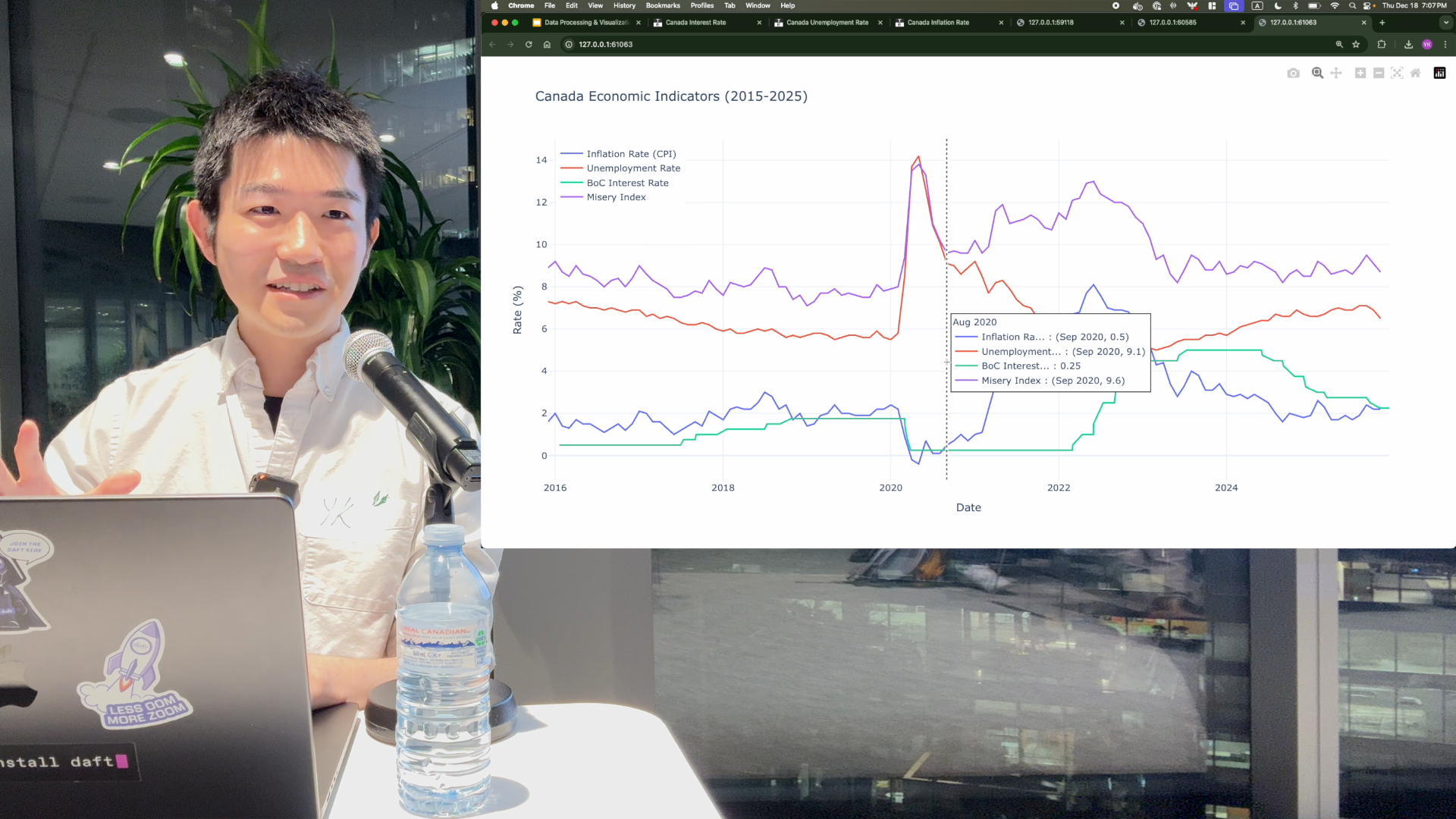
Table of Contents
Tip 0: Customize your status line
You can customize the status line at the bottom of Claude Code to show useful info. I set mine up to show the model, current directory, git branch (if any), uncommitted file count, sync status with origin, and a visual progress bar for token usage. It also shows a second line with my last message so I can see what the conversation was about:
Opus 4.5 | 📁claude-code-tips | 🔀main (scripts/context-bar.sh uncommitted, synced 12m ago) | ██░░░░░░░░ 18% of 200k tokens
💬 This is good. I don't think we need to change the documentation as long as we don't say that the default color is orange el...
This is especially helpful for keeping an eye on your context usage and remembering what you were working on. The script also supports 10 color themes (orange, blue, teal, green, lavender, rose, gold, slate, cyan, or gray).
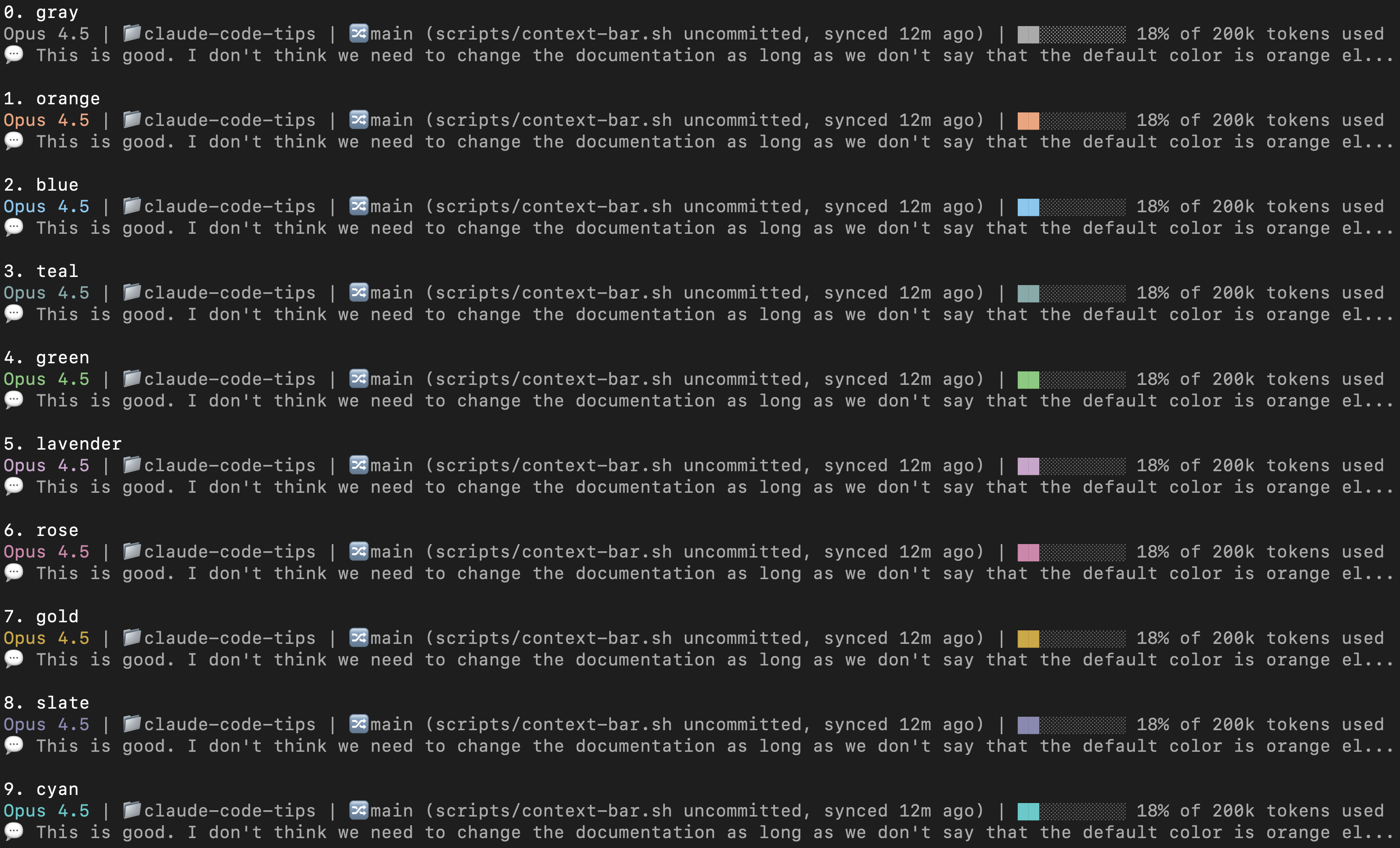
To set this up, you can use this sample script and check the setup instructions.
Tip 1: Learn a few essential slash commands
There are a bunch of built-in slash commands (type / to see them all). Here are a few worth knowing:
/usage
Check your rate limits:
 Current session
 █████████▌                                         19% used
 Resets 5:39pm (America/Vancouver)

 Current week (all models)
 ██▌                                                5% used
 Resets Sep 6 at 9:59am (America/Vancouver)

 Current week (Fable)
 █████                                              10% used
 Resets Sep 6 at 9:59am (America/Vancouver)
If you want to watch your usage closely, keep it open in a tab and use Tab then Shift+Tab or ← then → to refresh.
/chrome
Manage Claude's native browser integration:
 Status: Disabled
 Extension: Installed

 ❯ Manage permissions
   Reconnect extension
   Enabled by default: No

 Usage: claude --chrome or claude --no-chrome
/mcp
Manage MCP (Model Context Protocol) servers:
 Manage MCP servers
 3 servers

   User MCPs (/Users/ykdojo/.claude.json)
 ❯ playwright · ✔ connected · 24 tools

   claude.ai
   → Show unused connectors (1)

   Built-in MCPs (always available)
   computer-use · ◯ disabled
/stats
View your usage statistics with a GitHub-style activity graph:
      Sep Oct Nov Dec Jan Feb Mar Apr May Jun Jul Aug
      ················································▒▒▓▓
  Mon ················································▒▓█
      ················································██░
  Wed ················································▒░░
      ···············································█░▒█
  Fri ···············································░▒·█
      ···············································▓▓▓░

      Less ░ ▒ ▓ █ More

  Favorite model: Fable 5         Total tokens: 755.6m

  Sessions: 157                   Longest session: 16h 45m 11s
  Active days: 24/26              Longest streak: 15 days
  Most active day: Aug 27         Current streak: 9 days

  Your input and output are ~12x the tokens in Moby-Dick
/clear
Clear the conversation and start fresh.
Tip 2: Talk to Claude Code with your voice
I found that you can communicate much faster with your voice than typing with your hands. Using a voice transcription system on your local machine is really helpful for this.
On my Mac, I've tried a few different options:
You can get more accuracy by using a hosted service, but I found that a local model is strong enough for this purpose. Even when there are mistakes or typos in the transcription, Claude is smart enough to understand what you're trying to say. Sometimes you need to say certain things extra clearly, but overall local models work well enough.
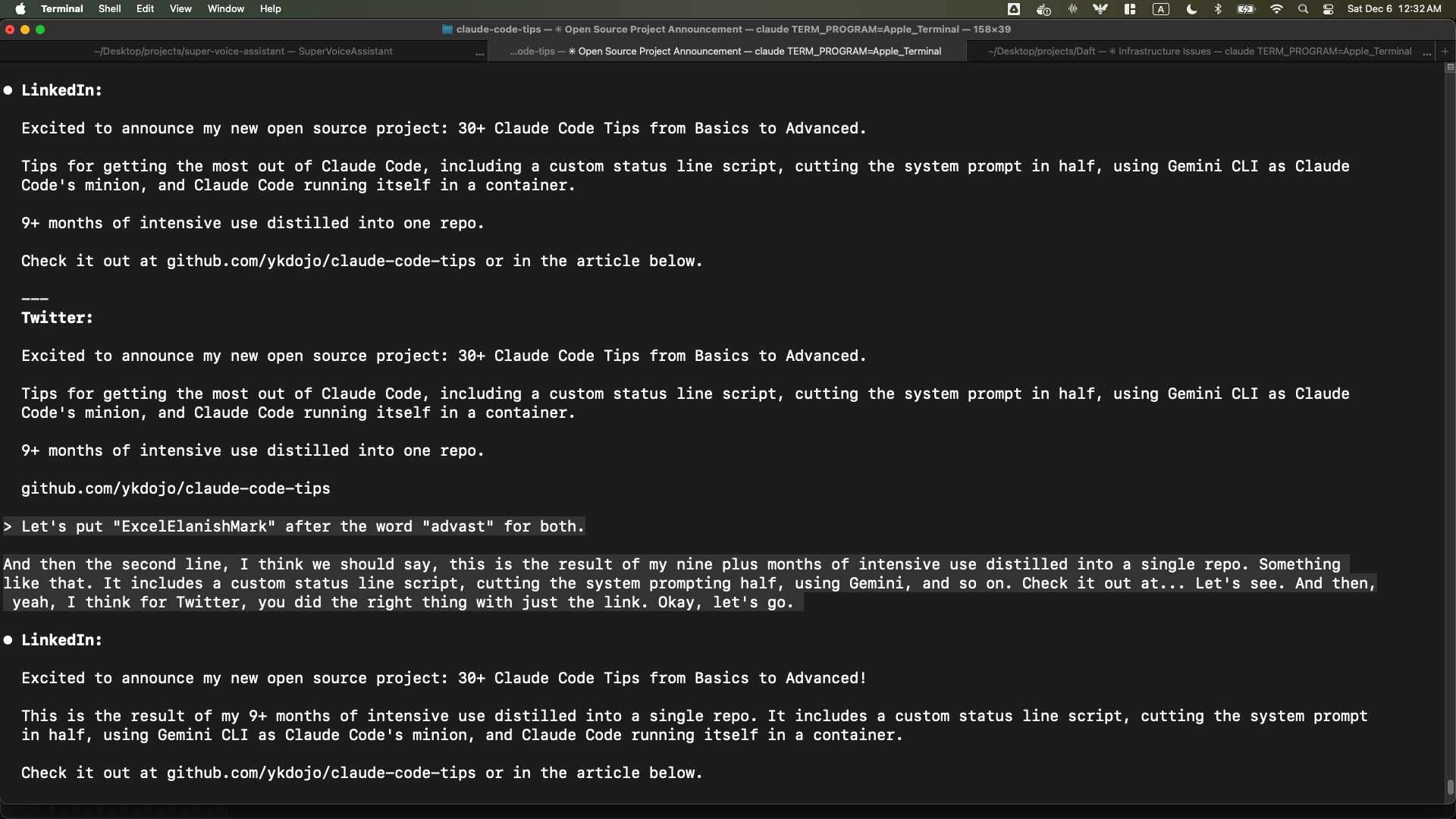
For example, in this screenshot you can see that Claude was able to interpret mistranscribed words like "ExcelElanishMark" and "advast" correctly as "exclamation mark" and "Advanced":
I think the best way to think about this is like you're trying to communicate with your friend. Of course, you can communicate through texts. That might be easier for some people, or emails, right? That's totally fine. That's what most people seem to do with Claude Code. But if you want to communicate faster, why wouldn't you get on a quick phone call? You can just send voice messages. You don't need to literally have a phone call with Claude Code. Just send a bunch of voice messages. It's faster, at least for me, as someone who's practiced the art of speaking a lot over the past number of years. But I think for a majority of people, it's going to be faster too.
A common objection is "what if you're in a room with other people?" I just whisper using earphones - I personally like Apple EarPods (not AirPods). They're affordable, high quality enough, and you just whisper into them quietly. I've done it in front of other people and it works well. In offices, people talk anyway - instead of talking to coworkers, you're talking quietly to your voice transcription system. I don't think there's any problem with that. This method works so well that it even works on a plane. It's loud enough that other people won't hear you, but if you speak close enough to the mic, your local model can still understand what you're saying. (In fact, I'm writing this very paragraph using that method on a flight.)
Update: Claude Code now has a built-in voice mode. I tested it and it works well, but I still personally use a local model because I find it faster.
Tip 3: Break down large problems into smaller ones
This is one of the most important concepts to master. It's exactly the same as traditional software engineering - the best software engineers already know how to do this, and it applies to Claude Code too.
If you find that Claude Code isn't able to one-shot a difficult problem or coding task, ask it to break it down into multiple smaller issues. See if it can solve an individual part of that problem. If it's still too hard, see if it can solve an even smaller sub-problem. Keep going until everything is solvable.
Essentially, instead of going from A to B:

You can go from A to A1 to A2 to A3, then to B:

A good example of this is when I was building my own voice transcription system. I needed to build a system that could let the user select and download a model, take keyboard shortcuts, start transcribing, put the transcribed text at the user's cursor, and wrap all of this in a nice UI. That's a lot. So I broke it down into smaller tasks. First, I created an executable that would just download a model, nothing else. Then I created another one that would just record voice, nothing else. Then another one that would just transcribe pre-recorded audio. I completed them one by one like that before combining them at the end.
Highly related to this: your problem-solving skills and software engineering skills are still highly relevant in the world of agentic coding and Claude Code. It's able to solve a lot of problems on its own, but when you apply your general problem-solving and software engineering skills to it, it becomes a lot more powerful.
Tip 4: Using Git and GitHub CLI like a pro
Just ask Claude to handle your Git and GitHub CLI tasks. This includes committing (so you don't have to write commit messages manually), branching, pulling, and pushing.
I personally allow pull automatically but not push, because push is riskier - it doesn't contaminate the origin if something goes wrong with a pull.
For GitHub CLI (gh), there's a lot you can do. One thing I started doing more after using Claude Code is creating draft PRs. This lets Claude Code handle the PR creation process with low risk - you can review everything before marking it ready for review.
And it turns out, gh is pretty powerful. You can even send arbitrary GraphQL queries through it. For example, you can even find the exact times at which GitHub PR descriptions were edited:
⏺ Bash(gh api graphql -f query='
      query {
        repository(owner: "...", name: "...") {
          pullRequest(number: ...) {
            userContentEdits(first: 100) {
              nodes { editedAt editor { login } }
            }
          }
        }
      }')

⏺ Here's the full edit history for your PR description:

  | #  | Edited At (UTC)     | Editor |
  |----|---------------------|--------|
  | 1  | 2025-12-01 00:08:34 | ykdojo |
  | 2  | 2025-12-01 15:57:21 | ykdojo |
  | 3  | 2025-12-01 16:24:33 | ykdojo |
  | 4  | 2025-12-01 16:27:00 | ykdojo |
  | 5  | 2025-12-04 00:40:02 | ykdojo |
  ...
Disable commit/PR attribution
By default, Claude Code adds a Co-Authored-By trailer to commits and an attribution footer to PRs. You can disable both by adding this to ~/.claude/settings.json:
{
  "attribution": {
    "commit": "",
    "pr": "",
    "sessionUrl": false
  }
}
Setting commit and pr to empty strings removes the attribution text entirely. This replaces the older includeCoAuthoredBy setting, which is now deprecated.
sessionUrl is a separate flag (default true): Claude Code also adds a Claude-Session: trailer to commits and a session link to PR bodies. Set it to false to turn that off.
Tip 5: AI context is like milk; it's best served fresh and condensed!
When you start a new conversation with Claude Code, it performs the best because it doesn't have all the added complexity of having to process the previous context from earlier parts of the conversation. But as you talk to it longer and longer, the context gets longer and the performance tends to go down.
So it's best to start a new conversation for every new topic, or if the performance starts to go down.
Tip 6: Getting output out of your terminal
Sometimes you want to copy and paste Claude Code's output, but copying directly from the terminal isn't always clean. Here are a few ways to get content out more easily:
/copy command: The simplest option - just type /copy to copy Claude's last response to your clipboard as markdown- Clipboard directly: On Mac or Linux, ask Claude to use
pbcopy to send output straight to your clipboard
- Write to a file: Have Claude put the content in a file, then ask it to open it in VS Code (or your favorite editor) so you can copy from there. You can also specify a line number, so you can ask Claude to open the specific line it just edited. For markdown files, once it's open in VS Code, you can use Cmd+Shift+P (or Ctrl+Shift+P on Linux/Windows) and select "Markdown: Open Preview" to see the rendered version
- Opening URLs: If there's a URL you want to examine yourself, ask Claude to open it in your browser. On Mac, you can ask it to use the
open command, but in general asking to open in your favorite browser should work on any platform
- GitHub Desktop: You can ask Claude to open the current repo in GitHub Desktop. This is particularly useful when it's working in a non-root directory - for example, if you asked it to create a git worktree in a different directory and you haven't opened Claude Code from there yet
You can combine some of these together too. For example, if you want to edit a GitHub PR description, instead of having Claude edit it directly (which it might mess up), you can have it copy the content into a local file first. Let it edit that, check the result yourself, and once it looks good, have it copy and paste it back into the GitHub PR. That works really well. Or if you want to do that yourself, you can just ask it to open it in VS Code or give it to you via pbcopy so you can copy and paste it manually.
Of course, you can run these commands yourself, but if you find yourself doing it repetitively, it's helpful to let Claude run them for you.
Tip 7: Set up terminal aliases for quick access
Since I use the terminal more because of Claude Code, I found it helpful to set up short aliases so I can launch things quickly. Here are the ones I use:
c for Claude Code (this is the one I use the most)ch for Claude Code with Chrome integrationcr for claude remote-control, to start a server you can drive from your phonegb for GitHub Desktopco for VS Codeq for going to the project directory where I have most projects. From there I can manually cd into an individual folder to work on that project, or I can just launch Claude Code with c to let it basically have access to any project it needs to access.
To set these up, add lines like this to your shell config file (~/.zshrc or ~/.bashrc):
alias c='claude'
alias ch='claude --chrome'
alias cr='claude remote-control'
alias gb='github'
alias co='code'
alias q='cd ~/Desktop/projects'
Once you have these aliases, you can combine them with flags: c -c continues your last conversation, and c -r shows a list of recent conversations to resume. These work with ch too (ch -c, ch -r) for Chrome sessions.
Tip 8: Proactively compact your context
There's a /compact command in Claude Code that summarizes your conversation to free up context space. Automatic compaction also happens when the full available context is filled (you can make it run earlier with /autocompact). But I found that it's better to proactively do it and manually tune it. I turned off auto-compact with /config so I have more control over when and how compaction happens.
The way I do this is to ask Claude to write a handoff document before starting fresh. Something like:
Put the rest of the plan in the system-prompt-extraction folder as HANDOFF.md. Explain what

 一套 45 多条技巧的合集,教你如何把 Claude Code(一个在终端里运行的 AI 编程助手)用得更顺手,内容从入门到进阶都有。还附带一个自定义状态栏脚本、让 Claude Code 在容器里自己运行自己的示例,以及 dx 插件。