ZenOS is a customizable interface layer for KOReader. It adds a personal Home page, redesigned Library, fast Controls panel, Launcher, reader tools, and unified settings while keeping KOReader underneath.
Philosophy
ZenOS is built around the simple idea that less is more. Everything in ZenOS was designed either to remove clutter or add clear value. The interface stays fast, light, and focused on making reading more enjoyable.
Throughout development, three things were non-negotiable: performance, stability, and ease of use. Every feature was tuned for battery efficiency and responsiveness.
ZenOS is built to be lightweight and efficient. Its dedicated renderer and intelligent caching avoids repeating expensive work while browsing large libraries. Patches are loaded only where needed, redraws are scoped to changed regions when safe, and layouts are shared across touch and non-touch devices. The result is a responsive interface without unnecessary battery or memory use.
Features
Home
Build a personal Home page for your e-reader with responsive widgets: date and time, featured book, reading stats, reading goals, book strip, and quotes. Arrange them within the screen's space budget, edit widgets directly from Home, or apply and save presets.
The Quotes widget can combine built-in quotes, annotations, and any selection
of custom quote files stored in koreader/settings/ZenOS/quotes/, while the existing
koreader/settings/ZenOS/quotes.lua remains the primary custom file.
The unified book strip can switch between recent books, favorites, To Be Read, authors, series, languages, tags, collections, Kindle Library when available, a folder, or a custom list. Optional strip controls can also filter by book status or launch actions, Controls, plugin menus, and KOReader menus. Featured books support recent, To Be Read, or a hand-picked title, with configurable metadata and progress labels.
See the Home guide.
Controls
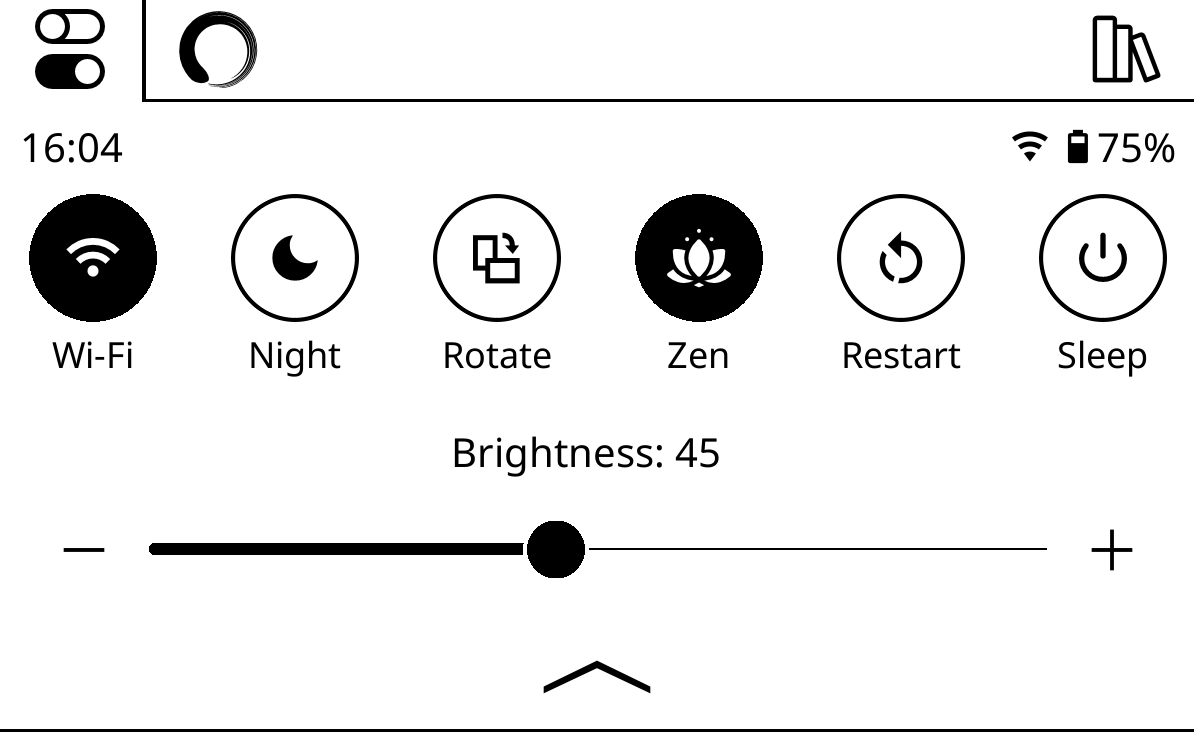
Swipe down from anywhere for up to nine configurable controls plus brightness and warmth sliders. Buttons can toggle device features, run dispatcher actions, open plugins or KOReader menus, and expose installed integrations such as Bluetooth, Tailscale, and ZenFM. Tap Bluetooth to toggle it, or hold it to manage connections on Kindle, Kobo, and PocketBook. Tailscale can toggle Wi-Fi with itself. Hold the minus button on a lighting slider to jump to zero.
Library
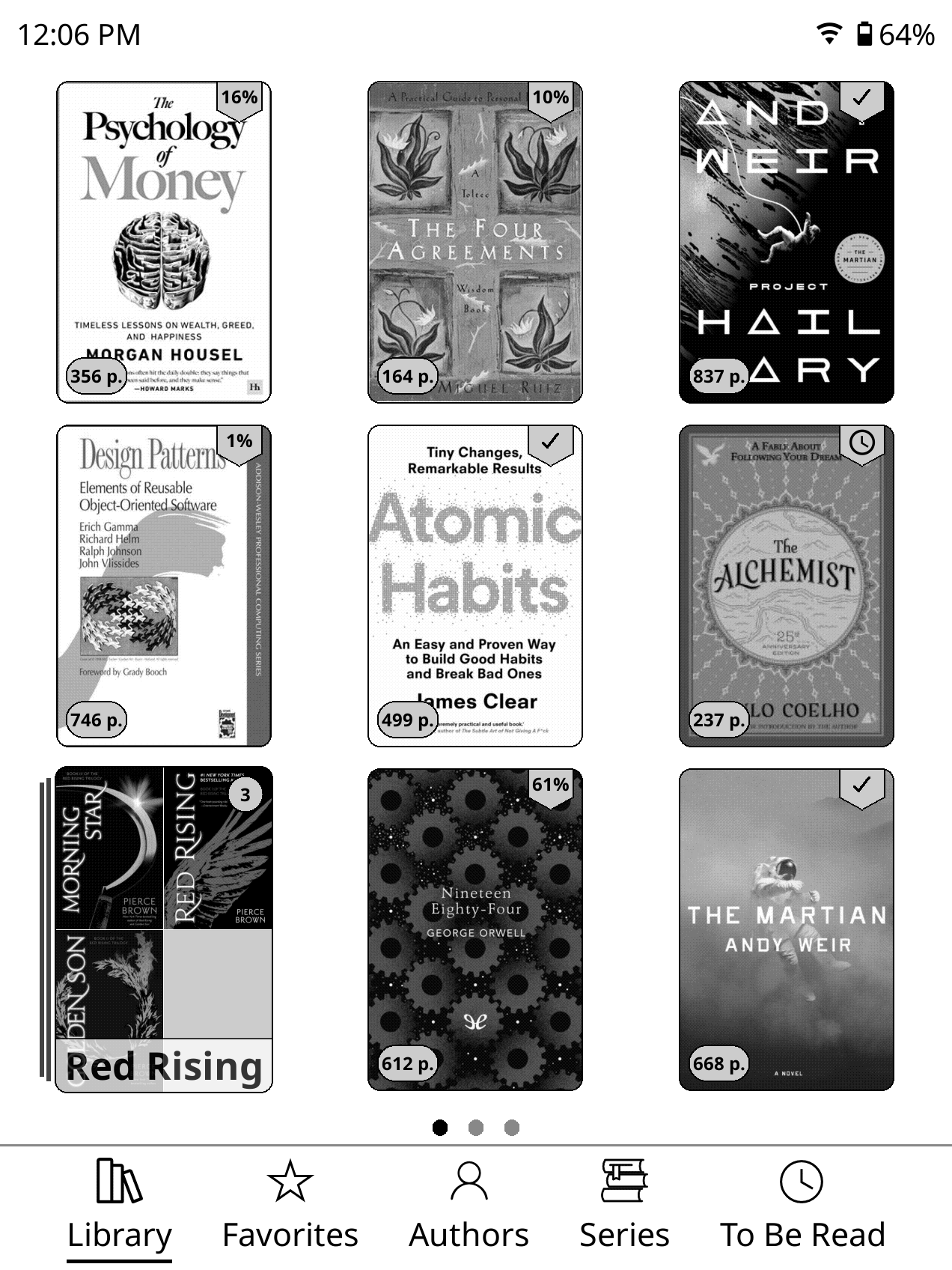
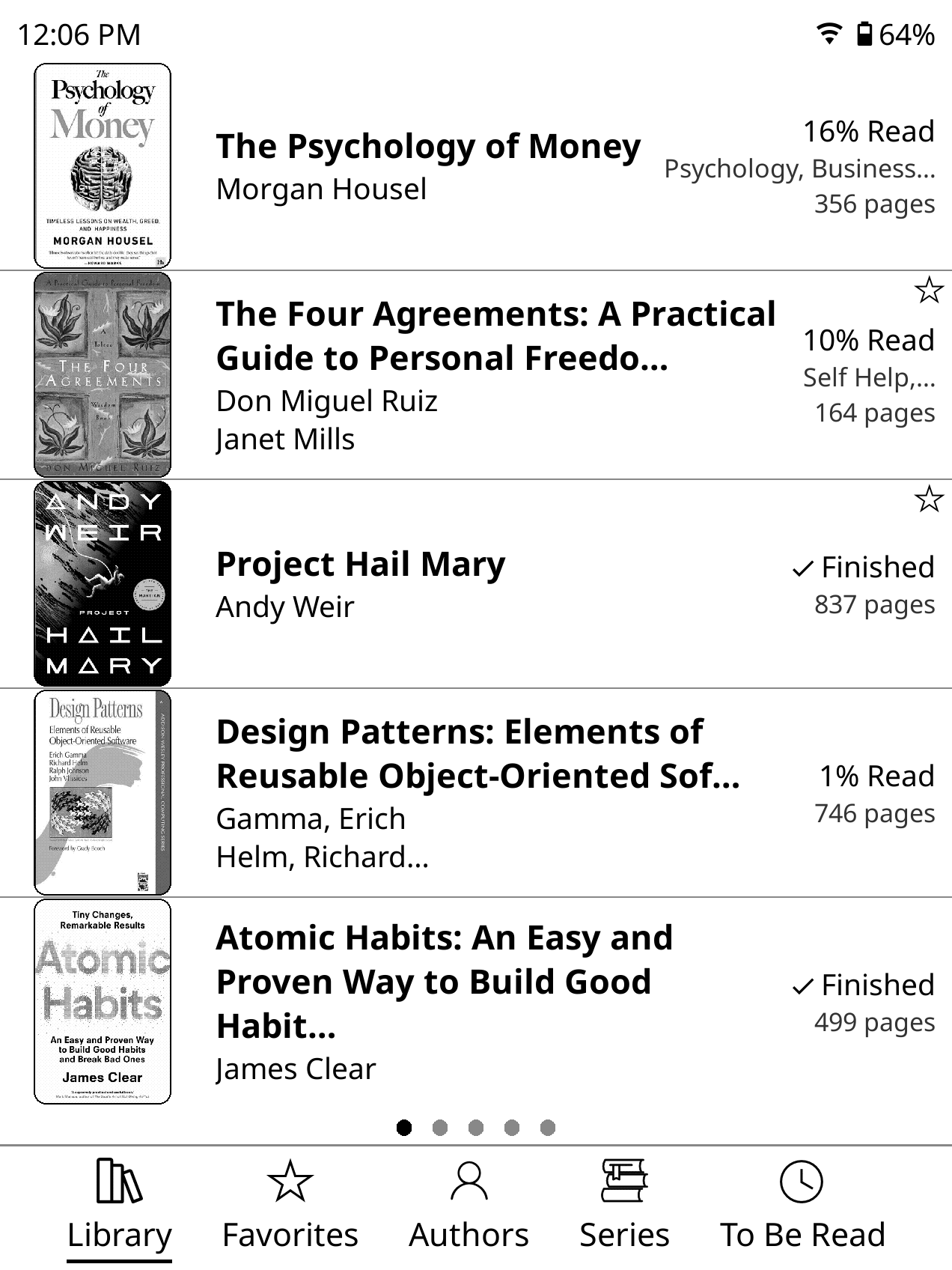
Choose classic, mosaic, or detailed list layouts from the current folder's context menu, then customize cover ratios, badges, progress, rounded corners, folder covers, and automatic series grouping. Zen Settings > Library > Appearance > Layout controls mosaic grids with previews, list items per page, and the fields shown in detailed lists. Display mode, sorting, and status filters can be saved per folder.
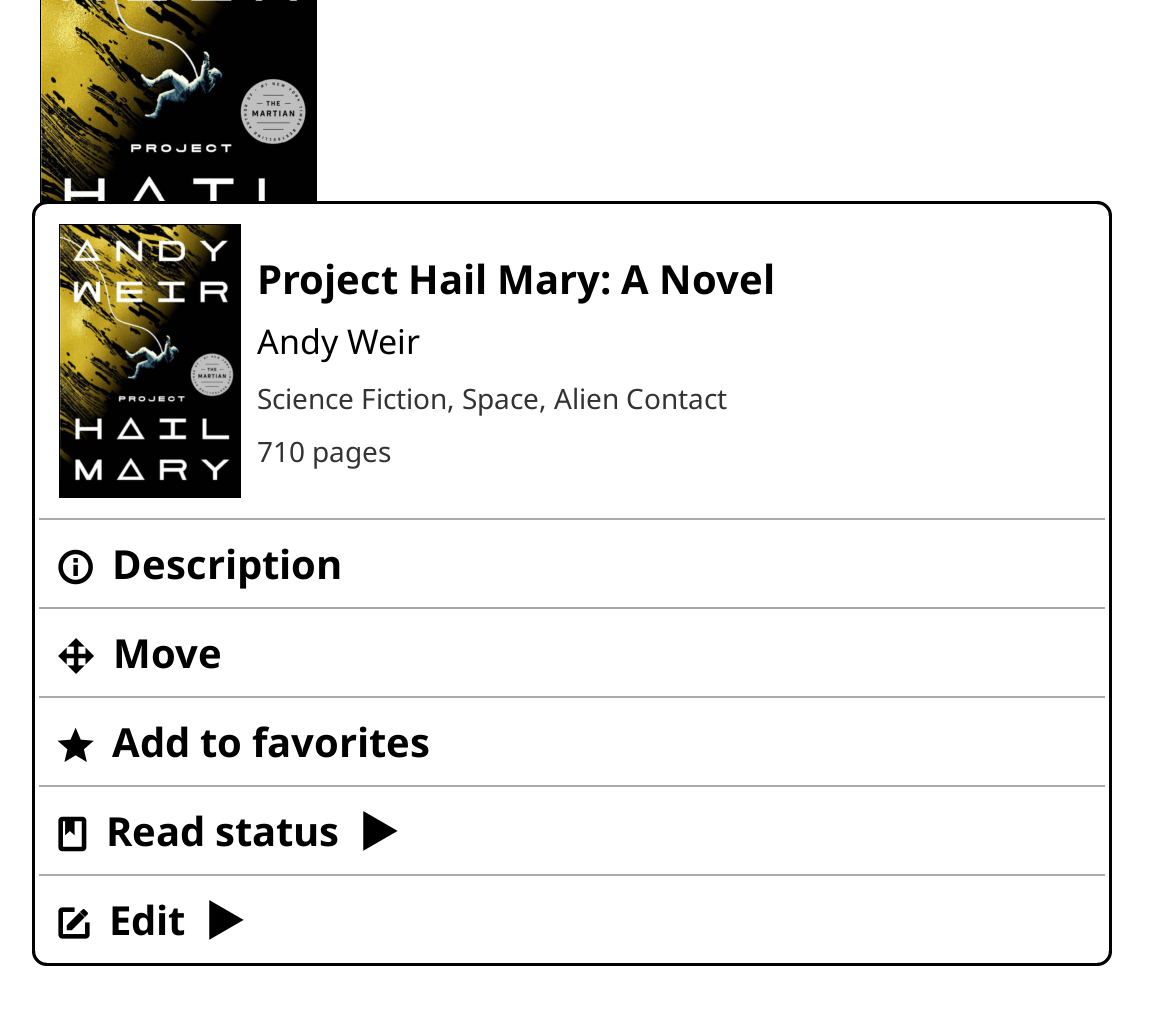
The streamlined context menu handles read status, collections, file operations, and full-screen book details. Its native metadata editor changes book details, filenames, and covers, or fills them from Hardcover, Google Books, and Open Library.
See the Library guide.
Navbar
Keep up to seven tabs at the bottom of the Library. Built-in destinations include Library, Kindle Library when available, a chosen Folder, Home, Continue, Favorites, Collections, Authors, Series, Languages, Tags, book statuses, Stats, Manga, and News. Custom tabs can run a Control or dispatcher action, open a plugin or KOReader menu, and use a custom label and icon. Choose any supported tab as the default destination.

See the Navbar guide.
Launcher
Open recent books from the Book switcher, review the current Book details, or build pages of shortcut buttons. Launcher buttons can run Controls and actions, open plugins and KOReader menus, live inside folders, and use row breaks for layout. The Book details, Book switcher, and Buttons pages are reorderable, and Launcher can become the first top-menu tab.
See the Launcher guide.
Reader
The Zen page browser brings page scrubbing, search, table of contents, bookmarks, font controls, and Book details into one view. It respects stable page labels and non-linear book content. Reader themes can switch with light and dark mode, while independent top and bottom status bars support presets, custom fonts, and configurable content.
Zen-styled dictionary and highlight menus can surface Wikipedia, X-Ray, KOAssistant, and AI Assistant when installed. An opening banner replaces KOReader's blocking opening message, and margin guards reduce accidental selections while holding the screen edge.
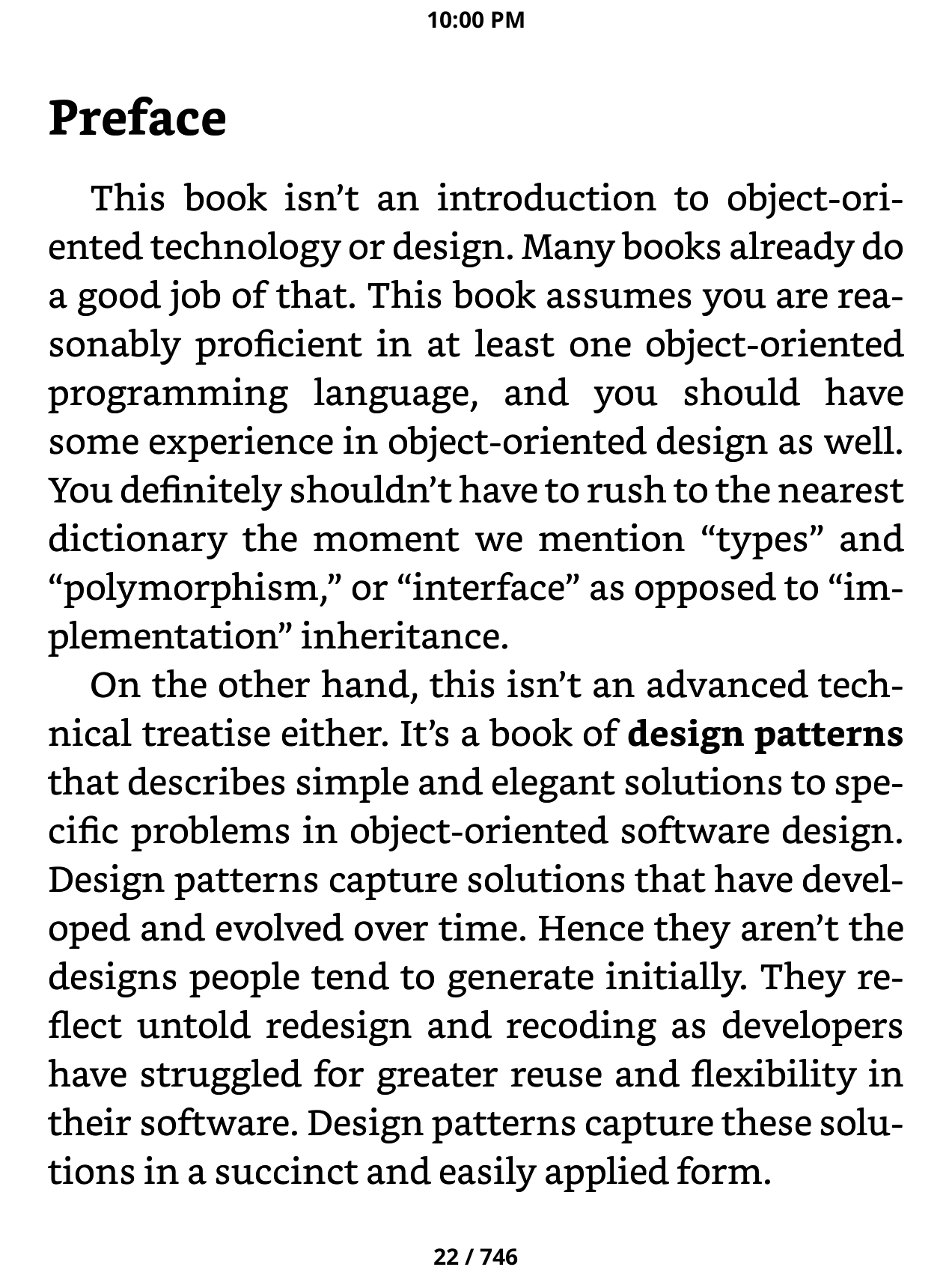
See the Reader guide.
Focus Modes
Zen Mode hides most of KOReader's default menu tabs and can now be toggled without restarting. Lockdown Mode adds configurable restrictions for a controlled reading setup. Incognito Mode temporarily prevents reading-history and statistics tracking and can turn itself off after a chosen timeout.

See the Zen Mode and Lockdown Mode guides.
Lighting Profiles and Schedules
Night mode, brightness, and warmth each have independent schedules. Brightness and warmth can instead follow KOReader's light/dark mode, applying a separate value whenever the mode changes. Use only the automation you want; each system remains optional.
Integrations and Customization
ZenOS themes the OPDS browser, integrates with Rakuyomi and kindle.koplugin, can install ZenPM on supported non-Android ARM devices, and adds a ZenFM Control when the plugin is present. Custom icon packs can replace ZenOS and KOReader artwork. Plugins can also contribute Home widgets and status-bar items through public integration APIs.
See the Extras, Custom Icon Packs, and Actions guides.
Unified Settings
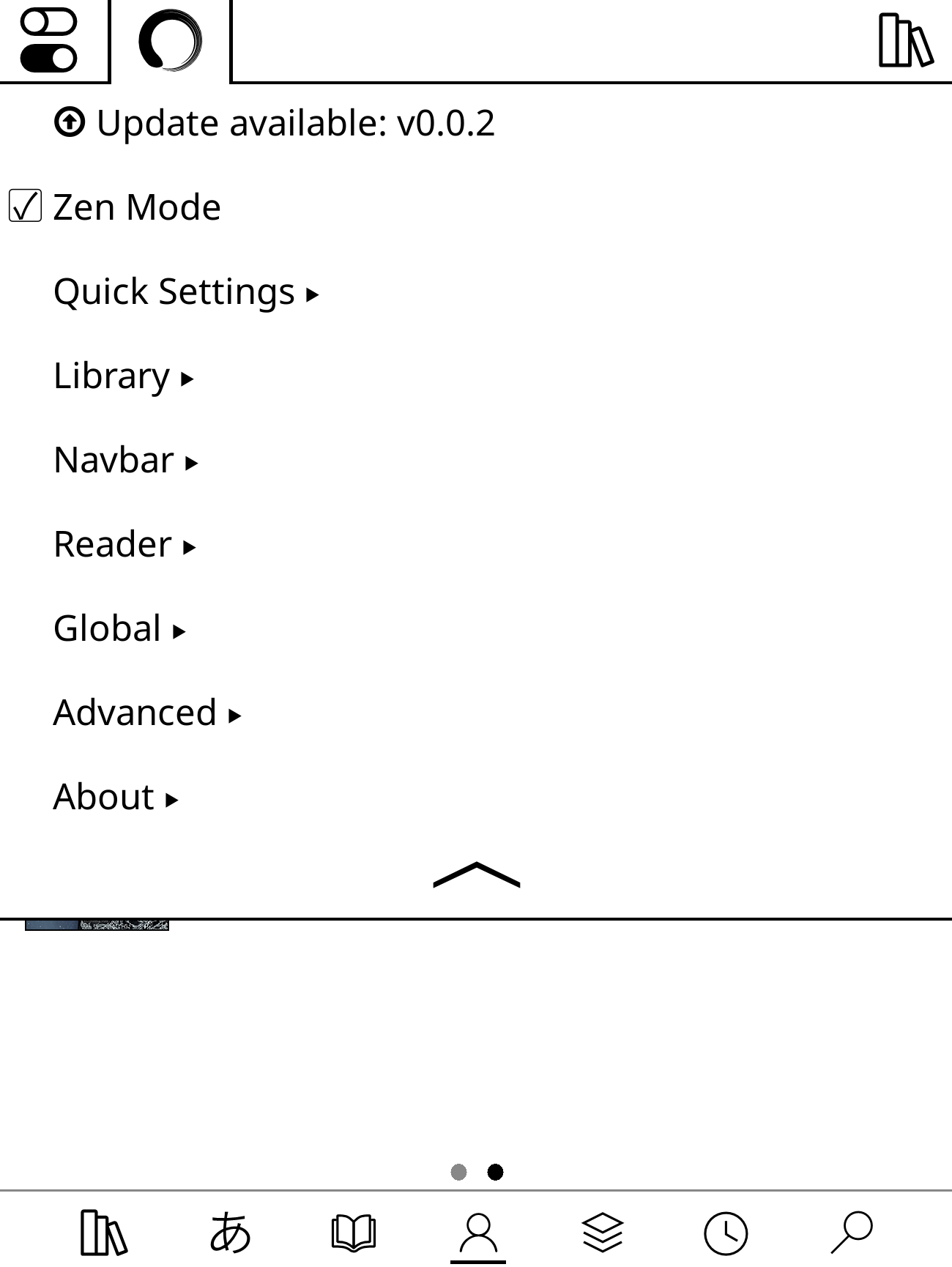
Zen Settings brings ZenOS and frequently used KOReader settings into one searchable, key-friendly interface. Sections are organized as Home, Library, Reader, Interface, Extras, General, KOReader, and About. Library groups Appearance, Folders, Books, and Context menu. Interface groups Controls, Launcher, Navbar, Status bar, the global font, Zen Keyboard, Zen Search, Wallpaper, Blur menu background, and custom icons. General groups Wi-Fi, Bluetooth, schedules, sleep, advanced settings, and updates. Stats is in Extras. It remembers your previous location, most features remain independently configurable, and ZenOS can update itself without leaving KOReader.
New installations include a visual setup guide followed by short on-screen tours of Zen Mode, Zen Settings, and the Reader page browser. The guide remains available from Zen Settings > About > Setup Guide.
Plugin integration
External plugins can add widgets to the Home page:
local register = rawget(_G, "__ZENOS_REGISTER_HOME_ITEM")
if register then
    register("my_plugin.summary", function(ctx)
        -- Return a KOReader widget sized to ctx.width and ctx.height.
    end, {
        label = "My summary",
        size = "s",
    })
end
The builder receives width, height, is_first_row, and an item-specific
module_cfg table. New items are disabled by default and can be enabled and
positioned under Zen Settings > Home > Widgets. Plugins loaded before ZenOS should register
when they receive ZenOSReady; unregister with
_G.__ZENOS_UNREGISTER_HOME_ITEM(id). The legacy __ZEN_UI_* aliases remain
available for existing integrations, and ZenUIReady is still broadcast.
Home uses a responsive height grid: xs=1, s=2, m=3, l=4, and
xl=10. A 4:3 screen has 10 units; more elongated screens expand automatically,
up to 20 units. Enabled widgets must fit the current screen's capacity. Legacy
preferred_pct size tables are still accepted and rounded to the nearest
grid unit.
Registration returns false for invalid arguments or a built-in ID collision.
Registering an existing external ID replaces its builder and options.
Prerequisites
- KOReader 2026.03 or newer must be installed first. ZenOS is tested against KOReader 2026.07 and compatibility-tested against 2026.03. Install KOReader
- Disable or remove Project: Title before starting ZenOS. ZenOS automatically disables Simple UI, Visual Overhaul Suite (VOS), QuickMenu, Appearance, Burrow, QuickUI, Reader Menu Redesign, Shortcuts Toolbar, Neo QuickSettings, and known conflicting user patches, then asks you to restart KOReader.
Installation
Already using Zen UI? Update from its settings page instead of installing a
second plugin folder. The updater preserves your settings and completes the
move to ZenOS automatically after restarting KOReader.
The migration performs two automatic restarts. If Zen UI is disabled, enable
it once so its migration can run. Do not manually install zenos.koplugin
beside an existing zen_ui.koplugin directory.
The upgrade keeps koreader/settings/Zen UI as an unchanged rollback snapshot and
migrates a separate copy in koreader/settings/ZenOS. Downgrading to an older Zen UI
build therefore restores the settings as they were immediately before the
ZenOS upgrade; changes made later in ZenOS are intentionally not copied back.
For a fresh installation:
- Go to the Releases page and download
zenos.koplugin.zip from the latest release.
- Unzip the archive. You should have a folder named
zenos.koplugin.
- Copy the
zenos.koplugin folder into the KOReader plugins directory for your device (see the table below).
- Copy the unzipped folder, not the
.zip file itself.
- Restart KOReader. ZenOS will load automatically.
- If ZenOS does not load, enable it under Tools > More tools > Plugin management > ZenOS.
The final path should look like: .../plugins/zenos.koplugin/main.lua
| Device |
Plugins directory |
| Kobo |
/mnt/onboard/.adds/koreader/plugins/ |
| Kindle |
/mnt/base-us/koreader/plugins/ |
| PocketBook |
/mnt/ext1/applications/koreader/plugins/ |
| Android |
sdcard/koreader/plugins/ |
| Desktop (Linux/macOS) |
/koreader/plugins/ |
Migrating from Project Title
If you previously used Project Title, you must disable or remove it before using ZenOS. Both plugins patch the Cover Browser, and having both active at the same time will cause conflicts.
Choose one of the following:
- Remove it — Delete the
projecttitle.koplugin folder from your KOReader plugins directory.
- Disable it — Rename the folder to
projecttitle.koplugin.disabled. KOReader will ignore it on next launch.
After disabling or removing Project Title, restart KOReader and ZenOS will load cleanly.
Localization
ZenOS is currently translated into:
| Locale |
Language |
en |
English |
it |
Italian |
es |
Spanish |
fr |
French |
nl |
Dutch |
de |
German |
bg |
Bulgarian |
cs |
Czech |
hu |
Hungarian |
id |
Indonesian |
pt_BR |
Brazilian Portuguese |
pt_PT |
European Portuguese |
ro |
Romanian |
ru |
Russian |
uk |
Ukrainian |
ja |
Japanese |
vi |
Vietnamese |
zh_CN |
Simplified Chinese |
zh_TW |
Traditional Chinese |
zh_HK |
Traditional Chinese (Hong Kong) |
zh_MO |
Traditional Chinese (Macau) |
el |
Greek |
If you find any issues or corrections to the translations, please feel free to contribute.
To contribute a translation or fix an existing one, see locales/README.md and CONTRIBUTING.md.
Credits
ZenOS is original work, but it wouldn't exist without the broader KOReader community. Several open source projects provided components, inspiration, reference implementations, or code that was adapted and built upon:
The complete copyright and license texts for these embedded metadata components are in modules/filebrowser/metadata/LICENSES.md.
Thank you to everyone who published their KOReader work openly.
Contributing
Bug reports, feature requests, translations, and code contributions are all welcome. See CONTRIBUTING.md for details.
Please follow these guidelines:
- One feature per PR - Keep pull requests focused on a single feature or fix
- PR to dev branch - Submit PRs to the
dev branch for testing/review.
- Review AI-generated code - If using AI tools, all code must be thoroughly reviewed and tested before submitting.
- Maintain consistency - New code must align with the project's existing style, theme, and overall user experience
Feel free to join the Zen Discord if you want to get help/chat/contribute
Security
See SECURITY.md for how to report vulnerabilities.
License
GPL-3.0


 ZenOS 是 KOReader 的一个可定制界面层,提供了个性化主页、重新设计的书库、快捷的控制面板、启动器、阅读工具和统一设置,底层仍然是 KOReader。