Your system remembers everything. npkill helps you forget.
This tool scans your system for heavy and unnecessary development directories.
It shows you what is taking up space, when you stopped using it, why it’s there, and lets you remove it in seconds.
Table of Contents
✨ Features
Beyond node_modules
Started with node_modules, extended to entire development environments.
Remove build artifacts, caches, temp files, and other heavy leftovers using built-in or custom profiles.
Profiles-first scanning
Scan your system using predefined profiles for Node.js, Python, Rust, game engines, and more. Or create your own to match your workflow.
Effortless by default
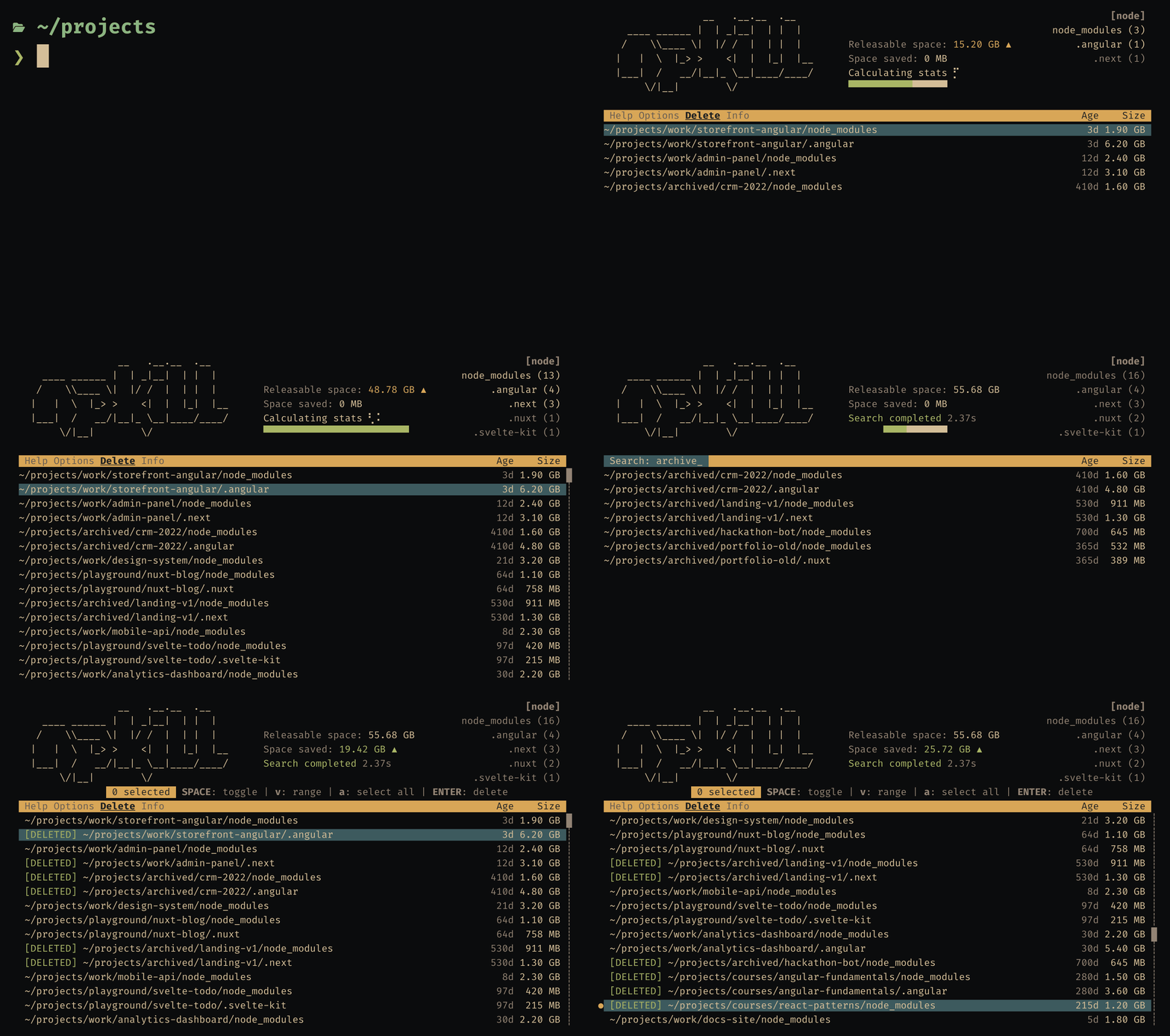
A clean and responsive TUI designed to stay out of your way.
See everything clearly, make decisions fast, and clean with confidence.
Workspace awareness
See at a glance when you last worked in that workspace and find out if it's an active project or a long-forgotten one.
Built for speed
npkill is written in TypeScript, but searches are performed at a low level, delivering blazing-fast performance and near-instant responsiveness.
:clipboard: Usage
Simply use the following command:
$ npx npkill
By default, npkill will start searching for node-related development directories from the directory where you ran it, using the built-in node profile.
As the target directories are found, they will be listed for you.
[!NOTE]
TL;DR: You can learn everything as you go because the TUI explains itself.
You can navigate between them with ↓ ↑, and use Space or Del to delete the selected folder.
You can view more information about the result by pressing → and go back by pressing ←.
If necessary, you can open the parent directory with o.
You can see more navigation keys in the built-in quick reference panel.
[!WARNING]
Some applications installed on the system need their node_modules directory to work and deleting them may break them. npkill will try to identify them and highlight them by displaying a :warning: to be careful.
[!IMPORTANT]
npkill find candidates for deletion but does not decide what is safe for you.
- Results are based on common conventions.
- Whether a folder is safe to delete always depends on the scope.
Always review results before deleting anything.
:ballot_box_with_check: Multi-Select mode
This mode allows you to select and delete multiple folders at once, making it more efficient when cleaning up many directories.
Entering Multi-Select mode
Press t to toggle multi-select mode. When active, you'll see a selection counter and additional instructions at the top of the results.
Controls
- Space: Toggle selection of the current folder.
- v: Start/end range selection mode.
- a: Toggle select/unselect all folders.
- Enter: Delete all selected folders at once.
- t: Unselect all and back to normal mode.
Range Selection
After pressing v to enter range selection mode:
- Move the cursor with arrow keys, j/k, Home/End, or PgUp/PgDn.
- All folders between the starting position and current cursor position will be selected/deselected
- Press Enter to delete all selected folders together.
- Press v again to exit range selection mode.
:mag: Search
Divide and conquer.
You can filter the results displayed by pressing /. What you type will then appear in the yellow bar at the top.
Press Enter to browse through the filtered results.
To clear the filter, press / again and delete the term, or press Esc while typing.
This feature can be especially useful for narrowing down results by path without restarting npkill.
[!NOTE]
The search supports regular expressions. For example, /work/.*/data keeps the results inside a work directory that have data somewhere in their path.
:card_index: Profiles
Profiles are a set of targets that represent a development ecosystem.
You can list the available profiles with npkill --profiles and use them as follows: npkill --profiles node,python.
Profiles and their targets may change between versions of npkill. So if this is important to you, I recommend creating your own with .npkillrc.
:gear: .npkillrc
The .npkillrc file allows you to define the default behavior of npkill without having to pass parameters every time. It is also where you can define your own custom profiles.
You can read all the details in the .npkillrc documentation.
:wrench: Options
| ARGUMENT |
DESCRIPTION |
| -p, --profiles |
Allows you to select the profile (set of targets) to use. If no option is specified, the available ones will be listed (node by default). |
| --config |
Path to a custom .npkillrc configuration file. By default, npkill looks first for ./.npkillrc and then for ~/.npkillrc. |
| -d, --directory |
Set the directory from which to begin searching. By default, starting-point is . |
| -D, --delete-all |
Automatically delete all folders that are found. Requires --targets. Add -y to delete without the interface (see Examples). |
| -e, --hide-errors |
Hide errors if any |
| -E, --exclude |
Skip matching directories and their contents. Separate patterns with commas. Relative paths start at the scan root (-d if set); matches use whole directory names.
• name: any depth
• ./name: directly below the scan root
• parent/name: that path below the scan root
• **/parent/name: that path at any depth
• /absolute/path: exactly that directory (Windows drive and UNC paths also work).
Only **/ acts as a wildcard; unescaped * and ? are rejected. On Unix, quote patterns and use \* or \? for literal characters (\\ for a literal backslash). A trailing slash is optional. By default, some directories are ignored. |
| -f, --full |
Start searching from the home of the user (example: "/home/user" in linux) |
| --size-unit |
Set the unit for displaying folder sizes. (Available: auto, mb, gb). With auto, sizes < 1024MB are shown in MB (rounded), larger sizes in GB (with decimals). |
| -h, --help, ? |
Show help page |
| -s, --sort |
Sort results by: size, path or age |
| --older-than |
Only show results whose project has not been modified in more than the given number of days (see the last_mod column). Example: --older-than 90. |
| -t, --targets |
Disable profiles feature and specify the name of the directories you want to search for. You can define multiple targets separating with comma. Ej. -t node_modules,.cache. |
| --include-sensitive |
Show sensitive results too, like the dependencies some applications need to work. They are hidden by default. |
| --no-ignore-default |
Also look inside the folders skipped by default, like .git or .nvm. |
| -y |
With --delete-all: skip the confirmation and delete without the interface. Prints each deleted folder and a summary, then exits (code 1 if any deletion fails). |
| --dry-run |
It does not delete anything (will simulate it with a random delay). |
| --json |
Output results in JSON format at the end of the scan. Useful for automation and scripting. |
| --json-stream |
Output results in streaming JSON format (one JSON object per line as results are found). Useful for real-time processing. |
| --no-size |
Skip size calculation. Useful for faster scanning and deletion when space info is not needed. |
| --no-age |
Skip age (last modification time) calculation. |
| --no-stats |
Skip both size and age calculation. Shortcut for --no-size --no-age. |
| -v, --version |
Show npkill version |
:bulb: Examples
- Search in your projects directory:
npkill -d ~/projects

# other alternative:
cd ~/projects
npkill
- Clean Node.js and Python development leftovers (
node_modules, __pycache__, .cache, .venv, etc.):
npkill --profiles node,python
- I only want clean
node_modules like in the old times:
npkill -t node_modules
- List node_modules in your projects directory, excluding the ones in progress and ignore-this directories:
npkill -d 'projects' --exclude "progress, ignore-this"
- Automatically delete all node_modules from projects you have not touched in the last 90 days:
npkill -d ~/projects --older-than 90 --delete-all --targets node_modules
- Automatically delete all node-related leftovers that have sneaked into your backups:
npkill -d ~/backups/ --delete-all --targets node_modules
- Delete without the interface (for scripts and CI): add
-y to --delete-all:
npkill -d ~/projects --targets node_modules -D -y
# Deleted /home/user/projects/app/node_modules (312 MB)
# Deleted /home/user/projects/api/node_modules (128 MB)
# Done: deleted 2 folders, freed 440 MB.
Failed deletions are printed to stderr and make npkill exit with code 1. Use --dry-run to see what would be deleted, or --json / --json-stream for machine-readable output.
:floppy_disk: JSON Output
npkill supports JSON output formats for automation and integration with other tools:
--json: Output all results as a single JSON object at the end of the scan--json-stream: Output each result as a separate JSON object in real-time
For detailed documentation, examples, and TypeScript interfaces, see JSON Output Documentation.
Quick Examples
# Get all results as JSON
npkill --json > results.json

# Process results in real-time
npkill --json-stream | jq '.result.path'

# Find directories larger than 100MB
npkill --json | jq '.results[] | select(.size > 104857600)'

# Delete the node_modules untouched for 30 days, without the interface
npkill -t node_modules --older-than 30 -D -y --json
# -- First, clone the repository
git clone https://github.com/voidcosmos/npkill.git

# -- Navigate to the dir
cd npkill

# -- Install dependencies
npm ci

# -- And run!
npm run start


# -- If you want to run it with some parameter, you will have to add "--" as in the following example:
npm run start -- -f -e
:bookmark_tabs: API
The api allows you to interact with npkill from node to create your own implementations in your scripts (automations, for example).
You can check the basic API here or on the web.
:revolving_hearts: Contributing
If you want to contribute check the CONTRIBUTING.md
:coffee: Buy us a coffee

We have developed npkill in our free time, because we are passionate about the programming sector.
Tomorrow we would like to dedicate ourselves to this, but first, we have a long way to go.
We will continue to do things anyway, but donations are one of the many ways to support what we do.

Crypto alternative
- btc: 1ML2DihUoFTqhoQnrWy4WLxKbVYkUXpMAX
- bch: 1HVpaicQL5jWKkbChgPf6cvkH8nyktVnVk
- eth: 0x7668e86c8bdb52034606db5aa0d2d4d73a0d4259
MIT © Nya García Gallardo and Juan Torres Gómez
:cat::baby_chick:

 Инструмент для терминала, который ищет на диске тяжёлые и ненужные остатки от разработки, в первую очередь папки node_modules, и позволяет удалить их за считанные секунды через текстовый интерфейс.