DuckStation - PlayStation 1, aka. PSX Emulator
Features | Downloading and Running | Building | Disclaimers
Latest Builds for Windows 10/11 (x64/ARM64), Linux (AppImage x64/ARM32/ARM64), and macOS (13.3+ Universal): https://github.com/stenzek/duckstation/releases/tag/latest
Discord Server: https://www.duckstation.org/discord.html
DuckStation is an simulator/emulator of the Sony PlayStation(TM) console, focusing on playability, speed, and long-term maintainability. The goal is to be as accurate as possible while maintaining performance suitable for low-end devices. "Hack" options are discouraged, the default configuration should support all playable games with only some of the enhancements having compatibility issues.
A PS1 or PS2 "BIOS" ROM image is required to to start the emulator and to play games. You can use an image from any hardware version or region, although mismatching game regions and BIOS regions may have compatibility issues. A ROM image is not provided with the emulator for legal reasons, you should dump this from your own console using Caetla or other means.
Features
DuckStation features a fully-featured frontend built using Qt, as well as a fullscreen/TV UI based on Dear ImGui.
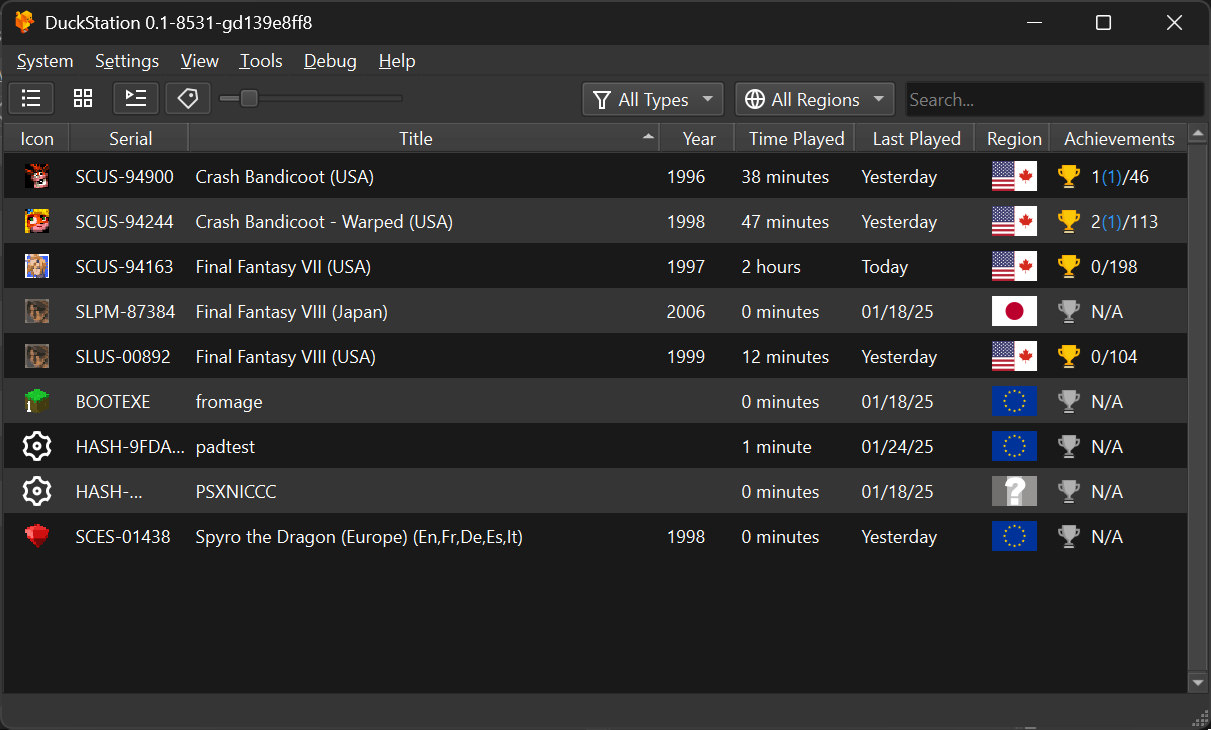
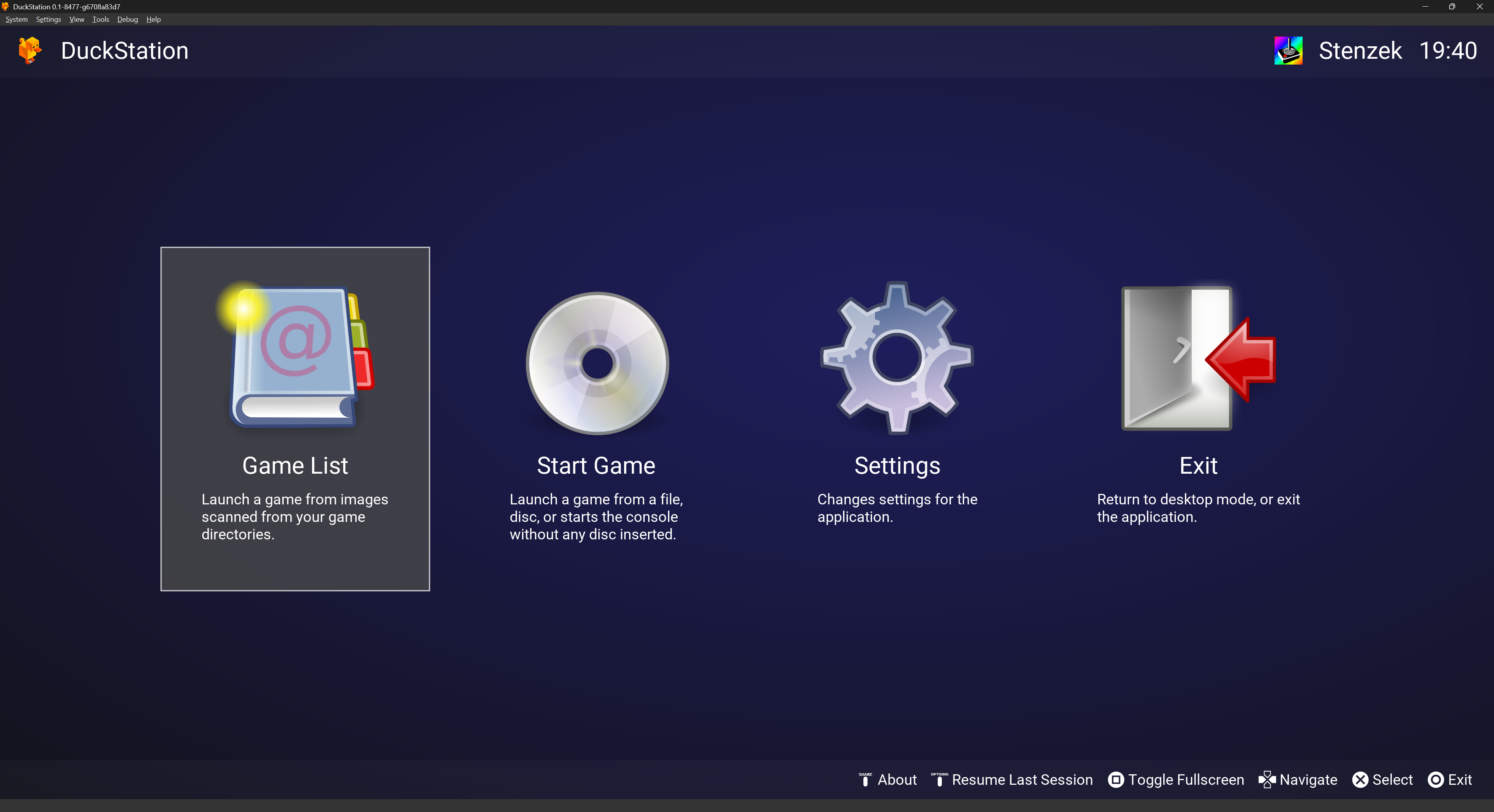
Other features include:
- CPU Recompiler/JIT (x86-64, armv7/AArch32, AArch64, RISC-V/RV64).
- Hardware renderer supporting D3D11, D3D12, OpenGL, Vulkan and Metal APIs.
- Upscaling, texture filtering, and true colour (24-bit) in hardware renderers.
- PGXP for geometry precision, texture correction, and depth buffer emulation.
- Accurate blending via Rasterizer Order Views/Fragment Shader Interlock.
- Texture replacement system in hardware renderers.
- Vectorized and multi-threaded software renderer.
- Motion adaptive deinterlacing.
- Adaptive downsampling filter.
- Screen rotation for vertical or "TATE" shmup games.
- Post processing shader chains (GLSL, Reshade FX and Slang Presets).
- Border overlays/bezels displayed around game content.
- "Fast boot" for skipping BIOS splash/intro.
- Save state support, with runahead and rewind.
- Windows, Linux, macOS support.
- Supports reading directly from CD, bin/cue images, MAME CHD, single-track ECM, MDS/MDF, CCD, and unencrypted PBP formats.
- Preloading of disc images to RAM to avoid disk sleeping hitches.
- Merging of multi-disc games in game list/grid with memory cards shared between discs.
- Automatic loading/applying of PPF patches.
- Direct booting of homebrew executables.
- Direct loading of Portable Sound Format (psf) files.
- Time stretched audio when running outside of 100% speed.
- Digital and analog controllers for input (rumble is forwarded to host).
- GunCon and Justifier lightgun support (simulated with mouse).
- NeGcon support.
- Controller presets and per-game configuration.
- Qt and "Big Picture" UI.
- Automatic updates with preview and latest channels.
- Automatic content scanning with English and native game titles.
- Optional automatic switching of memory cards for each game.
- Memory card editor and save importer.
- Emulated CPU overclocking.
- Cheat database with support for over 4,000 games.
- Patch database with visual, frame rate and aspect ratio enhancements.
- Live memory scanning and editing.
- ISO browsing and file extraction.
- Integrated and remote debugging.
- Multitap controllers (up to 8 devices).
- RetroAchievements.
- Discord Rich Presence.
- Video capture with Media Foundation (Windows) and FFmpeg (All Platforms) backends.
- Free camera function.
- Parallel port cartridge emulation.
System Requirements
- A CPU faster than a potato. But it needs to be x86_64, AArch32/armv7, AArch64/ARMv8, or RISC-V/RV64.
- A GPU capable of OpenGL 3.1/OpenGL ES 3.1/Direct3D 11 Feature Level 10.0/Vulkan 1.0. So, basically anything made in the last 10 years or so.
- SDL, XInput or DInput compatible game controller (e.g. XB360/XBOne/XBSeries). DualShock 3 users on Windows will need to install the official DualShock 3 drivers included as part of PlayStation Now.
Downloading and running
Binaries of DuckStation for Windows x64/ARM64, Linux x86_64/ARM32/ARM64 (in AppImage format), and macOS Universal Binaries are available via GitHub Releases and are automatically built with every commit/push.
As per the terms of CC-BY-NC-ND, redistribution of unmodified releases and code is permitted. However, we would prefer if you linked to https://www.duckstation.org/ instead. Please note that pre-configured settings and packages are considered modifications.
For x86 machines (most systems), you will need a CPU that supports the SSE4.1 instruction set for the "normal" build. This includes all Intel CPUs manufactured after 2007, and AMD CPUs manufactured after 2011. If you have a CPU that is older, you will need to download the "SSE2" build from the releases page, which has lower performance but still supports these CPUs.
The main releases page is limited to the last 30 releases due to automatic updater limitations. Older releases can be downloaded from https://github.com/duckstation/old-releases/releases.
Update Channels
The automatic updater in DuckStation has two channels: "Stable" and "Preview".
- "Stable Releases": Less frequent updates, and tracks the "latest" release on GitHub. Releases in this channel have had more testing.
- "Preview Releases": Built whenever a commit is pushed to the repository, and tracks the pre-release on GitHub. This channel contains builds which have had minimal testing, and may contain bugs or issues.
By default, the updater will track the channel you downloaded from. You can change the channel in Settings -> Interface -> Updates.
Windows
DuckStation requires Windows 10/11, specifically version 1809 or newer. If you are still using Windows 7/8/8.1, DuckStation will not run on your operating system. Running these operating systems in 2026 should be considered a security risk, and I would recommend updating to something which receives vendor support.
If you must use an older operating system, v0.1-5624 is the last version which will run. But do not expect to receive any assistance, these builds are no longer supported.
Windows builds are provided in two formats:
- Installer (.exe, recommended): An installer which extracts DuckStation to your user-local programs directory, and optionally creates Start Menu/Desktop shortcuts.
- Archive (.zip): A zip archive containing the prebuilt binary. Choose this option if you want a "portable" installation, or do not want to run an installer.
To use the installer, simply download the installer from the releases page, run it, and follow the prompts.
The installer is still a new addition, so if you encounter issues please let us know via Discord.
To use the archive or portable installation, follow these steps:
- Download https://github.com/stenzek/duckstation/releases/download/latest/duckstation-windows-x64-release.zip. If you have an ARM64 Windows machine such as Snapdragon, download
duckstation-windows-arm64-release.zip instead.
- Extract the archive to a subdirectory. The archive has no root subdirectory, so extracting to the current directory will drop a bunch of files in your download directory if you do not extract to a subdirectory.
- If you want a portable installation (see User Directories), create an empty file named
portable.txt in the same directory as the executable.
- Once downloaded and extracted, you can launch the emulator with
duckstation-qt-x64-ReleaseLTCG.exe. Follow the Setup Wizard to get started.
If you get an error about vcruntime140_1.dll being missing, you will need to update your Visual C++ runtime. You can do that from this page: https://learn.microsoft.com/en-us/cpp/windows/latest-supported-vc-redist. Specifically, you want the x64 runtime, which can be downloaded from https://aka.ms/vs/17/release/vc_redist.x64.exe.
Linux
DuckStation is provided for x86_64/ARM32/ARM64 Linux in AppImage formats.
AppImage
The AppImages require a distribution equivalent to Ubuntu 22.04 or newer to run.
- Download https://github.com/stenzek/duckstation/releases/download/latest/DuckStation-x64.AppImage. If you have an ARM64 Linux machine, you should download
DuckStation-arm64.AppImage.
- Run
chmod a+x on the downloaded AppImage -- following this step, the AppImage can be run like a typical executable. Alternatively, in your file manager of choice, enable execute permissions via the file properties dialog.
- When running the AppImage for the first time, it will prompt to create a launcher shortcut.
If you were previously using the Flatpak package, to migrate your data from the Flatpak to the AppImage, you can run the following command:
mv ~/.var/app/org.duckstation.DuckStation/config/duckstation ~/.local/share
You will need to re-add your game directories after switching to the AppImage.
macOS
Universal macOS builds are provided for both x86_64 (Intel) and ARM64 (Apple Silicon).
macOS Ventura (13.3) is required, as this is also the minimum requirement for Qt.
To download:
- Download https://github.com/stenzek/duckstation/releases/download/latest/duckstation-mac-release.zip.
- Extract the zip by double-clicking it.
- Open
DuckStation.app, optionally moving it to your desired location first.
If you receive a message about the app being from an unidentified developer:
- Open System Settings -> Privacy & Security, or enter "Gatekeeper" in the search bar.
- Under the "Security" section, there should be a message about DuckStation being blocked. Click "Open Anyway".
Unfortunately this is required as Apple requires code signing for apps to be run without warnings, and I do not have a code signing certificate since a yearly cost is out of the question for a project which brings in zero revenue.
Android
You will need a device with armv7 (32-bit ARM), AArch64 (64-bit ARM), or x86_64 (64-bit x86). 64-bit is preferred, the requirements are higher for 32-bit, you'll probably want at least a 1.5GHz CPU.
Download from Google Play: https://play.google.com/store/apps/details?id=com.github.stenzek.duckstation
No support is provided for the Android app, it is free and your expectations should be in line with that. Please do not email me about issues about it, or ask for help, you will be ignored.
To use:
- Install and run the app for the first time.
- Follow the setup wizard.
If you have an external controller, you will need to map the buttons and sticks in settings.
LibCrypt protection and SBI files
A number of PAL region games use LibCrypt protection, requiring additional CD subchannel information to run properly. libcrypt not functioning usually manifests as hanging or crashing, but can sometimes affect gameplay too, depending on how the game implemented it.
For these games, make sure that the CD image and its corresponding SBI (.sbi) file have the same name and are placed in the same directory. DuckStation will automatically load the SBI file when it is found next to the CD image.
For example, if your disc image was named Spyro3.cue, you would place the SBI file in the same directory, and name it Spyro3.sbi.
CHD images with built-in subchannel information are also supported.
If you are playing directly from a disc and your CD/DVD drive does not support subchannel reading, or has a skew with the returned SubQ, you can place the SBI file in the subchannels directory under the user directory, with the serial or title of the game.
Cheats and patch database
DuckStation ships with a built-in cheat and patch database, both provided by the community. Contributions to these are welcome at https://github.com/duckstation/chtdb.
Each release includes the latest version of the database, however you are free to manually update to the latest version as well.
Building
Windows
Requirements:
- Visual Studio 2026 or newer with the "Desktop development with C++" workload installed.
- Clone the repository:
git clone https://github.com/stenzek/duckstation.git.
- Download the dependencies pack from https://github.com/duckstation/dependencies. You'll need the
deps-windows-x64.7z file, and deps-windows-arm64.7z if you want to cross-compile for ARM64. Extract these archives to dep\prebuilt.
- Open the Visual Studio solution
duckstation.sln in the root (recommended), or "Open Folder" for CMake build (not recommended/supported).
- Build solution.
- Binaries are located in
bin/x64.
- Run
duckstation-qt-x64-Release.exe or whichever config you used.
Linux
Required Dependencies
Ubuntu/Debian package names:
autoconf automake build-essential clang cmake curl extra-cmake-modules git libasound2-dev libcurl4-openssl-dev libdbus-1-dev libdecor-0-dev libegl-dev libevdev-dev libfontconfig-dev libfreetype-dev libgtk-3-dev libgudev-1.0-dev libharfbuzz-dev libinput-dev libopengl-dev libpipewire-0.3-dev libpulse-dev libssl-dev libudev-dev libwayland-dev libx11-dev libx11-xcb-dev libxcb1-dev libxcb-composite0-dev libxcb-cursor-dev libxcb-damage0-dev libxcb-glx0-dev libxcb-icccm4-dev libxcb-image0-dev libxcb-keysyms1-dev libxcb-present-dev libxcb-randr0-dev libxcb-render0-dev libxcb-render-util0-dev libxcb-shape0-dev libxcb-shm0-dev libxcb-sync-dev libxcb-util-dev libxcb-xfixes0-dev libxcb-xinput-dev libxcb-xkb-dev libxext-dev libxkbcommon-x11-dev libxrandr-dev libxss-dev libtool lld llvm nasm ninja-build pkg-config zlib1g-dev
Fedora package names:
alsa-lib-devel autoconf automake brotli-devel clang cmake dbus-devel egl-wayland-devel extra-cmake-modules fontconfig-devel gcc-c++ gtk3-devel libavcodec-free-devel libavformat-free-devel libavutil-free-devel libcurl-devel libdecor-devel libevdev-devel libICE-devel libinput-devel libSM-devel libswresample-free-devel libswscale-free-devel libX11-devel libXau-devel libxcb-devel libXcomposite-devel libXcursor-devel libXext-devel libXfixes-devel libXft-devel libXi-devel libxkbcommon-devel libxkbcommon-x11-devel libXpresent-devel libXrandr-devel libXrender-devel libXScrnSaver-devel libtool lld llvm make mesa-libEGL-devel mesa-libGL-devel nasm ninja-build openssl-devel patch pcre2-devel perl-Digest-SHA pipewire-devel pulseaudio-libs-devel systemd-devel wayland-devel xcb-util-cursor-devel xcb-util-devel xcb-util-errors-devel xcb-util-image-devel xcb-util-keysyms-devel xcb-util-renderutil-devel xcb-util-wm-devel xcb-util-xrm-devel zlib-devel
Building
- Clone the repository:
git clone https://github.com/stenzek/duckstation.git, cd duckstation.
- Download the dependencies pack from https://github.com/duckstation/dependencies. You'll need the
deps-linux-x64.tar.xz file, and the cross variants if you want to cross-compile for ARM. Extract these archives to dep\prebuilt.
- Run CMake to configure the build system. Assuming a build subdirectory of
build-release, run cmake -B build-release -DCMAKE_C_COMPILER=clang -DCMAKE_CXX_COMPILER=clang++ -DCMAKE_EXE_LINKER_FLAGS_INIT="-fuse-ld=lld" -DCMAKE_MODULE_LINKER_FLAGS_INIT="-fuse-ld=lld" -DCMAKE_SHARED_LINKER_FLAGS_INIT="-fuse-ld=lld" -G Ninja. If you want a release (optimized) build, include -DCMAKE_BUILD_TYPE=Release -DCMAKE_INTERPROCEDURAL_OPTIMIZATION=ON.
- Compile the source code. For the example above, run
ninja -C build-release
- Run the binary, located in the build directory under
./build-release/bin/duckstation-qt.
macOS
Requirements:
- Clone the repository:
git clone https://github.com/stenzek/duckstation.git.
- Download the dependencies pack from https://github.com/duckstation/dependencies. You'll need the
deps-macos-universal.tar.xz file. Extract the archives to dep\prebuilt.
- Run CMake to configure the build system:
cmake -Bbuild-release -DCMAKE_BUILD_TYPE=Release -DCMAKE_INTERPROCEDURAL_OPTIMIZATION=ON.
- Compile the source code:
cmake --build build-release --parallel.
- Run the binary, located in the build directory under
bin/DuckStation.app.
User Directories
The "User Directory" is where you should place your BIOS images, where settings are saved to, and memory cards/save states are saved by default.
An optional SDL game controller database file can be also placed here.
This is located in the following places depending on the platform you're using:
- Windows:
AppData\Local\DuckStation (old installs will use Documents\DuckStation).
- Linux:
$XDG_DATA_HOME/duckstation, or ~/.local/share/duckstation.
- macOS:
~/Library/Application Support/DuckStation.
If you wish to use a "portable" build, where the user directory is the same as where the executable is located, create an empty file named portable.txt in the same directory as the DuckStation executable.
A shortcut to open the user directory is available by selecting Open Data Directory from the Tools menu.
DuckStation allows you to override certain resources by placing files in the resources subdirectory of the user directory. This includes images and sound effects (e.g. menu navigation/achievement unlock). Please refer to https://github.com/stenzek/duckstation/wiki/Resource-Overrides for more information.
Bindings for Qt frontend
Your keyboard or game controller can be used to simulate a variety of PlayStation controllers. Controller input is supported through DInput, XInput, and SDL backends and can be changed through Settings -> Controllers.
To bind your input device, go to Settings -> Controllers, and select the virtual controller you want to map. Automatic mapping handles the majority of controllers. However, if you need to manually bind a controller, click the box below the button/axis name, and press the key or button on your input device that you wish to bind to.
SDL Game Controller Database
DuckStation releases ship with a database of game controller mappings for the SDL controller backend, courtesy of https://github.com/mdqinc/SDL_GameControllerDB. The included gamecontrollerdb.txt file can be found in the resources subdirectory of the DuckStation program directory.
If you are experiencing issues binding your controller with the SDL controller backend, you may need to add a custom mapping to the database file. Make a copy of gamecontrollerdb.txt and place it in your user directory (or directly in the program directory, if running in portable mode) and then follow the instructions in the SDL_GameControllerDB repository for creating a new mapping. Add this mapping to the new copy of gamecontrollerdb.txt and your controller should then be recognized properly.
Default bindings
Bindings for controllers and hotkeys can be changed in Settings -> Controllers.
Controller 1:
- Left Stick: W/A/S/D
- Right Stick: T/F/G/H
- D-Pad: Up/Left/Down/Right
- Triangle/Square/Circle/Cross: I/J/L/K
- L1/R1: Q/E
- L2/R2: 1/3
- L3/R3: 2/4
- Start: Enter
- Select: Backspace
Hotkeys:
- Escape: Open Pause Menu
- F1: Load State
- F2: Save State
- F3: Select Previous Save State
- F4: Select Next Save State
- F10: Save Screenshot
- F11: Toggle Fullscreen
- Tab: Temporarily Disable Speed Limiter
- Space: Pause/Resume Emulation
Contributing and Forks
As per the terms of CC-BY-NC-ND, you may redistribute unmodified versions of this repository, and the compiled binaries. This includes GitHub forks without any changes. You are not permitted to publish modified versions of this repository.
Please note that "patches", both binary and source are still considered derivative works, since they literally include the original code as part of the patch.
The following exceptions apply:
- Prior contributors are permitted to push changes to public forks for the purpose of making pull requests.
- Translators are permitted to push changes to public forks and make pull requests, since you own the copyright on your translation.
If you would like to make a contribution, I accept patches via email or the Discord server. Pull requests are restricted to prior contributors.
Previously this was not something that I enforced, but in 2026 with the flood of vibe-coded slop it is a constant problem.
- People who have zero understanding of what they have created expect maintainers to fix, clean up, and maintain their garbage code.
- These people are not even able to answer basic questions about their changes without copy/pasting from an agent.
- Almost every time I have had this happen, they get abusive when told that if they cannot explain their code, it is slop. There is zero respect for the original developers of software.
I'm not anti-AI. I use coding agents myself, including limited usage within DuckStation. The quality of the code written by agents is dependent on the user prompting and steering it, without constant hand-holding they create unmaintainable mess.
If you couldn't write the code yourself, you shouldn't be using an agent to write it. How else can you review it and know that it is correct?
Disclaimers
Icon by icons8: https://icons8.com/icon/74847/platforms.undefined.short-title
"PlayStation" and "PSX" are registered trademarks of Sony Interactive Entertainment Europe Limited. This project is not affiliated in any way with Sony Interactive Entertainment.

 DuckStation 是一款 PlayStation 1(PSX)模拟器,注重可玩性、速度和长期可维护性,支持适用于 x86-64、ARM32/64 和 RISC-V 的 CPU 重编译器,并提供硬件渲染器(D3D11/D3D12、OpenGL、Vulkan、Metal)。