 EverythingToolbar





14.9K ·GitHub
What is this?
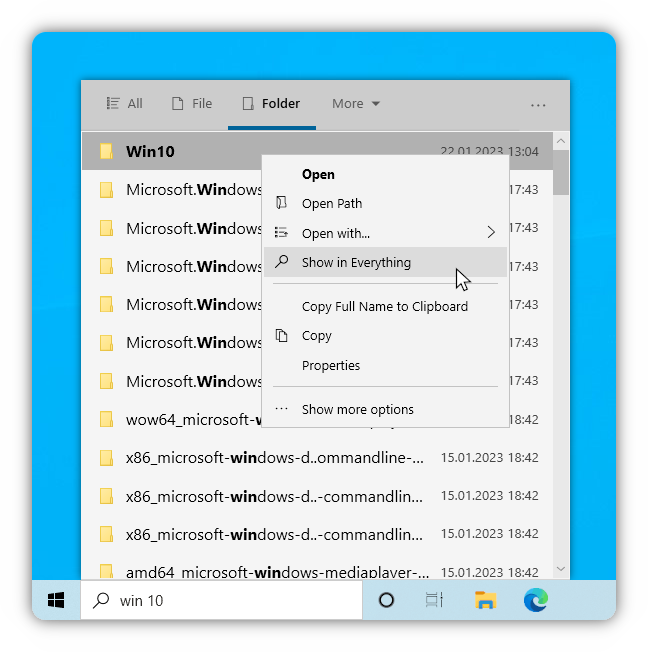
 EverythingToolbar integrates the Everything search engine right into the Windows taskbar, letting you instantly search files and folders without opening a separate app.
EverythingToolbar integrates the Everything search engine right into the Windows taskbar, letting you instantly search files and folders without opening a separate app.Is this a standalone app or a plugin for something else?It is a Windows desktop app that depends on the separate Everything search engine being installed and running; EverythingToolbar is just the taskbar front-end for it.
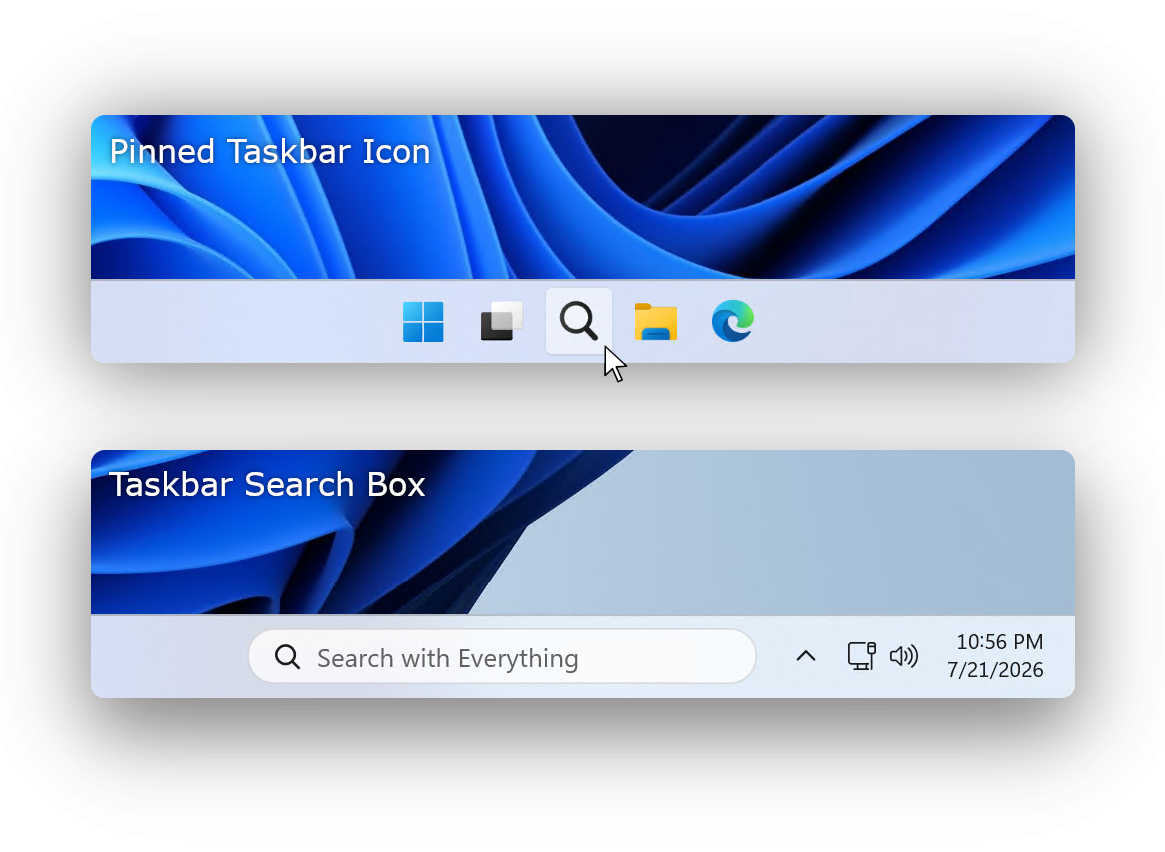
It is a Windows desktop app that depends on the separate Everything search engine being installed and running; EverythingToolbar is just the taskbar front-end for it.How do I install and set it up?Install it with the GitHub Releases installer or via winget (winget install srwi.everythingtoolbar.launcher or ...deskband), then on Windows 11 a setup assistant walks you through choosing a taskbar search box or icon, while on Windows 10 you add it manually as a deskband via the Toolbars context menu.
Install it with the GitHub Releases installer or via winget (winget install srwi.everythingtoolbar.launcher or ...deskband), then on Windows 11 a setup assistant walks you through choosing a taskbar search box or icon, while on Windows 10 you add it manually as a deskband via the Toolbars context menu.What do I need installed before this works?You need Windows 10 or 11, .NET Desktop Runtime 8.0 or later, and the full (non-Lite) version of Everything 1.4.1 or newer already installed and running.
You need Windows 10 or 11, .NET Desktop Runtime 8.0 or later, and the full (non-Lite) version of Everything 1.4.1 or newer already installed and running.Is the taskbar search box available on Windows 10 too?No, the embedded taskbar search box only works on Windows 11; Windows 10 users need to use the deskband mode instead, optionally paired with ExplorerPatcher or StartAllBack for a fuller experience.
No, the embedded taskbar search box only works on Windows 11; Windows 10 users need to use the deskband mode instead, optionally paired with ExplorerPatcher or StartAllBack for a fuller experience.Does it work on both Windows 10 and 11?Yes, it supports both, though the integration method differs: native taskbar search box on 11, deskband toolbar on 10.
Yes, it supports both, though the integration method differs: native taskbar search box on 11, deskband toolbar on 10.Can I preview files before opening them?Yes, pressing Space previews the selected file using QuickLook or Seer integration.
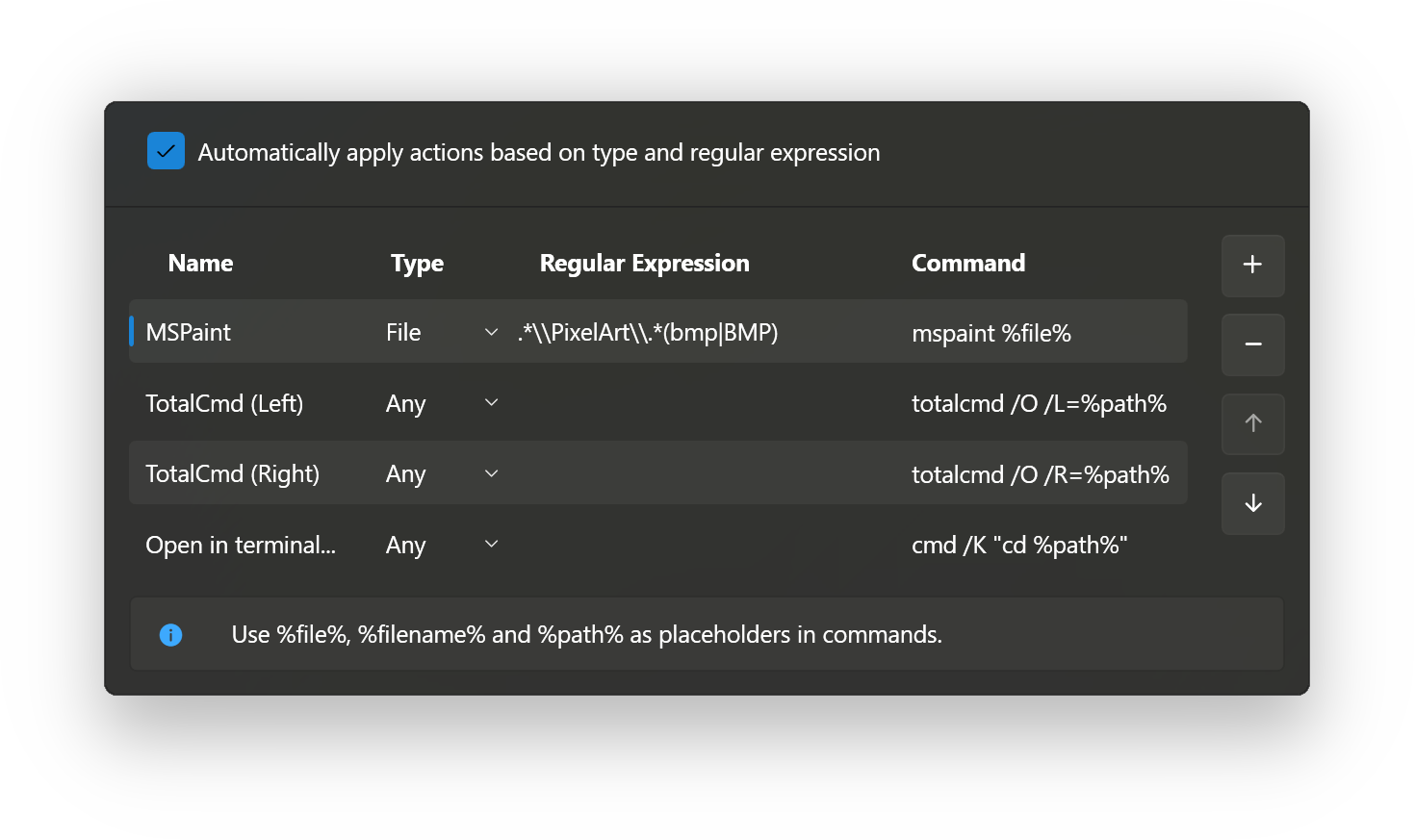
Yes, pressing Space previews the selected file using QuickLook or Seer integration.Can I automate actions on search results?Yes, you can create custom 'Open with' actions under Settings → Custom actions and set regex-based rules to run automatically depending on file type.
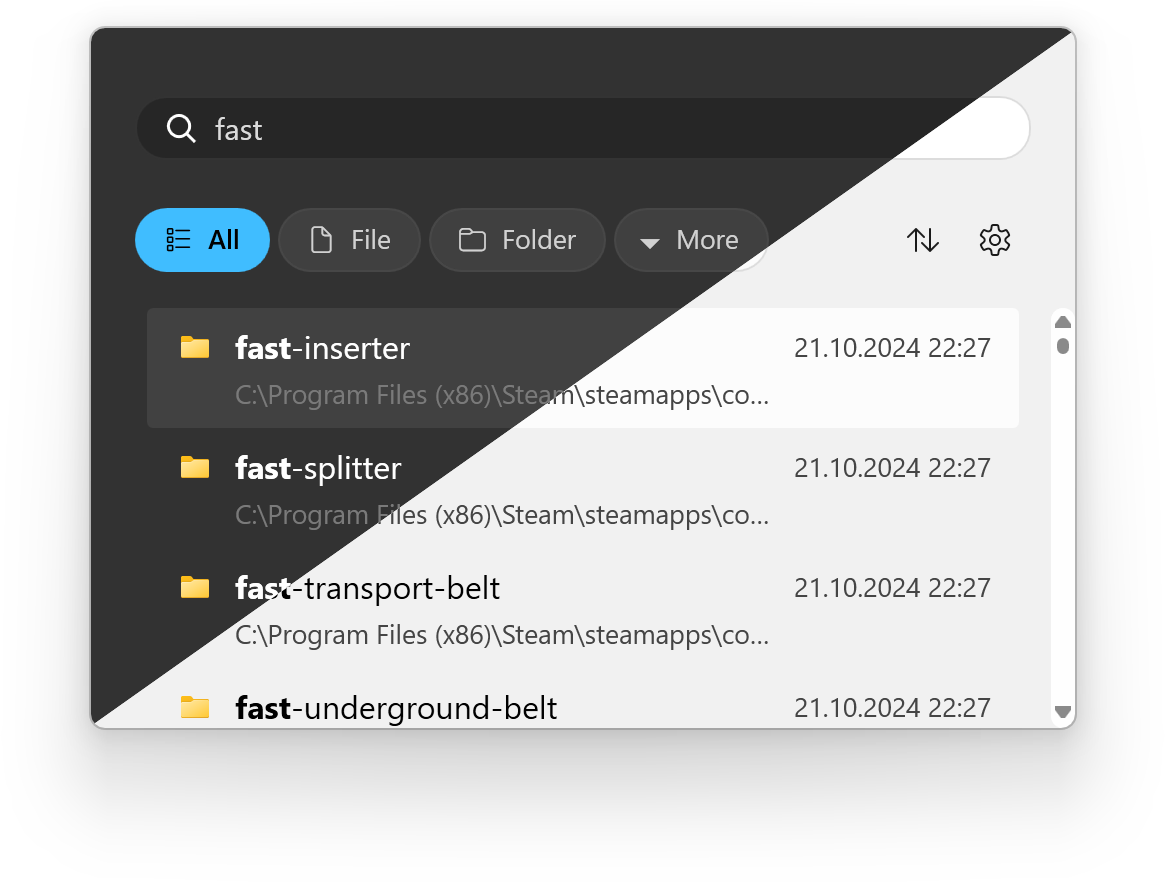
Yes, you can create custom 'Open with' actions under Settings → Custom actions and set regex-based rules to run automatically depending on file type.Does it support dark mode?Yes, it automatically adjusts its light or dark theme to match your Windows system theme.
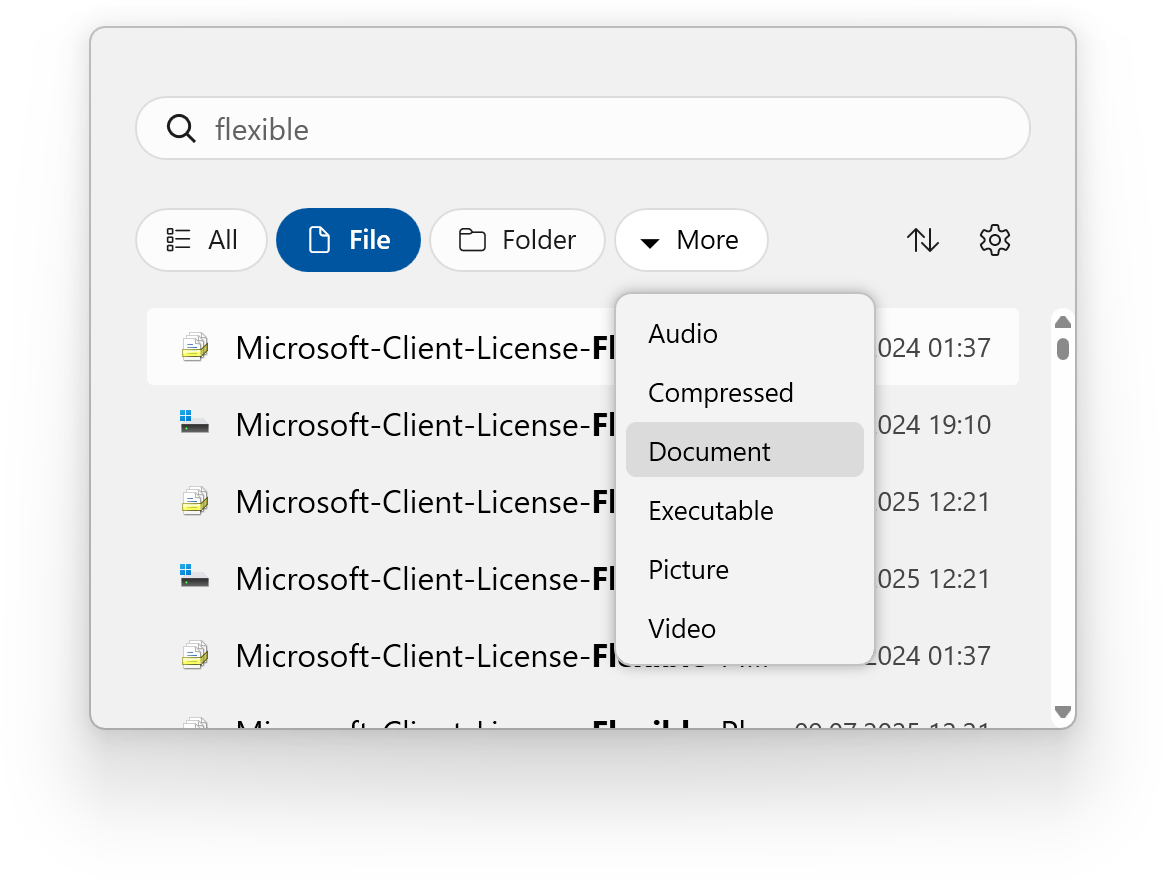
Yes, it automatically adjusts its light or dark theme to match your Windows system theme.Can I use Everything's advanced filters?Yes, enabling 'Use Everything filters' in the Filters settings syncs EverythingToolbar with Everything's custom filters for advanced searches.
Yes, enabling 'Use Everything filters' in the Filters settings syncs EverythingToolbar with Everything's custom filters for advanced searches.What are similar projects?Seelen-UI, NanaZip, Playnite, TranslucentTB, UniGetUI, winutil-cn, Files, DevToys
Seelen-UI, NanaZip, Playnite, TranslucentTB, UniGetUI, winutil-cn, Files, DevToysWhich topics is it in?taskbar, winget, wpf, file-manager, search-engine, windows-10, windows-11, search, c#, utility, desktop, productivity
taskbar, winget, wpf, file-manager, search-engine, windows-10, windows-11, search, c#, utility, desktop, productivity