



sim README

The project's README from github.com/simstudioai/sim. As one markdown file: README.md.

Sim.ai Documentation Slack X

Ask DeepWiki Set Up with Cursor

Sim — Integrate, Context, Build, and Monitor AI agents

A workspace to build, deploy and manage AI agents and workflows.

Quickstart

Cloud-hosted: sim.ai

Open sim.ai

Self-hosted

npx sim-setup

Open http://localhost:3000

Desktop: macOS

Download Sim for macOS

macOS 12+, Apple Silicon and Intel. See the desktop docs to point it at a self-hosted deployment.

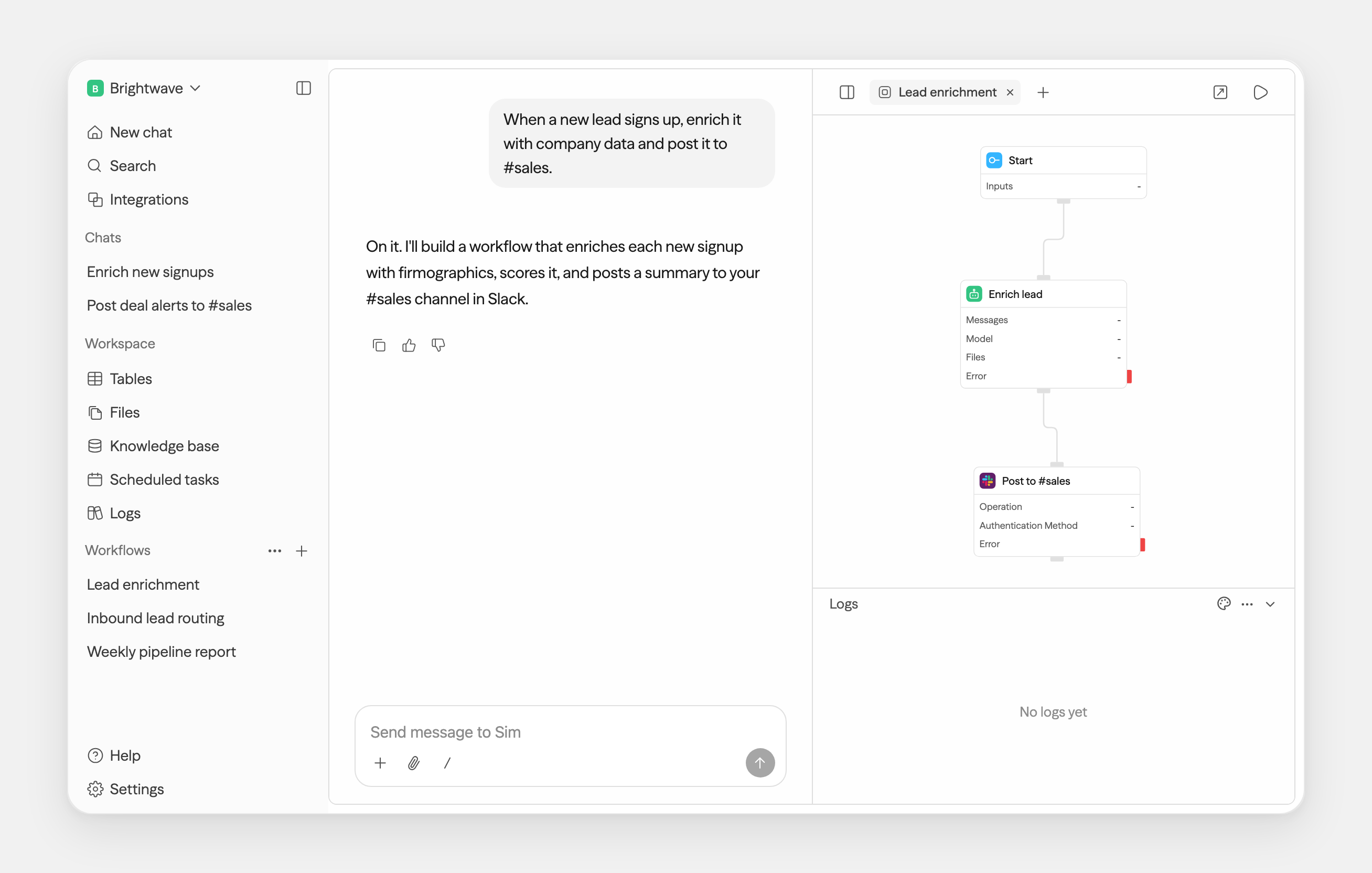
The Sim platform — chat on the left, the visual workflow builder on the right

Capabilities

One workspace, every surface

Chat and workflows are just the start — tables, files, and knowledge all live in the same workspace, in the browser or on your desktop.

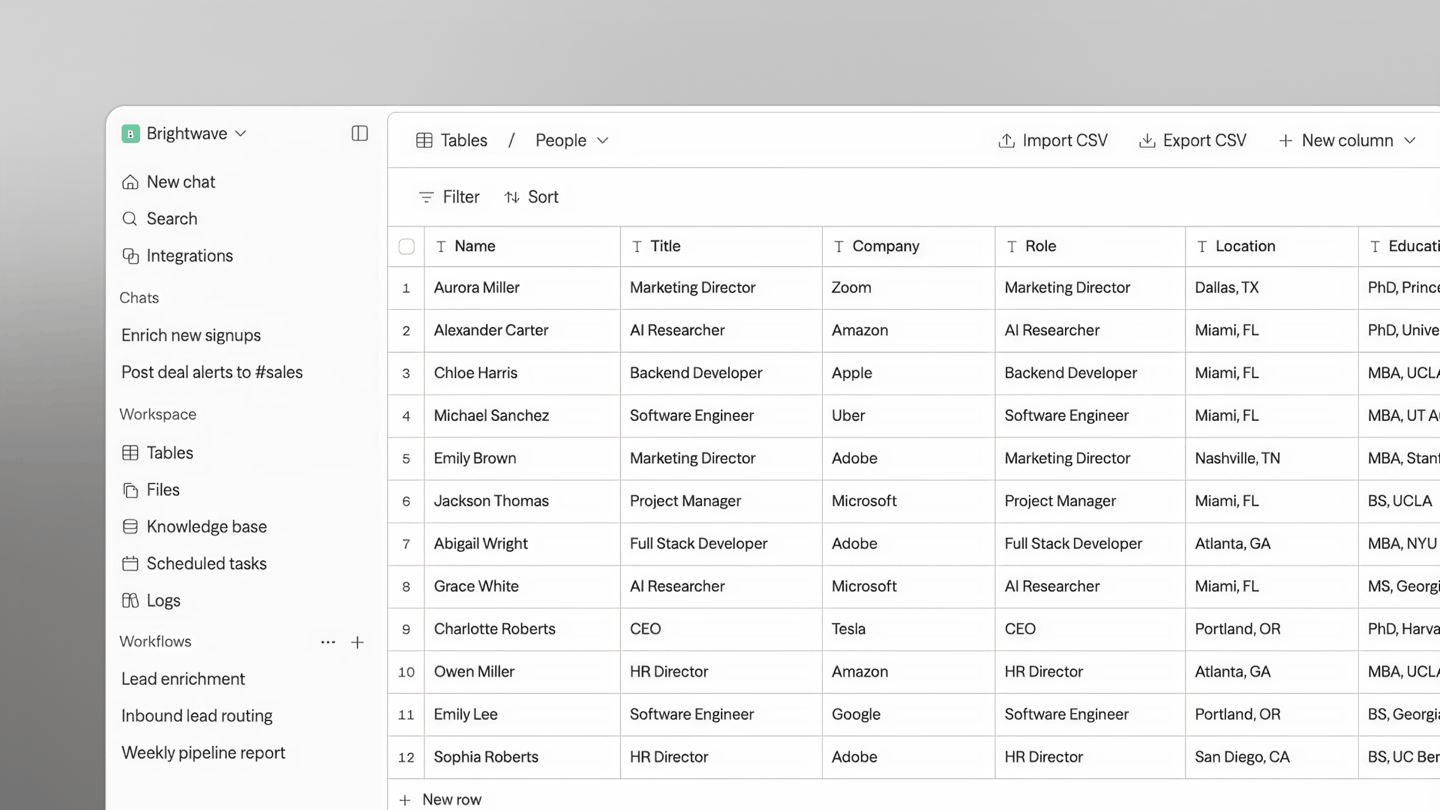
Tables in Sim — structured data your agents can query

Tables — a database, built in

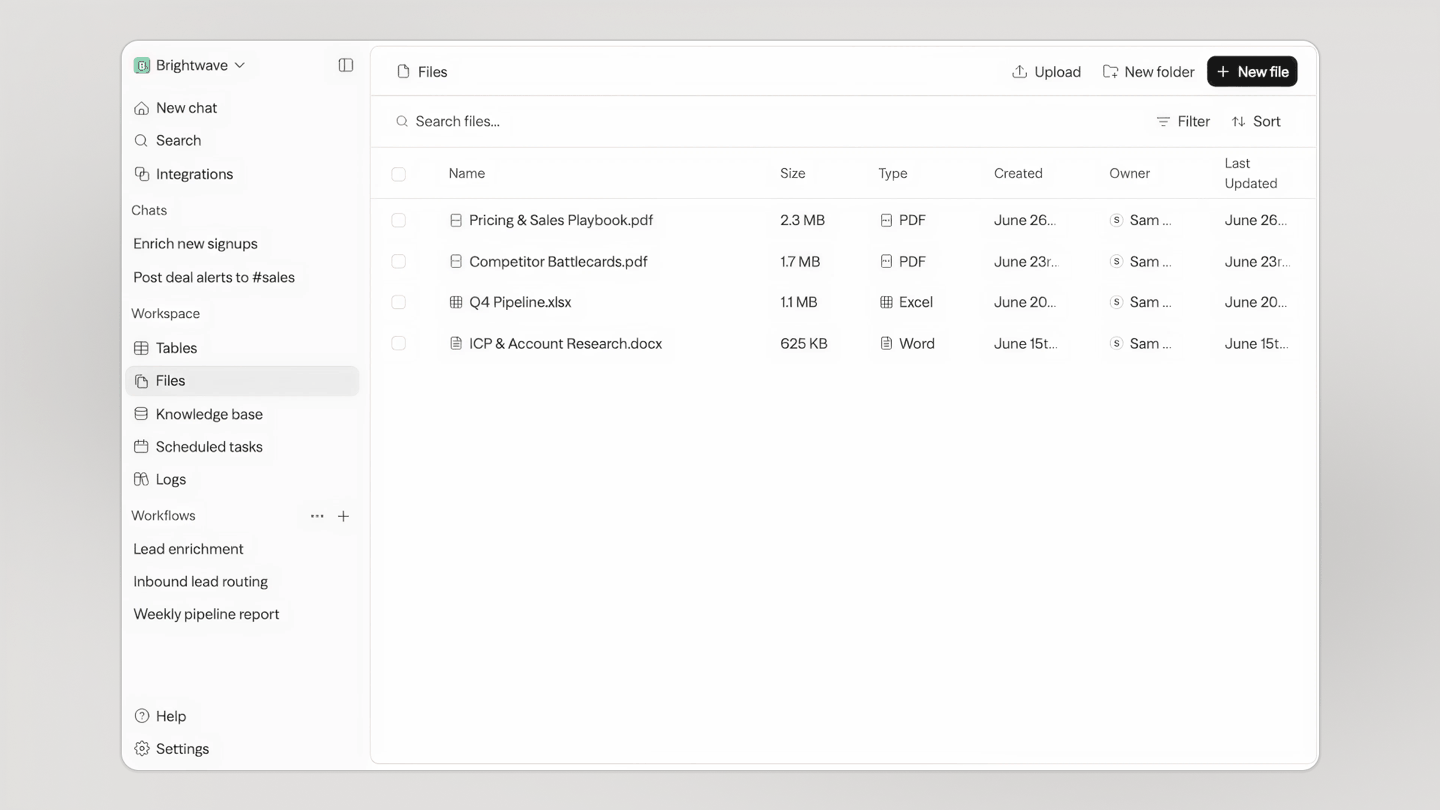
Files in Sim — documents for your team and every agent

Files — one store for your team and every agent

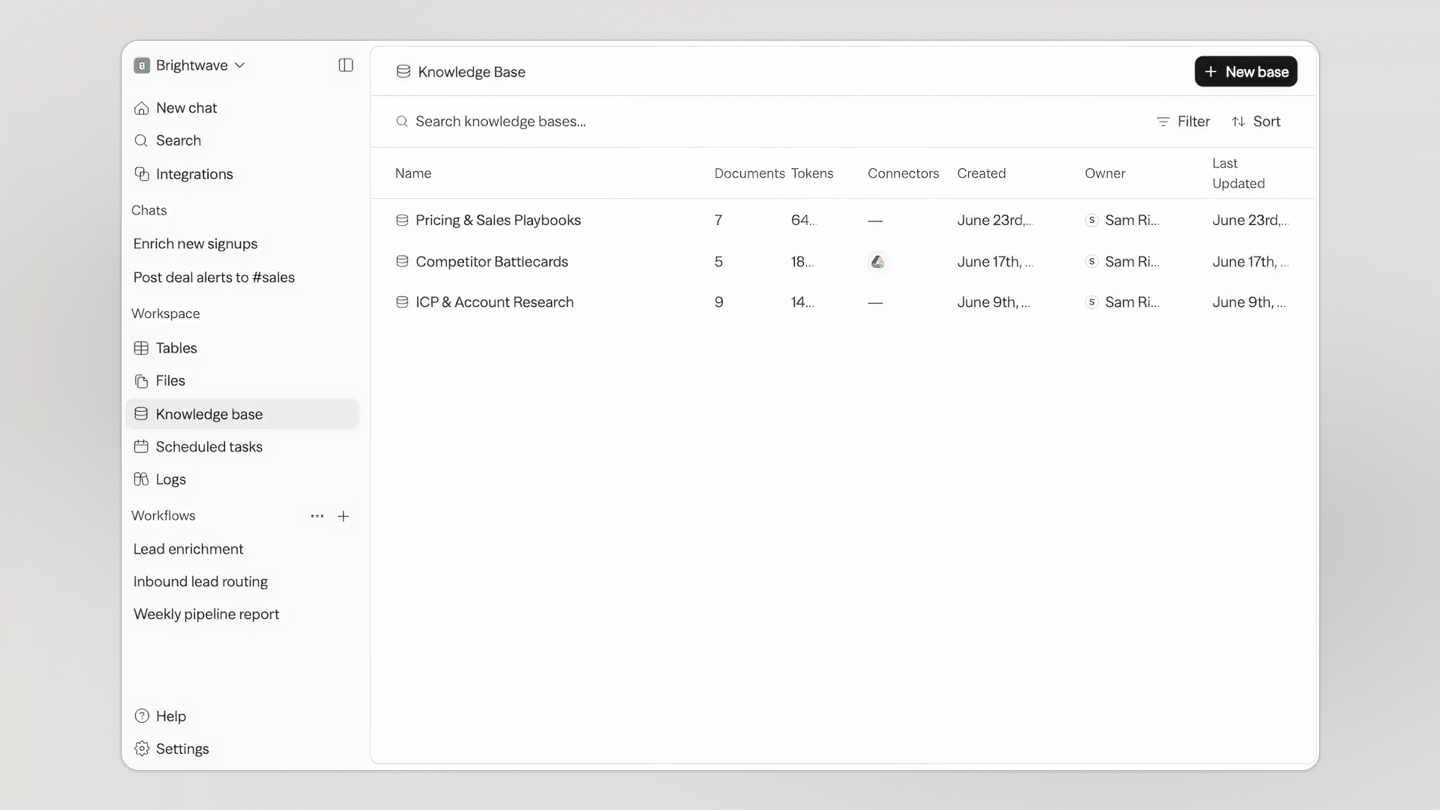
Knowledge bases in Sim — synced docs your agents can search

Knowledge — your agents' memory

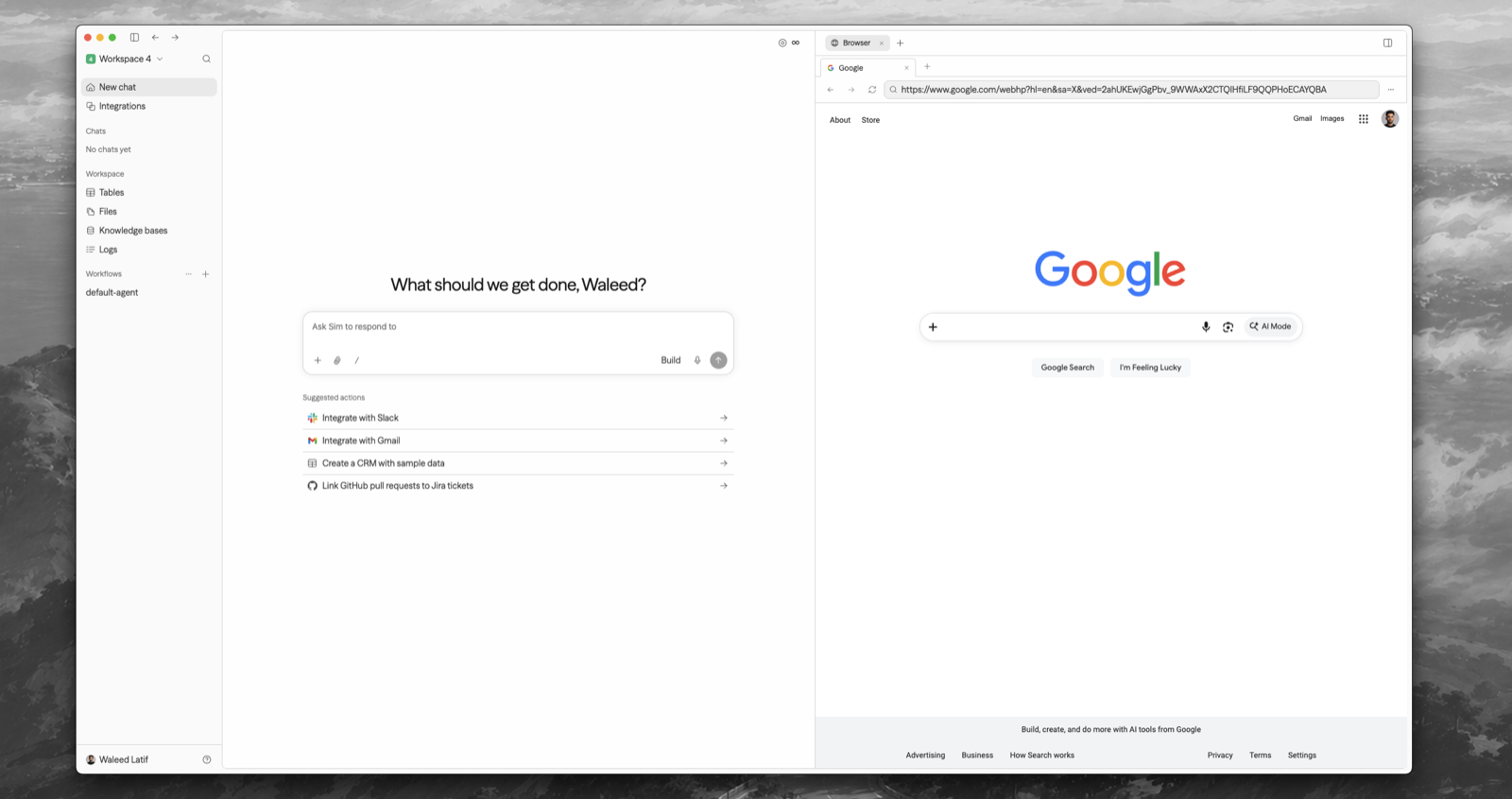
Sim Desktop — Chat on the left, the built-in browser on the right

Desktop — Sim on your Mac, browser and terminal included

Self-hosting

Requirements: Node.js 20+ and Docker.

npx sim-setup is an interactive wizard that creates a small sim/ deployment directory, provisions the database, generates secrets, writes .env, connects a Chat API key, and starts the published Sim images with Docker Compose. It does not clone the repository.

When it finishes, open http://localhost:3000.

Inside a cloned Sim repository, run bun run sim-setup to unlock the source-only local development and Kubernetes modes.

Reconfigure an optional capability without rerunning the full wizard:

npx sim-setup config
npx sim-setup add email
npx sim-setup add storage
npx sim-setup add sandbox
npx sim-setup add jobs
npx sim-setup add cache
npx sim-setup add knowledge
npx sim-setup add chat
npx sim-setup add llm
npx sim-setup add integration slack

npx sim-setup config detects the effective local-dev, Docker Compose, or current-context Helm configuration and reports configured, missing, or invalid capabilities and OAuth integrations without printing credential values. This is separate from npx sim-setup status, which reports whether installed services are running and healthy.

Manage your install from its directory:

npx sim-setup start | stop | restart   # bring your install up / down / cycle
npx sim-setup update                   # pull and apply Compose images
npx sim-setup status                   # what's installed and healthy
npx sim-setup logs                     # follow logs
npx sim-setup doctor                   # diagnose configuration problems
npx sim-setup down                     # remove containers (data kept)
npx sim-setup reset                    # archive .env and wipe managed data

The setup package detects how you're running and acts accordingly. Use --dir <path> to create or manage a deployment somewhere other than ./sim.

Sim also supports local models via Ollama and vLLM. See the self-hosting docs for details.

Chat API Keys

Chat is a Sim-managed service. npx sim-setup connects a Chat API key for you — sign in when it opens your browser and the key is stored automatically. To view, create, or revoke keys later, go to sim.ai/selfhost/settings/chat-keys.

Environment Variables

See the environment variables reference for the full list, or apps/sim/.env.example for defaults.

Tech Stack

Next.js · Bun · PostgreSQL · Drizzle · Better Auth · Tailwind — and the rest of the stack

Contributing

We welcome contributions! Please see our Contributing Guide for details.

License

This project is licensed under the Apache License 2.0 - see the LICENSE file for details.

Built by the Sim team in San Francisco

sim (simstudioai/sim)

Searching Database…

29.8K ·GitHub
这是什么?Sim 是一个协作工作区,用于构建、部署和监控 AI 智能体和工作流,已有超过 10 万名开发者在使用。智能体可以通过可视化界面、聊天或编写代码的方式来搭建。
它是在线网站、桌面应用,还是需要我自己部署的程序?三种都有。sim.ai 上有云端版本,也有开源的自托管部署,还有 macOS 桌面应用(支持 macOS 12 及以上版本,兼容 Apple Silicon 和 Intel 芯片),桌面应用可以连接你自己的自托管实例。
我该怎么自己部署?先安装 Node.js 20+ 和 Docker,然后运行 'npx sim-setup'。这个向导会创建 sim/ 目录、配置数据库、生成密钥、写入 .env 文件,并用 Docker Compose 启动所有服务——不需要克隆代码仓库。
需要付费的 API 密钥吗,还是可以接入本地模型?两种都可以。它支持各大主流 LLM 服务商,自托管部署还可以通过 Ollama 和 vLLM 运行本地模型。
如果我自己部署,聊天功能还是跑在 Sim 的服务器上吗?是的——Chat 是由 Sim 托管的服务。向导会帮你连接一个 Chat API 密钥(只需在它打开浏览器时登录即可);密钥可以在 sim.ai/selfhost/settings/chat-keys 查看、创建或吊销。
智能体开箱即用可以连接哪些东西?超过 1,000 个集成以及各大主流 LLM——包括 Slack、Notion、HubSpot、Salesforce、数据库等等。智能体还可以把文件、知识库和结构化表格数据作为上下文来使用。
搭建智能体是拖拽操作还是写代码?随你选择:README 里列出了三种方式——可视化搭建、对话式搭建,或编写代码。底层的流程编辑器是 ReactFlow,所以可视化搭建是在节点画布上完成的。
工作区里除了聊天和工作流还有什么?还有 Tables(一个内置数据库,你的团队和所有智能体都能共用)、Files(所有文件集中存放)以及 Knowledge——也就是智能体的记忆。这些都可以在浏览器或 Mac 桌面应用中直接使用。
智能体运行完之后,我能看到它做了什么吗?可以——工作区会监控运行情况、日志、定时任务和工作流活动,你可以在搭建的同一个地方观察行为并进行调试。
What are similar projects?Flowise, ruflo, LangBot, dify, brigade, trueforge, LibreChat, bytebot
Size
699.7 MB
Stars
29.8K
Age
1y
Commits · 90 Days