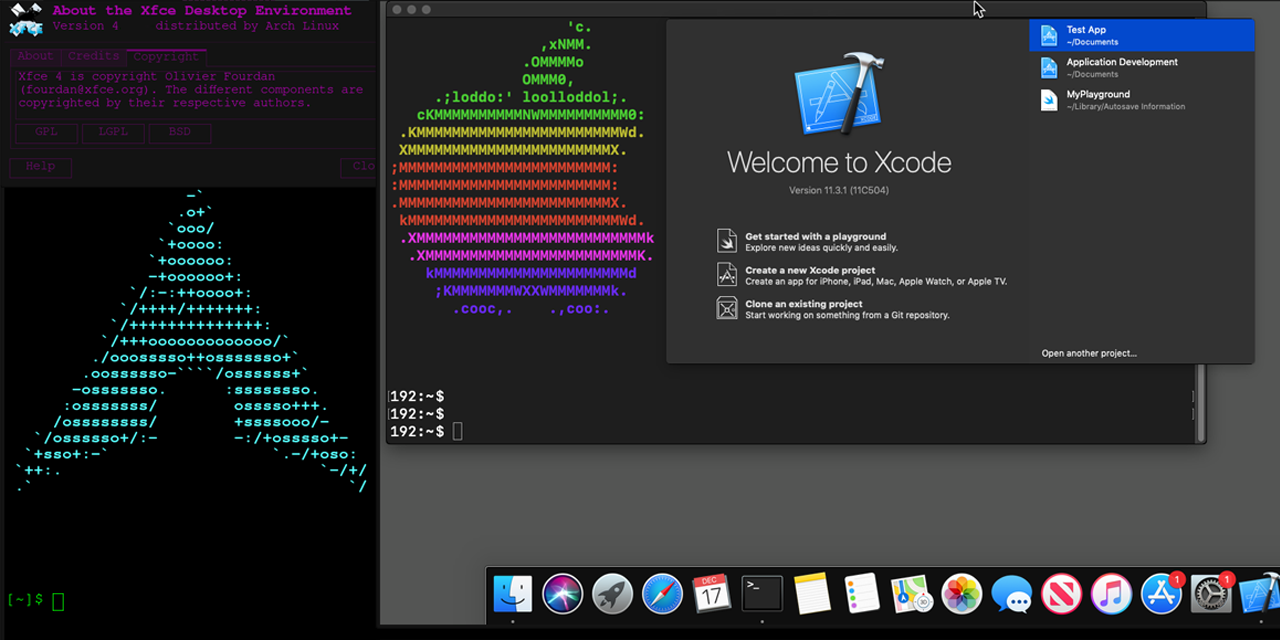
Run Mac OS X in Docker with near-native performance! X11 Forwarding! iMessage security research! iPhone USB working! macOS in a Docker container!
Conduct Security Research on macOS using both Linux & Windows!
Docker-OSX now has a Discord server & Telegram!
The Discord is active on #docker-osx and anyone is welcome to come and ask questions, ideas, etc.


Or reach out via Linkedin if it's private: https://www.linkedin.com/in/sickcodes
Or via https://sick.codes/contact/
Author
This project is maintained by Sick.Codes. (Twitter)
Additional credits can be found here: https://github.com/sickcodes/Docker-OSX/blob/master/CREDITS.md
Additionally, comprehensive list of all contributors can be found here: https://github.com/sickcodes/Docker-OSX/graphs/contributors
Big thanks to @kholia for maintaining the upstream project, which Docker-OSX is built on top of: OSX-KVM.
Also special thanks to @thenickdude who maintains the valuable fork KVM-OpenCore, which was started by @Leoyzen!
Extra special thanks to the OpenCore team over at: https://github.com/acidanthera/OpenCorePkg. Their well-maintained bootloader provides much of the great functionality that Docker-OSX users enjoy :)
If you like this project, consider contributing here or upstream!
Quick Start Docker-OSX
Video setup tutorial is also available here: https://www.youtube.com/watch?v=wLezYl77Ll8
Windows users: click here to see the notes below!
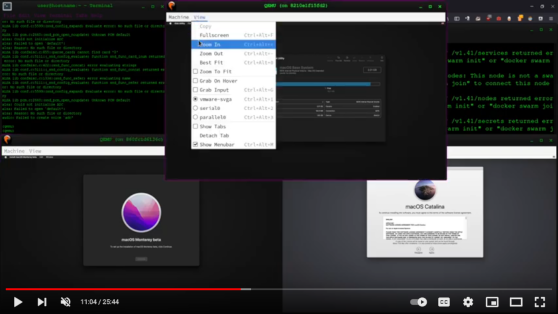
First time here? try initial setup, otherwise try the instructions below to use either Catalina or Big Sur.
Any questions, ideas, or just want to hang out?
Release names and their version:
Catalina (10.15) 
docker run -it \
    --device /dev/kvm \
    -p 50922:10022 \
    -v /tmp/.X11-unix:/tmp/.X11-unix \
    -e "DISPLAY=${DISPLAY:-:0.0}" \
    -e SHORTNAME=catalina \
    sickcodes/docker-osx:latest

# docker build -t docker-osx .
Big Sur (11)
docker run -it \
    --device /dev/kvm \
    -p 50922:10022 \
    -v /tmp/.X11-unix:/tmp/.X11-unix \
    -e "DISPLAY=${DISPLAY:-:0.0}" \
    -e SHORTNAME=big-sur \
    sickcodes/docker-osx:latest

# docker build -t docker-osx .
Monterey (12)
docker run -it \
    --device /dev/kvm \
    -p 50922:10022 \
    -v /tmp/.X11-unix:/tmp/.X11-unix \
    -e "DISPLAY=${DISPLAY:-:0.0}" \
    -e GENERATE_UNIQUE=true \
    -e MASTER_PLIST_URL='https://raw.githubusercontent.com/sickcodes/osx-serial-generator/master/config-custom.plist' \
    -e SHORTNAME=monterey \
    sickcodes/docker-osx:latest

# docker build -t docker-osx .
Ventura (13)
docker run -it \
    --device /dev/kvm \
    -p 50922:10022 \
    -v /tmp/.X11-unix:/tmp/.X11-unix \
    -e "DISPLAY=${DISPLAY:-:0.0}" \
    -e GENERATE_UNIQUE=true \
    -e MASTER_PLIST_URL='https://raw.githubusercontent.com/sickcodes/osx-serial-generator/master/config-custom.plist' \
    -e SHORTNAME=ventura \
    sickcodes/docker-osx:latest

# docker build -t docker-osx .
Sonoma (14)
docker run -it \
    --device /dev/kvm \
    -p 50922:10022 \
    -v /tmp/.X11-unix:/tmp/.X11-unix \
    -e "DISPLAY=${DISPLAY:-:0.0}" \
    -e GENERATE_UNIQUE=true \
    -e CPU='Haswell-noTSX' \
    -e CPUID_FLAGS='kvm=on,vendor=GenuineIntel,+invtsc,vmware-cpuid-freq=on' \
    -e MASTER_PLIST_URL='https://raw.githubusercontent.com/sickcodes/osx-serial-generator/master/config-custom-sonoma.plist' \
    -e SHORTNAME=sonoma \
    sickcodes/docker-osx:latest

# docker build -t docker-osx .
Sequoia (15)
docker run -it \
    --device /dev/kvm \
    -p 50922:10022 \
    -v /tmp/.X11-unix:/tmp/.X11-unix \
    -e "DISPLAY=${DISPLAY:-:0.0}" \
    -e GENERATE_UNIQUE=true \
    -e CPU='Haswell-noTSX' \
    -e CPUID_FLAGS='kvm=on,vendor=GenuineIntel,+invtsc,vmware-cpuid-freq=on' \
    -e MASTER_PLIST_URL='https://raw.githubusercontent.com/sickcodes/osx-serial-generator/master/config-custom-sonoma.plist' \
    -e SHORTNAME=sequoia \
    sickcodes/docker-osx:latest

# docker build -t docker-osx .
Tahoe (16)
docker run -it \
    --device /dev/kvm \
    -p 50922:10022 \
    -v /tmp/.X11-unix:/tmp/.X11-unix \
    -e "DISPLAY=${DISPLAY:-:0.0}" \
    -e GENERATE_UNIQUE=true \
    -e CPU='Haswell-noTSX' \
    -e CPUID_FLAGS='kvm=on,vendor=GenuineIntel,+invtsc,vmware-cpuid-freq=on' \
    -e MASTER_PLIST_URL='https://raw.githubusercontent.com/sickcodes/osx-serial-generator/master/config-custom-sonoma.plist' \
    -e SHORTNAME=tahoe \
    sickcodes/docker-osx:latest
docker build -t docker-osx .
Older Systems
High Sierra
docker run -it \
    --device /dev/kvm \
    -p 50922:10022 \
    -v /tmp/.X11-unix:/tmp/.X11-unix \
    -e "DISPLAY=${DISPLAY:-:0.0}" \
    -e SHORTNAME=high-sierra \
    sickcodes/docker-osx:latest

# docker build -t docker-osx .
Mojave
docker run -it \
    --device /dev/kvm \
    -p 50922:10022 \
    -v /tmp/.X11-unix:/tmp/.X11-unix \
    -e "DISPLAY=${DISPLAY:-:0.0}" \
    -e SHORTNAME=mojave \
    sickcodes/docker-osx:latest

# docker build -t docker-osx .
Download the image manually and use it in Docker

This is a particularly good way for downloading the container, in case Docker's CDN (or your connection) happens to be slow.
wget https://images2.sick.codes/mac_hdd_ng_auto.img

docker run -it \
    --device /dev/kvm \
    -p 50922:10022 \
    -v "${PWD}/mac_hdd_ng_auto.img:/image" \
    -v /tmp/.X11-unix:/tmp/.X11-unix \
    -e "DISPLAY=${DISPLAY:-:0.0}" \
    -e GENERATE_UNIQUE=true \
    -e MASTER_PLIST_URL=https://raw.githubusercontent.com/sickcodes/Docker-OSX/master/custom/config-nopicker-custom.plist \
    -e SHORTNAME=catalina \
    sickcodes/docker-osx:naked
Share directories, sharing files, shared folder, mount folder
The easiest and most secure way is sshfs
# on Linux/Windows
mkdir ~/mnt/osx
sshfs user@localhost: -p 50922 ~/mnt/osx
# wait a few seconds, and ~/mnt/osx will have full rootfs mounted over ssh, and in userspace
# automated: sshpass -p <password> sshfs user@localhost:/ -p 50922 ~/mnt/osx
(VFIO) iPhone USB passthrough (VFIO)
If you have a laptop see the next usbfluxd section.
If you have a desktop PC, you can use @Silfalion's instructions: https://github.com/Silfalion/Iphone_docker_osx_passthrough
(USBFLUXD) iPhone USB -> Network style passthrough OSX-KVM Docker-OSX
Video setup tutorial for usbfluxd is also available here: https://www.youtube.com/watch?v=kTk5fGjK_PM
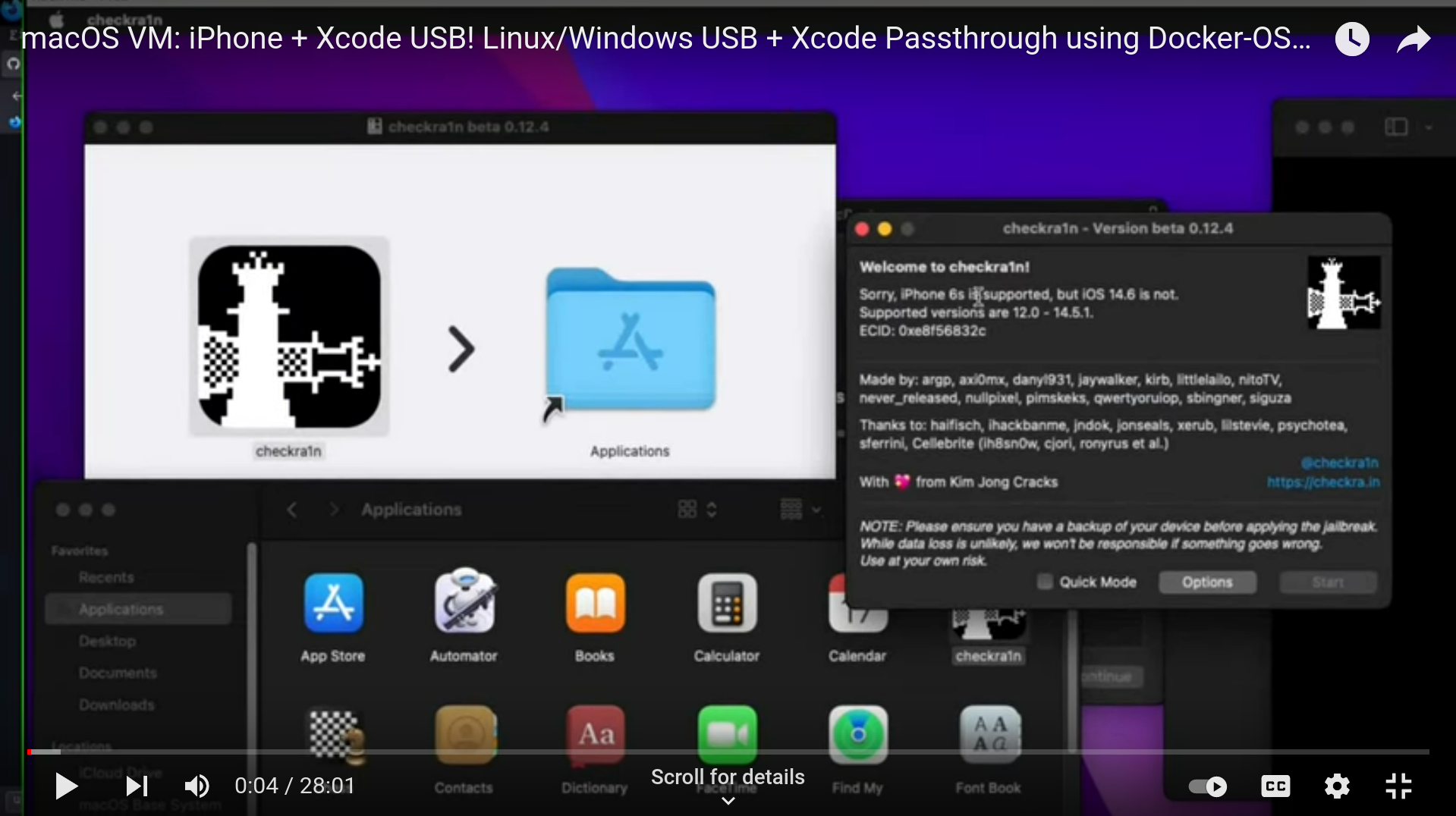
This method WORKS on laptop, PC, anything!
Thank you @nikias for usbfluxd via https://github.com/corellium!
This is done inside Linux.
Open 3 terminals on Linux
Connecting your device over USB on Linux allows you to expose usbmuxd on port 5000 using https://github.com/corellium/usbfluxd to another system on the same network.
Ensure usbmuxd, socat and usbfluxd are installed.
sudo pacman -S libusbmuxd usbmuxd avahi socat
Available on the AUR: https://aur.archlinux.org/packages/usbfluxd/
yay usbfluxd
Plug in your iPhone or iPad.
Terminal 1
sudo systemctl start usbmuxd
sudo avahi-daemon
Terminal 2:
# on host
sudo systemctl restart usbmuxd
sudo socat tcp-listen:5000,fork unix-connect:/var/run/usbmuxd
Terminal 3:
sudo usbfluxd -f -n
Connect to a host running usbfluxd
This is done inside macOS.
Install homebrew.
172.17.0.1 is usually the Docker bridge IP, which is your PC, but you can use any IP from ip addr...
macOS Terminal:
# on the guest
brew install make automake autoconf libtool pkg-config gcc libimobiledevice usbmuxd

git clone https://github.com/corellium/usbfluxd.git
cd usbfluxd

./autogen.sh
make
sudo make install
Accept the USB over TCP connection, and appear as local:
(you may need to change 172.17.0.1 to the IP address of the host. e.g. check ip addr)
# on the guest
sudo launchctl start usbmuxd
export PATH=/usr/local/sbin:${PATH}
sudo usbfluxd -f -r 172.17.0.1:5000
Close apps such as Xcode and reopen them and your device should appear!
If you need to start again on Linux, wipe the current usbfluxd, usbmuxd, and socat:
sudo killall usbfluxd
sudo systemctl restart usbmuxd
sudo killall socat
SEE commands in https://github.com/sickcodes/osx-optimizer!
- Skip the GUI login screen (at your own risk!)
- Disable spotlight indexing on macOS to heavily speed up Virtual Instances.
- Disable heavy login screen wallpaper
- Disable updates (at your own risk!)
Increase disk space by moving /var/lib/docker to external drive, block storage, NFS, or any other location conceivable.
Move /var/lib/docker, following the tutorial below
- Cheap large physical disk storage instead using your server's disk, or SSD.
- Block Storage, NFS, etc.
Tutorial here: https://sick.codes/how-to-run-docker-from-block-storage/
Only follow the above tutorial if you are happy with wiping all your current Docker images/layers.
Safe mode: Disable docker temporarily so you can move the Docker folder temporarily.
killall dockerd
systemctl disable --now docker
systemctl disable --now docker.socket
systemctl stop docker
systemctl stop docker.socket
Now, that Docker daemon is off, move /var/lib/docker somewhere
Then, symbolicly link /var/lib/docker somewhere:
mv /var/lib/docker /run/media/user/some_drive/docker
ln -s /run/media/user/some_drive/docker /var/lib/docker

# now check if /var/lib/docker is working still
ls /var/lib/docker
If you see folders, then it worked. You can restart Docker, or just reboot if you want to be sure.
Important notices:
2021-11-14 - Added High Sierra, Mojave
Pick one of these while building, irrelevant when using docker pull:
--build-arg SHORTNAME=high-sierra
--build-arg SHORTNAME=mojave
--build-arg SHORTNAME=catalina
--build-arg SHORTNAME=big-sur
--build-arg SHORTNAME=monterey
--build-arg SHORTNAME=ventura
--build-arg SHORTNAME=sonoma
Technical details
There are currently multiple images, each with different use cases (explained below):
- High Sierra (10.13)
- Mojave (10.14)
- Catalina (10.15)
- Big Sur (11)
- Monterey (12)
- Ventura (13)
- Sonoma (14)
- Auto (pre-made Catalina)
- Naked (use your own .img)
- Naked-Auto (user your own .img and SSH in)
High Sierra:

Mojave:

Catalina:
Big-Sur:

Monterey make your own image:

Ventura make your own image:

Sonoma make your own image:


 Docker-OSX 可以借助 KVM 在 Docker 容器里运行完整的 macOS 虚拟机,性能接近原生,适用于安全研究、CI/CD 和开发,无需自己拥有一台真正的 Mac。