Hermes Web UI
Hermes Agent is a sophisticated autonomous agent that lives on your server, accessed via a terminal or messaging apps, that remembers what it learns and gets more capable the longer it runs.
Hermes WebUI is a lightweight, dark-themed web app interface in your browser for Hermes Agent.
Full parity with the CLI experience - everything you can do from a terminal, you can do from this UI. No build step, no framework, no bundler. Just Python and vanilla JS.
Layout: three-panel. Left sidebar for sessions and navigation, center for chat,
right for workspace file browsing. Model, profile, and workspace controls live in
the composer footer — always visible while composing. A circular context ring
shows token usage at a glance. All settings and session tools are in the
Hermes Control Center (launcher at the sidebar bottom).
Setup Hermes so you can access it natively on every device:


Light mode with full profile support
|

Customize your settings, configure a password
|
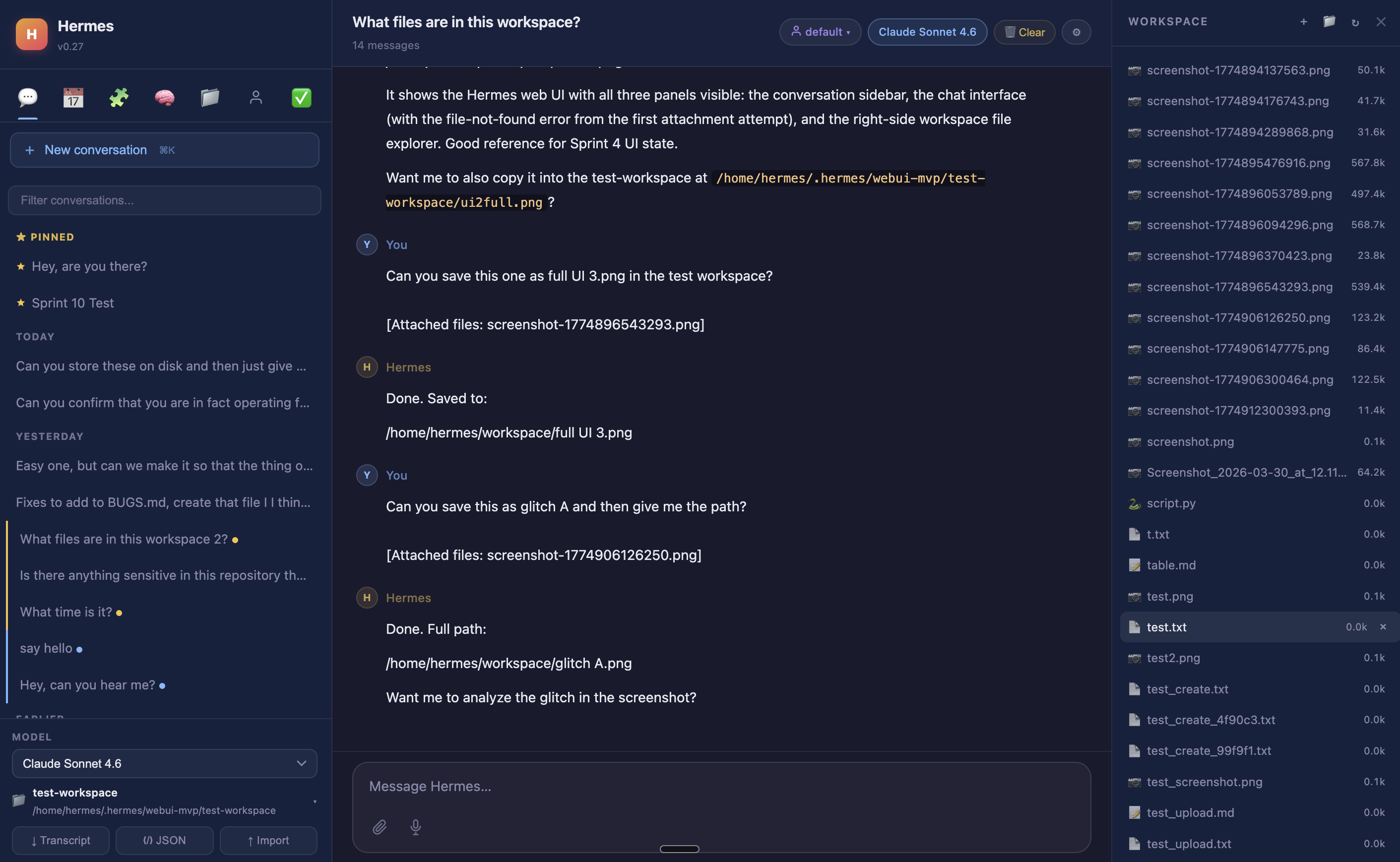
Workspace file browser with inline preview
|
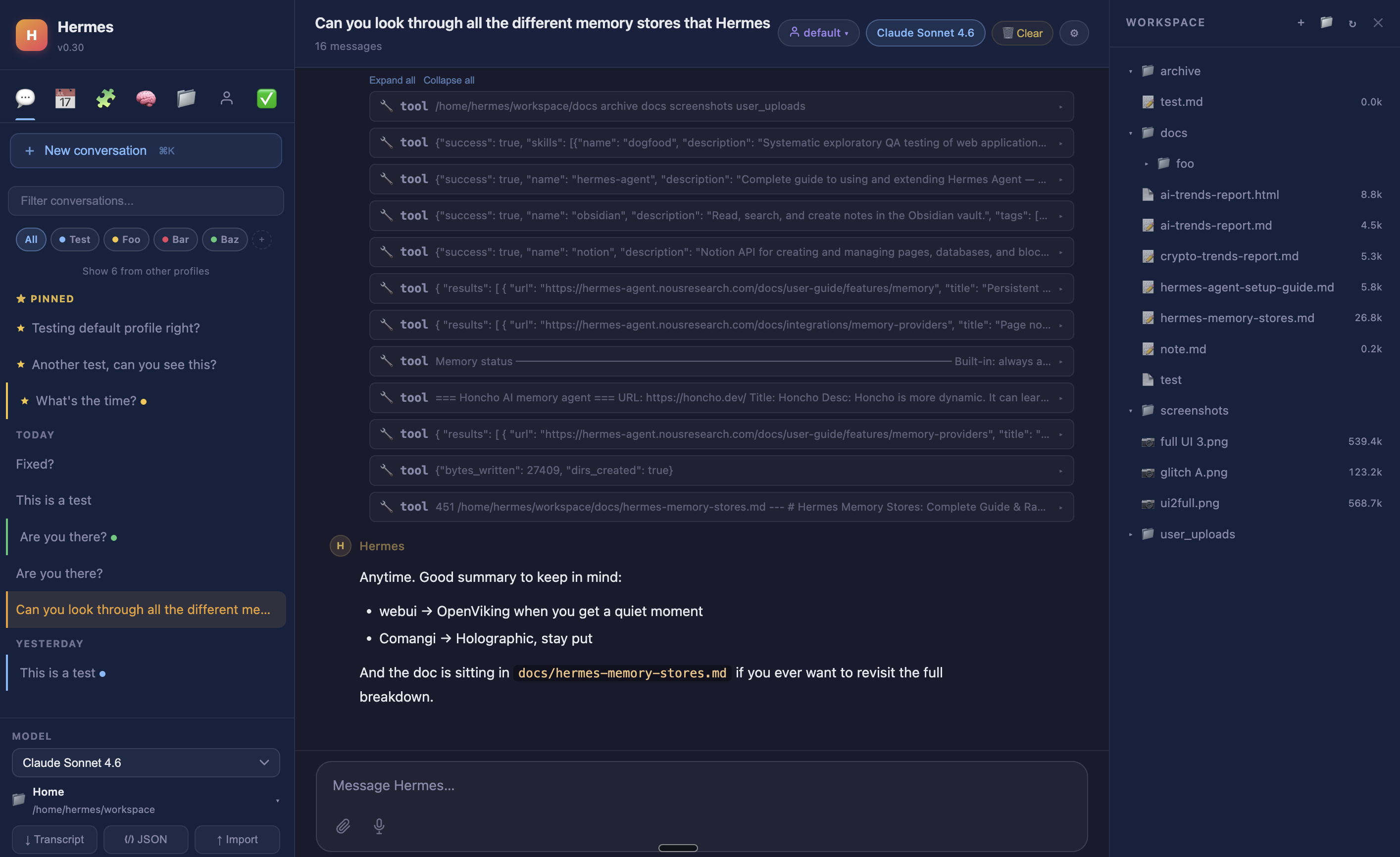
Session projects, tags, and tool call cards
|
This gives you nearly 1:1 parity with Hermes CLI from a convenient web UI which you can access securely through an SSH tunnel from your Hermes setup. Single command to start this up, and a single command to SSH tunnel for access on your computer. Every single part of the web UI uses your existing Hermes agent and existing models, without requiring any additional setup.
Contents

- Why Hermes — what it is and how it compares
- Quick start — clone +
bootstrap.py / start.sh / ctl.sh
- Features — chat, sessions, workspace, voice, profiles, security, themes, panels, mobile
- Configuration & access — auto-discovery, overrides, remote/Tailscale/phone, manual launch
- Nix flake/module — declarative install and service
- Docker — single- and multi-container deploys
- Running tests
- Architecture — backend/frontend layout, state dir
- Docs — the full documentation index
- Contributors
Why Hermes
Most AI tools reset every session. They don't know who you are, what you worked on, or what
conventions your project follows. You re-explain yourself every time.
Hermes retains context across sessions, runs scheduled jobs while you're offline, and gets
smarter about your environment the longer it runs. It uses your existing Hermes agent setup,
your existing models, and requires no additional configuration to start.
What makes it different from other agentic tools:
- Persistent memory — user profile, agent notes, and a skills system that saves reusable
procedures; Hermes learns your environment and does not have to relearn it
- Self-hosted scheduling — cron jobs that fire while you're offline and deliver results to
Telegram, Discord, Slack, Signal, email, and more
- 10+ messaging platforms — the same agent available in the terminal is reachable from your phone
- Self-improving skills — Hermes writes and saves its own skills automatically from experience;
no marketplace to browse, no plugins to install
- Provider-agnostic — OpenAI, Anthropic, Google, DeepSeek, OpenRouter, and more
- Orchestrates other agents — can spawn Claude Code or Codex for heavy coding tasks and bring
the results back into its own memory
- Self-hosted — your conversations, your memory, your hardware
vs. the field (landscape is actively shifting — see docs/why-hermes.md for the full breakdown):
|
OpenClaw |
Claude Code |
Codex CLI |
OpenCode |
Hermes |
| Persistent memory (auto) |
Yes |
Partial† |
Partial |
Partial |
Yes |
| Scheduled jobs (self-hosted) |
Yes |
No‡ |
No |
No |
Yes |
| Messaging app access |
Yes (15+ platforms) |
Partial (Telegram/Discord preview) |
No |
No |
Yes (10+) |
| Web UI (self-hosted) |
Dashboard only |
No |
No |
Yes |
Yes |
| Self-improving skills |
Partial |
No |
No |
No |
Yes |
| Python / ML ecosystem |
No (Node.js) |
No |
No |
No |
Yes |
| Provider-agnostic |
Yes |
No (Claude only) |
Yes |
Yes |
Yes |
| Open source |
Yes (MIT) |
No |
Yes |
Yes |
Yes |
† Claude Code has CLAUDE.md / MEMORY.md project context and rolling auto-memory, but not full automatic cross-session recall
‡ Claude Code has cloud-managed scheduling (Anthropic infrastructure) and session-scoped /loop; no self-hosted cron
The closest competitor is OpenClaw — both are always-on, self-hosted, open-source agents
with memory, cron, and messaging. The key differences: Hermes writes and saves its own skills
automatically as a core behavior (OpenClaw's skill system centers on a community marketplace);
Hermes is more stable across updates (OpenClaw has documented release regressions and ClawHub
has had security incidents involving malicious skills); and Hermes runs natively in the Python
ecosystem. See docs/why-hermes.md for the full side-by-side.
Quick start
Run the repo bootstrap:
git clone https://github.com/nesquena/hermes-webui.git hermes-webui
cd hermes-webui
python3 bootstrap.py
Or keep using the shell launcher:
./start.sh
For self-hosted VM or homelab installs, ctl.sh wraps the common daemon lifecycle commands without requiring fuser or pkill:
./ctl.sh start              # background daemon, PID at ~/.hermes/webui.pid
./ctl.sh status             # PID, uptime, bound host/port, log path, /health
./ctl.sh logs --lines 100   # tail ~/.hermes/webui.log
./ctl.sh restart
./ctl.sh stop
ctl.sh start runs the bootstrap in foreground/no-browser mode behind the daemon wrapper, writes logs to ~/.hermes/webui.log, and respects .env plus inline overrides such as HERMES_WEBUI_HOST=0.0.0.0 ./ctl.sh start.
Stopping the server. Each launch method has its own stop path because only ctl.sh start writes a PID file (~/.hermes/webui.pid):
| Launch method |
How to stop |
python3 bootstrap.py |
Ctrl-C in the terminal (runs in the foreground) |
./ctl.sh start |
./ctl.sh stop (sends SIGTERM, waits, then SIGKILL) |
Detached bootstrap.py (no --foreground) or ./start.sh |
Find the PID via lsof -i :8787 (or ss -tlnp) and kill it |
./ctl.sh stop cannot stop a server launched by bootstrap.py or start.sh directly — it only manages processes it started itself.
How chat runs by default. WebUI runs the Hermes agent in-process, reading
your HERMES_HOME config directly. It does not connect to an external
Hermes/agent OpenAI-compatible API server to run chat. HERMES_API_URL is only
read by the Tasks/cron health probe and does not route chat.
Two options if you run an external endpoint:
- Use its models as a chat provider (supported today): add it in
Settings → Providers as a custom OpenAI-compatible provider with
base_url = http://127.0.0.1:8642/v1 and your bearer token.
- Route chat through a Hermes Gateway API server (supported today via
HERMES_WEBUI_CHAT_BACKEND=gateway): see docs/advanced-chat-setup.md.
Full agent-loop delegation is not yet shipped; tracked in #1925.
Advanced: dynamic recall prefill & Gateway-backed chat
Two optional, self-hosted-deployment features — attaching dynamic session-recall prefill to browser turns (Joplin/Obsidian/Notion/llm-wiki routers), and routing browser chat through a running Hermes Gateway — are documented in docs/advanced-chat-setup.md. Most users need neither.
The bootstrap will:
- Detect Hermes Agent and, if missing, attempt the official installer (
curl -fsSL https://raw.githubusercontent.com/NousResearch/hermes-agent/main/scripts/install.sh | bash).
- Find or create a Python environment with the WebUI dependencies.
- Start the web server and wait for
/health.
- Open the browser unless you pass
--no-browser.
- Drop you into a first-run onboarding wizard inside the WebUI.
Native Windows is not supported for this bootstrap yet. Use Linux, macOS, or WSL2.
For Windows / WSL auto-start at login, see docs/wsl-autostart.md.
A community-maintained native Windows setup is documented at @markwang2658/hermes-windows-native-guide (companion setup repo: @markwang2658/hermes-windows-native). Notes from the community report in #1952:
- Memory: community-measured ~330 MB native vs ~1080 MB with WSL2+Docker (varies by configuration).
- What works: chat, workspace browser, session management, all themes.
- Known limitations: some POSIX-style file paths surface in the workspace browser; bash-assuming agent tools may not work natively.
- Native Windows setup: install Python 3.11+, then from the hermes-agent root in PowerShell:
python -m venv venv → pip install -r requirements.txt → pwsh .\start.ps1 (it auto-discovers venv\Scripts\python.exe).
- WSL2 relationship: not a prerequisite — a WSL2-built venv (
venv/bin/python, ELF) isn't invokable by native Windows Python, so use the native setup above. WSL2 stays useful as a parallel install if you want the full bootstrap.py + Linux runtime.
If provider setup is still incomplete after install, the onboarding wizard will point you to finish it with hermes model instead of trying to replicate the full CLI setup in-browser.
For a step-by-step walkthrough of the wizard, provider choices, local model server Base URLs, and safe re-runs, see docs/onboarding.md.
If an AI assistant is helping with install, reinstall, bootstrap, provider setup, or first-run support, have it read docs/onboarding-agent-checklist.md before running commands or inspecting logs.
Features
Chat and agent
- Streaming responses via SSE (tokens appear as they are generated)
- Multi-provider model support -- any Hermes API provider (OpenAI, Anthropic, Google, DeepSeek, Nous Portal, OpenRouter, MiniMax, Xiaomi MiMo, Z.AI); dynamic model dropdown populated from configured keys
- Send a message while one is processing -- it queues automatically
- Edit any past user message inline and regenerate from that point
- Retry the last assistant response with one click
- Cancel a running task directly from the composer footer (Stop button next to Send)
- Tool call cards inline -- each shows the tool name, args, and result snippet; expand/collapse all toggle for multi-tool turns
- Subagent delegation cards -- child agent activity shown with distinct icon and indented border
- Mermaid diagram rendering inline (flowcharts, sequence diagrams, gantt charts)
- Thinking/reasoning display -- collapsible gold-themed cards for Claude extended thinking and o3 reasoning blocks
- Approval card for dangerous shell commands (allow once / session / always / deny)
- SSE auto-reconnect on network blips (SSH tunnel resilience)
- File attachments persist across page reloads and are stored outside the active workspace by default (
~/.hermes/webui/attachments/<session_id>/, or HERMES_WEBUI_ATTACHMENT_DIR/<session_id>/ when configured)
- Message timestamps (HH:MM next to each message, full date on hover)
- Code block copy button with "Copied!" feedback
- Syntax highlighting via Prism.js (Python, JS, bash, JSON, SQL, and more)
- Safe HTML rendering in AI responses (bold, italic, code converted to markdown)
- rAF-throttled token streaming for smoother rendering during long responses
- Context usage indicator in composer footer -- token count, cost, and fill bar (model-aware)
Sessions
- Create, rename, duplicate, delete, search by title and message content
- Session actions via
⋯ dropdown per session — pin, move to project, archive, duplicate, delete
- Pin/star sessions to the top of the sidebar (gold indicator)
- Archive sessions (hide without deleting, toggle to show)
- Session projects -- named groups with colors for organizing sessions
- Session tags -- add #tag to titles for colored chips and click-to-filter
- Grouped by Today / Yesterday / Earlier in the sidebar (collapsible date groups)
- Download as Markdown transcript, full JSON export, or import from JSON
- Create a public read-only share link for the active conversation from the Control Center; shared pages show a sanitized transcript snapshot without workspace, profile, or live controls
- Sessions persist across page reloads and SSH tunnel reconnects
- Browser tab title reflects the active session name
- CLI session bridge -- CLI sessions from hermes-agent's SQLite store appear in the sidebar with a gold "cli" badge; click to import with full history and reply normally
- Token/cost display -- input tokens, output tokens, estimated cost shown per conversation (toggle in Settings or
/usage command)
Workspace file browser
- Directory tree with expand/collapse (single-click toggles, double-click navigates)
- Breadcrumb navigation with clickable path segments
- Preview text, code, Markdown (rendered), and images inline
- Chat links using
workspace://path/to/file open files in the right-side preview pane
- Edit, create, delete, and rename files; create folders
- Binary file download (auto-detected from server)
- File preview auto-closes on directory navigation (with unsaved-edit guard)
- Git detection -- branch name and dirty file count badge in workspace header
- Right panel is drag-resizable
- Syntax highlighted code preview (Prism.js)
- Microphone button in the composer (Web Speech API)
- Tap to record, tap again or send to stop
- Live interim transcription appears in the textarea
- Auto-stops after ~2s of silence
- Appends to existing textarea content (doesn't replace)
- Hidden when browser doesn't support Web Speech API (Chrome, Edge, Safari)
Profiles
- Profile chip in the composer footer -- dropdown showing all profiles with gateway status and model info
- Gateway status dots (green = running), model info, skill count per profile
- Profiles management panel -- create, switch, and delete profiles from the sidebar
- Clone config from active profile on create
- Optional custom endpoint fields on create -- Base URL and API key written into the profile's
config.yaml at creation time, so Ollama, LMStudio, and other local endpoints can be configured without editing files manually
- Seamless switching -- no server restart; reloads config, skills, memory, cron, models
- Per-session profile tracking (records which profile was active at creation)
Authentication and security
- Optional password auth -- off by default, zero friction for localhost
- Enable via
HERMES_WEBUI_PASSWORD env var or Settings panel
- Installed PWAs work best with WebUI's own password. Reverse proxies are supported, but proxy basic auth can block the service-worker update fetches an installed app needs and leave it on a blank screen after an update; see
docs/troubleshooting.md for recovery steps.
- Optional passkeys/WebAuthn -- register from Settings -> System after signing in with a password; the login page only shows passkey sign-in after at least one passkey exists
- After registering at least one passkey, Settings -> System can remove the password and keep passkey-only sign-in enabled. Password auth remains the bootstrap/recovery path until you choose to go passwordless; passkeys are same-origin and stored locally in the WebUI state directory
- Optional native OIDC login for WebUI sessions -- configure
webui_oidc.issuer, client_id, allow_claim, and allow_values in config.yaml, or set the matching HERMES_WEBUI_OIDC_* environment variables. OIDC stays disabled until all four are present, and startup prints a warning if the config is partial.
- Native OIDC stores the PKCE/state nonce flow in process memory. That works for the shipped single-process server, and it also works behind a load balancer when callbacks stay sticky to the same WebUI instance. Multi-instance deployments need session affinity, or the callback can land on a different process and fail state validation.
- Signed HMAC HTTP-only cookie with 24h TTL
- Minimal dark-themed login page at
/login
- Security headers on all responses (X-Content-Type-Options, X-Frame-Options, Referrer-Policy)
- 20MB POST body size limit
- CDN resources pinned with SRI integrity hashes
Themes
- Appearance is split into two axes: Theme (
system, dark, light) and Skin
(default, ares, mono, slate, poseidon, sisyphus, charizard,
sienna, catppuccin, nous, geist-contrast / Geist Contrast)
- Switch via Settings -> Appearance (instant live preview) or
/theme <theme-or-skin>
- Persists across reloads (server-side in settings.json + localStorage for flicker-free loading)
- Skins use
data-skin plus CSS variables; dark mode resolves through the
.dark class, not a data-theme custom-theme axis — see THEMES.md
Settings and configuration
- Hermes Control Center (sidebar launcher button) -- Conversation tab (export/import/clear), Preferences tab (model, send key, theme, language, all toggles), System tab (version, password)
- Send key: Enter (default) or Ctrl/Cmd+Enter
- Show/hide CLI sessions toggle (enabled by default)
- Token usage display toggle (off by default, also via
/usage command)
- Control Center always opens on the Conversation tab; resets on close
- Unsaved changes guard -- discard/save prompt when closing with unpersisted changes
- Cron completion alerts -- toast notifications and unread badges scoped to the active profile on the Tasks tab and session sidebar
- Background agent error alerts -- banner when a non-active session encounters an error
Slash commands
- Type
/ in the composer for autocomplete dropdown
- Plain skills match case-insensitive keywords in their name or description; built-in, agent/plugin, and bundle commands keep prefix matching and take precedence over a same-slug skill
- Built-in:
/help, /clear, /compress [focus topic], /compact (alias), /model <name>, /workspace <name>, /new, /usage, /theme
- Arrow keys navigate, Tab/Enter select, Escape closes
- Unrecognized commands pass through to the agent
Panels
- Chat -- session list, search, pin, archive, projects, new conversation
- Tasks -- view, create, edit, run, pause/resume, delete cron jobs; ru

 Hermes WebUI — это лёгкий веб-интерфейс в тёмной теме для Hermes Agent, самостоятельного (self-hosted) автономного агента, который помнит контекст между сессиями. Он даёт полный набор возможностей CLI прямо в браузере — на компьютере или телефоне.