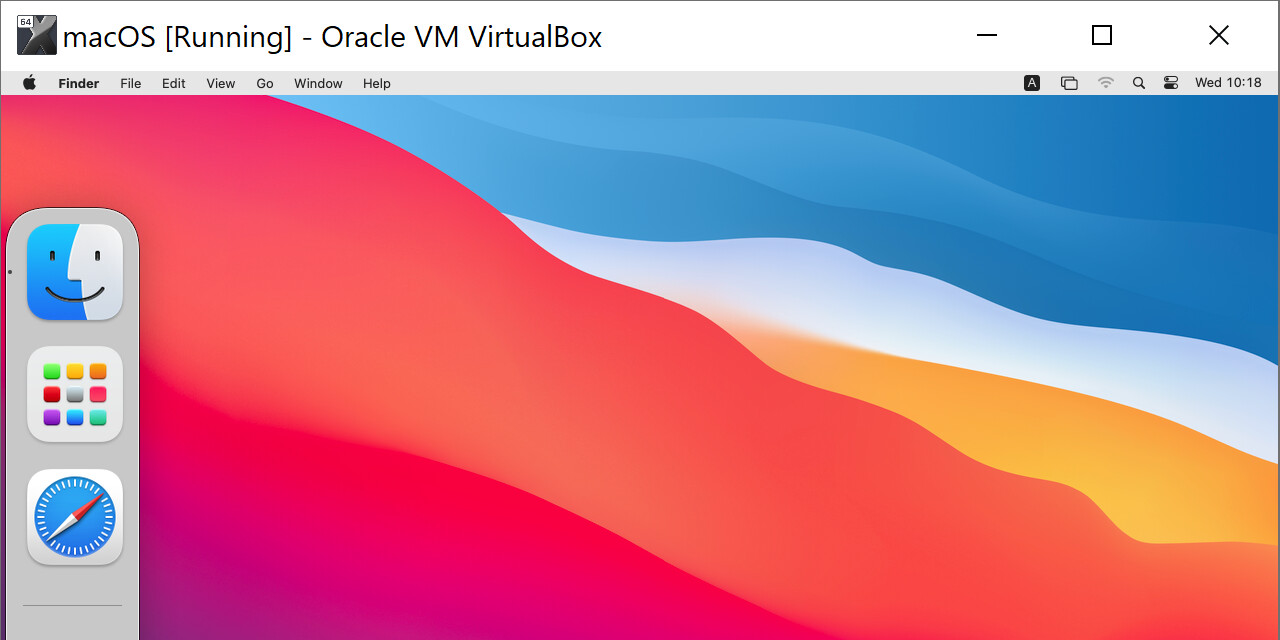
macos-guest-virtualbox.sh is a Bash script that creates a macOS virtual machine guest on VirtualBox with unmodified macOS installation files downloaded directly from Apple servers.
A default install only requires the user to sit patiently and, less than ten times, press enter when prompted by the script, without interacting with the virtual machine.
Tested on bash and zsh on Cygwin. Works on macOS, CentOS 7, and Windows on x86 CPUs with VT-x or AMD-V. Should work on most modern Linux distros.
macOS Catalina (10.15), Mojave (10.14), and High Sierra (10.13) currently supported.
Maintainer wanted
If you would like to become the maintainer of this repository, please see issue #645 - maintainer wanted.
Documentation
Documentation can be viewed by executing the command ./macos-guest-virtualbox.sh documentation
The majority of the script is either documentation, comments, or actionable error messages, which should make the script straightforward to inspect and understand.
iCloud and iMessage connectivity and NVRAM
iCloud, iMessage, and other connected Apple services require a valid device name and serial number, board ID and serial number, and other genuine (or genuine-like) Apple parameters. These can be set in EFI and NVRAM by editing the script. See the documentation command for further information.
Storage size
The script by default assigns a target virtual disk storage size of 80GB, which is populated to about 25GB on the host on initial installation. After the installation is complete, the storage size may be increased. See the documentation command for further information.
Primary display resolution
The following primary display resolutions are supported by macOS on VirtualBox: 5120x2880 2880x1800 2560x1600 2560x1440 1920x1200 1600x1200 1680x1050 1440x900 1280x800 1024x768 640x480. See the documentation command for further information.
Scope and unsupported features
The scope of the script is completing a default macOS install process on VirtualBox on supported hardware. Further functioning order of VirtualBox or macOS is beyond the scope of this script. Some features may behave unexpectedly, such as USB device support, audio support, FileVault boot password prompt support, and other features, including critical functionality.
CPU compatibility
The script is designed for x86 CPU Mac hardware. macOS guests on VirtualBox are generally incompatible with other CPU models. If the guest macOS boot process hangs on “LoadKernelFromStream”, “EndRandomSeed”, or "EXITBS", see the documentation command regarding VirtualBox CPU profiles and CPUID settings. Some CPU models released in 2020 and later may fail to start or complete the installer, and may require manually adjusting the CPUID settings.
Upgrading to Big Sur and Monterey
The virtual machine may be upgraded to the latest macOS Big Sur (11) and macOS Monterey (12) versions through Software Update. Big Sur may be installed in-place. Monterey may require attaching another volume to the virtual machine and selecting the volume as the installation target, otherwise the upgrade is prone to failing and entering a boot loop.
After successfully creating a working macOS virtual machine, consider importing it into more performant virtualization software, or packaging it for configuration management platforms for automated deployment. These virtualization and deployment applications require additional configuration that is beyond the scope of the script.
QEMU with KVM is capable of providing virtual machine hardware passthrough for near-native performance. QEMU supports the VMDK virtual disk image storage format, which can be configured to be created by the script. See the documentation command for further information. QEMU and KVM require additional configuration that is beyond the scope of the script.
VirtualBox Native Execution Manager (NEM)
The VirtualBox Native Execution Manager (NEM) is an experimental VirtualBox feature. VirtualBox uses NEM when access to VT-x and AMD-V is blocked by virtualization software or execution protection features such as Hyper-V, WSL2, WSLg, Windows Sandbox, memory integrity protection, Application Guard, Credential Guard, Device Guard, and other features and software. macOS and the macOS installer have memory corruption issues under NEM virtualization. The script checks for NEM and exits with an error message if it is detected.
VirtualBox can run on WSL2 and WSLg with some kernel module compilation, though performance is extremely low. At the point that kernel module compilation is required, it may be preferable to use QEMU/KVM on WSL2 and WSLg, which is orders of magnitude faster than VirtualBox on WSL2 and WSLg. WSL2, WSLg, QEMU, and KVM require additional configuration that is beyond the scope of the script.
Bootloaders
The macOS VirtualBox guest is loaded without extra bootloaders, but it is compatible with OpenCore. OpenCore requires additional configuration that is beyond the scope of the script.
Audio
macOS may not support any built-in VirtualBox audio controllers. The bootloader OpenCore may be able to load open-source or built-in audio drivers in VirtualBox, providing the configuration for STAC9221 (Intel HD Audio) or SigmaTel STAC9700,83,84 (ICH AC97) is available.
Display scaling
VirtualBox does not supply an EDID for its virtual display, and macOS does not enable display scaling (high PPI) without an EDID. The bootloader OpenCore can inject an EDID which enables display scaling.
FileVault
The VirtualBox EFI implementation does not properly load the FileVault full disk encryption password prompt upon boot. The bootloader OpenCore is able to load the password prompt with the parameter ProvideConsoleGop set to true. See sample config.plist
Dependencies
The following dependencies should be available through a package manager:
bash coreutils gzip unzip wget xxd dmg2img virtualbox
The following optional packages provide optical character recognition that reduces the required interaction with the script:
tesseract-ocr tesseract-ocr-eng
Supported versions:
- VirtualBox ≥ 6.1.6, though versions as low as 5.2 may work.
- GNU
Bash ≥ 4.3, on Windows run through Cygwin or WSL "1", see NEM
- GNU
coreutils ≥ 8.22, GNU gzip ≥ 1.5, Info-ZIP unzip ≥ v6.0, GNU wget ≥ 1.14, xxd ≥ 1.11
dmg2img ≥ 1.6.5, on Cygwin the package is not available through the package manager so the script downloads it automatically.tesseract-ocr ≥ 4

 一个 Bash 脚本,可在 VirtualBox 中自动创建 macOS 虚拟机(Catalina、Mojave 或 High Sierra),所用安装文件未经修改,直接从苹果官方服务器下载。