 Windows Package Manager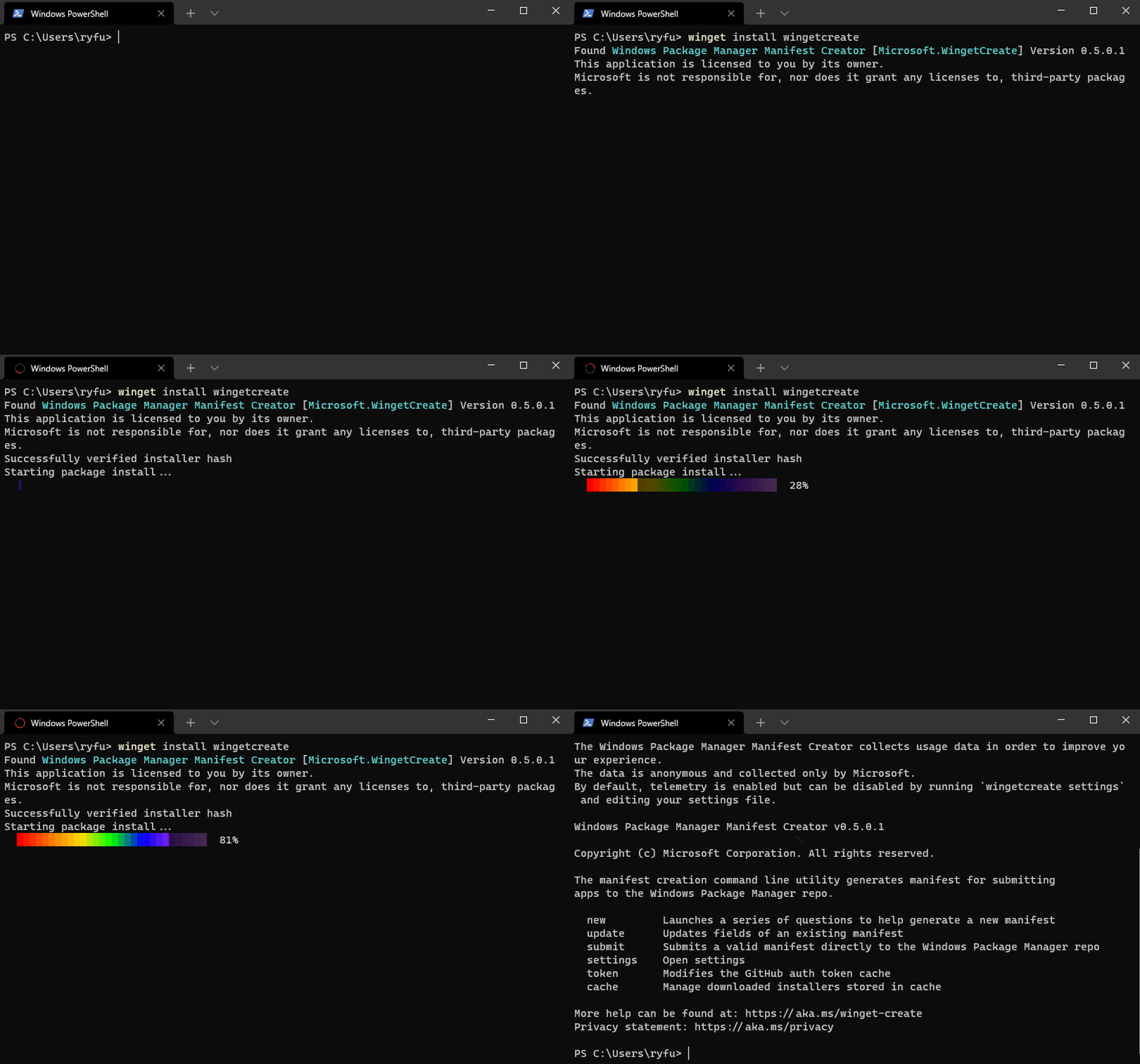
26.5K ·GitHub
What is this?
 WinGet is the Windows Package Manager client - a tool for quickly discovering and installing the packages that make your PC environment special, straight from the command line.
WinGet is the Windows Package Manager client - a tool for quickly discovering and installing the packages that make your PC environment special, straight from the command line.Is it just a command-line tool, or is there more to it?The main piece is the winget.exe CLI, but the project also ships the Microsoft.WinGet.Client PowerShell module with native cmdlets, plus a COM API for driving it from your own code.
The main piece is the winget.exe CLI, but the project also ships the Microsoft.WinGet.Client PowerShell module with native cmdlets, plus a COM API for driving it from your own code.How do I get it on my PC?Easiest path: it ships inside the App Installer package from the Microsoft Store. For dev builds, use the Releases page or run the Repair-WinGetPackageManager cmdlet with -IncludePrerelease.
Easiest path: it ships inside the App Installer package from the Microsoft Store. For dev builds, use the Releases page or run the Repair-WinGetPackageManager cmdlet with -IncludePrerelease.Which Windows versions can run it?Windows 10 1809 (build 17763), Windows 11, or Windows Server 2025 and later. Server 2019 and 2022 run it only experimentally; Server Core and anything older than 1809 is not supported.
Windows 10 1809 (build 17763), Windows 11, or Windows Server 2025 and later. Server 2019 and 2022 run it only experimentally; Server Core and anything older than 1809 is not supported.Do installs always work, or will I need admin rights?Not always: some installers require elevation. Without admin rights Windows prompts you to elevate, and declining makes that app fail to install; from an elevated prompt there are no prompts.
Not always: some installers require elevation. Without admin rights Windows prompts you to elevate, and declining makes that app fail to install; from an elevated prompt there are no prompts.Does the client send data to Microsoft?Yes. The official winget.exe collects usage and diagnostic data and sends it to Microsoft, honoring your device's diagnostic-data settings with an opt-out. A client you build yourself sends nothing.
Yes. The official winget.exe collects usage and diagnostic data and sends it to Microsoft, honoring your device's diagnostic-data settings with an opt-out. A client you build yourself sends nothing.Where do the packages actually come from?Two default sources: 'msstore', the Microsoft Store's free apps rated e for everyone, and 'winget', the WinGet community repository. You can also host your own private REST-based source.
Two default sources: 'msstore', the Microsoft Store's free apps rated e for everyone, and 'winget', the WinGet community repository. You can also host your own private REST-based source.How do I install a package once the client is set up?One command: winget install . Discovering and installing your favorite packages from a single command is the core of the whole tool.
One command: winget install . Discovering and installing your favorite packages from a single command is the core of the whole tool.Can I automate it from PowerShell or my own code?Yes. The Microsoft.WinGet.Client module installs from the PowerShell Gallery and gives you native cmdlets, and the project also exposes a COM API for applications.
Yes. The Microsoft.WinGet.Client module installs from the PowerShell Gallery and gives you native cmdlets, and the project also exposes a COM API for applications.What trips people up when installing a dev build?Users have reported winget not being on their PATH. Older Windows 10 builds may need the VC++ v14 Desktop Framework package, and automatic Store updates require joining the Insider program.
Users have reported winget not being on their PATH. Older Windows 10 builds may need the VC++ v14 Desktop Framework package, and automatic Store updates require joining the Insider program.What are similar projects?Scoop, edit, winutil-cn, NanaZip, Playnite, coreutils, bashka, homebrew-cask
Scoop, edit, winutil-cn, NanaZip, Playnite, coreutils, bashka, homebrew-caskWhich topics is it in?winget, telemetry, windows-10, windows-11, powershell, foss, microsoft, package-manager, installer, app, cli-tool, c++
winget, telemetry, windows-10, windows-11, powershell, foss, microsoft, package-manager, installer, app, cli-tool, c++