

What is this?
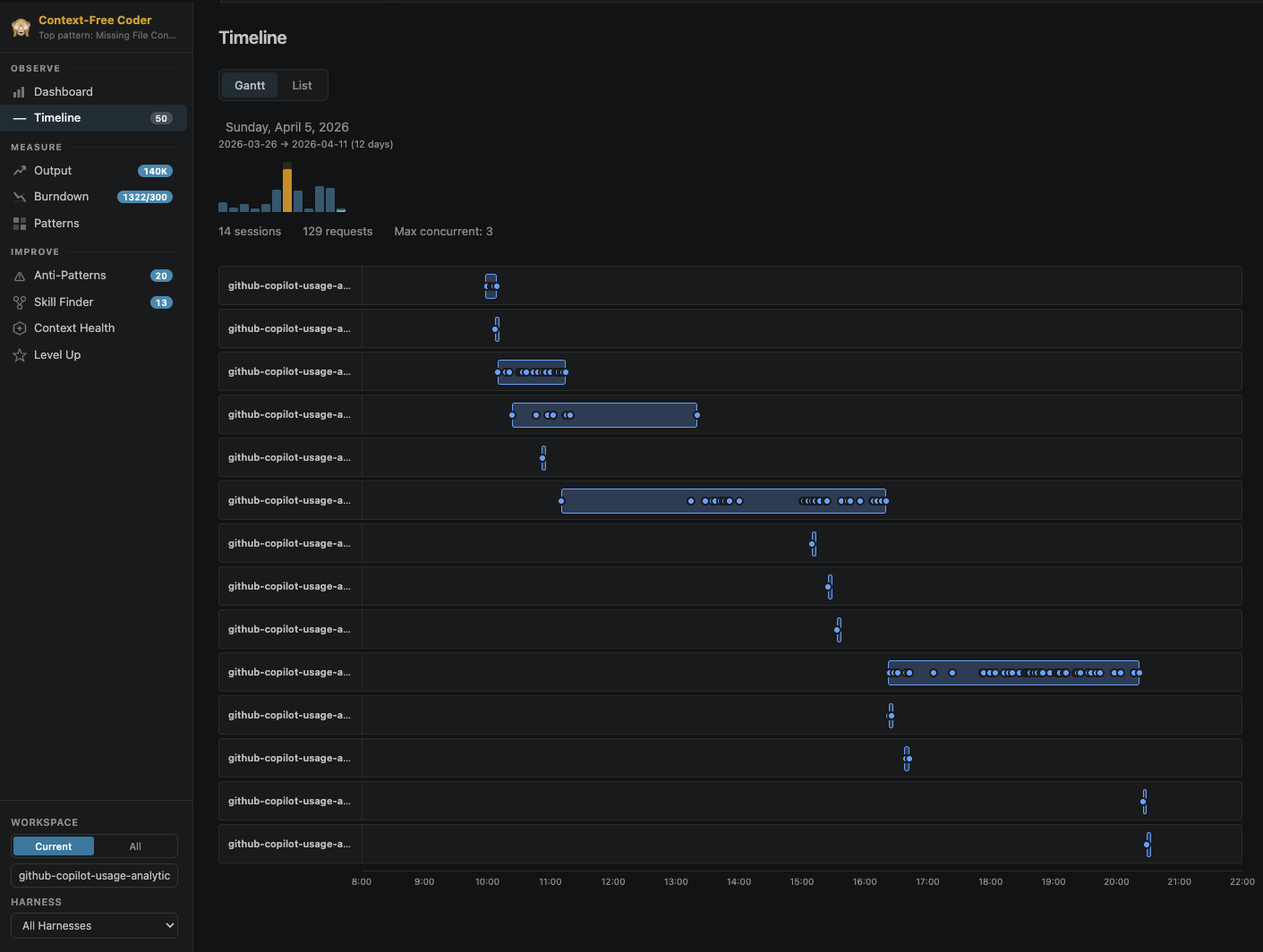
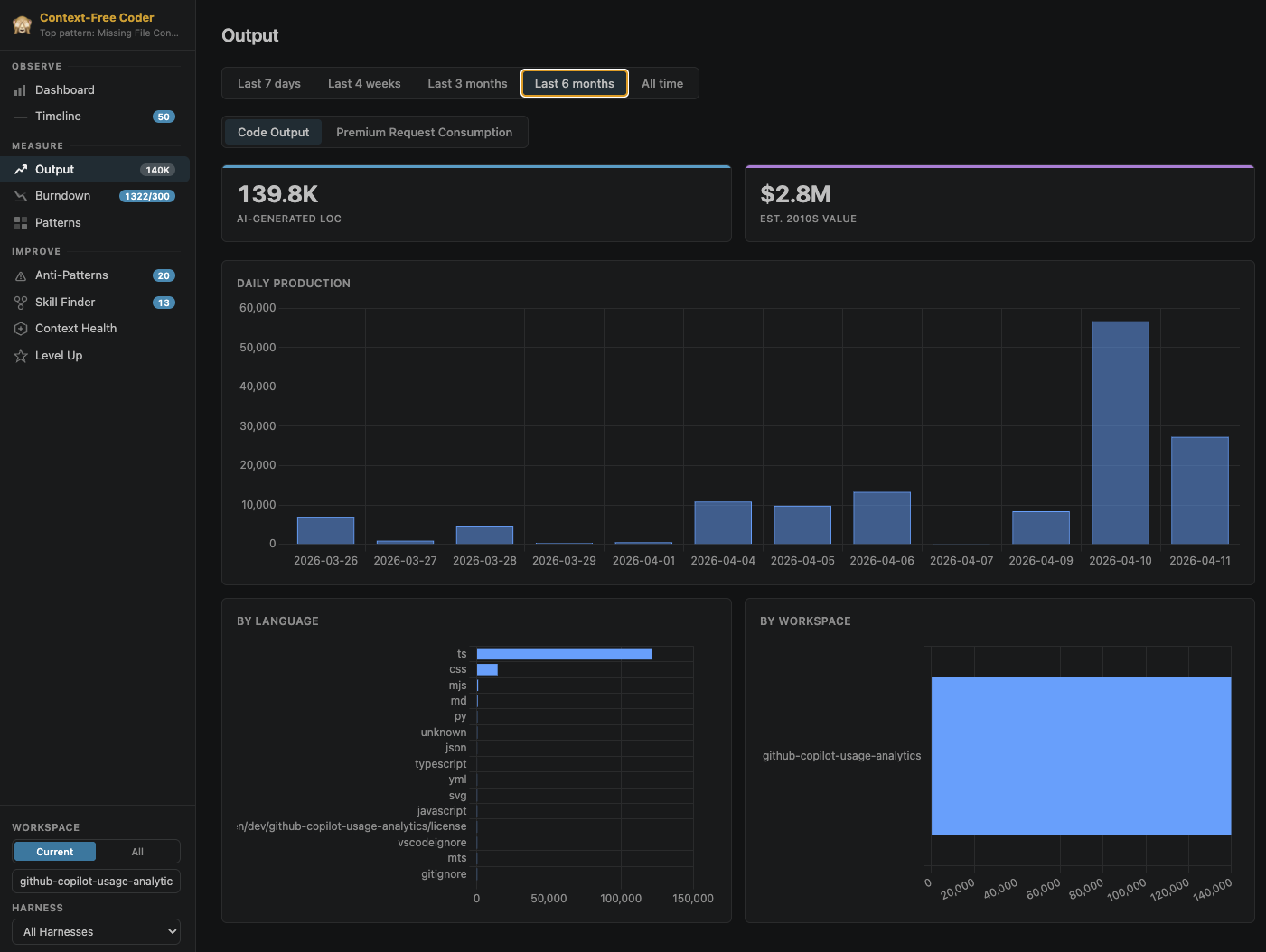
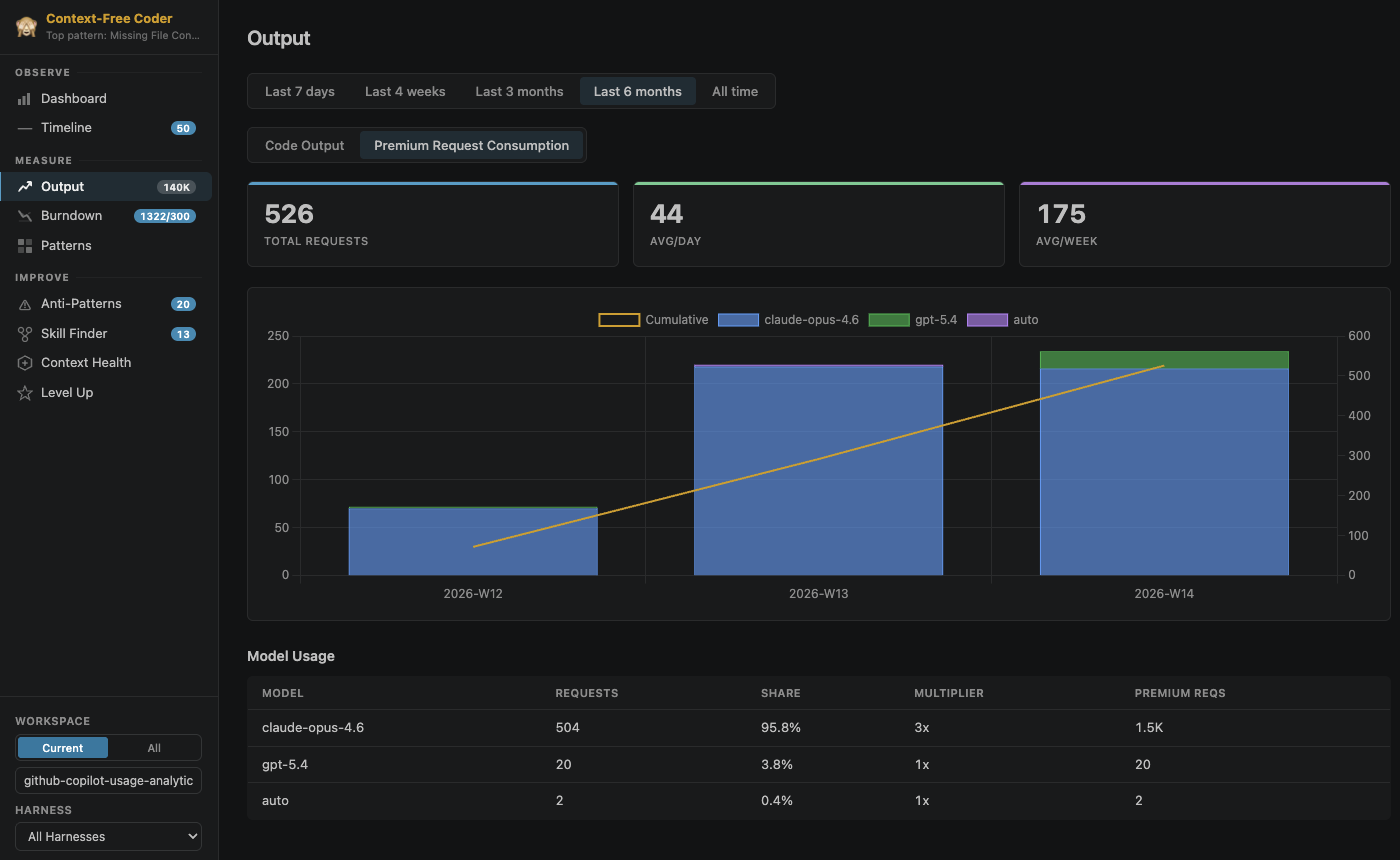
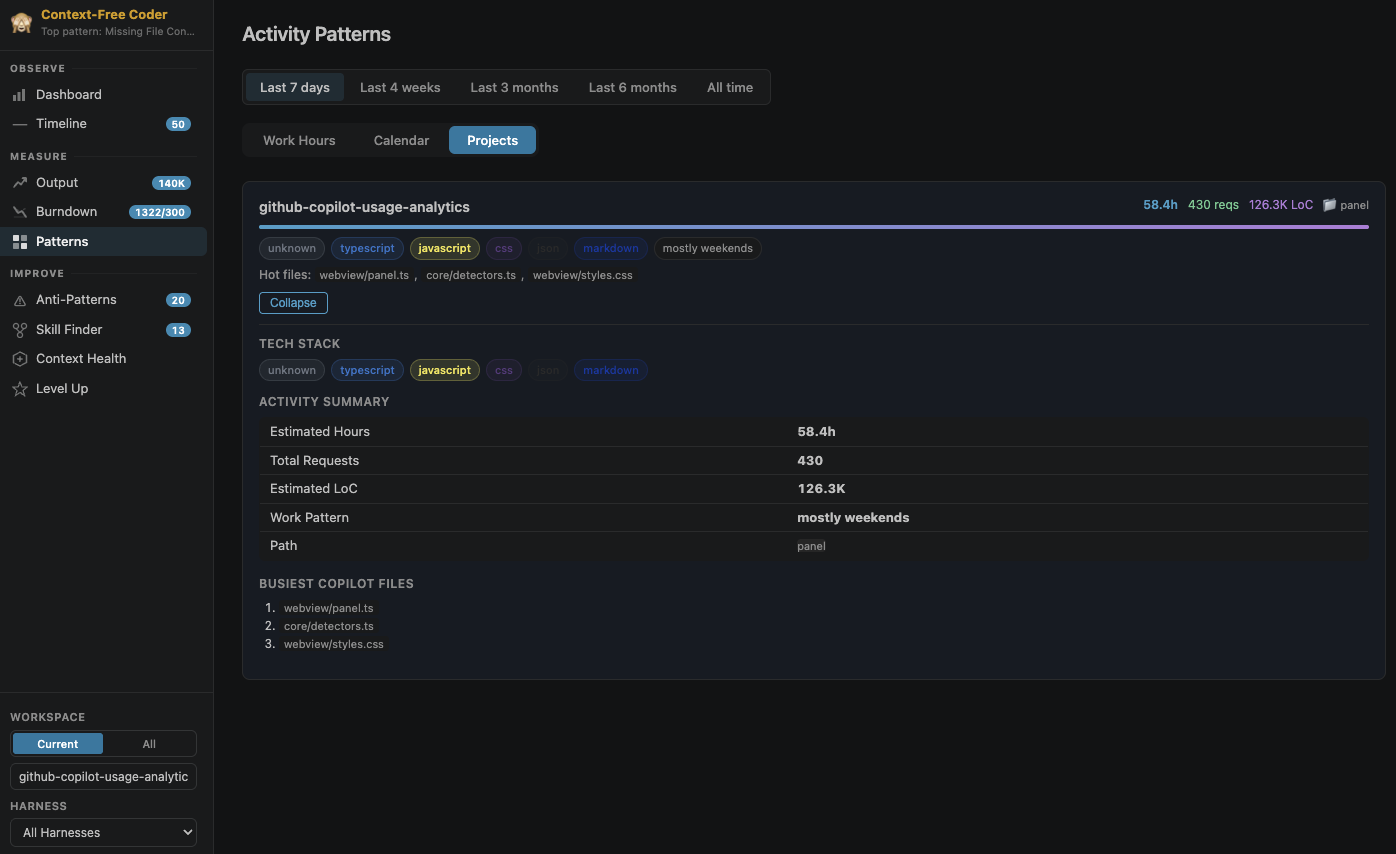
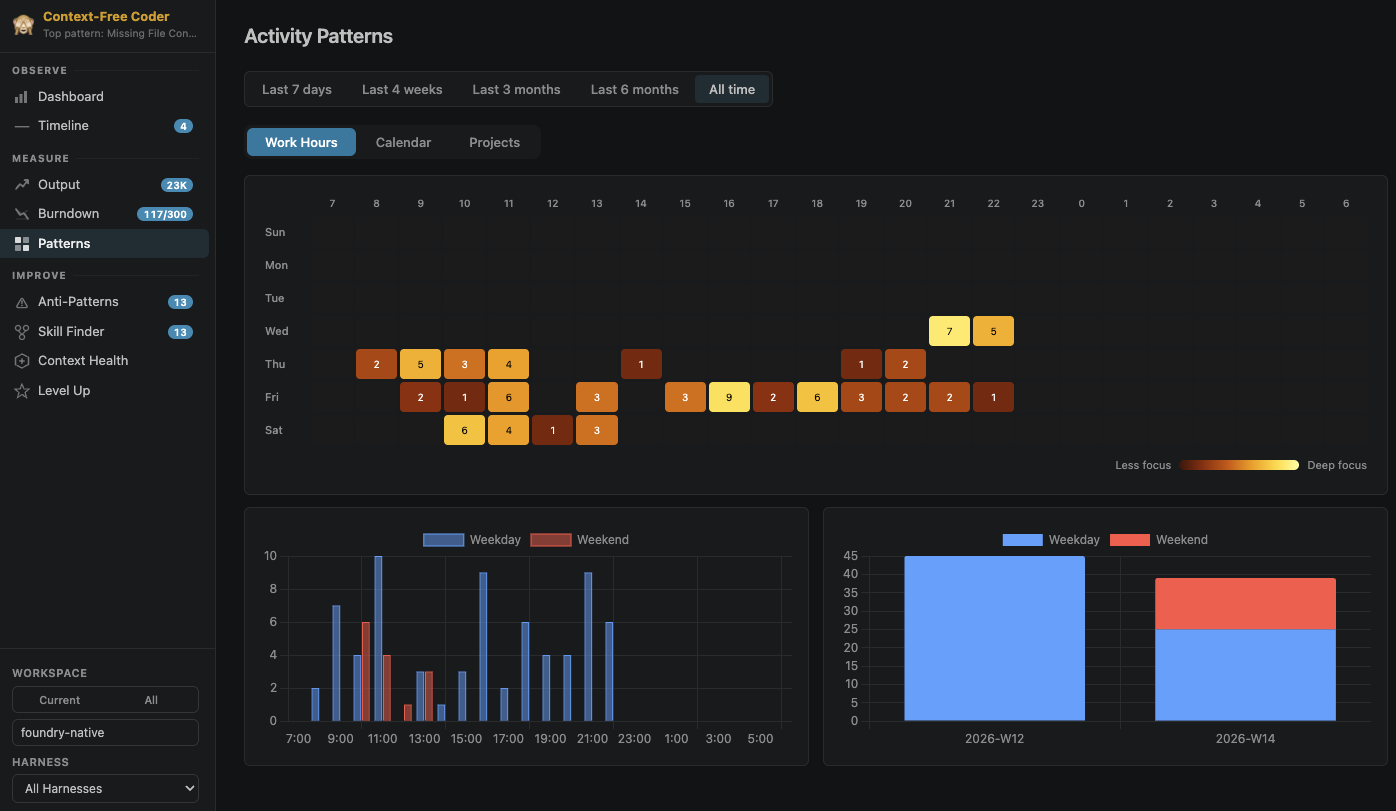
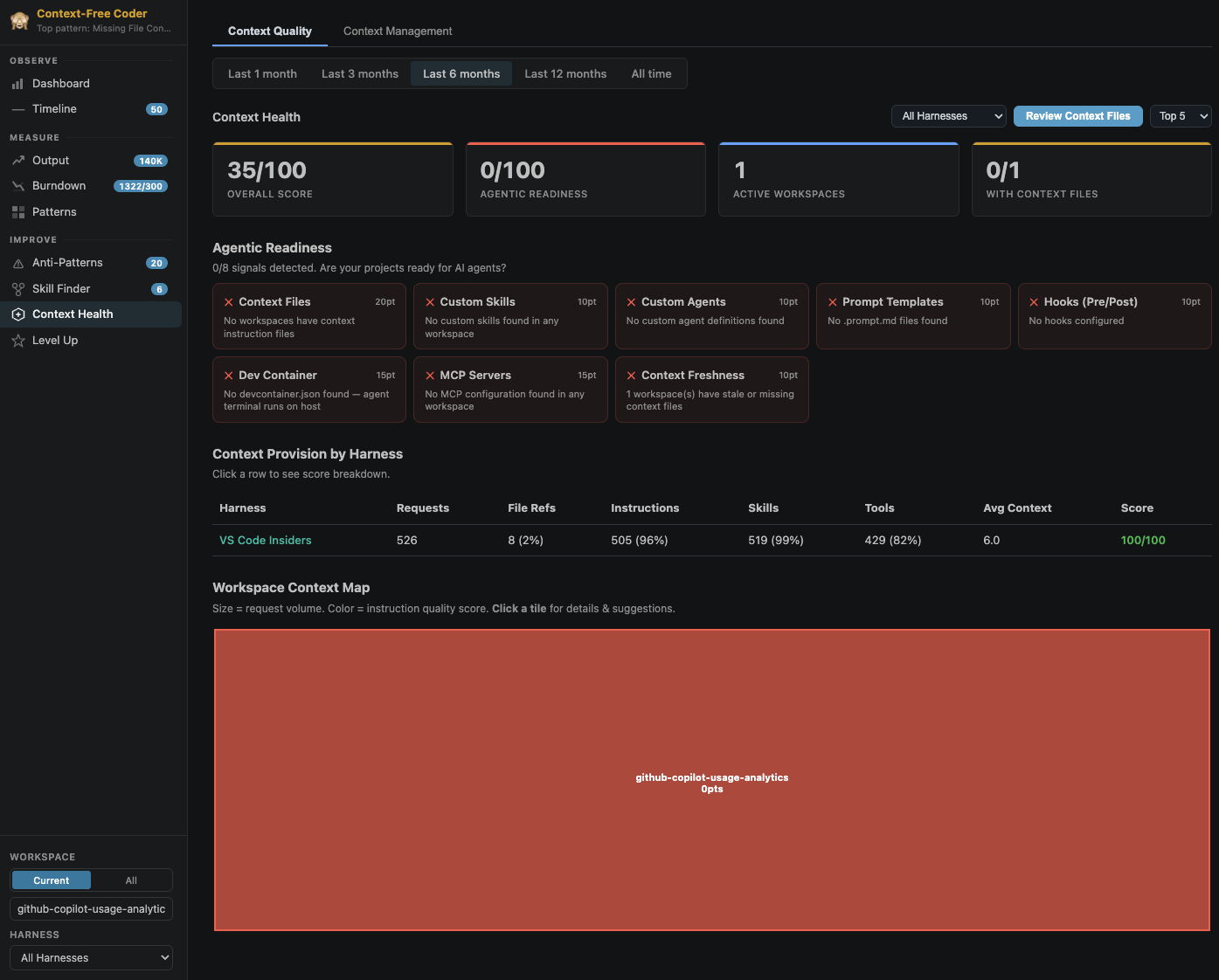
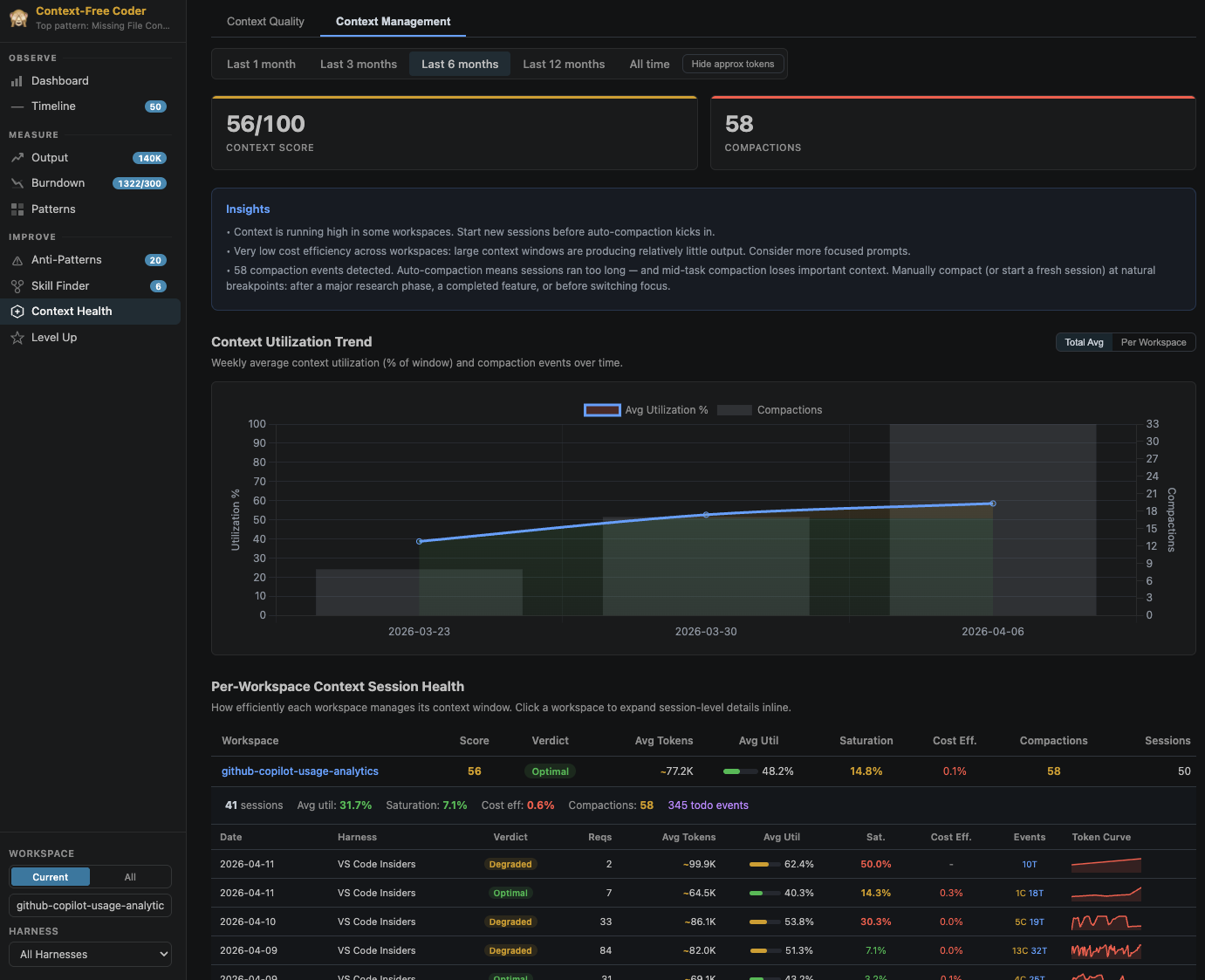
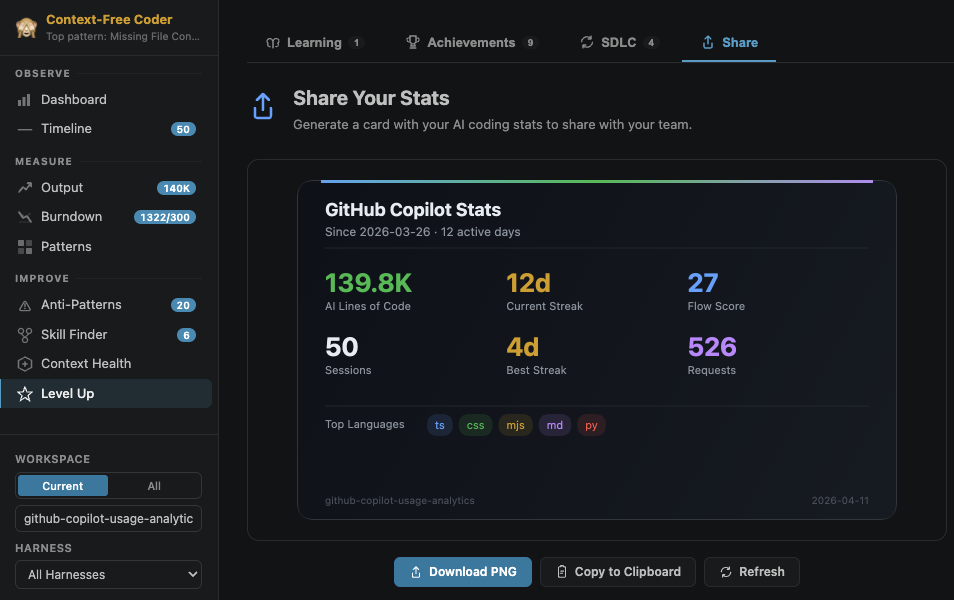
 AI Engineer Coach is a VS Code extension (and GitHub Copilot app canvas) that reads your local AI coding assistant session logs and turns them into dashboards covering practice scores, usage trends, anti-patterns, and skill suggestions, with all analysis happening on your machine.
AI Engineer Coach is a VS Code extension (and GitHub Copilot app canvas) that reads your local AI coding assistant session logs and turns them into dashboards covering practice scores, usage trends, anti-patterns, and skill suggestions, with all analysis happening on your machine.Is this a VS Code extension or a standalone app?It's primarily a VS Code extension, but the same dashboard also ships as a canvas inside the GitHub Copilot app, so you can use it without VS Code at all.
It's primarily a VS Code extension, but the same dashboard also ships as a canvas inside the GitHub Copilot app, so you can use it without VS Code at all.Do I need Node.js, or can I avoid installing it locally?For the local build path you need Node.js and npm; if you'd rather not install those, the Dev Container build path only requires VS Code, the Dev Containers extension, and Docker or Podman.
For the local build path you need Node.js and npm; if you'd rather not install those, the Dev Container build path only requires VS Code, the Dev Containers extension, and Docker or Podman.Can I trust the 'issue credits' numbers for billing?No — the per-issue AI spend percentages are described as rough relative estimates based on locally inferred issue links, explicitly not accurate billing or AI Credit figures.
No — the per-issue AI spend percentages are described as rough relative estimates based on locally inferred issue links, explicitly not accurate billing or AI Credit figures.Does any of my coding session data get sent anywhere?No — everything is read-only and parsed locally; the extension has no proprietary telemetry and doesn't phone home, though a few optional AI features call VS Code's built-in Copilot model API only when you invoke them.
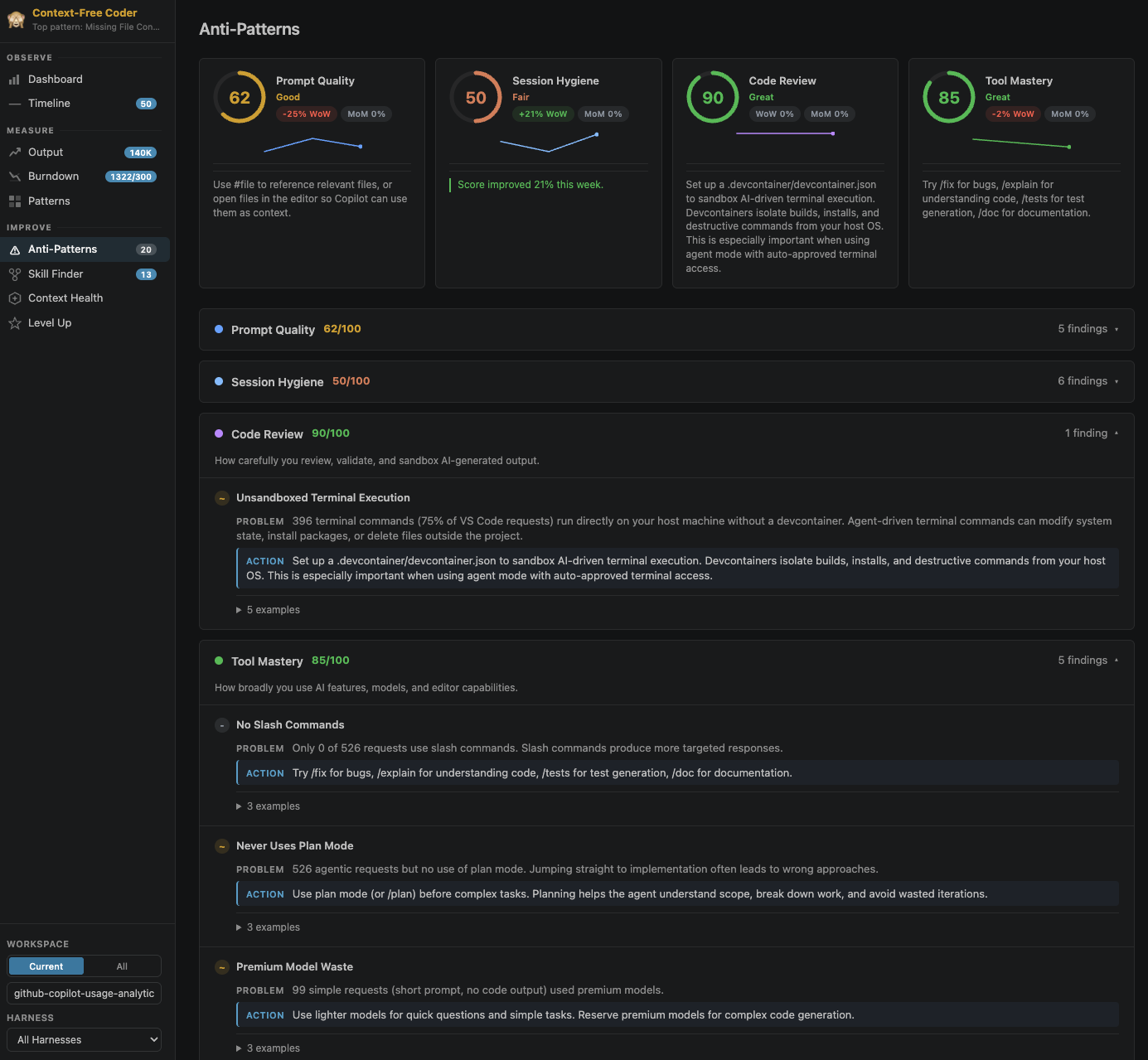
No — everything is read-only and parsed locally; the extension has no proprietary telemetry and doesn't phone home, though a few optional AI features call VS Code's built-in Copilot model API only when you invoke them.What kinds of anti-patterns does it actually flag?45 editable markdown rules covering prompt quality, session hygiene, code review, tool mastery, and context management, each with severity ratings, concrete fixes, and example prompts shown on a coverage heatmap.
45 editable markdown rules covering prompt quality, session hygiene, code review, tool mastery, and context management, each with severity ratings, concrete fixes, and example prompts shown on a coverage heatmap.Do I need to use GitHub Copilot specifically?No, it works with 'any harness, one dashboard' by reading whatever local session logs exist; only a handful of optional AI features (Skill Finder, Context Health review, rule compiler) require VS Code's built-in Copilot language model.
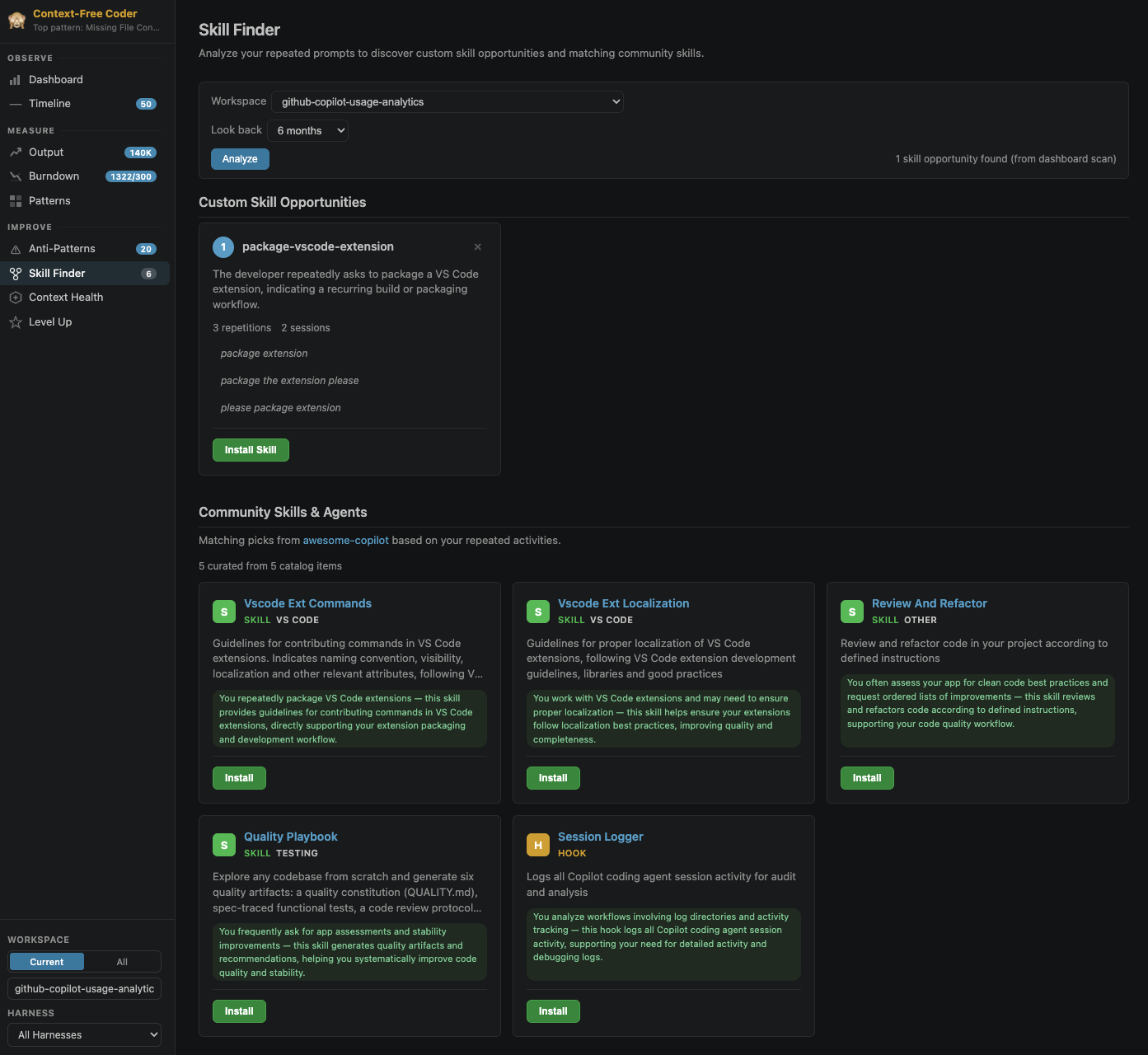
No, it works with 'any harness, one dashboard' by reading whatever local session logs exist; only a handful of optional AI features (Skill Finder, Context Health review, rule compiler) require VS Code's built-in Copilot language model.What does the Skill Finder page do?It scans your repeated prompt patterns and matches them against an open-source community skill catalog to suggest reusable skills you could adopt.
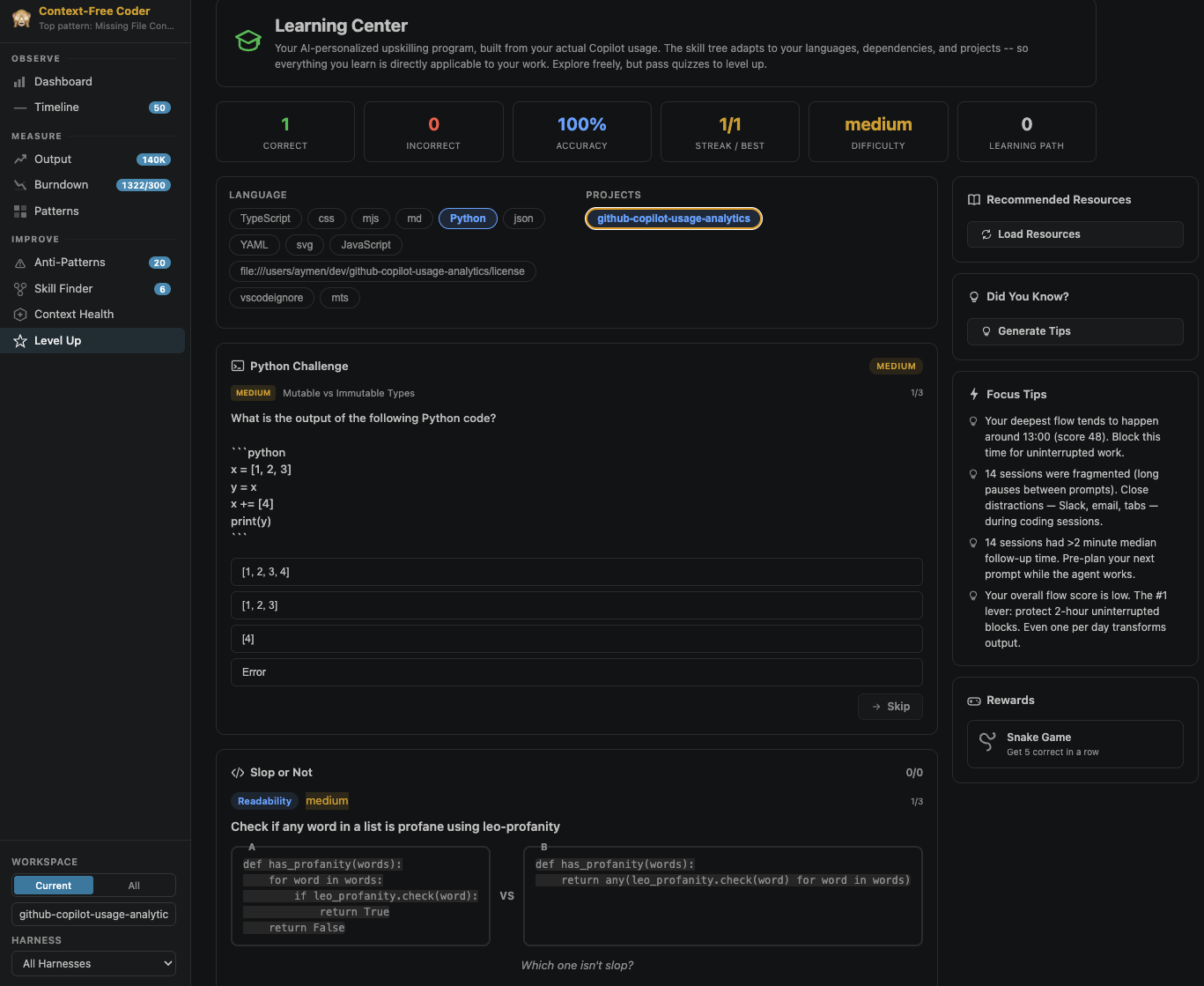
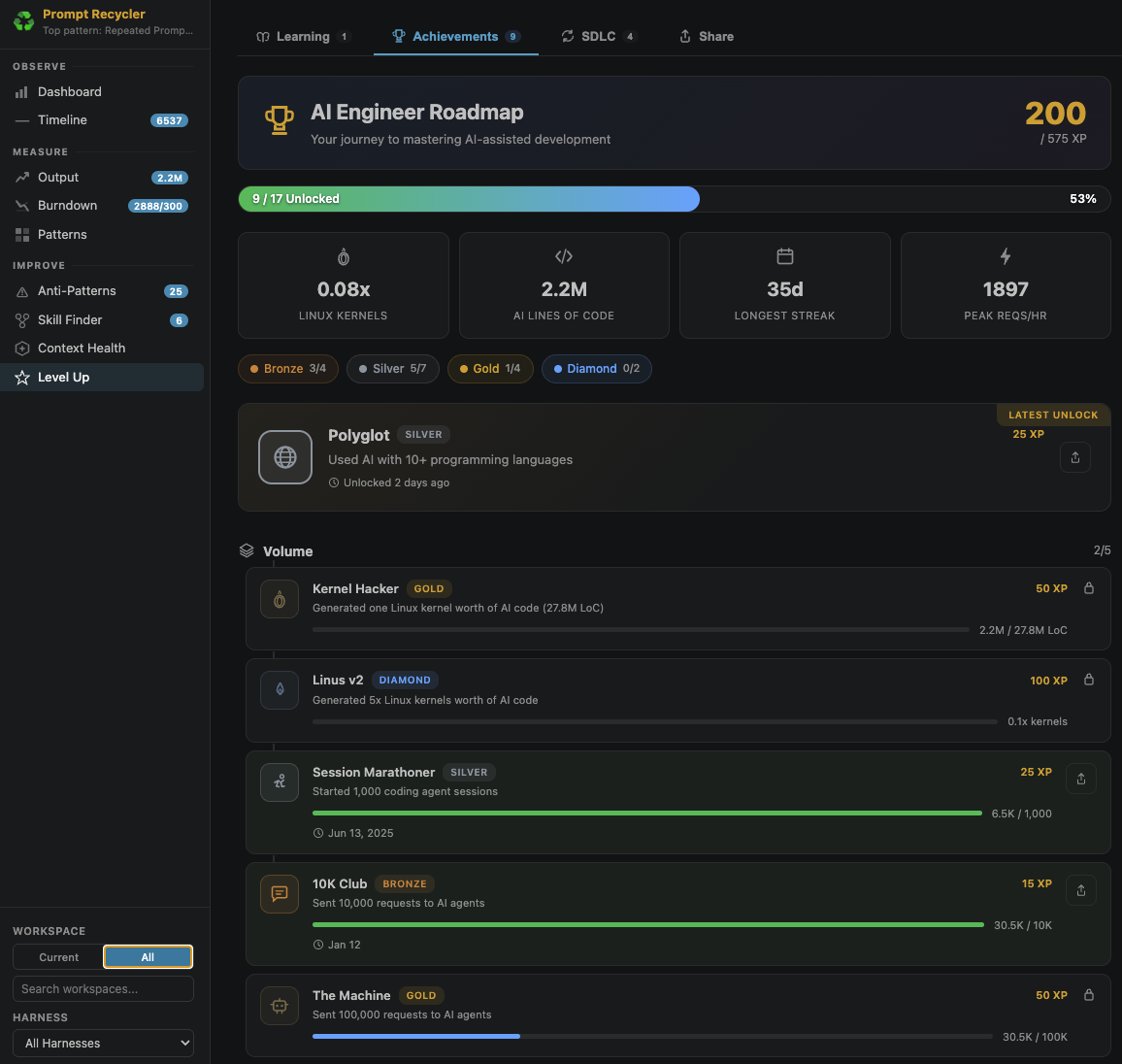
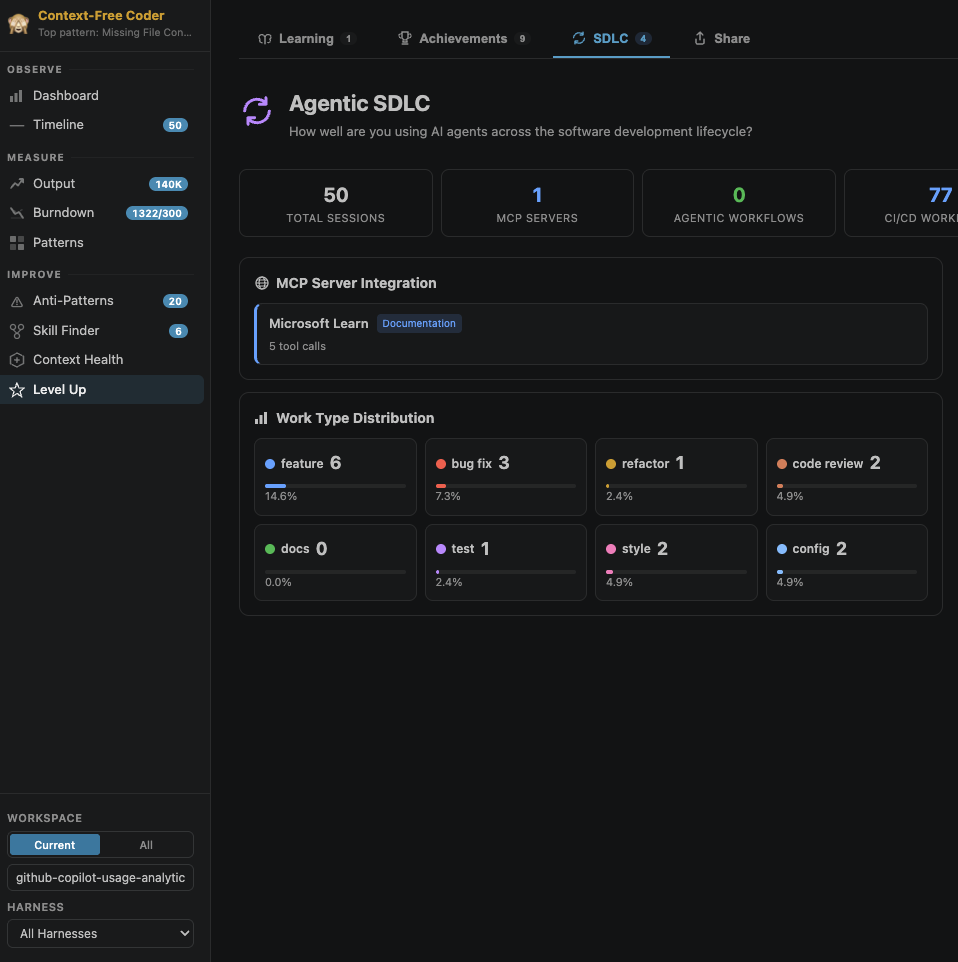
It scans your repeated prompt patterns and matches them against an open-source community skill catalog to suggest reusable skills you could adopt.What's the Agentic SDLC page for?It's part of the Level Up section and visualizes how you use AI across the full software-development lifecycle, alongside XP-based Achievements and a personalized Learning Center.
It's part of the Level Up section and visualizes how you use AI across the full software-development lifecycle, alongside XP-based Achievements and a personalized Learning Center.What are similar projects?codeburn, autoprompt-skill, activitywatch, compound-engineering-plugin, openrig, Trellis, control-center, agentsview
codeburn, autoprompt-skill, activitywatch, compound-engineering-plugin, openrig, Trellis, control-center, agentsviewWhich topics is it in?vscode-extension, github-copilot, code-review, ai-coding, analytics, harness, data-visualization, dashboard, monitoring, local-first, coding-agent, agent-skills
vscode-extension, github-copilot, code-review, ai-coding, analytics, harness, data-visualization, dashboard, monitoring, local-first, coding-agent, agent-skills