Chatbot UI
The open-source AI chat app for everyone.
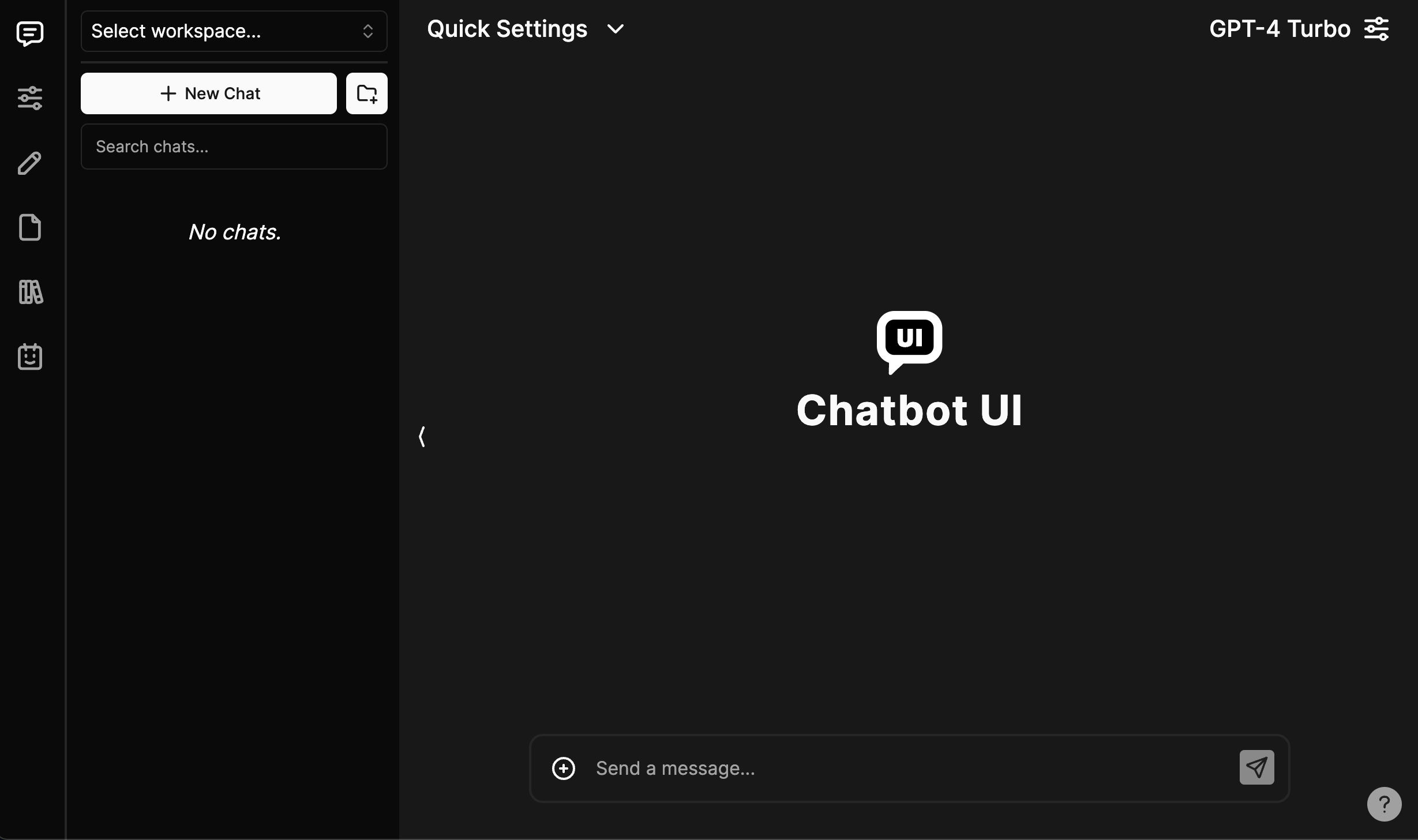
Demo
View the latest demo here.
Updates
Hey everyone! I've heard your feedback and am working hard on a big update.
Things like simpler deployment, better backend compatibility, and improved mobile layouts are on their way.
Be back soon.
-- Mckay
Official Hosted Version
Use Chatbot UI without having to host it yourself!
Find the official hosted version of Chatbot UI here.
If you find Chatbot UI useful, please consider sponsoring me to support my open-source work :)
Issues
We restrict "Issues" to actual issues related to the codebase.
We're getting excessive amounts of issues that amount to things like feature requests, cloud provider issues, etc.
If you are having issues with things like setup, please refer to the "Help" section in the "Discussions" tab above.
Issues unrelated to the codebase will likely be closed immediately.
Discussions
We highly encourage you to participate in the "Discussions" tab above!
Discussions are a great place to ask questions, share ideas, and get help.
Odds are if you have a question, someone else has the same question.
Legacy Code
Chatbot UI was recently updated to its 2.0 version.
The code for 1.0 can be found on the legacy branch.
Updating
In your terminal at the root of your local Chatbot UI repository, run:
npm run update
If you run a hosted instance you'll also need to run:
npm run db-push
to apply the latest migrations to your live database.
Local Quickstart
Follow these steps to get your own Chatbot UI instance running locally.
You can watch the full video tutorial here.
1. Clone the Repo
git clone https://github.com/mckaywrigley/chatbot-ui.git
2. Install Dependencies
Open a terminal in the root directory of your local Chatbot UI repository and run:
npm install
3. Install Supabase & Run Locally
Why Supabase?
Previously, we used local browser storage to store data. However, this was not a good solution for a few reasons:
- Security issues
- Limited storage
- Limits multi-modal use cases
We now use Supabase because it's easy to use, it's open-source, it's Postgres, and it has a free tier for hosted instances.
We will support other providers in the future to give you more options.
1. Install Docker
You will need to install Docker to run Supabase locally. You can download it here for free.
2. Install Supabase CLI
MacOS/Linux
brew install supabase/tap/supabase
Windows
scoop bucket add supabase https://github.com/supabase/scoop-bucket.git
scoop install supabase
3. Start Supabase
In your terminal at the root of your local Chatbot UI repository, run:
supabase start
4. Fill in Secrets
1. Environment Variables
In your terminal at the root of your local Chatbot UI repository, run:
cp .env.local.example .env.local
Get the required values by running:
supabase status
Note: Use API URL from supabase status for NEXT_PUBLIC_SUPABASE_URL
Now go to your .env.local file and fill in the values.
If the environment variable is set, it will disable the input in the user settings.
2. SQL Setup
In the 1st migration file supabase/migrations/20240108234540_setup.sql you will need to replace 2 values with the values you got above:
project_url (line 53): http://supabase_kong_chatbotui:8000 (default) can remain unchanged if you don't change your project_id in the config.toml fileservice_role_key (line 54): You got this value from running supabase status
This prevents issues with storage files not being deleted properly.
5. Install Ollama (optional for local models)
Follow the instructions here.
6. Run app locally
In your terminal at the root of your local Chatbot UI repository, run:
npm run chat
Your local instance of Chatbot UI should now be running at http://localhost:3000. Be sure to use a compatible node version (i.e. v18).
You can view your backend GUI at http://localhost:54323/project/default/editor.
Hosted Quickstart
Follow these steps to get your own Chatbot UI instance running in the cloud.
Video tutorial coming soon.
1. Follow Local Quickstart
Repeat steps 1-4 in "Local Quickstart" above.
You will want separate repositories for your local and hosted instances.
Create a new repository for your hosted instance of Chatbot UI on GitHub and push your code to it.
2. Setup Backend with Supabase
1. Create a new project
Go to Supabase and create a new project.
2. Get Project Values
Once you are in the project dashboard, click on the "Project Settings" icon tab on the far bottom left.
Here you will get the values for the following environment variables:
While still in "Settings" click on the "API" text tab on the left.
Here you will get the values for the following environment variables:
Project URL: Found in "API Settings" as "Project URL"
Anon key: Found in "Project API keys" as "anon public"
Service role key: Found in "Project API keys" as "service_role" (Reminder: Treat this like a password!)
Next, click on the "Authentication" icon tab on the far left.
In the text tabs, click on "Providers" and make sure "Email" is enabled.
We recommend turning off "Confirm email" for your own personal instance.
4. Connect to Hosted DB
Open up your repository for your hosted instance of Chatbot UI.
In the 1st migration file supabase/migrations/20240108234540_setup.sql you will need to replace 2 values with the values you got above:
project_url (line 53): Use the Project URL value from aboveservice_role_key (line 54): Use the Service role key value from above
Now, open a terminal in the root directory of your local Chatbot UI repository. We will execute a few commands here.
Login to Supabase by running:
supabase login
Next, link your project by running the following command with the "Project ID" you got above:
supabase link --project-ref <project-id>
Your project should now be linked.
Finally, push your database to Supabase by running:
supabase db push
Your hosted database should now be set up!
3. Setup Frontend with Vercel
Go to Vercel and create a new project.
In the setup page, import your GitHub repository for your hosted instance of Chatbot UI. Within the project Settings, in the "Build & Development Settings" section, switch Framework Preset to "Next.js".
In environment variables, add the following from the values you got above:
NEXT_PUBLIC_SUPABASE_URLNEXT_PUBLIC_SUPABASE_ANON_KEYSUPABASE_SERVICE_ROLE_KEYNEXT_PUBLIC_OLLAMA_URL (only needed when using local Ollama models; default: http://localhost:11434)
You can also add API keys as environment variables.
OPENAI_API_KEYAZURE_OPENAI_API_KEYAZURE_OPENAI_ENDPOINTAZURE_GPT_45_VISION_NAME
For the full list of environment variables, refer to the '.env.local.example' file. If the environment variables are set for API keys, it will disable the input in the user settings.
Click "Deploy" and wait for your frontend to deploy.
Once deployed, you should be able to use your hosted instance of Chatbot UI via the URL Vercel gives you.
Contributing
We are working on a guide for contributing.
Message Mckay on Twitter/X

 一个开源的 AI 聊天网页应用——界面类似 ChatGPT,可以自己部署,并连接不同的 AI 模型。