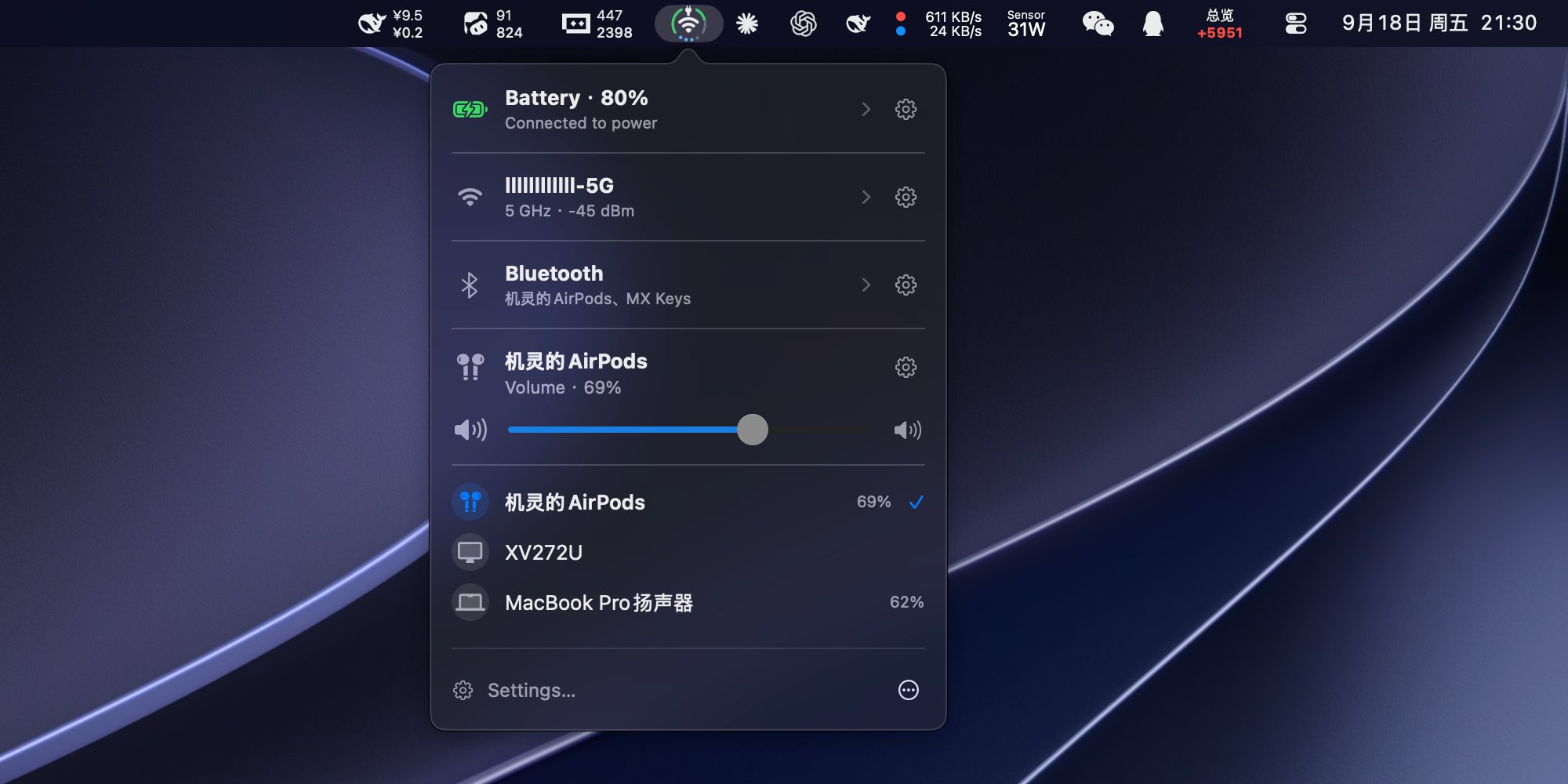
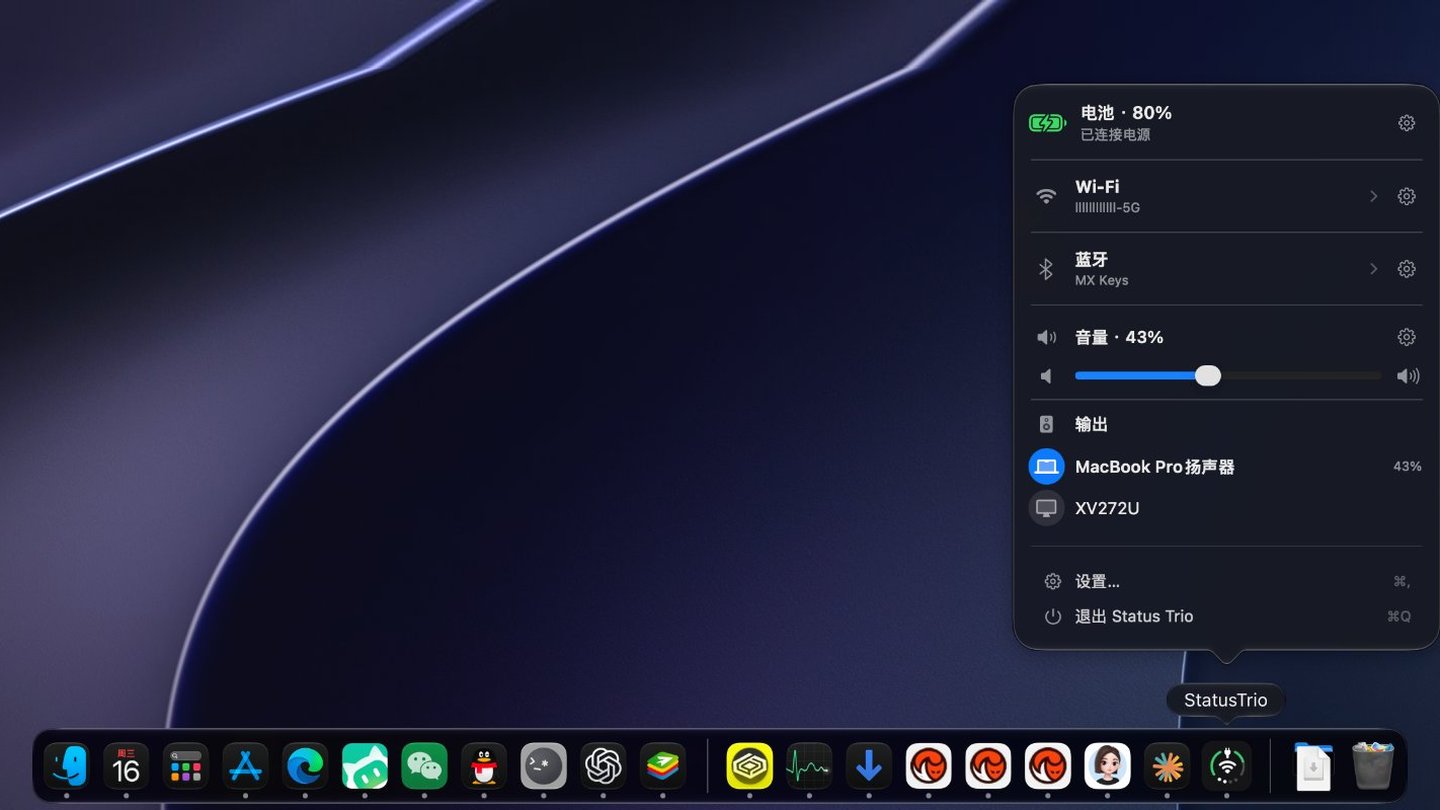
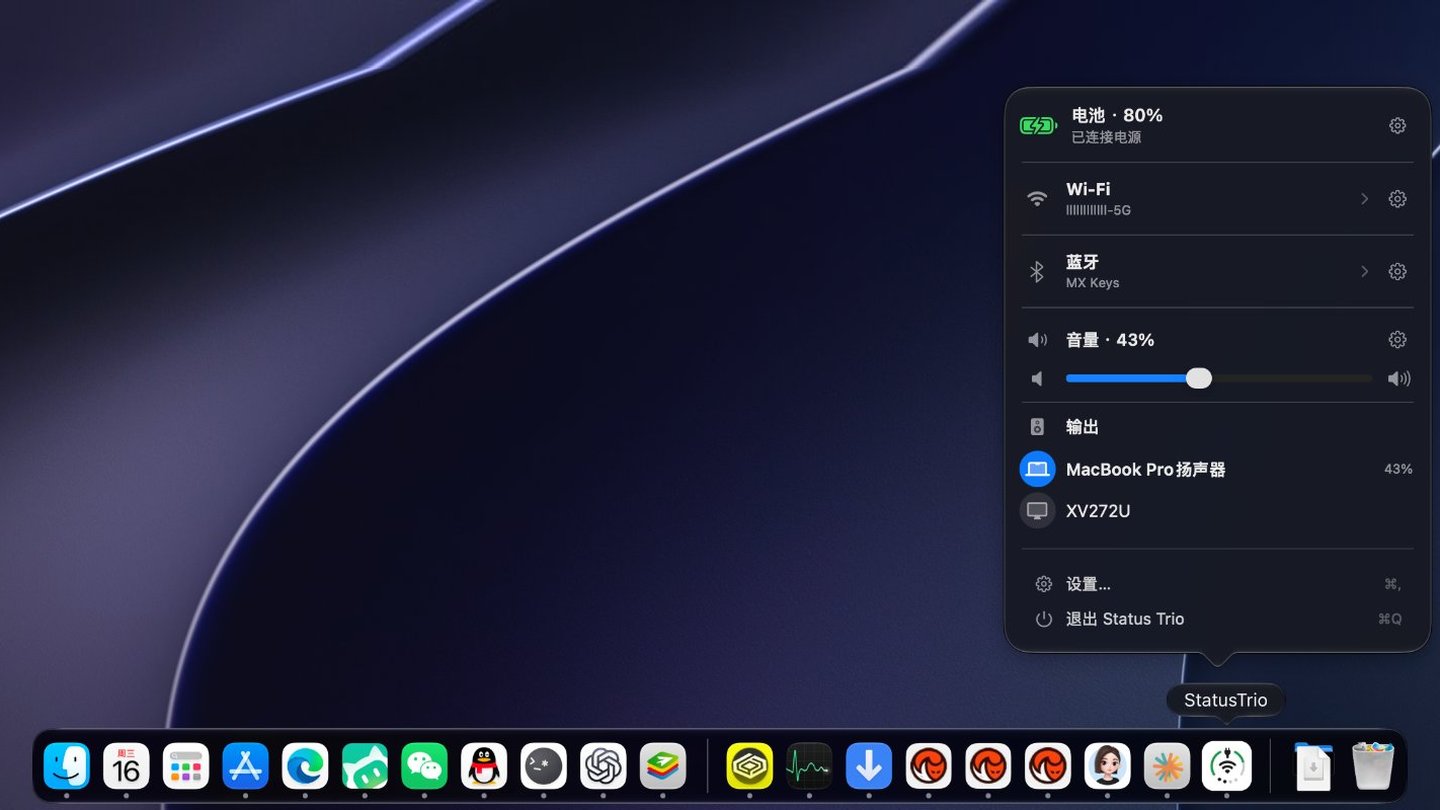
Status Trio is a native macOS status app that combines Wi-Fi, battery, and volume into one compact, configurable icon, shown in the menu bar, in the Dock, or in both. Its popover goes deeper than the icon: a Wi-Fi panel for nearby networks and link details, a Bluetooth panel for paired devices, a Battery Details page, and the audio devices that are playing. It is inspired by the iPhone Duo's combined status bar icon for Wi-Fi, Battery, and Cellular Data, adapted for Mac with Volume instead of Cellular Data.
Status Trio is an independent project and is not affiliated with Apple.
Highlights
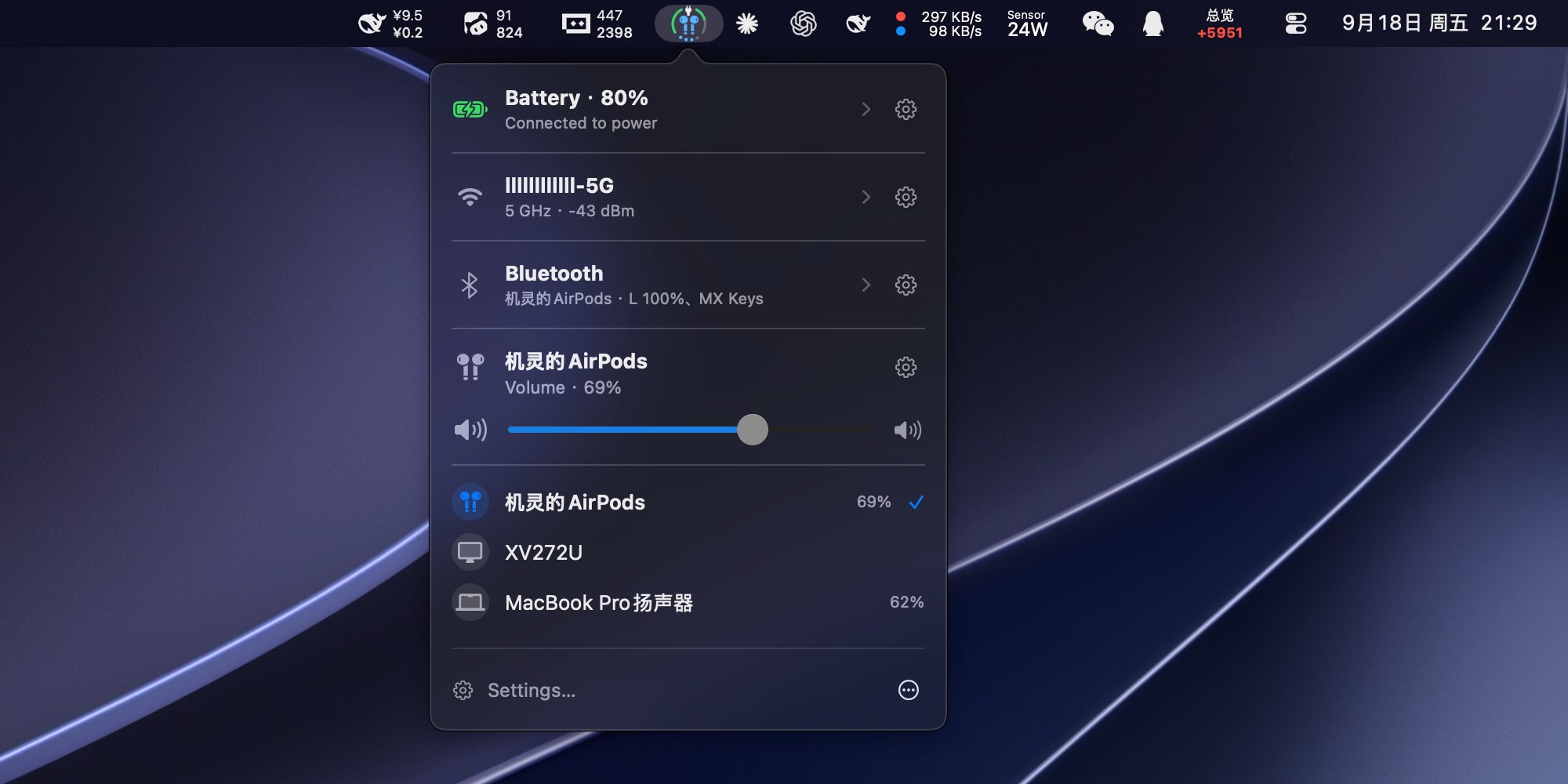
One icon, three signals — battery, Wi-Fi, and volume share one icon in the menu bar, the Dock, or both, and a Bluetooth device that is playing can take the middle spot with its own symbol.
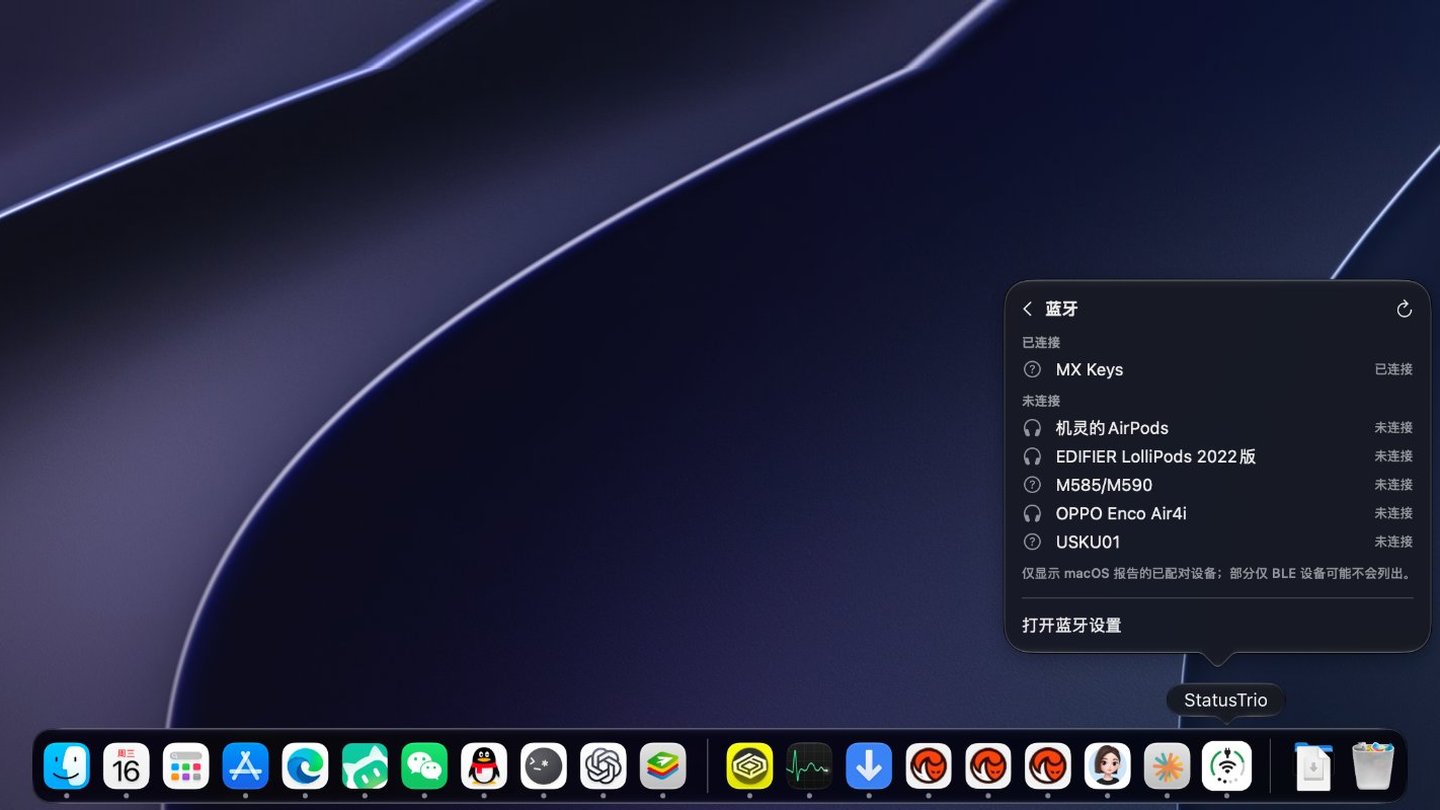
Bluetooth — the volume indicator turns blue while it plays. The panel lists paired devices you can tap to connect or disconnect, shows battery levels by default, and stays off until you enable it.
Battery — percentage, charging or plugged in, time to full, and a color when it runs low. Open the row for adapter power, voltage, current, cycle count, and Low Power Mode, plus optional estimated power flow and a CPU energy-impact list. Supported Apple silicon Macs on macOS 26.4 or later can also override the charge limit with Charge to Full Now.
Wi-Fi — the network you are on and how strong the signal is. Open it to see nearby networks, check the link details, or switch Wi-Fi off. Switching between networks happens in the Wi-Fi pane of System Settings.
Volume — level, mute, and the output device, drawn as dots or an arc. Scroll the whole panel or just the control, and pick which direction turns it up.
Make it yours — icon size, symbol scale, ring thickness, status colors, and which sections the popover shows, in the order you want.
Menu bar, Dock, or both — and the Dock icon can follow the system style or stay dark or light.
Native on macOS — left-click opens the popover, right-click opens the menu, and a first-launch guide explains each part of the icon. Ethernet, a hotspot, or Internet Sharing can keep the Wi-Fi glyph if you prefer.
Stays current — status comes from system events with a slow poll as a fallback, and Sparkle updates the app through a signed feed.
Also included — twelve languages, and an optional launch at login.
Install
Install from the official Homebrew Cask:
brew install --cask status-trio
To update an existing Homebrew installation:
brew upgrade --cask status-trio
Or download the latest StatusTrio-*.dmg from GitHub Releases, open it, and drag Status Trio.app into /Applications.
The official release is signed with Developer ID and notarized by Apple. Open it normally after installation; no quarantine-removal command is needed. In-app updates use Sparkle with EdDSA signature verification.
Input, audio, and everyday controls
Input-source icon — show the current input method in the middle of the menu bar and Dock icon instead of the network glyph. Choose Current Input Source under Settings › App Icon › Middle Icon; choose an enabled input source from the panel to switch to it.
Global shortcut — assign a shortcut in Settings › General to open or close the status panel from another app. No shortcut is assigned by default.
Bluetooth controls — turn Bluetooth on or off from the panel, connect or disconnect paired devices, and switch listening modes on supported AirPods and HUAWEI FreeBuds. Optional Apple-device battery rows are configured in Settings › Bluetooth; availability depends on the device and connection.
Audio input and output — select speakers or microphones, adjust output and input levels, and control compatible external-display speakers through DDC. Display volume support depends on the hardware and connection.
Charging and appearance — enable charging effects for the menu bar and Dock. On macOS 26 and later, the app icon in Finder and Launchpad also follows the system light or dark appearance.
Bluetooth audio
Pick Bluetooth Device as the middle icon under Settings › App Icon › Middle Icon and the middle glyph becomes that device's own symbol while it plays — AirPods, headphones, speakers, and other devices supply their own — and the volume dots or arc can turn blue. Show network problems instead, on by default, keeps the network icon while the connection itself is in trouble. The same picker also offers Network, Current Input Source, Battery Percentage, and Power (Watts):
The popover's Bluetooth row reports live state: the names of connected devices and, for AirPods, left, right, and case battery. The Bluetooth panel lists paired devices and their connection state: tap a device to connect it, tap a connected one to disconnect — keyboards, mice, trackpads and gamepads ask for confirmation in the row first. The panel is off by default, is enabled under Settings › Status Panel, and asks for Bluetooth permission on first use. Settings › Bluetooth also controls whether the battery levels are read — on by default — lists the paired devices so you can drag them into the order the panel shows and set how many appear, and scales the Bluetooth icon from 100% to 180%.
Dock icon
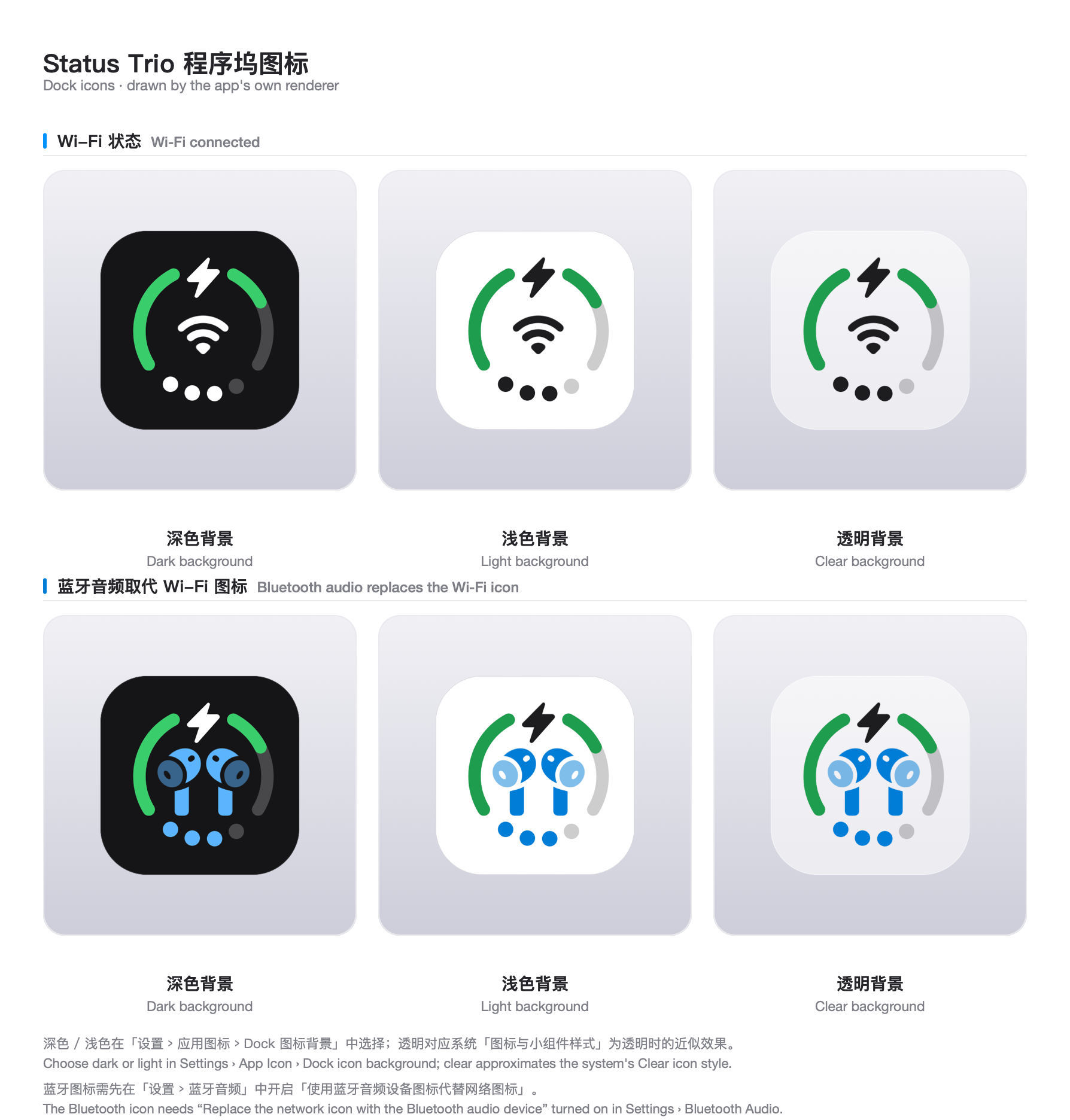
The same live icon can live in the Dock instead of the menu bar, or in both places at once:
Dock icon in dark appearance
Dock icon in light appearance
Bluetooth panel preview
The Dock icon draws the same combined icon as the menu bar, so with Bluetooth Device selected as the middle icon the device glyph takes over the middle there too. Its background can follow the system icon style or be pinned to a fixed shade:
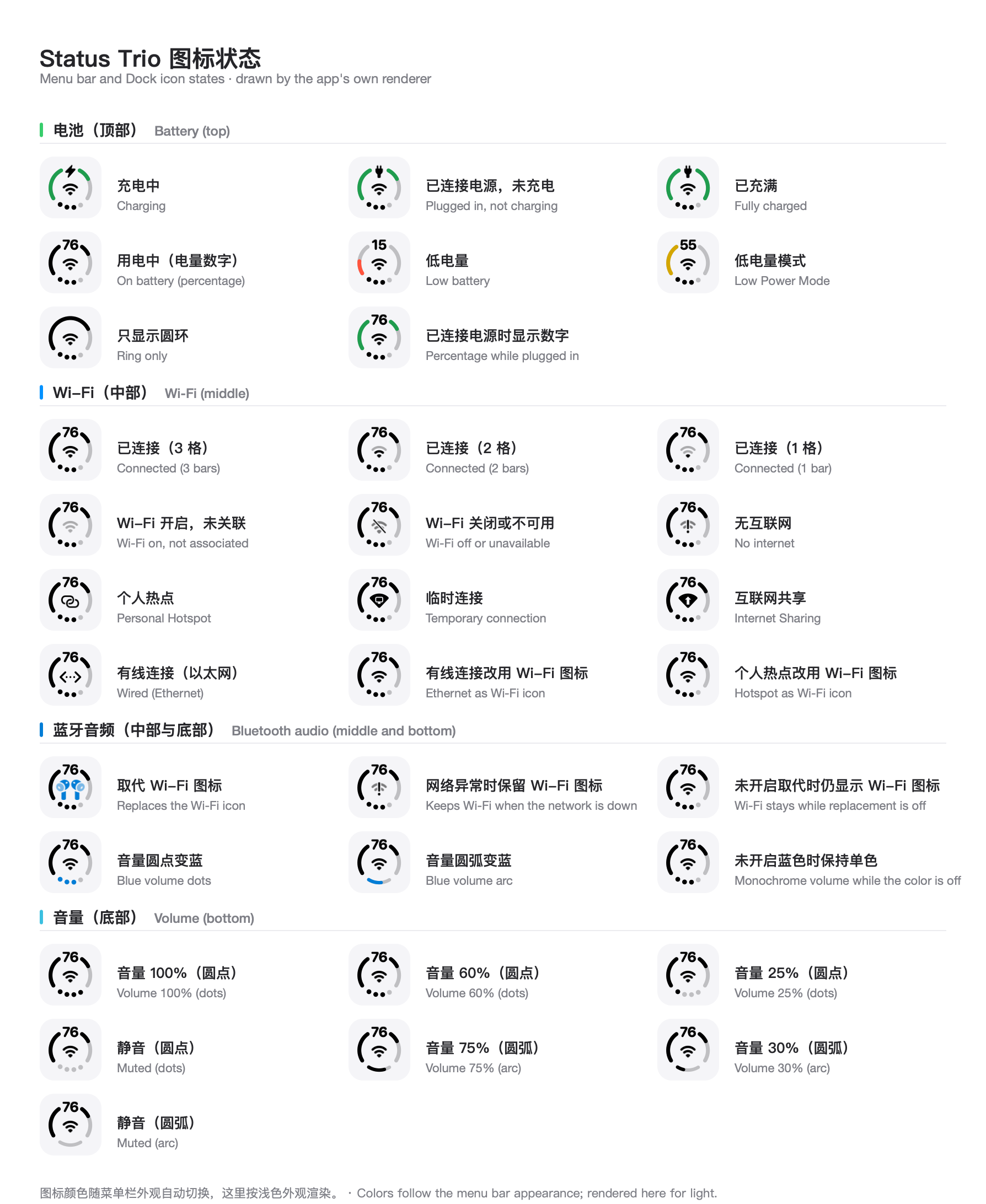
Icon states
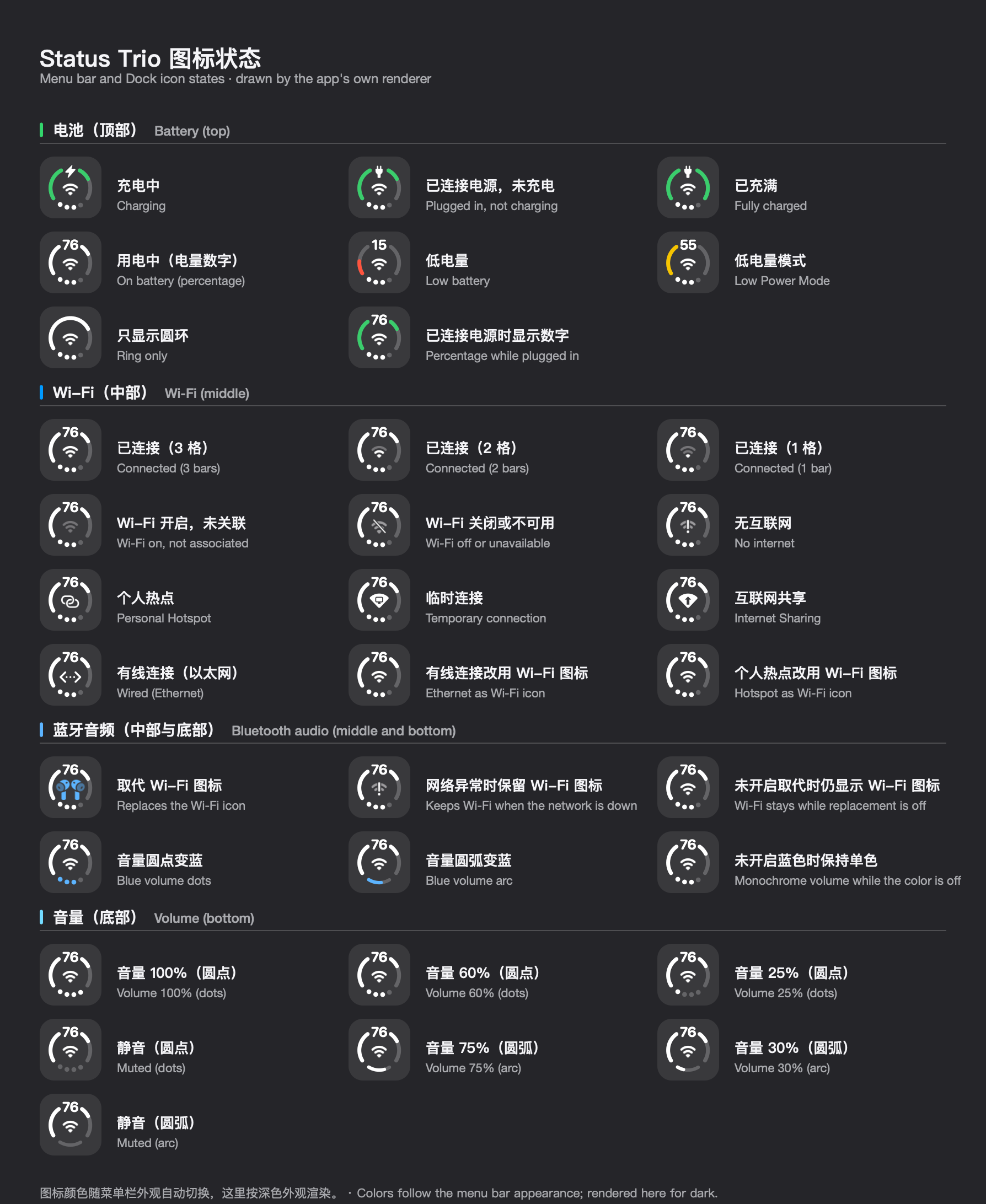
Every state the combined icon can show, drawn by the app's own renderer — battery indicators on top, Wi-Fi (or the Bluetooth audio device that can replace it, when that option is on) in the middle, and volume dots or the arc at the bottom, turning blue while a Bluetooth device is playing:
Swift 6 toolchain with the macOS 26 SDK or newer to build it; the formal
release workflow uses the xcode-27 runner and Xcode 27. Building against an
older SDK silently produces the pre-Tahoe popover appearance, so
scripts/build-app.sh fails when the SDK is older than 26.
Run from source
git clone https://github.com/lingyired/status-trio.git
cd status-trio
swift run StatusTrio
Build a local app
Build an ad-hoc-signed app bundle and launch it:
bash scripts/build-app.sh release
The bundle is created at dist/StatusTrio.app. To build without quitting or launching an existing instance, run:
bash scripts/build-app.sh release no-open
The ad-hoc-signed bundle is intended for local personal use. Gatekeeper may reject it if the bundle is transferred with quarantine metadata.
Usage
Left-click the menu bar icon or the Dock icon to open the status popover.
Right-click either icon for the native menu, including version and quit actions.
Select the Wi-Fi or battery row in the popover to open its page: nearby networks and link details, or Battery Details. The Bluetooth row lists its paired devices in place — tap one to connect or disconnect — with an Expand control when they do not all fit.
Open Settings to choose where the icon is shown (menu bar, Dock, or both) and to change its size, colors, ring thickness, the panel sections and their order, scroll-to-adjust behavior, language, update checks, and launch at login.
Reopen the Meet your icon guide any time from Settings › App Icon › Open Guide.
Enable the current Wi-Fi network name when prompted; macOS requests location access for this optional detail.
Known limitations
Two boundaries macOS and this project draw deliberately. Both are explained in Known limitations.
Switching networks happens in System Settings. Choosing a network in the popover opens the Wi-Fi pane; Status Trio never reads or stores Wi-Fi passwords, because macOS offers no public API to connect with a saved password and every alternative ends with the app holding them.
Charge-limit control uses a private interface. The opt-in Charge to Full Now action appears only on supported Apple silicon Macs on macOS 26.4 or later, uses a private PowerUI interface, and can be turned off in Battery settings; availability and behavior depend on macOS. The limit may stay at 100% after charging or unplugging and is not restored automatically, so restore it in System Settings if needed. Low Power Mode uses a separate opt-in privileged helper.
Languages
Status Trio follows the macOS preferred language by default and includes English, Simplified Chinese, Traditional Chinese, Japanese, Korean, Spanish, French, German, Italian, Brazilian Portuguese, Russian, and Arabic.
Community
Status Trio has a Chinese-language community for questions, feedback, and release discussion.
QQ group:735856753 — scan the QR code below.
WeChat group: scan the QR code below.
Privacy
Status Trio reads system status locally. Optional anonymous usage statistics are sent to the first-party service only after you enable them; upgrades start with statistics off, and new installs ask during onboarding. The heartbeat contains a random installation ID, app and macOS versions, language, and icon placement, with no names, account details, network details, or hardware identifiers. See telemetry and privacy. Status Trio does not read or store Wi-Fi passwords or request Keychain access. Location access is optional for the current Wi-Fi network name and details; Bluetooth access is requested when you enable the Bluetooth panel. The optional charge-to-full control uses a private PowerUI interface only when enabled; see known limitations for its behavior and limits.
Development
Run the risk-sized local verification (no GitHub Actions, signing, or release):
bash scripts/verify-local.sh quick BatteryMonitorTests
bash scripts/verify-local.sh docs
bash scripts/verify-local.sh full
Use quick for an isolated code change, docs for documentation or
localization-only work, and full for state, concurrency, rendering, Helper,
or build-pipeline changes. full builds a non-Universal development app bundle;
it does not produce the release package.
When you need only a focused Swift test, keep using the existing test helper:
bash scripts/test.sh BatteryMonitorTests
Formal release verification is separate from daily development. A merged change
is not a built artifact, and a built artifact is not a released version.
To build a worktree app alongside the main installation:
bash scripts/build-worktree.sh release
The helper derives a development bundle identifier and display name from the current branch. Both values can be overridden:
The single-instance lock is scoped by bundle identifier, so differently identified builds can run at the same time.
Icon presentation API
For the three icon regions, update timing, Swift examples, and extension boundaries, see 三图形展示与更新 API. This documents the current internal API; an external plugin SDK is not implemented.









 这是一款原生 macOS 应用,可将 Wi-Fi、电池和音量合并到一个紧凑、可配置的状态图标中,图标可显示在菜单栏、程序坞,或两者同时显示。