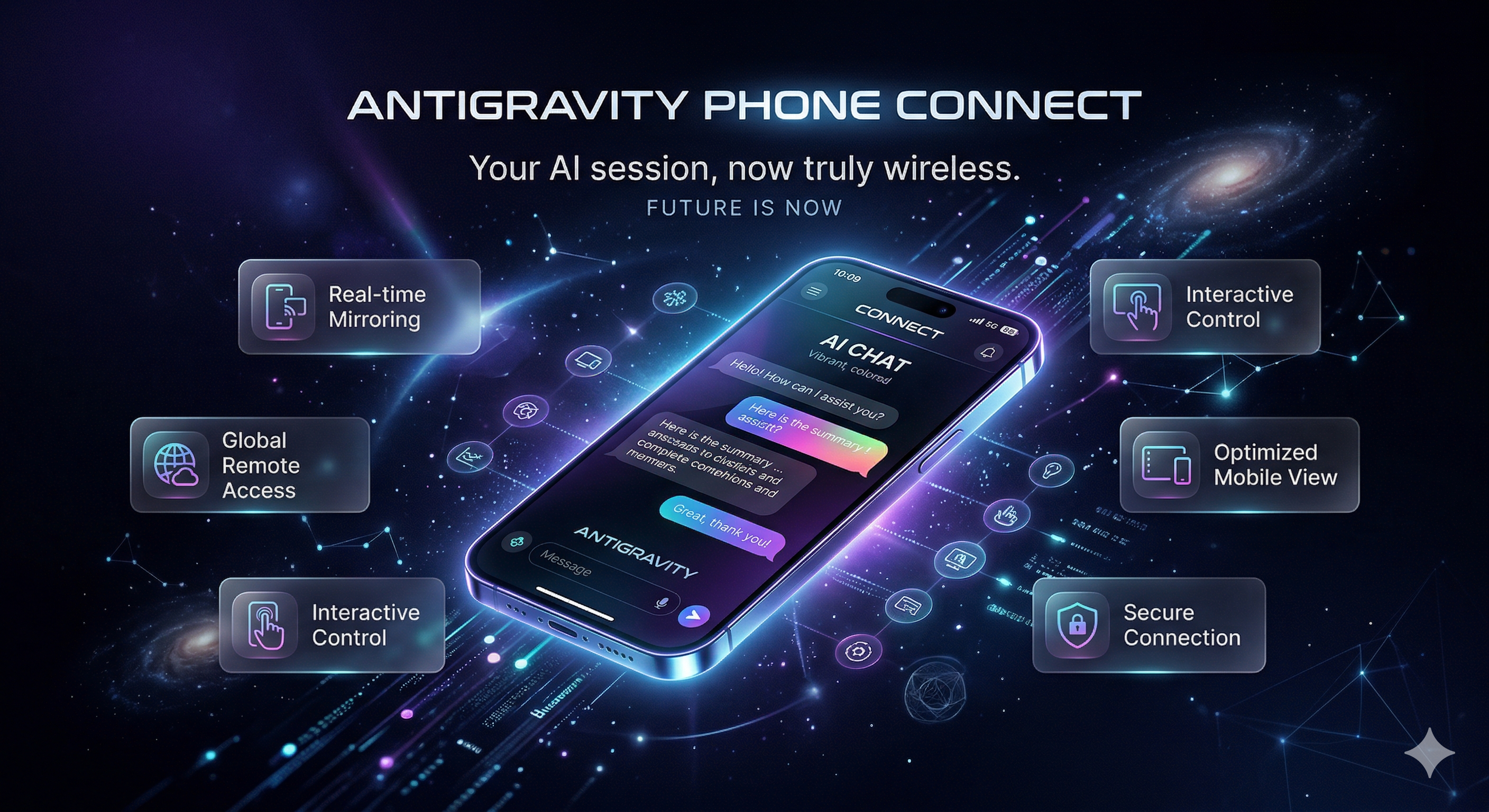
Antigravity Phone Connect is a high-performance, real-time mobile monitor and remote control for your Antigravity AI sessions. It allows you to step away from your desk while keeping full sight and control over your AI's thinking process and generations.
🚀 Lightning Fast Snapshots: Sub-100ms mirroring of the Antigravity chat via Chrome DevTools Protocol (CDP).
🛡️ Security First: Built-in security audits, XSS protection via a strict Content Security Policy (No-Inline-JS), and encrypted session handling via signed httpOnly cookies.
📱 Mobile-First History: Access and switch conversation history from a sleek, full-screen mobile drawer with native-feel cards and micro-animations.
🏠 One-Tap Connect: Automatically trusts your local home Wi-Fi (LAN) for instant access, while maintaining a Zero-Trust policy with password protection for all external traffic.
Note: This project is a refined fork/extension based on the original Antigravity Shit-Chat by gherghett.
🚀 Quick Start
💡 Tip: While we recommend starting Antigravity first, the server is now smart enough to wait and automatically connect whenever Antigravity becomes available!
Step 1: Launch Antigravity in Debug Mode
Start Antigravity with the remote debugging port enabled:
Option A: Using Right-Click Context Menu (Recommended)
Run install_context_menu.bat (Windows) or ./install_context_menu.sh (Linux) and select [1] Install
Then right-click any project folder → "Open with Antigravity (Debug)" (now with visual icons!)
Option B: Manual Command
antigravity . --remote-debugging-port=9000
Step 2: Open or Start a Chat
In Antigravity, open an existing chat from the bottom-right panel, OR
Start a new chat by typing a message
💡 The server needs an active chat session to capture snapshots. Without this, you'll see "chat container not found" errors.
Step 3: Run the Server
Windows:
Double-click start_ag_phone_connect.bat
macOS / Linux:
chmod +x start_ag_phone_connect.sh   # First time only
./start_ag_phone_connect.sh
The script will:
Auto-setup a Python Virtual Environment (venv) (Fixes PEP 668 issues on Arch/Linux)
Verify Node.js and Python dependencies
Auto-kill any existing server on port 3000
Wait for Antigravity if it's not started yet
Display a QR Code and your Link (e.g., https://192.168.1.5:3000)
Provide numbered steps for easy connection
Step 4: Connect Your Phone (Local Wi-Fi)
Ensure your phone is on the same Wi-Fi network as your PC
Open your mobile browser and enter the URL shown in the terminal
If using HTTPS: Accept the self-signed certificate warning on first visit
🌍 NEW: Global Remote Access (Web Mode)
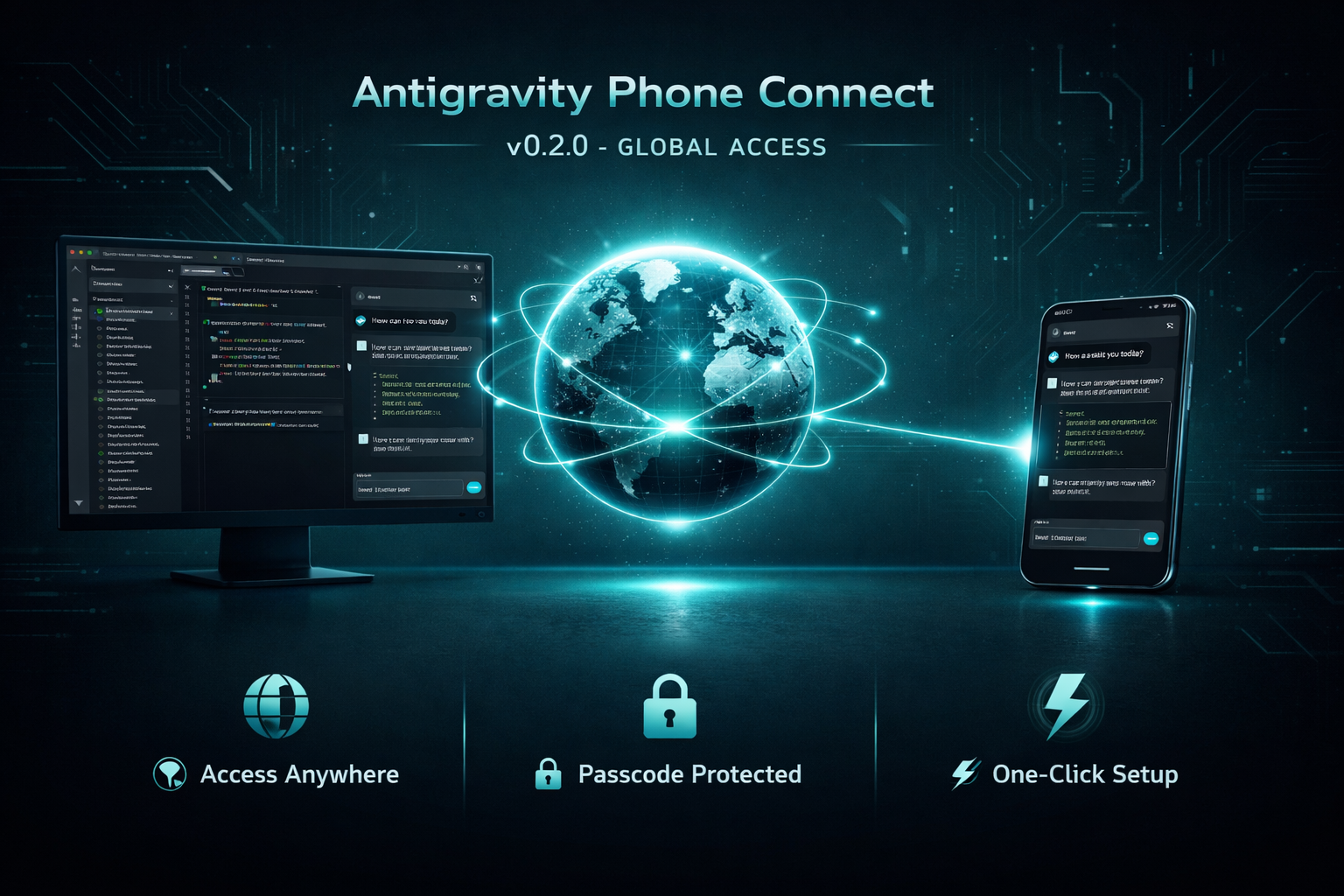
Access your Antigravity session from anywhere in the world (Mobile Data, outside Wi-Fi) with secure passcode protection.
Step 1: Choose a Tunnel Provider
You can use ngrok (requires account), Cloudflare Tunnel (requires cloudflared), or Pinggy (free SSH tunnel, no account/install needed).
Option A: ngrok (Default)
Get an ngrok Token: Sign up for free at ngrok.com and get your "Authtoken".
Install cloudflared: Follow the official guide to install cloudflared on your system.
Setup: Update your .env file:
TUNNEL_PROVIDER=cloudflare
Option C: Pinggy Tunnel
No Install Required: Pinggy works via SSH and the Python SDK. The launcher will automatically install the pinggy pip package.
Setup: Update your .env file:
TUNNEL_PROVIDER=pinggy
(Optional) You can add PINGGY_TOKEN=your-token for a persistent subdomain if you have a Pinggy account.
Step 2: Configuration
Automatic Configuration: Simply run any launcher script. They will detect if .env is missing and automatically create it using .env.example as a template.
Manual Setup: Alternatively, copy .env.example to .env manually and update the values:
copy .env.example .env   # Windows
cp .env.example .env     # Mac/Linux
Ensure you set a secure password:
APP_PASSWORD=your_secure_passcode
Usage
Windows: Run start_ag_phone_connect_web.bat
Mac/Linux: Run ./start_ag_phone_connect_web.sh
The script will launch the server and provide a Public URL (e.g., https://abcd-123.ngrok-free.app).
Two Ways to Connect:
Magic Link (Easiest): Scan the Magic QR Code displayed in the terminal. It logs you in automatically!
Manual:
Open the URL on your phone.
Enter your APP_PASSWORD to log in.
💡 Tip: Devices on the same local Wi-Fi still enjoy direct access without needing a password.
🔒 Enabling HTTPS (Recommended)
For a secure connection without the browser warning icon:
Option 1: Command Line
node generate_ssl.js
Uses OpenSSL if available (includes your IP in certificate)
Falls back to Node.js crypto if OpenSSL not found
Creates certificates in ./certs/ directory
Option 2: Web UI
Start the server on HTTP
Look for the yellow "⚠️ Not Secure" banner
Click "Enable HTTPS" button
Restart the server when prompted
After Generating:
Restart the server - it will automatically detect and use HTTPS.
On your phone's first visit:
You'll see a security warning (normal for self-signed certs).
Since macOS requires Automator for context menu entries, follow these steps manually:
Open Automator (Spotlight → type "Automator").
Click File → New and select Quick Action.
At the top, set:
"Workflow receives current" → folders
"in" → Finder
In the left sidebar, search for "Run Shell Script" and drag it to the right pane.
Set "Shell" to /bin/zsh and "Pass input" to as arguments.
Paste this script:
cd "$1"
antigravity . --remote-debugging-port=9000
Save the Quick Action with a name like Open with Antigravity (Debug).
Now you can right-click any folder in Finder → Quick Actions → Open with Antigravity (Debug).
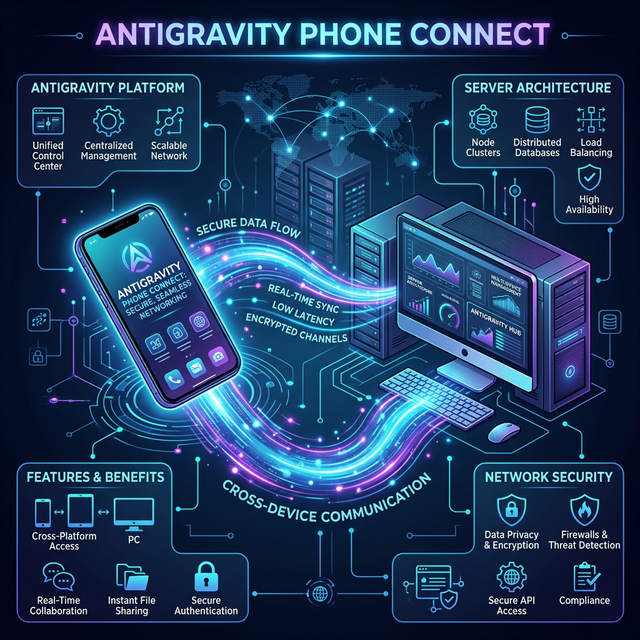
🏗️ Architecture Infographic
🛡️ Shielding & Account Safety
This tool is designed with a "Local-First" security model.
Bridge Mechanism: It uses the Chrome DevTools Protocol (CDP) to mirror the UI of your already-running desktop session. It never extracts OAuth tokens or interacts with Google/AI-provider APIs directly.
Natural Traffic: All AI requests are still sent by your official desktop application. To the AI provider, your usage looks identical to normal desktop activity.
Zero Bans: There have been no reports of account flags or bans. This is a "Wireless Viewport," not a third-party client that bypasses official security.
✨ Features
🧹 Clean Mobile View (NEW!): Automatically filters out redundant Desktop-specific input areas using an aggressive "Nuclear Cleanup" strategy. It targets the main desktop chat box and fixed overlays while carefully preserving actionable items like "Review Changes" and permission bars.
Glassmorphism UI (NEW!): Sleek and modern quick-action and settings menus featuring a beautiful glassmorphism effect for enhanced mobile usability. Includes customizable, ready-to-use prompt pills (like "Explain this code", "Continue", and "Fix Bugs").
🌙 Improved Dark Mode (NEW!): Enhanced UI styling and state capture designed to provide maximum clarity and correct model detection in dark mode.
🧠 Latest AI Models: Automatically updated support for the latest model versions from Gemini, Claude, and OpenAI.
💖 Support the Developer (NEW!): A dedicated heart icon in the mobile header allows users to support the project and the developer with a single tap, opening a premium support modal.
📜 Premium Chat History (NEW!): Full-screen history management with a completely redesigned, sleek card-based UI. Features modern loading states, gorgeous gradients, and intelligent strictly-scoped scraping to safely extract past conversations without background noise. Dismissing the history view automatically triggers a remote Escape sequence on the desktop to keep your workspace clean.
➕ One-Tap New Chat (NEW!): Start a fresh conversation instantly from your phone without needing to touch your desktop.
🖼️ Context Menu Icons (NEW!): Visual icons in the right-click menu for better navigation.
🌍 Global Web Access: Secure remote access via ngrok tunnel. Access your AI from mobile data with passcode protection.
🛡️ Auto-Cleanup: Launchers now automatically sweep away "ghost" processes from previous sessions for a clean start every time.
🔒 HTTPS Support: Secure connections with self-signed SSL certificates.
Local Image Support: Local images and SVGs (vscode-file:// paths) in the desktop chat are automatically converted to Base64 so they render perfectly on mobile without exposing local files.
Real-Time Mirroring: 1-second polling interval for near-instant sync.
Remote Control: Send messages, stop generations, and switch Modes (Fast/Planning) or Models (Gemini/Claude/GPT) directly from your phone.
Scroll Sync: When you scroll on your phone, the desktop Antigravity scrolls too!
🎯 Precision Remote Control (NEW!): A deterministic targeting layer that prevents "Sync-Fighting". It uses leaf-node filtering to ensure clicks land exactly on buttons, even when nested inside complex DOM structures.
Occurrence Index Tracking: Robustly handles multiple identical elements (like three "Run" buttons in history) by tracking the specific tapped instance.
Thought & Status Expansion (NEW!): Tap on "Thinking...", "Thought", "Worked for", "Edited", or "X files" blocks on your phone to remotely expand/collapse them with intelligent text matching.
Remote Action Support (NEW!): Direct support for "Allow", "Deny", "Allow Once", "Review Changes", "Apply", and "Save" buttons. No more walking back to your desk for simple permissions.
Smart Sync: Bi-directional synchronization ensures your phone always shows the current Model and Mode selected on your desktop.
Premium Mobile UI: A sleek, dark-themed interface optimized for touch interaction.
Context Menu Management: Dedicated scripts to Install, Remove, Restart, or Backup your Right-Click integrations.
Health Monitoring: Built-in /health endpoint for server status checks.
Graceful Shutdown: Clean exit on Ctrl+C, closing all connections properly.
Python Virtual Environment (venv) Support: Launcher scripts now automatically create and use a local venv (approx. 25-30MB). This ensures compatibility with modern Linux distributions (Arch, Debian 12+) that enforce PEP 668 (externally-managed-environment) and prevents package conflicts on Windows/macOS.
Zero-Config: The launch scripts handle the heavy lifting of environment setup.



 它是一个针对 Antigravity AI 桌面会话的实时手机监视与远程控制工具,把聊天镜像到你的手机上,让你能远程发送消息、停止生成或批准操作。