Password Manager
KeeWeb Password Manager🔑
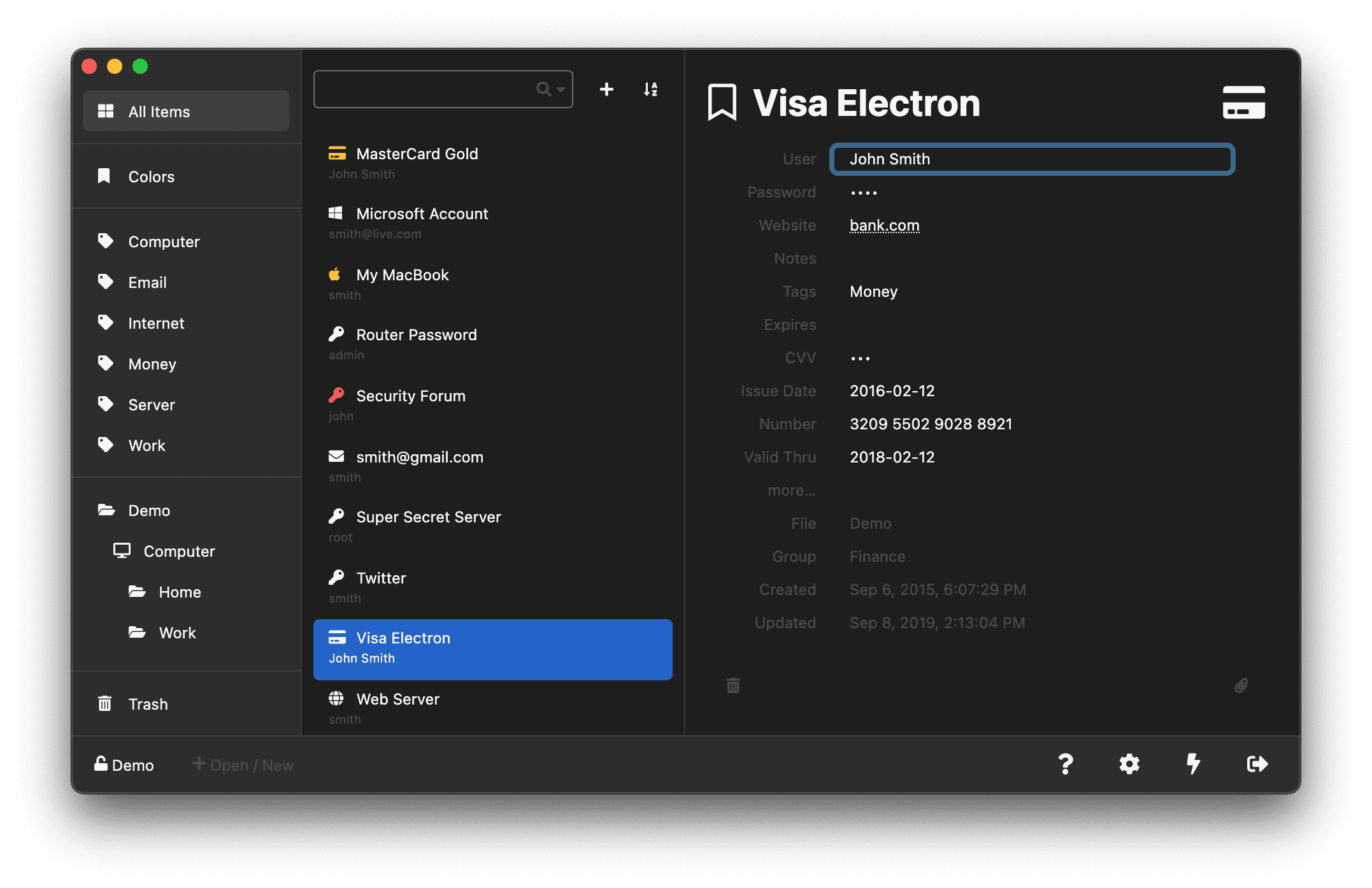
KeeWeb is a browser and desktop password manager which is capable of opening up existing KeePass database `kdbx` files, or creating new vaults to store your important credentials in.
[![Version][github-version-img]][github-version-uri]
[![Tests][github-tests-img]][github-tests-uri]
[![Downloads][github-downloads-img]][github-downloads-uri]
[![Size][github-size-img]][github-size-img]
[![Last Commit][github-commit-img]][github-commit-img]
![Contributors][contribs-all-img]
About
KeeWeb is a password manager which supports managing kdbx files created by other applications such as KeePass, KeePassXC, etc. You choose the platform you wish to run; as KeeWeb supports being installed and ran as either a Desktop application, or in your web-browser.
With support for Linux, Windows, and MacOS, we give you the tools to seamlessly manage your most important credentials across multiple applications and platforms.
Decide how you want to save your credential vault, KeeWeb supports saving your database as a local file, or you can store your password vault with some of the most popular cloud services such as Dropbox, Google Drive, and Microsoft OneDrive.
Quick Links
Review some of our most important links below to learn more about KeeWeb and who we are:
Self-hosting
Want to self-host your copy of KeeWeb? Everything you need to host this app on your server is provided within the package. KeeWeb itself is a single HTML file combined with a service worker (optionally; for offline access).
You can download the latest distribution files from gh-pages branch.
Docker
If you wish to host Keeweb within a Docker container, we provide pre-built images that you can pull into your environment. This section explains how to run Keeweb using docker run, or by setting up a docker-compose.yml file.
[!NOTE]
For a full set of Docker instructions, visit our docker/keeweb readme
Images
Use any of the following images in your 📄 docker-compose.yml or run command:
| Service |
Version |
Image Link |
Docker Hub |
[![Docker Version][dockerhub-version-ftb-img]][dockerhub-version-ftb-uri] |
🔖 keeweb/keeweb:latest
🔖 keeweb/keeweb:1.19.0
🔖 keeweb/keeweb:1.19.0-amd64
🔖 keeweb/keeweb:1.19.0-arm64
🔖 keeweb/keeweb:development
🔖 keeweb/keeweb:development-amd64
🔖 keeweb/keeweb:development-arm64 |
Github |
[![Github Version][github-version-ftb-img]][github-version-ftb-uri] |
🔖 ghcr.io/keeweb/keeweb:latest
🔖 ghcr.io/keeweb/keeweb:1.19.0
🔖 ghcr.io/keeweb/keeweb:1.19.0-amd64
🔖 ghcr.io/keeweb/keeweb:1.19.0-arm64
🔖 ghcr.io/keeweb/keeweb:development
🔖 ghcr.io/keeweb/keeweb:development-amd64
🔖 ghcr.io/keeweb/keeweb:development-arm64 |
Docker Run
If you wish to use docker run; use the following command:
docker run -d --restart=unless-stopped -p 443:443 --name keeweb -v ${PWD}/keeweb:/config ghcr.io/keeweb/keeweb:latest
Docker Compose
For users wishing to use docker compose, create a new docker-compose.yml with the following:
services:
    keeweb:
        container_name: keeweb
        image: ghcr.io/keeweb/keeweb:latest       # Github image
      # image: keeweb/keeweb:latest               # Dockerhub image
        restart: unless-stopped
        volumes:
            - ./keeweb:/config
        environment:
            - PUID=1000
            - PGID=1000
            - TZ=Etc/UTC
Traefik Integration
You can put this container behind Traefik if you want to use a reverse proxy and let Traefik handle the SSL certificate management.
[!NOTE]
These steps are optional.
If you do not use Traefik, you can skip this section of steps. This is only for users who wish to put this container behind Traefik.
If you do not wish to use Traefik, remember that if you make your Keeweb container public facing, you will need to utilize a service such as certbot/lets encrypt to generate SSL certificates.
Our first step is to tell Traefik about our Keeweb container. We highly recommend you utilize a Traefik dynamic file, instead of labels. Using a dynamic file allows for automatic refreshing without the need to restart Traefik when a change is made.
If you decide to use labels instead of a dynamic file, any changes you want to make to your labels will require a restart of Traefik.
We will be setting up the following:
- A
middleware to re-direct http to https
- A
route to access Keeweb via http (optional)
- A
route to access Keeweb via https (secure)
- A
service to tell Traefik how to access your Keeweb container
- A
resolver so that Traefik can generate and apply a wildcard SSL certificate
Labels
To add Keeweb to Traefik, you will need to open your docker-compose.yml and apply the following labels to your Keeweb container. Ensure you change domain.lan to your actual domain name.
services:
    keeweb:
        container_name: keeweb
        image: ghcr.io/keeweb/keeweb:latest       # Github image
      # image: keeweb/keeweb:latest               # Dockerhub image
        restart: unless-stopped
        volumes:
            - ./keeweb:/config
        environment:
            - PUID=1000
            - PGID=1000
            - TZ=Etc/UTC
        labels:

          #   General
          - traefik.enable=true

          #   Router > http
          - traefik.http.routers.keeweb-http.rule=Host(`keeweb.localhost`) || Host(`keeweb.domain.lan`)
          - traefik.http.routers.keeweb-http.service=keeweb
          - traefik.http.routers.keeweb-http.entrypoints=http
          - traefik.http.routers.keeweb-http.middlewares=https-redirect@file

          #   Router > https
          - traefik.http.routers.keeweb-https.rule=Host(`keeweb.localhost`) || Host(`keeweb.domain.lan`)
          - traefik.http.routers.keeweb-https.service=keeweb
          - traefik.http.routers.keeweb-https.entrypoints=https
          - traefik.http.routers.keeweb-https.tls=true
          - traefik.http.routers.keeweb-https.tls.certresolver=cloudflare
          - traefik.http.routers.keeweb-https.tls.domains[0].main=domain.lan
          - traefik.http.routers.keeweb-https.tls.domains[0].sans=*.domain.lan

          #   Load Balancer
          - traefik.http.services.keeweb.loadbalancer.server.port=443
          - traefik.http.services.keeweb.loadbalancer.server.scheme=https
After you've added the labels above, skip the dynamic.yml section and go straight to the static.yml section.
Dynamic.yml
If you decide to not use labels and want to use a dynamic file, you will first need to create your dynamic file. the Traefik dynamic file is usually named dynamic.yml. We need to add a new middleware, router, and service to our Traefik dynamic file so that it knows about our new Keeweb container and where it is.
http:
    middlewares:
        https-redirect:
            redirectScheme:
                scheme: "https"
                permanent: true

    routers:
        keeweb-http:
            service: keeweb
            rule: Host(`keeweb.localhost`) || Host(`keeweb.domain.lan`)
            entryPoints:
                - http
            middlewares:
                - https-redirect@file

        keeweb-https:
            service: keeweb
            rule: Host(`keeweb.localhost`) || Host(`keeweb.domain.lan`)
            entryPoints:
                - https
            tls:
                certResolver: cloudflare
                domains:
                    - main: "domain.lan"
                      sans:
                          - "*.domain.lan"

    services:
        keeweb:
            loadBalancer:
                servers:
                    - url: "https://keeweb:443"
Static.yml
These entries will go in your Traefik static.yml file. Any changes made to this file requires that you restart Traefik afterward.
Providers
[!NOTE]
This step is only for users who opted to use the dynamic file method.
Users who opted to use labels can skip to the section certificatesResolvers
Ensure you add the following new section to your static.yml:
providers:
    docker:
        endpoint: "unix:///var/run/docker.sock"
        exposedByDefault: false
        network: traefik
        watch: true
    file:
        filename: "/etc/traefik/dynamic.yml"
        watch: true
The code above is what enables the use of a dynamic file instead of labels. Change /etc/traefik/dynamic.yml if you are placing your dynamic file in a different location. This path is relative to inside the container, not your host machine mounted volume path. Traefik keeps most files in the /etc/traefik/ folder.
After you add the above, open your Traefik's docker-compose.yml file and mount a new volume so that Traefik knows where your new dynamic file is:
    traefik:
        container_name: traefik
        image: traefik:latest
        restart: unless-stopped
        volumes:
            - /var/run/docker.sock:/var/run/docker.sock:ro
            - /etc/localtime:/etc/localtime:ro
            - ./config/traefik.yml:/etc/traefik/traefik.yml:ro
            - ./config/dynamic.yml:/etc/traefik/dynamic.yml:ro
You must ensure you add a new volume like shown above:
/config/dynamic.yml:/etc/traefik/dynamic.yml:ro
On your host machine, make sure you place the dynamic.yml file in a sub-folder called config, which should be inside the same folder where your Traefik's docker-compose.yml file is. If you want to change this location, ensure you change the mounted volume path above.
After you have completed this, proceed to the section certificatesResolvers.
certificatesResolvers
[!NOTE]
This step is required no matter which option you picked above, both for dynamic file setups, as well as people using labels.
Open your Traefik static.yml file. We need to define the certResolver that we added above either in your dynamic file, or label. To define the certResolver, we will be adding a new section labeled certificatesResolvers. We are going to use Cloudflare in this example, you can use whatever from the list at:
certificatesResolvers:
    cloudflare:
        acme:
            email: [email protected]
            storage: /cloudflare/acme.json
            keyType: EC256
            preferredChain: 'ISRG Root X1'
            dnsChallenge:
                provider: cloudflare
                delayBeforeCheck: 15
                resolvers:
                    - "1.1.1.1:53"
                    - "1.0.0.1:53"
                disablePropagationCheck: true
Once you pick the DNS / SSL provider you want to use from the code above, you need to see if that provider has any special environment variables that must be set. The Providers Page lists all providers and also what env variables need set for each one.
In our example, since we are using Cloudflare for dnsChallenge -> provider, we must set the following environment variables:
Create a .env environment file in the same folder where your Traefik docker-compose.yml file is located, and add the following:
[email protected]
CF_API_KEY=Your-Cloudflare-API-Key
Save the .env file and exit. For these environment variables to be detected by Traefik, you must give your Traefik container a restart. Until you restart Traefik, it will not be able to generate your new SSL certificates.
You can wait and restart in a moment after you finish editing the static.yml file, as there are more items to add below.
entryPoints (Normal)
Finally, inside the Traefik static.yml, we need to make sure we have our entryPoints configured. Add the following to the Traefik static.yml file only if you DON'T have entry points set yet:
entryPoints:
    http:
        address: :80
        http:
            redirections:
                entryPoint:
                    to: https
                    scheme: https

    https:
        address: :443
        http3: {}
        http:
            tls:
                options: default
                certResolver: cloudflare
                domains:
                    - main: domain.lan
                      sans:
                          - '*.domain.lan'
entryPoints (Cloudflare)
If your website is behind Cloudflare's proxy service, you need to modify your entryPoints above so that you can automatically allow Cloudflare's IP addresses through. This means your entry points will look a bit different.
In the example below, we will add forwardedHeaders -> trustedIPs and add all of Cloudflare's IPs to the list which are available here:
    http:
        address: :80
        forwardedHeaders:
            trustedIPs: &trustedIps
                - 103.21.244.0/22
                - 103.22.200.0/22
                - 103.31.4.0/22
                - 104.16.0.0/13
                - 104.24.0.0/14
                - 108.162.192.0/18
                - 131.0.72.0/22
                - 141.101.64.0/18
                - 162.158.0.0/15
                - 172.64.0.0/13
                - 173.245.48.0/20
                - 188.114.96.0/20
                - 190.93.240.0/20
                - 197.234.240.0/22
                - 198.41.128.0/17
                - 2400:cb00::/32
                - 2606:4700::/32
                - 2803:f800::/32
                - 2405:b500::/32
                - 2405:8100::/32
                - 2a06:98c0::/29
                - 2c0f:f248::/32
        http:
            redirections:
                entryPoint:
                    to: https
                    scheme: https

    https:
        address: :443
        http3: {}
        forwardedHeaders:
            trustedIPs: *trustedIps
        http:
            tls:
                options: default
                certResolver: cloudflare
                domains:
                    - main: domain.lan
                      sans:
                          - '*.domain.lan'
Save the files and then give Traefik and your Keeweb containers a restart.
Authentik Integration
This section will not explain how to install and set up Authentik. We are only going to cover adding Keeweb integration to Authentik.
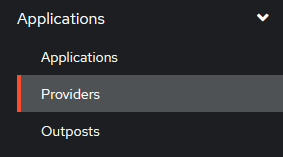
Sign into the Authentik admin panel, go to the left-side navigation, select Applications -> Providers. Then at the top of the new page, click Create.

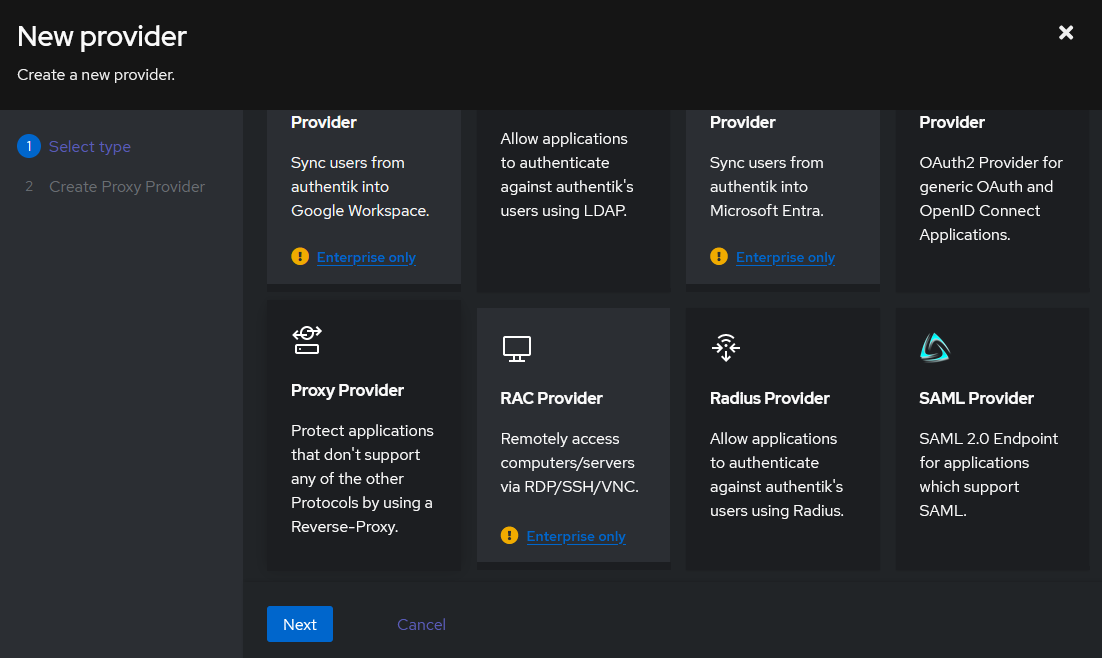
For the provider, select Proxy Provider.
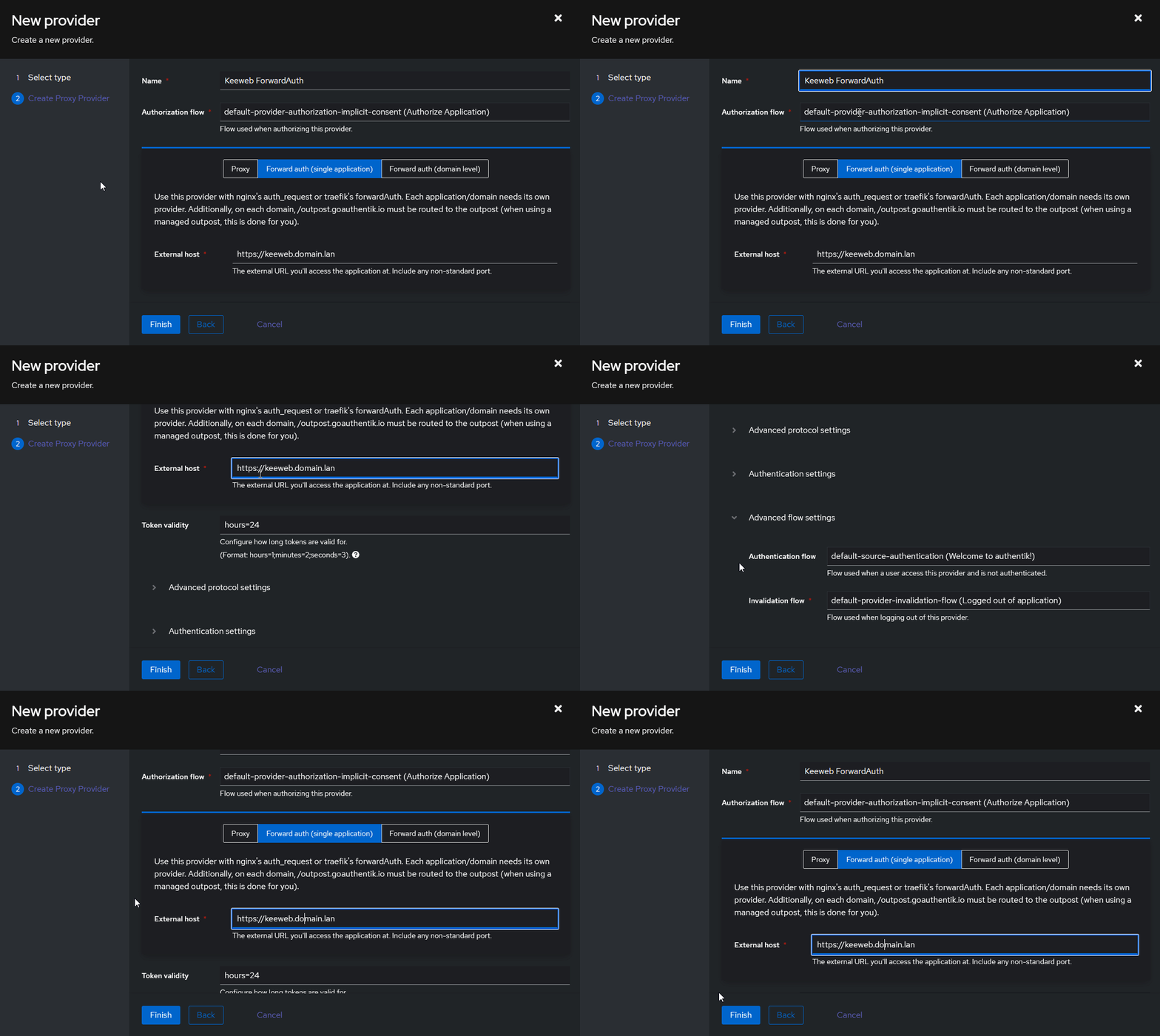
Add the following provider values:
- Name:
Keeweb ForwardAuth
- Authentication Flow:
default-source-authentication (Welcome to authentik!)
- Authorization Flow:
default-provider-authorization-implicit-consent (Authorize Application)
Select Forward Auth (single application):
- External Host:
https://keeweb.domain.lan
Once finished, click Create. Then on the left-side menu, select Applications -> Applications. Then at the top of the new page, click Create.
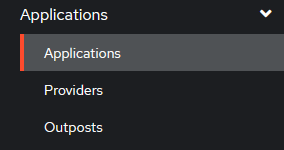
Add the following parameters:
- Name:
Keeweb (Password Manager)
- Slug:
keeweb
- Group:
Security
- Provider:
Keeweb ForwardAuth
- Backchannel Providers:
None
- Policy Engine Mode:
any
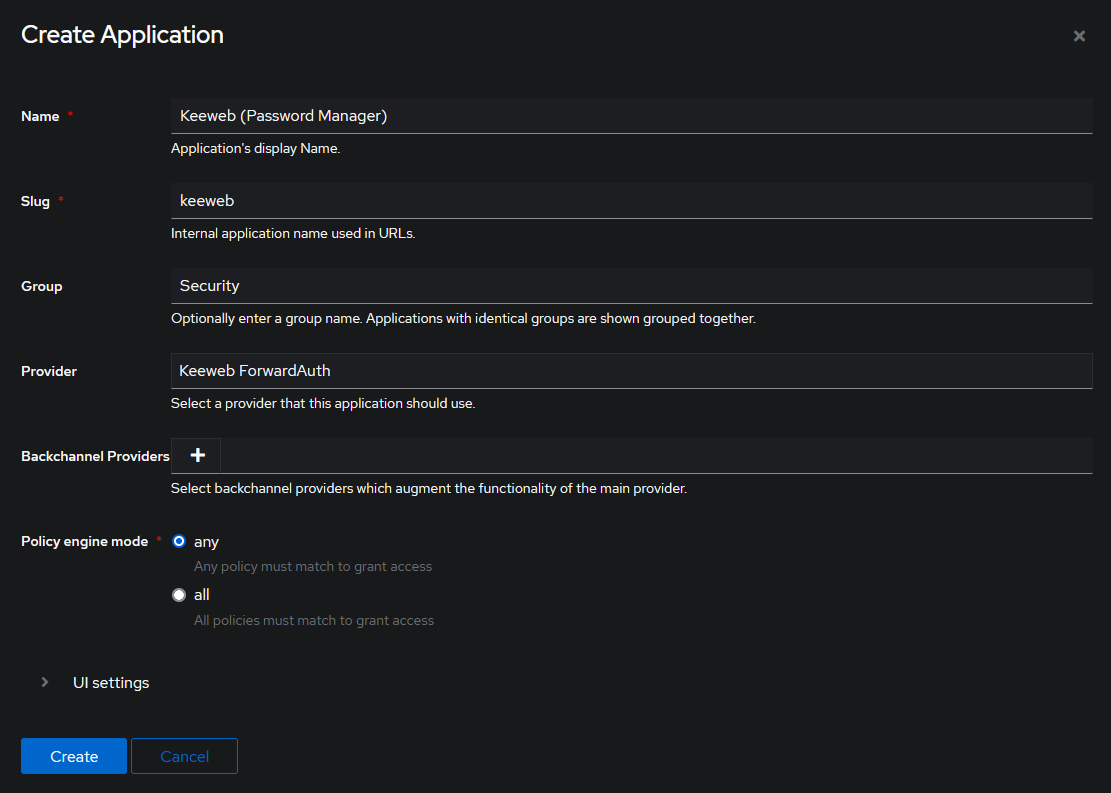
Save, and then on the left-side menu, select Applications -> Outposts:

 KeeWeb 是一款免费的跨平台密码管理器,可以打开和创建与 KeePass 兼容的 kdbx 保险库文件,既可以作为浏览器应用运行,也可以作为桌面应用运行。