Fastfetch is a neofetch-like tool for fetching system information and displaying it in a visually appealing way. It is written mainly in C, with a focus on performance and customizability. Currently, it supports Linux, macOS, Windows 8.1+, Android, FreeBSD, OpenBSD, NetBSD, DragonFly, Haiku and SunOS (illumos, Solaris).
Note: Fastfetch is only actively tested on x86-64 and aarch64 platforms. It may work on other platforms but is not guaranteed to do so.
According configuration files for examples are located here.
Debian / Ubuntu: apt install fastfetch (Debian 13 or newer; Ubuntu 25.04 or newer)
Debian / Ubuntu: Download fastfetch-linux-<proper architecture>.deb from Github release page and double-click it (for Ubuntu 20.04 or newer and Debian 11 or newer).
Fastfetch uses JSONC (JSON with comments) for configuration. See the Wiki for details. There are some premade config files in the presets directory, including those used for the screenshots above. You can load them using -c <filename>. These files can serve as examples of the configuration syntax.
Logos can also be heavily customized; see the logo documentation for more information.
WARNING
Fastfetch supports a Command module that can run arbitrary shell commands. If you copy-paste a config file from an untrusted source, it may contain malicious commands that can harm your system or compromise your privacy. Please always review the config file before using it.
FAQ
Q: Neofetch is good enough. Why do I need fastfetch?
Fastfetch is actively maintained.
Fastfetch is faster, as the name suggests.
Fastfetch has a greater number of features, though by default it only has a few modules enabled; use fastfetch -c all to discover what you want.
Fastfetch is more polished. For example, neofetch prints 555 MiB in the Memory module and 23 G in the Disk module, whereas fastfetch prints 555.00 MiB and 22.97 GiB respectively.
Q: Fastfetch shows my local IP address. Does it leak my privacy?
A local IP address (10.x.x.x, 172.x.x.x, 192.168.x.x) has nothing to do with privacy. It only has meaning if you are on the same network, for example, if you connect to the same Wi-Fi network.
Actually, the Local IP module is the most useful module for me personally. I (@CarterLi) have several VMs installed to test fastfetch and often need to SSH into them. With fastfetch running on shell startup, I never need to type ip addr manually.
If you really don't like it, you can disable the Local IP module in config.jsonc.
Q: Where is the config file? I can't find it.
Fastfetch does not generate a config file automatically. You can use fastfetch --gen-config to generate one. The config file will be saved in ~/.config/fastfetch/config.jsonc by default. See the Wiki for details.
Q: The configuration is so complex. Where is the documentation?
Fastfetch uses JSON (with comments) for configuration. I suggest using an IDE with JSON schema support (like VSCode) to edit it.
Alternatively, you can refer to the presets in the presets directory.
Fastfetch uses format to generate output. For example, to make the GPU module show only the GPU name (leaving other information undisplayed), you can use:
{
    "modules": [
        {
            "type": "gpu",
            "format": "{name}" // See `fastfetch -h gpu-format` for details
        }
    ]
}
...which is equivalent to fastfetch -s gpu --gpu-format '{name}'
See fastfetch -h format for information on basic usage. For module-specific formatting, see fastfetch -h <module>-format
Q: I have my own ASCII art / image file. How can I show it with fastfetch?
Q: Fastfetch runs in black and white on shell startup. Why?
This issue usually occurs when using fastfetch with p10k. There are known incompatibilities between fastfetch and p10k instant prompt.
The p10k documentation clearly states that you should NOT print anything to stdout after p10k-instant-prompt is initialized. You should put fastfetch before the initialization of p10k-instant-prompt (recommended).
You can always use fastfetch --pipe false to force fastfetch to run in colorful mode.
Q: Why do fastfetch and neofetch show different memory usage results?
Neofetch incorrectly counts gpg-pubkey as packages for rpm. You may check the results of dnf list --installed | wc -l and rpm -qa | wc -l to see the difference.
Q: I use Debian / Ubuntu / Debian-derived distro. My GPU is detected as XXXX Device XXXX (VGA compatible). Is this a bug?
{
  "logo": {
    "type": "sixel", // DO NOT USE "auto"
    "source": "C:/path/to/image.png", // Do NOT use `~` as fastfetch is a native Windows program and doesn't apply cygwin path conversion
    "width": <image-width-in-chars>, // Optional
    "height": <image-height-in-chars> // Optional
  }
}
If you installed fastfetch via scoop or downloaded the binary directly from the GitHub Releases page:
{
  "logo": {
    "type": "raw", // DO NOT USE "auto"
    "source": "C:/path/to/image.sixel",
    "width": <image-width-in-chars>, // Required
    "height": <image-height-in-chars> // Required
  }
}
Q: I want feature A / B / C. Will fastfetch support it?
Fastfetch is a system information tool. We only accept hardware or system-level software feature requests. For most personal uses, I recommend using the Command module to implement custom functionality, which can be used to grab output from a custom shell script:
// This module shows the default editor
{
    "modules": [
        {
            "type": "command",
            "text": "$EDITOR --version | head -1",
            "key": "Editor"
        }
    ]
}
Otherwise, please open a feature request in GitHub Issues.
This program will not transfer any information to other networked systems unless specifically requested by the user or the person installing or operating it
What is this?A neofetch-like command-line tool that displays your system information (OS, hardware, etc.) next to a logo in the terminal. It is written mainly in C with a focus on performance and customizability.
I already have neofetch on my system — why would I switch to fastfetch?Per its own FAQ: fastfetch is actively maintained, faster (hence the name), more feature-rich and more configurable than neofetch. Only a few modules are enabled by default — run 'fastfetch -c all' to see everything it can show.
I found a config file online — is it safe to just load it?Not necessarily. The Command module can run arbitrary shell commands, so a config copied from an untrusted source could contain malicious code — always review a preset before loading it.
Which systems does it run on, and does my CPU architecture matter?Linux, macOS, Windows 8.1+, Android, FreeBSD/OpenBSD/NetBSD/DragonFly, Haiku and SunOS (illumos, Solaris). Note that only x86-64 and aarch64 are actively tested — other CPU architectures may work but are not guaranteed.
Does fastfetch send my system information anywhere?No. The README states it transfers nothing to networked systems unless the user specifically requests it, and Windows binaries are code-signed via SignPath.io.
Can I customize what it shows and how it looks?Yes. Config is JSONC (JSON with comments): run 'fastfetch --gen-config' for a minimal file, use the online configuration generator for a full one, or load a premade preset with '-c' — the presets directory even includes the configs used for the README screenshots. Logos are heavily customizable too.
Can I use my own ASCII art or an image as the logo?Yes — 'fastfetch -l /path/to/logo' displays your own file. Image support depends on your terminal: on Windows, mintty and WezTerm support the iTerm protocol, while Windows Terminal only does sixel (use the MSYS2 build with ImageMagick, or convert your image to sixel manually).
Will the maintainers add any feature I ask for?Not necessarily — the README says only hardware or system-level software feature requests are accepted, since fastfetch is a system information tool. For personal tweaks it suggests grabbing output from your own shell script and displaying it via the Command module.













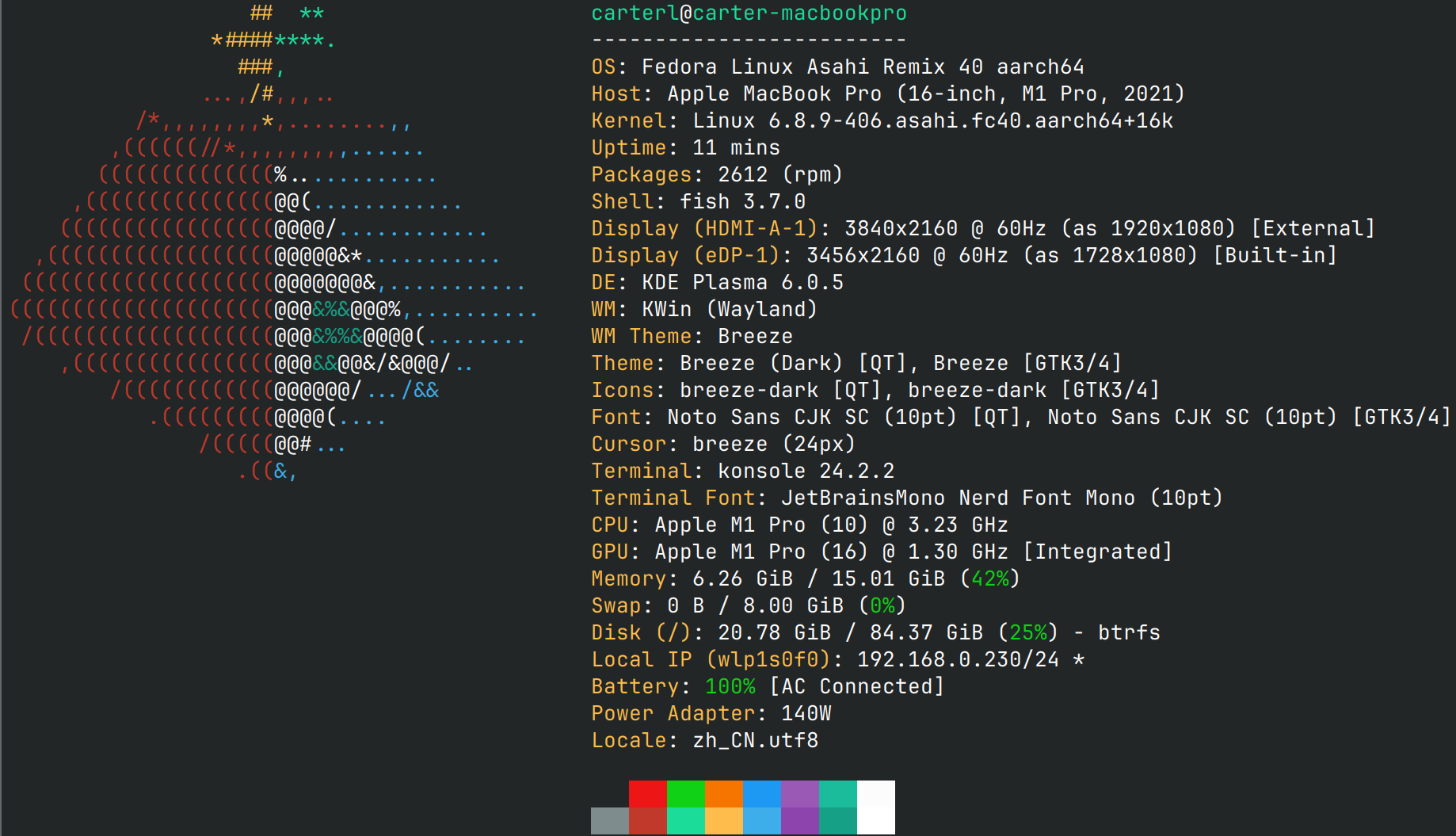

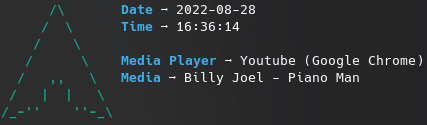
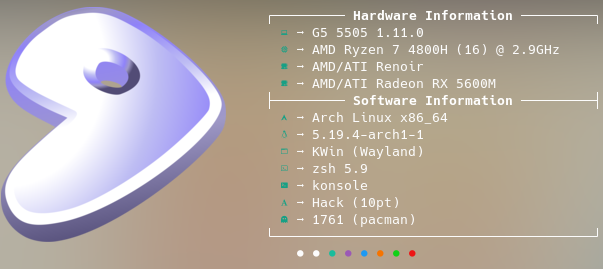
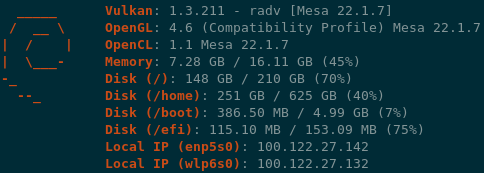


 A neofetch-like command-line tool that displays your system information (OS, hardware, etc.) next to a logo in the terminal. It is written mainly in C with a focus on performance and customizability.