








16.2K ·GitHub
Что это такое?
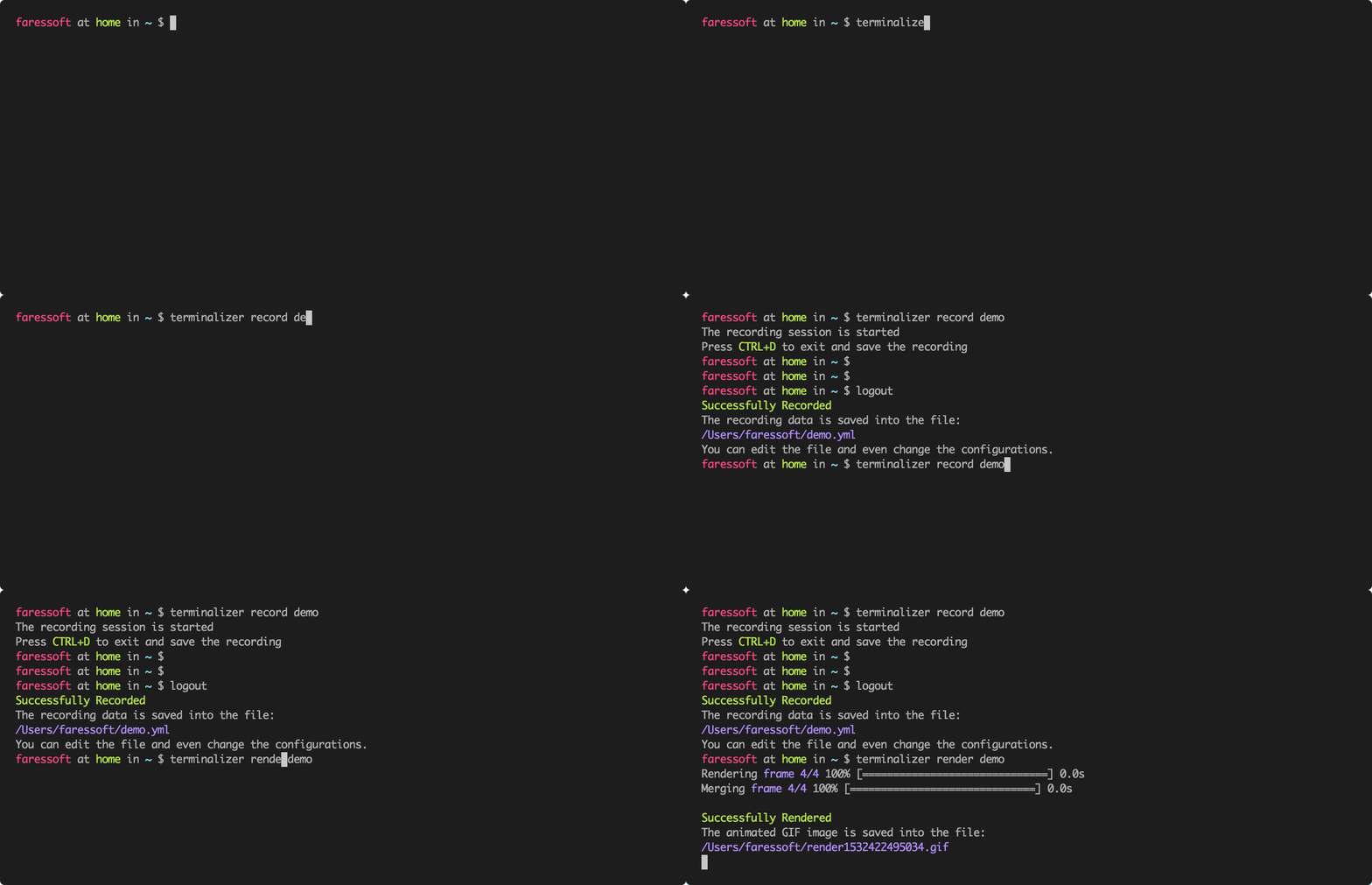
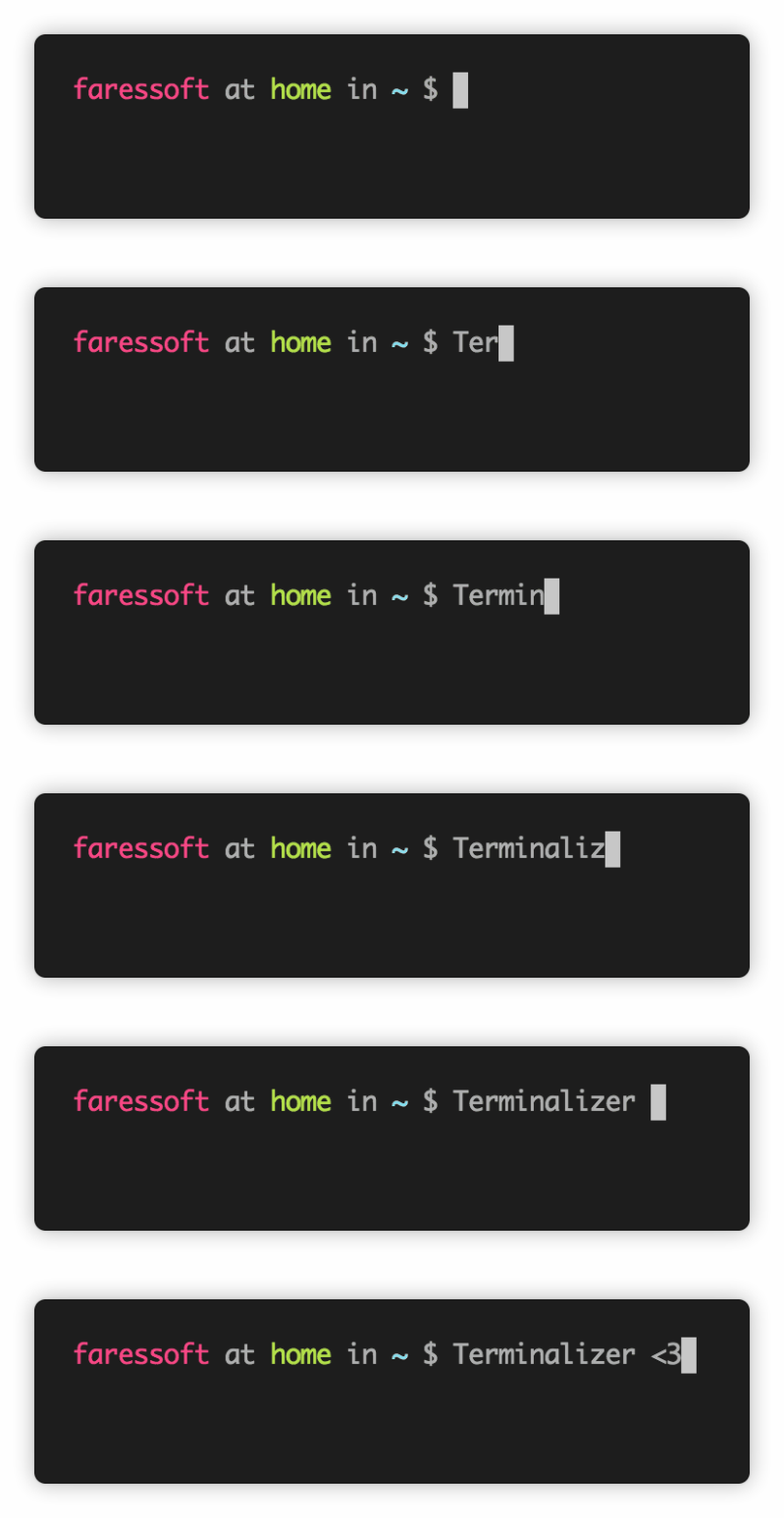
 Terminalizer — это утилита для командной строки, которая записывает вашу сессию в терминале и превращает её в анимированный GIF или даёт ссылку на онлайн-плеер, чтобы поделиться записью.
Terminalizer — это утилита для командной строки, которая записывает вашу сессию в терминале и превращает её в анимированный GIF или даёт ссылку на онлайн-плеер, чтобы поделиться записью.Это программа с графическим интерфейсом для записи экрана или утилита для командной строки?Это CLI-утилита, которая устанавливается глобально через npm. Она не снимает экран, а отрисовывает записанный текст терминала как изображения, поэтому GIF получаются более чёткими и качественными.
Это CLI-утилита, которая устанавливается глобально через npm. Она не снимает экран, а отрисовывает записанный текст терминала как изображения, поэтому GIF получаются более чёткими и качественными.Как записать свою первую сессию в терминале?После установки запустите команду record: она создаст в текущей папке файл demo.yml, в котором хранятся ваши настройки и записанные кадры. Воспроизведите сессию командой play, а затем отрендерите её в анимированный GIF.
После установки запустите команду record: она создаст в текущей папке файл demo.yml, в котором хранятся ваши настройки и записанные кадры. Воспроизведите сессию командой play, а затем отрендерите её в анимированный GIF.Нужно ли что-то ещё, кроме Node.js, чтобы её установить?Node.js — единственное требование. На Node v4-v16 установка проходит гладко; на более новых версиях могут понадобиться инструменты разработчика, чтобы собрать C++-надстройки через node-gyp.
Node.js — единственное требование. На Node v4-v16 установка проходит гладко; на более новых версиях могут понадобиться инструменты разработчика, чтобы собрать C++-надстройки через node-gyp.Есть ли подводные камни, о которых стоит знать заранее?Сжатие GIF пока не реализовано. Пользователям ZSH нужно в файле настроек заменить записываемую команду по умолчанию с bash на zsh, а на Linux можно столкнуться с отсутствующими системными библиотеками вроде libXss.so.1 — решения описаны в README.
Сжатие GIF пока не реализовано. Пользователям ZSH нужно в файле настроек заменить записываемую команду по умолчанию с bash на zsh, а на Linux можно столкнуться с отсутствующими системными библиотеками вроде libXss.so.1 — решения описаны в README.Она работает на Windows и macOS или только на Linux?Она кроссплатформенная: Linux, Windows и MacOS. Команда, записываемая по умолчанию, — это bash на Linux и powershell.exe на Windows, а папка глобальных настроек находится в домашней директории или в Windows AppData соответственно.
Она кроссплатформенная: Linux, Windows и MacOS. Команда, записываемая по умолчанию, — это bash на Linux и powershell.exe на Windows, а папка глобальных настроек находится в домашней директории или в Windows AppData соответственно.Можно ли отредактировать запись перед тем, как делать из неё GIF?Да. Откройте созданный yml-файл в любом редакторе, чтобы изменить настройки и отредактировать записанные кадры — можно поменять задержки кадров, ограничить максимальное время простоя между кадрами и пропускать кадры с заданным шагом, чтобы уменьшить количество отрисованных кадров.
Да. Откройте созданный yml-файл в любом редакторе, чтобы изменить настройки и отредактировать записанные кадры — можно поменять задержки кадров, ограничить максимальное время простоя между кадрами и пропускать кадры с заданным шагом, чтобы уменьшить количество отрисованных кадров.Как поделиться записью ссылкой вместо GIF-файла?Запустите команду share: она загрузит файл записи и вернёт ссылку на онлайн-плеер. Есть также команда generate, которая собирает веб-плеер для файла записи локально.
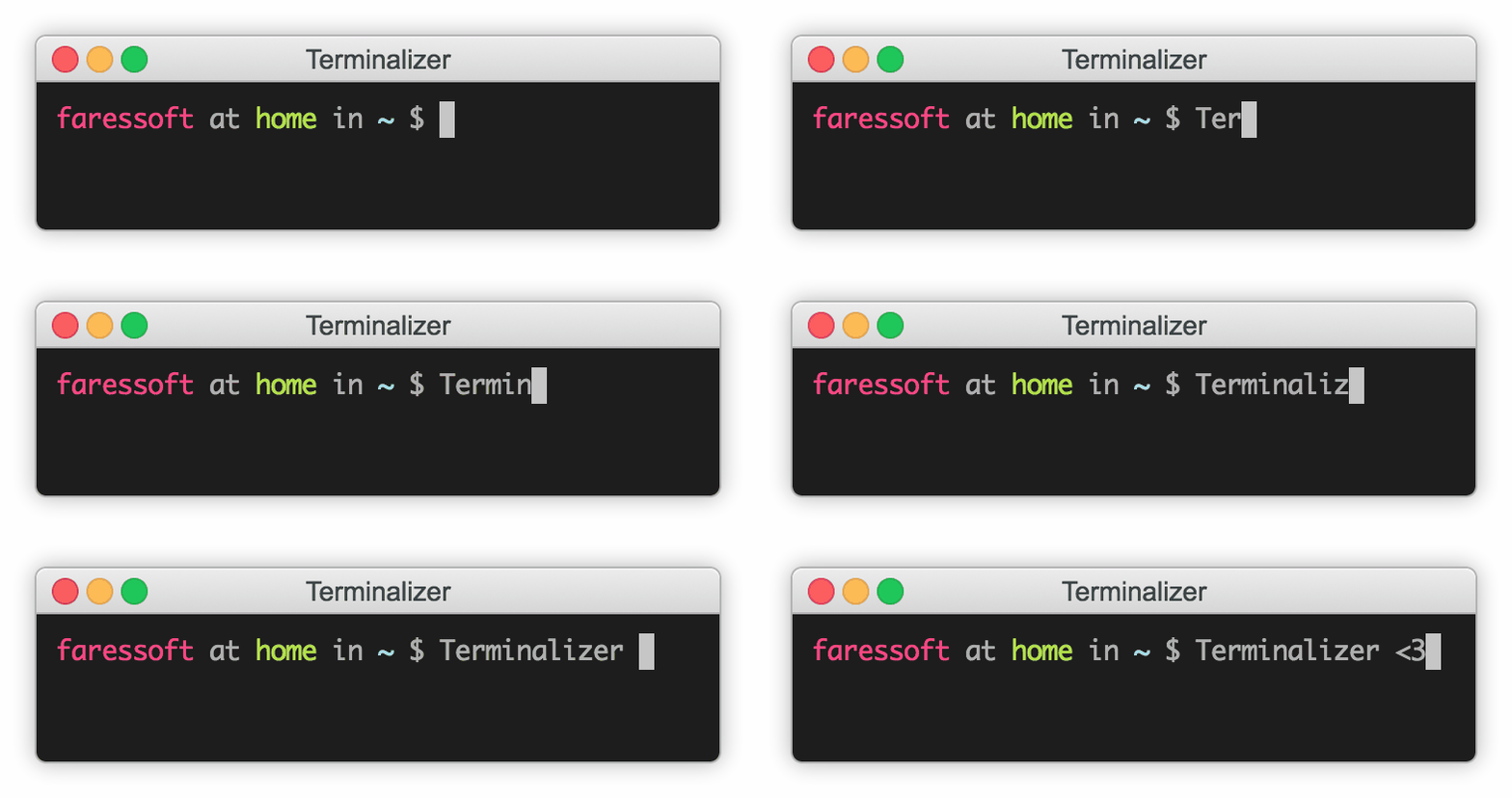
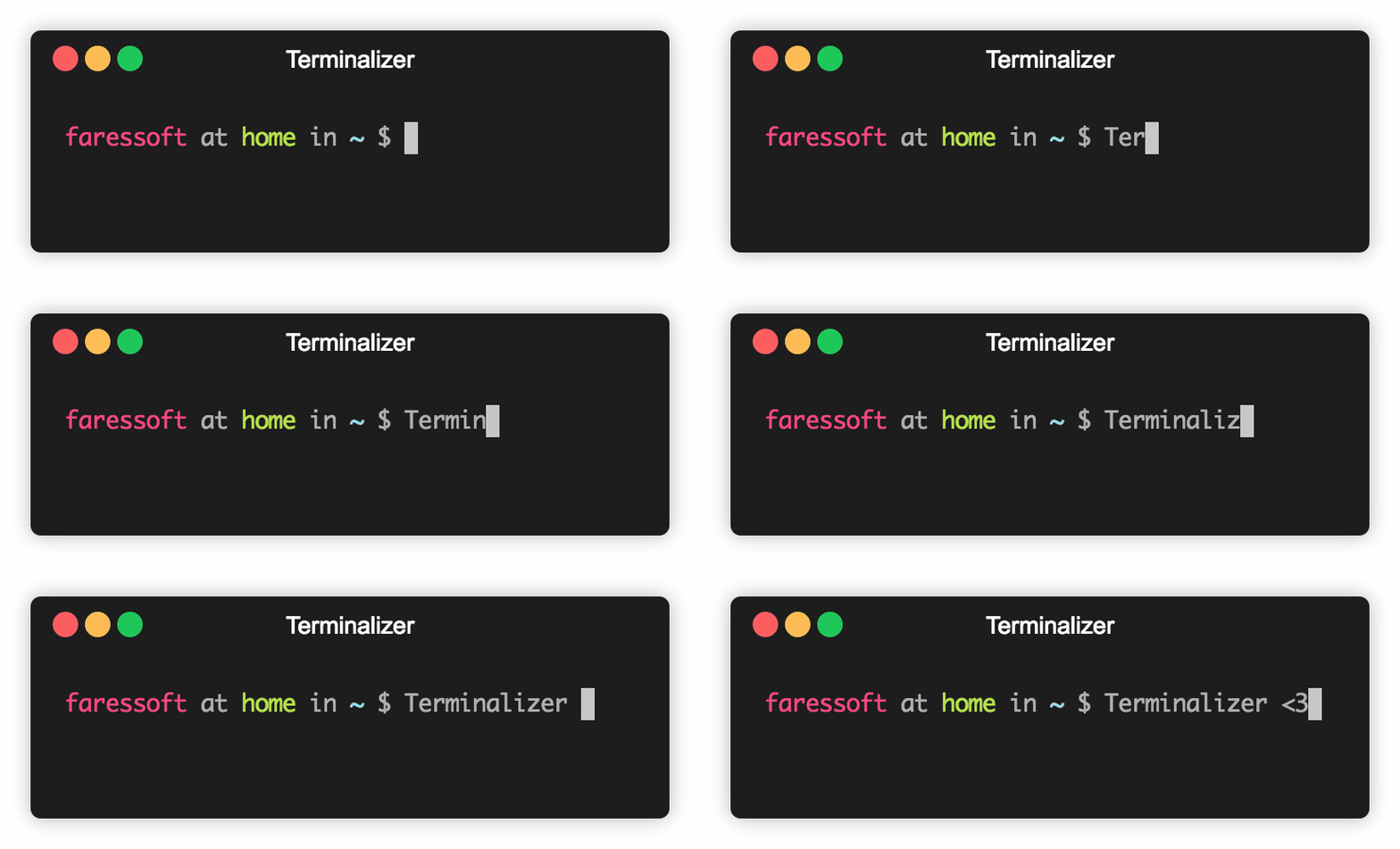
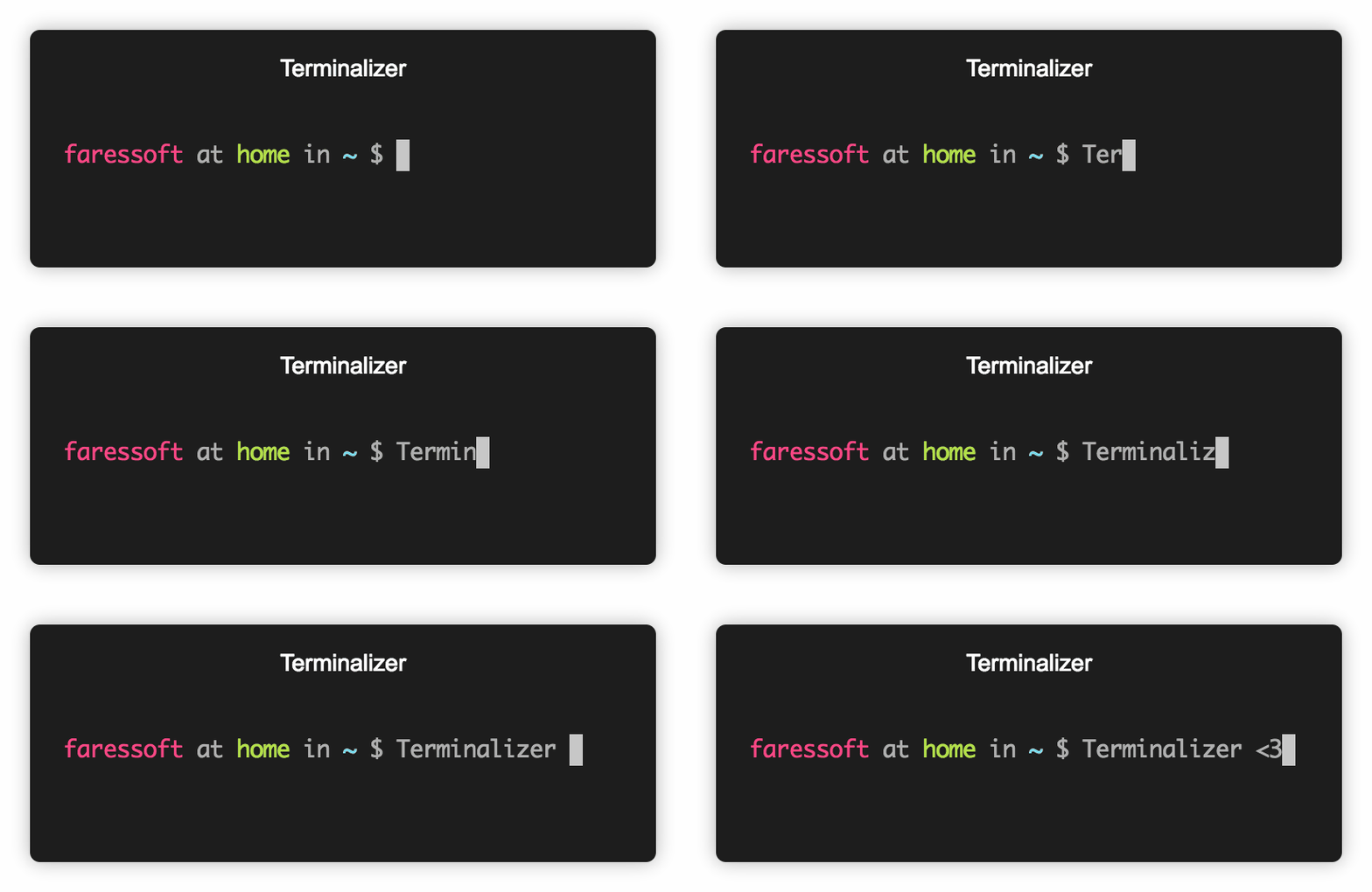
Запустите команду share: она загрузит файл записи и вернёт ссылку на онлайн-плеер. Есть также команда generate, которая собирает веб-плеер для файла записи локально.Насколько можно настроить внешний вид итогового GIF?Очень гибко: выберите стиль рамки окна (null, window, floating или solid) с необязательным заголовком, задайте цвета терминала в формате CSS, используйте любой установленный шрифт с нужным размером, межстрочным интервалом и расстоянием между буквами, выберите стиль курсора и добавьте картинку-водяной знак.
Очень гибко: выберите стиль рамки окна (null, window, floating или solid) с необязательным заголовком, задайте цвета терминала в формате CSS, используйте любой установленный шрифт с нужным размером, межстрочным интервалом и расстоянием между буквами, выберите стиль курсора и добавьте картинку-водяной знак.Как управлять зацикливанием и качеством GIF?В разделе GIF настроек: параметр quality принимает значение от 1 до 100, а repeat управляет зацикливанием — -1 проигрывает один раз, 0 зацикливает бесконечно, а положительное число зацикливает указанное количество раз.
В разделе GIF настроек: параметр quality принимает значение от 1 до 100, а repeat управляет зацикливанием — -1 проигрывает один раз, 0 зацикливает бесконечно, а положительное число зацикливает указанное количество раз.What are similar projects?oh-my-posh, inshellisense, zx, upterm, zoxide, asdf, tmuxinator, atuin
oh-my-posh, inshellisense, zx, upterm, zoxide, asdf, tmuxinator, atuin