






eza README

The project's README from github.com/eza-community/eza. As one markdown file: README.md.

Special thanks to:

Warp sponsorship

Warp, the AI terminal for developers

Available for MacOS, Linux, & Windows

eza

A modern replacement for ls.

Gitter

Built with Nix Contributor Covenant

Unit tests Crates.io Crates.io

eza demo gif


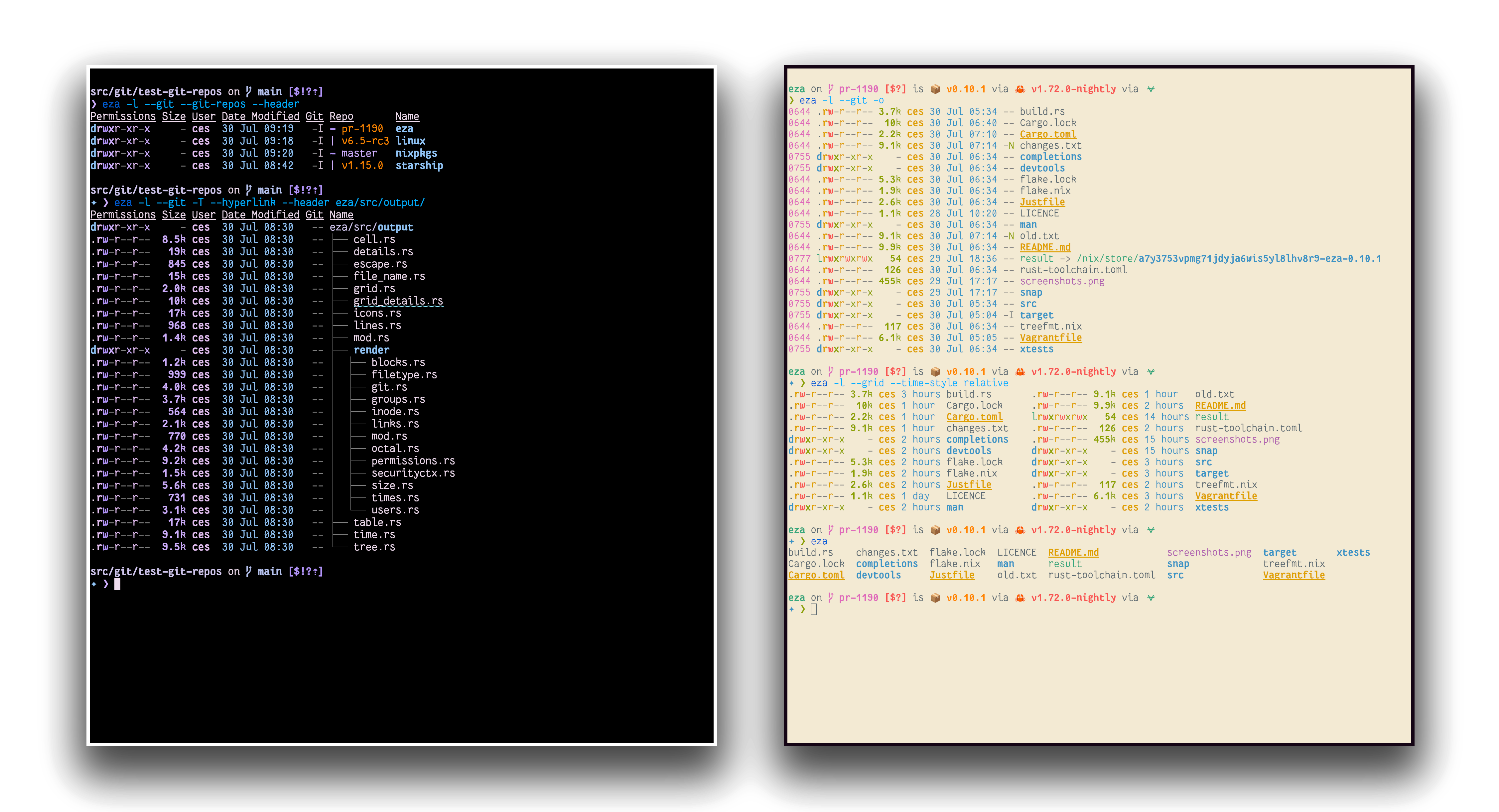
eza is a modern alternative for the venerable file-listing command-line program ls that ships with Unix and Linux operating systems, giving it more features and better defaults. It uses colours to distinguish file types and metadata. It knows about symlinks, extended attributes, and Git. And it’s small, fast, and just one single binary.

By deliberately making some decisions differently, eza attempts to be a more featureful, more user-friendly version of ls.


eza features not in exa (non-exhaustive):

...and like, so much more that it became exhausting to update this all the time. Like seriously, we have a lot of good stuff.


Try it!

Nix ❄️

If you already have Nix setup with flake support, you can try out eza with the nix run command:

nix run github:eza-community/eza

Nix will build eza and run it.

If you want to pass arguments this way, use e.g. nix run github:eza-community/eza -- -ol.

Installation

eza is available for Windows, macOS and Linux. Platform and distribution specific installation instructions can be found in INSTALL.md.

Packaging status


Command-line options

eza’s options are almost, but not quite, entirely unlike ls’s. Quick overview:

Display options

Click to expand
  • -1, --oneline: display one entry per line
  • -G, --grid: display entries as a grid (default)
  • -l, --long: display extended details and attributes
  • -R, --recurse: recurse into directories
  • -T, --tree: recurse into directories as a tree
  • -x, --across: sort the grid across, rather than downwards
  • -F, --classify=(when): display type indicator by file names (always, auto, never)
  • --colo[u]r=(when): when to use terminal colours (always, auto, never)
  • --colo[u]r-scale=(field): highlight levels of field distinctly(all, age, size)
  • --color-scale-mode=(mode): use gradient or fixed colors in --color-scale. valid options are fixed or gradient
  • --icons=(when): when to display icons (always, auto, never)
  • --hyperlink=(when): when to display entries as hyperlinks (always, auto, never)
  • --absolute=(mode): display entries with their absolute path (on, follow, off)
  • -w, --width=(columns): set screen width in columns

Filtering options

Click to expand
  • -a, --all: show hidden and 'dot' files
  • -d, --treat-dirs-as-files: list directories like regular files
  • -L, --level=(depth): limit the depth of recursion
  • -r, --reverse: reverse the sort order
  • -s, --sort=(field): which field to sort by
  • --group-directories-first: list directories before other files
  • --group-directories-last: list directories after other files
  • -D, --only-dirs: list only directories
  • -f, --only-files: list only files
  • --no-symlinks: don't show symbolic links
  • --show-symlinks: explicitly show links (with --only-dirs, --only-files, to show symlinks that match the filter)
  • --git-ignore: ignore files mentioned in .gitignore
  • -I, --ignore-glob=(globs): glob patterns (pipe-separated) of files to ignore

Pass the --all option twice to also show the . and .. directories.

Long view options

Click to expand

These options are available when running with --long (-l):

  • -b, --binary: list file sizes with binary prefixes
  • -B, --bytes: list file sizes in bytes, without any prefixes
  • -g, --group: list each file’s group
  • --smart-group: only show group if it has a different name from owner
  • -h, --header: add a header row to each column
  • -H, --links: list each file’s number of hard links
  • -i, --inode: list each file’s inode number
  • -m, --modified: use the modified timestamp field
  • -M, --mounts: Show mount details (Linux and MacOS only).
  • -S, --blocksize: show size of allocated file system blocks
  • -t, --time=(field): which timestamp field to use
  • -u, --accessed: use the accessed timestamp field
  • -U, --created: use the created timestamp field
  • -X, --dereference: dereference symlinks for file information
  • -Z, --context: list each file’s security context
  • -@, --extended: list each file’s extended attributes and sizes
  • --changed: use the changed timestamp field
  • --git: list each file’s Git status, if tracked or ignored
  • --git-repos: list each directory’s Git status, if tracked
  • --git-repos-no-status: list whether a directory is a Git repository, but not its status (faster)
  • --no-git: suppress Git status (always overrides --git, --git-repos, --git-repos-no-status)
  • --time-style: how to format timestamps. valid timestamp styles are ‘default’, ‘iso’, ‘long-iso’, ‘full-iso’, ‘relative’, or a custom style ‘+<FORMAT>’ (E.g., ‘+%Y-%m-%d %H:%M’ => ‘2023-09-30 13:00’. For more specifications on the format string, see the eza(1) manual page and chrono documentation.).
  • --total-size: show recursive directory size
  • --no-permissions: suppress the permissions field
  • -o, --octal-permissions: list each file's permission in octal format
  • --no-filesize: suppress the filesize field
  • --no-user: suppress the user field
  • --no-time: suppress the time field
  • --stdin: read file names from stdin

Some of the options accept parameters:

  • Valid --colo[u]r options are always, automatic (or auto for short), and never.
  • Valid sort fields are accessed, changed, created, extension, Extension, inode, modified, name, Name, size, type, and none. Fields starting with a capital letter sort uppercase before lowercase. The modified field has the aliases date, time, and newest, while its reverse has the aliases age and oldest.
  • Valid time fields are modified, changed, accessed, and created.
  • Valid time styles are default, iso, long-iso, full-iso, and relative.

See the man pages for further documentation of usage. They are available

Custom Themes

Click to expand

Eza has recently added support for a theme.yml file, where you can specify all of the existing theme-ing options available for the LS_COLORS and EXA_COLORS environment variables, as well as the option to specify different icons for different file types and extensions. Any existing environment variables set will continue to work and will take precedence for backwards compatibility.

New Pre-made themes

Check out the themes available in the official eza-themes repository, or contribute your own.

An example theme file is available in docs/theme.yml, and needs to either be placed in a directory specified by the environment variable EZA_CONFIG_DIR, or will looked for by default in $XDG_CONFIG_HOME/eza.

Full details are available on the man page and an example theme file is included here

Hacking on eza

If you wanna contribute to eza, firstly, you're expected to follow our code of conduct. After having understood the code of conduct, you can have a look at our CONTRIBUTING.md for more info about actual hacking.

Star History Chart

eza (eza-community/eza)

Searching Database…

23.6K ·GitHub
Что это такое?eza — это современная замена классической команды ls: программа для терминала, которая выводит список файлов с цветами, иконками, бóльшим числом возможностей и более удачными настройками по умолчанию.
Чем она отличается от обычного ls?Это один небольшой и быстрый бинарник — не библиотека и не сервис. Проект вырос из exa, и в README перечислена куча того, чего в exa не было: от гиперссылок до файла тем.
Нужно ли что-то ещё ставить, кроме самого бинарника eza?Ничего — бинарник полностью самодостаточный. Единственное желательное дополнение — шрифт Nerd Font в терминале, чтобы иконки файлов от опции --icons отображались корректно.
Всё ли работает одинаково на разных ОС?Все три настольные платформы поддерживаются, но часть опций привязана к платформе — например, сведения о точках монтирования (-M) показываются только на Linux и macOS. К тому же eza близка к ls, но не является её точным клоном: опции там «почти такие же, как в ls, но не совсем».
Это просто плоский список имён файлов?Нет — по умолчанию используется вид сеткой, а ещё есть режимы: по одному файлу в строке (-1), подробный длинный (-l), дерево (-T) и рекурсивный (-R). Можно сортировать по имени, размеру, дате или расширению, показывать скрытые файлы и фильтровать по шаблонам или .gitignore.
Что можно увидеть о каждом файле в длинном режиме?Права доступа (в том числе в восьмеричном виде), размеры файлов, время изменения, доступа или создания, номера inode и счётчики жёстких ссылок, расширенные атрибуты, статус Git, контекст безопасности и сведения о монтировании — в основном за флагами вроде --git, -@, -U и -o.
Можно ли настроить цвета и иконки?Да — цвета и иконками управляет файл theme.yml; положите его в $XDG_CONFIG_HOME/eza или в папку, заданную через EZACONFIGDIR. Готовые темы лежат в официальном репозитории eza-themes, а старые переменные LSCOLORS/EXACOLORS по-прежнему работают.
Что eza добавила по сравнению с предшественницей exa?Поддержку гиперссылок, сведения о точках монтирования, вывод контекста SELinux, статус Git-репозитория для каталогов, человекочитаемые относительные даты, яркие цвета в терминале, настраиваемый theme.yml и исправление «Grid Bug» из exa 2021 года.
What are similar projects?lsd, exa, oh-my-posh, fd, turbocrypt, diff-so-fancy, dust, lane
Size
8.2 MB
Stars
23.6K
Age
3y
Commits · 90 Days