Turn an old Android phone into a desk panel for your computer.
PC stats, AI coding sessions, music and touch controls over USB or Wi-Fi.
Windows, Linux and macOS. No root, PhoneBox account or cloud service required.
PhoneBox pairs a full-screen Android app with a small desktop agent. Build your panel in a browser-based
visual editor: 120 widgets, 30 templates, multiple pages and a live preview. Connect several phones with
their own layouts, or switch one phone between paired computers.
What you can do
Use it for
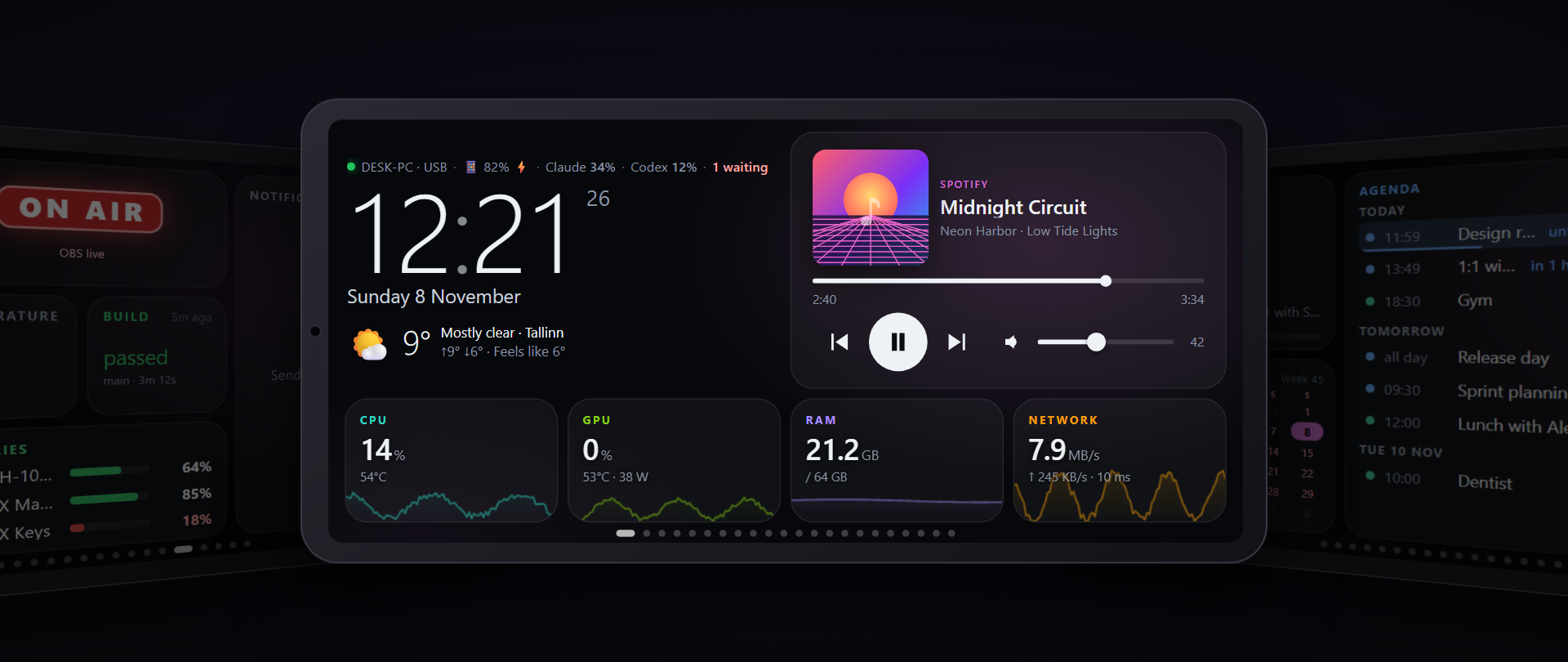
What appears on the phone
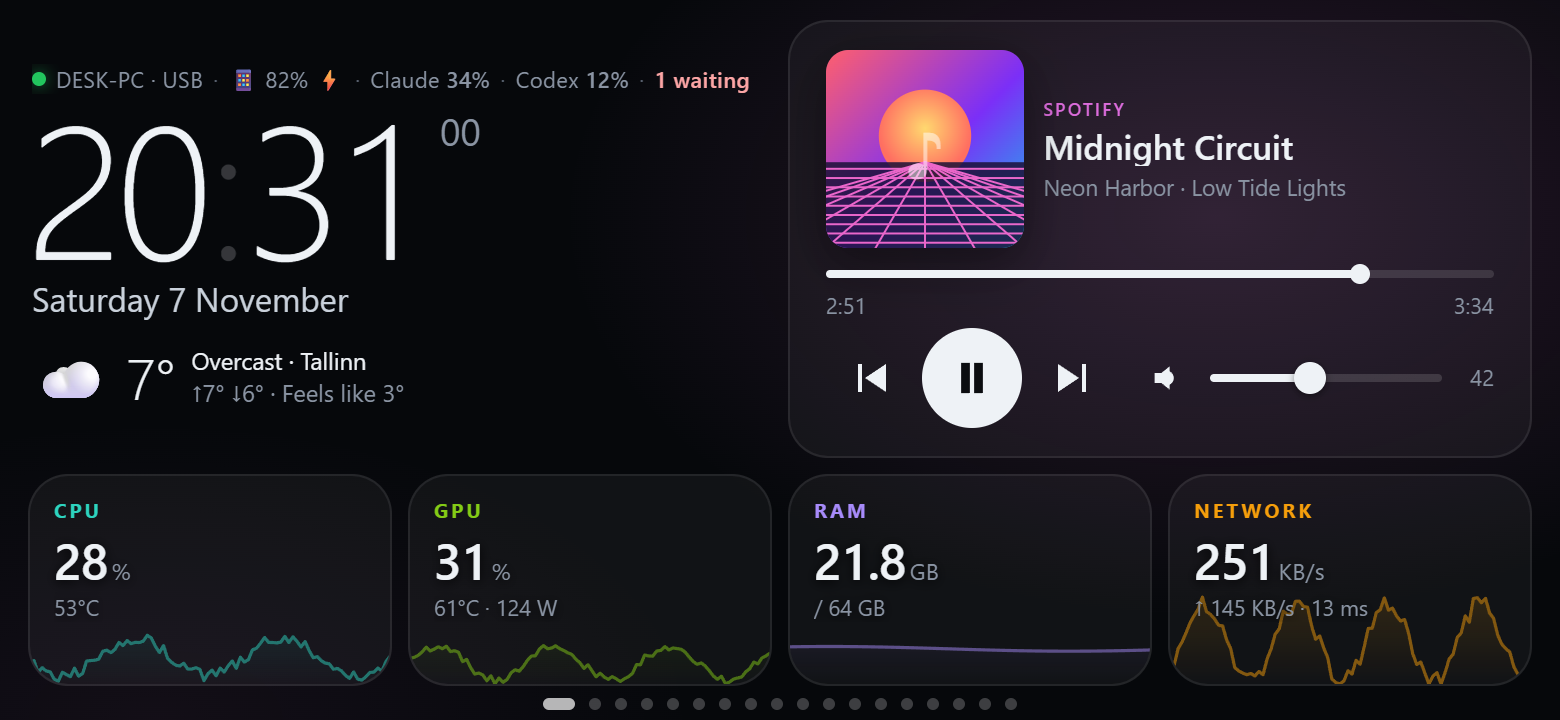
PC monitoring
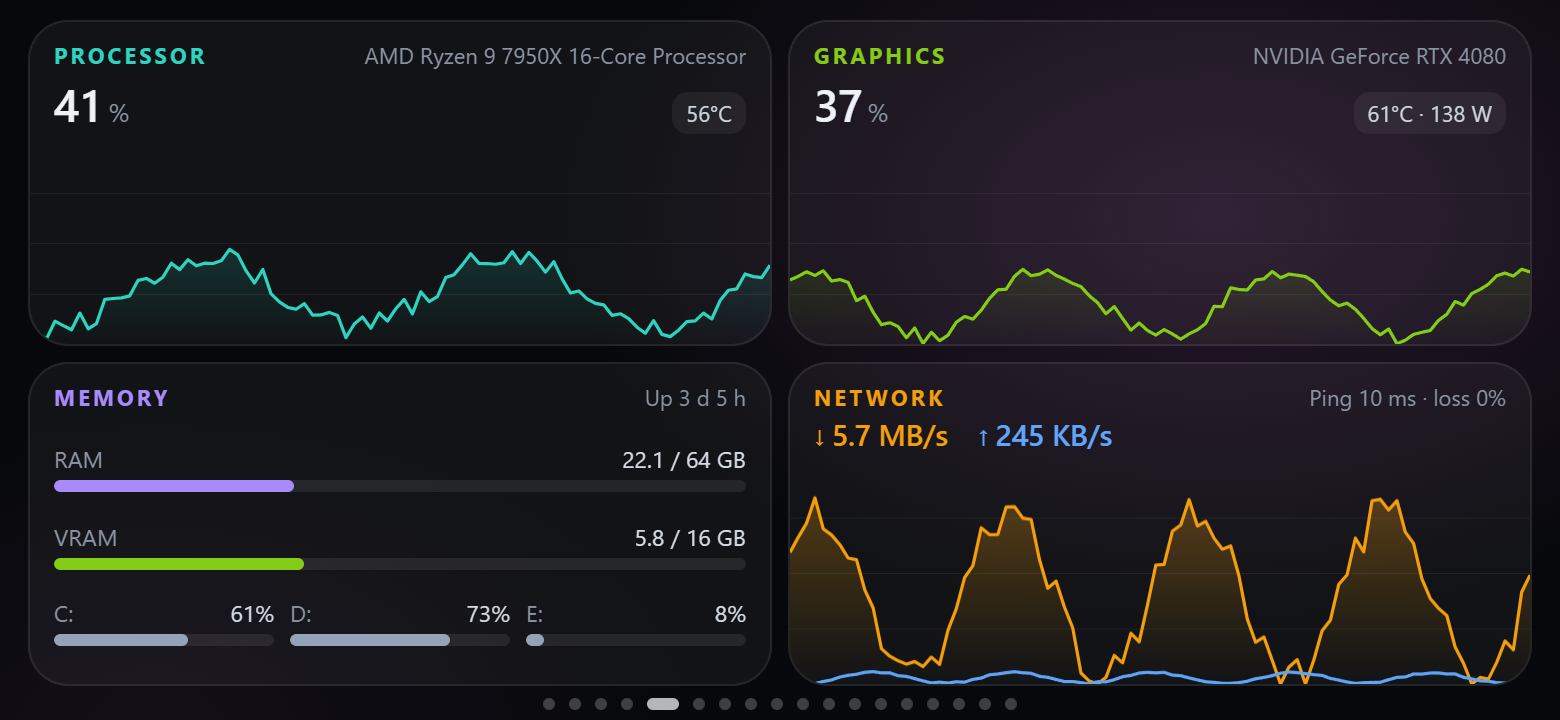
CPU, GPU, RAM, disks, network and ping; charts, GPU details and process controls
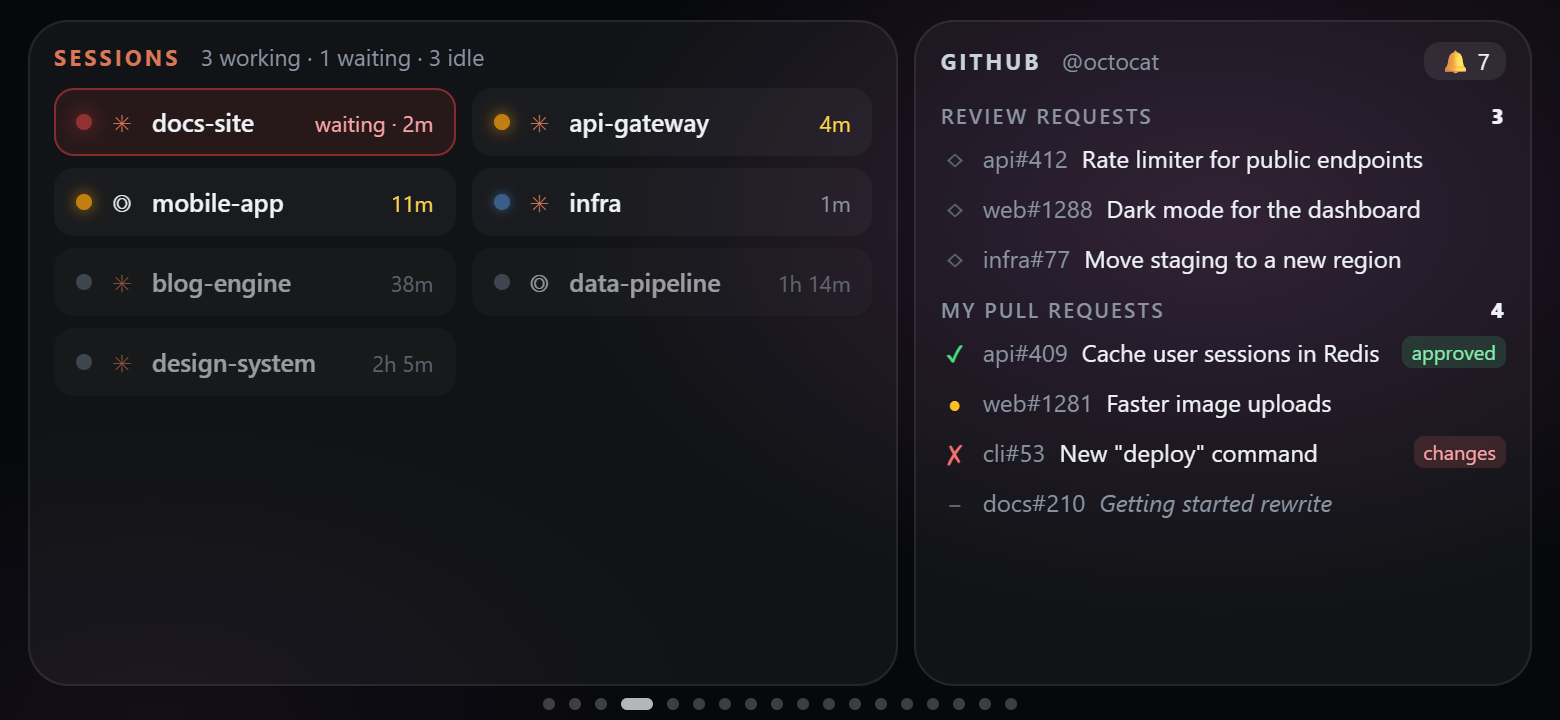
AI coding
Claude, Codex and Antigravity quotas, reset times and burn-rate forecasts; local Claude Code and Codex sessions; GitHub reviews and CI status
Touch controls
App and URL shortcuts, key combinations and macros; application audio, microphone, media, OBS and system controls through Control Deck
Everyday use
Now Playing, internet radio, clocks, weather, calendars, notes, checklists, pomodoro and timers
Automation
Webhook values and notifications, Home Assistant controls and rules that react to activity on the computer
Tap an AI session for its model, timing and token details. Opt in to Claude Code permission prompts to answer
Allow or Deny from the phone. Optional CodexBar integration adds quota providers
and a cost overview.
A tour with demo data: notifications, permission prompts and automatic page switching. Watch the MP4
Quick start
You need an Android 7+ phone and a supported computer. USB uses a data cable and USB debugging; Wi-Fi pairing
works without either. Release agents include .NET, so you do not need to install the runtime.
1. Install the desktop agent
Windows 10/11 x64 — paste into a normal PowerShell window:
Setup downloads the latest release, checks its SHA-256 checksum, offers missing dependencies and start-at-login,
and opens the settings at http://127.0.0.1:8765. It can also install the Android app over USB.
Run setup again to update or repair the installation while keeping settings and pairings.
Windows signing: release agents are currently unsigned while the SignPath Foundation application is pending.
SmartScreen or antivirus software may warn or block them. See the code signing policy
and installation warnings. USB debugging should be authorized only on computers you trust.
Read the scripts before running them: Windows · Linux/macOS.
The installation guide covers options, dependencies, install paths, troubleshooting and uninstalling.
2. Connect the phone
USB
Wi-Fi only
Enable Developer options → USB debugging, connect a data cable and accept the phone's authorization prompt. Let setup install the app, or use Settings → General → Install the phone app.
Install the APK from the latest release. Enable Settings → General → Wi-Fi & Tailscale, restart the agent when asked, then choose Pair a phone over Wi-Fi. Scan the pairing QR code and confirm the matching check code.
Wakes and opens the panel on connection; supports app updates over adb.
No adb or developer options needed; install app updates manually unless you later configure USB.
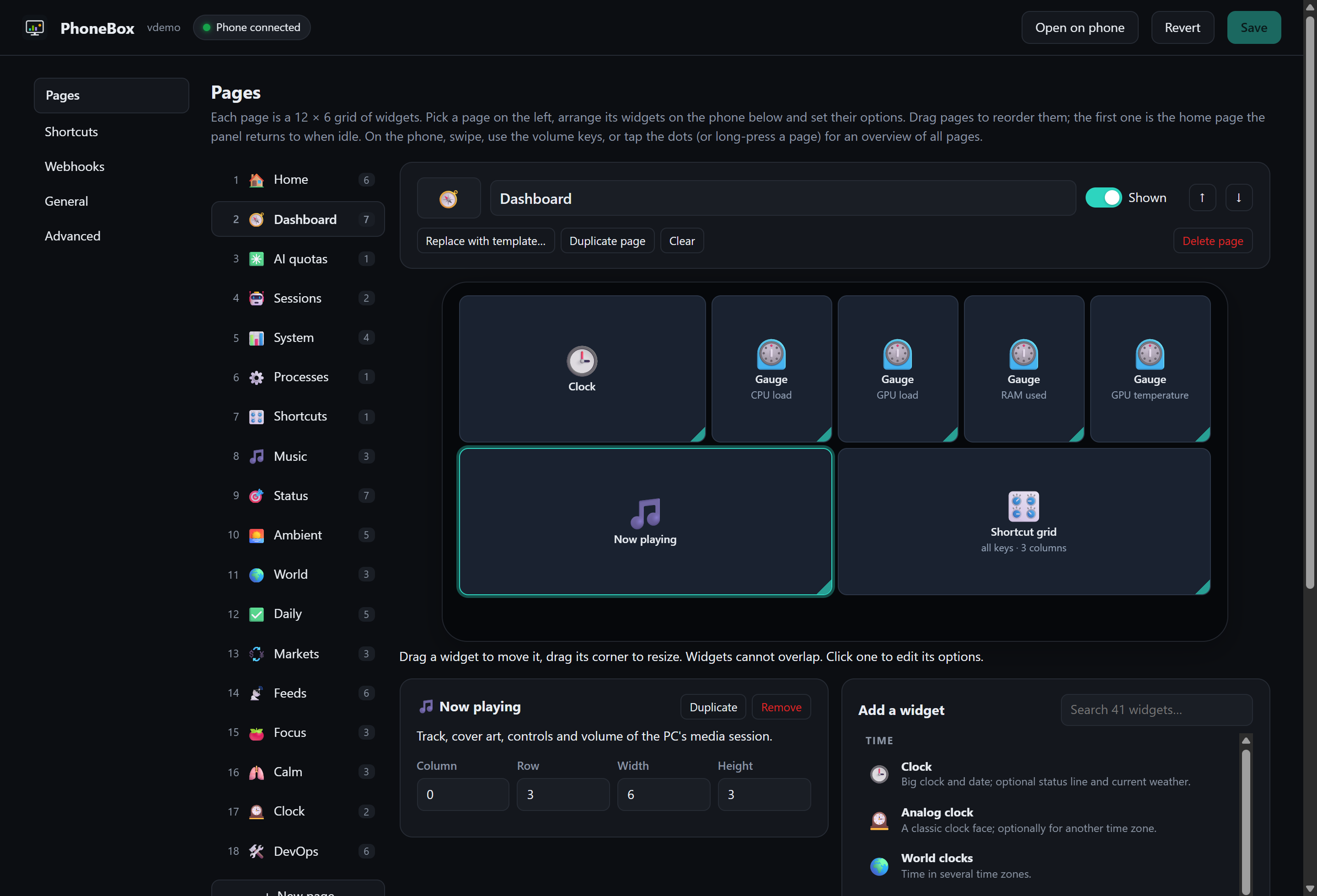
Open http://127.0.0.1:8765 (or double-click the Windows tray icon). Under Pages, choose a template, drag and
resize widgets, then Save. Use Live preview to see unsaved edits with live data.
Swipe, tap the page dots or use the phone's volume keys to move between pages.
Other installation methods
Manual download: unzip the agent for your system from the release page
and run it. Install the APK on the phone. Checksums and build provenance accompany the release assets.
winget: manifests are prepared in packaging/winget; see the installation guide for details.
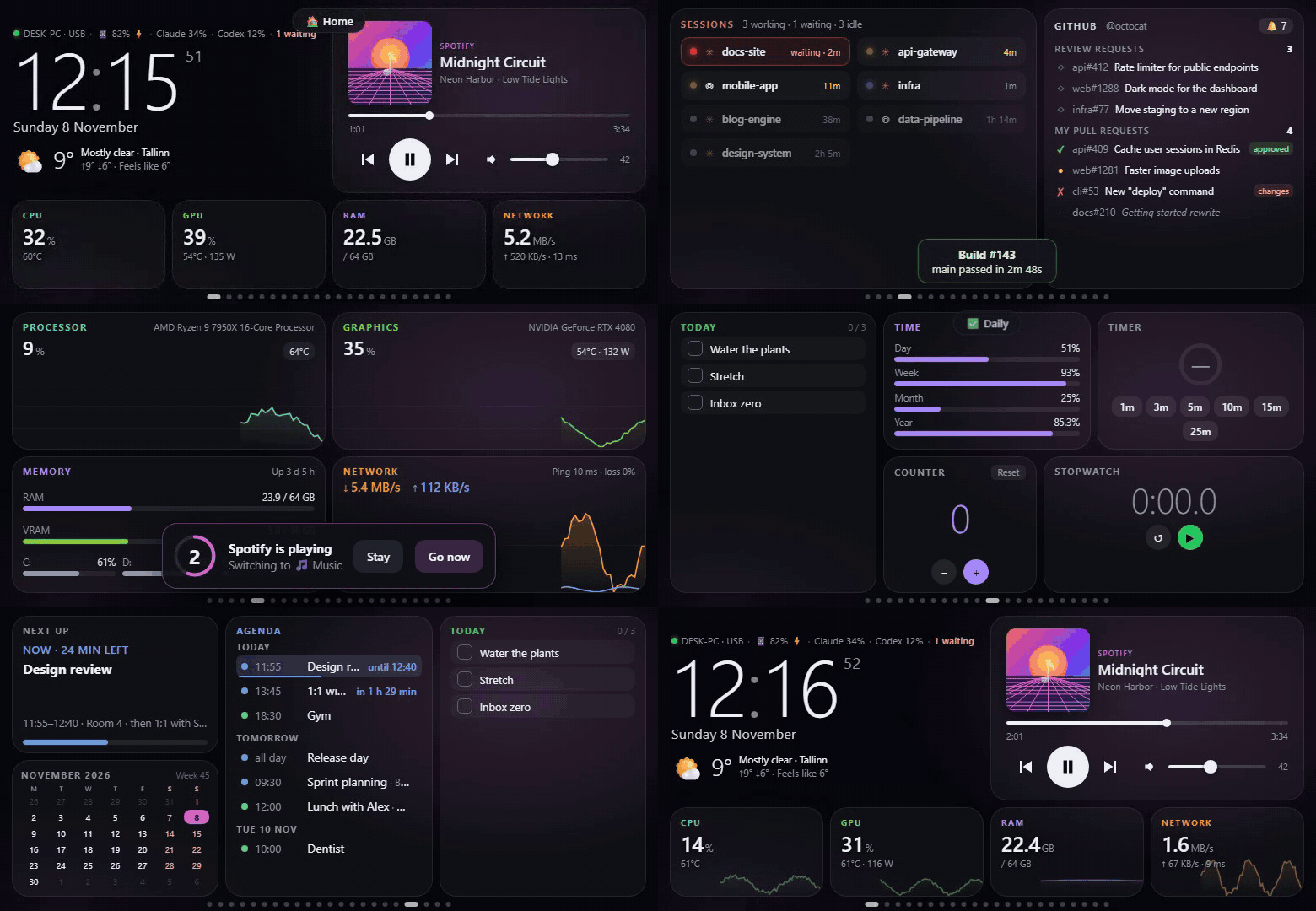
Pages & templates
Start with Home, System, AI quotas, Sessions, Music, Planner, Automation or a Control Deck template, then adapt the
12 × 6 grid to your phone. Portrait and landscape layouts are supported. Smart Stack puts up to 12 widgets in one slot.
Widgets depend on the host's hardware, installed tools and permissions. Advanced Control Deck features have
their own platform requirements. Windows ARM and musl Linux (such as Alpine) do not have
release builds. See the full compatibility table.
Maintainer build, signing and publication workflow
The UMIDIGI BISON extras contain the reversible, no-root tune-up used on the original development phone.
Security & privacy
The desktop settings server listens on 127.0.0.1:8765; USB reaches it through adb reverse.
Optional Wi-Fi uses HTTPS on port 8766 with a pinned certificate and a paired key. Settings and pairing endpoints
stay local. The phone requests configured actions by ID; commands and integration credentials stay on the computer.
PhoneBox has no telemetry, analytics or accounts of its own. Optional widgets and integrations contact external
services for weather, quotas, GitHub and other data, and the agent checks GitHub for updates.
Supported public feeds can fall back through the agent over USB when the phone has no internet.
The privacy policy lists outbound connections and how to disable them.
Read the security details. To report a vulnerability, follow SECURITY.md.
Development
The agent uses .NET 10; the Android app uses Kotlin and a WebView with plain JavaScript widgets.
For Android builds, install JDK 17 and Android SDK Platform 35 (the SDK the app is built with; the app itself
runs on Android 7.0, API 24, and later).
Preview the panel and editor from source with Python 3, using simulated data:
Windows agent: the SignPath Foundation application is pending; releases are unsigned until approved.
The intended signing target is PhoneBoxAgent.exe in the win-x64 release zip, built by the
release workflow. Every signing request requires manual approval.
Bundled runtime and library notices are in THIRD-PARTY-NOTICES.txt.
Android app: release APKs use the project's own signing key, independently of SignPath.
Team roles: committer, reviewer and signing approver: ersinkoc.
Pull requests from other contributors are reviewed before merging.






 PhoneBox 可以把一部旧的安卓手机变成可自定义的桌面面板和触控操作台,用于 Windows、Linux 或 macOS 电脑。