




gum README

The project's README from github.com/charmbracelet/gum. As one markdown file: README.md.

Gum

Gum Image

Latest Release Go Docs Build Status

A tool for glamorous shell scripts. Leverage the power of Bubbles and Lip Gloss in your scripts and aliases without writing any Go code!

Shell running the ./demo.sh script

The above example is running from a single shell script (source).

Tutorial

Gum provides highly configurable, ready-to-use utilities to help you write useful shell scripts and dotfile aliases with just a few lines of code. Let's build a simple script to help you write Conventional Commits for your dotfiles.

Ask for the commit type with gum choose:

gum choose "fix" "feat" "docs" "style" "refactor" "test" "chore" "revert"

[!NOTE] This command itself will print to stdout which is not all that useful. To make use of the command later on you can save the stdout to a $VARIABLE or file.txt.

Prompt for the scope of these changes:

gum input --placeholder "scope"

Prompt for the summary and description of changes:

gum input --value "$TYPE$SCOPE: " --placeholder "Summary of this change"
gum write --placeholder "Details of this change"

Confirm before committing:

gum confirm "Commit changes?" && git commit -m "$SUMMARY" -m "$DESCRIPTION"

Check out the complete example for combining these commands in a single script.

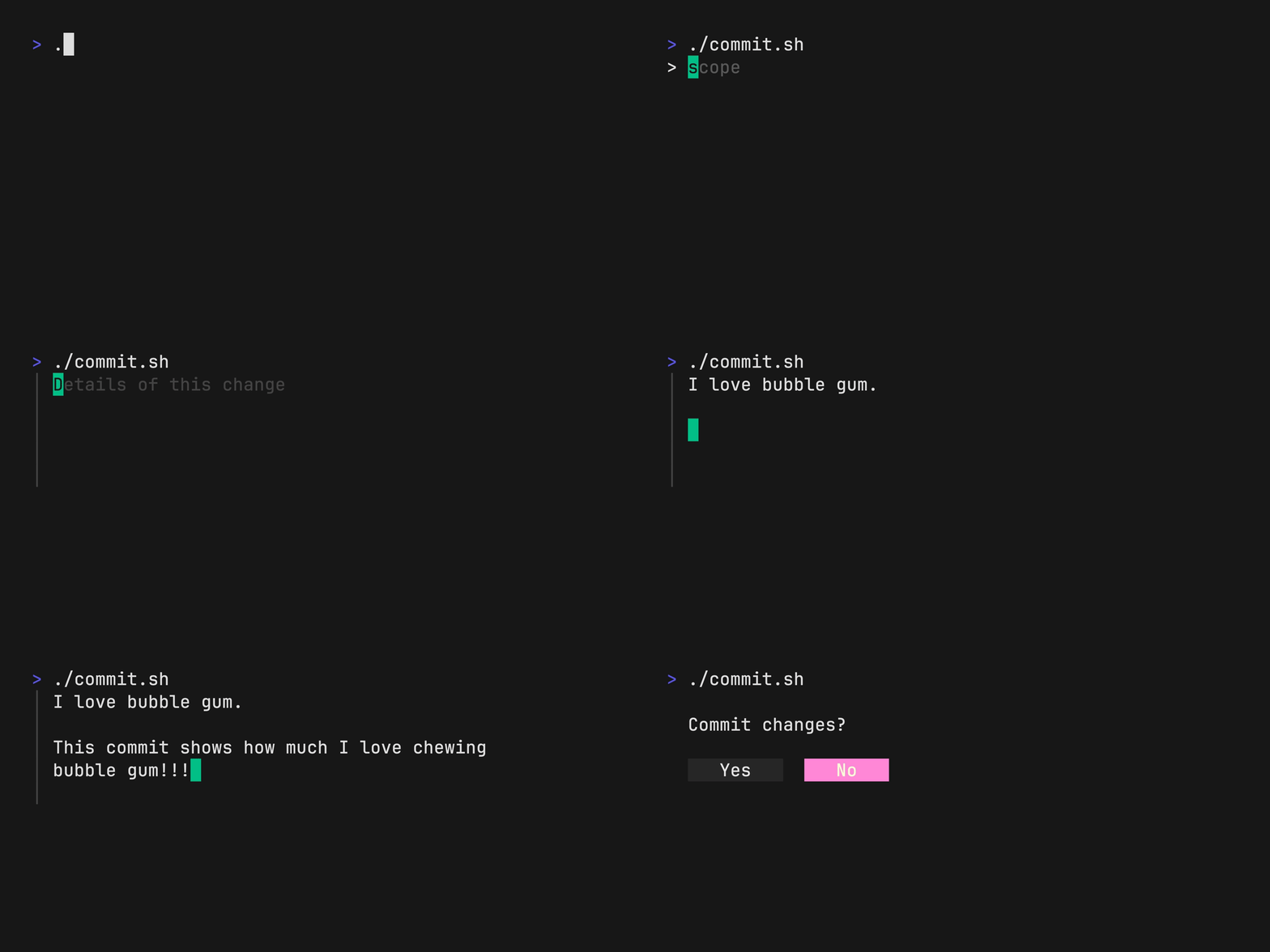
Running the ./examples/commit.sh script to commit to git

Installation

Use a package manager:

# macOS or Linux
brew install gum

# Arch Linux (btw)
pacman -S gum

# Fedora or EPEL 10
dnf install gum

# Nix
nix-env -iA nixpkgs.gum

# Flox
flox install gum

# Windows (via WinGet or Scoop)
winget install charmbracelet.gum
scoop install charm-gum
Debian/Ubuntu
sudo mkdir -p /etc/apt/keyrings
curl -fsSL https://repo.charm.sh/apt/gpg.key | sudo gpg --dearmor -o /etc/apt/keyrings/charm.gpg
echo "deb [signed-by=/etc/apt/keyrings/charm.gpg] https://repo.charm.sh/apt/ * *" | sudo tee /etc/apt/sources.list.d/charm.list
sudo apt update && sudo apt install gum
Fedora/RHEL/OpenSuse
echo '[charm]
name=Charm
baseurl=https://repo.charm.sh/yum/
enabled=1
gpgcheck=1
gpgkey=https://repo.charm.sh/yum/gpg.key' | sudo tee /etc/yum.repos.d/charm.repo
sudo rpm --import https://repo.charm.sh/yum/gpg.key

# yum
sudo yum install gum

# zypper
sudo zypper refresh
sudo zypper install gum
FreeBSD
# packages
sudo pkg install gum

# ports
cd /usr/ports/devel/gum && sudo make install clean

Or download it:

Or just install it with go:

go install charm.land/gum/v2@latest

Commands

Customization

You can customize gum options and styles with --flags and $ENVIRONMENT_VARIABLES. See gum <command> --help for a full view of each command's customization and configuration options.

Customize with --flags:


gum input --cursor.foreground "#FF0" \
          --prompt.foreground "#0FF" \
          --placeholder "What's up?" \
          --prompt "* " \
          --width 80 \
          --value "Not much, hby?"

Customize with ENVIRONMENT_VARIABLES:

export GUM_INPUT_CURSOR_FOREGROUND="#FF0"
export GUM_INPUT_PROMPT_FOREGROUND="#0FF"
export GUM_INPUT_PLACEHOLDER="What's up?"
export GUM_INPUT_PROMPT="* "
export GUM_INPUT_WIDTH=80

# --flags can override values set with environment
gum input
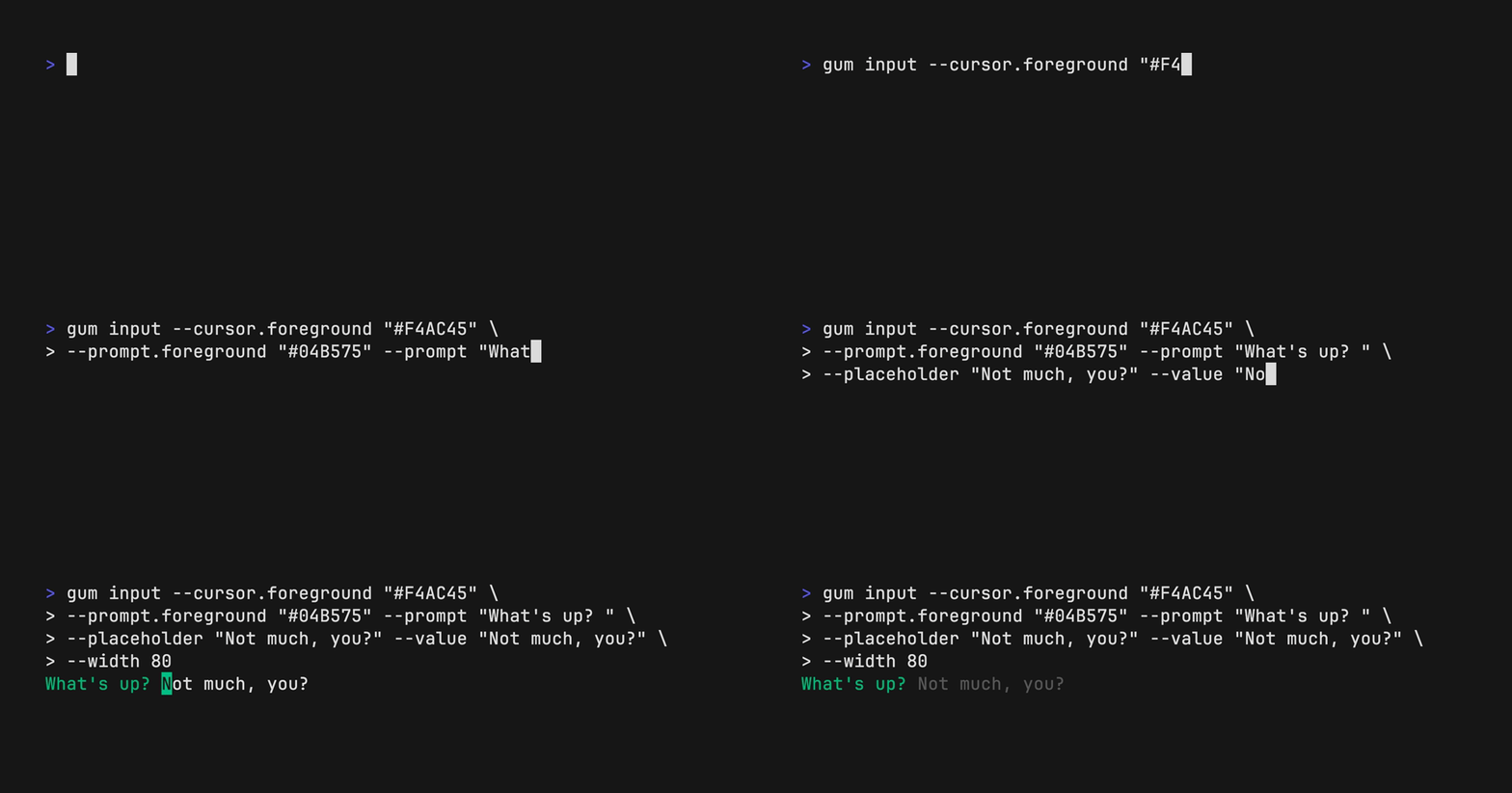
Gum input displaying most customization options

Input

Prompt for input with a simple command.

gum input > answer.txt
gum input --password > password.txt
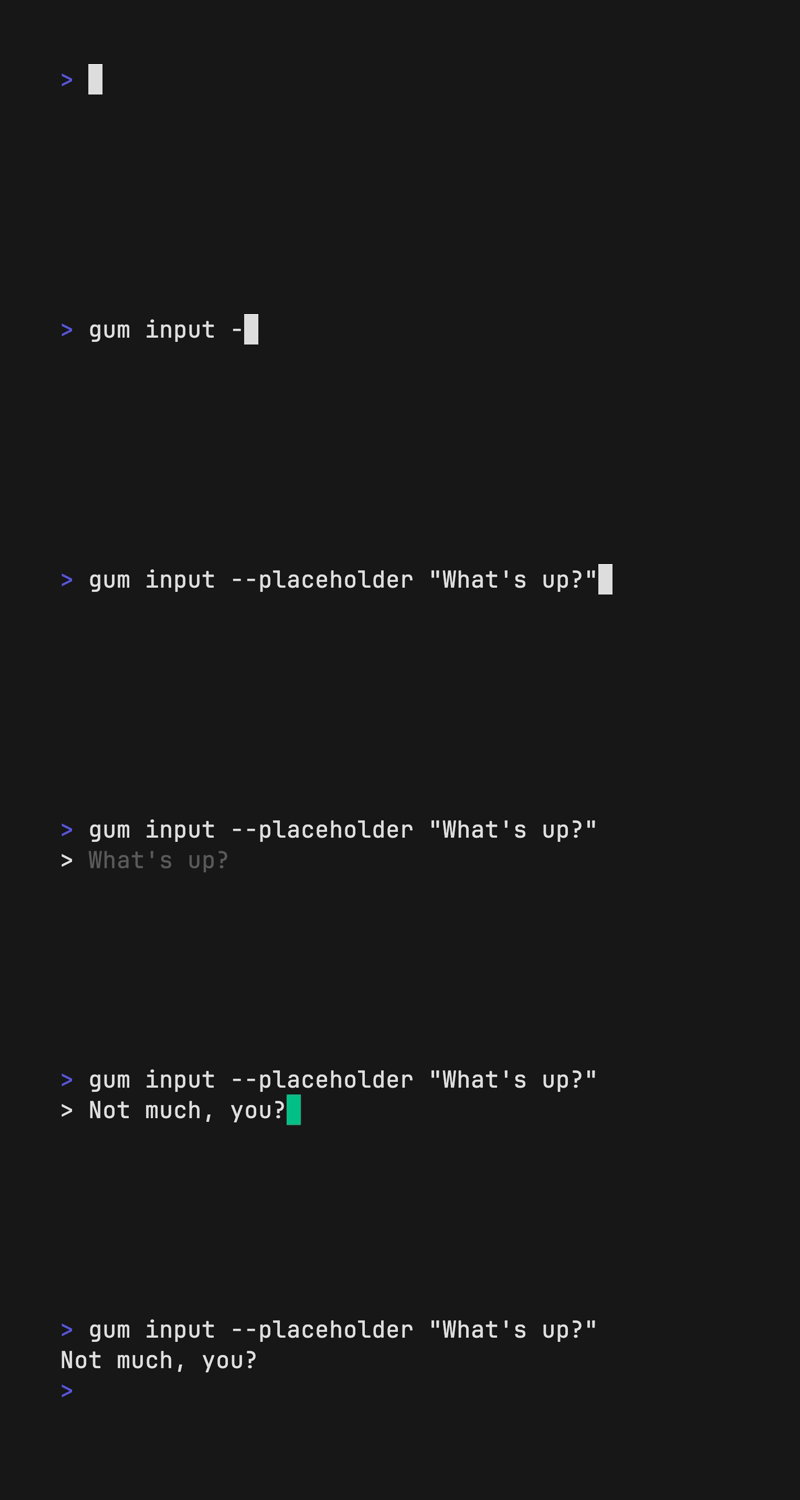
Shell running gum input typing Not much, you?

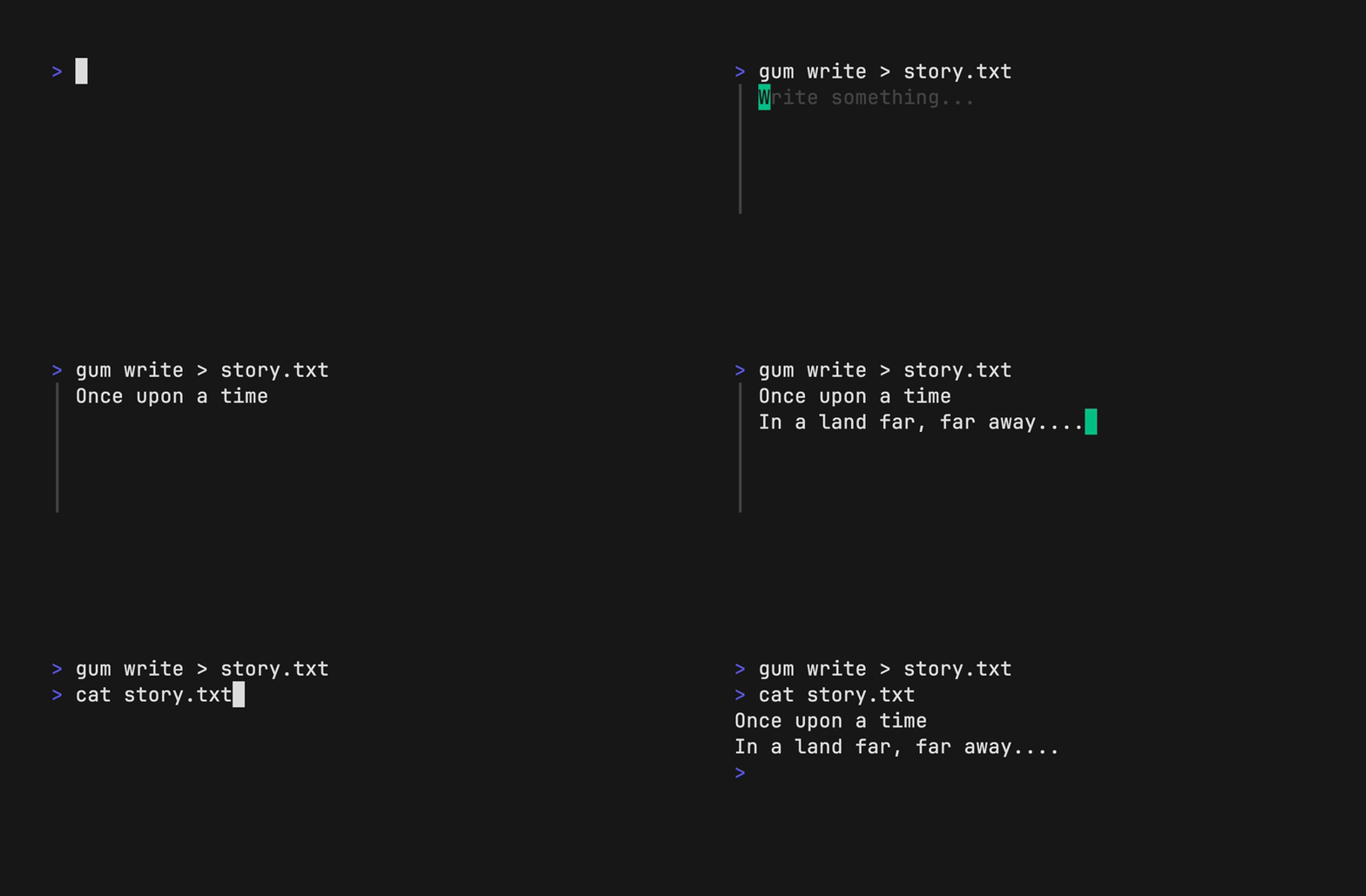
Write

Prompt for some multi-line text (ctrl+d to complete text entry).

gum write > story.txt
Shell running gum write typing a story

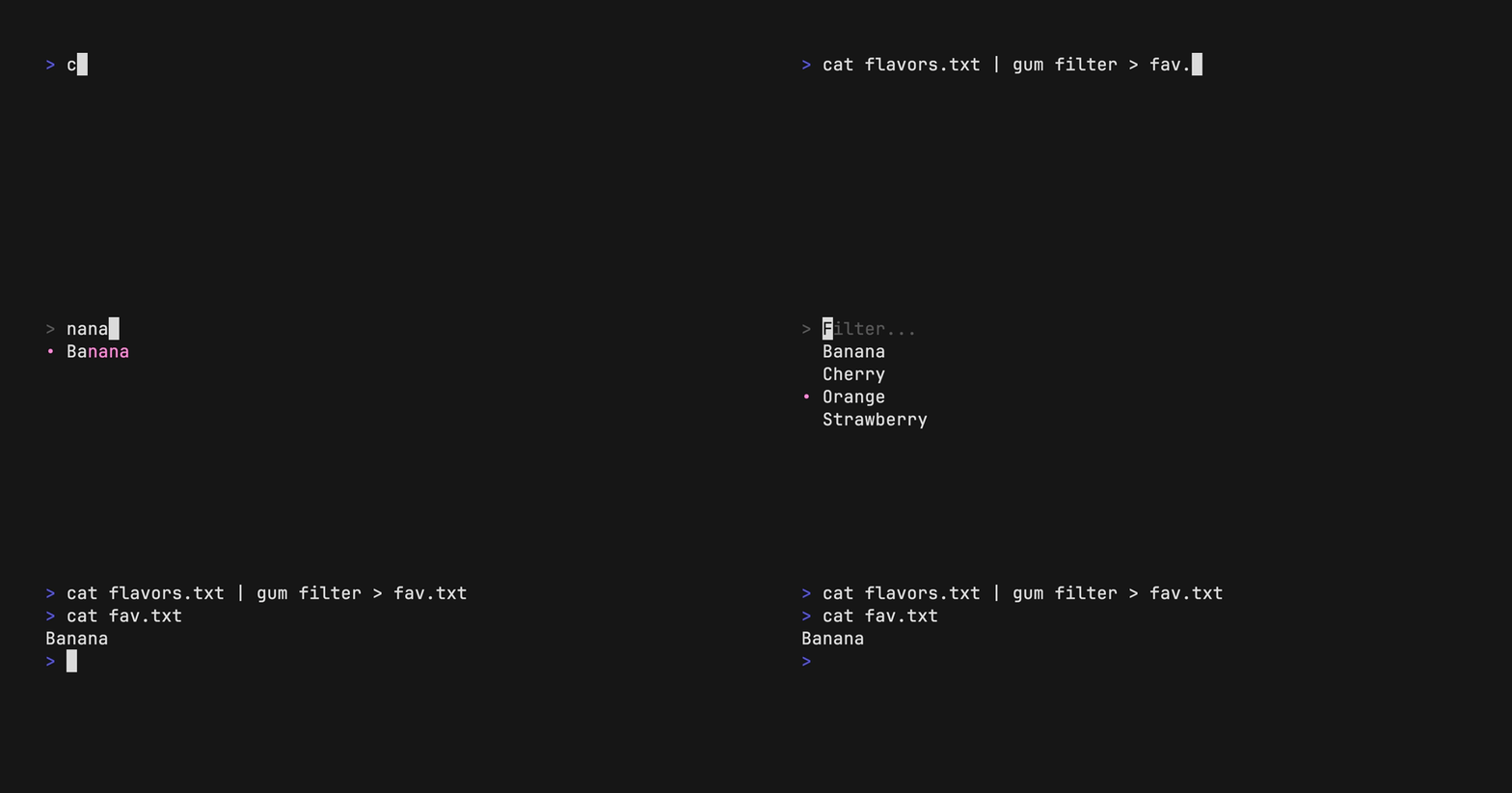
Filter

Filter a list of values with fuzzy matching:

echo Strawberry >> flavors.txt
echo Banana >> flavors.txt
echo Cherry >> flavors.txt
gum filter < flavors.txt > selection.txt
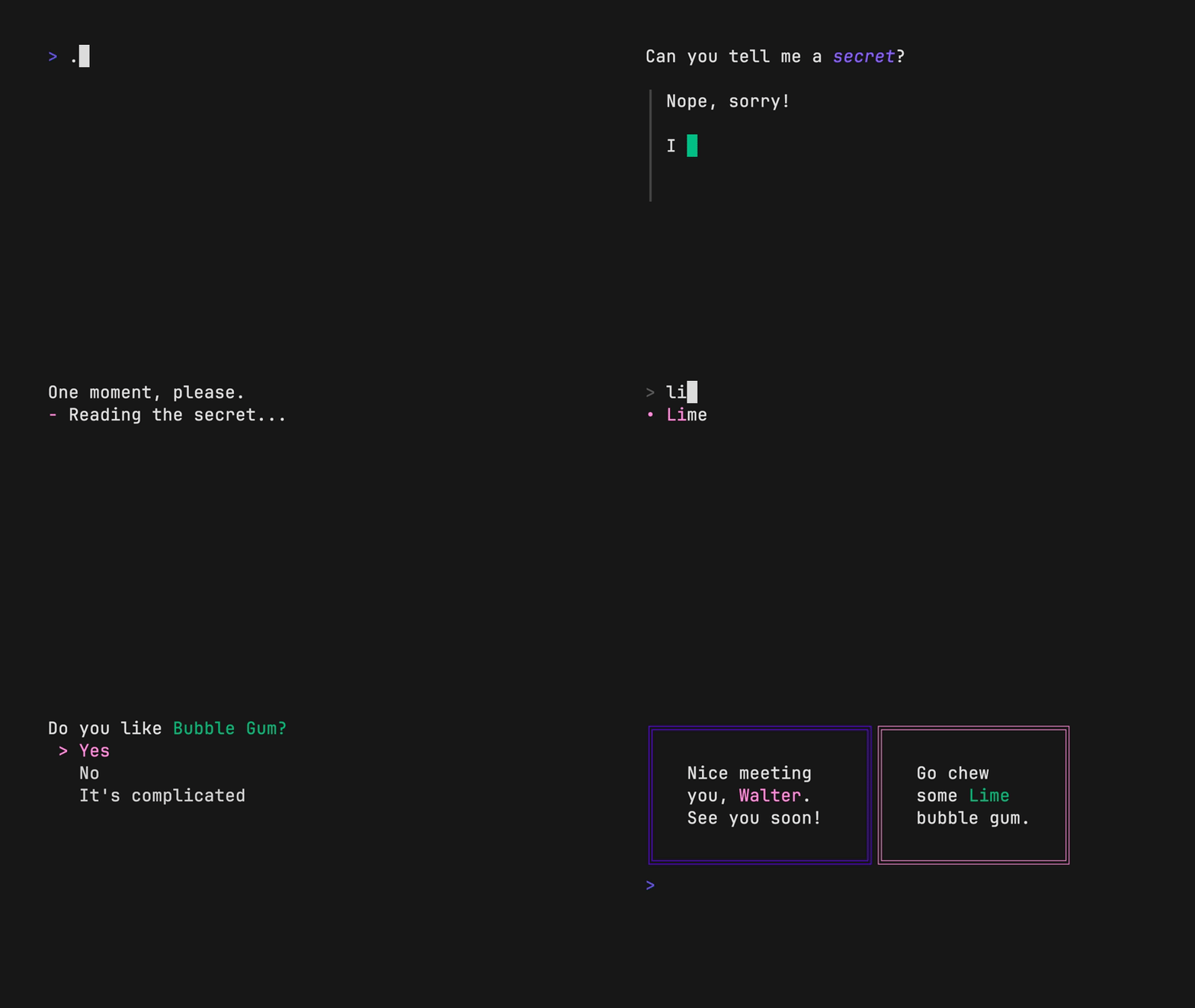
Shell running gum filter on different bubble gum flavors

Select multiple options with the --limit flag or --no-limit flag. Use tab or ctrl+space to select, enter to confirm.

cat flavors.txt | gum filter --limit 2
cat flavors.txt | gum filter --no-limit

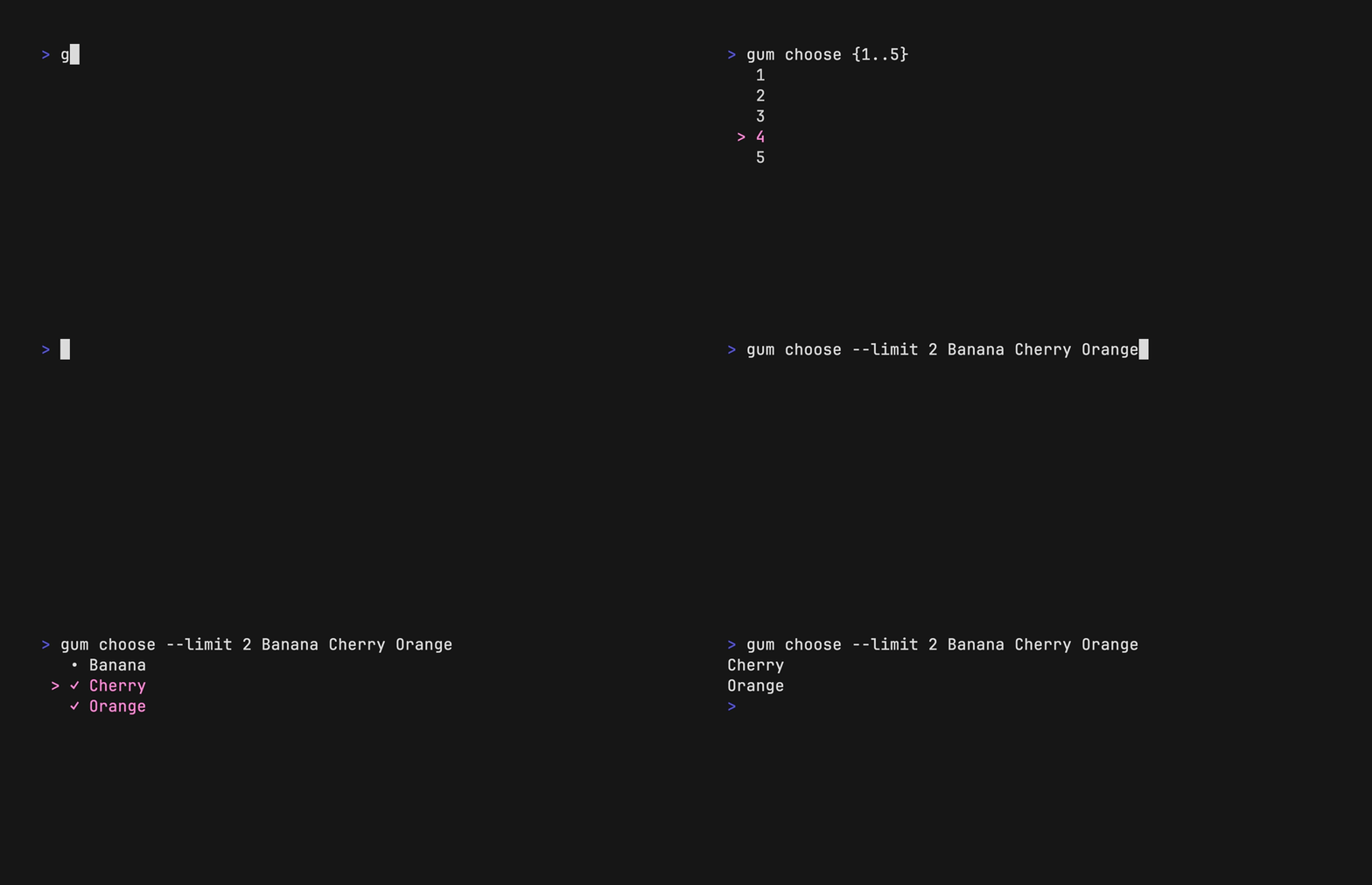
Choose

Choose an option from a list of choices.

echo "Pick a card, any card..."
CARD=$(gum choose --height 15 {{A,K,Q,J},{10..2}}" "{♠,♥,♣,♦})
echo "Was your card the $CARD?"

You can also select multiple items with the --limit or --no-limit flag, which determines the maximum of items that can be chosen.

cat songs.txt | gum choose --limit 5
cat foods.txt | gum choose --no-limit --header "Grocery Shopping"
Shell running gum choose with numbers and gum flavors

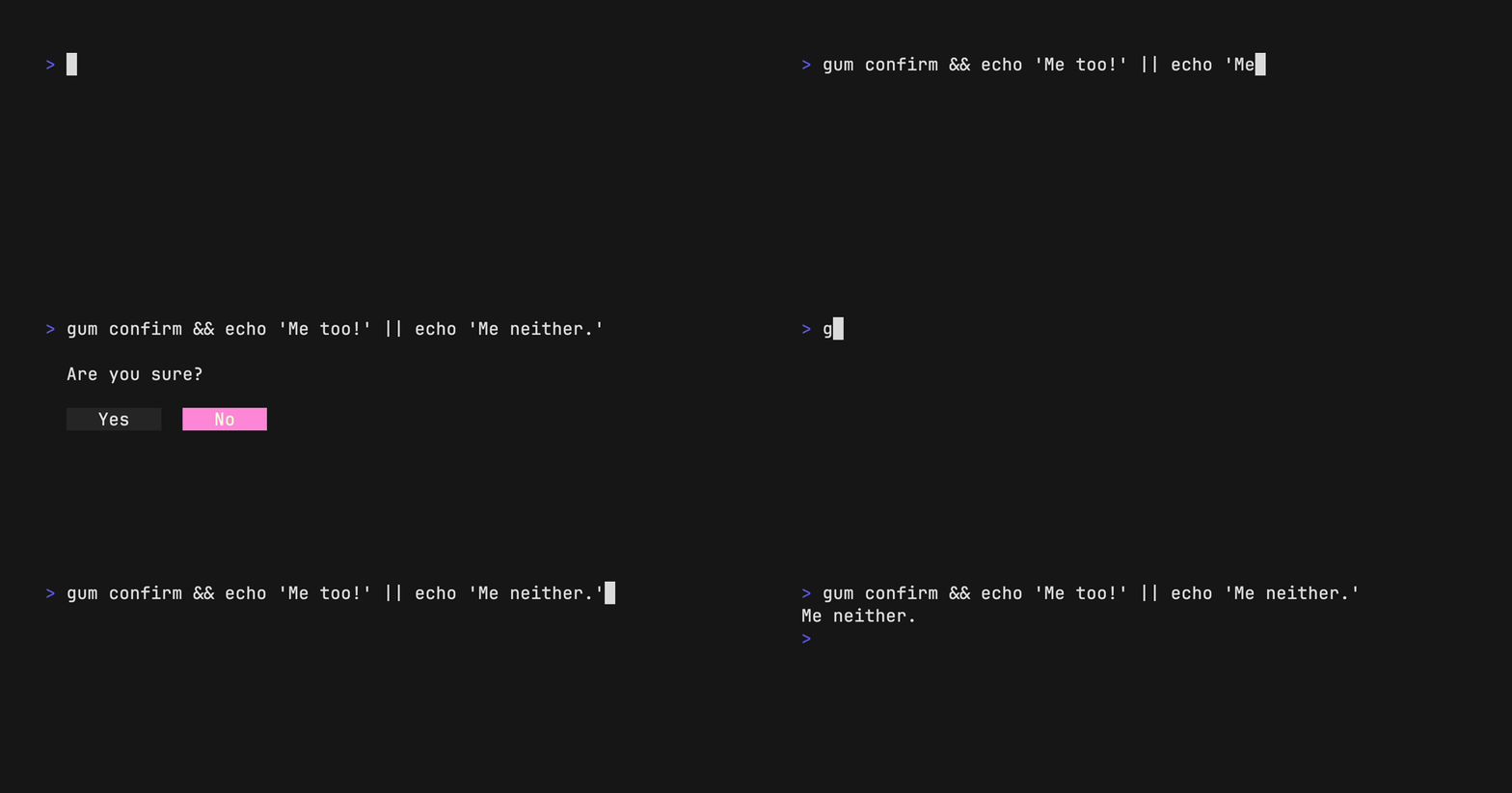
Confirm

Confirm whether to perform an action. Exits with code 0 (affirmative) or 1 (negative) depending on selection.

gum confirm && rm file.txt || echo "File not removed"
Shell running gum confirm

File

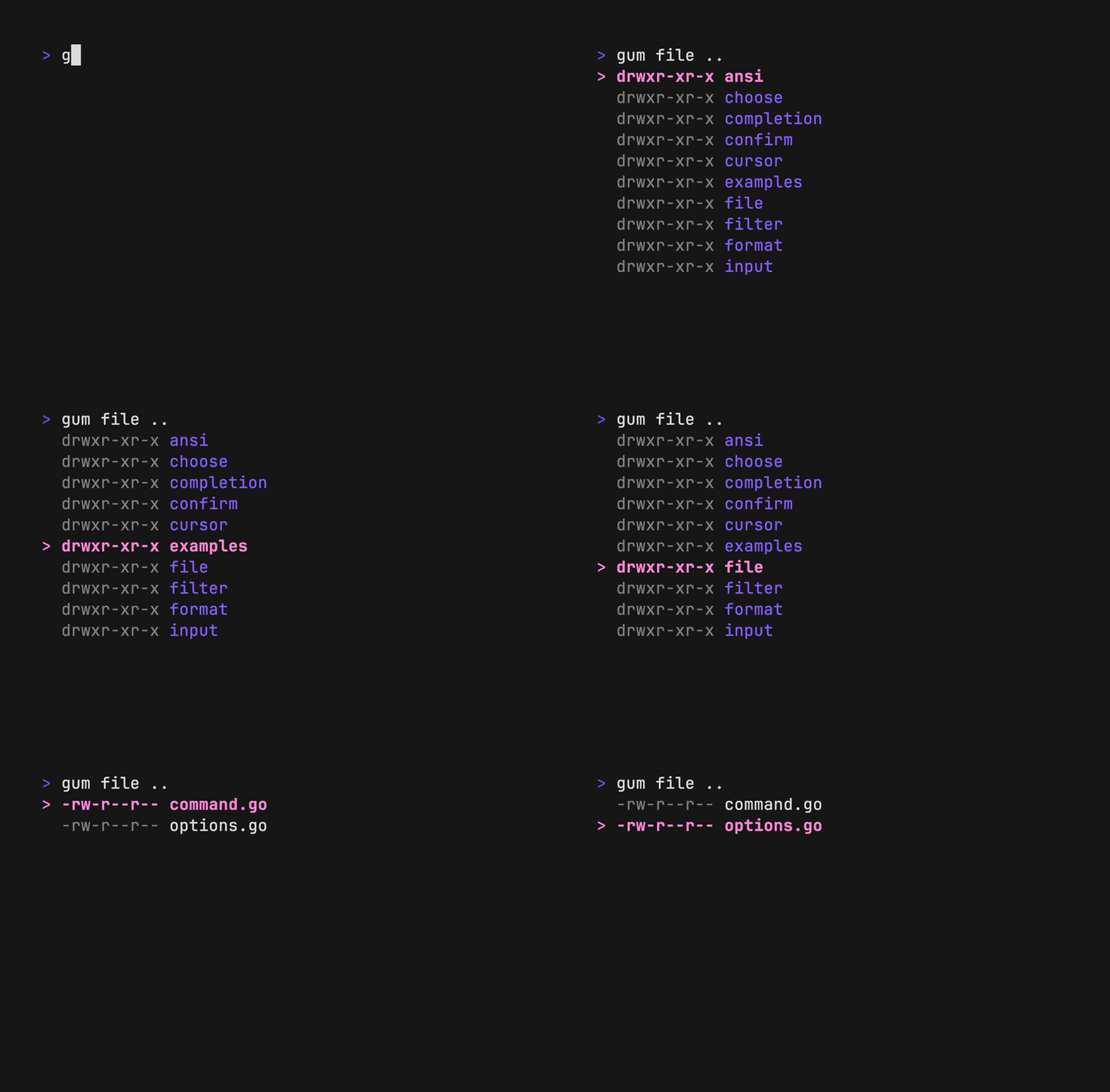
Prompt the user to select a file from the file tree.

$EDITOR $(gum file $HOME)
Shell running gum file

Pager

Scroll through a long document with line numbers and a fully customizable viewport.

gum pager < README.md
Shell running gum pager

Spin

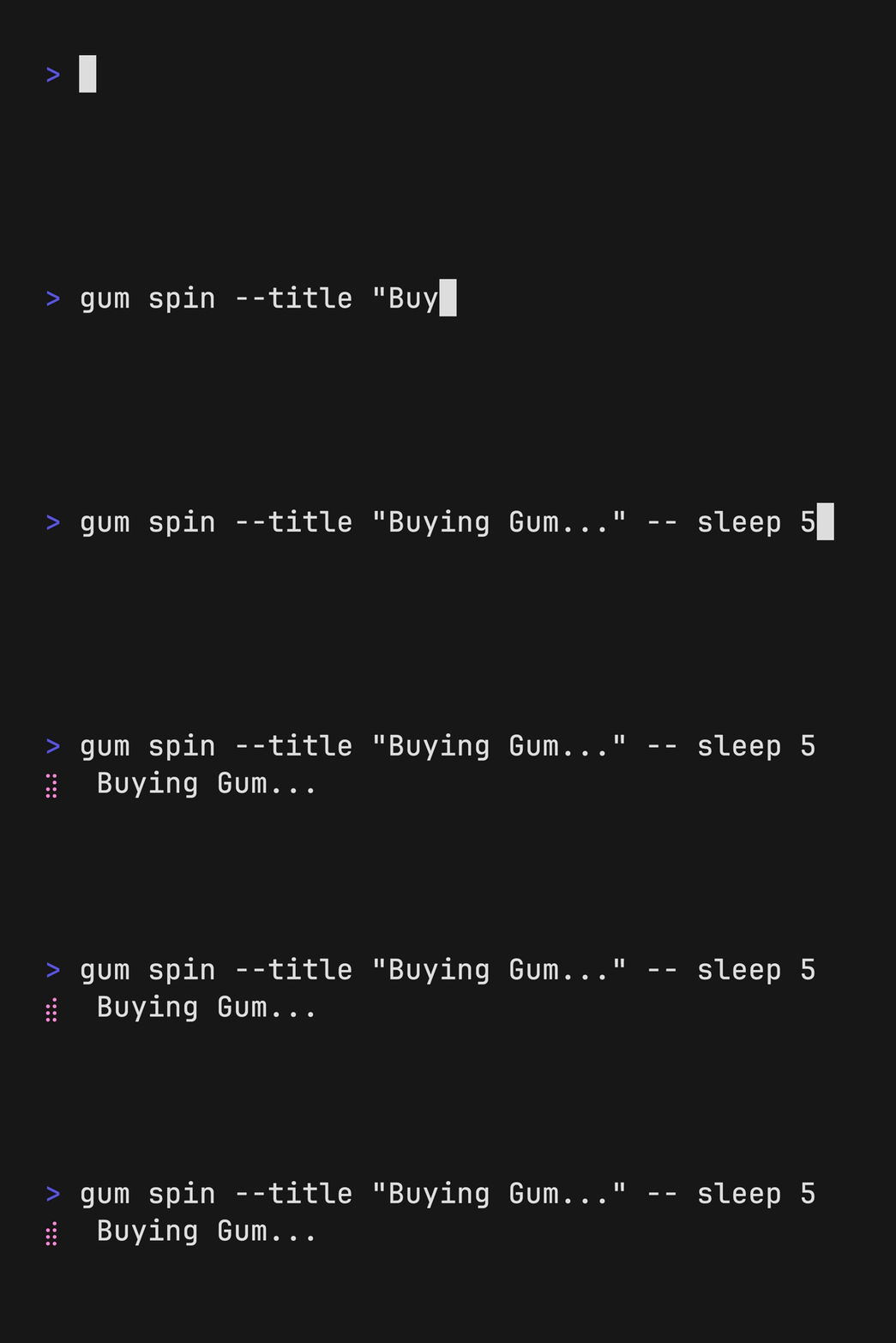
Display a spinner while running a script or command. The spinner will automatically stop after the given command exits.

To view or pipe the command's output, use the --show-output flag.

gum spin --spinner dot --title "Buying Bubble Gum..." -- sleep 5
Shell running gum spin while sleeping for 5 seconds

Available spinner types include: line, dot, minidot, jump, pulse, points, globe, moon, monkey, meter, hamburger.

Table

Select a row from some tabular data.

gum table < flavors.csv | cut -d ',' -f 1

Style

Pretty print any string with any layout with one command.

gum style \
	--foreground 212 --border-foreground 212 --border double \
	--align center --width 50 --margin "1 2" --padding "2 4" \
	'Bubble Gum (1¢)' 'So sweet and so fresh!'
Bubble Gum, So sweet and so fresh!

Join

Combine text vertically or horizontally. Use this command with gum style to build layouts and pretty output.

Tip: Always wrap the output of gum style in quotes to preserve newlines (\n) when using it as an argument in the join command.

I=$(gum style --padding "1 5" --border double --border-foreground 212 "I")
LOVE=$(gum style --padding "1 4" --border double --border-foreground 57 "LOVE")
BUBBLE=$(gum style --padding "1 8" --border double --border-foreground 255 "Bubble")
GUM=$(gum style --padding "1 5" --border double --border-foreground 240 "Gum")

I_LOVE=$(gum join "$I" "$LOVE")
BUBBLE_GUM=$(gum join "$BUBBLE" "$GUM")
gum join --align center --vertical "$I_LOVE" "$BUBBLE_GUM"
I LOVE Bubble Gum written out in four boxes with double borders around them.

Format

format processes and formats bodies of text. gum format can parse markdown, template strings, and named emojis.

# Format some markdown
gum format -- "# Gum Formats" "- Markdown" "- Code" "- Template" "- Emoji"
echo "# Gum Formats\n- Markdown\n- Code\n- Template\n- Emoji" | gum format

# Syntax highlight some code
cat main.go | gum format -t code

# Render text any way you want with templates
echo '{{ Bold "Tasty" }} {{ Italic "Bubble" }} {{ Color "99" "0" " Gum " }}' \
    | gum format -t template

# Display your favorite emojis!
echo 'I :heart: Bubble Gum :candy:' | gum format -t emoji

For more information on template helpers, see the Termenv docs. For a full list of named emojis see the GitHub API.

Running gum format for different types of formats

Log

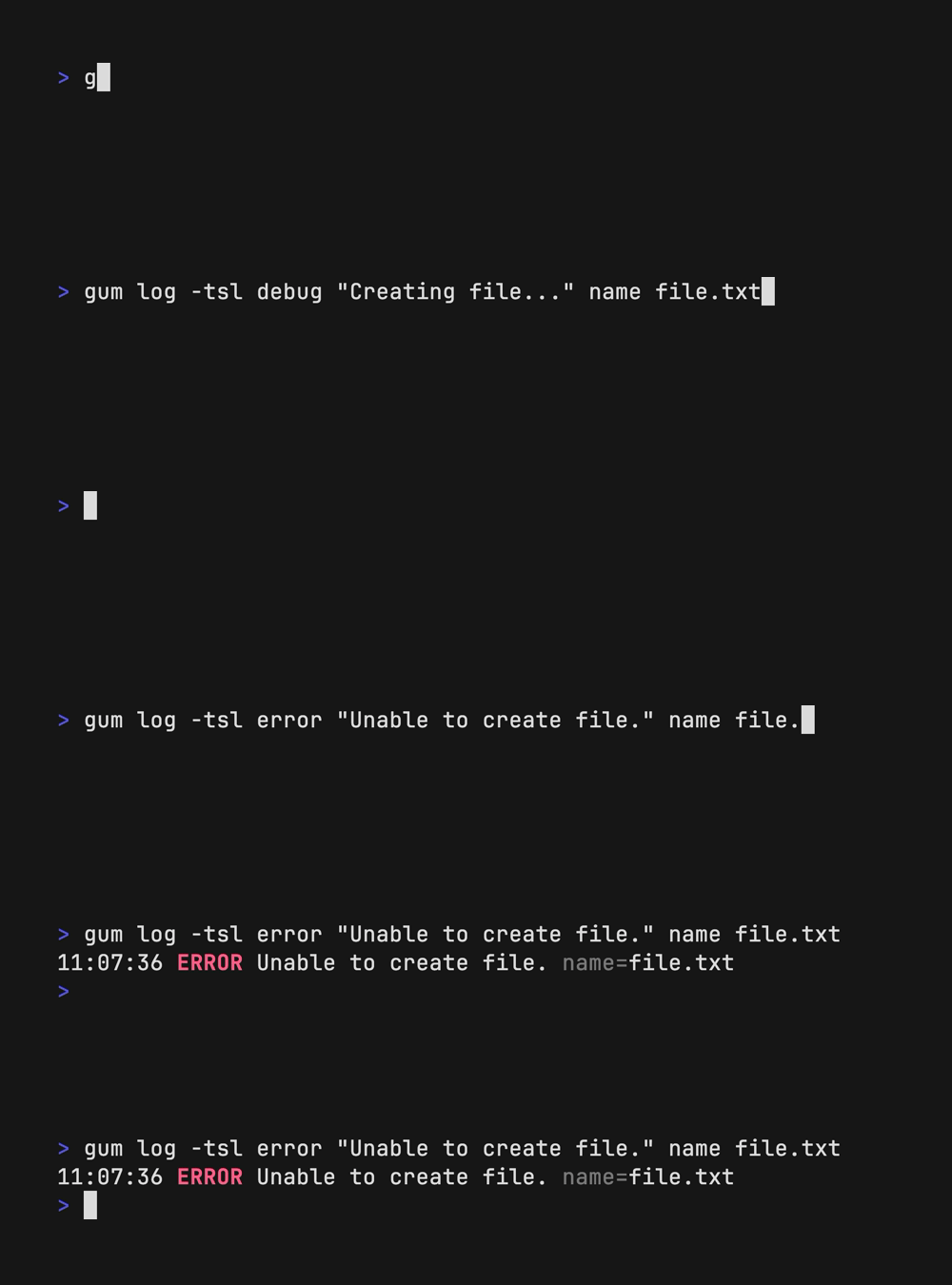
log logs messages to the terminal using different levels and styling using the charmbracelet/log library.

# Log some debug information.
gum log --structured --level debug "Creating file..." name file.txt
# DEBUG Creating file... name=file.txt

# Log some error.
gum log --structured --level error "Unable to create file." name file.txt
# ERROR Unable to create file. name=temp.txt

# Include a timestamp.
gum log --time rfc822 --level error "Unable to create file."

See the Go time package for acceptable --time formats.

See charmbracelet/log for more usage.

Running gum log with debug and error levels

Examples

How to use gum in your daily workflows:

See the examples directory for more real world use cases.

git commit -m "$(gum input --width 50 --placeholder "Summary of changes")" \
           -m "$(gum write --width 80 --placeholder "Details of changes")"
$EDITOR $(gum filter)
SESSION=$(tmux list-sessions -F \#S | gum filter --placeholder "Pick session...")
tmux switch-client -t "$SESSION" || tmux attach -t "$SESSION"
git log --oneline | gum filter | cut -d' ' -f1 # | copy
skate list -k | gum filter | xargs skate get
brew list | gum choose --no-limit | xargs brew uninstall
git branch | cut -c 3- | gum choose --no-limit | xargs git branch -D
gh pr list | cut -f1,2 | gum choose | cut -f1 | xargs gh pr checkout
gum filter < $HISTFILE --height 20
alias please="gum input --password | sudo -nS"

Contributing

See contributing.

Feedback

We’d love to hear your thoughts on this project. Feel free to drop us a note!

License

MIT


Part of Charm.

The Charm logo

Charm热爱开源 • Charm loves open source

gum (charmbracelet/gum)

Searching Database…

24.5K ·GitHub
What is this?Gum is a tool for glamorous shell scripts: interactive prompts, spinners, and styled output for bash or any shell, powered by Charm's Bubbles and Lip Gloss — without writing any Go code.
So is it a library I import, or a command I call from my scripts?It's a standalone command-line tool, not a library: you call gum choose, gum input, gum spin and friends from scripts or aliases. Each command prints its result to stdout, so you save it to a variable or file.
Do I need to know Go, or install anything else first?No Go knowledge needed — that's the point. The only route that requires anything extra is go install, which needs a Go toolchain; packages and binaries are ready to run.
How does my script know if the user said yes to a confirmation?gum confirm is script-friendly: it exits with code 0 for an affirmative answer and 1 for a negative one, so your script can branch with a plain if.
Do I need to be a shell scripting expert to use it?If you can write a basic script or alias you're set — every feature is a single command invocation, and the repo's examples directory shows full real-world scripts to copy from.
I mostly work on a Mac and sometimes Windows — will it run there?Yes. Binaries ship for Linux, macOS, Windows, FreeBSD, OpenBSD, and NetBSD, so the same commands follow you across machines.
Is gum free to use, even at work?MIT — free to use, modify, and ship, even commercially. Gum is part of Charm, a family of open source terminal tools.
What commands does gum actually give me?Thirteen: choose, confirm, file, filter, format, input, join, log, pager, spin, style, table, and write — covering list picking, confirmations, text input, file selection, spinners, tables, styled layouts, and leveled logging.
What do people actually build with it?The README's examples include writing commit messages, picking a commit hash from git history, connecting to a tmux session, opening files in $EDITOR, a skate password selector, uninstalling packages, cleaning up git branches, checking out GitHub pull requests with gh, copying a command from shell history, and a sudo replacement.
Can I restyle the prompts to match my setup?Yes — every command is customizable with --flags and environment variables, and gum --help shows each command's options. gum style applies coloring, borders, and spacing, and pairs with gum join for building layouts.
Does the spinner hide my command's output?By default it does, but pass --show-output to view or pipe the command's output. The spinner stops automatically when the command exits, and types range from line and dot to globe, moon, monkey, and hamburger.
What are similar projects?navi, glow, cheat, opencode, fish-shell, bashka, Gogh, acme.sh
Size
1.1 MB
Stars
24.5K
Age
4y
Commits · 90 Days