iris

A camera for coding agents. One fast command or MCP tool call produces one trustworthy image.
iris example.com                        # 1440×900 @2x → example.com.png
iris --full --dark tailwindcss.com      # full page, dark color scheme
iris --size iphone stripe.com           # 390×844 @3x with a mobile UA
iris --selector '#hero' --padding 24 app.dev # first matching element, tightly framed
iris -o shots/ a.com b.com c.com        # batch, captured concurrently
cat urls.txt | iris - -o shots/         # batch from stdin (# comments ok)
iris -o hero.jpg --wait-for 'h1' app.dev
iris --selector 'h1' --json app.dev      # machine-readable JSON Lines
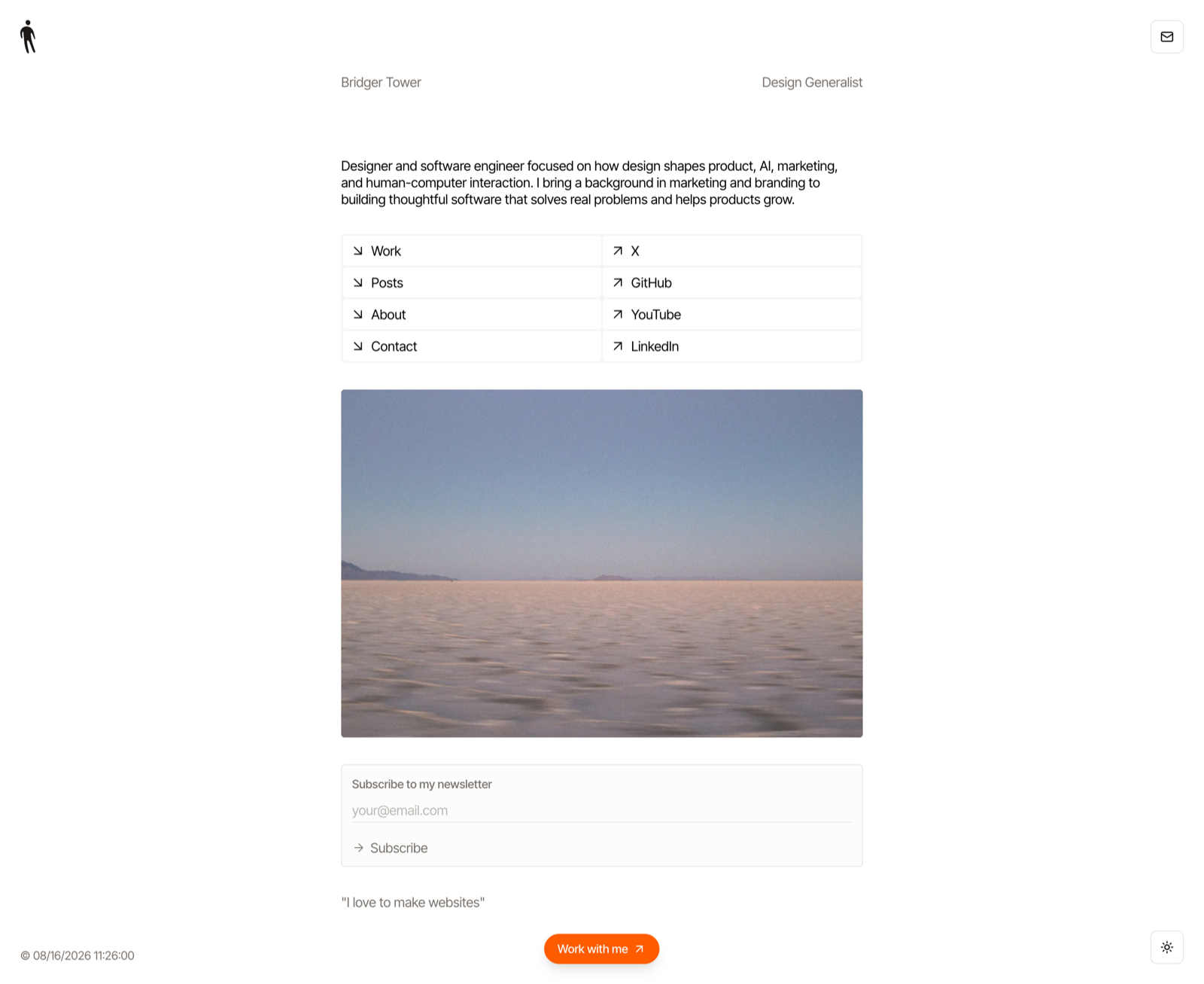
iris --full bridger.to →
Install
curl -fsSL https://raw.githubusercontent.com/brijr/iris/main/install.sh | sh
Or with a Rust toolchain:
cargo install iris-screenshot
The crates.io package is named iris-screenshot; the installed command is iris.
The only runtime dependency is an installed Chrome-family browser (Chrome, Chromium, Edge, or Brave).
Building from source requires Rust 1.88 or newer.
Give your coding agent eyes
Iris includes a local stdio MCP server in the same binary. Add it to Codex:
codex mcp add iris -- iris mcp
Or use the equivalent configuration in another MCP client:
{
  "mcpServers": {
    "iris": {
      "command": "iris",
      "args": ["mcp"]
    }
  }
}
The server exposes one tool, capture, which returns the image inline with structured metadata. It writes nothing by default; pass output when the agent also needs a file.
{
  "url": "localhost:3000",
  "selector": "#pricing-card",
  "padding": 24,
  "size": "desktop",
  "dark": false,
  "format": "png",
  "timeout_seconds": 30,
  "output": "/tmp/pricing-card.png"
}
Bare localhost, .localhost, and loopback addresses use HTTP automatically. Other bare hosts use HTTPS. Run iris mcp --help to select a Chrome binary for the server.
MCP clients may need a fresh agent task before the newly registered capture tool appears.
Setup Prompt
Give this setup prompt to your coding agent:
Set up Iris as your visual camera in this coding environment.

Goal: install Iris, connect its local MCP server to this agent client, and prove
both the CLI and MCP paths work. Do not modify the application repository.

1. Check for an installed Chrome-family browser, `iris --version`, and an
   existing Iris MCP configuration.
2. If Iris is missing or outdated, install it with:

   curl -fsSL https://raw.githubusercontent.com/brijr/iris/main/install.sh | sh

   Or, when Rust is available:

   cargo install iris-screenshot

   Make sure the resulting `iris` command is on PATH.
3. Register the stdio MCP server without duplicating an existing entry.

   For Codex:

   codex mcp add iris -- iris mcp
   codex mcp get iris

   For another MCP client, configure command `iris` with args `["mcp"]`.
4. Prove the CLI works:

   iris https://example.com --selector h1 --padding 8 --scale 1 --json \
     -o /tmp/iris-smoke.png

   Confirm `status: ok` and a readable, non-empty PNG.
5. Reload the MCP configuration or start a fresh agent task if required. Call
   Iris's `capture` tool once for `https://example.com`, selecting the first
   `h1` with 8px padding and scale 1. Confirm an inline PNG and structured
   dimensions are returned.
6. Report the installed Iris version, MCP configuration, CLI smoke result, MCP
   smoke result, and any remaining blocker.

Do not claim MCP success from the CLI test alone. Do not add browser automation,
interaction scripting, or review tooling; use Iris only as the camera.
What it does for you
- Renders with your real installed Chrome, driven over the DevTools Protocol
- Waits for fonts, image loads, entrance animations, and — on
--full — scroll-triggers lazy-loaded content before capturing
- Captures the first matching element with
--selector, automatically scrolling it into view and settling newly visible content before framing it
- Serves the same capture engine to coding agents with
iris mcp, returning pixels inline instead of making the agent locate a file
- Retina
@2x output by default; full pages taller than Chrome's ~16k px render limit fall back to @1x automatically (the report tells you which you got)
- Image format from the
-o extension or --format: png (default), jpg, webp (JPEG/WebP encode at quality 90)
- One browser process, concurrent tabs; a failed URL prints
✗ and never kills the batch (exit code 1 if anything failed)
- Batch filenames derive from the URL (
example.com-pricing.png); collisions get -2, -3 suffixes
--json writes one JSON object per completed capture to stdout, in concurrent completion order; capture failures are JSON too and still produce exit code 1
Element capture is intentionally CSS-selector based: Iris captures the first match in document order. --selector conflicts with --full; --padding requires it. Cross-origin iframe contents and capturing every match are not supported.
{"status":"ok","url":"https://example.com/","output":"/absolute/example.com.png","mode":"element","selector":"h1","padding":24,"css_width":180,"css_height":72,"scale":2.0,"format":"png","bytes":14231}
Benchmarking
Capture time includes navigation and Iris's correctness waits, so compare the same URL, capture mode, viewport, scale, Chrome version, and hardware. Prefer a deterministic local page when comparing releases; public URLs add network and server variance.
For a repeatable one-shot CLI benchmark from this repository, install hyperfine and run:
cargo build --release
hyperfine --warmup 1 --runs 10 \
  './target/release/iris file://$PWD/tests/fixtures/precise-capture.html \
    --selector .capture-target --padding 24 --scale 1 \
    -o /tmp/iris-benchmark.png'
The CLI starts a Chrome process for every invocation. MCP keeps one Chrome process alive for the server's lifetime, so benchmark it separately: initialize once, record the first capture, then report the median and p95 of at least ten identical subsequent calls. Measure from JSON-RPC request to complete tool response and exclude model time.
Reference results (not a performance guarantee):
| Iris |
Machine |
Chrome |
Workload |
Result |
| 0.4.1 |
Apple M2 Max, macOS 26.5.2 |
151.0.7922.138 |
One-shot CLI, 10 runs after one warmup |
1.00 s median |
| 0.4.1 |
Apple M2 Max, macOS 26.5.2 |
151.0.7922.138 |
MCP first capture |
965 ms |
| 0.4.1 |
Apple M2 Max, macOS 26.5.2 |
151.0.7922.138 |
MCP next 10 captures |
366 ms median, 383 ms p95 |
All reference runs used the local precise-capture.html fixture, .capture-target, 24px padding, PNG, and scale 1. Record iris --version, the Chrome version, and the exact command with any published result.
Flags
-o, --out <PATH>       output file (single URL) or directory (batch)
-s, --size <SIZE>      WxH, or desktop (1440x900@2x) | iphone (390x844@3x) | ipad (1024x1366@2x)
    --full             capture the full page height
    --selector <CSS>   capture the first element matching a CSS selector
    --padding <PX>     nonnegative CSS-pixel padding around a selected element
    --dark             emulate prefers-color-scheme: dark
    --format <FMT>     png | jpg | webp (a recognized --out extension wins)
    --wait <MS>        extra settle delay after smart waiting
    --wait-for <CSS>   wait until a selector exists before capturing
    --scale <N>        device scale factor (overrides the preset's)
    --jobs <N>         concurrent captures (default: min(4, URLs))
    --timeout <SECS>   per-page budget (default: 30)
    --chrome <PATH>    browser binary (auto-detected; also via $CHROME)
    --json             emit one JSON object per completed capture
iris mcp [--chrome <PATH>] serves the single-image capture tool over stdio. Batch capture, browser interaction scripting, diffs, and review workflows remain outside Iris.
License
MIT

 Iris 是一个命令行工具兼 MCP 服务器,通过 DevTools 协议驱动你真实安装的 Chrome 给在线网站截图。它被定位为编程智能体的相机,每次命令或工具调用产出一张可信截图。