
GreenBubbles
Enable your AI agents to access your WeChat history in real time.
Mac CLI + skills for agents. Local storage only.
Install ·
Get your key ·
CLI usage ·
Use with an agent ·
Docs ·
Database format ·
Contribute




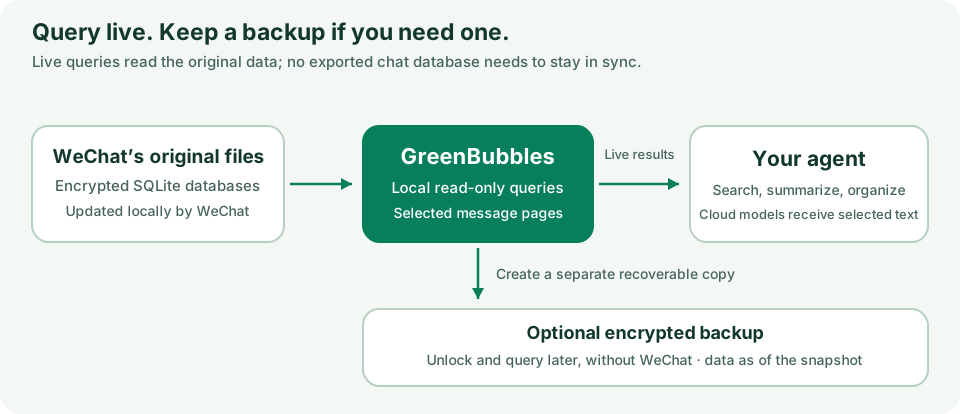
GreenBubbles is a Mac command-line tool for reading your own WeChat history.
It reads the database files WeChat already keeps on your Mac, so there
is no export step and no second copy to keep up to date. You can:
- browse and search your chats on your own computer;
- ask a coding agent you already use (Claude Code, Codex, and others) to turn
chosen conversations into Markdown notes that cite the original messages;
- make an encrypted backup you can open later, even without WeChat.
Research alpha. Needs a Mac with Apple silicon and macOS 14 or later.
Setup copies a key out of your own WeChat app, which needs administrator access.
Reading and searching happen entirely on your Mac. If you use a cloud AI, the
messages it reads are sent to that AI's provider.
What you can do
- Browse and search: list chats, read messages, and open attachments.
- Build notes about your life: have your coding agent write a private wiki
from your chats: one short article per part of your life, each fact tied to
the message it came from. Passwords and keys pasted into chats stay out.
- Keep notes current: later runs add only new messages, and Git records
every change so you can review it.
- Back up: make an encrypted copy of your history, protected by a 24-word
recovery phrase.
GreenBubbles never changes WeChat's files; it only reads them. Backups and notes
are created only when you ask for them.
Install
You need macOS 14 or later on Apple silicon. Install the command-line tool with
Homebrew:
brew tap bojieli/greenbubbles https://github.com/bojieli/greenbubbles.git
brew install bojieli/greenbubbles/greenbubbles
If Homebrew says the formula is untrusted, run this and then repeat the two
commands above. Older Homebrew versions don't have brew trust and don't need it.
brew trust --formula bojieli/greenbubbles/greenbubbles
Prefer an app? Download the DMG from
Releases and drag
GreenBubbles to Applications. It is Developer ID signed and Apple notarized. Releases
also include the command-line tool as a ZIP. See
CLI releases and Homebrew to verify downloads or upgrade.
Build from source
You need Swift 6, Xcode's command-line tools, and Rust:
git clone https://github.com/bojieli/greenbubbles.git
cd greenbubbles
cargo build --locked --release --manifest-path Native/GreenBubbles/Cargo.toml
swift build --product greenbubbles-history
swift run greenbubbles-history
The command-line tool is built at Native/GreenBubbles/target/release/greenbubbles.
The app asks for this path the first time it runs.
Getting your database key
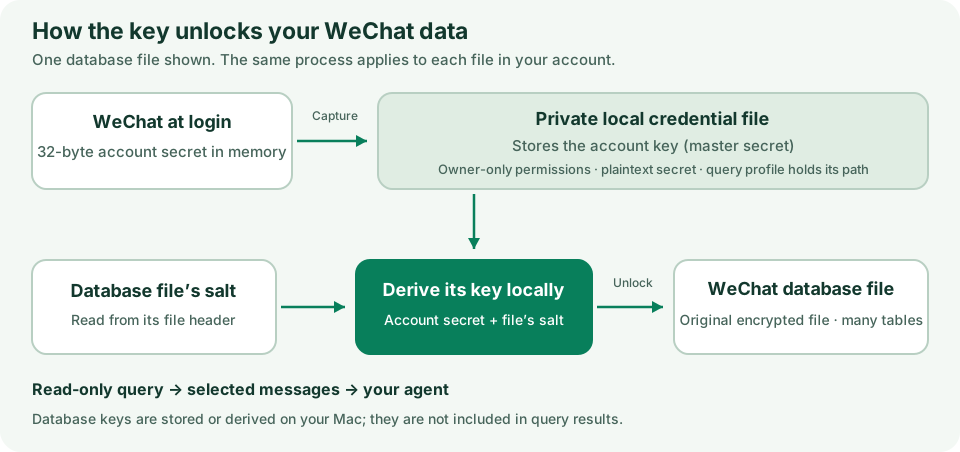
WeChat encrypts its chat databases. To read them, GreenBubbles needs your
account's key, which it copies from your running WeChat app one time.
This one-time setup needs administrator access and re-signs your copy of
WeChat. The key setup guide has the steps and
troubleshooting help. The key is saved to
~/.greenbubbles-acquire/passphrase.txt, a file only your account can read.
After that, commands work with no extra arguments: they find your WeChat data
and key on their own. You need a query profile only
to read a second WeChat account or a backup.
Usage
Once the key is set up, these commands read your live WeChat data:
Browse as you would in WeChat: list conversations, then open the one you want.
You can use its nickname, remark, alias, or exact ID:
greenbubbles chats
greenbubbles messages list --conversation "Alice"
| Command |
When to use it |
greenbubbles messages list --conversation "Alice" |
Read the newest messages in one chat, including available attachment paths. |
greenbubbles chats |
Browse a page of chats and their IDs. |
greenbubbles messages search --query "keyword" |
Search message text across your chats. |
greenbubbles messages search --conversation "Alice" --query "keyword" |
Search message text within one chat. |
greenbubbles chats rank |
Find your most active conversations, ranked by how many messages you sent, with one-on-one chats first. |
greenbubbles chats find "Alice" |
Find a chat by nickname, remark, alias, or ID; partial names work. |
greenbubbles contacts list --details |
Browse contacts with their nicknames, remarks, and aliases. |
greenbubbles message get --conversation <conversation-id> --message <message-id> |
Fetch one message using its ID from --json output. |
greenbubbles source status |
Check database access and storage sizes without reading message text. |
Replace "keyword" with the text to search for. --query "text" supplies it
as a command-line argument. For interactive or piped input, use --query-stdin
instead: run the command, type the search on the next line, press Return, then
Control-D. Choose one input form per search.
Run greenbubbles help --all for the full command list,
greenbubbles messages list --help for help with a specific command, or
greenbubbles version (also -v or --version) to check the installed version.
Replace "Alice" with a chat's nickname, remark, or alias. chats find matches
partial names without reading messages. messages list and messages search
accept names too; if a name matches several chats, the command shows choices
so you can use an exact ID.
messages list and messages search print JSON Lines:
a header, then one line per message with who sent it, whether it was you,
the local time, and the text.
messages list includes local paths for photos, videos,
and files when they can be opened. Search results name the chat; use
messages list to get attachment paths.
- Chat names:
--conversation accepts an exact ID, nickname, remark, or
alias. Exact names take priority over partial matches, ignoring case. If
several chats match, the error lists their IDs so you can choose one.
- Conversation time:
chats includes readable local sortTime alongside
the numeric Unix-seconds sortTimestamp.
- Defaults: lists return up to 100 results; search
returns up to 50. No extra source or credential flags are needed after setup.
- More results: if the output says
hasMore: true, run the same command
again with --cursor set to the nextCursor value it printed. Keep following
search cursors even through empty pages while hasMore is true.
- Time windows: add
--since and --until as Unix timestamps in seconds
to message lists or searches, and repeat them when paging.
- Hide personal details: add
--redact to leave out phone numbers, email
addresses, ID numbers, and links.
- Message IDs: add
--json to see full details, including the message IDs
that message get needs.
- Which chats matter:
chats rank lists your chats by how many messages
you sent in each, with one-on-one chats first. Use
--minimum-self-messages <n> to change the default minimum of 10.
Details: CLI reference.
Prefer a window? Open the app and choose Browse Live or Snapshot…. It
reads the same WeChat data as the command-line tool.
Use your existing coding agent (recommended)
You can let a coding agent you already pay for do the reading and writing:
Codex, Claude Code, OpenCode, Kimi Code, Gemini CLI, or Grok Build. If you're
signed in with a subscription, this usually costs nothing extra.
GreenBubbles gives the agent a skill: a Markdown file of instructions,
with helper files next to it. Nothing needs to be installed. With Homebrew,
this prints where the skill is:
echo "$(brew --prefix greenbubbles)/libexec/skills/greenbubbles-personal-memory/SKILL.md"
Then tell your agent something like:
Read the GreenBubbles personal-memory SKILL.md at that path. Organize my
conversations in the recent month into Markdown notes.
If you use the ZIP or a source checkout, the skill is at
skills/greenbubbles-personal-memory/SKILL.md; keep the files around it in
place. To have your agent find the skill automatically in future sessions,
copy it into the agent's skills folder:
# Replace codex with claude, opencode, kimi, gemini, or grok.
python3 "$(brew --prefix greenbubbles)/libexec/scripts/install-skills.py" --agent codex
The agent reads messages through GreenBubbles and writes notes on your Mac. If
the agent uses a cloud model, the messages it reads go to that provider. Never
paste your database key or recovery phrase into a prompt.
More help: agent skills guide.
Use the built-in summarizer (optional)
If you don't use a coding agent, GreenBubbles can send chosen chats to Google's
Gemini and save a cited summary as memory.md and memory.json. Run it
with ai-summarize-direct.
This needs your own GEMINI_API_KEY and is billed by Google separately. Only
conversations you have explicitly allowed in a policy file are sent. Each run
writes a fresh summary; to keep improving the same set of notes over time, use
a coding agent instead.
Setup steps: built-in summarizer guide.
Choose your next step
Everything else is in the documentation index.
Privacy
Everything GreenBubbles reads or writes stays on your Mac: WeChat's databases,
your key file, backups, and notes. There is no telemetry or update check.
Message text leaves your Mac only when you choose a cloud AI:
- Your coding agent sends the messages it reads to its model provider.
- The built-in summarizer sends the conversations you allowed to Gemini.
A coding agent that can run commands has the same access to your files as you
do. The skill tells it what to do but cannot restrict it. Notes and backups
contain private information, so protect them as carefully as WeChat's own data.
Details: PRIVACY.md.
Status
GreenBubbles is a research alpha for technical users reading their own data.
WeChat changes its private formats; when GreenBubbles meets data it can't read,
it says so instead of guessing. Public builds cannot send messages. See
known limitations.
Contributing
Contributions are welcome, especially:
- Improve skills and prompts for accurate summaries, citations, and memory updates.
- Fix CLI bugs and make commands easier for people and agents to use.
- Report key-capture failures and compatibility problems with WeChat updates.
- Add CLI options and features that help agents understand message history.
See CONTRIBUTING.md to get started. Use synthetic examples in
reports and tests; leave out real messages, databases, keys, and account paths.
Report security issues through SECURITY.md.
License
MIT — see LICENSE. Binary releases include
third-party notices.
GreenBubbles is an independent project, not affiliated with or endorsed by
Tencent. WeChat and other product names are trademarks of their respective owners.

 GreenBubbles is a Mac command-line tool (with an optional app and an agent skill) that reads your own WeChat chat history directly from the database files WeChat already keeps on your Mac, letting you browse, search, back up, or ask a coding agent to turn chosen conversations into cited Markdown notes.