Everything you need to annotate and stay in the loop with your agents Markdown Review • Code Review • HTML Artifacts Annotate plans, specs, markdown, and HTML before implementation. Review diffs and PRs. Send feedback to your agent.
Plannotator is a local, browser-based review surface for AI coding agents: Claude Code, Codex, Copilot CLI, Gemini CLI, OpenCode, Kiro, Droid, Amp, and Pi.
It plugs directly into your agent through its hooks and commands. When the agent proposes a plan, html, or finishes writing code, the work opens in your browser and you mark it up, comment, and send feedback directly to the agent for it to act on it.
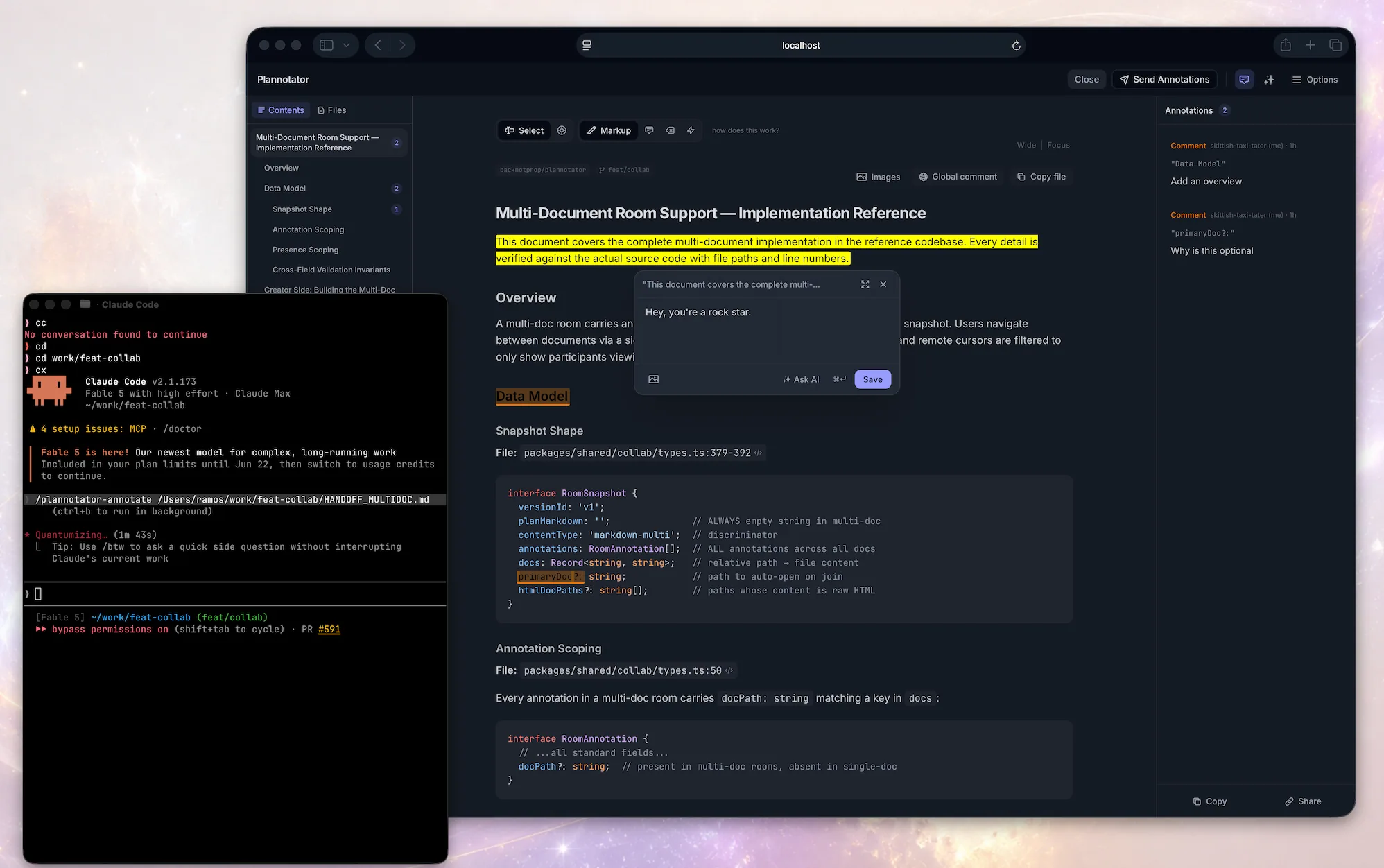
Review documents, plans, and agent messages
Annotate plans, specs, messages, html, then send the feedback to your agent.
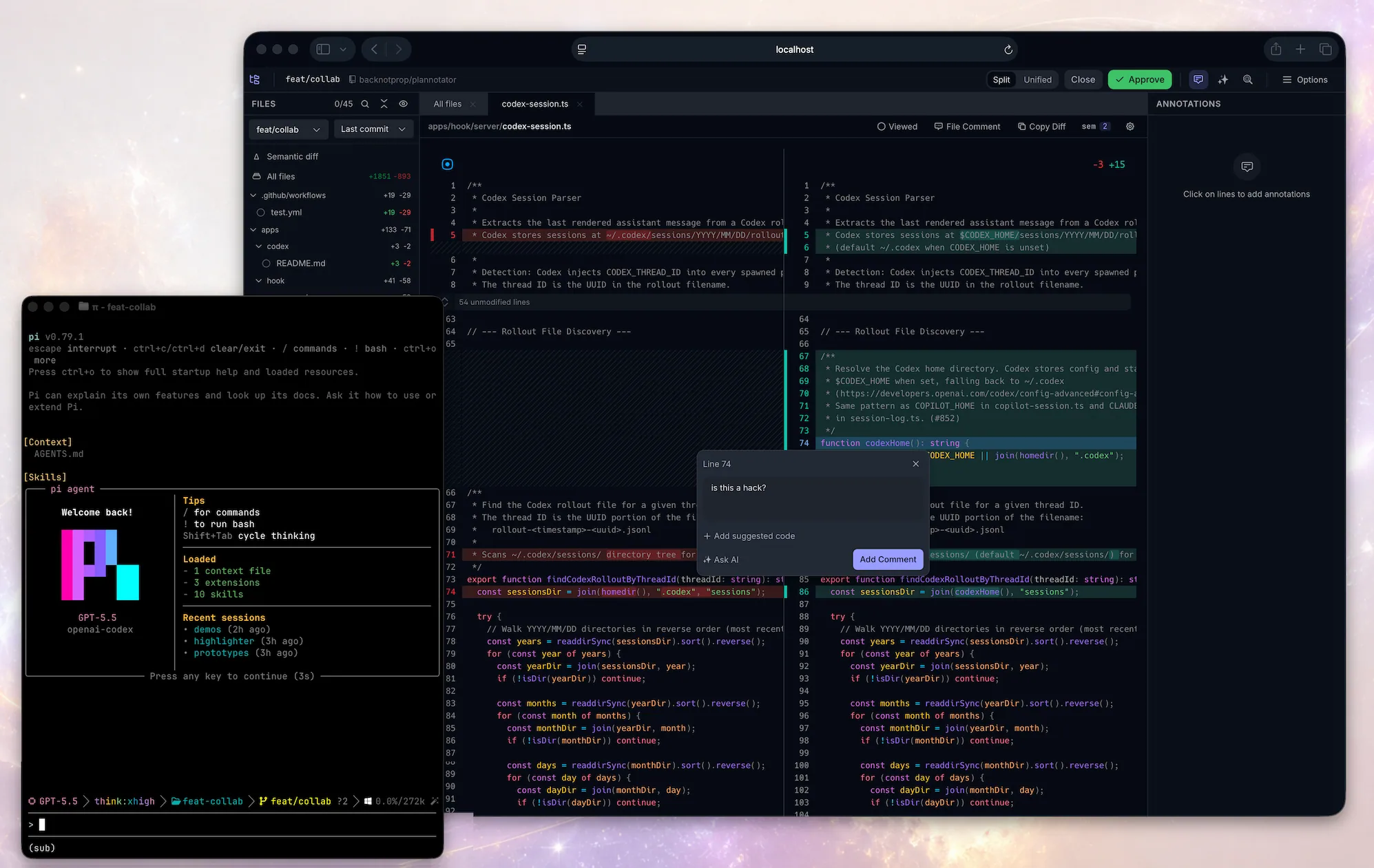
Review local changes or remote PRs. Comment on diffs, suggest code. Your comments go back to the agent. Works with Git, GitButler, Jujutsu (jj), Perforce (p4), GitHub, and GitLab.
AI built in: ask AI about anything you're reviewing, or launch AI reviews that post comments to the diff.
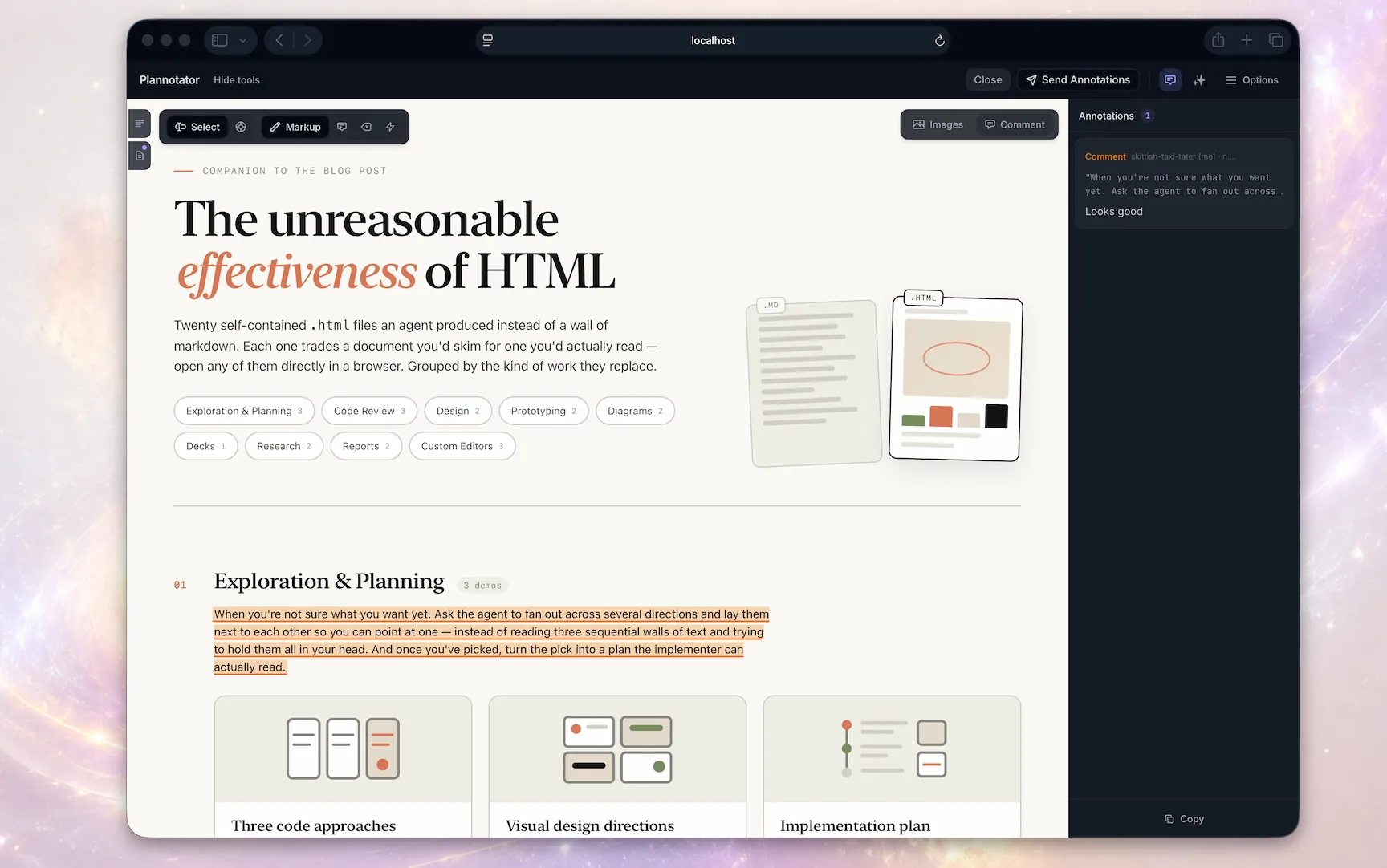
Annotate HTML Artifacts
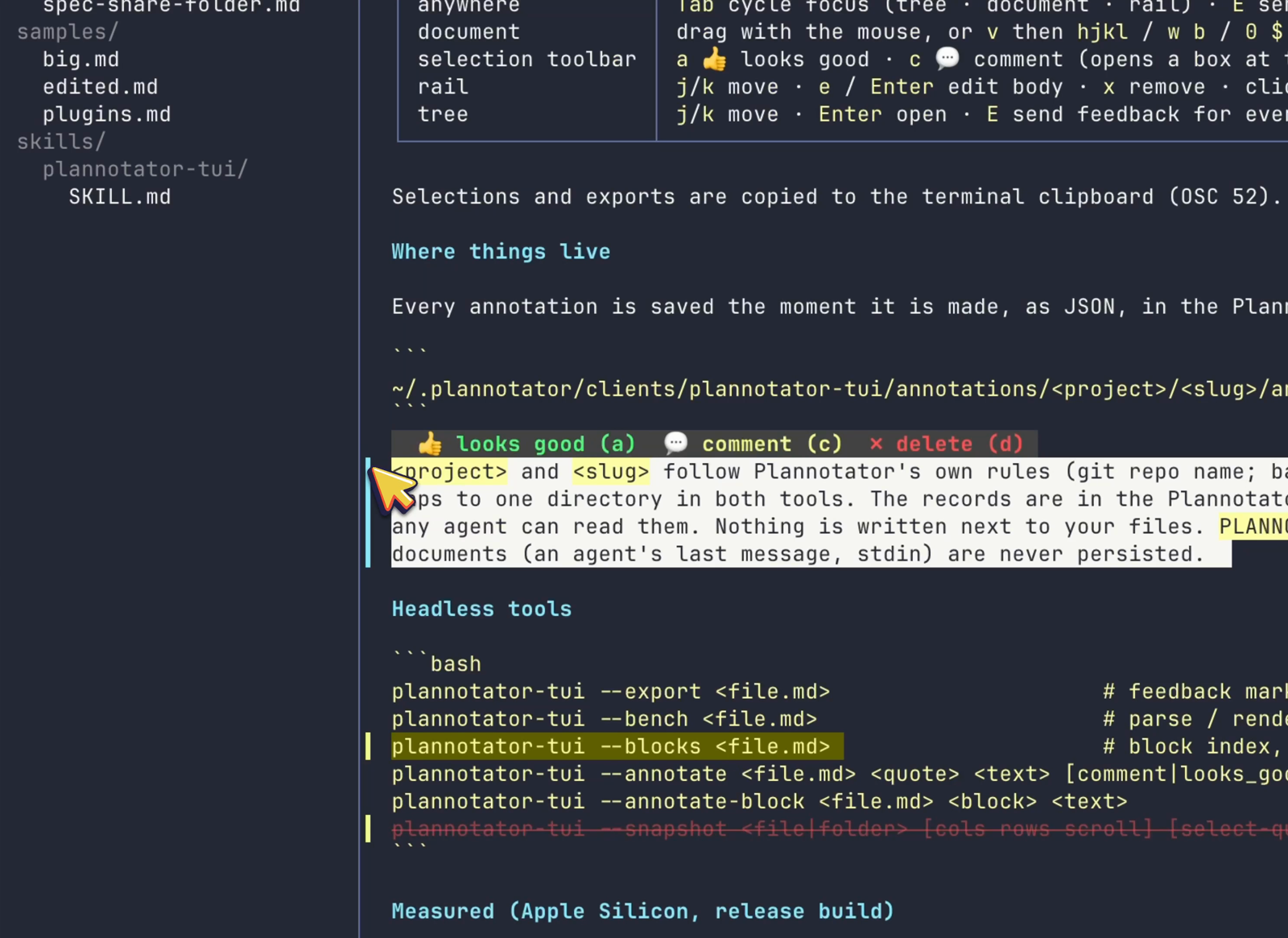
Herdr Annotate: Plannotator in the Terminal
Herdr Annotate brings Plannotator-style review to the terminal: annotate terminal text, review whole Markdown documents and your coding agent's replies inside Herdr, and send the feedback straight back to the agent as its next message. Works with Claude Code, Codex, Pi, Copilot CLI, and Droid replies. Annotations are saved in the Plannotator data directory, so terminal reviews and app reviews compound.
herdr plugin install plannotator/herdr-annotate
Prefer it standalone? Plannotator TUI powers the document review and runs without Herdr: brew install plannotator/tap/plannotator-tui.
Commands
On Codex, swap the slash commands for !plannotator … (e.g. !plannotator review) or the $plannotator-* skills.
Annotate
/plannotator-annotate README.md                  # Local markdown file
/plannotator-annotate src/                       # Browse and annotate files in a folder
/plannotator-annotate https://docs.rs/…          # Fetch and annotate any URL
/plannotator-annotate report.html --render-html  # Render HTML as-is instead of converting
/plannotator-last                                # Annotate the agent's last message
/plannotator-review                    # Review uncommitted changes
/plannotator-review <github-pr-url>    # Review a GitHub pull request
/plannotator-review <gitlab-mr-url>    # Review a GitLab merge request
plannotator review --gitbutler         # Review an active GitButler workspace
GitButler users can review the whole workspace, one stack, or one branch layer. See the GitButler workflow guide.
Plan mode
No command needed. Plan mode is wired in through each harness's hooks. Any time your agent creates a plan, the markdown review surface opens for you.
CLI
plannotator sessions                   # List active Plannotator sessions
plannotator sessions --open 1          # Reopen a session in the browser
plannotator archive                    # Browse saved plan decisions read-only
Privacy and network behavior
Plannotator does not collect usage telemetry or analytics. Plans, diffs, annotations, drafts, history, and configuration stay local by default.
Each plan review, annotate, archive, share-portal, and code-review app surface checks GitHub for the latest Plannotator release when it loads. This sends no plan or review content and gives the Plannotator project owner no usage analytics, although GitHub receives an ordinary request. There is currently no opt-out setting. Local Git code review can also query the configured origin with git ls-remote to detect the default branch and a stale baseline; it does not send the local diff.
Content leaves the local workflow only when a network feature needs it:
URL annotation fetches the requested site, through Jina Reader by default for public pages or directly when Jina is disabled or unavailable.
GitHub and GitLab review uses your authenticated CLI and Git remote to retrieve PR or MR data.
Ask AI and review agents send the selected question and relevant plan, document, repository, or diff context to your configured provider.
Sharing sends the complete link to whoever or whatever service you use to deliver it. Encrypted short links upload ciphertext to the paste service.
Workspaces is a separate hosted product, so the open source app's local-storage model does not apply to content placed there.
The privacy policy documents these boundaries and the hosted website and waitlist data.
Link sharing
Open source asynchronous link sharing remains available for compatibility but is moving to deprecated support. Workspaces is the primary direction for team sharing. No removal date has been announced.
Share a plan with a teammate and they can annotate it themselves. Import their feedback and send it straight back to your agent.
Small markdown shares are compressed into the URL fragment. The fragment is not included in the browser's request to the share portal, but it is not encrypted. Anyone or any messaging service with the complete link can read the shared content. The portal host still receives ordinary request metadata.
Large markdown and raw HTML shares use a short-link service. The share payload is encrypted with AES-256-GCM before upload, the server stores only ciphertext, and the key is kept in the URL fragment rather than sent in the paste request. Anyone with the complete link can decrypt it. Hosted pastes expire after 7 days.
Sharing can be disabled entirely with PLANNOTATOR_SHARE=disabled.
Workspaces is the primary path for hosted team collaboration.
Install
One installer covers almost every agent. It installs the plannotator binary, auto-detects your installed agents, and configures hooks, skills, and slash commands for each:
# Windows PowerShell
irm https://plannotator.ai/install.ps1 | iex
The installer downloads the binary from GitHub Releases. A full install can also contact GitHub for release resolution and agent files, Ataraxy-Labs/sem for the optional sem sidecar, and npm for Pi, selected extra skills, or the managed agent-terminal runtime. Pinning --version skips only GitHub API release resolution, not the release download. See the privacy policy for the complete network boundaries.
Want just the binary and nothing else? Pass --minimal (or export PLANNOTATOR_MINIMAL=1) to install only the plannotator binary to ~/.local/bin, skipping every skill, hook, slash command, and per-agent config:
Nothing. Plan review is enabled automatically via Codex's experimental Stop hook (macOS/Linux/WSL; on native Windows, Codex hooks are experimental and the installer prints manual setup steps). $plannotator-review, $plannotator-annotate, and $plannotator-last skills included.
/plugin marketplace add backnotprop/plannotator, then /plugin install plannotator-copilot@plannotator. Restart. Plan review activates in plan mode (Shift+Tab).
The safe default removes recognized Plannotator-installed components and keeps
your local plans, history, drafts, guides, and settings:
plannotator uninstall
Use --purge for a full removal of known local Plannotator data as well:
plannotator uninstall --purge
Purge requires typing purge at the prompt and explains that the data is
local-only: it is not stored on a Plannotator server and cannot be recovered.
For automation, pass --yes (or -y); non-interactive removal refuses to run
without it. Use --dry-run to preview recognized work without making changes.
Host integrations are always part of uninstall. If a broken or unavailable
host prevents safe cleanup, the command names the blocking plugin manager or
configuration, gives exact manual cleanup instructions, and stops before
deleting the binary. Complete that cleanup and rerun uninstall.
These mechanics keep the ordinary confirmation default-negative, make the
irreversible outcome require a stronger explicit word, and still give package
managers and scripts a conventional non-interactive flag.
The command covers the conventional macOS, Linux, WSL, and Windows binary
locations; the managed sem sidecar and agent-terminal runtime; installer
skills, commands, hooks, policies, caches, and recognizable Amp/Kiro files; and
detected Claude Code, Copilot CLI, Droid, Pi, and VS Code installations through
their host CLIs. Shared JSONC settings are edited surgically, while strict JSON
updates preserve the file's indentation, line endings, and trailing-newline
style. Custom
or unrecognized files, separately installed optional skills, project-local
integrations, external plan-save locations, and invalid configs are preserved
(malformed host config is a fail-safe error). If cleanup reports an error,
the CLI remains available for a safe retry, and its Windows PATH entry is
retained or restored when possible. If PATH restoration itself fails, the
output gives the full CLI path for retry and asks for manual PATH repair.
For safety, purge refuses filesystem roots, the home directory, the shared
temporary directory, symlinked data directories, and non-directory data paths.
Existing paths are compared by filesystem identity, so case aliases, symlinks,
hardlinks, and bind mounts cannot bypass the root/home/ancestor checks.
That identity and every containment guard are revalidated after awaited host
commands, immediately before the synchronous data-removal block; a replaced
data directory is refused without touching either the old or replacement data.
If your dedicated data directory is symlinked, point PLANNOTATOR_DATA_DIR at
its resolved target and retry.
If you installed only the standalone Pi extension and do not have the
plannotator CLI, use pi remove npm:@plannotator/pi-extension.
Claude Code: manual hook setup (without the plugin system)
The fastest way to see what Plannotator does is to invoke it yourself, right now, from your agent:
/plannotator-last                   # annotate the agent's last reply
/plannotator-review                 # review your current diff, PR-style
/plannotator-annotate report.html   # annotate any file, folder, or URL
(Slash commands in most agents; $plannotator-* skills in Codex, command palette in Amp.)
Plan review needs no command at all. The next time your agent proposes a plan, it opens in your browser automatically.
How it works
Plan review
Agent calls ExitPlanMode
  -> PermissionRequest hook fires
  -> Local server reads plan from hook input
  -> Browser opens with review UI
  -> You annotate and approve/deny
  -> Approve: agent proceeds
  -> Deny: structured feedback sent to agent
  -> Agent revises, plan diff shows what changed
Code review
You run /plannotator-review
  -> git diff captures changes (or PR fetched by URL)
  -> Browser opens with diff viewer
  -> Annotate lines, stage/unstage files
  -> Send feedback: returned to agent session
  -> Approve: "LGTM" sent
Integrations
VS Code: Open plans in editor tabs, view diffs inline, add annotations from the editor gutter. Install from the VS Code Marketplace.
Obsidian: Auto-save approved plans to a vault with YAML frontmatter, tags from the plan title, and backlinks for graph connectivity. Configure in Plannotator's Settings panel.
Bear: Save plans as Bear notes with nested tags and project metadata.
GitHub / GitLab: Pass any PR or MR URL to /plannotator-review and review it with the full diff viewer, annotations, and file tree.
Remote / SSH / devcontainer
Plannotator auto-detects SSH sessions and switches to a fixed port. For explicit control:
export PLANNOTATOR_REMOTE=1
export PLANNOTATOR_PORT=9999  # forward this port
VS Code devcontainers forward the port automatically (check the Ports tab). For raw SSH, add to ~/.ssh/config:
Host your-server
    LocalForward 9999 localhost:9999
Security
Every released binary ships with a SHA256 sidecar. SLSA provenance attestations are available from v0.17.2. The current release workflow also attaches a CycloneDX JSON SBOM, evaluates it with a fresh Grype database before anything is attested or published, and creates a GitHub/Sigstore SBOM attestation for the shipped binaries and npm tarballs.
The SBOM is intentionally labeled as a release-wide Syft inventory of the monorepo's locked build inputs and dependencies. It is not an exact per-binary runtime inventory: Bun standalone executables do not expose their bundled JavaScript package metadata to Syft. The canonical installation and verification docs cover the existing installer path; the exact new SBOM commands are included below and must be copied to that Mintlify page before the first SBOM-enabled release.
The release gate rejects scanner-side ignored matches and treats unknown applicability conservatively as runtime when evaluating CISA KEV and fixable Critical findings. Its explicit Grype configuration, complete JSON results, database status, and repository policy decision remain available as workflow evidence.
To verify a released Linux x64 binary, its existing provenance, and the new SBOM evidence directly:
plannotator (backnotprop/plannotator)
Choose a tag and it will appear here. With no tags selected, all catalog projects are shown.
Searching Database…
Choose a tag and it will appear here. With no tags selected, all catalog projects are shown.











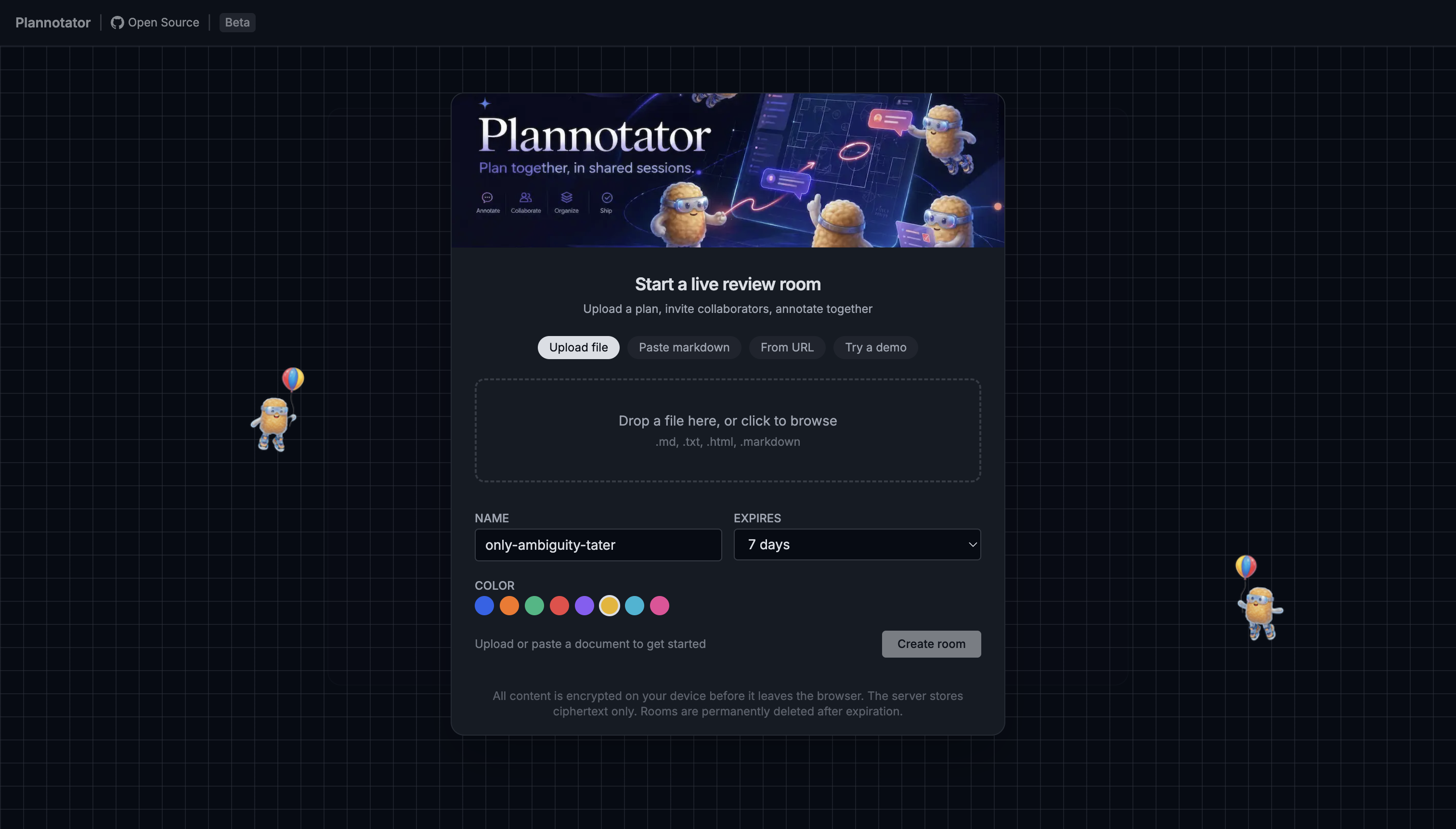


 Plannotator 是一个本地运行的、基于浏览器的 AI 编程智能体审查界面:当你的智能体提出计划、生成 HTML 或写完代码时,这些内容会在你的浏览器中打开,你可以直接在上面标注,并把反馈发送回智能体。