


CustomTkinter README

The project's README from github.com/TomSchimansky/CustomTkinter. As one markdown file: README.md.

PyPI PyPI - Downloads Downloads last 6 month PyPI - License Minimum Python Version


Current Developers Contact
Tom Schimansky [email protected]
Federico Spada www.linkedin.com/in/federicospada13

Paypal donation button


Official website: https://customtkinter.tomschimansky.com/

CustomTkinter is a python UI-library based on Tkinter, which provides new, modern and fully customizable widgets. They are created and used like normal Tkinter widgets and can also be used in combination with normal Tkinter elements. The widgets and the window colors either adapt to the system appearance or the manually set mode ('light', 'dark'), and all CustomTkinter widgets and windows support HighDPI scaling (Windows, macOS). With CustomTkinter you'll get a consistent and modern look across all desktop platforms (Windows, macOS, Linux).

| complex_example.py on Windows 11 with dark mode and 'blue' theme

| complex_example.py on macOS in light mode and standard 'blue' theme

Installation

Install the module with pip:

pip3 install customtkinter

Update existing installation: pip3 install customtkinter --upgrade
(update as often as possible because this library is under active development)

Documentation

The official documentation can be found here:

➡️ https://customtkinter.tomschimansky.com/documentation.

Example Program

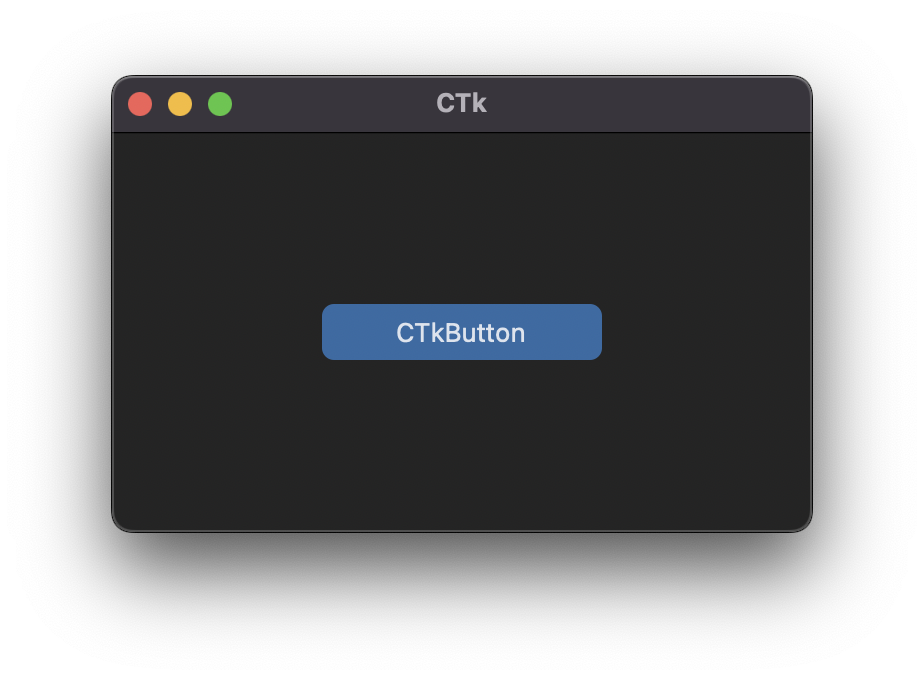
To test customtkinter you can try this simple example with only a single button:

import customtkinter

customtkinter.set_appearance_mode("System")  # Modes: system (default), light, dark
customtkinter.set_default_color_theme("blue")  # Themes: blue (default), dark-blue, green

app = customtkinter.CTk()  # create CTk window like you do with the Tk window
app.geometry("400x240")

def button_function():
    print("button pressed")

# Use CTkButton instead of tkinter Button
button = customtkinter.CTkButton(master=app, text="CTkButton", command=button_function)
button.place(relx=0.5, rely=0.5, anchor=customtkinter.CENTER)

app.mainloop()

which results in the following window on macOS:

In the examples folder, you can find more example programs and in the Documentation you can find further information on the appearance mode, scaling, themes and all widgets.

More Examples and Showcase

You can run the following code to show a simple App that displays all available widgets:

import customtkinter as ctk
ctk.run_showroom()

Appearance mode change and scaling change

CustomTkinter can adapt to the Windows 10/11 light or dark mode:

https://user-images.githubusercontent.com/66446067/204672968-6584f360-4c52-434f-9c16-25761341368b.mp4

| complex_example.py on Windows 11 with system appearance mode change and standard 'blue' theme

On macOS you either need python3.10 or higher or the anaconda python version to get a dark window header (Tcl/Tk >= 8.6.9 required):

https://user-images.githubusercontent.com/66446067/204673854-b6cbcfda-d9a1-4425-92a3-5b57d7f2fd6b.mp4

| complex_example.py on macOS with system appearance mode change, user-scaling change and standard 'blue' theme

Button with images

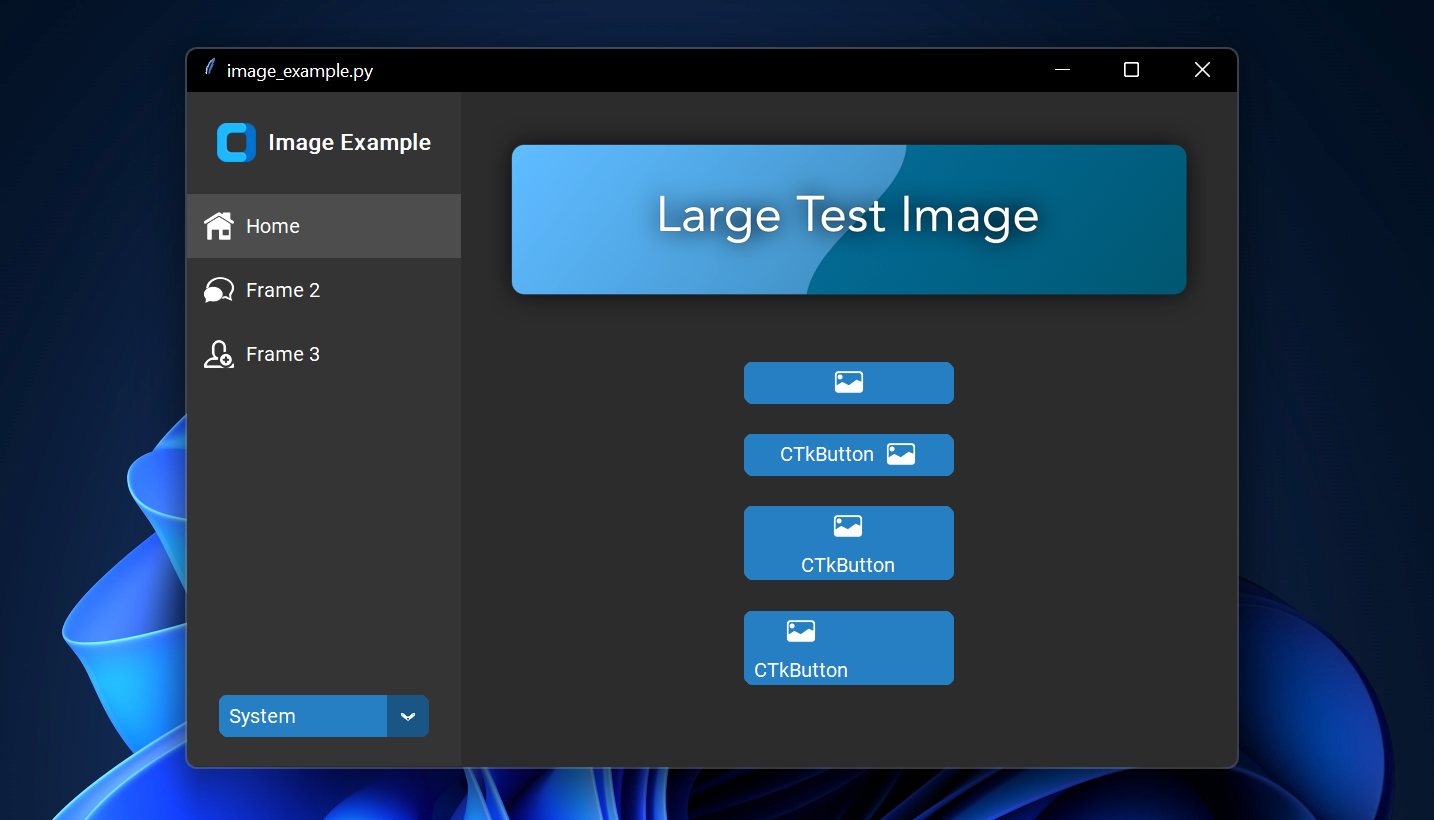
It's possible to put an image on a CTkButton. You just have to pass a PhotoImage object to the CTkButton with the image argument. If you want no text at all you have to set text="" or you specify how to position the text and image at once with the compound option:

| image_example.py on Windows 11

Scrollable Frames

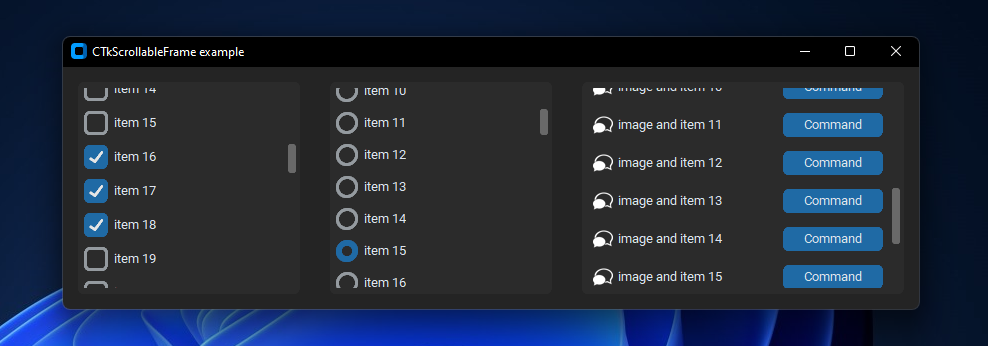
Scrollable frames are possible in vertical or horizontal orientation and can be combined with any other widgets. | scrollable_frame_example.py on Windows 11

Integration of TkinterMapView widget

In the following example I used a TkinterMapView which integrates well with a CustomTkinter program. It's a tile based map widget which displays OpenStreetMap or other tile based maps:

https://user-images.githubusercontent.com/66446067/204675835-1584a8da-5acc-4993-b4a9-e70f06fa14b0.mp4

| examples/map_with_customtkinter.py from TkinterMapView repository on Windows 11

You can find the TkinterMapView library and example program here: https://github.com/TomSchimansky/TkinterMapView

CustomTkinter (TomSchimansky/CustomTkinter)

Searching Database…

这是做什么的?CustomTkinter 是一个基于 Tkinter 的 Python 界面库。它提供现代化、可完全自定义的控件,让桌面应用在 Windows、macOS 和 Linux 上都有统一、与时俱进的外观。
那它是用来替代 Tkinter 的,还是在它上面加的一层?是在上面加的一层,不是替代品:你可以像使用普通 Tkinter 控件一样创建和使用它的控件,也可以在同一个应用里随意把它们和普通 Tkinter 元素混着用。
怎么把它加到项目里?用 pip 从 PyPI 安装:pip install customtkinter。README 建议经常更新(同样用 pip),因为这个库还在积极开发中。
除了正常安装 Python,还需要别的东西吗?不需要,有 Python 就行。唯一要注意的是 macOS:想要深色窗口标题栏,需要 Python 3.10 或更高版本,或者 Anaconda 版本,因为要求 Tcl/Tk >= 8.6.9。
应用在各个系统的高分屏上都会显示清晰吗?HiDPI 缩放确认支持 Windows 和 macOS —— 这也是 README 里明确提到的仅有的两个平台。Linux 上是同样的现代外观,但没有宣称支持缩放。
它会跟随我系统的深色模式吗?会。控件和窗口颜色会自动适应系统的外观,你也可以手动设置为 'light' 或 'dark' 模式 —— 包括 Windows 10/11 的深色模式。
除了深色模式,外观还能自定义到什么程度?控件完全可以自定义,还有主题可用 —— README 的示例用的是标准的 'blue' 主题,文档里介绍了外观模式、缩放、主题以及每一个控件。
按钮上能放图片吗?可以 —— 通过 image 参数把 PhotoImage 对象传给 CTkButton。把 text 设为 '' 就能得到只有图片的按钮,或者用 compound 选项来控制文字和图片的排布方式。
有可以滚动的容器吗?有,横向和纵向都支持,而且可滚动容器可以和其他任意控件组合使用。
能在应用里嵌入地图吗?没有内置,但作者的 TkinterMapView 库和 CustomTkinter 配合得很好 —— 它是一个基于瓦片的地图控件,可以显示 OpenStreetMap 或其他瓦片地图。
Size
147.6 MB
Stars
13.6K
Updated
CommitJun 24
Age
5y
Commits · 90 Days
