What is this?
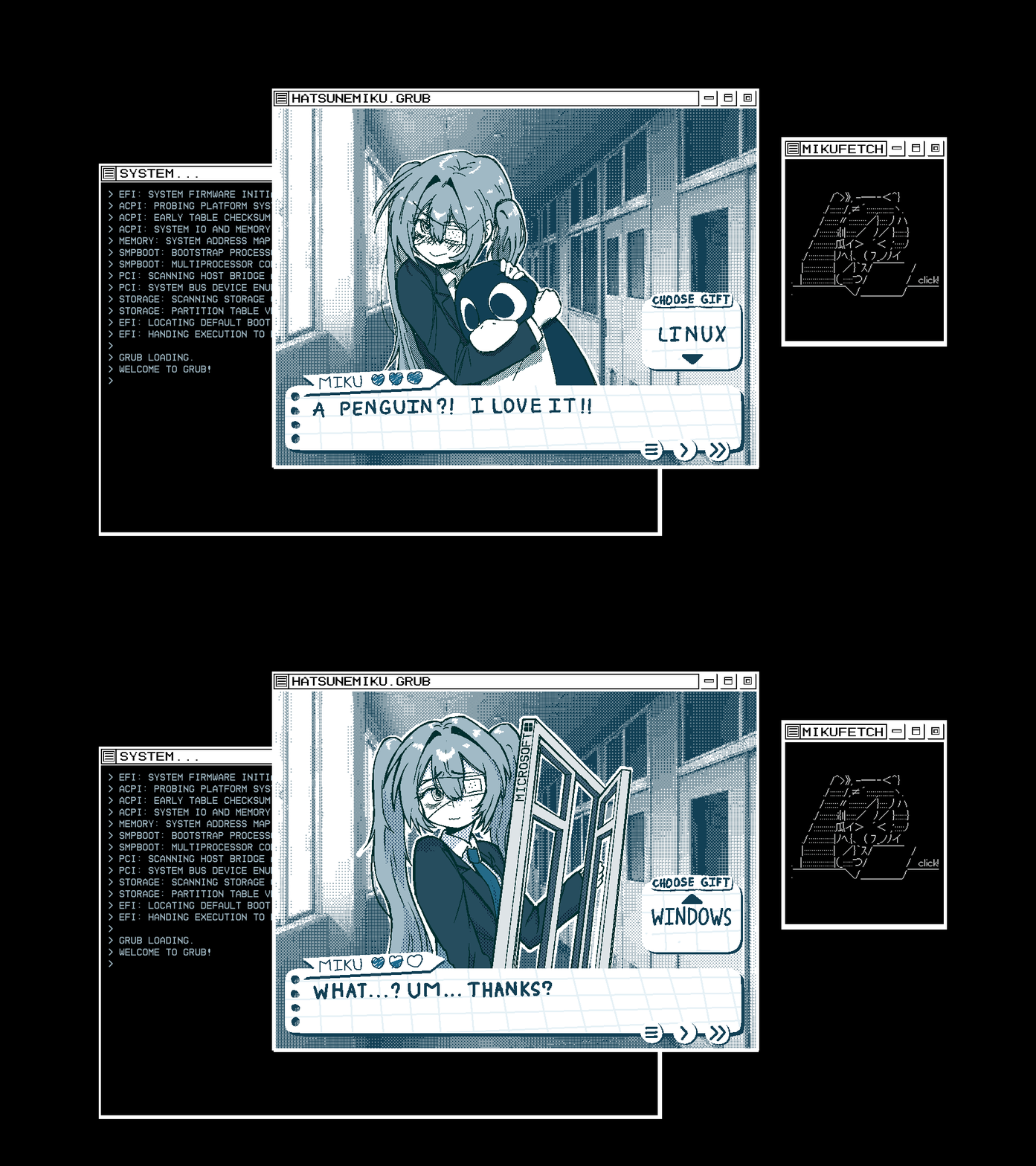
 A Hatsune Miku dating-sim-styled theme for the GRUB bootloader, remixed from the Matrix Morpheus GRUB Theme.
Is this a full theme pack or just a couple of images?It is a GRUB theme pack with only two background images, one for Linux boot entries and one for Windows.
It is a GRUB theme pack with only two background images, one for Linux boot entries and one for Windows.Do I need anything besides GRUB itself?No extra tools beyond a standard GRUB2 setup and admin/root access to run the install script or edit /etc/default/grub.
No extra tools beyond a standard GRUB2 setup and admin/root access to run the install script or edit /etc/default/grub.Will other GRUB screens like Advanced options or Snapshots look right?No — only the main Linux and Windows boot images are drawn; Advanced options and Snapshots menus will show a black screen since there's no art for them.
No — only the main Linux and Windows boot images are drawn; Advanced options and Snapshots menus will show a black screen since there's no art for them.Is this only for a specific Linux distro?No, but you must rename the included arch.png to match your own distro's class name found in grub.cfg, since the repo ships art only for arch and windows.
No, but you must rename the included arch.png to match your own distro's class name found in grub.cfg, since the repo ships art only for arch and windows.Does this affect my Windows dual-boot entry too?Yes, the theme includes a dedicated windows.png so a Windows entry alongside Linux gets its own themed image in the boot menu.
Yes, the theme includes a dedicated windows.png so a Windows entry alongside Linux gets its own themed image in the boot menu.Why might the theme not show up at all after installing?On Fedora or openSUSE, the default GRUB_TERMINALOUTPUT=console setting makes GRUB ignore GRUB_THEME entirely; the installer switches it to gfxterm automatically, but manual installs need this fixed by hand.
On Fedora or openSUSE, the default GRUB_TERMINALOUTPUT=console setting makes GRUB ignore GRUB_THEME entirely; the installer switches it to gfxterm automatically, but manual installs need this fixed by hand.Can I undo the install if I don't like it?Yes, the installer backs up your original /etc/default/grub as a .bak file before changing it, and uninstalling just means removing the GRUB_THEME= line and regenerating the config, optionally restoring the backup first.
Yes, the installer backs up your original /etc/default/grub as a .bak file before changing it, and uninstalling just means removing the GRUB_THEME= line and regenerating the config, optionally restoring the backup first.How do I fix the black screen issue on boot options other than Linux/Windows?You can edit grub.cfg to switch to a different theme when entering submenus like Advanced options or Snapshots, since this theme has no art for those screens.
You can edit grub.cfg to switch to a different theme when entering submenus like Advanced options or Snapshots, since this theme has no art for those screens.Where did the artwork come from?The Miku artwork is original work by the author, who also shares the layered PSD/clip source files and asks for credit if you remix it.
The Miku artwork is original work by the author, who also shares the layered PSD/clip source files and asks for credit if you remix it.What are similar projects?nv-uefi-unlocker, OpenCorePkg, UniXNU, Windows-GPU-UNLOCK, ohmyzsh, nerd-fonts, powerlevel10k, omarchy
nv-uefi-unlocker, OpenCorePkg, UniXNU, Windows-GPU-UNLOCK, ohmyzsh, nerd-fonts, powerlevel10k, omarchyWhich topics is it in?bootloader, shell, customization, linux
bootloader, shell, customization, linux