






English readme
• 简体中文 readme
• 正體中文 readme
• Lengua española readme
• Deutsche readme
• Läs på svenska
• 日本語 readme
• 한국어 readme
• Français readme
• Schwizerdütsch readme
• हिन्दी readme
• Português brasileiro readme
• Italian readme
• Русский readme
• Indonesian readme
• فارسی readme
• Türkçe readme
• Polskie readme
Rich is a Python library for rich text and beautiful formatting in the terminal.
The Rich API makes it easy to add color and style to terminal output. Rich can also render pretty tables, progress bars, markdown, syntax highlighted source code, tracebacks, and more — out of the box.

For a video introduction to Rich see calmcode.io by @fishnets88.
See what people are saying about Rich.
Compatibility
Rich works with Linux, macOS and Windows. True color / emoji works with new Windows Terminal, classic terminal is limited to 16 colors. Rich requires Python 3.8 or later.
Rich works with Jupyter notebooks with no additional configuration required.
Installing
Install with pip or your favorite PyPI package manager.
python -m pip install rich
Run the following to test Rich output on your terminal:
python -m rich
Rich Print
To effortlessly add rich output to your application, you can import the rich print method, which has the same signature as the builtin Python function. Try this:
from rich import print

print("Hello, [bold magenta]World[/bold magenta]!", ":vampire:", locals())

Rich REPL
Rich can be installed in the Python REPL, so that any data structures will be pretty printed and highlighted.
>>> from rich import pretty
>>> pretty.install()

Using the Console
For more control over rich terminal content, import and construct a Console object.
from rich.console import Console

console = Console()
The Console object has a print method which has an intentionally similar interface to the builtin print function. Here's an example of use:
console.print("Hello", "World!")
As you might expect, this will print "Hello World!" to the terminal. Note that unlike the builtin print function, Rich will word-wrap your text to fit within the terminal width.
There are a few ways of adding color and style to your output. You can set a style for the entire output by adding a style keyword argument. Here's an example:
console.print("Hello", "World!", style="bold red")
The output will be something like the following:

That's fine for styling a line of text at a time. For more finely grained styling, Rich renders a special markup which is similar in syntax to bbcode. Here's an example:
console.print("Where there is a [bold cyan]Will[/bold cyan] there [u]is[/u] a [i]way[/i].")

You can use a Console object to generate sophisticated output with minimal effort. See the Console API docs for details.
Rich Inspect
Rich has an inspect function which can produce a report on any Python object, such as class, instance, or builtin.
>>> my_list = ["foo", "bar"]
>>> from rich import inspect
>>> inspect(my_list, methods=True)

See the inspect docs for details.
Rich Library
Rich contains a number of builtin renderables you can use to create elegant output in your CLI and help you debug your code.
Click the following headings for details:
Log
The Console object has a log() method which has a similar interface to print(), but also renders a column for the current time and the file and line which made the call. By default Rich will do syntax highlighting for Python structures and for repr strings. If you log a collection (i.e. a dict or a list) Rich will pretty print it so that it fits in the available space. Here's an example of some of these features.
from rich.console import Console
console = Console()

test_data = [
    {"jsonrpc": "2.0", "method": "sum", "params": [None, 1, 2, 4, False, True], "id": "1",},
    {"jsonrpc": "2.0", "method": "notify_hello", "params": [7]},
    {"jsonrpc": "2.0", "method": "subtract", "params": [42, 23], "id": "2"},
]

def test_log():
    enabled = False
    context = {
        "foo": "bar",
    }
    movies = ["Deadpool", "Rise of the Skywalker"]
    console.log("Hello from", console, "!")
    console.log(test_data, log_locals=True)


test_log()
The above produces the following output:

Note the log_locals argument, which outputs a table containing the local variables where the log method was called.
The log method could be used for logging to the terminal for long running applications such as servers, but is also a very nice debugging aid.
Logging Handler
You can also use the builtin Handler class to format and colorize output from Python's logging module. Here's an example of the output:

Emoji
To insert an emoji in to console output place the name between two colons. Here's an example:
>>> console.print(":smiley: :vampire: :pile_of_poo: :thumbs_up: :raccoon:")
😃 🧛 💩 👍 🦝
Please use this feature wisely.
Tables
Rich can render flexible tables with unicode box characters. There is a large variety of formatting options for borders, styles, cell alignment etc.

The animation above was generated with table_movie.py in the examples directory.
Here's a simpler table example:
from rich.console import Console
from rich.table import Table

console = Console()

table = Table(show_header=True, header_style="bold magenta")
table.add_column("Date", style="dim", width=12)
table.add_column("Title")
table.add_column("Production Budget", justify="right")
table.add_column("Box Office", justify="right")
table.add_row(
    "Dec 20, 2019", "Star Wars: The Rise of Skywalker", "$275,000,000", "$375,126,118"
)
table.add_row(
    "May 25, 2018",
    "[red]Solo[/red]: A Star Wars Story",
    "$275,000,000",
    "$393,151,347",
)
table.add_row(
    "Dec 15, 2017",
    "Star Wars Ep. VIII: The Last Jedi",
    "$262,000,000",
    "[bold]$1,332,539,889[/bold]",
)

console.print(table)
This produces the following output:

Note that console markup is rendered in the same way as print() and log(). In fact, anything that is renderable by Rich may be included in the headers / rows (even other tables).
The Table class is smart enough to resize columns to fit the available width of the terminal, wrapping text as required. Here's the same example, with the terminal made smaller than the table above:

Progress Bars
Rich can render multiple flicker-free progress bars to track long-running tasks.
For basic usage, wrap any sequence in the track function and iterate over the result. Here's an example:
from rich.progress import track

for step in track(range(100)):
    do_step(step)
It's not much harder to add multiple progress bars. Here's an example taken from the docs:

The columns may be configured to show any details you want. Built-in columns include percentage complete, file size, file speed, and time remaining. Here's another example showing a download in progress:

To try this out yourself, see examples/downloader.py which can download multiple URLs simultaneously while displaying progress.
Status
For situations where it is hard to calculate progress, you can use the status method which will display a 'spinner' animation and message. The animation won't prevent you from using the console as normal. Here's an example:
from time import sleep
from rich.console import Console

console = Console()
tasks = [f"task {n}" for n in range(1, 11)]

with console.status("[bold green]Working on tasks...") as status:
    while tasks:
        task = tasks.pop(0)
        sleep(1)
        console.log(f"{task} complete")
This generates the following output in the terminal.

The spinner animations were borrowed from cli-spinners. You can select a spinner by specifying the spinner parameter. Run the following command to see the available values:
python -m rich.spinner
The above command generates the following output in the terminal:

Tree
Rich can render a tree with guide lines. A tree is ideal for displaying a file structure, or any other hierarchical data.
The labels of the tree can be simple text or anything else Rich can render. Run the following for a demonstration:
python -m rich.tree
This generates the following output:

See the tree.py example for a script that displays a tree view of any directory, similar to the linux tree command.
Columns
Rich can render content in neat columns with equal or optimal width. Here's a very basic clone of the (MacOS / Linux) ls command which displays a directory listing in columns:
import os
import sys

from rich import print
from rich.columns import Columns

directory = os.listdir(sys.argv[1])
print(Columns(directory))
The following screenshot is the output from the columns example which displays data pulled from an API in columns:

Markdown
Rich can render markdown and does a reasonable job of translating the formatting to the terminal.
To render markdown import the Markdown class and construct it with a string containing markdown code. Then print it to the console. Here's an example:
from rich.console import Console
from rich.markdown import Markdown

console = Console()
with open("README.md") as readme:
    markdown = Markdown(readme.read())
console.print(markdown)
This will produce output something like the following:

Syntax Highlighting
Rich uses the pygments library to implement syntax highlighting. Usage is similar to rendering markdown; construct a Syntax object and print it to the console. Here's an example:
from rich.console import Console
from rich.syntax import Syntax

my_code = '''
def iter_first_last(values: Iterable[T]) -> Iterable[Tuple[bool, bool, T]]:
    """Iterate and generate a tuple with a flag for first and last value."""
    iter_values = iter(values)
    try:
        previous_value = next(iter_values)
    except StopIteration:
        return
    first = True
    for value in iter_values:
        yield first, False, previous_value
        first = False
        previous_value = value
    yield first, True, previous_value
'''
syntax = Syntax(my_code, "python", theme="monokai", line_numbers=True)
console = Console()
console.print(syntax)
This will produce the following output:

Tracebacks
Rich can render beautiful tracebacks which are easier to read and show more code than standard Python tracebacks. You can set Rich as the default traceback handler so all uncaught exceptions will be rendered by Rich.
Here's what it looks like on OSX (similar on Linux):

All Rich renderables make use of the Console Protocol, which you can also use to implement your own Rich content.
Rich CLI
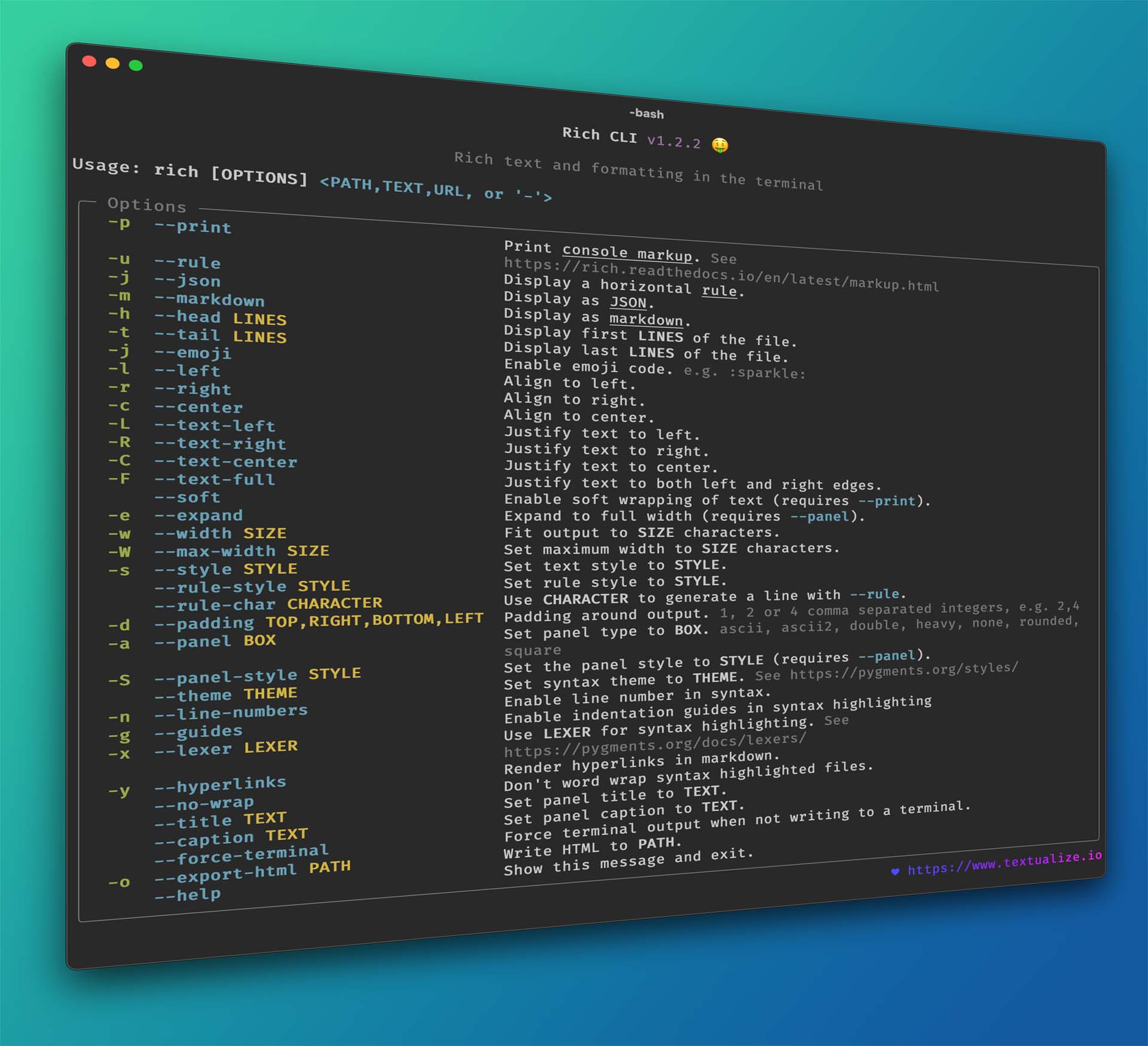
See also Rich CLI for a command line application powered by Rich. Syntax highlight code, render markdown, display CSVs in tables, and more, directly from the command prompt.
Textual
See also Rich's sister project, Textual, which you can use to build sophisticated User Interfaces in the terminal.

Toad
Toad is a unified interface for agentic coding. Built with Rich and Textual.


 Rich 是一个 Python 库,可以为终端输出添加颜色、样式和丰富的格式,包括表格、进度条、Markdown、语法高亮的代码和美化后的 traceback 报错信息,开箱即用。