dsh-at-file
[!IMPORTANT]
The latest official DeepSeek Harness release now includes built-in @file and @session reference features. Prefer the official implementation for new installations. This plugin remains available for existing setups and will be maintained occasionally on a best-effort basis.
Workspace path references for the DeepSeek Harness web interface. Type @ in the composer to search the current workspace and insert a file or directory path.
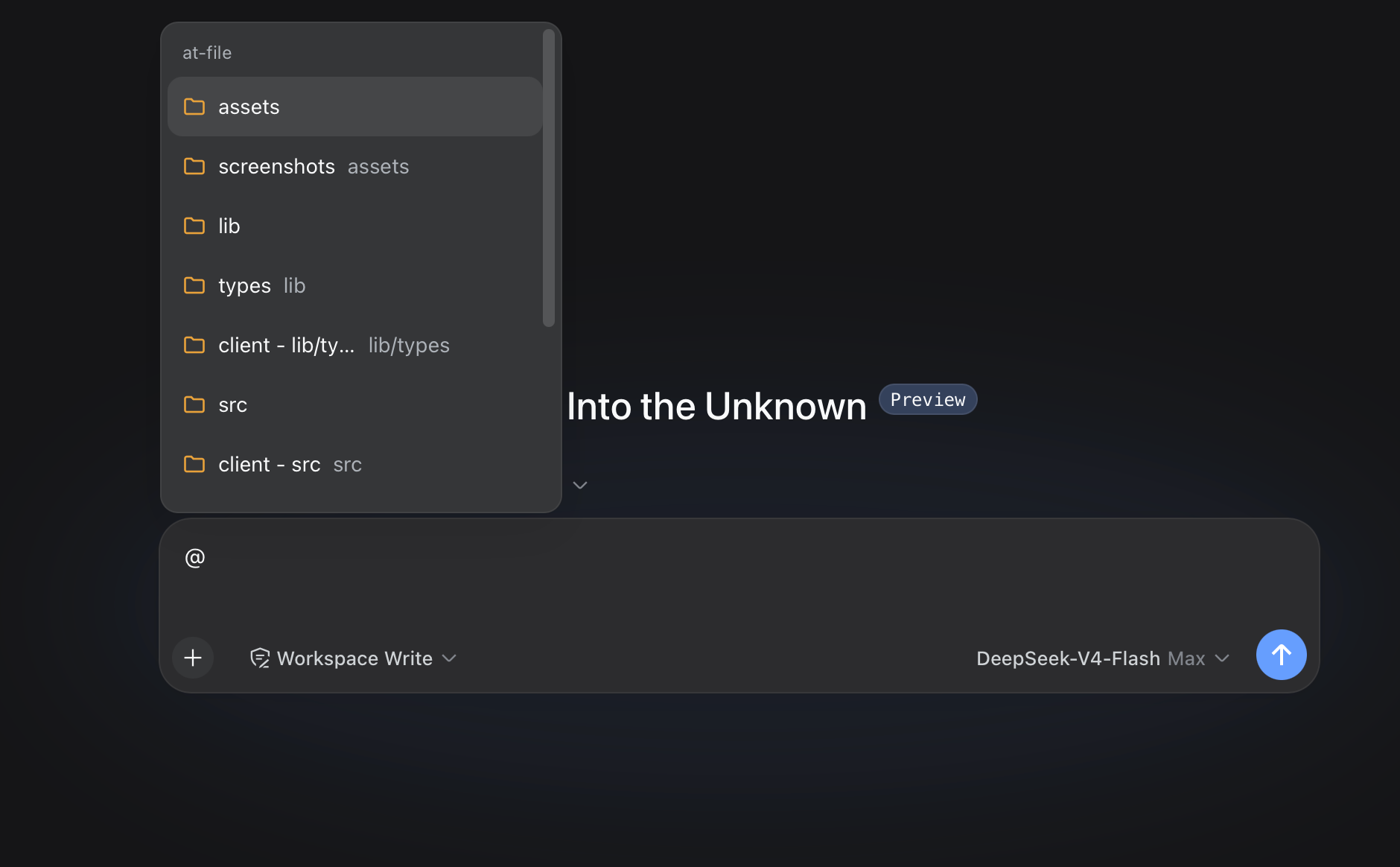
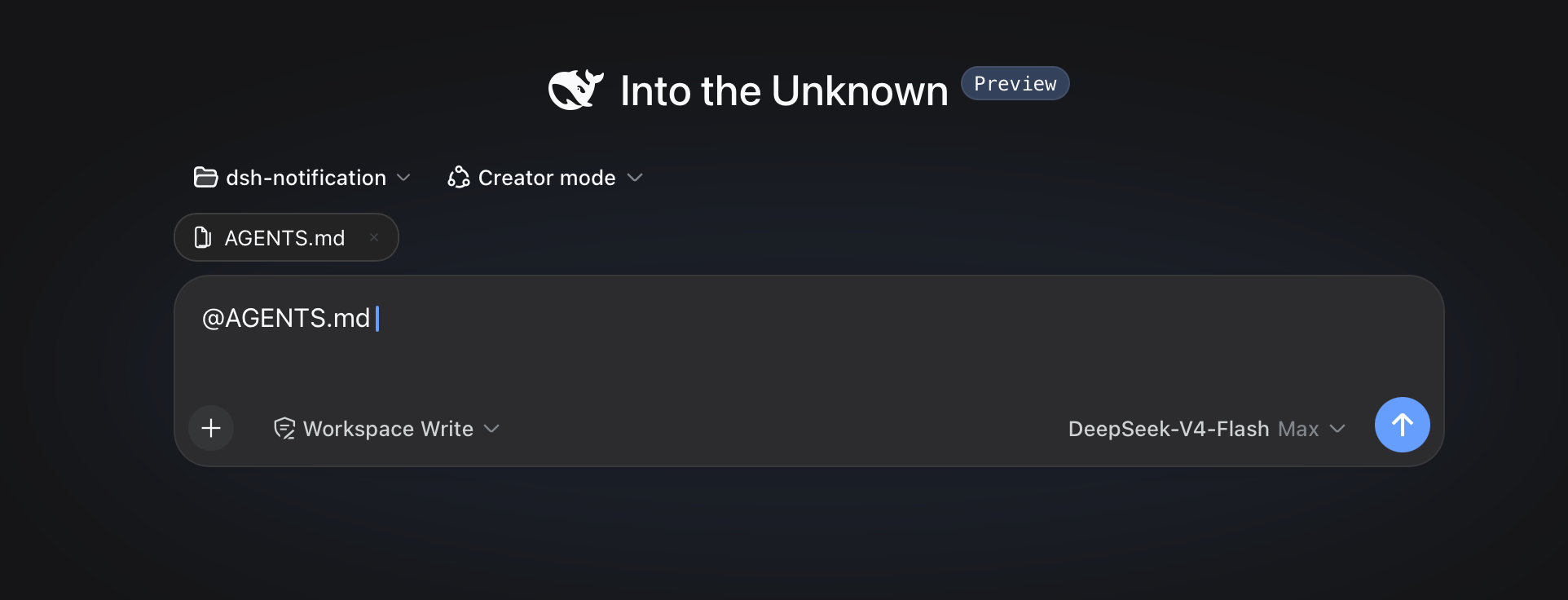
Usage
Choose a result from the @ menu. The selected path remains visible in the draft and can be opened or removed from the reference bar.
Review @docs/spec.pdf
Before the agent starts a step, the plugin confirms that the path exists inside the active workspace. It then adds a short reference message:
<workspace-reference path="docs/spec.pdf" kind="file" />
The reference contains the workspace-relative path and its kind. The plugin does not open the referenced file or list the contents of a referenced directory. The agent can inspect the path with the tools available in the current session when the task requires it.
Pasted text is treated as ordinary text by default. An @path copied from another application does not open the picker, appear in the reference bar, or create a workspace-reference marker. Turn off Ignore @ mentions in pasted text in Settings -> File mentions if you need the older behavior.
File format and file size do not change this behavior. A PDF follows the same path-reference flow as any other workspace file.
This mechanism applies to version 0.3.0 and later. Earlier releases read file content during submission and enforced file-size limits.
Path Picker
Plain queries match filenames. Exact names, prefixes, and compact matches rank ahead of looser results, without matching letters scattered across a long directory path.
With an empty query, shallow paths appear before deeper entries; directories appear before files at the same depth. The scrollable menu exposes up to 50 candidates, so root-level files are not displaced by deeply nested directories.
A query containing / matches path segments in order. For example, src/view can find src/client/view.ts. A trailing slash such as src/ searches within that path.
When a directory is highlighted, press ArrowRight to enter it. The draft advances to @path/ without a trailing space, and the candidate menu stays open for the next selection. Enter and pointer selection keep the existing behavior and finish the directory reference.
Each result shows the complete filename first and its parent directory underneath. The menu expands to its 537px design width when space permits, and long filenames wrap instead of being ellipsized. Duplicate filenames also include the parent directory in the main label. Built-in SVG icons distinguish folders, source files, text, PDFs, images, data and configuration files, archives, and other files.
The default index skips common version-control directories, IDE metadata, dependency trees, caches, and build output. The list covers VS Code, Visual Studio, JetBrains IDEs, Fleet, Eclipse, Android and Gradle, Xcode, CMake, Flutter, .NET, Unity, Unreal, and common JavaScript and Python output directories. OS metadata files named desktop.ini, Thumbs.db, and .DS_Store are excluded by default.
Install or Update
dsh plugin --profile web add https://github.com/omdsh-dev/dsh-at-file/archive/refs/tags/v0.7.0.tar.gz
Use the same command to update an existing installation. Restart dsh web after installation so the Host and browser client load version 0.7.0.
Version 0.7.0 supports both the 0.1.1 and 0.1.2 Harness client package layouts. It also restores the default file ignores for installations that persisted an empty legacy list; clearing the list again in 0.7.0 remains an explicit choice.
File Filters
Open Settings -> File mentions to manage file-name filters.
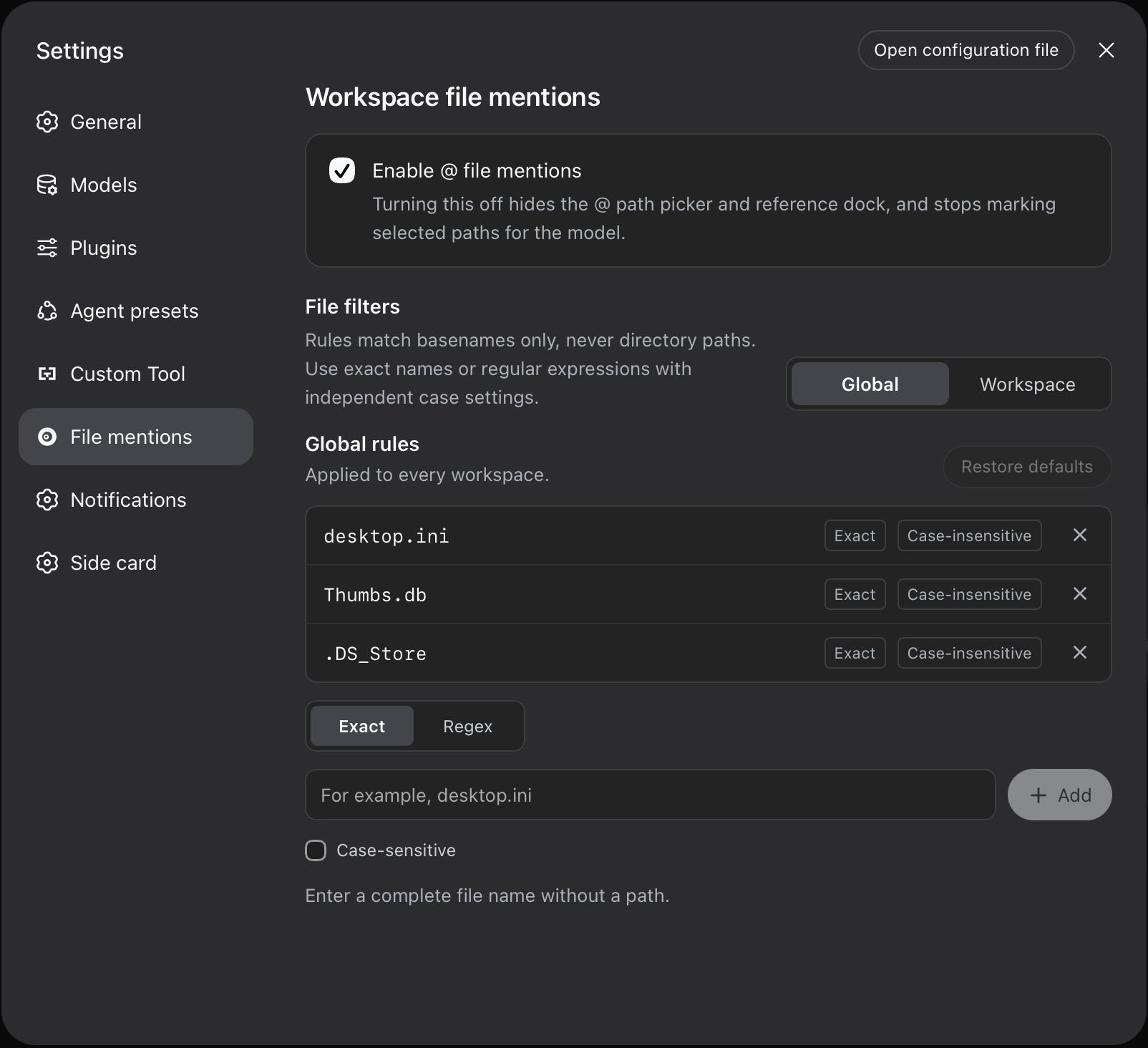
- Global contains rules shared by every workspace.
- Workspace contains additional rules for the selected workspace path. Each workspace keeps its own list, and the panel shows the global rules it inherits.
Each rule has its own matching mode and case setting:
- Exact matches one complete basename. Path separators are not accepted.
- Regex runs a JavaScript regular expression against the complete basename. It does not receive the parent directory or workspace path.
- Case-sensitive can be enabled independently for any Exact or Regex rule. It is off by default.
Rules are added and removed individually. An invalid regular expression is shown before saving and is also rejected by the Host. Restore defaults resets the global list to the built-in file names. Clear workspace rules removes only the selected workspace's additions.
Settings are saved in the DSH web profile through the plugin's own Host connection. Existing string values in ignoreFiles and workspace lists continue to work as case-insensitive Exact rules. A change clears the affected index cache, so the next @ search uses the saved rules.
Configuration
The available options apply to the path picker index:
maxIndexedFiles sets the maximum number of indexed workspace entries.ignoreDirs replaces the built-in list of directory names excluded from the picker. Set it to [] to index every directory.
Add the complete configuration to the selected profile's cordis.patch.yml. The usual path is ~/.dsh/profiles/web/cordis.patch.yml.
- id: dsh-at-file
  config:
    maxIndexedFiles: 10000
Omitting ignoreDirs keeps the built-in list. When you provide it, include every directory name you want excluded.
Path Handling
- The picker indexes regular files, directories, and symbolic links in the active workspace. Directory links are traversed through their workspace-relative alias, while links back to an ancestor are kept visible without being re-entered.
- Global and workspace file-name filters are combined during the Host index walk, before entries count toward
maxIndexedFiles or reach the browser.
- The Host accepts workspace-relative paths. Absolute paths and paths that escape the workspace are ignored.
- Reference markers are created from typed text and picker selections. Pasted
@ tokens are ignored when the default setting is enabled.
- Clicking a referenced path uses the Harness
host.openPath endpoint.
- The picker index is cached per session for 30 seconds.
- The reference dock only renders tokens that exist in the current session's settled workspace index. Unknown
@text remains ordinary text.
- An
@path token cannot contain whitespace or another @ character.
maxIndexedFiles limits picker results. A manually entered path can still be referenced when it exists inside the workspace.
The active agent may lack a tool for a particular file format. DSH provides read for UTF-8 text and read_image for supported images. PDF support depends on the tools available in the session.
Development
pnpm install
pnpm run check
pnpm run test
pnpm run build
The development setup expects the official deepseek-ai/deepseek-harness repository at ../deepseek-harness, its default clone directory. Built files under lib/ are committed so profile installation does not require package build scripts.
License
MIT

 dsh-at-file 是一个 DeepSeek Harness(DSH)插件,为网页编辑器添加 Codex 风格的 @file 提及:输入 @ 即可搜索当前工作区,并把文件或目录路径插入你的提示词。