


Что это?
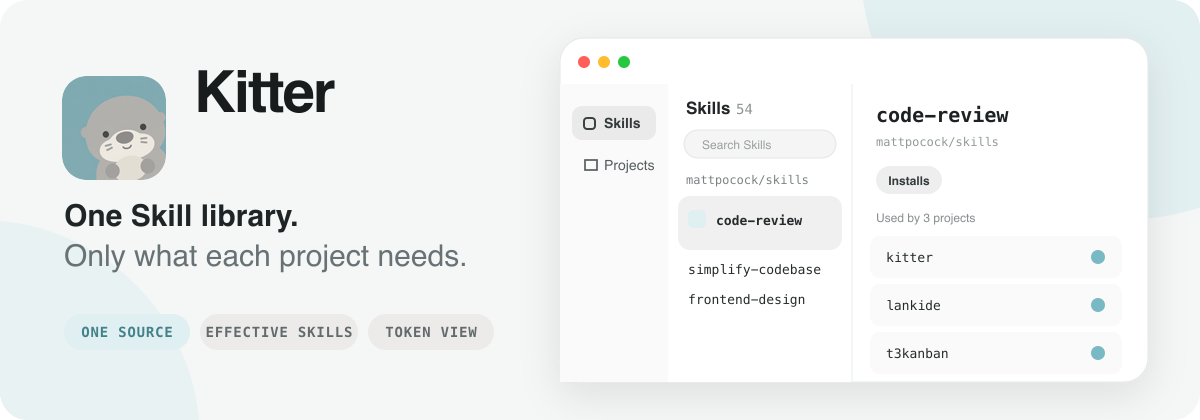
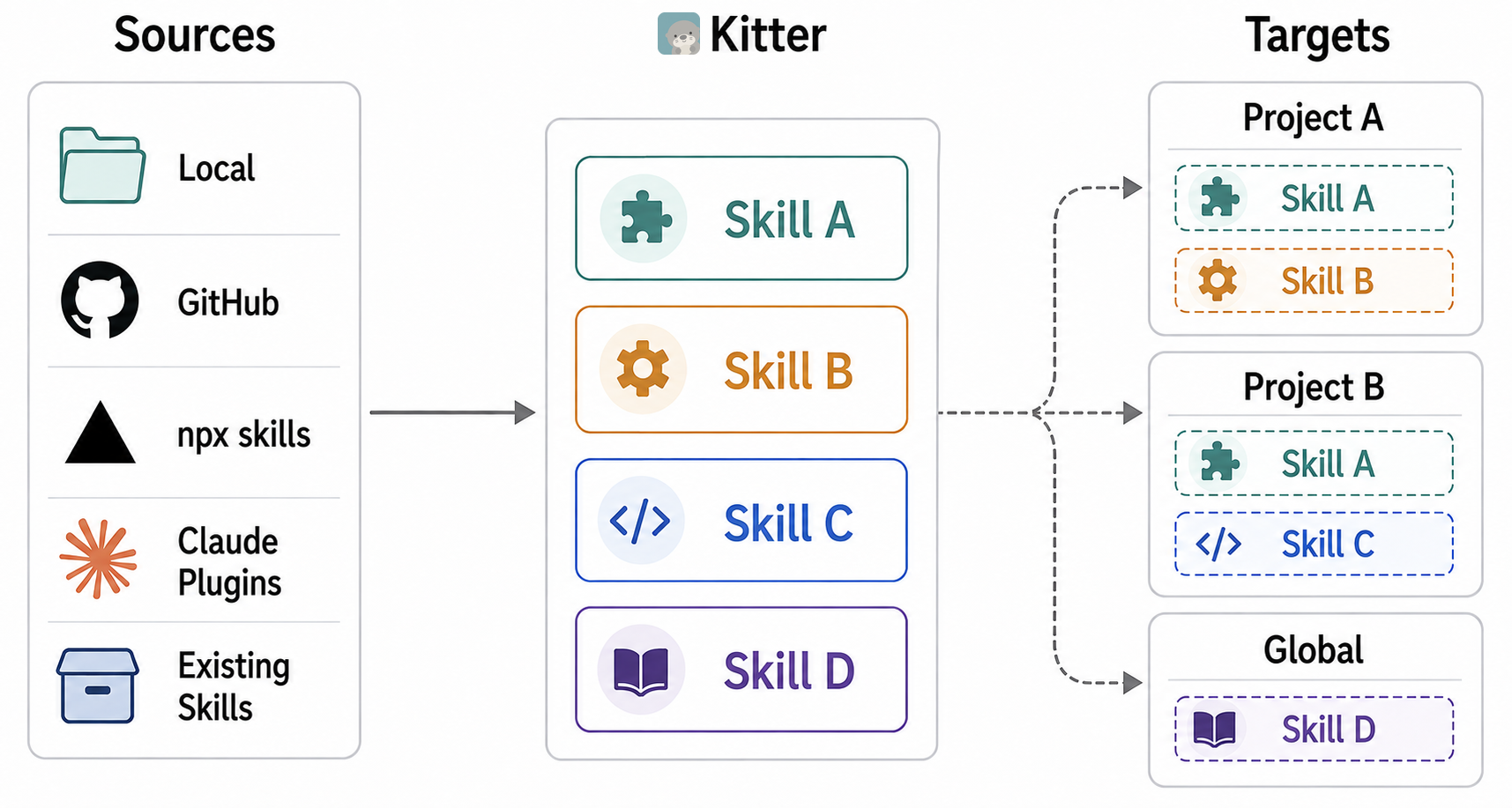
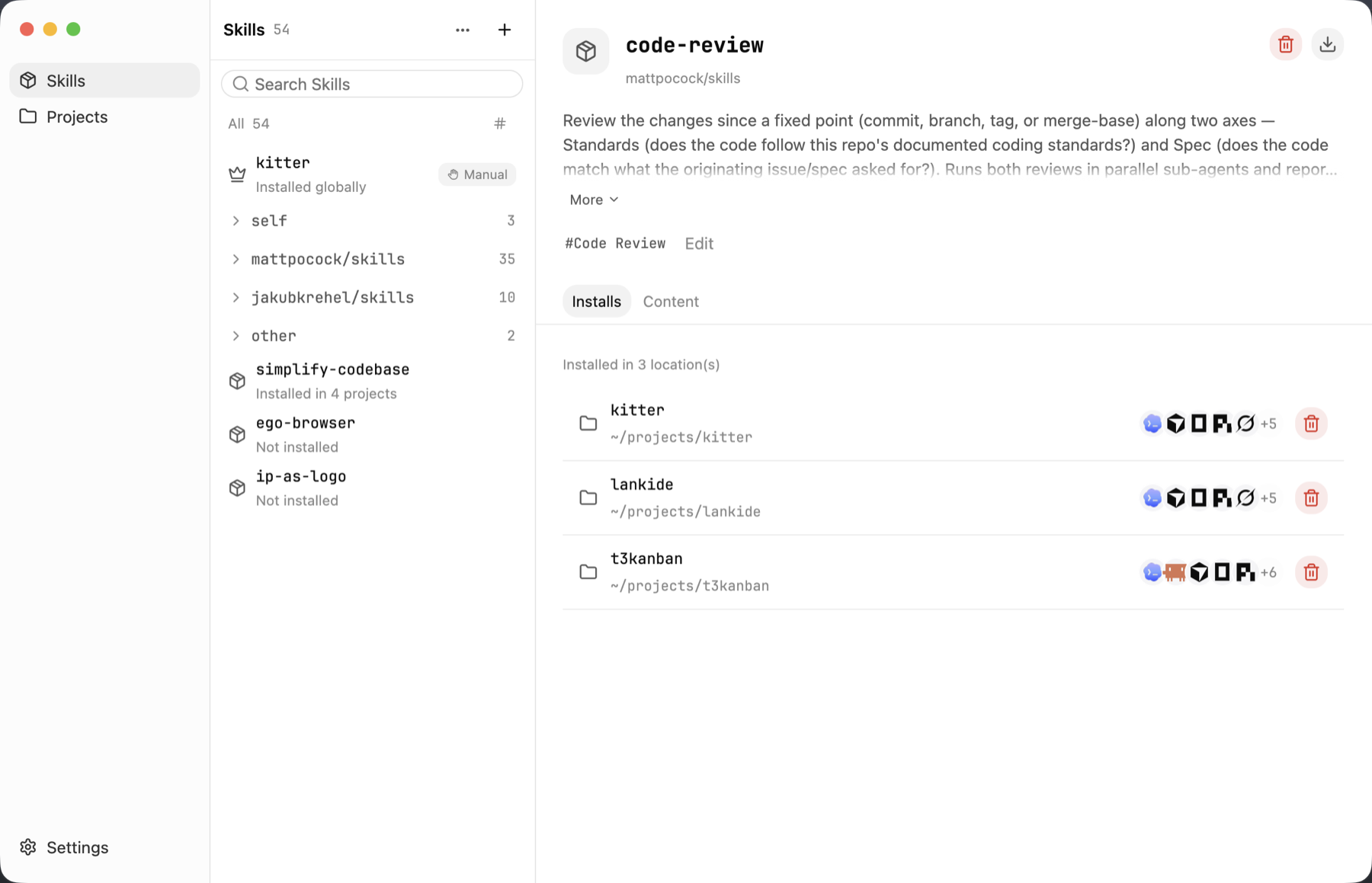
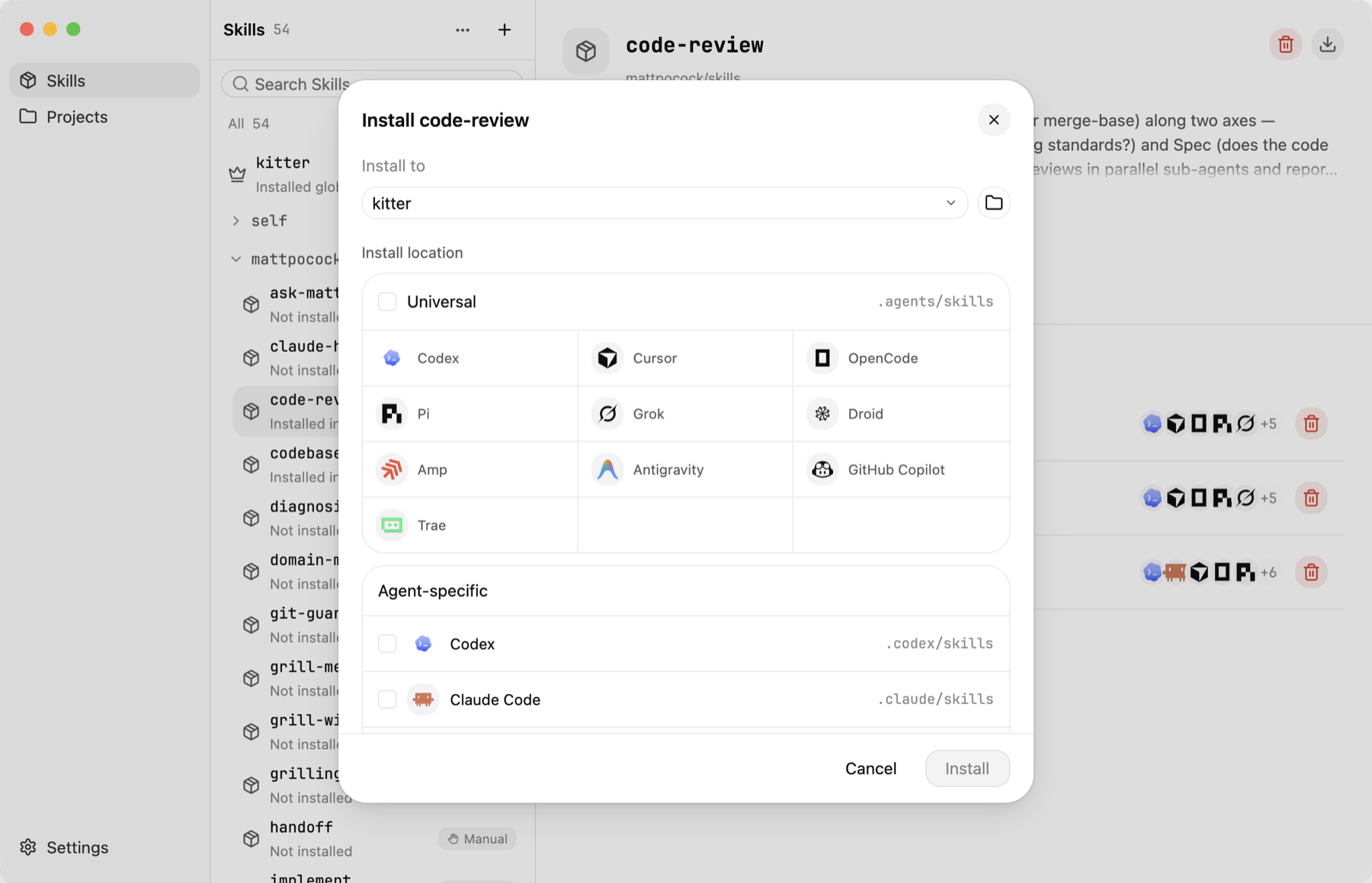
 Kitter — это десктоп-приложение и CLI для управления Agent Skills в нескольких проектах: вы храните скиллы в одной библиотеке и устанавливаете в каждый проект только нужную ему комбинацию, обновляя их все из одного места.
Kitter — это десктоп-приложение и CLI для управления Agent Skills в нескольких проектах: вы храните скиллы в одной библиотеке и устанавливаете в каждый проект только нужную ему комбинацию, обновляя их все из одного места.Kitter — это десктоп-приложение или консольная утилита?И то и другое — он поставляется как нативное десктоп-приложение (написано на Rust с использованием GPUI) и как отдельный автономный CLI, собранный из того же ядра, так что можно пользоваться любым из них по отдельности.
И то и другое — он поставляется как нативное десктоп-приложение (написано на Rust с использованием GPUI) и как отдельный автономный CLI, собранный из того же ядра, так что можно пользоваться любым из них по отдельности.Как установить Kitter?Скачайте релиз для своей ОС из GitHub Releases: macOS .dmg (Apple Silicon или Intel), Windows x64 .exe или Linux x64 .tar.gz, затем запустите приложение либо распакуйте и запустите бинарник './Kitter'.
Скачайте релиз для своей ОС из GitHub Releases: macOS .dmg (Apple Silicon или Intel), Windows x64 .exe или Linux x64 .tar.gz, затем запустите приложение либо распакуйте и запустите бинарник './Kitter'.Нужно ли что-то ещё, кроме скачанного бинарника?Нет — десктоп-приложение и CLI самодостаточны; для работы только через CLI просто добавьте бинарник 'kitter' в PATH и установите встроенный скилл $kitter.
Нет — десктоп-приложение и CLI самодостаточны; для работы только через CLI просто добавьте бинарник 'kitter' в PATH и установите встроенный скилл $kitter.На всех ли платформах Kitter работает одинаково?Пока не полностью — сборка под macOS не подписана Apple Developer ID, поэтому Gatekeeper может заблокировать первый запуск, а десктоп-приложение под Linux «всё ещё требует проверки на реальных системах», хотя CLI там работает стабильно.
Пока не полностью — сборка под macOS не подписана Apple Developer ID, поэтому Gatekeeper может заблокировать первый запуск, а десктоп-приложение под Linux «всё ещё требует проверки на реальных системах», хотя CLI там работает стабильно.Где Kitter хранит мои скиллы и настройки?Всё хранится локально: конфигурация и записи об источниках попадают в каталог данных приложений ОС, а содержимое скиллов — в папку библиотеки (например, '~/Library/Application Support/Kitter/skills' на macOS), которую можно перенести командой 'kitter library --set'.
Всё хранится локально: конфигурация и записи об источниках попадают в каталог данных приложений ОС, а содержимое скиллов — в папку библиотеки (например, '~/Library/Application Support/Kitter/skills' на macOS), которую можно перенести командой 'kitter library --set'.Что такое Skill в Kitter?Skill — это многократно используемая возможность, которую агент может обнаружить и задействовать; добавить их можно из локальной папки, GitHub, источника, совместимого с skills.sh, или источника плагинов Claude, а Kitter держит по одной поддерживаемой копии на каждый скилл.
Skill — это многократно используемая возможность, которую агент может обнаружить и задействовать; добавить их можно из локальной папки, GitHub, источника, совместимого с skills.sh, или источника плагинов Claude, а Kitter держит по одной поддерживаемой копии на каждый скилл.Как обновить скиллы сразу во всех моих проектах?Запустите 'Check for updates' в десктоп-приложении или используйте 'kitter check' и 'kitter update' из CLI — поскольку проекты ссылаются на общий источник через управляемые ссылки, а не копии, одно обновление доходит до каждой связанной установки.
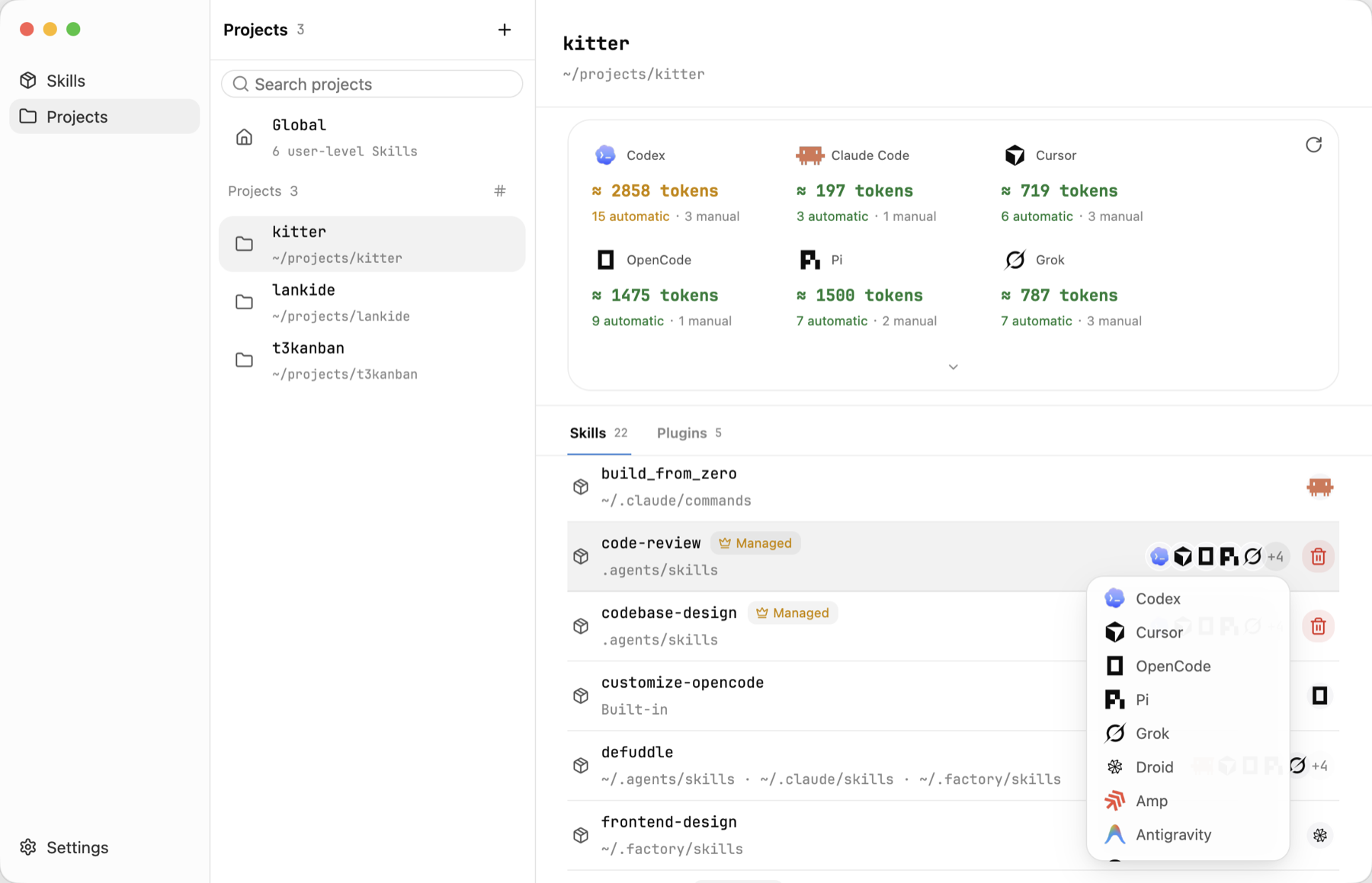
Запустите 'Check for updates' в десктоп-приложении или используйте 'kitter check' и 'kitter update' из CLI — поскольку проекты ссылаются на общий источник через управляемые ссылки, а не копии, одно обновление доходит до каждой связанной установки.Можно ли увидеть, какие скиллы агент реально может использовать прямо сейчас?Да, раздел Projects показывает полный фактический набор скиллов для каждого агента, включая установки, сделанные вне Kitter, их источники и примерную стоимость в токенах/контексте на каждого агента.
Да, раздел Projects показывает полный фактический набор скиллов для каждого агента, включая установки, сделанные вне Kitter, их источники и примерную стоимость в токенах/контексте на каждого агента.Можно ли занести в Kitter скиллы, которые я уже разбросал по проектам?Да — выберите 'Existing installations', чтобы просмотреть и принять уже установленные скиллы, не перемещая и не трогая их исходные каталоги.
Да — выберите 'Existing installations', чтобы просмотреть и принять уже установленные скиллы, не перемещая и не трогая их исходные каталоги.What are similar projects?evondevKit, asd-ste100-skill, aichat, leviathan, aos-ce, coral, open-knowledge, pdfcraft
evondevKit, asd-ste100-skill, aichat, leviathan, aos-ce, coral, open-knowledge, pdfcraftWhich topics is it in?package-manager, skills, plugin, claude, agent-skills, rust, command-line-tool, gui, desktop-app, terminal, ai-agents, tool
package-manager, skills, plugin, claude, agent-skills, rust, command-line-tool, gui, desktop-app, terminal, ai-agents, tool