





This is the source repository for lnav, visit https://lnav.org for a high level overview.
LNAV -- The Logfile Navigator
The Logfile Navigator is a log file viewer for the terminal. Given a
set of files/directories, lnav will:
- decompress as needed;
- detect their format;
- merge the files by time into a single view;
- tail the files, follow renames, find new files in directories;
- build an index of errors and warnings;
- pretty-print JSON-lines.
Then, in the lnav TUI, you can:
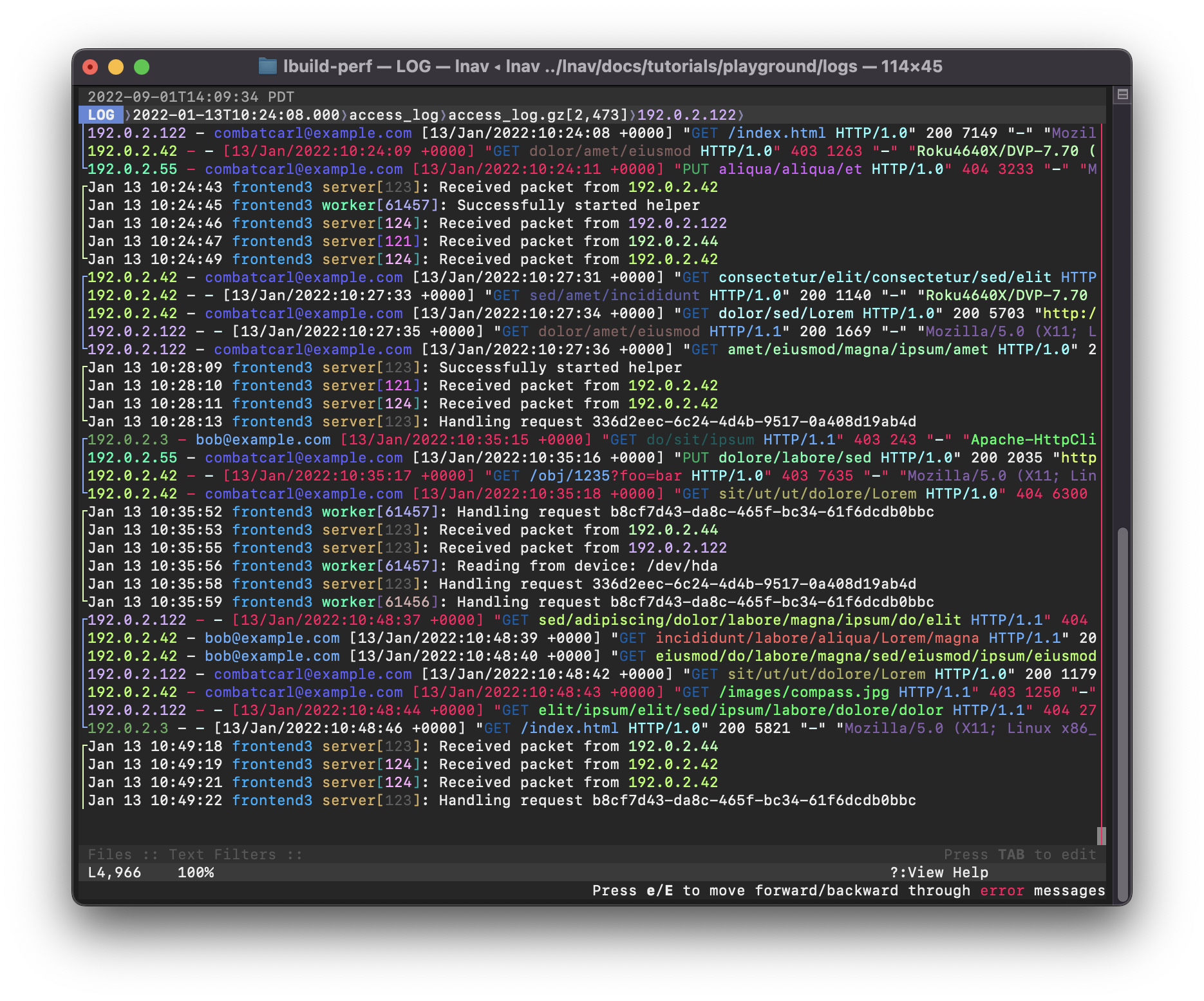
Screenshot
The following screenshot shows a mix of syslog and web access log
files. Failed requests are shown in red. Identifiers, like IP
address and PIDs are semantically highlighted.
Why not just use tail/grep/less?
The standard Unix utilities are great for processing raw text lines,
however, they do not understand log messages. Tail can watch
multiple files at a time, but it won't display messages in order by
time and you can't scroll backwards. Grep will only find matching
lines, but won't return a full multi-line log message. Less can only
display a single file at a time. Also, none of these basic tools
handle compressed files.
Try online before installing
You can SSH into a demo node to play with lnav before installing.
The "playground" account starts lnav with a couple of log files as
an example:
$ ssh [email protected]
The "tutorial 1" account is an interactive tutorial that can teach
you the basics of operation:
$ ssh [email protected]
Installation
Download a statically-linked binary for Linux/MacOS/Windows from the release page
Brew on MacOS
$ brew install lnav
FreeBSD
$ pkg install lnav
Usage
Simply point lnav at the files or directories you want to
monitor, it will figure out the rest:
$ lnav /path/to/file1 /path/to/dir ...
The lnav TUI will pop up right away and begin indexing the
files. Progress is displayed in the "Files" panel at the
bottom. Once the indexing has finished, the LOG view will display
the log messages that were recognized[^1]. You can then use the
usual hotkeys to move around the view (arrow keys or
j/k/h/l to move down/up/left/right).
See the Usage section
of the online documentation for more information.
[^1]: Files that do not contain log messages can be seen in the
TEXT view (reachable by pressing t).
Usage with systemd-journald
On systems running systemd-journald, you can use lnav as the pager:
$ journalctl | lnav
or in follow mode:
$ journalctl -f | lnav
Since journalctl's default output format omits the year, if you are
viewing logs which span multiple years you will need to change the
output format to include the year, otherwise lnav gets confused:
$ journalctl -o short-iso | lnav
It is also possible to use journalctl's json output format and lnav
will make use of additional fields such as PRIORITY and _SYSTEMD_UNIT:
$ journalctl -o json | lnav
In case some MESSAGE fields contain special characters such as
ANSI color codes which are considered as unprintable by journalctl,
specifying journalctl's -a option might be preferable in order
to output those messages still in a non-binary representation:
$ journalctl -a -o json | lnav
If using systemd v236 or newer, the output fields can be limited to
the ones actually recognized by lnav for increased efficiency:
$ journalctl -o json --output-fields=MESSAGE,PRIORITY,_PID,SYSLOG_IDENTIFIER,_SYSTEMD_UNIT | lnav
If your system has been running for a long time, for increased
efficiency you may want to limit the number of log lines fed into
lnav, e.g. via journalctl's -n or --since=... options.
In case of a persistent journal, you may want to limit the number
of log lines fed into lnav via journalctl's -b option.
Support
Please file issues on this repository or use the discussions section.
The following alternatives are also available:
Links
Contributing
Building From Source
Prerequisites
The following software packages are required to build lnav:
- gcc/clang - A C++14-compatible compiler.
- libpcre2 - The Perl Compatible Regular Expression v2 (PCRE2) library.
- sqlite - The SQLite database engine. Version 3.9.0 or higher is required.
- zlib - The zlib compression library.
- bz2 - The bzip2 compression library.
- libcurl - The cURL library for downloading files from URLs. Version 7.23.0 or higher is required.
- libarchive - The libarchive library for opening archive files, like zip/tgz.
- libunistring - The libunistring library for dealing with unicode.
- wireshark - The 'tshark' program is used to interpret pcap files.
- cargo/rust - The Rust language is used to build the PRQL compiler.
Build
Lnav follows the usual GNU style for configuring and installing software:
Run ./autogen.sh if compiling from a cloned repository.
$ ./configure
$ make
$ sudo make install
See Also
Angle-grinder is a tool to slice and dice log files on the command-line.
If you're familiar with the SumoLogic query language, you might find this tool more comfortable to work with.
Code Signing Policy
Free code signing provided by SignPath.io,
certificate by SignPath Foundation.
This program will not transfer any information to other networked systems
unless specifically requested by the user or the person installing or
operating it.
Acknowledgements
Many thanks to:
- GitHub Sponsors
- Anthropic for including lnav in the Claude for Open Source Program


 lnav 是一个终端里的日志文件查看器。把文件或目录交给它,它会自动识别格式,把它们按时间顺序合并到一个视图里,并在有新消息时持续跟踪显示。