GoogleUnlimited
Automated, cross-platform media synchronization utility for Google Photos.
Runs as a lightweight native background watcher on Windows, macOS, and Linux to automatically sync photos and videos using Google Pixel device emulation powered by xob0t/gotohp — without virtual machines, Android emulators, Windows Subsystem for Android (WSA), or WSL.
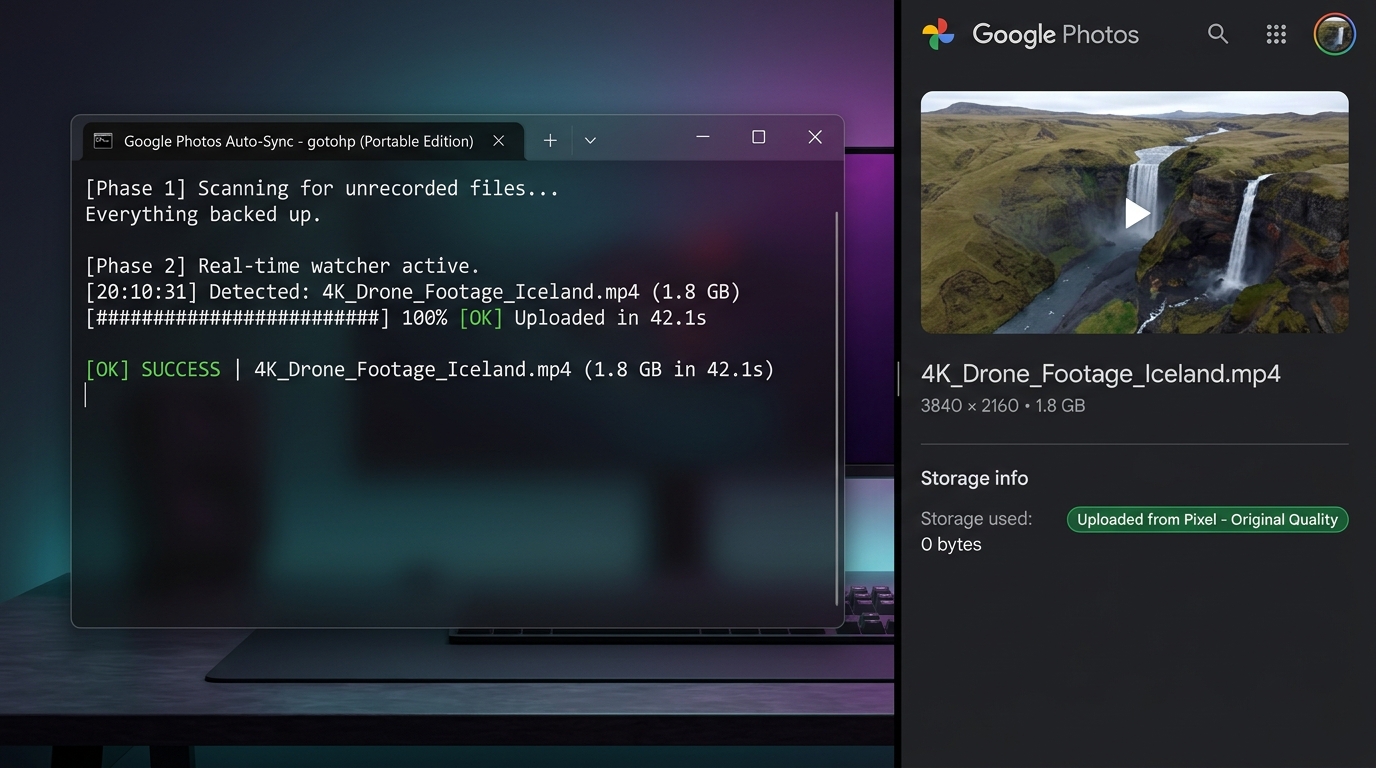
Table of Contents
Overview
GoogleUnlimited monitors local folders on your computer and automatically synchronizes eligible photos and videos to your Google Photos library. It pairs native operating system event watchers (PowerShell on Windows, fswatch on macOS, and inotify-tools on Linux) with an embedded SQLite database (gphotos.db) and the standalone gotohp CLI binary.
The upload engine communicates directly with Google's mobile upload endpoints using Google Pixel device emulation. Because the requests present as a Pixel device, media backed up through this mechanism is processed according to Google Photos Pixel backup rules.
Features
- Real-Time Filesystem Monitoring:
- Windows: Uses .NET
FileSystemWatcher with an expanded 64 KB event buffer and a 1.5-second debounce window to prevent redundant uploads on burst writes.
- macOS: Uses
fswatch for continuous low-latency filesystem event streaming.
- Linux: Uses
inotifywait (inotify-tools) listening to close_write, moved_to, and create kernel events.
- Initial Sync & Periodic Safety Sweeps:
- Traverses all monitored directories at startup (Phase 1) to upload any existing unrecorded media.
- Runs periodic background safety sweeps (every 30 seconds on Windows, every 15 minutes on macOS/Linux) to detect offline camera imports or files added while the watcher was paused.
- Cross-Platform Content-Hash Deduplication:
- Tracks all uploaded files in a local SQLite database (
gphotos.db) using WAL mode.
- Lookups use both file paths and a combined
filename|filesize key paired with a SHA-256 content_hash. This prevents duplicate re-uploads on dual-boot machines or shared external drives where paths differ between operating systems.
- Active Download & Lock Detection:
- Verifies file size stability across multiple sampling checks and tests for exclusive write access before uploading. This prevents uploading partial files during active web downloads, screen recordings (OBS, Xbox Game Bar), or video rendering exports.
- Automatic Retry Queue:
- Upload failures are stored in a persistent
retry_queue table and automatically retried every 30 seconds for up to 3 attempts before logging a permanent failure.
- Background Startup Automation:
- Windows: Native invisible background execution via PowerShell hidden window style (
GoogleUnlimited.bat silent) and Windows Startup shortcut automation (GoogleUnlimited.lnk). Zero reliance on legacy script hosts.
- macOS: Native user
launchd LaunchAgent service management.
- Linux: Native
systemd user service with lingering session support (loginctl enable-linger).
- Single-Instance Protection:
- On Windows, a named system mutex (
Local\GoogleUnlimited_Watcher_<path>) prevents multiple concurrent watcher instances from running against the same installation directory.
- On Unix, dedicated PID tracking (
.watcher.pid) and process inspection prevent conflicting background processes.
- Security & Privacy Hardening:
- Credentials (
gotohp.config) and database files are restricted to owner-only permissions (chmod 600 on Unix).
- OAuth tokens can be entered interactively with hidden console echo, preventing exposure in shell history or process tables.
- Official release binaries are checked against trusted SHA-256 checksums during setup.
- Direct connection to Google endpoints (
photoslibrary.googleapis.com); zero telemetry and no intermediate servers.
Requirements
| Platform |
OS Version / Arch |
Runtime & Shell |
Required Dependencies |
Dependency Installation |
| Windows |
Windows 10 / 11 (64-bit) |
PowerShell 5.1 or PowerShell 7+ (pwsh) |
PSSQLite module |
Bundled in Modules/PSSQLite/; auto-installs via PowerShell Gallery if missing |
| macOS |
macOS 11 (Big Sur)+
Apple Silicon (M1–M4) & Intel x64 |
Bash |
fswatch, sqlite3, curl |
Auto-installed via Homebrew during ./google-unlimited.sh setup |
| Linux |
Modern Linux distributions
x86_64 or aarch64/arm64 |
Bash |
inotify-tools, sqlite3, curl |
Auto-installed via apt, dnf, pacman, or zypper during ./google-unlimited.sh setup |
Binaries Included in Repository
gotohp-cli-x64.exe: 64-bit Windows command-line upload engine (gotohp v0.11.0).gotohp-x64.exe: Windows desktop GUI helper for Google OAuth sign-in.gotohp-cli_amd64: Native Linux x86_64 binary.- macOS Universal and Linux ARM64 binaries are downloaded automatically from official releases and verified with SHA-256 during
./google-unlimited.sh setup.
Quick Start
Windows Quick Start
- Clone the repository:
git clone https://github.com/shishir0x/GoogleUnlimited.git
cd GoogleUnlimited
- Sign in to Google Photos:
- Double-click
gotohp-x64.exe.
- Click Add Google account → Open Google sign-in → sign in → click I agree.
- Press F12 in your browser → Application tab (or Storage in Firefox) → Cookies (
https://accounts.google.com) → copy the oauth_token value.
- Paste the token into
gotohp and click Connect account, then close the window.
- Start syncing:
macOS Quick Start
- Clone the repository:
git clone https://github.com/shishir0x/GoogleUnlimited.git
cd GoogleUnlimited
- Run the setup script:
chmod +x google-unlimited.sh
./google-unlimited.sh setup
(Installs fswatch, sqlite3, downloads the universal binary, and verifies SHA-256 integrity).
- Sign in to Google Photos:
- Start syncing:
./google-unlimited.sh watch
Linux Quick Start
- Clone the repository:
git clone https://github.com/shishir0x/GoogleUnlimited.git
cd GoogleUnlimited
- Run the setup script:
chmod +x google-unlimited.sh
./google-unlimited.sh setup
(Installs inotify-tools, sqlite3, and curl using your system package manager).
- Sign in to Google Photos:
- Start syncing:
./google-unlimited.sh watch
Authentication and Account Setup
GoogleUnlimited uses Google's Embedded Setup workflow to authenticate as an Android Google Photos client. This enables the mobile upload endpoint required for Google Pixel emulation.
Why does the setup page buffer indefinitely?
When you log in through https://accounts.google.com/embedded/setup/v2/android and click I agree, Google expects a physical Android device to acknowledge the connection. In a web browser, the page will buffer or spin indefinitely. This is completely normal and expected. The authentication cookie has already been issued.
Retrieving the oauth_token
- Open Developer Tools (F12, or right-click → Inspect).
- Open the cookie storage inspector:
- Chrome, Edge, Brave, Opera: Application tab → Storage → Cookies →
https://accounts.google.com.
- Firefox: Storage tab → Cookies →
https://accounts.google.com.
- Safari: Storage tab → Cookies →
accounts.google.com.
- Locate the cookie named
oauth_token and copy its entire string value.
Credential Storage & Security
- Credentials are saved locally to
gotohp.config in the root repository directory.
gotohp.config is excluded by .gitignore and must never be committed to version control.- On macOS and Linux, the script automatically applies
chmod 600 so only your user account can read or write the file.
- When entering tokens via
./google-unlimited.sh creds add, terminal echo is disabled to prevent the token from appearing in terminal history, process listings (ps), or shoulder surfing.
Managing Multiple Accounts
# List all configured accounts (the active account is marked with an asterisk *)
./google-unlimited.sh creds list

# Switch the active upload account
./google-unlimited.sh creds set [email protected]

# Remove a configured account
./google-unlimited.sh creds remove [email protected]
On Windows, you can also manage accounts via GoogleUnlimited.bat account or by selecting option [9] from the menu.
Commands Reference
Windows (GoogleUnlimited.bat / PowerShell)
Running GoogleUnlimited.bat without arguments opens the interactive management menu:
==========================================================
  *  Google Unlimited Photos Auto-Sync (Windows)
==========================================================
  [1] Start Live Watcher (Interactive progress)
  [2] Start Background Watcher (Silent, zero window)
  [3] Check Backup Status
  [4] View Activity Logs
  [5] Enable Auto-Start on Windows Boot
  [6] Disable Auto-Start on Windows Boot
  [7] Stop Background Watcher
  [8] Manage Watched Folders (Add/List custom folders)
  [9] Manage Google Accounts (List/Switch account)
  [10] Force Re-scan & Sync All Media
  [11] Check / Update Application (Keep configs safe)
  [0] Exit
==========================================================
You can also run commands directly from the command prompt or terminal:
| Batch Command |
Underlying PowerShell Flag |
Menu Option |
Description |
GoogleUnlimited.bat watch [dirs...] |
.\WatchAndUpload.ps1 [dirs...] |
[1] |
Start the live foreground watcher with dynamic progress bars and ETAs. |
GoogleUnlimited.bat silent |
powershell.exe -WindowStyle Hidden -File .\WatchAndUpload.ps1 |
[2] |
Start the background watcher silently (zero console window). |
GoogleUnlimited.bat status |
.\WatchAndUpload.ps1 -StatusOnly |
[3] |
View total uploads, pending retries, service state, and last 10 uploads. |
GoogleUnlimited.bat logs |
.\WatchAndUpload.ps1 -ShowLogs |
[4] |
Display the last 30 sync activity entries from the database. |
GoogleUnlimited.bat enable |
.\WatchAndUpload.ps1 -EnableStartup |
[5] |
Create a shortcut in the Windows Startup folder to run on boot. |
GoogleUnlimited.bat disable |
.\WatchAndUpload.ps1 -DisableStartup |
[6] |
Remove the shortcut from the Windows Startup folder. |
GoogleUnlimited.bat stop |
.\WatchAndUpload.ps1 -StopWatcher |
[7] |
Terminate any active background watcher processes. |
GoogleUnlimited.bat dirs |
.\WatchAndUpload.ps1 -ManageDirs |
[8] |
Open the interactive folder manager or Windows folder browser dialog. |
GoogleUnlimited.bat account |
gotohp-cli creds |
[9] |
List configured accounts, switch the active account, or open the GUI. |
GoogleUnlimited.bat resync |
.\WatchAndUpload.ps1 -ForceResync |
[10] |
Perform a full scan and force re-sync of all media across watched directories. |
GoogleUnlimited.bat update |
.\WatchAndUpload.ps1 -UpdateApp |
[11] |
Check and apply application updates safely while preserving configs & database. |
macOS & Linux (google-unlimited.sh)
Running ./google-unlimited.sh without arguments in an interactive terminal opens the Unix manager menu:
==========================================================
  *  GoogleUnlimited - Unix Manager (Linux/Darwin)
==========================================================
  [1] Start Live Watcher (Foreground)
  [2] Check Backup Status
  [3] View Activity Logs
  [4] Run Setup & Dependency Installer
  [5] Enable Auto-Start on Boot (launchd / systemd)
  [6] Disable Auto-Start on Boot
  [7] Stop Background Watcher
  [8] Verify Binary Integrity
  [9] Check / Update Application (Keep configs safe)
  [0] Exit
==========================================================
You can execute any command directly from the shell:
| Shell Command |
Menu Option |
Description |
./google-unlimited.sh watch [dirs...] |
[1] |
Start the live sync watcher in the foreground. |
./google-unlimited.sh status |
[2] |
Display upload statistics, retry queue count, and recent sync records. |
./google-unlimited.sh logs |
[3] |
View the last 30 sync activity log records with color-coded severity. |
./google-unlimited.sh setup |
[4] |
Install platform dependencies, download missing binaries, and set file permissions. |
./google-unlimited.sh enable |
[5] |
Enable auto-start on login (launchd on macOS, systemd user service on Linux). |
./google-unlimited.sh disable |
[6] |
Disable and remove the auto-start background service. |
./google-unlimited.sh stop |
[7] |
Stop all active background watcher instances and filesystem listeners. |
./google-unlimited.sh verify |
[8] |
Verify the cryptographic SHA-256 integrity of the gotohp-cli binary. |
./google-unlimited.sh update |
[9] |
Check and apply application updates safely while preserving configs & database. |
./google-unlimited.sh creds [subcommand] |
— |
Manage accounts: creds add, creds list, creds set <email>, creds remove <email>. |
./google-unlimited.sh menu |
— |
Explicitly open the interactive terminal menu. |
./google-unlimited.sh help |
— |
Display command-line usage information. |
Monitored Folders
Default Behavior (When watch_dirs.txt does not exist):
- Windows: The watcher automatically monitors standard photo and download directories:
Pictures (user Pictures folder)Downloads (resolved via registry or %USERPROFILE%\Downloads)- Cloud folders if they exist on the filesystem:
- OneDrive:
%USERPROFILE%\OneDrive\Pictures, %USERPROFILE%\OneDrive\Pictures\Camera Roll
- iCloud:
%USERPROFILE%\Pictures\iCloud Photos\Photos
- Google Drive:
%USERPROFILE%\Google Drive\Google Photos, %USERPROFILE%\Google Photos
(Note: Other Windows folders like Desktop, Videos, Documents, and Music can be added easily using GoogleUnlimited.bat dirs).
- macOS & Linux: Automatically detects and monitors existing directories among:
$HOME/Pictures$HOME/Downloads$HOME/Google Photos$HOME/OneDrive/Pictures$HOME/Pictures/iCloud Photos/Photos
(If none exist, $HOME/Pictures is created and watched).
Custom Watch Folders (watch_dirs.txt)
When a watch_dirs.txt file exists in the repository root, the watcher switches to custom mode and monitors only the directories specified in that file (plus any directories passed via command-line arguments).
- Create or edit
watch_dirs.txt in the repository root (or use GoogleUnlimited.bat dirs on Windows).
- Add one absolute path per line. Lines starting with
# are ignored as comments. Environment variables are automatically expanded:# Standard media directories
%USERPROFILE%\Pictures
%USERPROFILE%\Downloads
# External drives or SD cards
D:\Camera_Imports
E:\Sony_A7_Media
# macOS / Linux paths
$HOME/Google Photos
${HOME}/Media
~/Pictures
/Volumes/ExternalSSD/Photos
On macOS and Linux, $VAR, ${VAR}, and a leading ~ are expanded. Unknown
variables are left unchanged, and shell expressions are never executed.
- You can also specify directories ad-hoc when launching:
GoogleUnlimited.bat watch "D:\Photos" "E:\Videos"
./google-unlimited.sh watch /Volumes/ExternalSSD/Photos /Volumes/ExternalSSD/Videos
Files are checked against a verified whitelist of extensions (case-insensitive) and must be at least 10 KB in size:
- Standard Photos & Images (14):
.jpg, .jpeg, .png, .heic, .heif, .webp, .gif, .bmp, .tiff, .tif, .svg, .ico, .jfif, .avif
- Camera RAW Formats (11):
.dng, .raw, .cr2, .cr3 (Canon), .nef (Nikon), .arw (Sony), .orf (Olympus), .rw2 (Panasonic), .pef (Pentax), .srw (Samsung), .raf (Fujifilm)
- Videos (16):
.mp4, .mov (Apple QuickTime/iPhone), .mkv, .avi, .m4v, .3gp, .3g2, .wmv, .webm, .mpg, .mpeg, .mts, .m2ts, .ts, .flv, .vob
Files with temporary or partial extensions (such as .tmp, .crdownload, .part, .db, .config) and files inside Modules/ are strictly excluded.
File Readiness & Lock Detection
To prevent corrupt or partial uploads:
- When a new media file is detected, the watcher checks whether the file is still growing or being written by another application (e.g., a browser download or video rendering export).
- The readiness algorithm tests write-exclusivity:
- Windows: Attempts to open the file stream with exclusive sharing locks.
- Unix: Uses
lsof or fuser to verify no other process holds an open write handle.
- If a file remains locked or is actively growing, it is queued and reassessed every few seconds until the file is complete.
Background Operation
Windows Background Operation
macOS Background Operation
- Auto-Start on Login: Run
./google-unlimited.sh enable or option [5].
- Disable Auto-Start: Run
./google-unlimited.sh disable or option [6]. This unloads the service with launchctl unload -w and removes the .plist file.
- Stop Running Watcher: Run
./google-unlimited.sh stop or option [7]. Stops the LaunchAgent, signals the running PID recorded in .watcher.pid, and stops active fswatch processes.
Linux Background Operation
Single-Instance Protection
- Windows:
WatchAndUpload.ps1 uses a named Windows Mutex (Local\GoogleUnlimited_Watcher_<cleanBase>). If an existing watcher instance is already running for the current directory, subsequent invocations exit immediately with code 0. GoogleUnlimited.bat silent executes a -CheckRunning validation to ensure duplicate processes are never spawned.
- macOS & Linux: The watcher script writes its active process ID to
.watcher.pid. The stop command inspects .watcher.pid and checks process listings (pgrep) to cleanly terminate active watchers and listeners without affecting other system tasks.
Data Storage, Privacy, and Security
Local Database Schema (gphotos.db)
All synchronization history is tracked locally in SQLite using WAL (Write-Ahead Logging) mode:
-- Tracks uploaded media files
CREATE TABLE uploads (
    path         TEXT PRIMARY KEY,
    media_key    TEXT,
    uploaded_at  TEXT NOT NULL DEFAULT (datetime('now','localtime')),
    file_name    TEXT,
    file_size    INTEGER,
    content_hash TEXT
);

-- Tracks files pending retry
CREATE TABLE retry_queue (
    path         TEXT PRIMARY KEY,
    attempts     INTEGER NOT NULL DEFAULT 0,
    last_attempt TEXT
);

-- Operational activity logs (auto-purged after 30 days)
CREATE TABLE logs (
    id        INTEGER PRIMARY KEY AUTOINCREMENT,
    timestamp TEXT NOT NULL DEFAULT (datetime('now','localtime')),
    level     TEXT NOT NULL,
    message   TEXT NOT NULL
);
Privacy & Network Destinations
Troubleshooting
1. "ACTION REQUIRED: No Google Account Logged In!"
- Cause: No credentials exist in
gotohp.config, or no account is marked as active.
- Resolution:
2. "Another instance is already running" (Windows)
- Cause: A background watcher instance is already running and owns the system mutex.
- Resolution:
- Run
GoogleUnlimited.bat status to check if the background watcher is active.
- To stop it, run
GoogleUnlimited.bat stop (or select option [7]).
3. File Locked or Still Downloading
- Cause: A media file was detected while a download, export, or screen recording was in progress.
- Resolution: No manual intervention is needed. GoogleUnlimited automatically holds locked or growing files in the retry queue and processes them once the writing process closes the file.
4. macOS Gatekeeper / Permission Issues
- Cause: macOS applies a quarantine flag (
com.apple.quarantine) to downloaded binaries.
- Resolution:
- Run
./google-unlimited.sh setup to automatically strip quarantine flags and set execution permissions (chmod 700).
- Ensure your terminal has Full Disk Access permissions in macOS System Settings → Privacy & Security if monitoring external drives or protected folders like
Downloads.
5. PowerShell Execution Policy Restrictions (Windows)
6. Checking Diagnostic Logs
- To inspect recent sync errors or warnings:
- Windows:
GoogleUnlimited.bat logs (or menu option [4]).
- macOS / Linux:
./google-unlimited.sh logs (or menu option [3]).
- Note: Do not delete
gphotos.db to troubleshoot minor issues. Deleting gphotos.db resets your local upload history and will cause GoogleUnlimited to re-evaluate and re-upload all existing media.
7. Video Streaming, Seeking, and Android TV Playback
- Symptom: When streaming backed-up videos to an external player on Android TV (e.g., Kodi, Nova Video Player, VLC), seeking forward/backward fails or resuming a partially watched video starts over from the beginning.
- Cause: GoogleUnlimited is a local backup/synchronization daemon that uploads original media to Google Photos. Google Photos direct/raw download endpoints do not support HTTP
Range: headers (HTTP 206 Partial Content) for random byte-range seeking on original media files. The built-in Google Photos web/mobile player can seek and resume because Google generates lower-resolution transcoded DASH/HLS streams on their backend (which strips secondary audio tracks, Dolby/DTS audio, and embedded subtitle tracks).
- Workarounds:
8. Antivirus Warnings & False Positives ("Virus Detected" / Browser Block)
- Symptom: When downloading
GoogleUnlimited-main.zip from GitHub in Chrome or Edge, the browser displays GoogleUnlimited-main.zip Failed - Virus detected, or Windows Defender / third-party antivirus flags a generic heuristic alert (e.g. Trojan:Win32/Wacatac or Trojan.Gen).
- Cause:
- Pixel Device API Emulation: The core upload binary (
gotohp-x64.exe / gotohp-cli-x64.exe) is an open-source Go client (xob0t/gotohp) that communicates directly with Google Photos internal mobile upload endpoints, emulating Google Pixel device headers to qualify for unlimited backup storage. Because it is unsigned and spoofs mobile hardware device properties over HTTPS, generic heuristic engines flag it as a false positive.
- Script Cleanliness: Legacy releases used a VBScript helper (
StartPhotosWatcher.vbs) and in-memory P/Invoke kernel32 calls, which triggered script-host behavioral heuristics. These have been completely eliminated from the codebase in favor of clean, native PowerShell automation.
- How to Resolve:
Limitations and Disclaimer
- Unofficial Utility: GoogleUnlimited is an independent open-source utility and is not affiliated with, maintained, sponsored, or endorsed by Google LLC or Alphabet Inc.
- Service & Policy Changes: The project relies on Google Photos mobile endpoints and device spoofing implemented in
gotohp. Google may modify its APIs, authentication mechanisms, device eligibility criteria, or storage policies at any time. No guarantee of permanent, uninterrupted service or indefinite zero-quota storage can be made.
- Cloud Placeholders: Files stored only as cloud placeholders (e.g., OneDrive "Files On-Demand" or iCloud "Optimize Storage" files that have not been downloaded to local disk) cannot be read by the watcher until they are downloaded locally.
- Removable Media: External drives and SD cards added to
watch_dirs.txt are monitored while mounted. If an external drive is disconnected, monitoring will resume once reconnected and rescanned.
- Independent Backups: Users are strongly advised to keep independent, permanent backups of their important photos and personal media.
Credits and License
- Google Photos Engine: Powered by
xob0t/gotohp by xob0t (licensed under the GNU General Public License v3.0).
- Windows SQLite Engine: Powered by
PSSQLite by RamblingCookieMonster (licensed under the Apache License 2.0).
- Issues & Contributions: Report bugs, suggest enhancements, or submit pull requests on GitHub:
👉 GoogleUnlimited Issue Tracker

 GoogleUnlimited 是一个跨平台的后台工具,它会监视本地文件夹,并通过模拟 Google Pixel 设备,自动将照片和视频上传到 Google Photos,目标是在不使用虚拟机或 Android 模拟器的情况下,获得无限制画质的备份上传。