SSHDESK
       _____ _____ __  ______  ____________ __ __
      / ___// ___// / / / __ \/ ____/ ___// //_/
      \__ \ \__ \/ /_/ / / / / __/  \__ \/ ,<
     ___/ /___/ / __  / /_/ / /___ ___/ / /| |
    /____//____/_/ /_/_____/_____//____/_/ |_|

        YOUR DESKTOP  //  ONE SSH SESSION  //  ZERO EXTRA PORTS


AI coding agents must read AGENTS.md before modifying this
repository.
SSHDESK is a full interactive remote desktop delivered entirely through an SSH session and displayed directly inside your terminal.
Demo
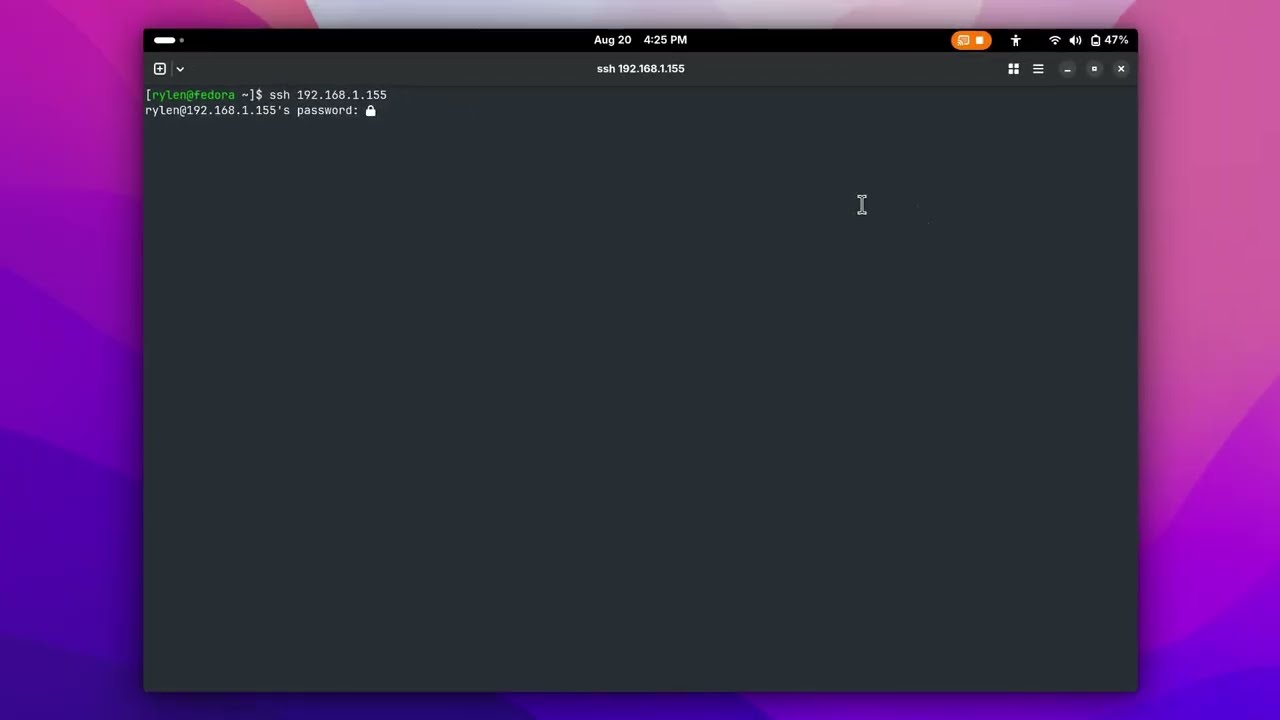
Connect with the SSH client you already have:
# SSHDESK desktop (default)
ssh [email protected]

# Normal login shell
ssh -t [email protected] shell

# Explicitly select SSHDESK
ssh -t [email protected] desktop
OpenSSH authenticates the user and launches SSHDESK as a forced command. The
active graphical desktop then appears inside that same terminal. Keyboard,
mouse, resize events, changed pixels, and session cleanup all travel through the
one SSH PTY. There is no browser, custom SSH client, VNC/RDP listener, second
password database, web server, or additional network port.
Kitty, Ghostty, and WezTerm receive sharp real-pixel tiles. Every ordinary ANSI
terminal receives the lower-resolution color-cell renderer, so OpenSSH, PuTTY,
mobile clients, and embedded SSH terminals remain usable.
[!WARNING]
Anyone who can authenticate to an SSHDESK account can see and control the
active graphical session. Treat it like physical console access. Keep a
second administrative login available while configuring a forced command.
Features
- full desktop viewing with changed-tile/cell updates and static-frame suppression
- keyboard, Ctrl/Alt/Shift, arrows, navigation keys, and F1–F12
- mouse movement, left/right/middle click, drag, and wheel scrolling
- dynamic terminal resize with aspect-ratio-preserving viewport recalculation
- persistent top bar and terminal title showing the connected device name
- sharp palette-compressed PNG tiles through Kitty graphics, including tmux passthrough
- true-color, 256-color, 16-color, Unicode, and ASCII fallbacks
- latest-frame scheduling that drops stale work instead of accumulating latency
- 60 FPS sharp / 30 FPS ANSI active targets with adaptive idle presentation
- live FPS, latency, capture, diff, bandwidth, and update instrumentation
- agent-safe screenshot and computer-use commands carried through OpenSSH
- optional tmux side-by-side layout for an agent shell and visual desktop
- terminal restoration and held-input release after disconnects or crashes
- X11, common Wayland desktop, macOS, and Windows backend abstractions
One-line installation
The bootstrap downloads the same SSHDESK release and selects the native
installer automatically. On Linux or macOS, run this in a terminal:
curl -fsSL https://raw.githubusercontent.com/rylena/sshdesk/main/scripts/install.sh | sh
On Windows, run this in PowerShell. It requests Administrator permission when
needed:
& ([scriptblock]::Create((irm 'https://raw.githubusercontent.com/rylena/sshdesk/main/scripts/install.ps1')))
Both one-line entry points detect the OS, install missing Python/OpenSSH
prerequisites, install SSHDESK, validate graphical access and the forced-command
configuration, and start the platform's OpenSSH service. On Wayland, the Linux
installer detects GNOME, KDE Plasma, or wlroots. GNOME uses one persistent
Mutter/PipeWire stream with compositor-native input; KDE and wlroots install a
capture command and checksum-verified ydotoold helper. They support common Linux
distributions, macOS, and Windows 10/11. The installer asks whether to install
and start Tailscale only after SSHDESK and OpenSSH setup succeeds.
Tailscale carries normal OpenSSH over the private tailnet; it does not replace
OpenSSH or add a second SSH authentication mode.
[!IMPORTANT]
Cross-platform installation does not remove OS security boundaries. macOS
still asks for Screen Recording and Accessibility access. Windows OpenSSH
normally runs in Session 0, so Windows forced-command desktop capture remains
experimental even though the one-line installer itself is supported. Any OS
can be the SSH client; Linux remains the recommended SSHDESK host.
[!NOTE]
A one-line installer executes downloaded code with administrator permission
during setup. Review scripts/install.sh or
scripts/install.ps1 first if that is not appropriate
for the machine. On Linux/macOS, use --user USER when automatic user
detection is wrong.
For unattended installs, download the script and use --tailscale or
--no-tailscale:
curl -fsSLo /tmp/sshdesk-install.sh \
  https://raw.githubusercontent.com/rylena/sshdesk/main/scripts/install.sh
sh /tmp/sshdesk-install.sh --user alice --no-tailscale
Windows PowerShell accepts -Tailscale or -NoTailscale on the downloaded
script block:
& ([scriptblock]::Create((irm 'https://raw.githubusercontent.com/rylena/sshdesk/main/scripts/install.ps1'))) -NoTailscale
Repairing a Wayland installation
If an older installation closes with a Wayland capture error or behaves like a
slow screenshot slideshow, log into that computer's graphical desktop, open
its local terminal, and rerun the one-line command above. It upgrades GNOME to
the persistent PipeWire backend, installs the correct compositor dependencies,
checks a real frame, and preserves the existing SSHDESK login. Then retry the
ordinary SSH command from the client.
Linux host details
Manual installation
SSHDESK's installer is distribution-independent. It needs Python 3.10+, a
working Python venv, OpenSSH server, and the capture/input tools for the active
display stack:
| Linux session |
Capture |
Input |
| X11, any desktop |
FFmpeg/XCB, MIT-SHM, or Pillow/XCB |
XTest |
| wlroots (Sway, Hyprland, etc.) |
grim |
ydotool + ydotoold |
| GNOME Wayland |
persistent Mutter + PipeWire/GStreamer |
Mutter RemoteDesktop API |
| KDE Plasma Wayland |
spectacle |
ydotool + ydotoold |
The one-line installer handles these dependencies automatically. For a manual
installation, GNOME needs PyGObject, GStreamer base introspection, and the
GStreamer PipeWire plugin. Other Wayland desktops need their listed capture
command and ydotool 1.0.4 or newer. FFmpeg and NumPy/OpenCV are X11 acceleration
paths. Non-GNOME Wayland input requires ydotoold access to /dev/uinput; do
not run the whole SSHDESK server as root.
From the repository on the server:
sudo ./scripts/install-server.sh \
  "$USER" "$DISPLAY" "${XAUTHORITY:-$HOME/.Xauthority}"

./scripts/configure-sshd.sh "$USER" |
  sudo tee "/etc/ssh/sshd_config.d/90-sshdesk-$USER.conf"
sudo sshd -t
sudo systemctl reload ssh  # some distributions call this service sshd
Use the active display value (:0, :1, and so on). On Wayland, preserve the
logged-in graphical user's session variables when running the installer:
sudo --preserve-env=WAYLAND_DISPLAY,XDG_RUNTIME_DIR,XDG_SESSION_TYPE,\
XDG_CURRENT_DESKTOP,DBUS_SESSION_BUS_ADDRESS,YDOTOOL_SOCKET \
  ./scripts/install-server.sh "$USER" "${DISPLAY:-}" "${XAUTHORITY:-}"
This records the compositor, runtime, D-Bus, and optional ydotool settings. Check the
resulting root-owned /etc/sshdesk/USER.conf before enabling the forced command.
Verify backend access first:
/usr/local/bin/sshdesk-server --check
Then connect from another terminal:
ssh user@server
A PTY is required; ssh -T cannot display an interactive desktop. Press
Ctrl+] Ctrl+] to leave.
Dedicated SSH account
To preserve a desktop owner's normal SSH shell, use a dedicated login and run
only the tightly scoped server/agent entry points as the graphical user:
sudo useradd --create-home --shell /bin/bash sshdesk
sudo ./scripts/install-server.sh \
  sshdesk :0 /home/alice/.Xauthority alice
./scripts/configure-sshd.sh sshdesk |
  sudo tee /etc/ssh/sshd_config.d/90-sshdesk.conf
sudo sshd -t && sudo systemctl reload ssh
The generated sudoers rule does not grant root. OpenSSH remains the only
authentication system.
Normal SSH shell access
Pass shell as the remote command argument after the SSH destination:
ssh -t user@server shell
Plain ssh user@server continues to open the desktop. The explicit equivalent
is ssh -t user@server desktop. OpenSSH does not accept --shell as a local
option; shell must appear after user@server so it is sent to the forced
command dispatcher.
The shell runs as the authenticated SSH account, never as a different RUN_AS
desktop owner. Existing forwarding restrictions remain in effect. Anyone who
can authenticate to this account can request the shell selector and receives
the same command access as an ordinary shell login.
An SSH client alias can make the shell connection look like a normal host:
Host server-shell
    HostName server
    User user
    RequestTTY force
    RemoteCommand shell
Then run ssh server-shell for the shell and ssh user@server for SSHDESK.
Agent computer use and side-by-side work
The forced-command account accepts a small fixed sshdesk-agent command set in
addition to the interactive desktop. It never evaluates a received shell
string. Any AI agent that can run CLI commands and use SSH can connect; SSHDESK
does not require a particular agent framework or model. Normal shell access and
scripted actions at known coordinates do not require vision. To navigate an
unfamiliar graphical desktop dynamically, the agent needs vision or a separate
PNG analysis/OCR tool because observations contain screenshots rather than a
semantic accessibility tree. The remote host must have SSHDESK configured, and
the agent must have valid SSH credentials and network access. Examples:
ssh user@server sshdesk-agent info
ssh user@server sshdesk-agent screenshot --max-width 1280 > desktop.png
ssh user@server sshdesk-agent move 900 500
ssh user@server sshdesk-agent click 900 500 --button left
ssh user@server sshdesk-agent scroll -3 900 500
ssh user@server sshdesk-agent type hello
ssh user@server sshdesk-agent key enter
For reliable quoting and machine-readable responses, install SSHDESK locally
and use sshdesk-remote. It sends bounded newline-delimited JSON to the fixed
remote command:
sshdesk-remote user@server info
sshdesk-remote user@server screenshot --output desktop.png
sshdesk-remote user@server click 900 500
sshdesk-remote user@server type 'text with spaces'
Long-running agents can avoid process setup for every action:
sshdesk-remote user@server session
{"id":1,"action":"observe","max_width":1280}
{"id":2,"action":"click","x":900,"y":500,"button":"left"}
{"id":3,"action":"type","text":"hello"}
{"id":4,"action":"quit"}
To place a local agent shell beside the remote visual desktop, install tmux
and run:
sshdesk-split user@server
The right pane is the normal SSHDESK connection; the left pane is available to
your agent or shell and can call sshdesk-remote. These optional automation
commands are also ordinary authenticated SSH sessions. Standard OpenSSH
ControlMaster configuration can multiplex them over an existing connection;
SSHDESK never opens another service or port.
Controls and tuning
- type normally to send keyboard input
- use the terminal mouse for movement, clicks, drag, and scrolling
Ctrl+S toggles statistics (most terminals cannot distinguish Ctrl+Shift+S)Ctrl+] Ctrl+] always exits locally and is never injected- terminal resizing triggers a new viewport and full redraw without disconnecting
The installer writes safe defaults to /etc/sshdesk/USER.conf:
SSHDESK_RENDER=auto
SSHDESK_COLOR=auto
SSHDESK_MOUSE=auto
SSHDESK_UNICODE=auto
SSHDESK_X11_CAPTURE=auto
SSHDESK_MAX_FPS=auto
SSHDESK_SCALE=auto
SSHDESK_RENDER=kitty requires sharp graphics; ansi forces the universal
fallback. SSHDESK_X11_CAPTURE=auto tries continuously drained FFmpeg/XCB,
then MIT-SHM, then Pillow/XCB. SSHDESK_MAX_FPS accepts 1–120.
SSHDESK_SCALE=auto dynamically reduces detail when the client terminal falls
behind. Fixed values from 0.25–1.0, such as 0.75, send fewer pixels all the time
for smoother sessions on slower clients or networks.
macOS and Windows host details
Linux is the primary, fully integrated OpenSSH host. Native Pillow capture plus
Quartz input on macOS and SendInput on Windows are available for development and
manually launched sessions. The repository-local commands below are useful for
development; most users should use the one-line installers above:
./scripts/install-macos.sh
powershell -ExecutionPolicy Bypass -File scripts/install-windows.ps1
macOS requires Screen Recording and Accessibility permission for the installed
Python process. Windows hosting must execute inside the logged-in interactive
desktop; the normal Windows OpenSSH service may be isolated in Session 0, so
forced-command hosting there is experimental. Linux/macOS/Windows terminals are
all supported as clients because the visual protocol remains standard terminal
output over SSH.
See platform support for exact backend behavior.
Development, tests, and benchmark
python3 -m venv .venv --system-site-packages
. .venv/bin/activate
python -m pip install -e '.[fast,dev]'

sshdesk-server --capture synthetic --no-input
python -m unittest discover -s tests -v
ruff check src tests
Benchmark exact rendered terminal bytes:
sshdesk-bench --duration 60 --columns 100 --rows 30 --color 256
Python keeps platform integration and iteration straightforward today. Capture,
rendering, input, session management, and terminal output are separate modules,
so performance-critical pieces can move to Rust later without changing the
OpenSSH user experience.
Documentation
License
MIT
Acknowledgements
The sharp renderer builds on the idea demonstrated by
Desktui: terminal image pixels and
changed tiles can preserve far more desktop detail than character art.

 SSHDESK 是一个完整的交互式远程桌面,完全通过 SSH 会话交付,直接在你的终端内渲染,不需要浏览器、VNC/RDP 或额外的网络端口。