






What is this?
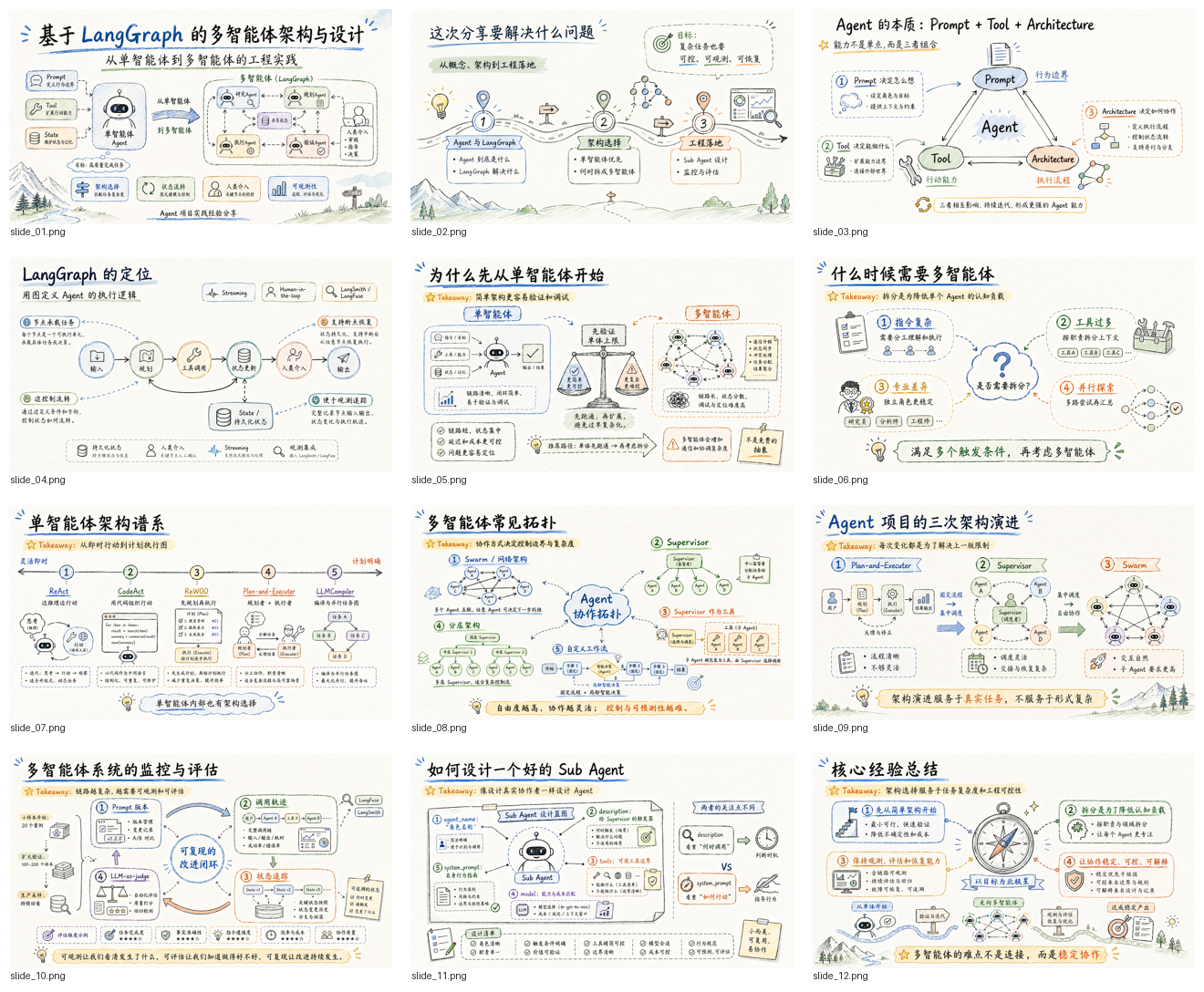
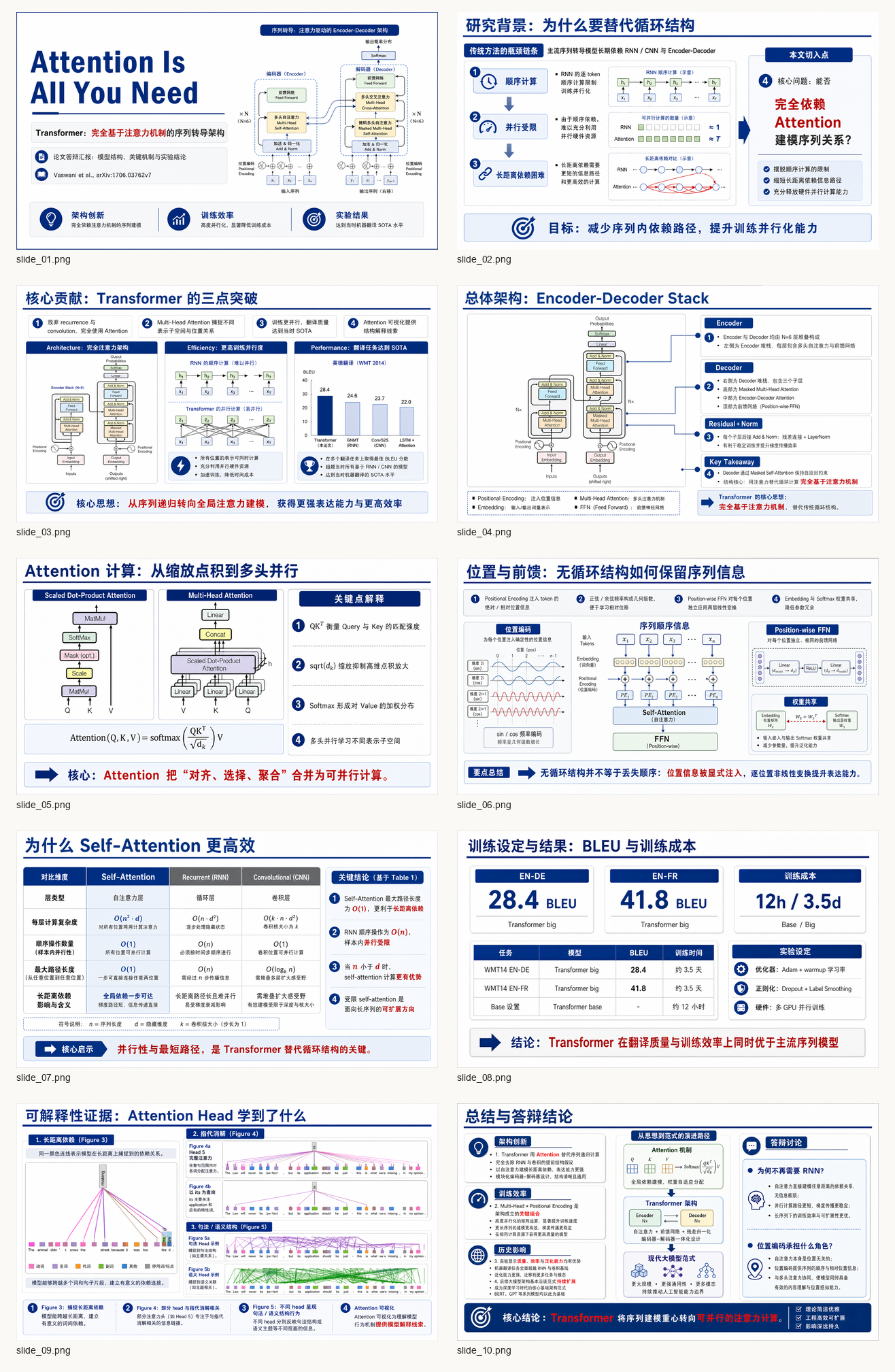
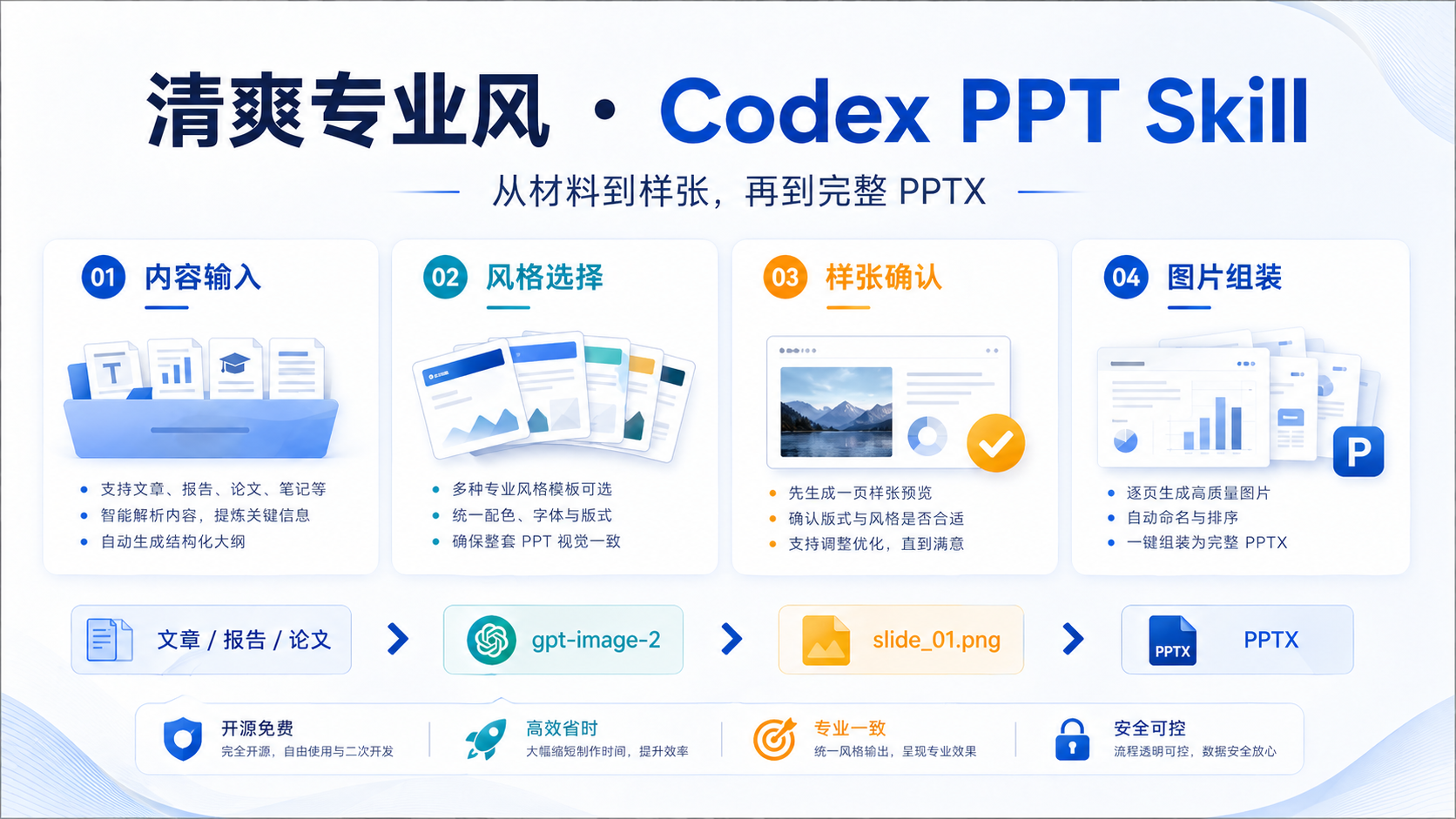
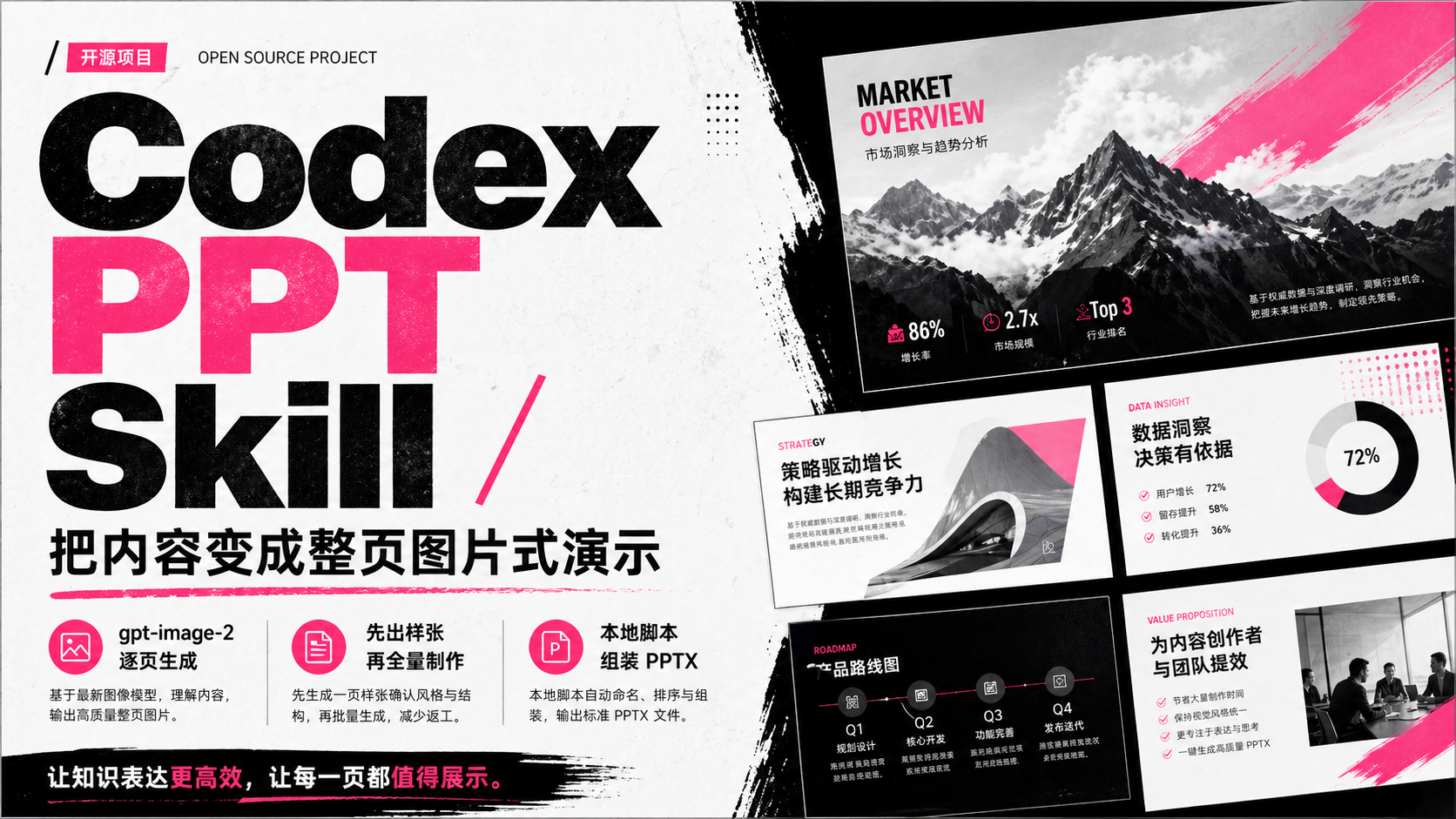
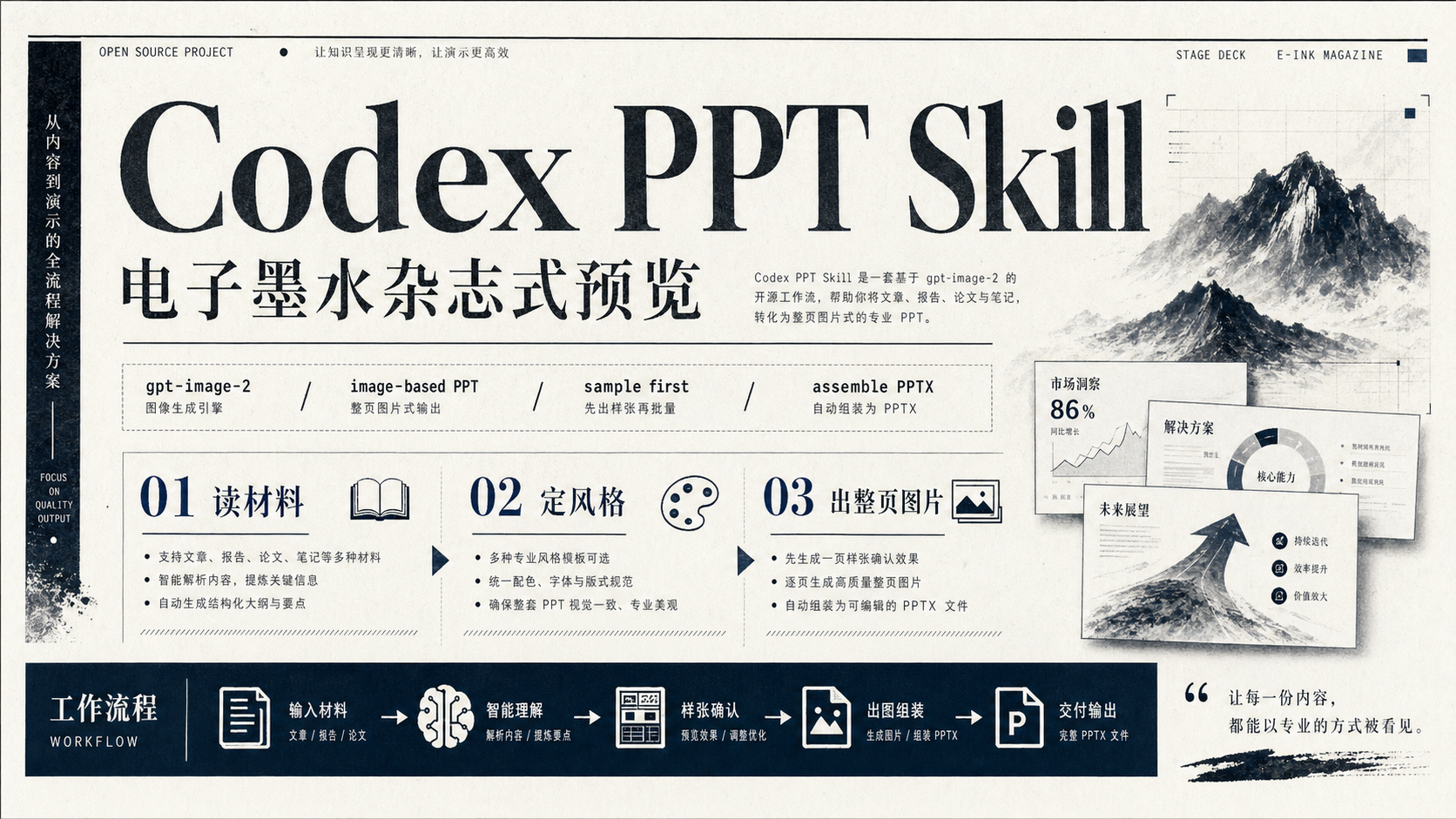
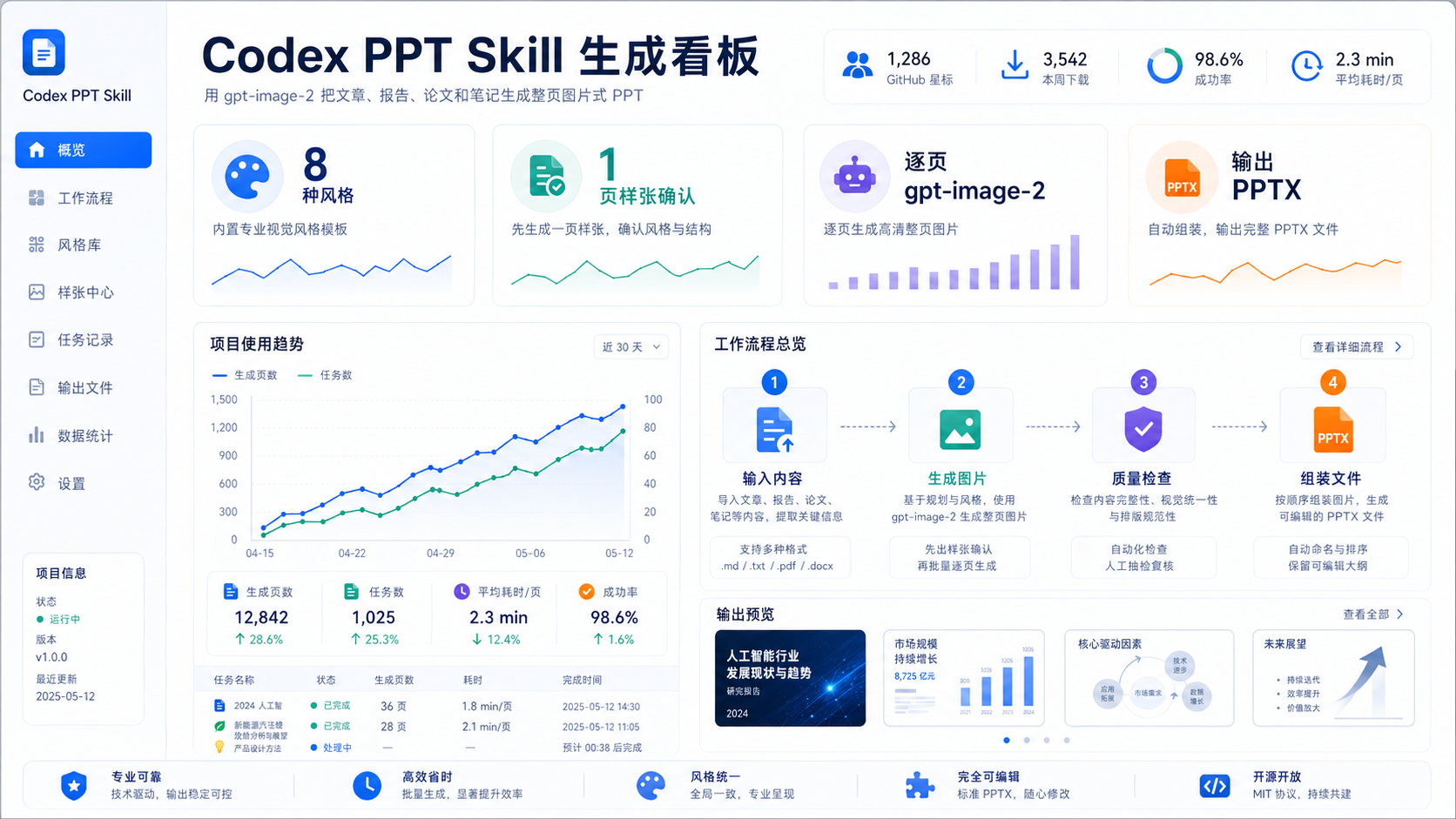
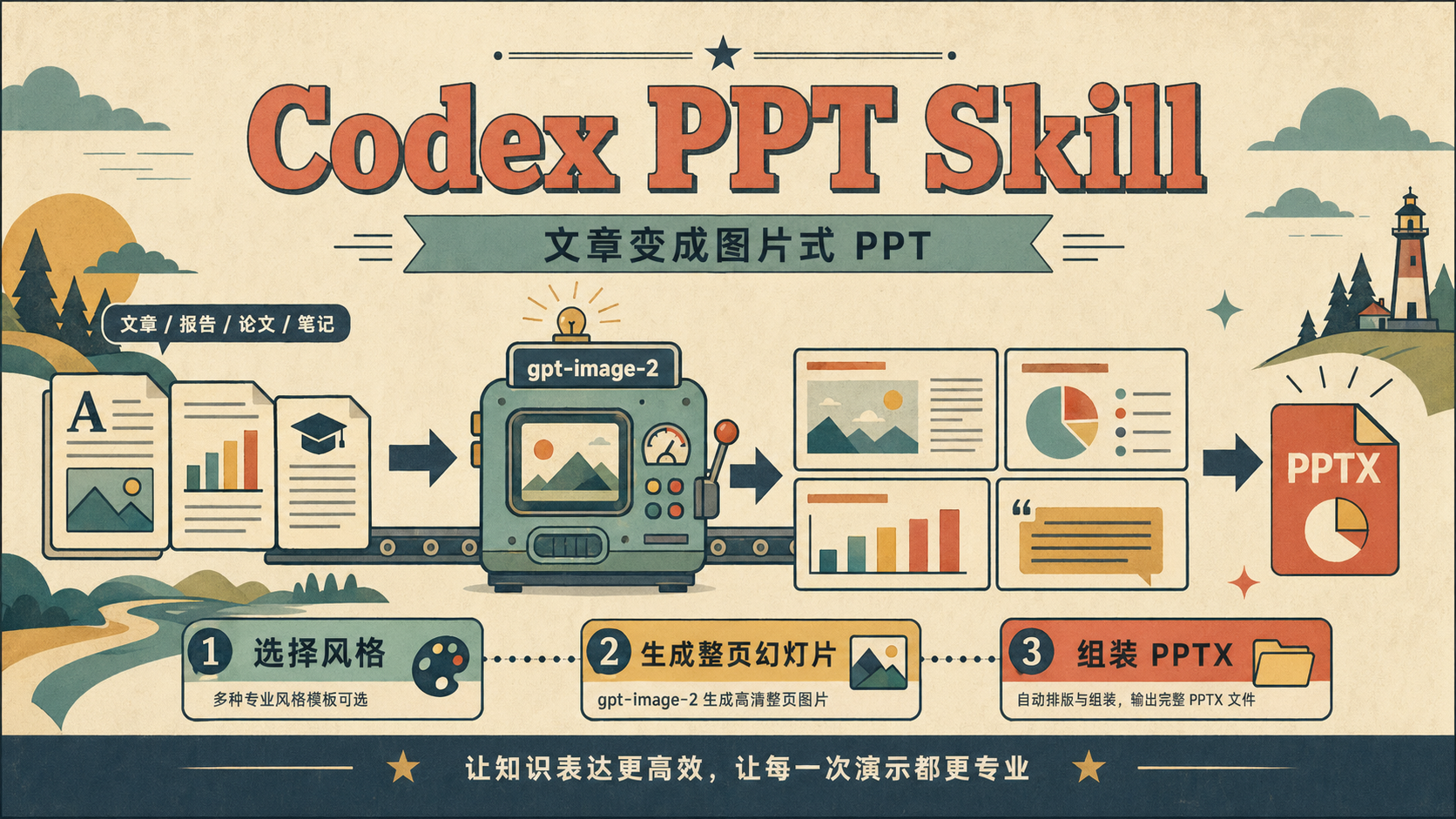
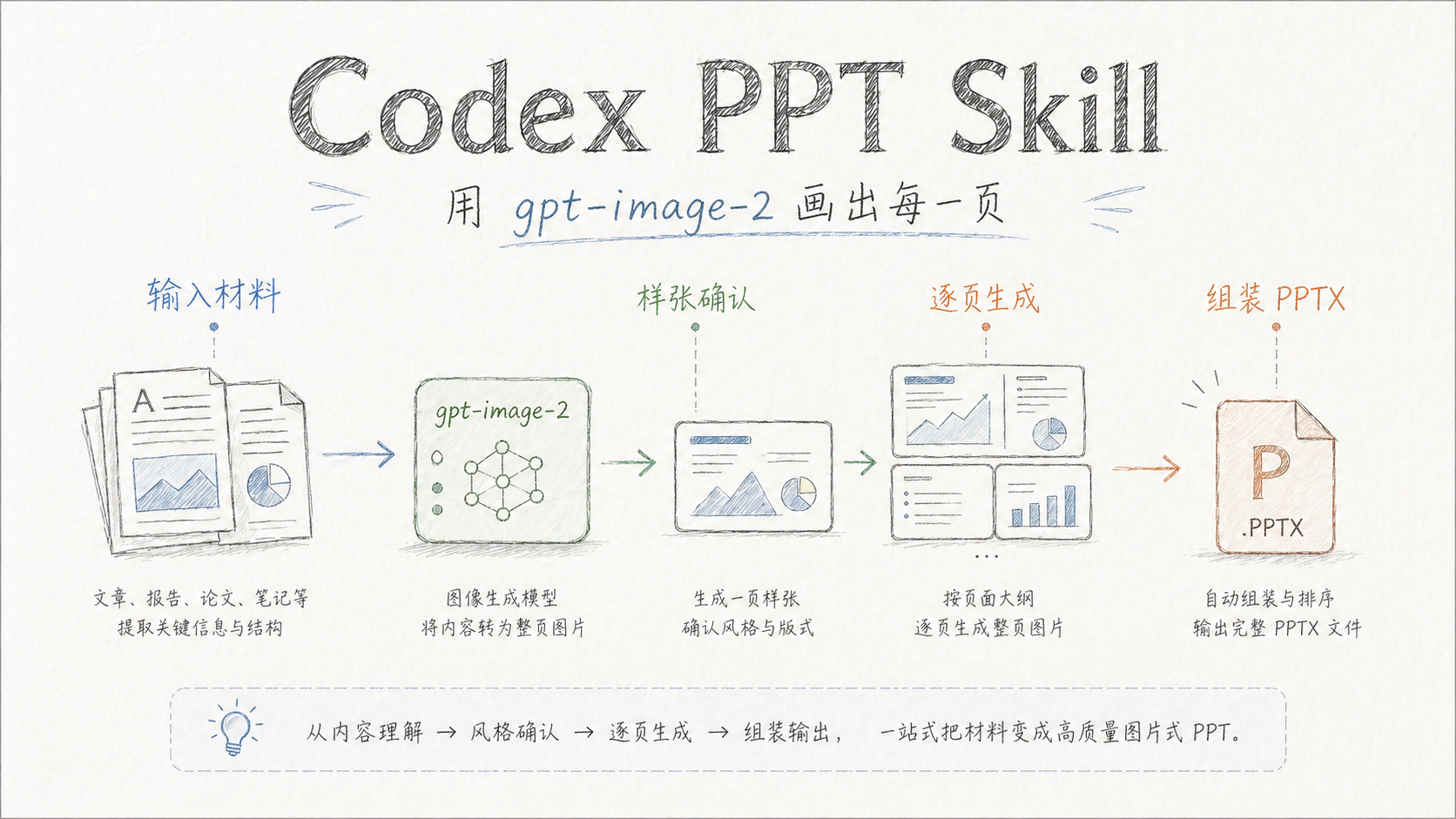
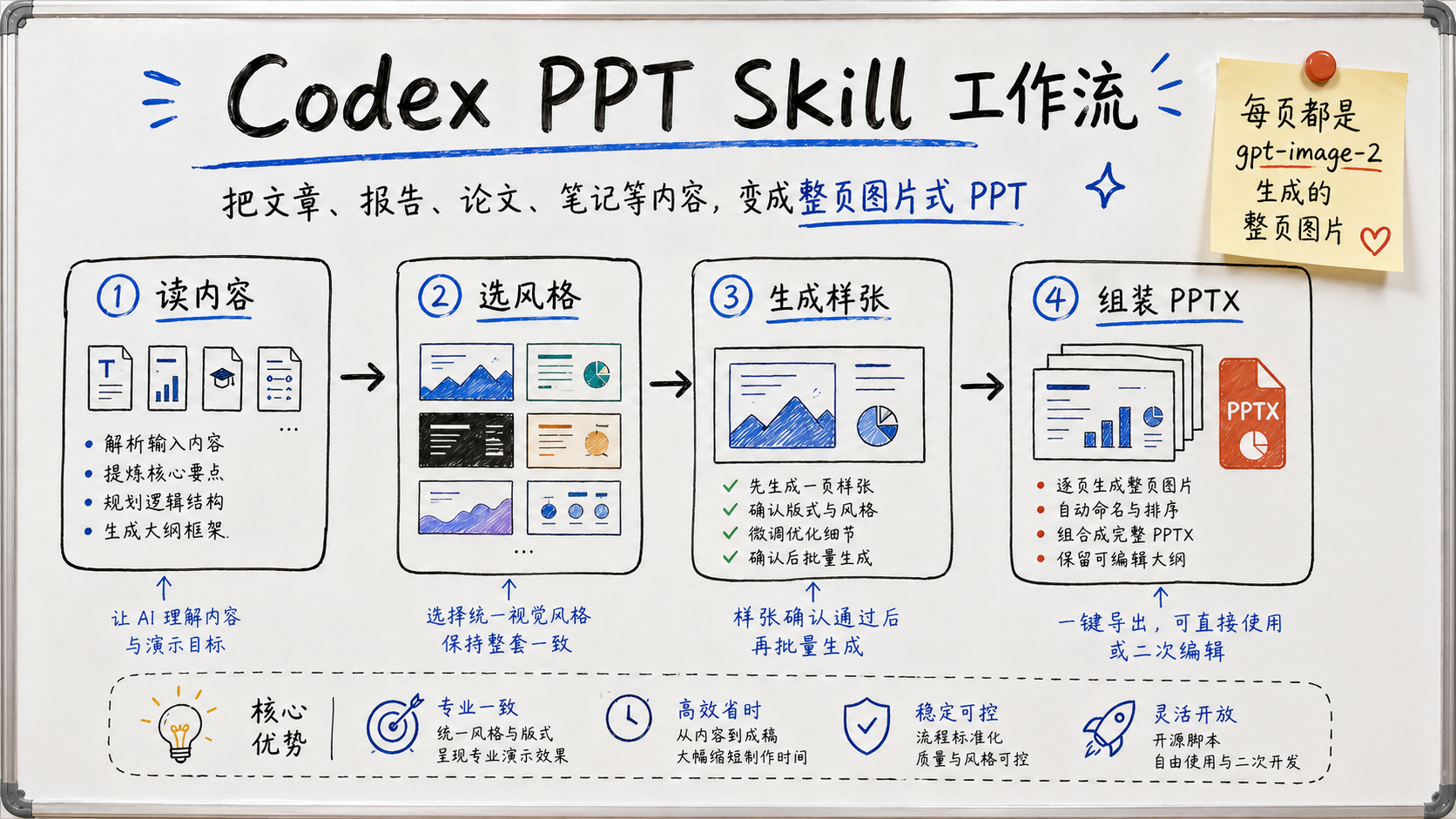
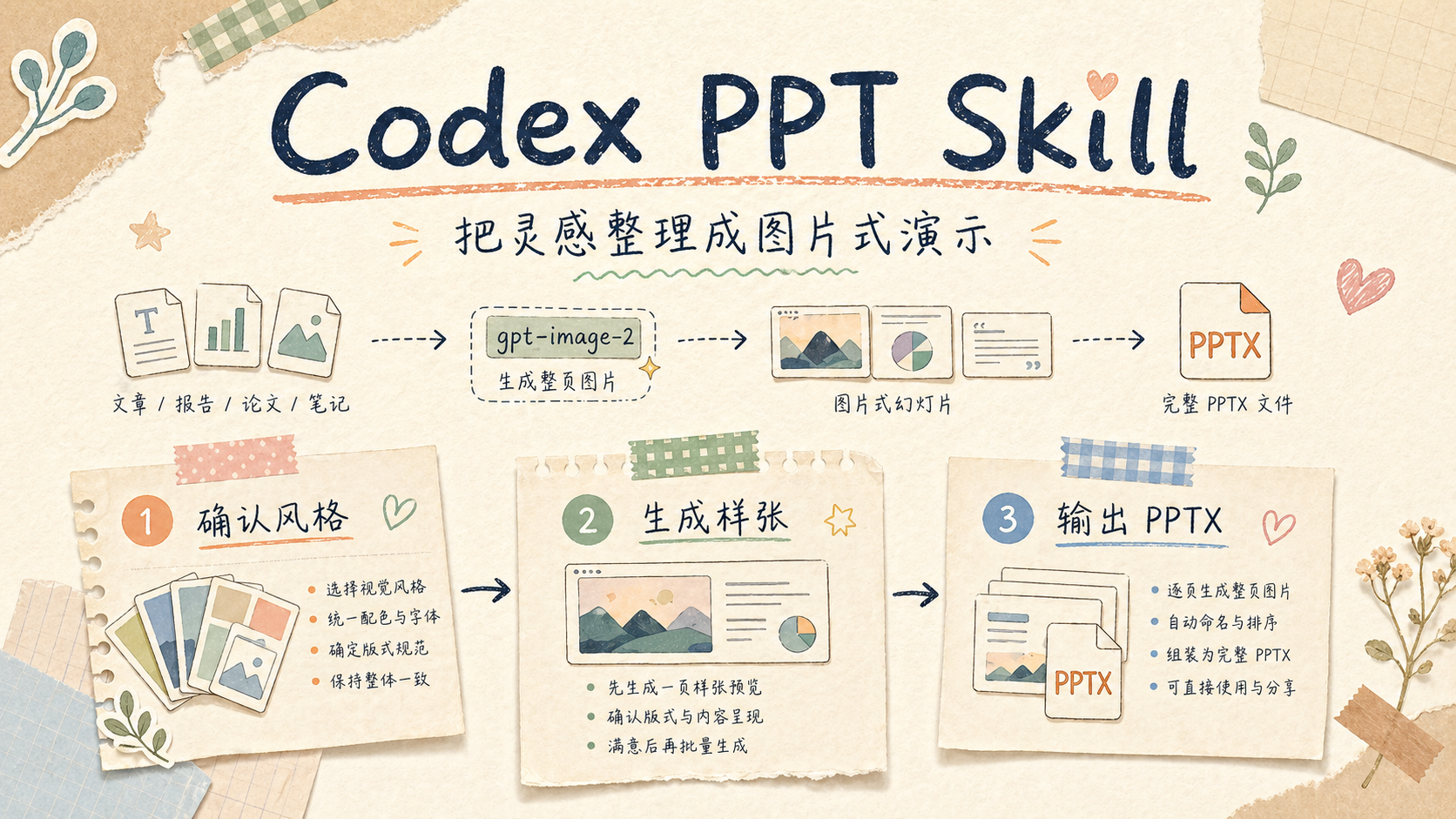
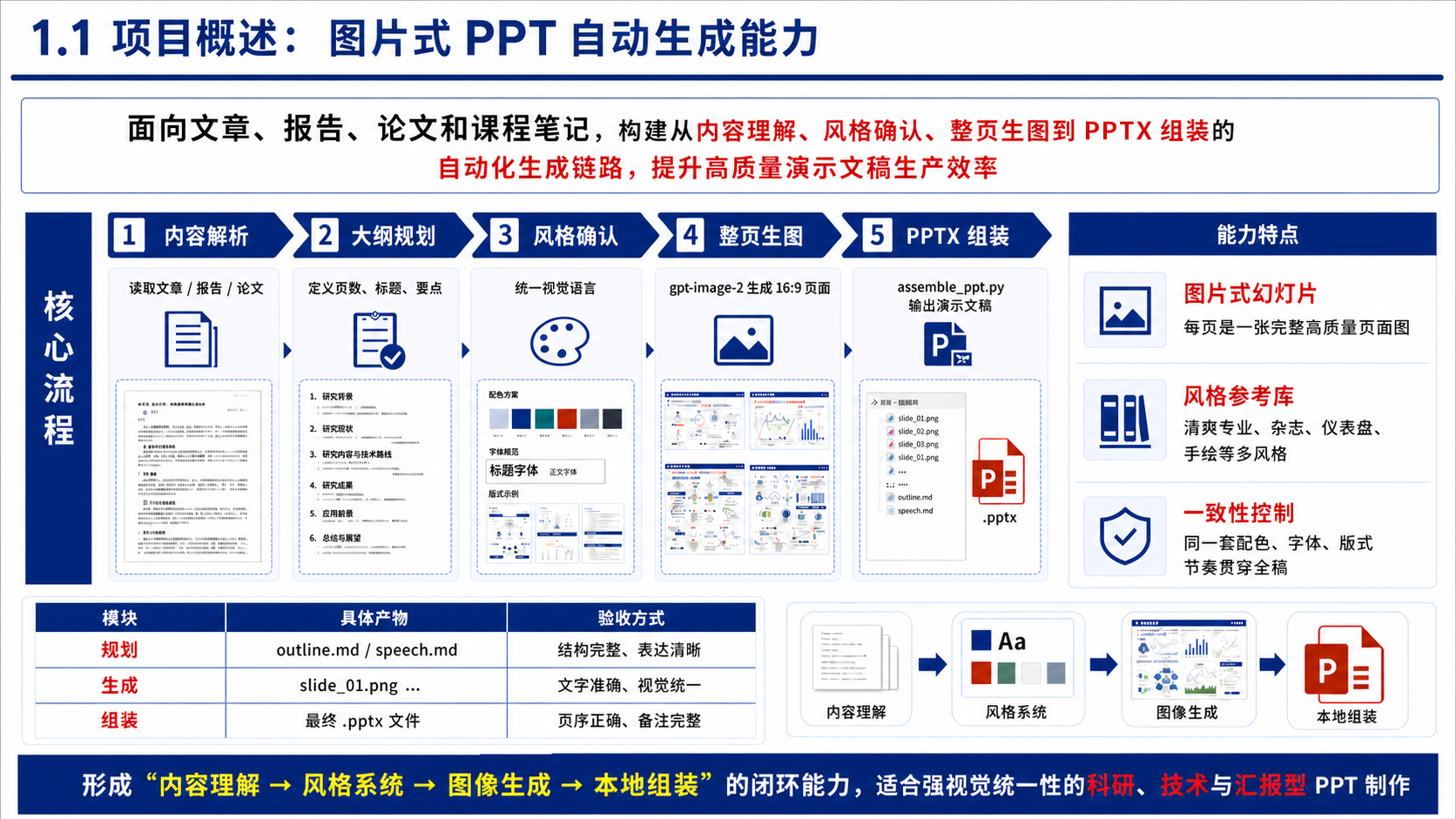
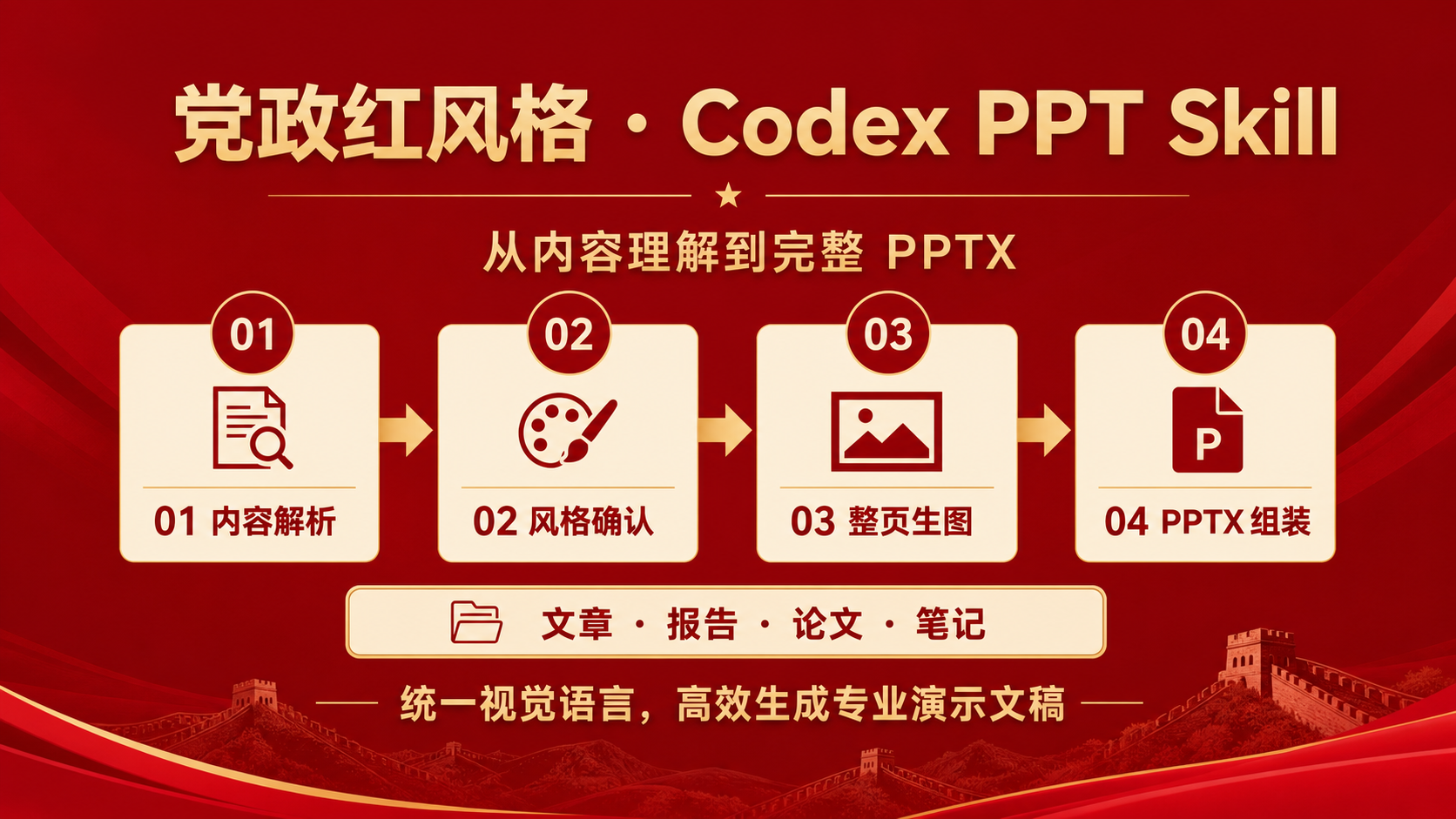
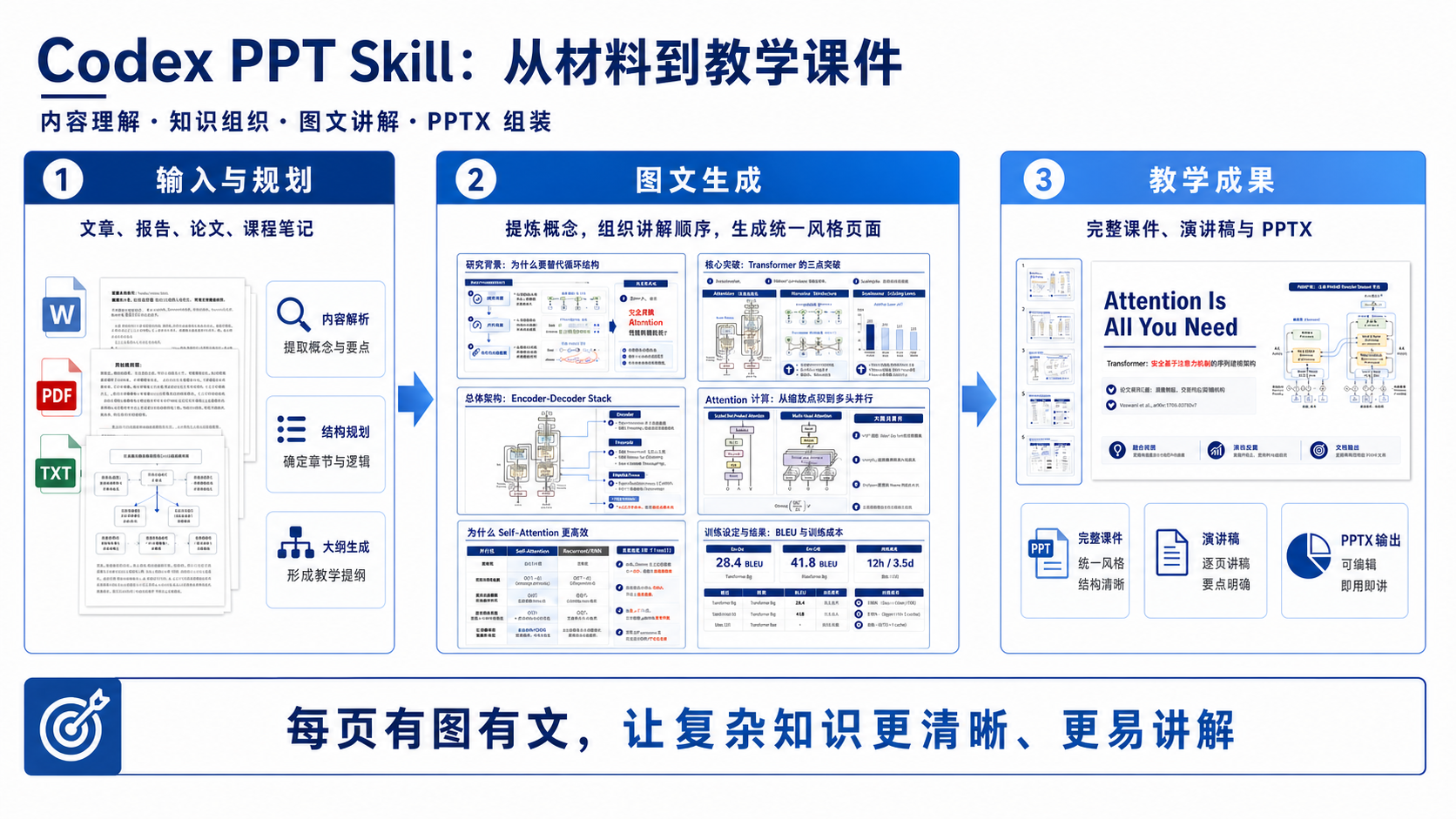
 A SKILL.md-based skill for Codex (and other compatible agents like Claude Code, OpenClaw and Hermes Agent) that turns articles, reports, papers or course notes into full-page image-style slide decks: it plans an outline and visual style, generates each slide as an image with gpt-image-2, then assembles everything into a .pptx with a local script.
A SKILL.md-based skill for Codex (and other compatible agents like Claude Code, OpenClaw and Hermes Agent) that turns articles, reports, papers or course notes into full-page image-style slide decks: it plans an outline and visual style, generates each slide as an image with gpt-image-2, then assembles everything into a .pptx with a local script.Is this a standalone app, or does it plug into an existing AI agent?It's a skill package (SKILL.md), not standalone software. It installs into agent harnesses such as Codex, Claude Code, OpenClaw and Hermes Agent, and the host agent drives the whole workflow while a bundled Python script handles the final PPTX assembly.
It's a skill package (SKILL.md), not standalone software. It installs into agent harnesses such as Codex, Claude Code, OpenClaw and Hermes Agent, and the host agent drives the whole workflow while a bundled Python script handles the final PPTX assembly.How do I install it into Codex or another agent?Use the skills CLI to install into your agent's skills directory (e.g. ~/.codex/skills/codex-ppt for Codex), or download the release zip and drop the codex-ppt folder in place; OpenClaw users install via ClawHub instead. Restart the agent afterward to load the skill.
Use the skills CLI to install into your agent's skills directory (e.g. ~/.codex/skills/codex-ppt for Codex), or download the release zip and drop the codex-ppt folder in place; OpenClaw users install via ClawHub instead. Restart the agent afterward to load the skill.Do I need a gpt-image-2 API key to use it?Not by default — inside Codex you can rely on its built-in image generation with no API key at all. An API key, base URL and model name are only needed if you switch to a third-party or OpenAI-compatible image backend, such as when using it outside Codex or wanting higher resolution.
Not by default — inside Codex you can rely on its built-in image generation with no API key at all. An API key, base URL and model name are only needed if you switch to a third-party or OpenAI-compatible image backend, such as when using it outside Codex or wanting higher resolution.Are the slides it produces editable afterward?No, the output is full-page slide images assembled into a .pptx, so text and elements can't be edited directly inside PowerPoint; the author's separate image-to-editable-ppt-skill can convert the result into an editable deck afterward. Codex's built-in image generator also defaults to lower resolution than the API-based fallback.
No, the output is full-page slide images assembled into a .pptx, so text and elements can't be edited directly inside PowerPoint; the author's separate image-to-editable-ppt-skill can convert the result into an editable deck afterward. Codex's built-in image generator also defaults to lower resolution than the API-based fallback.What kinds of presentations is this meant for?It targets turning technical articles, papers and reports into shareable decks, course notes into teaching slides, and academic/business material into defense, proposal or report presentations where strong visual consistency matters more than editable layout.
It targets turning technical articles, papers and reports into shareable decks, course notes into teaching slides, and academic/business material into defense, proposal or report presentations where strong visual consistency matters more than editable layout.What built-in visual styles come with it?It ships with 12 built-in style references, including clean professional, academic defense, government red, teaching courseware, e-ink magazine, hand-drawn tech explainer, dashboard and McKinsey-style, so you can start without writing your own prompt.
It ships with 12 built-in style references, including clean professional, academic defense, government red, teaching courseware, e-ink magazine, hand-drawn tech explainer, dashboard and McKinsey-style, so you can start without writing your own prompt.Can I save and reuse my own slide style across projects?Yes — once you like a generated deck's style, you can save it to a personal library at ~/.codex-ppt-skill/references/, which lives outside the skill folder so it survives updates and takes priority over the built-in styles.
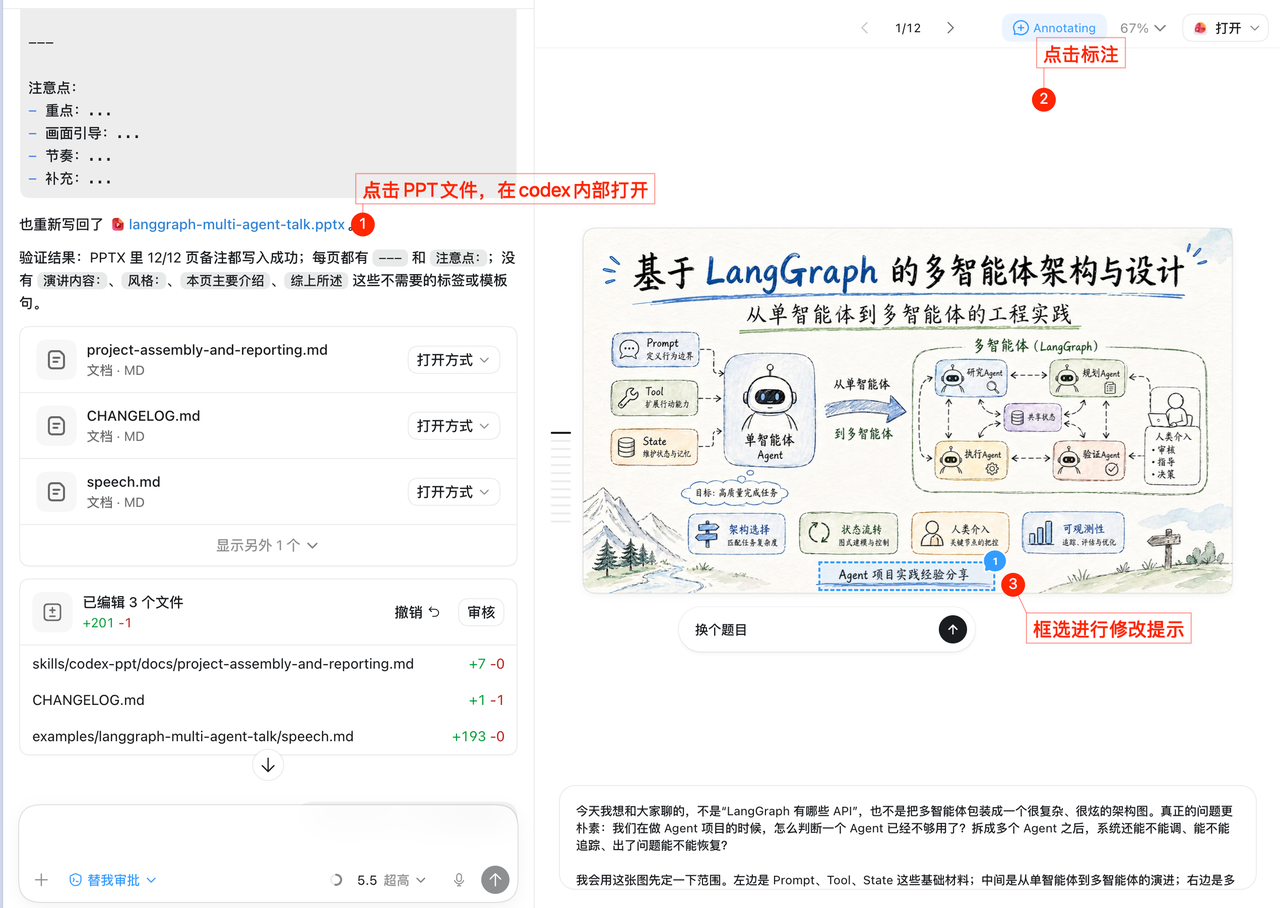
Yes — once you like a generated deck's style, you can save it to a personal library at ~/.codex-ppt-skill/references/, which lives outside the skill folder so it survives updates and takes priority over the built-in styles.Does it also produce speaker notes?Yes, it generates a speech.md script and writes it into each slide's notes section when assembling the .pptx, so you can present directly from it or edit the notes afterward.
Yes, it generates a speech.md script and writes it into each slide's notes section when assembling the .pptx, so you can present directly from it or edit the notes afterward.What kind of source material can I feed it?Articles, reports, papers, course notes, Markdown files, outlines, PDFs and Word documents can all be used as the starting input for a deck.
Articles, reports, papers, course notes, Markdown files, outlines, PDFs and Word documents can all be used as the starting input for a deck.What are similar projects?luobo-ppt, ppt-master, dashi-ppt-skill, xxg-portrait-rebuild-light, GPT-Image2-Skill, jinba-consulting-pptx-skill, banana-slides, herk-edit-kit
luobo-ppt, ppt-master, dashi-ppt-skill, xxg-portrait-rebuild-light, GPT-Image2-Skill, jinba-consulting-pptx-skill, banana-slides, herk-edit-kitWhich topics is it in?powerpoint, gpt-image-2, ppt, pptx, presentation, codex-cli, hermes-agent, text-to-image, codex-skill, claude-code-skill, content-creation, agent-skill
powerpoint, gpt-image-2, ppt, pptx, presentation, codex-cli, hermes-agent, text-to-image, codex-skill, claude-code-skill, content-creation, agent-skill