Dashy
The most customizable dashboard for self-hosters
Dashy is the homepage for your homelab

User Showcase | Live Demo | Getting Started | Documentation | GitHub
Kindly sponsored by

SSD Nodes
Affordable VPS hosting for self-hosters
|
Umbrel
Personal home cloud and OS for self-hosting
|

TestMu AI
Full-stack Agentic AI Quality Engineering platform
|
Table of Contents
Getting Started
Feature Overview
Community
Features 🌈
- 📃 Support for multiple pages
- 🚦 Real-time status monitoring for each of your apps/links/hosts
- 📊 Use widgets to display info and dynamic content from self-hosted services
- 🔎 Instant search by name, domain, or tags + customizable hotkeys & keyboard shortcuts
- 🎨 Many built-in color themes, with UI color editor and support for custom CSS
- 🧸 Many icon options - Font-Awesome, homelab icons, auto-fetching Favicon, images, emojis, etc.
- 💂 Optional authentication with multi-user access, configurable privileges, and SSO support
- 🌎 Multi-language support, with 10+ human-translated languages, and more on the way
- ☁ Optional, encrypted, free off-site cloud backup and restore feature available
- 💼 A workspace view, for easily switching between multiple apps simultaneously
- 🛩️ A minimal view, for use as a fast-loading browser Startpage
- 🖱️ Choose app launch methods: new tab, same tab, clipboard, pop-up modal, or open in workspace view
- 📏 Customizable layout, sizes, text, component visibility, sort order, behavior, etc.
- 🖼️ Options for a full-screen background image, custom nav-bar links, HTML footer, title, etc.
- 🚀 Easy to setup with Docker, or on bare metal, or with 1-Click cloud deployment
- ⚙️ Easy single-file YAML-based configuration, and option to configure app through the UI
- ✨ Under active development with improvements and new features added regularly
- 🤏 Small bundle size, fully responsive UI, and PWA for basic offline access
- 🆓 100% free and open-source
- 🔐 Strong focus on privacy
- 🌈 And loads more...
⬆️ Back to Top
Demo ⚡
Live Instances: Demo (Live Demo) ┆ Dev Preview (Dev Preview)
Screenshots: Checkout the Showcase, to see example dashboards from the community
Try it yourself: docker run -p 8080:8080 lissy93/dashy

⬆️ Back to Top
Getting Started 🚀
For full setup instructions, see: Deployment
Deploying from Docker Hub 🐳
You will need Docker installed on your system
docker run -p 4000:8080 lissy93/dashy
Or
docker run -d \
  -p 4000:8080 \
  -v /path/to/your/user-data:/app/user-data \
  --name my-dashboard \
  --restart=always \
  lissy93/dashy:latest
To use with compose, see our sample docker-compose.yml.
The mounted /app/user-data directory must contain at least a conf.yml.
It can also hold sub-config files, item icons, fonts, custom CSS, or anything else you want served from the web root.
Dashy is distributed both on DockerHub (lissy93/dashy) and GHCR (ghcr.io/lissy93/dashy).
You can either use :latest or pin to specific versions (like 4.0.0).
All images are multi-arch (works on amd64 and arm64).
Once you've got Dashy running, see the docs for configuration references and usage guides.
Deploying from Source 🔨
You'll need Node (20+) installed, as well as git and yarn enabled.
- Clone the Repo:
git clone https://github.com/Lissy93/dashy.git and cd dashy
- Configuration: Fill in your settings in
./user-data/conf.yml
- Install dependencies:
yarn
- Build:
yarn build
- Run:
yarn start
See docs: Full list of Dashy's commands
Deploy to the Cloud ☁️
Dashy supports 1-Click deployments on several popular cloud platforms. To spin up a new instance, just click a link below:
For more 1-click cloud deployments, see Cloud Deployment
⬆️ Back to Top
Configuring 🔧
For full configuration documentation, see: Configuring
Dashy is configured through a YAML file, located at ./user-data/conf.yml. In addition, you can find a complete list of available options in the Configuring Docs. The config can also be edited and saved directly through the UI.
⬆️ Back to Top
Theming 🎨
For full theming documentation, see: Theming
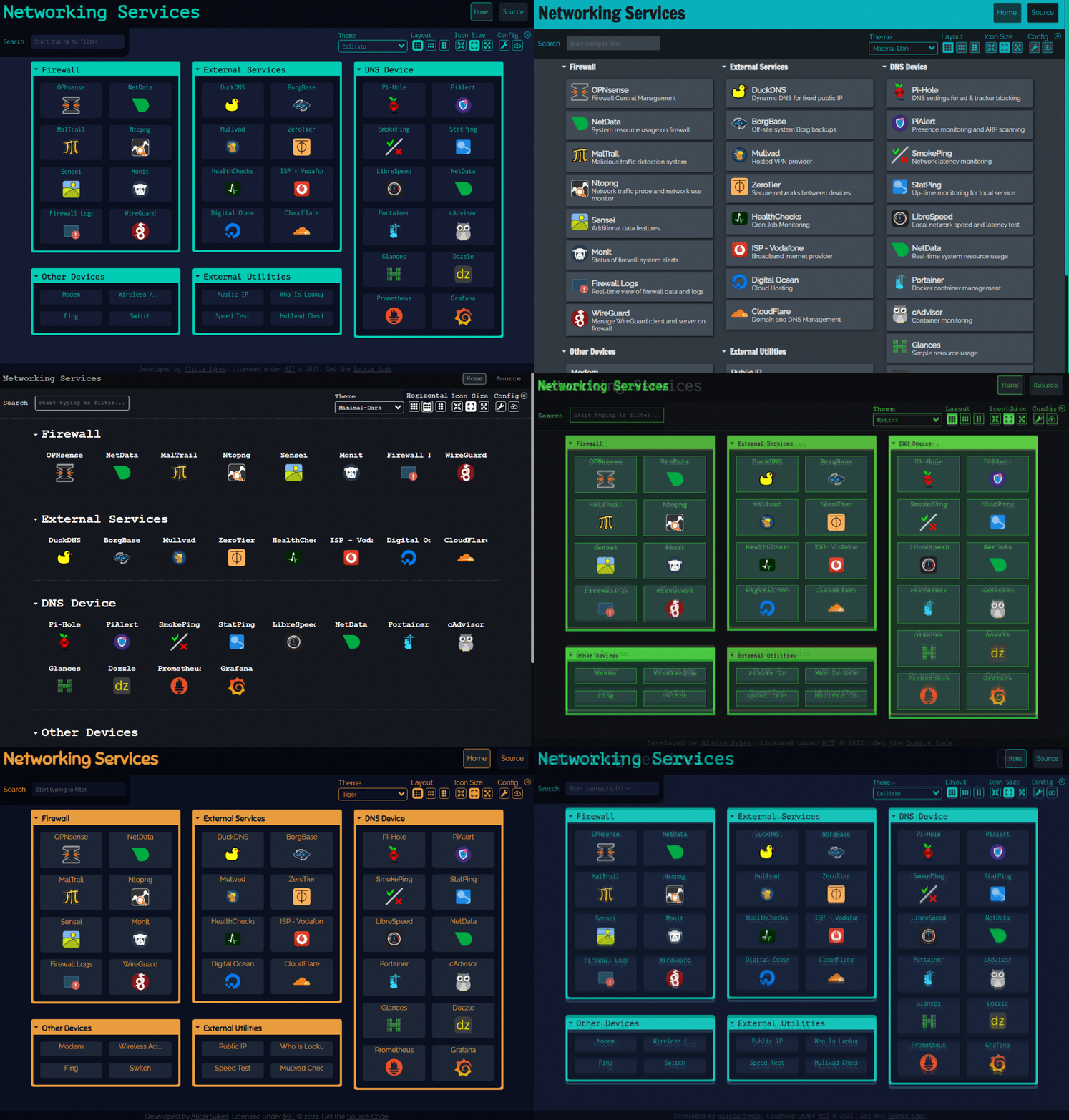
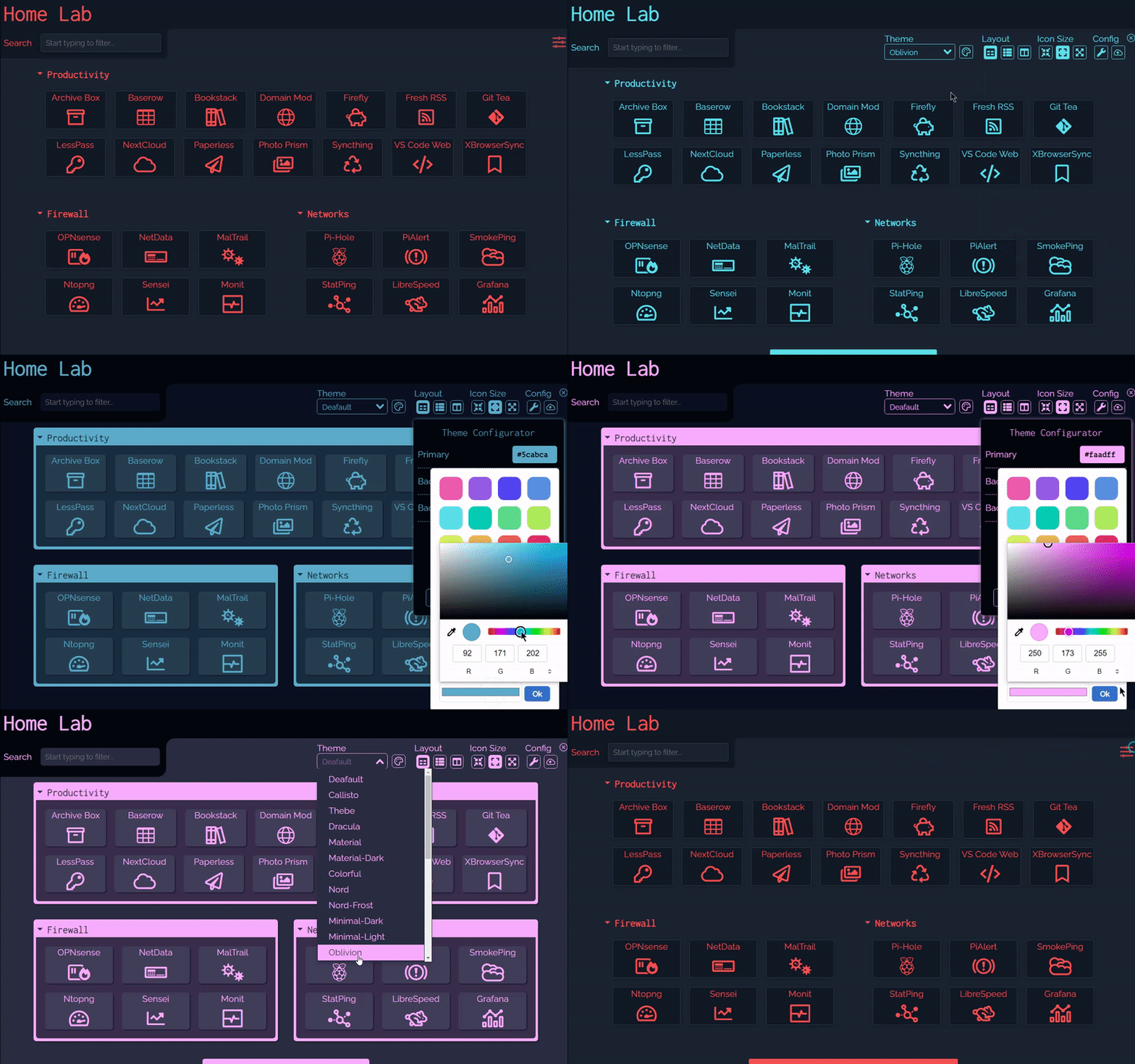
Dashy comes pre-bundled with several built-in themes, which you can preview, apply and edit through the UI. With the theme configurator and support for custom CSS, everything is in place to quickly develop your own unique-looking dashboard.
⬆️ Back to Top
Icons 🧸
For full iconography documentation, see: Icons
Both sections and items can have an icon associated with them, defined under the icon attribute. With several different icon packs supported, you'll be able to find the perfect thumbnail for any app or service.
The following icon types are supported:
- Favicon - Automatically fetch an apps icon from its Favicon or logo image
- Icon Packs - Use any icon from font-awesome, simple-icons, selfh.st/icons, or material icons
- Emoji - Any valid emoji can be used as an icon
- Generative - Unique, auto-generated images for easily identifying services
- URL - Pass the URL of any valid image in to have it fetched and rendered
- Local - Store custom images locally and reference by filename
- Homelab Icons - Using dashboard-icons for logos of commonly self-hosted services

⬆️ Back to Top
Status Indicators 🚦
For full monitoring documentation, see: Status Indicators
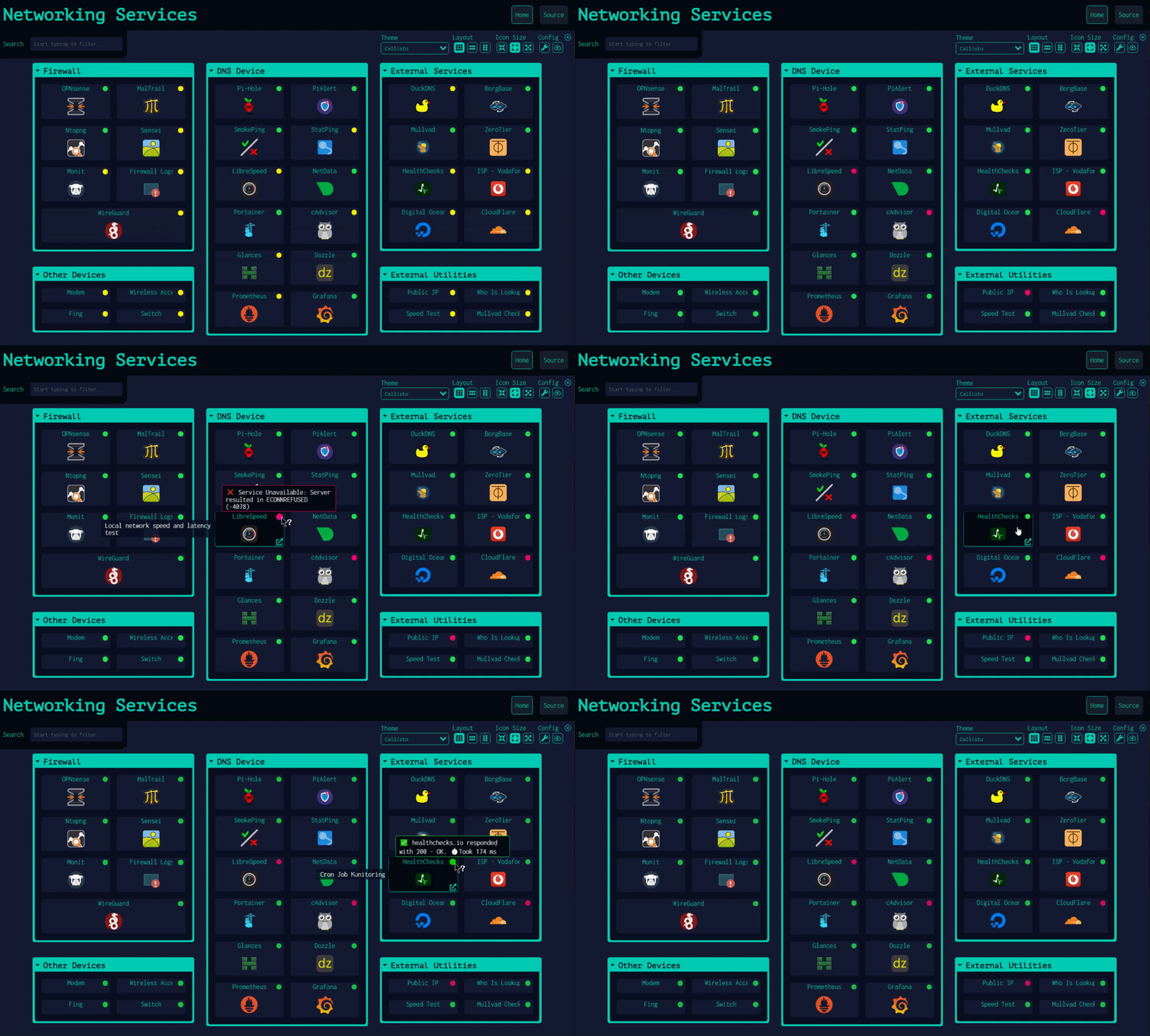
Dashy has two optional features to check if each app/service or host is up and responding, then display a small status indicator icon. Hovering over it will show additional stats like response time and status code.
App/Service status is checked by calling an URL and analyzing its HTTP response code. Host status is checked by sending a real ping ICMP request to the host. Both checks can be done at the same time on the same item. In this case, two status indicators will show up and behave independently according to the global and item settings for each feature.
Status indicators can be globally enabled by setting appConfig.statusCheck: true for app/service and appConfig.pingCheck: true for hosts or enabled/disabled on a per-item basis. Statuses are checked on page load, but you can allow continuous polling by specifying a time interval between checks, in seconds under appConfig.statusCheckInterval and appConfig.pingCheckInterval. You can also use a different endpoint for app/service status checking, with statusCheckUrl, and if needed, pass in custom headers under statusCheckHeaders.
⬆️ Back to Top
For full widget documentation, see: Widgets
You can display dynamic content from services in the form of widgets. There are several pre-built widgets available for showing useful info, and integrations with commonly self-hosted services, but you can also easily create your own for almost any app.

⬆️ Back to Top
Authentication 🔐
For full authentication documentation, see: Authentication
Dashy has full support for secure single-sign-on using Keycloak for secure, easy authentication, see setup docs for a full usage guide.
There is also a basic auth feature, which doesn't require additional setup. To enable this, add an auth attribute under appConfig, containing an array of users, each with a username, SHA-256 hashed password and optional user type. Basic auth also supports several access control features, including read-only guest access and granular controls.
appConfig:
  auth:
    users:
    - user: alicia
      hash: 4D1E58C90B3B94BCAD9848ECCACD6D2A8C9FBC5CA913304BBA5CDEAB36FEEFA3
      type: admin
Other access control systems are also supported, see the Alternative Auth Methods docs.
⬆️ Back to Top
Alternate Views 👓
As well as the default homepage, there is also:
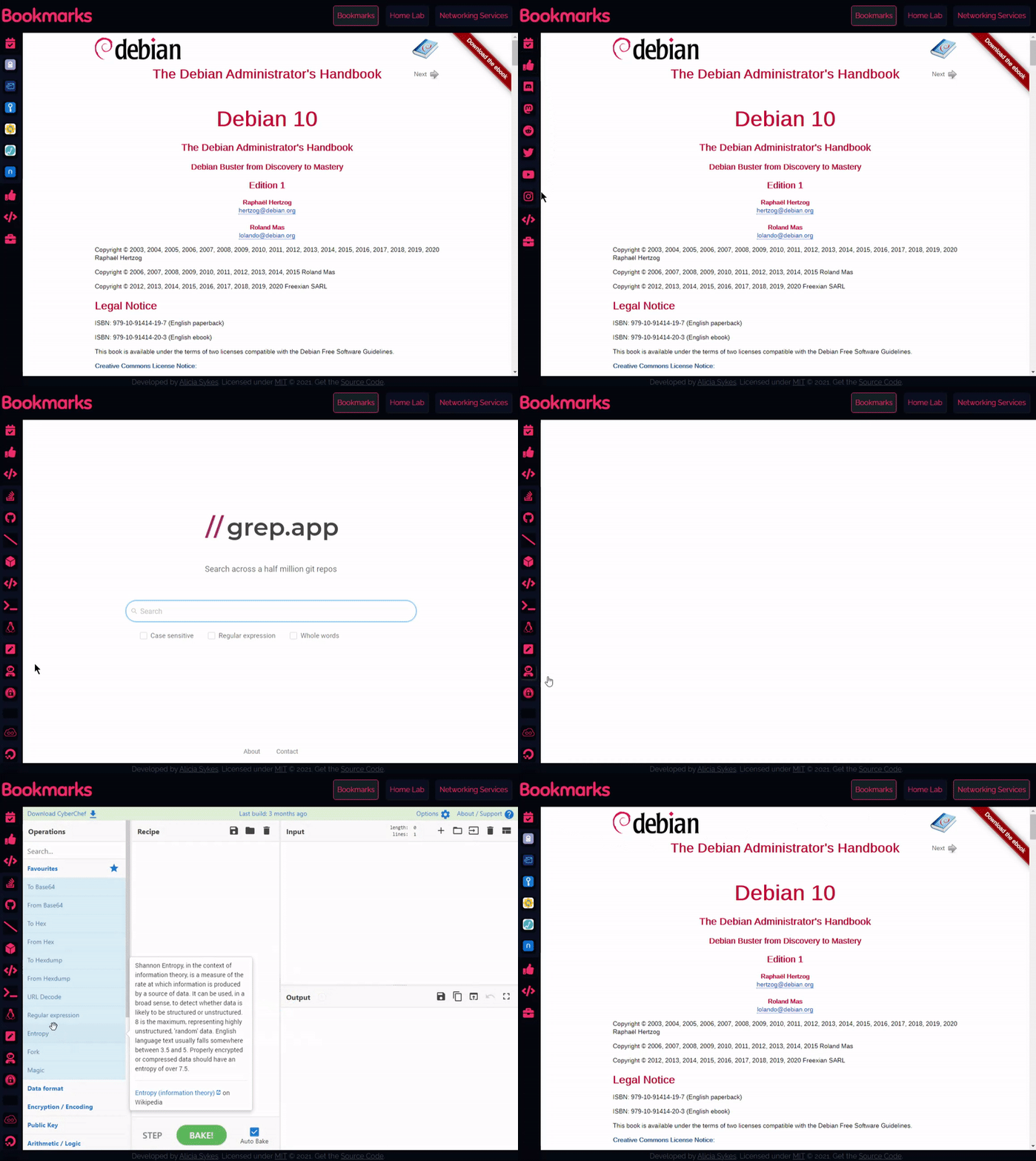
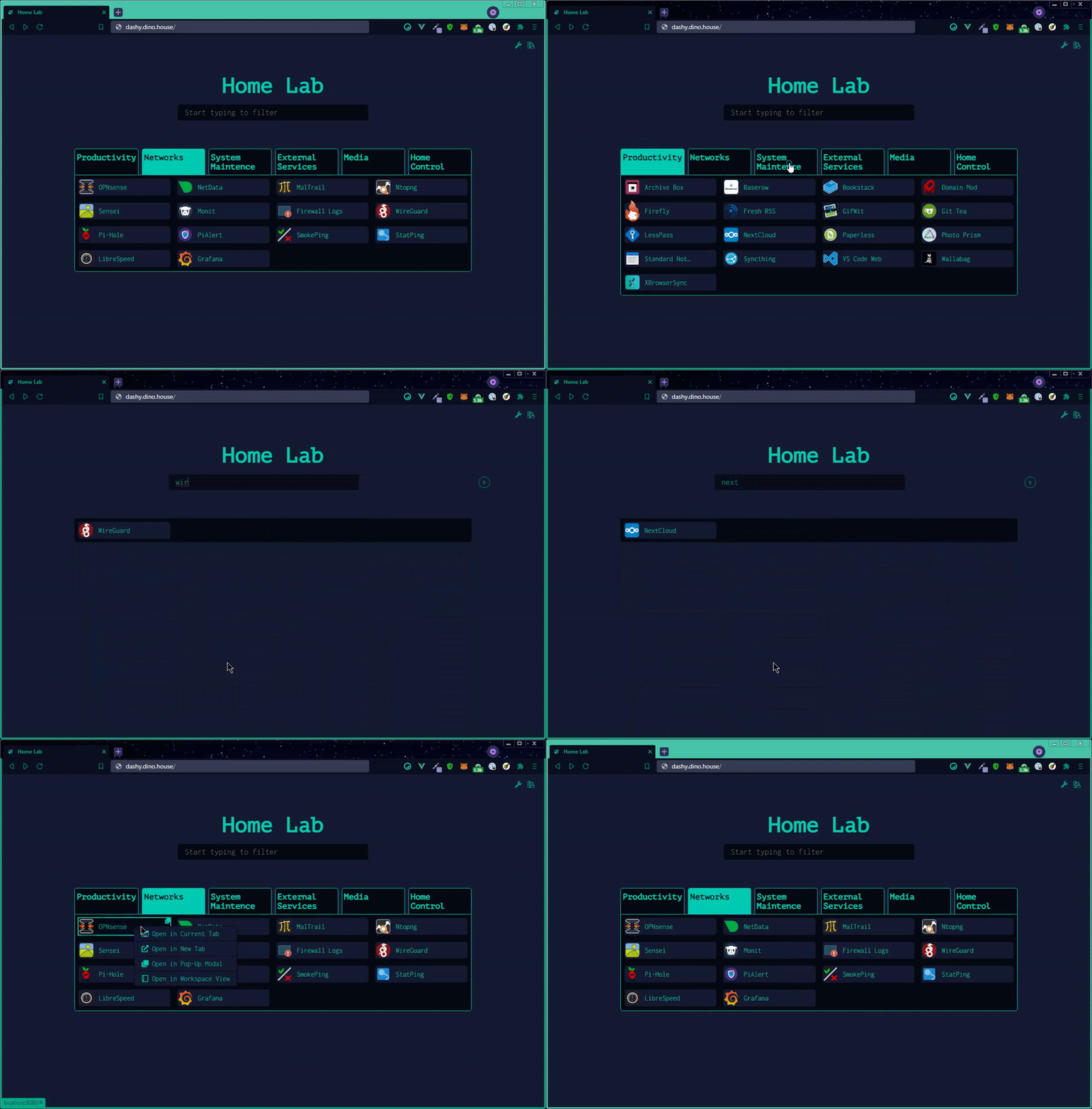
- A minimal view, valid for use as a browser start page
- A workspace view, useful for visiting many apps simultaneously
You can change the view from the UI, using the switch icon in the top-right corner, or select a default view in the config under appConfig.startingView attribute.
Example of Workspace View
Example of Minimal View
⬆️ Back to Top
Opening Methods 🖱️
For full documentation on views and opening methods, see: Alternate Views
There are several different ways you can launch apps. You can specify the default opening method for any given item under the target attribute or set a site-wide default under appConfig.defaultOpeningMethod. Right-click on an item for all options. The following options are supported:
sametab - The app will be launched in the current tabnewtab - The app will be launched in a new tab (or use Ctrl + Click)modal - Launch app in a resizable/ movable popup modal on the current page (or use Alt + Click)workspace - Changes to Workspace view and launches appclipboard - Copy the app's URL to your system clipboardtop - Opens in the top-most browsing context, useful if you're accessing Dashy through an iframe
⬆️ Back to Top
Searching and Shortcuts 🔎
For full documentation on searching, see: Searching & Shortcuts
Quickly finding and launching applications is the primary aim of Dashy. To that end, instant search and customizable keyboard shortcuts are built-in.
To start filtering, start typing—no need to select the search bar or use any special key. Then use either the tab key or arrow keys to select and move between results, and hit enter to launch the currently selected application.
For apps that you use regularly, you can set a custom keybinding. Use the hotkey parameter on a certain item to specify a numeric key between 0 - 9. You can then launch that app by just pressing that key.
You can also add custom tags to a given item to make finding them based on keywords easier. For example, in the following example, searching for 'Movies' will show 'Plex'
  items:
  - title: Plex
    hotkey: 8
    icon: favicon
    description: Media library
    url: https://plex.lab.local
    tags: [ movies, videos, music ]
To search the web directly through Dashy, just press enter after typing your query. Options for web search are set under appConfig.webSearch. There is built-in support for 10+ search engines, or use your own custom provider or self-hosted instance. With the web search, you can also define your bangs to redirect results to any given app, website, or search engine, when the query is preceded with a certain character sequence (usually beginning in /, ! or :).
webSearch:
  searchEngine: duckduckgo
  openingMethod: newtab
  searchBangs:
    /r: reddit
    /w: wikipedia
    /s: https://whoogle.local/search?q=
    ':wolf': wolframalpha
    ':so': stackoverflow
    ':git': github
Hit Esc at any time to close any open apps, clear the search field, or hide any modals.
⬆️ Back to Top
Config Editor ⚙️
For full config documentation, see: Configuring
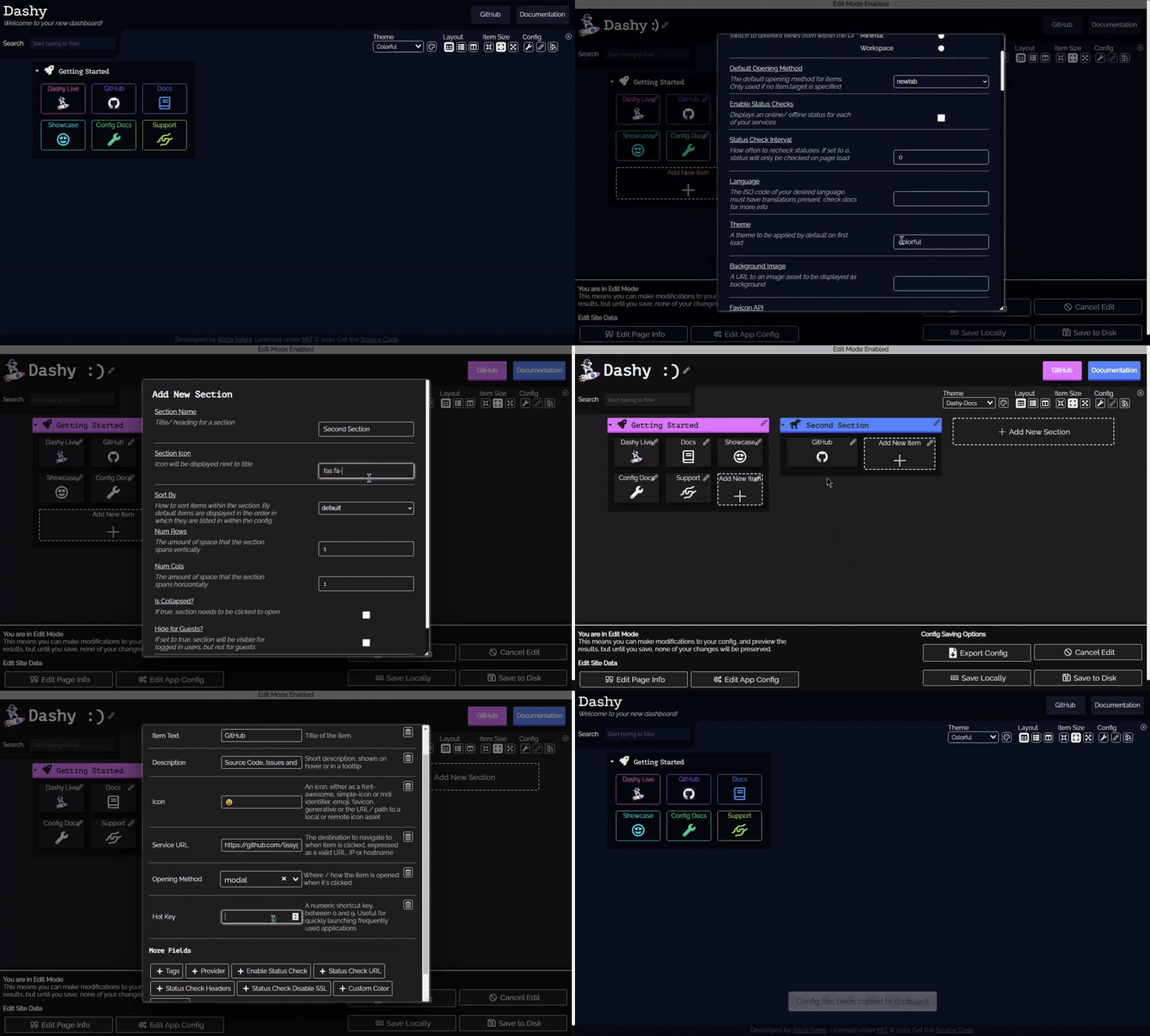
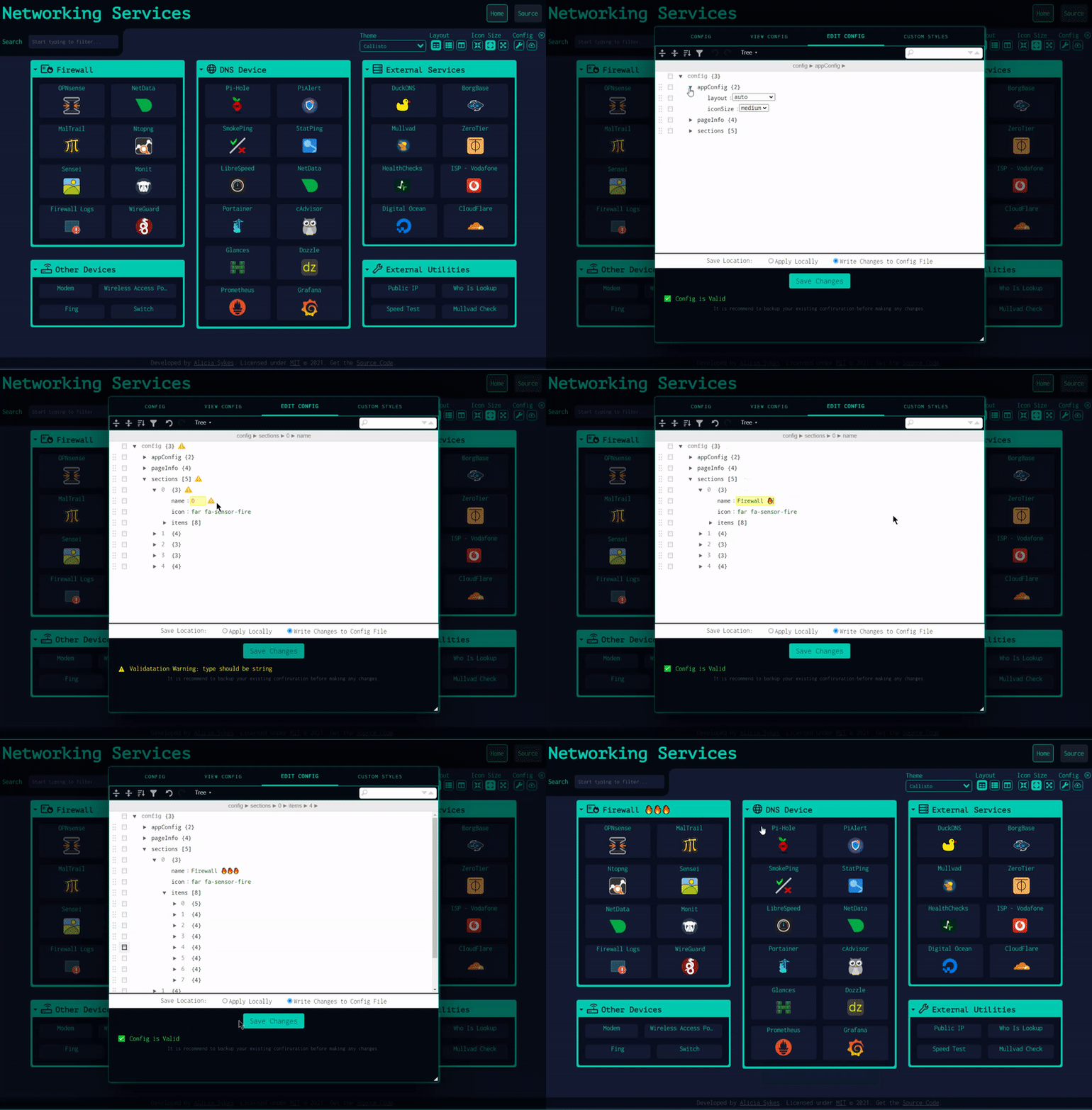
As well as passing in a YAML config file, you can also configure the app directly through the UI and preview changes live.
To edit any section or item, right-click on it, and select "Edit", or enter the Edit Mode (using the Pen icon in the top-right), then click any part of the page to edit. Changes will be visible immediately but will not be saved until clicking "Save to Disk" or "Save Locally".
Under the config menu, you can export, view, backup, or reset app config and edit the raw config file in a text editor with built-in schema validation. It's recommended to keep a backup of your config.
⬆️ Back to Top
Cloud Backup & Sync ☁
For full backup documentation, see: Cloud Backup & Sync
Dashy has an optional built-in feature for securely backing up your config to a hosted cloud service and then restoring it on another instance. This is useful not only for backing up your configuration off-site but also enables Dashy to be used without having to write a YAML config file.
All data is fully E2E encrypted before being sent to the backend (done in CloudBackup.js using crypto.js 's AES method). The data is then sent to a Cloudflare worker and stored in a KV data store.
⬆️ Back to Top
Language Switching 🌎
For full internationalization documentation, see: Multi-Language Support
Dashy supports multiple languages and locales. When available, your language should be automatically detected and applied on load. But you can also select a language through the UI (under config --> Switch Language) or set appConfig.language to your language (specified as a 2-digit ISO 639-1 code), as seen below, e.g. language: de.
Supported Languages
- 🇬🇧 English:
en - Default
- 🇬🇧 English (British):
en-GB
- 🇦🇪 Arabic:
ar - Contributed by @kayedspace
- 🇦🇿 Azerbaijani:
az - Contributed by @jamalkamaladdin
 Deploy to Netlify
 Deploy to Vercel
 Deploy to Render
 Deploy to Railway
 Deploy to GCP
 Deploy to PWD
 Deploy to Easypanel
 Deploy to EdgeOne


 Dashy 是一个可以自己搭建的个人仪表盘:为你的家庭实验室提供一个高度可定制的统一起始页,把所有应用、链接和服务集中在一处,还内置了状态检查、小部件、主题和即时搜索。