






15.9K ·GitHub
What is this?
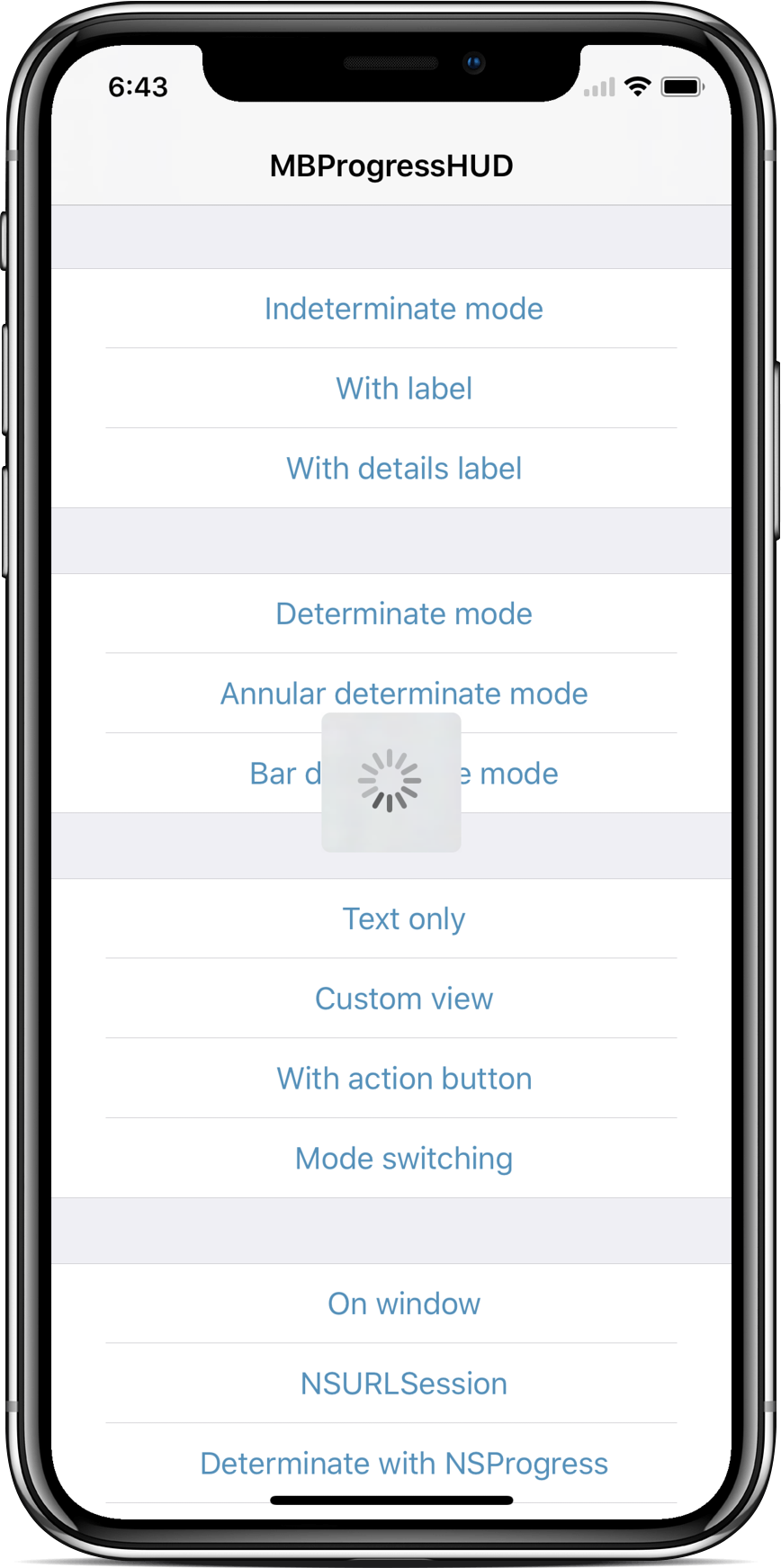
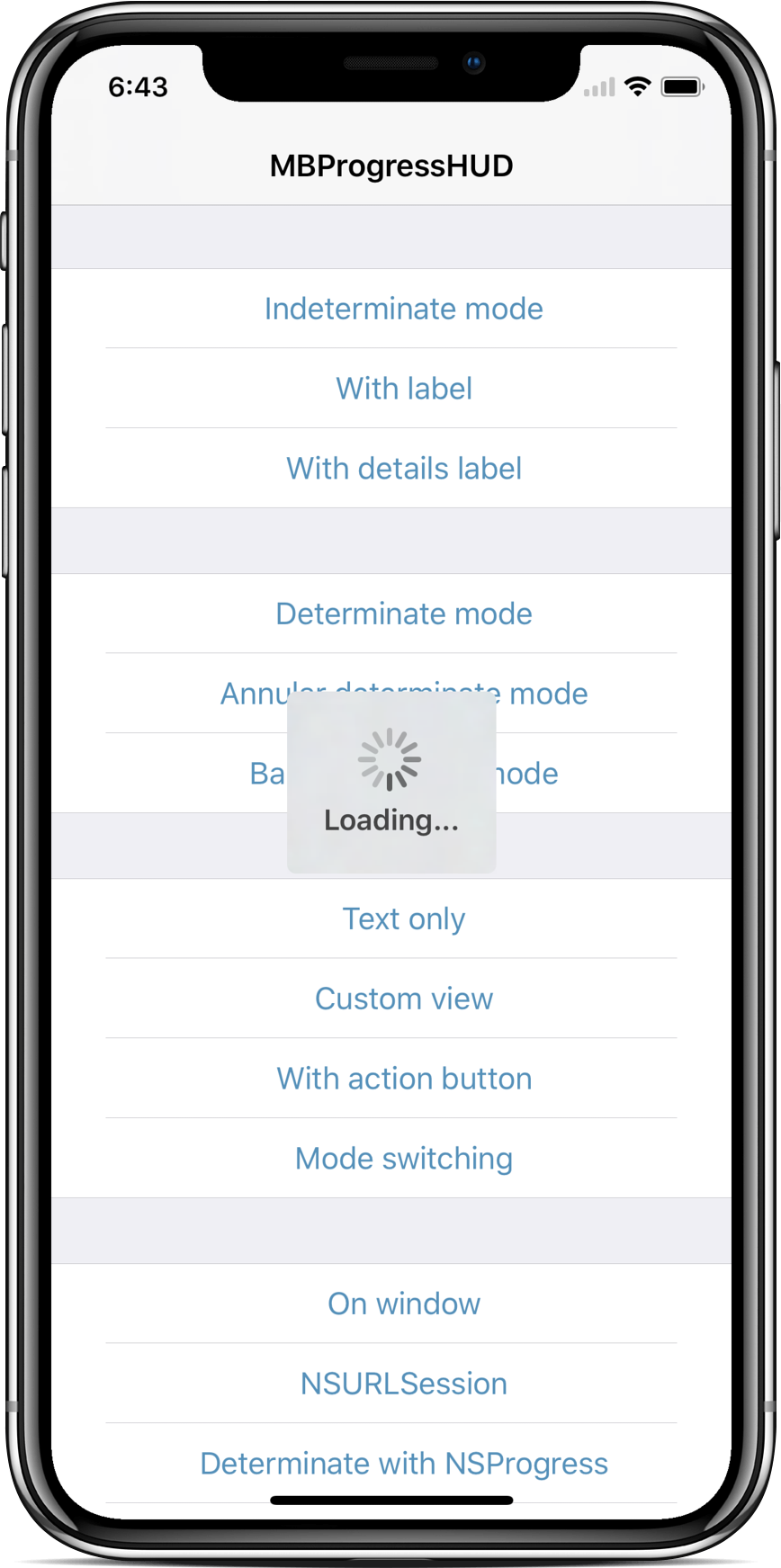
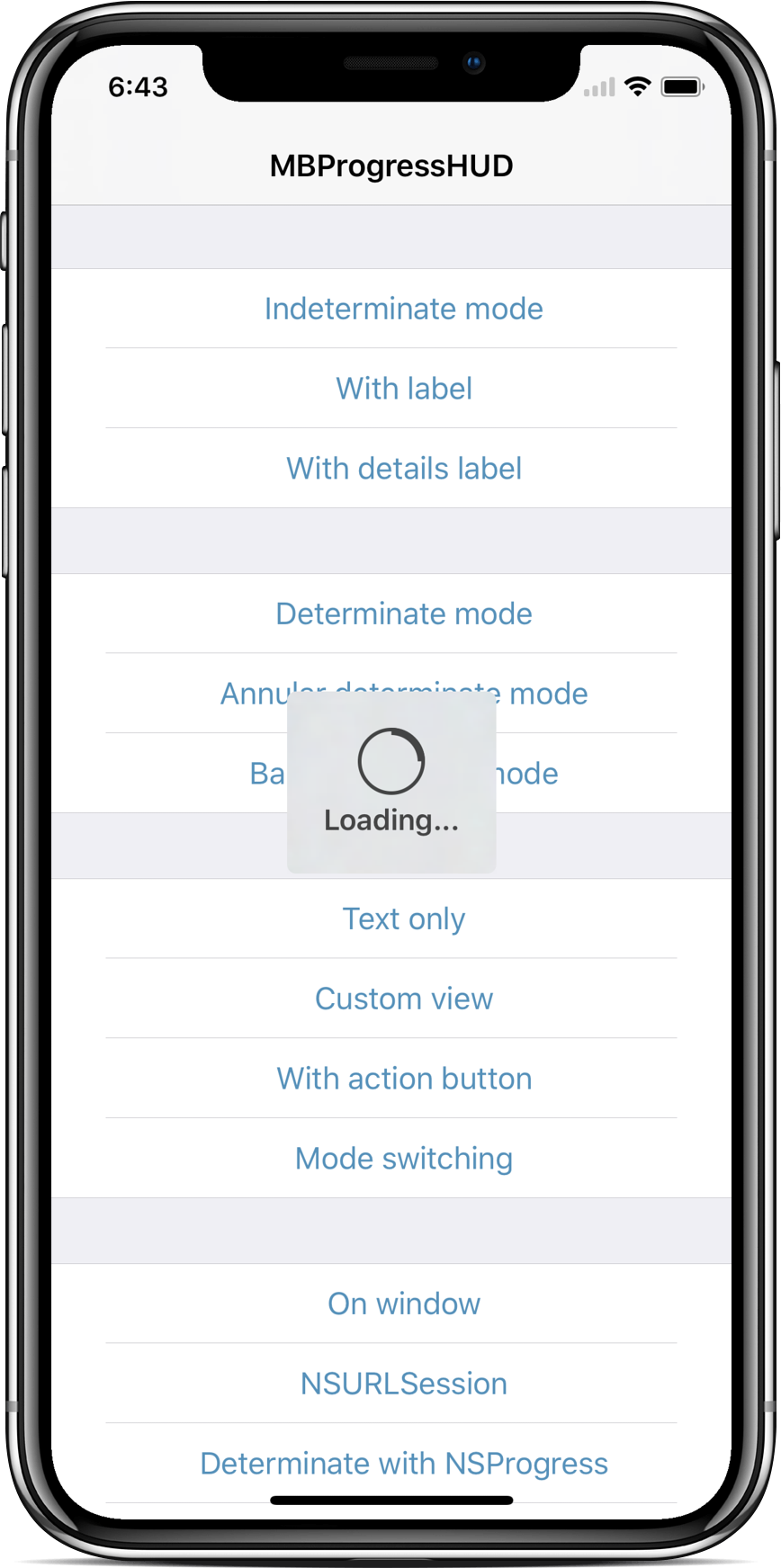
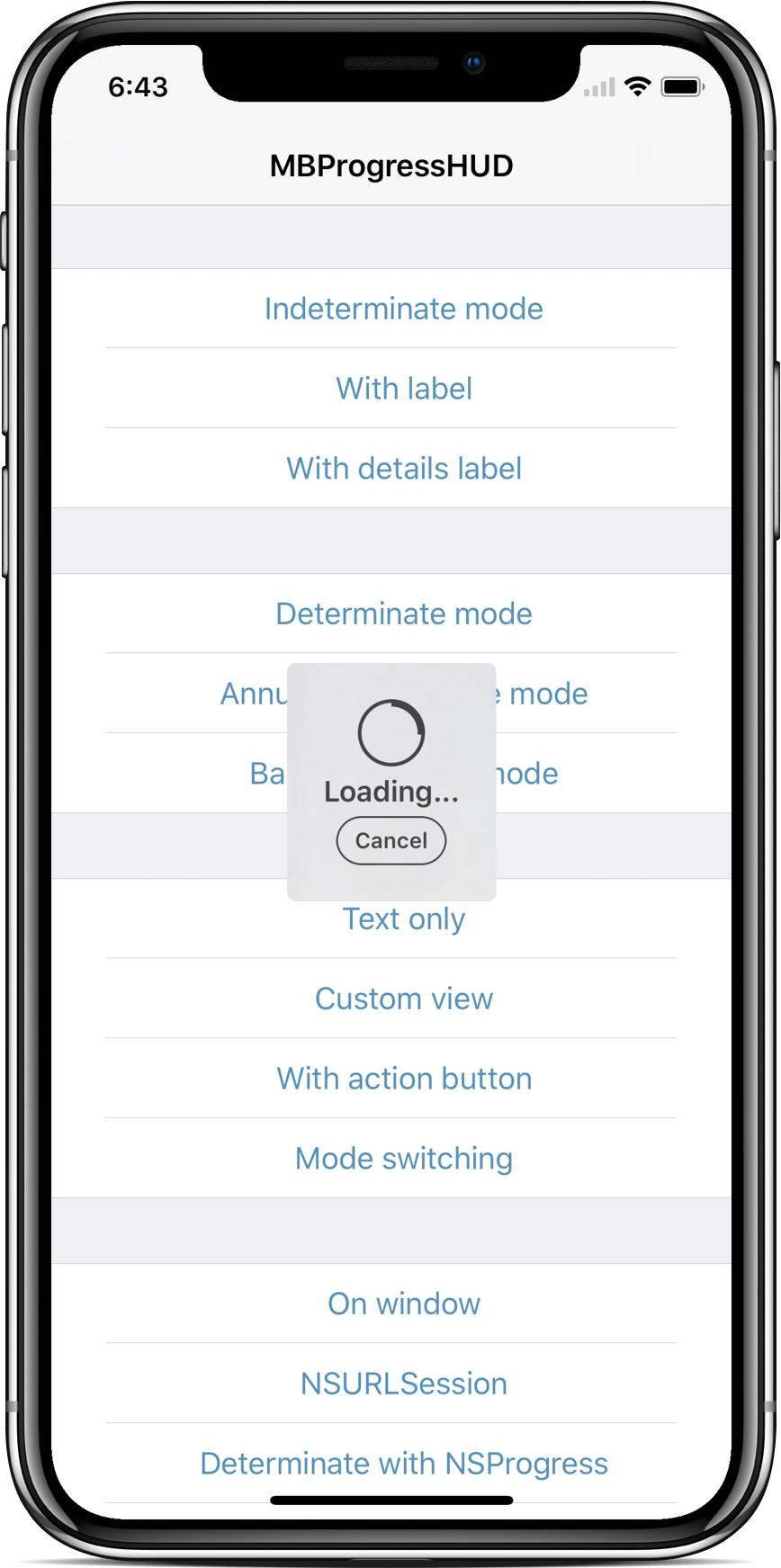
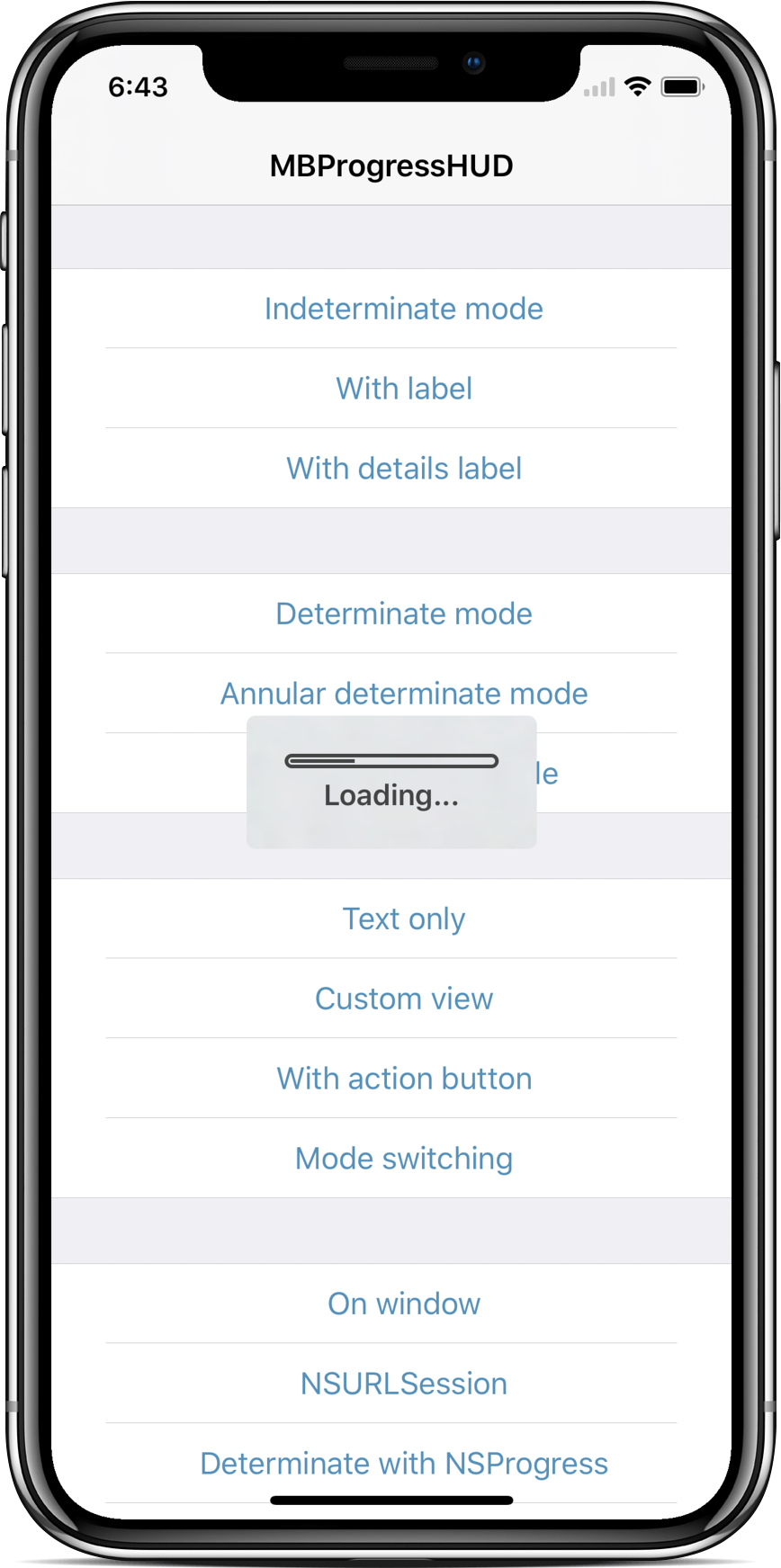
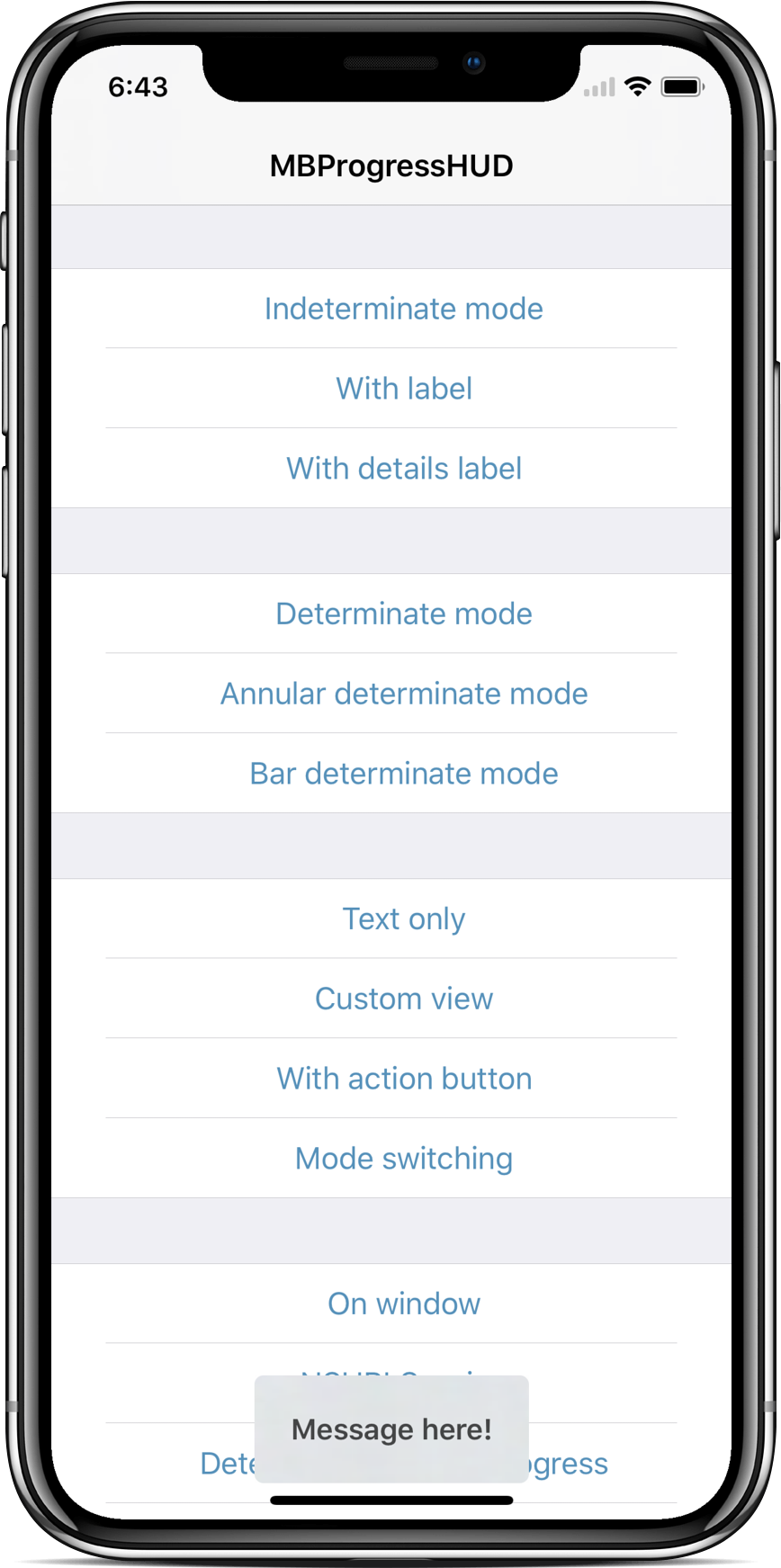
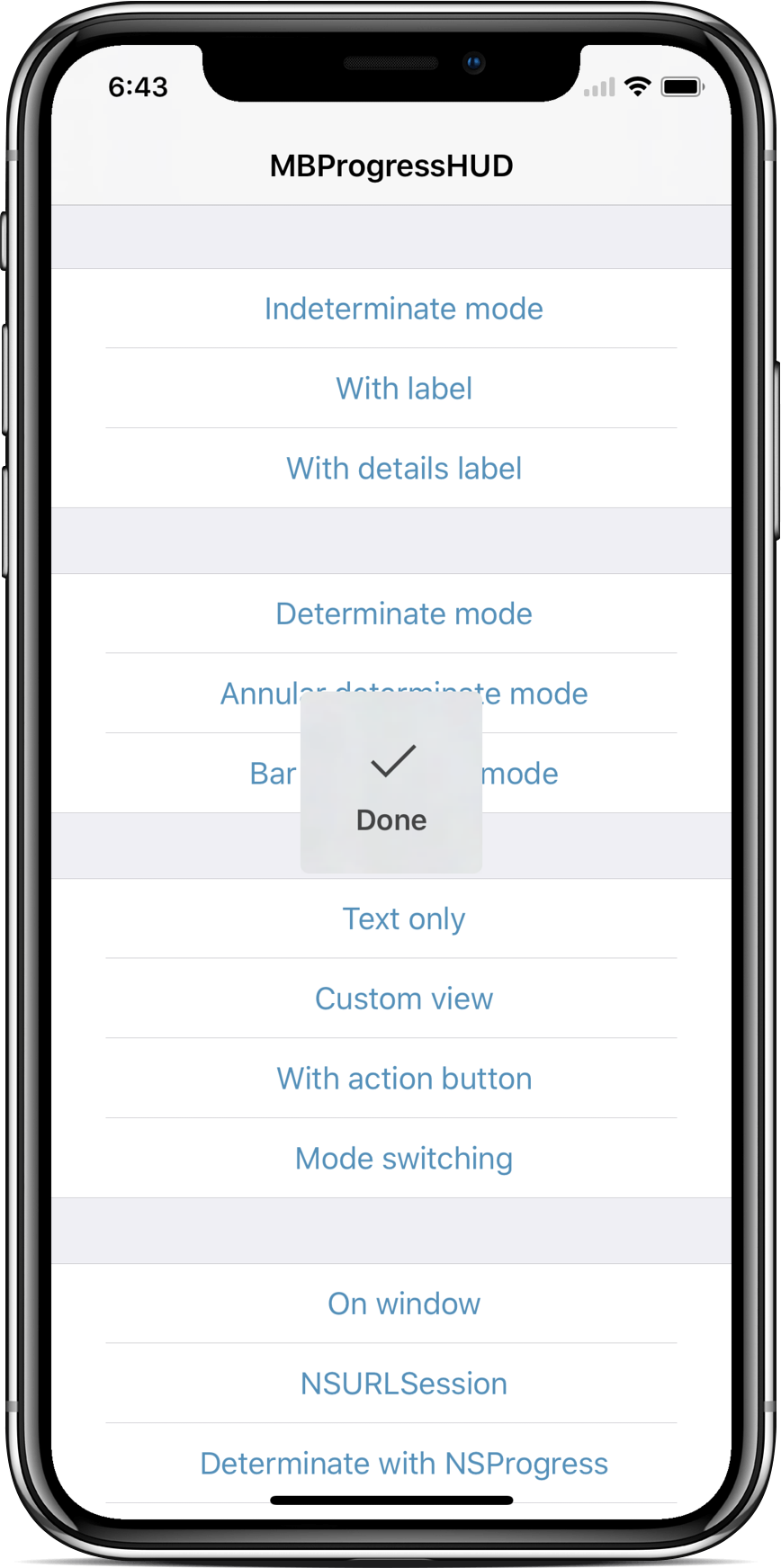
 MBProgressHUD is an iOS drop-in class that displays a translucent HUD with an indicator and/or labels over your UI while work runs on a background thread.
MBProgressHUD is an iOS drop-in class that displays a translucent HUD with an indicator and/or labels over your UI while work runs on a background thread.Is it a library I add to my app's code, or something that runs on its own?It's a library — essentially one Objective-C class (MBProgressHUD.h/.m) you drop into an iOS project. It works on iOS 9.0+ and needs only Apple frameworks that Xcode templates already include.
It's a library — essentially one Objective-C class (MBProgressHUD.h/.m) you drop into an iOS project. It works on iOS 9.0+ and needs only Apple frameworks that Xcode templates already include.How do I add it to my project?CocoaPods is the recommended way: add pod 'MBProgressHUD', '~> 1.2.0' to your Podfile and run pod install. Carthage, SwiftPM/Accio, dragging the two source files into Xcode, or adding it as a static library also work.
CocoaPods is the recommended way: add pod 'MBProgressHUD', '~> 1.2.0' to your Podfile and run pod install. Carthage, SwiftPM/Accio, dragging the two source files into Xcode, or adding it as a static library also work.Do I need any third-party dependencies first?No — it depends only on Foundation, UIKit and CoreGraphics, which ship with Xcode templates. You do need current developer tools: old Xcode versions might work but compatibility isn't explicitly maintained.
No — it depends only on Foundation, UIKit and CoreGraphics, which ship with Xcode templates. You do need current developer tools: old Xcode versions might work but compatibility isn't explicitly maintained.Any gotchas when showing the HUD?Keep the main thread work-free: set the HUD up on the main thread and move your long-running task onto a background thread. Also avoid adding it to UITableView or UICollectionView, whose subview mutations can break HUD display.
Keep the main thread work-free: set the HUD up on the main thread and move your long-running task onto a background thread. Also avoid adding it to UITableView or UICollectionView, whose subview mutations can break HUD display.Does MBProgressHUD collect any user data?No, the SDK does not collect any data.
No, the SDK does not collect any data.Can it show real progress, not just a spinner?Yes — hand it an NSProgress object and the HUD updates itself as progress is reported through it. You can also use the reference returned by showHUDAddedTo:animated: to configure the HUD.
Yes — hand it an NSProgress object and the HUD updates itself as progress is reported through it. You can also use the reference returned by showHUDAddedTo:animated: to configure the HUD.Why use this instead of UIKit's built-in progress view?UIKit's own UIProgressHUD is private and undocumented, so there is no supported built-in equivalent. MBProgressHUD was written as a supported replacement with some additional features.
UIKit's own UIProgressHUD is private and undocumented, so there is no supported built-in equivalent. MBProgressHUD was written as a supported replacement with some additional features.Where are the docs and sample code?Extensive API documentation lives in the header file (MBProgressHUD.h), and the bundled demo project shows examples, including using the HUD with asynchronous operations like NSURLConnection.
Extensive API documentation lives in the header file (MBProgressHUD.h), and the bundled demo project shows examples, including using the HUD with asynchronous operations like NSURLConnection.Can I use it from Swift?Yes — it's an Objective-C class you import into Swift projects, and SwiftPM is one of the supported package managers alongside CocoaPods and Carthage.
Yes — it's an Objective-C class you import into Swift projects, and SwiftPM is one of the supported package managers alongside CocoaPods and Carthage.What are similar projects?SVProgressHUD, FSCalendar, DZNEmptyDataSet, SkeletonView, pop, Spring, AFNetworking, chameleon
SVProgressHUD, FSCalendar, DZNEmptyDataSet, SkeletonView, pop, Spring, AFNetworking, chameleonWhich topics is it in?cocoa, swift-package-manager, objective-c, xcode, swift, ui-components, mobile, ui, ios, gui, library, mit
cocoa, swift-package-manager, objective-c, xcode, swift, ui-components, mobile, ui, ios, gui, library, mit