
A higher order component for loading components with dynamic imports.
Install
yarn add react-loadable
Example
import Loadable from 'react-loadable';
import Loading from './my-loading-component';

const LoadableComponent = Loadable({
  loader: () => import('./my-component'),
  loading: Loading,
});

export default class App extends React.Component {
  render() {
    return <LoadableComponent/>;
  }
}
Happy Customers:
Users
If your company or project is using React Loadable, please open a PR and add
yourself to this list (in alphabetical order please)
Also See:
react-loadable-visibility - Building on top of and keeping the same API as react-loadable, this library enables you to load content that is visible on the screen.
react-loadable-ssr-addon - Server Side Render add-on for react-loadable. Discover & load automatically dynamically all files dependencies, e.g. splitted chunks, css, etc.

Guide
So you've got your React app, you're bundling it with Webpack, and things are
going smooth. But then one day you notice your app's bundle is getting so big
that it's slowing things down.
It's time to start code-splitting your app!

Code-splitting is the process of taking one large bundle containing your entire
app, and splitting them up into multiple smaller bundles which contain separate
parts of your app.
This might seem difficult to do, but tools like Webpack have this built in, and
React Loadable is designed to make it super simple.
Route-based splitting vs. Component-based splitting
A common piece of advice you will see is to break your app into separate routes
and load each one asynchronously. This seems to work well enough for many apps–
as a user, clicking a link and waiting for a page to load is a familiar
experience on the web.
But we can do better than that.
Using most routing tools for React, a route is simply a component. There's
nothing particularly special about them (Sorry Ryan and Michael– you're what's
special). So what if we optimized for splitting around components instead of
routes? What would that get us?
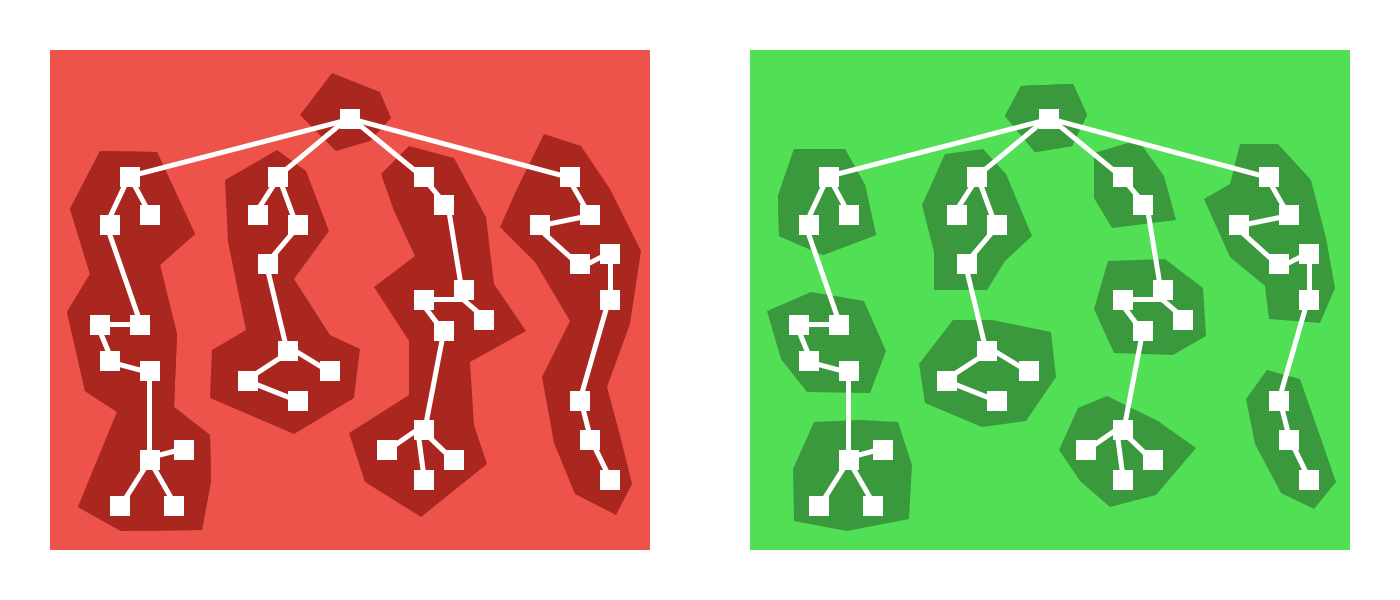
As it turns out: Quite a lot. There are many more places than just routes where
you can pretty easily split apart your app. Modals, tabs, and many more UI
components hide content until the user has done something to reveal it.
Example: Maybe your app has a map buried inside of a tab component. Why
would you load a massive mapping library for the parent route every time when
the user may never go to that tab?
Not to mention all the places where you can defer loading content until higher
priority content is finished loading. That component at the bottom of your page
which loads a bunch of libraries: Why should that be loaded at the same time as
the content at the top?
And because routes are just components, we can still easily code-split at the
route level.
Introducing new code-splitting points in your app should be so easy that you
don't think twice about it. It should be a matter of changing a few lines of
code and everything else should be automated.
Introducing React Loadable
React Loadable is a small library that makes component-centric code splitting
incredibly easy in React.
Loadable is a higher-order component (a function that creates a component)
which lets you dynamically load any module before rendering it into your app.
Let's imagine two components, one that imports and renders another.
import Bar from './components/Bar';

class Foo extends React.Component {
  render() {
    return <Bar/>;
  }
}
Right now we're depending on Bar being imported synchronously via import,
but we don't need it until we go to render it. So why don't we just defer that?
Using a dynamic import (a tc39 proposal currently at Stage 3)
we can modify our component to load Bar asynchronously.
class MyComponent extends React.Component {
  state = {
    Bar: null
  };

  componentWillMount() {
    import('./components/Bar').then(Bar => {
      this.setState({ Bar: Bar.default });
    });
  }

  render() {
    let {Bar} = this.state;
    if (!Bar) {
      return <div>Loading...</div>;
    } else {
      return <Bar/>;
    };
  }
}
But that's a whole bunch of work, and it doesn't even handle a bunch of cases.
What about when import() fails? What about server-side rendering?
Instead you can use Loadable to abstract away the problem.
import Loadable from 'react-loadable';

const LoadableBar = Loadable({
  loader: () => import('./components/Bar'),
  loading() {
    return <div>Loading...</div>
  }
});

class MyComponent extends React.Component {
  render() {
    return <LoadableBar/>;
  }
}
Automatic code-splitting on import()
When you use import() with Webpack 2+, it will
automatically code-split for
you with no additional configuration.
This means that you can easily experiment with new code splitting points just
by switching to import() and using React Loadable. Figure out what performs
best for your app.
Creating a great "Loading..." Component
Rendering a static "Loading..." doesn't communicate enough to the user. You
also need to think about error states, timeouts, and making it a nice
experience.
function Loading() {
  return <div>Loading...</div>;
}

Loadable({
  loader: () => import('./WillFailToLoad'), // oh no!
  loading: Loading,
});
To make this all nice, your loading component receives a
couple different props.
Loading error states
When your loader fails, your loading component
will receive an error prop which will be an Error object (otherwise it
will be null).
function Loading(props) {
  if (props.error) {
    return <div>Error! <button onClick={ props.retry }>Retry</button></div>;
  } else {
    return <div>Loading...</div>;
  }
}
Avoiding Flash Of Loading Component
Sometimes components load really quickly (<200ms) and the loading screen only
quickly flashes on the screen.
A number of user studies have proven that this causes users to perceive things
taking longer than they really have. If you don't show anything, users perceive
it as being faster.
So your loading component will also get a pastDelay prop
which will only be true once the component has taken longer to load than a set
delay.
function Loading(props) {
  if (props.error) {
    return <div>Error! <button onClick={ props.retry }>Retry</button></div>;
  } else if (props.pastDelay) {
    return <div>Loading...</div>;
  } else {
    return null;
  }
}
This delay defaults to 200ms but you can also customize the
delay in Loadable.
Loadable({
  loader: () => import('./components/Bar'),
  loading: Loading,
  delay: 300, // 0.3 seconds
});
Timing out when the loader is taking too long
Sometimes network connections suck and never resolve or fail, they just hang
there forever. This sucks for the user because they won't know if it should
always take this long, or if they should try refreshing.
The loading component will receive a
timedOut prop which will be set to true when the
loader has timed out.
function Loading(props) {
  if (props.error) {
    return <div>Error! <button onClick={ props.retry }>Retry</button></div>;
  } else if (props.timedOut) {
    return <div>Taking a long time... <button onClick={ props.retry }>Retry</button></div>;
  } else if (props.pastDelay) {
    return <div>Loading...</div>;
  } else {
    return null;
  }
}
However, this feature is disabled by default. To turn it on, you can pass a
timeout option to Loadable.
Loadable({
  loader: () => import('./components/Bar'),
  loading: Loading,
  timeout: 10000, // 10 seconds
});
Customizing rendering
By default Loadable will render the default export of the returned module.
If you want to customize this behavior you can use the
render option.
Loadable({
  loader: () => import('./my-component'),
  render(loaded, props) {
    let Component = loaded.namedExport;
    return <Component {...props}/>;
  }
});
Loading multiple resources
Technically you can do whatever you want within loader() as long as it
returns a promise and you're able to render something.
But writing it out can be a bit annoying.
To make it easier to load multiple resources in parallel, you can use
Loadable.Map.
Loadable.Map({
  loader: {
    Bar: () => import('./Bar'),
    i18n: () => fetch('./i18n/bar.json').then(res => res.json()),
  },
  render(loaded, props) {
    let Bar = loaded.Bar.default;
    let i18n = loaded.i18n;
    return <Bar {...props} i18n={i18n}/>;
  },
});
When using Loadable.Map the render() method is required. It
will be passed a loaded param which will be an object matching the shape of
your loader.
Preloading
As an optimization, you can also decide to preload a component before it gets
rendered.
For example, if you need to load a new component when a button gets pressed,
you could start preloading the component when the user hovers over the button.
The component created by Loadable exposes a
static preload method which does exactly this.
const LoadableBar = Loadable({
  loader: () => import('./Bar'),
  loading: Loading,
});

class MyComponent extends React.Component {
  state = { showBar: false };

  onClick = () => {
    this.setState({ showBar: true });
  };

  onMouseOver = () => {
    LoadableBar.preload();
  };

  render() {
    return (
      <div>
        <button
          onClick={this.onClick}
          onMouseOver={this.onMouseOver}>
          Show Bar
        </button>
        {this.state.showBar && <LoadableBar/>}
      </div>
    )
  }
}

Server-Side Rendering
When you go to render all these dynamically loaded components, what you'll get
is a whole bunch of loading screens.
This really sucks, but the good news is that React Loadable is designed to
make server-side rendering work as if nothing is being loaded dynamically.
Here's our starting server using Express.
import express from 'express';
import React from 'react';
import ReactDOMServer from 'react-dom/server';
import App from './components/App';

const app = express();

app.get('/', (req, res) => {
  res.send(`
    <!doctype html>
    <html lang="en">
      <head>...</head>
      <body>
        <div id="app">${ReactDOMServer.renderToString(<App/>)}</div>
        <script src="/dist/main.js"></script>
      </body>
    </html>
  `);
});

app.listen(3000, () => {
  console.log('Running on http://localhost:3000/');
});
Preloading all your loadable components on the server
The first step to rendering the correct content from the server is to make sure
that all of your loadable components are already loaded when you go to render
them.
To do this, you can use the Loadable.preloadAll
method. It returns a promise that will resolve when all your loadable
components are ready.
Loadable.preloadAll().then(() => {
  app.listen(3000, () => {
    console.log('Running on http://localhost:3000/');
  });
});
Picking up a server-side rendered app on the client
This is where things get a little bit tricky. So let's prepare ourselves
little bit.
In order for us to pick up what was rendered from the server we need to have
all the same code that was used to render on the server.
To do this, we first need our loadable components telling us which modules they
are rendering.
Declaring which modules are being loaded
There are two options in Loadable and
Loadable.Map which are used to tell us which modules our
component is trying to load: opts.modules and
opts.webpack.
Loadable({
  loader: () => import('./Bar'),
  modules: ['./Bar'],
  webpack: () => [require.resolveWeak('./Bar')],
});
But don't worry too much about these options. React Loadable includes a
Babel plugin to add them for you.
Just add the react-loadable/babel plugin to your Babel config:
{
  "plugins": [
    "react-loadable/babel"
  ]
}
Now these options will automatically be provided.
For typescript you can use react-loadable-ts-transformer which is a ts analog of react-loadable/babel plugin.
Finding out which dynamic modules were rendered
Next we need to find out which modules were actually rendered when a request
comes in.
For this, there is Loadable.Capture component which can
be used to collect all the modules that were rendered.
import Loadable from 'react-loadable';

app.get('/', (req, res) => {
  let modules = [];

  let html = ReactDOMServer.renderToString(
    <Loadable.Capture report={moduleName => modules.push(moduleName)}>
      <App/>
    </Loadable.Capture>
  );

  console.log(modules);

  res.send(`...${html}...`);
});
Mapping loaded modules to bundles
In order to make sure that the client loads all the modules that were rendered
server-side, we'll need to map them to the bundles that Webpack created.
This comes in two parts.
First we need Webpack to tell us which bundles each module lives inside. For
this there is the React Loadable Webpack plugin.
Import the ReactLoadablePlugin from react-loadable/webpack and include it
in your webpack config. Pass it a filename for where to store the JSON data
about our bundles.
// webpack.config.js
import { ReactLoadablePlugin } from 'react-loadable/webpack';

export default {
  plugins: [
    new ReactLoadablePlugin({
      filename: './dist/react-loadable.json',
    }),
  ],
};
Then we'll go back to our server and use this data to convert our modules to
bundles.
To convert from modules to bundles, import the getBundles
method from react-loadable/webpack and the data from Webpack.
import Loadable from 'react-loadable';
import { getBundles } from 'react-loadable/webpack'
import stats from './dist/react-loadable.json';

app.get('/', (req, res) => {
  let modules = [];

  let html = ReactDOMServer.renderToString(
    <Loadable.Capture report={moduleName => modules.push(moduleName)}>
      <App/>
    </Loadable.Capture>
  );

  let bundles = getBundles(stats, modules);

  // ...
});
We can then render these bundles into <script> tags in our HTML.
It is important that the bundles are included before the main bundle, so that
they can be loaded by the browser prior to the app rendering.
However, as the Webpack manifest (including the logic for parsing bundles) lives in
the main bundle, it will need to be extracted into its own chunk.
This is easy to do with the CommonsChunkPlugin
// webpack.config.js
export default {
  plugins: [
    new webpack.optimize.CommonsChunkPlugin({
      name: 'manifest',
      minChunks: Infinity
    })
  ]
}
Notice: As of Webpack 4 the CommonsChunkPlugin has been removed and the manifest doesn't need to be extracted anymore.
let bundles = getBundles(stats, modules);

res.send(`
  <!doctype html>
  <html lang="en">
    <head>...</head>
    <body>
      <div id="app">${html}</div>
      <script src="/dist/manifest.js"></script>
      <script src="/dist/main.js"></script>
      ${bundles.map(bundle => {
        return `<script src="/dist/${bundle.file}"></script>`
        // alternatively if you are using publicPath option in webpack config
        // you can use the publicPath value from bundle, e.g:
        // return `<script src="${bundle.publicPath}"></script>`
      }).join('\n')}
      <script>window.main();</script>
    </body>
  </html>
`);
Preloading ready loadable components on the client
We can use the Loadable.preloadReady() method on the
client to preload the loadable components that were include

 A small React library that gives you a higher-order component for loading components asynchronously with dynamic imports, which makes code-splitting a React app simple.