
10.1K ·GitHub
这是什么?
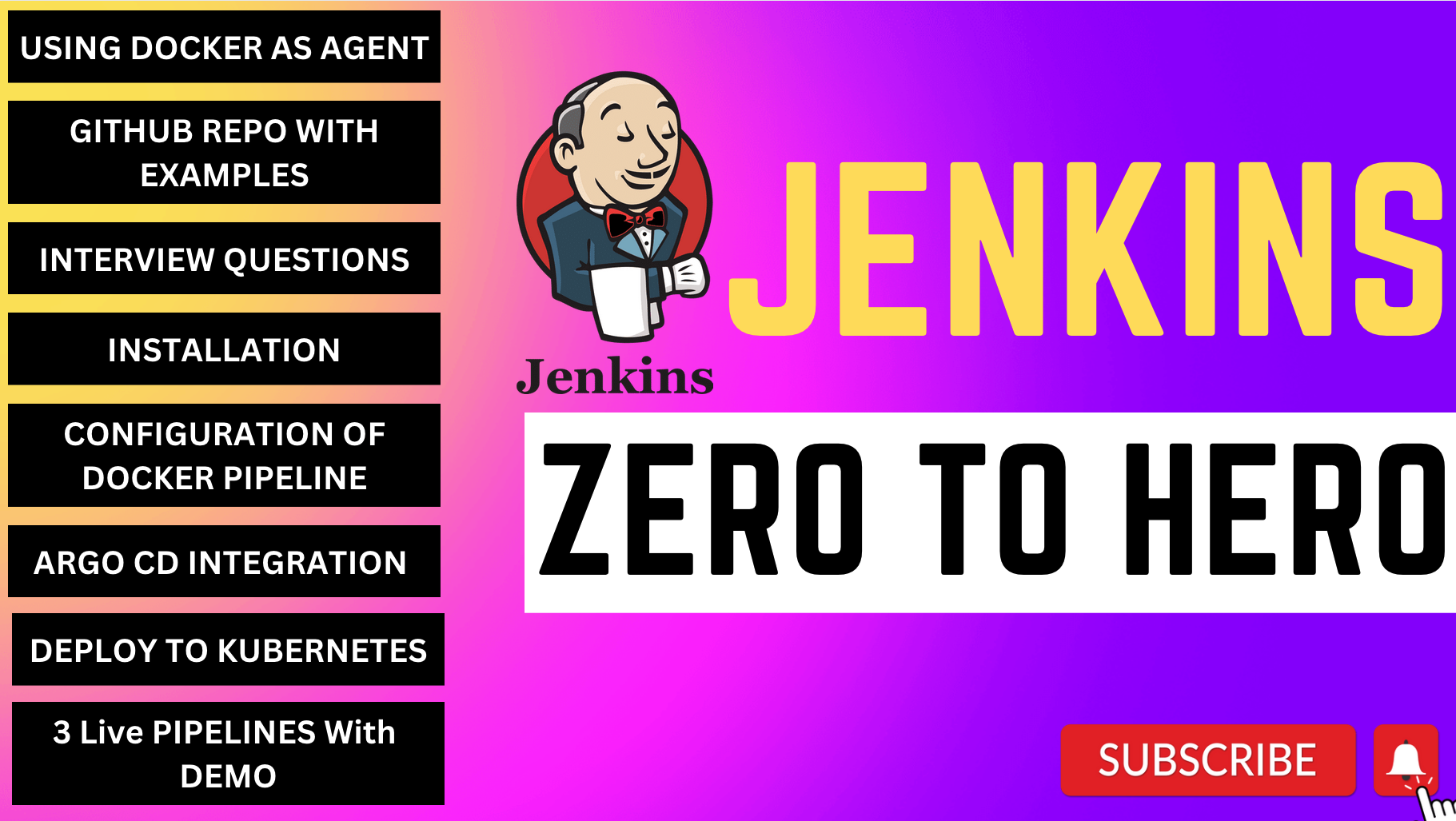
 这是一个带你从零到精通 Jenkins 的学习仓库:安装 Jenkins、配置 Docker 作为构建代理、搭建 CI/CD,并以 GitOps 工作流使用 Argo CD 把应用部署到 Kubernetes。
这是一个带你从零到精通 Jenkins 的学习仓库:安装 Jenkins、配置 Docker 作为构建代理、搭建 CI/CD,并以 GitOps 工作流使用 Argo CD 把应用部署到 Kubernetes。这是一个工具,还是一系列教程?它是一份带分步说明和配套 YouTube 视频的实操教程/指南,本身并不是可安装的工具。
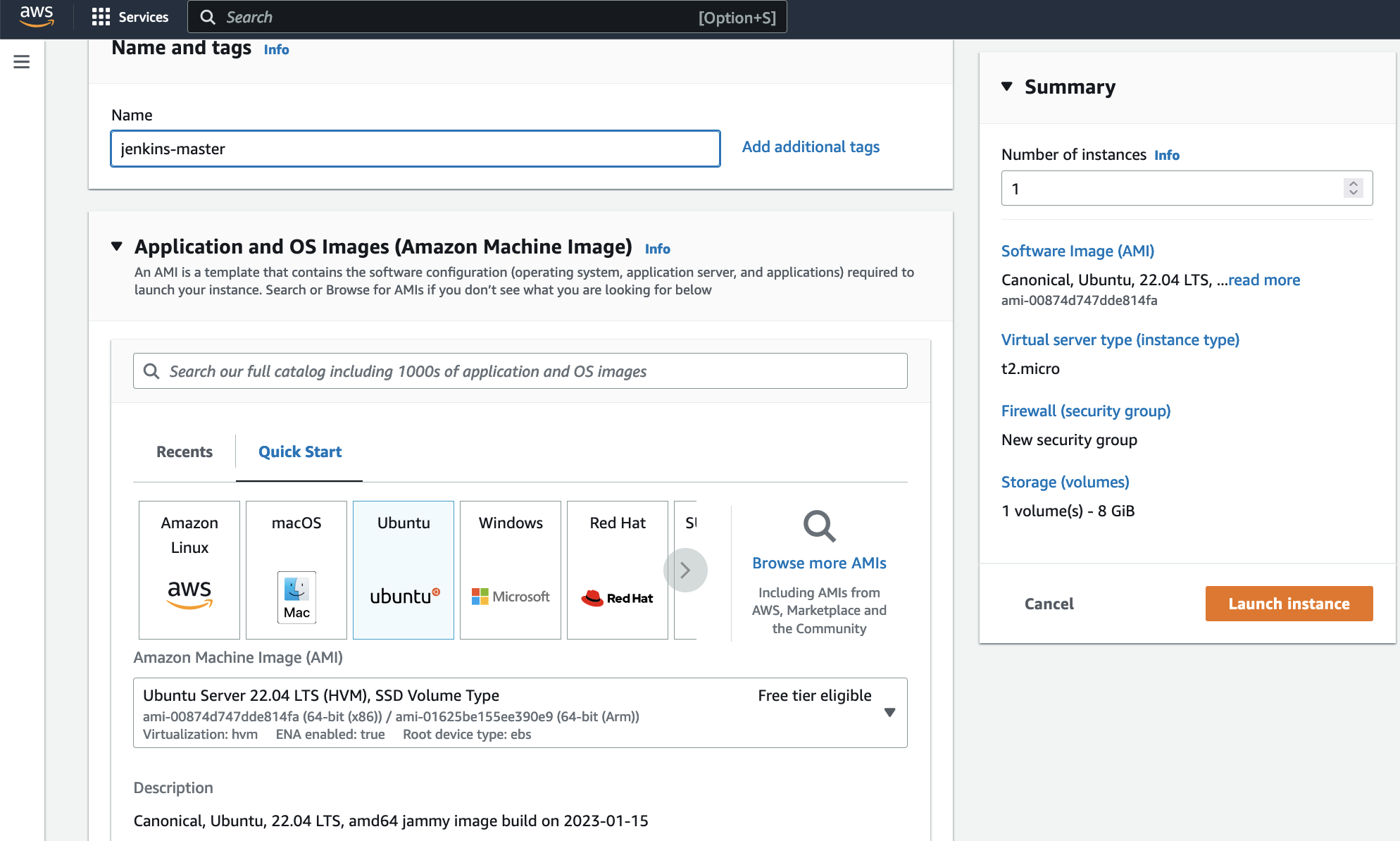
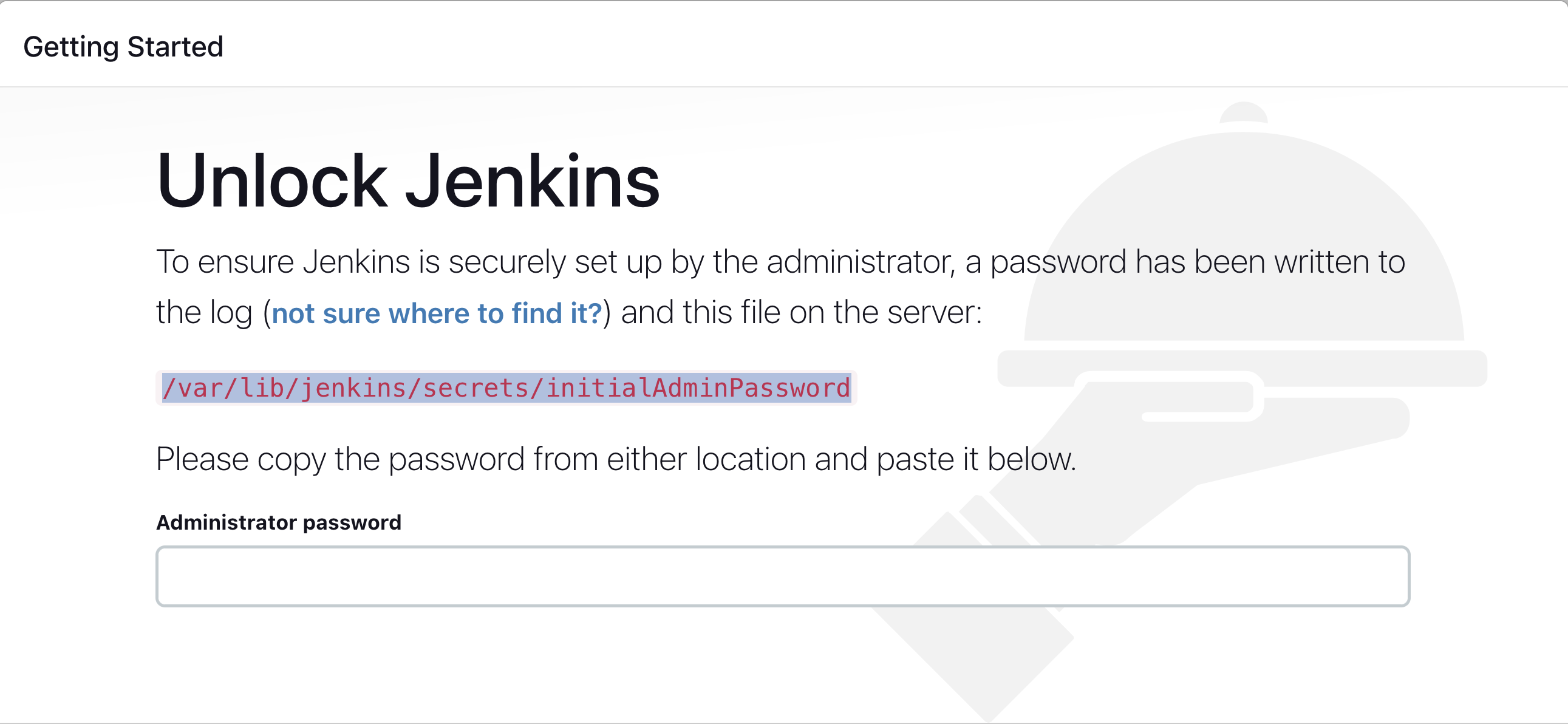
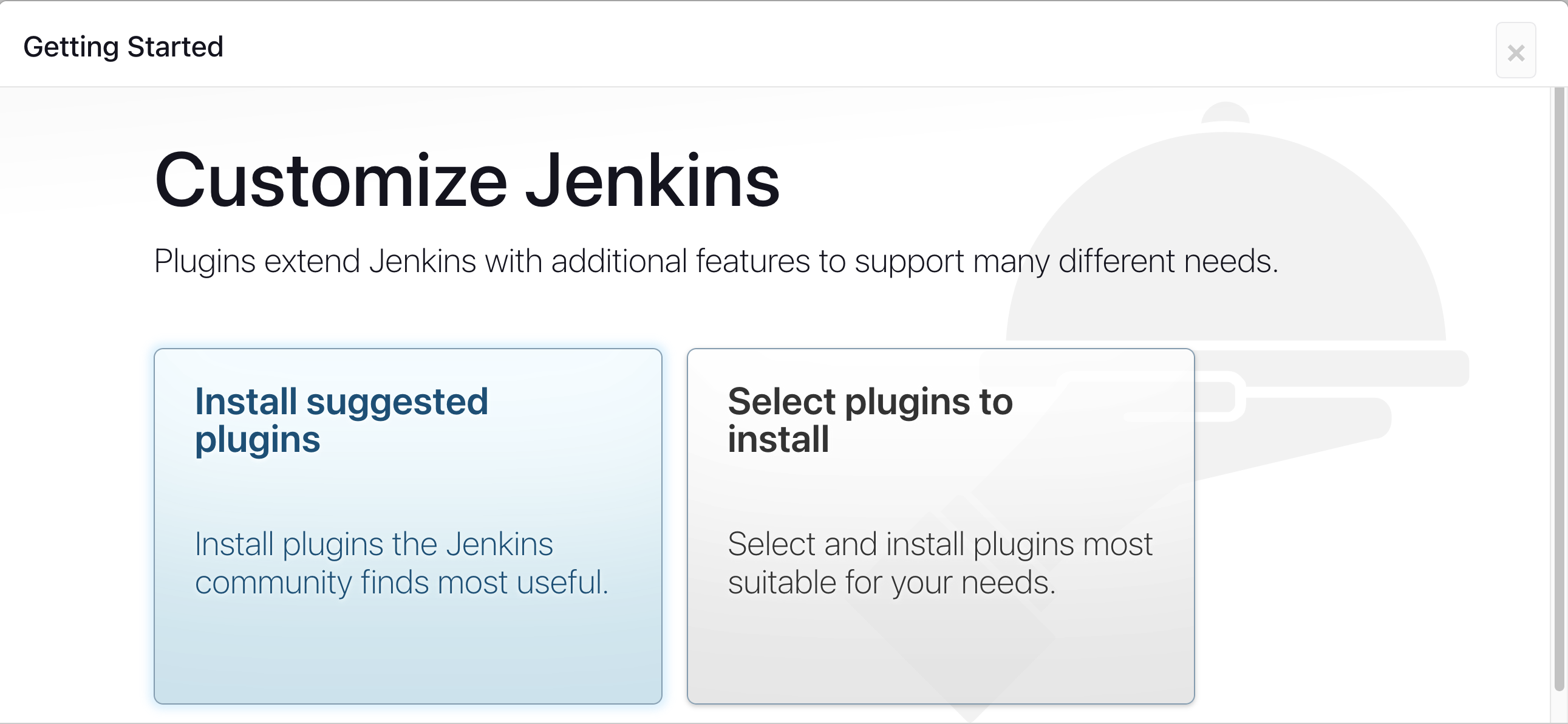
它是一份带分步说明和配套 YouTube 视频的实操教程/指南,本身并不是可安装的工具。按照这份指南,我该怎么让 Jenkins 跑起来?启动一个 AWS EC2 实例,打开安全组以允许入站流量(例如 TCP 8080),然后在上面安装 Jenkins,并通过网页界面进行配置。
启动一个 AWS EC2 实例,打开安全组以允许入站流量(例如 TCP 8080),然后在上面安装 Jenkins,并通过网页界面进行配置。开始之前需要准备什么,一个 AWS 账号吗?你需要一个 AWS 账号来启动 EC2 实例,并在该实例上安装 Docker,让它充当 Jenkins 的构建代理。
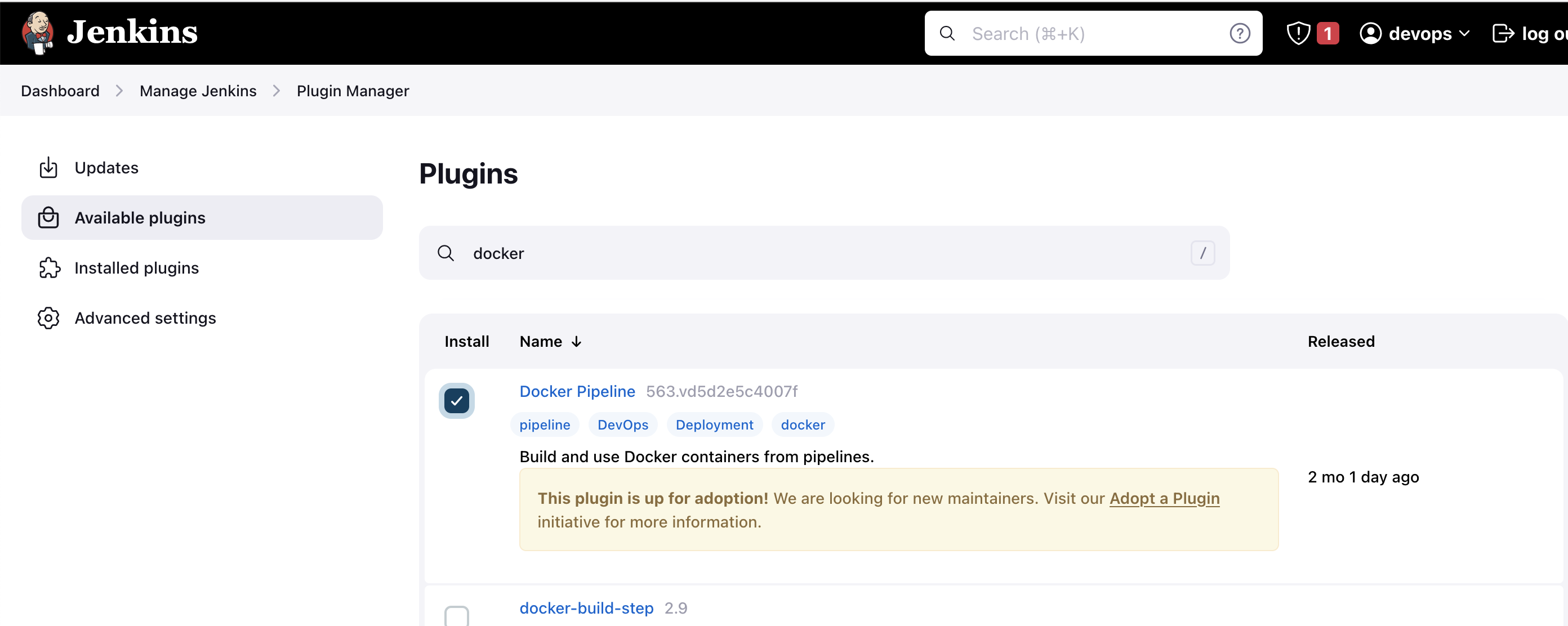
你需要一个 AWS 账号来启动 EC2 实例,并在该实例上安装 Docker,让它充当 Jenkins 的构建代理。安装插件之后需要重启 Jenkins 吗?需要。安装 Docker Pipeline 插件后必须重启 Jenkins,并且还要给 jenkins 和 ubuntu 两个用户都授予 docker 守护进程权限,代理设置才能生效。
需要。安装 Docker Pipeline 插件后必须重启 Jenkins,并且还要给 jenkins 和 ubuntu 两个用户都授予 docker 守护进程权限,代理设置才能生效。这份指南面向谁?面向想要循序渐进学习 Jenkins CI/CD、Docker 代理、Kubernetes 部署以及 Argo CD GitOps 的初中级 DevOps 学习者。
面向想要循序渐进学习 Jenkins CI/CD、Docker 代理、Kubernetes 部署以及 Argo CD GitOps 的初中级 DevOps 学习者。这份指南除了 Jenkins 之外也讲 Kubernetes 部署吗?讲。最终目标包括以 GitOps 工作流使用 Argo CD 把应用部署到 Kubernetes,而不仅仅是搭建 Jenkins。
讲。最终目标包括以 GitOps 工作流使用 Argo CD 把应用部署到 Kubernetes,而不仅仅是搭建 Jenkins。文字步骤之外还有视频内容吗?有。仓库链接了一个 YouTube 视频,内容涵盖安装 Jenkins、配置 Docker 作为代理以及搭建 CI/CD。
有。仓库链接了一个 YouTube 视频,内容涵盖安装 Jenkins、配置 Docker 作为代理以及搭建 CI/CD。在本教程中,Jenkins 应该运行在哪里?这份指南专门讲解在 AWS EC2 实例上搭建 Jenkins,并在同一台机器上配置安全组和 Docker。
这份指南专门讲解在 AWS EC2 实例上搭建 Jenkins,并在同一台机器上配置安全组和 Docker。What are similar projects?aws-devops-zero-to-hero, argo-cd, jenkins, semaphore, openframe-cli, mlops-zoomcamp, encore, kubespray
aws-devops-zero-to-hero, argo-cd, jenkins, semaphore, openframe-cli, mlops-zoomcamp, encore, kubesprayWhich topics is it in?jenkins, gitops, cicd, pipeline, infrastructure-as-code, ci-cd, aws, deployment, beginner-friendly, kubernetes, cloud, devops
jenkins, gitops, cicd, pipeline, infrastructure-as-code, ci-cd, aws, deployment, beginner-friendly, kubernetes, cloud, devops