Recover storage used by everyday apps, development work, and AI tools. Find caches, build artifacts, and local models in one place, without hunting through hidden folders:
System and user caches: Reclaim space taken up over time by system temporary files, diagnostic data, and rebuildable caches.
Application caches: Keep application caches, logs, update packages, and temporary content from quietly consuming more and more storage.
Browser data: Reclaim space used by cached and temporary web data from Chrome, Edge, Firefox, Brave, Arc, Opera, and other browsers.
Developer tools and Xcode: Quickly recover substantial storage used by package managers, IDEs, compiler caches, and Xcode development data.
Container caches: Free up space used by inactive build caches and rebuildable data from Docker and other container tools.
Project build artifacts: Recover space used by rebuildable dependencies, caches, and build directories across Node.js, Rust, Gradle, Swift, Python, .NET, Godot, CMake, and other projects.
AI tools: Reclaim space taken up by caches, old logs, and temporary downloads from tools such as ChatGPT, Codex, and Claude, without tracking down each tool's data folders.
AI models: See how much space local models from Ollama, LM Studio, Hugging Face, and ComfyUI use, and remove those you no longer need to make room for new models and everyday files. Models are selected manually and must be downloaded again if needed later.
Application optimization: Shrink supported applications without affecting normal use, leaving more room on your disk.
Smart recommendations help you make safe choices quickly. You can also review items individually and see the estimated reclaimable space upfront, keeping every cleanup predictable and under your control.
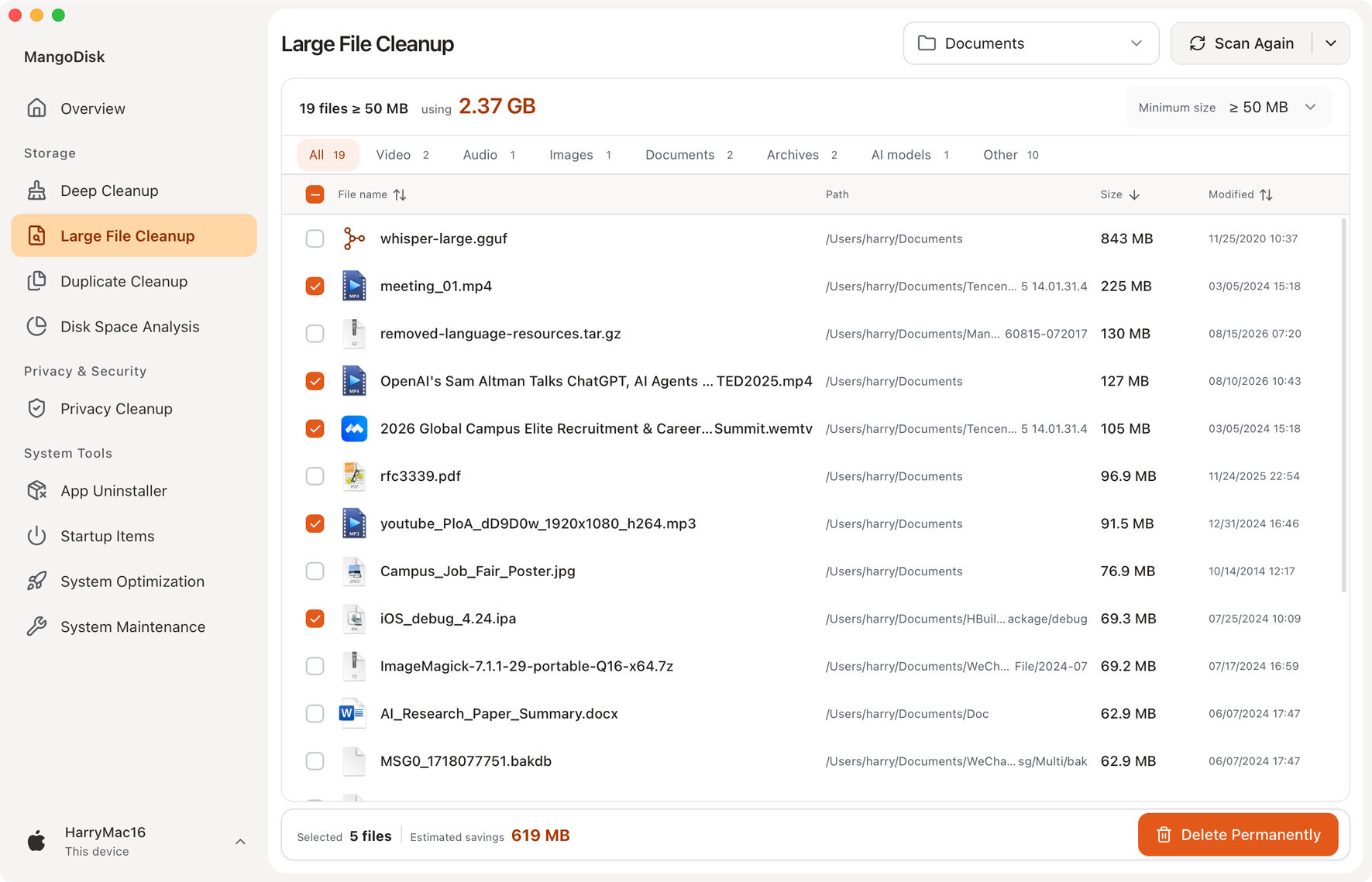
2. Large File Cleanup
Quickly find the largest files and reclaim space used by old installers, videos, archives, and other bulky content without digging through folders one by one.
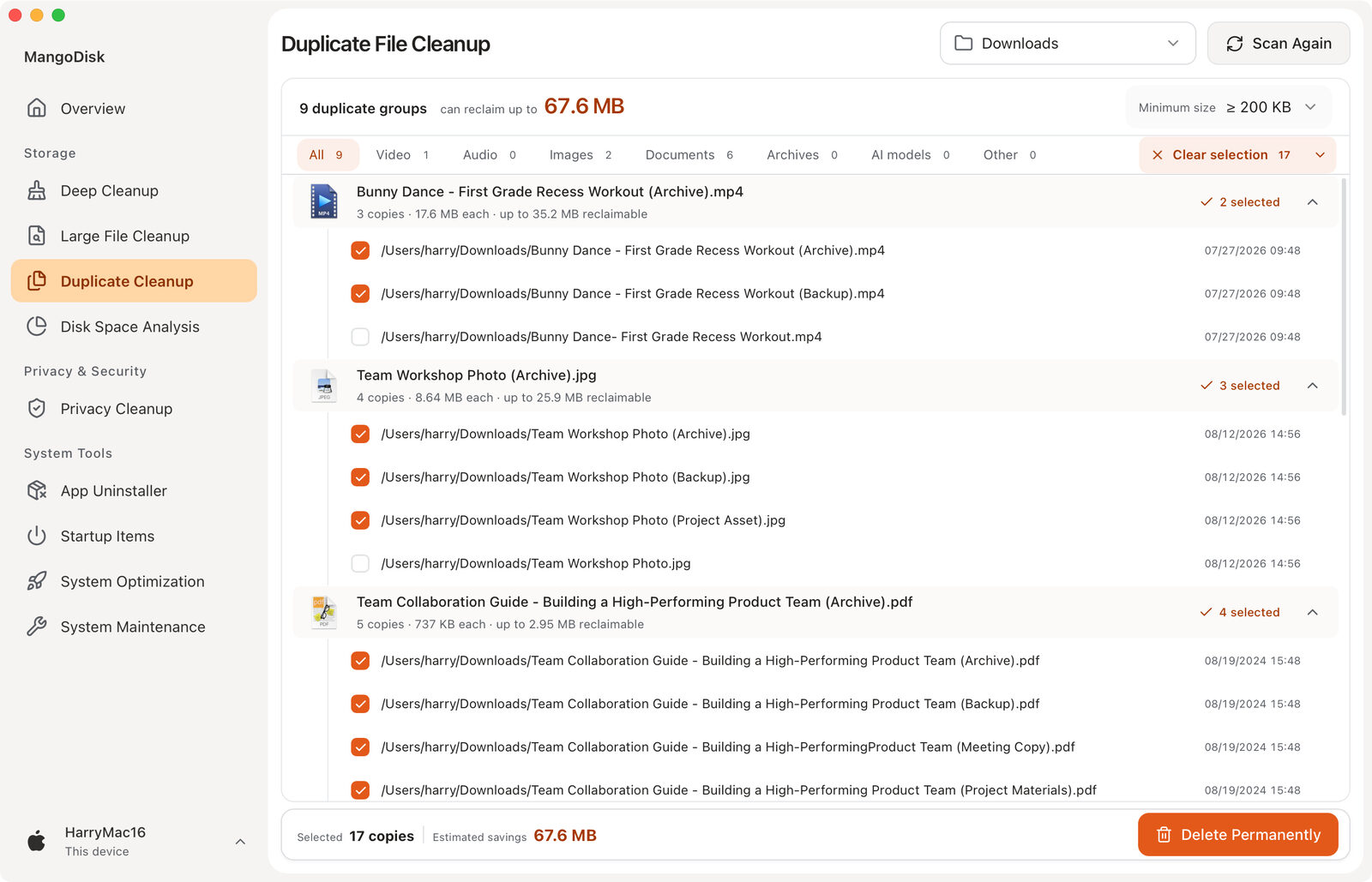
3. Duplicate File Cleanup
Reclaim space taken up by duplicate copies without treating files as duplicates just because they share a name. Smart selection keeps at least one file in every group, so cleanup stays effortless and safe.
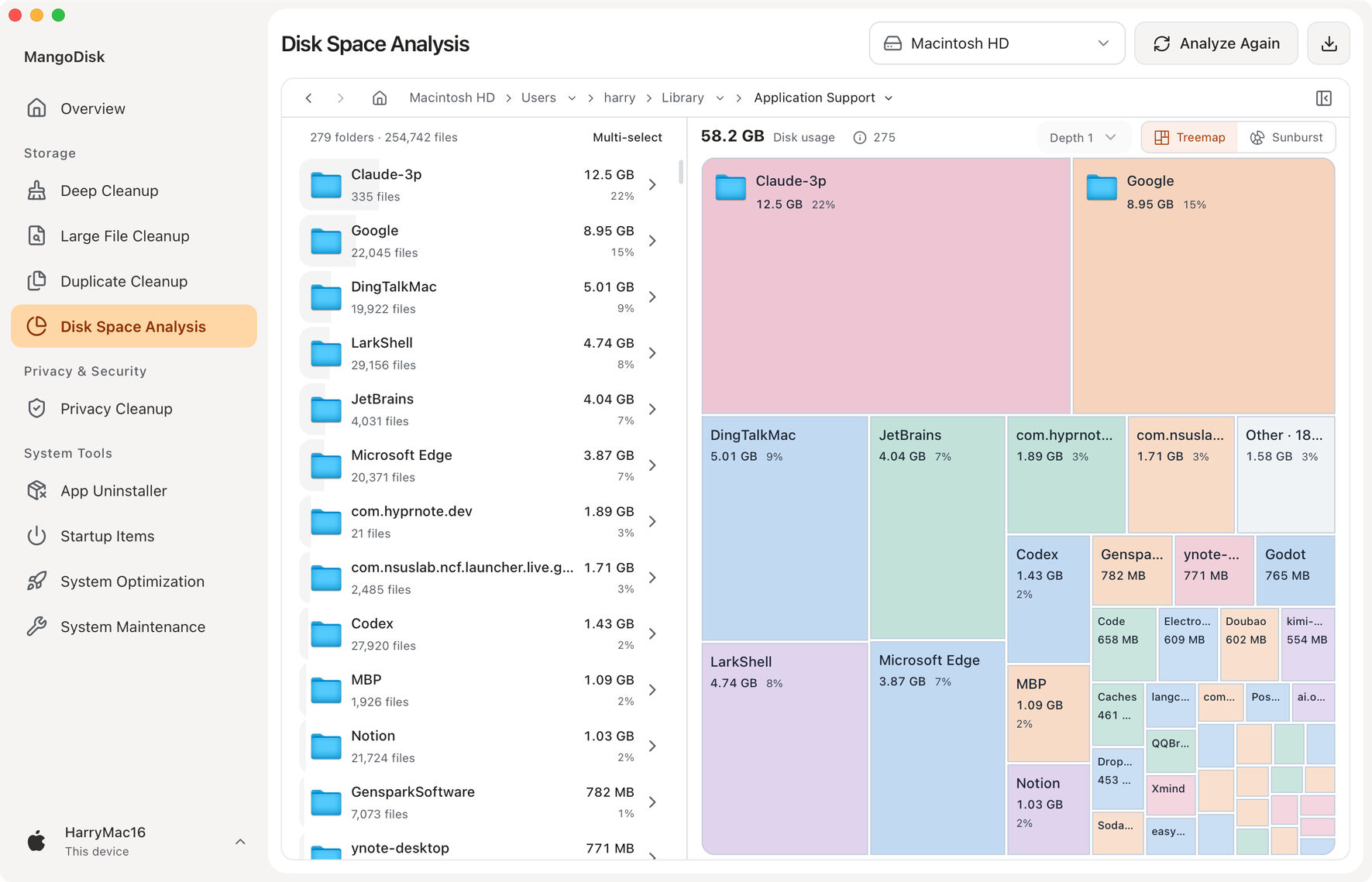
4. Disk Space Analysis
See where your disk space is going at a glance. Switch between a treemap and a sunburst chart, and choose how many levels to display to explore space usage and folder structure. Browse folders alongside the file list to quickly find the largest folders and files and decide what to clean up.
Privacy & Security
5. Privacy Cleanup
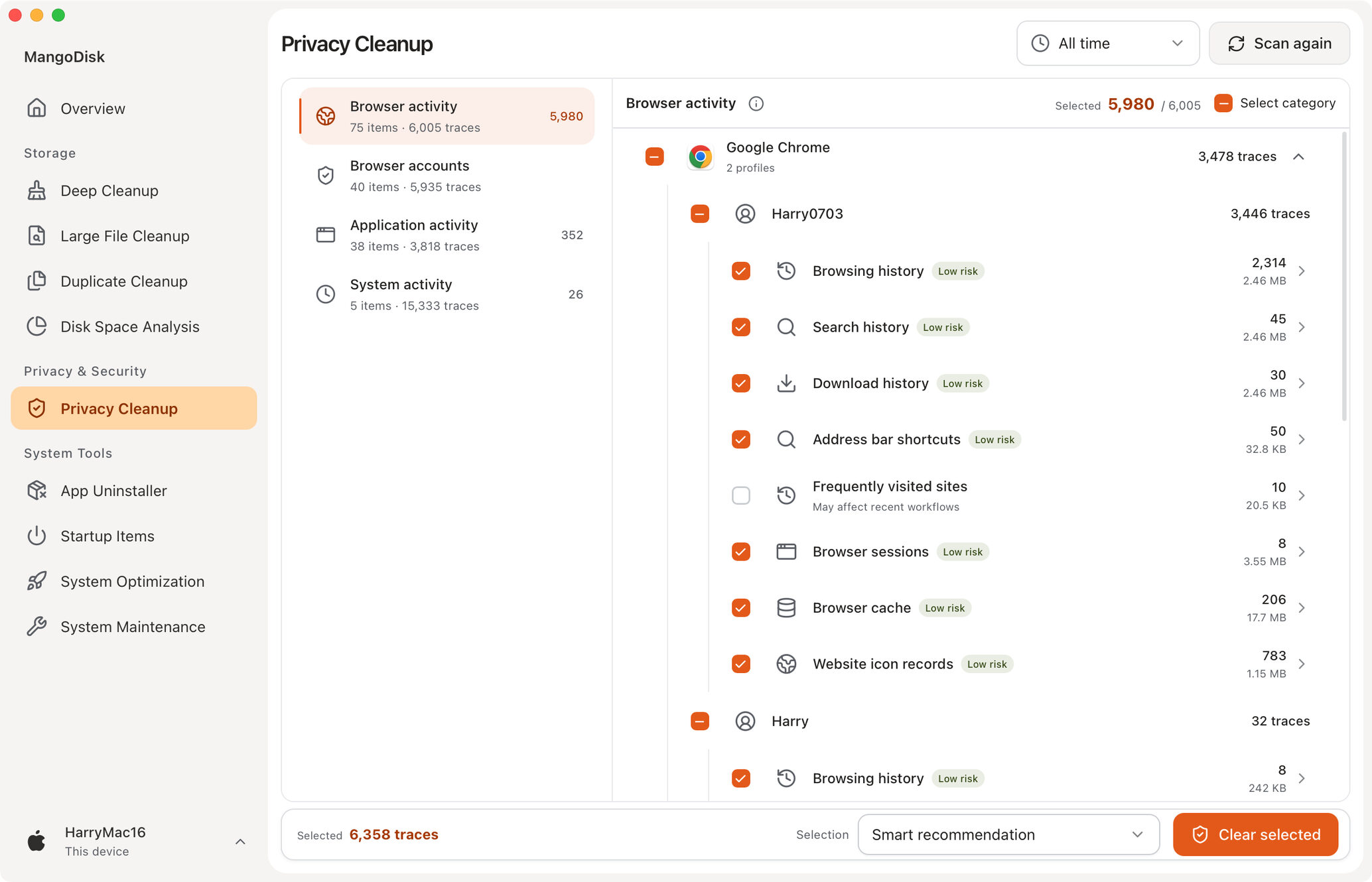
Keep browsing history, searches, cookies, recent items, and clipboard data from lingering on your computer. Clear traces left by browsers, applications, and the system to reduce exposure of your activity and make everyday privacy easier to manage.
System Tools
6. Application Uninstall and Cleanup
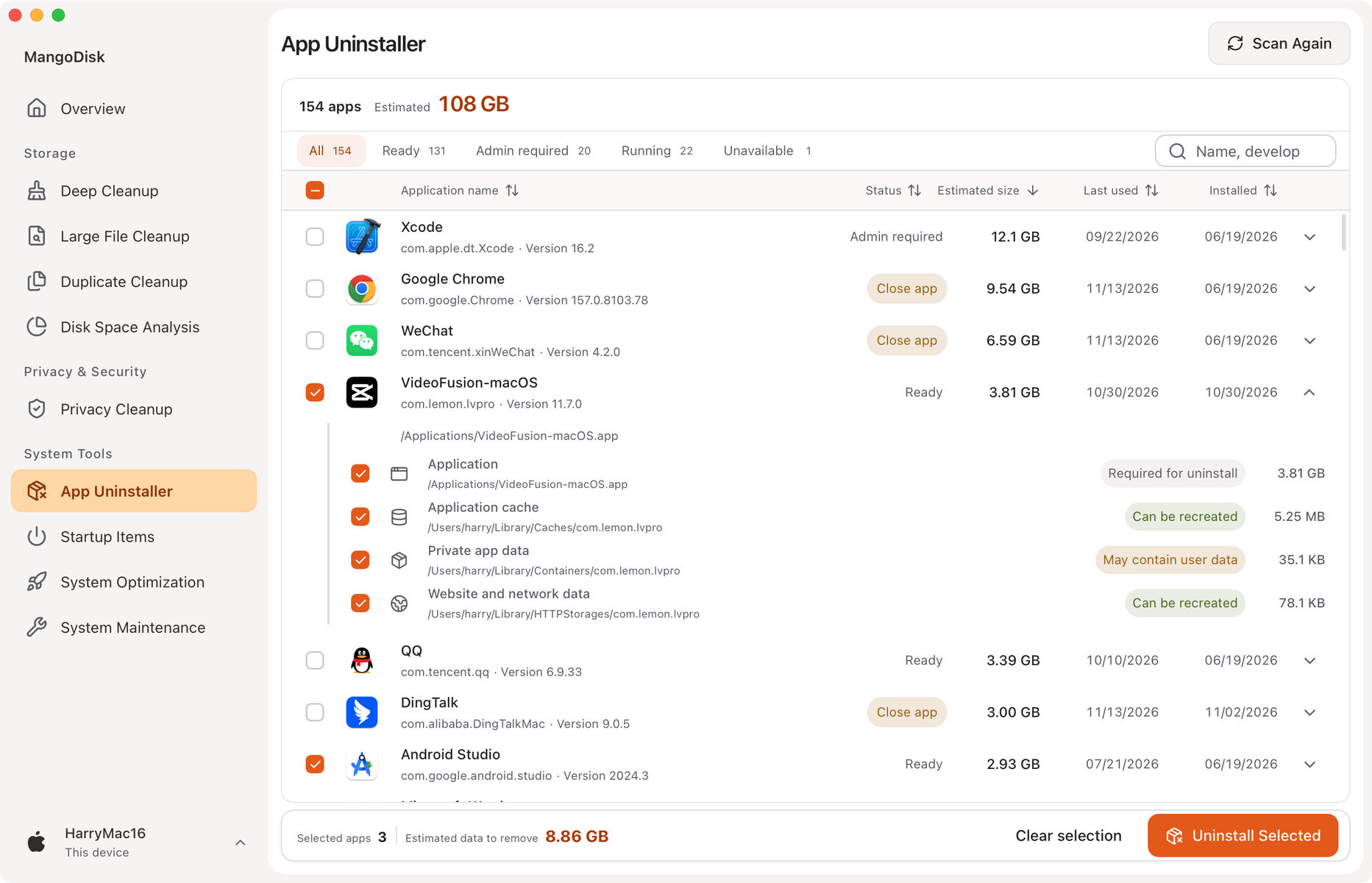
Uninstall applications and clear related caches, settings, and leftovers so removing an application actually gives you the space back. Potential personal files are handled cautiously to reduce the risk of accidental deletion.
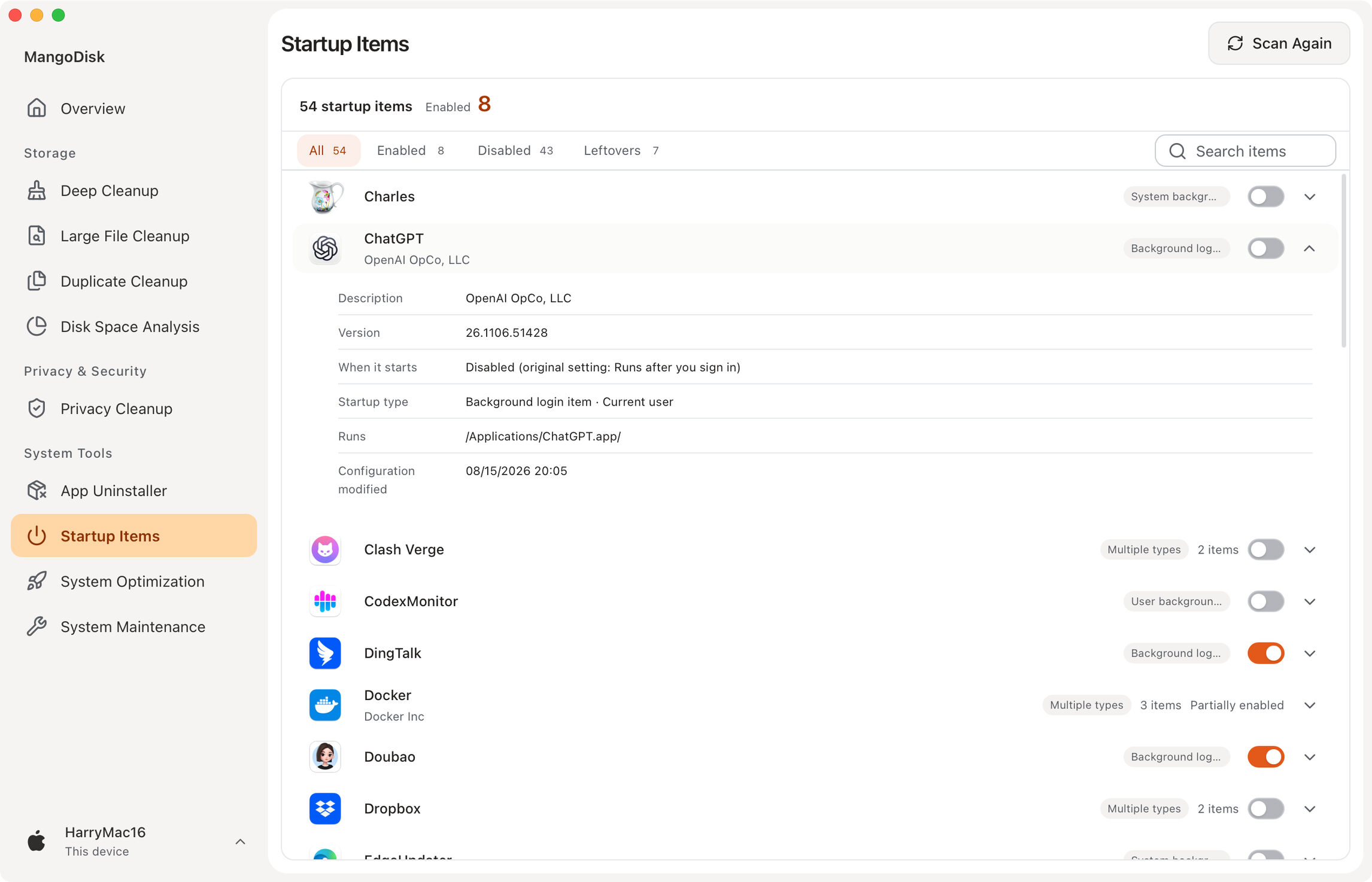
7. Startup Item Management
Reduce unnecessary startup delays and background resource use, so your computer starts faster and feels lighter. Turn items back on at any time when you need them again.
8. System Optimization
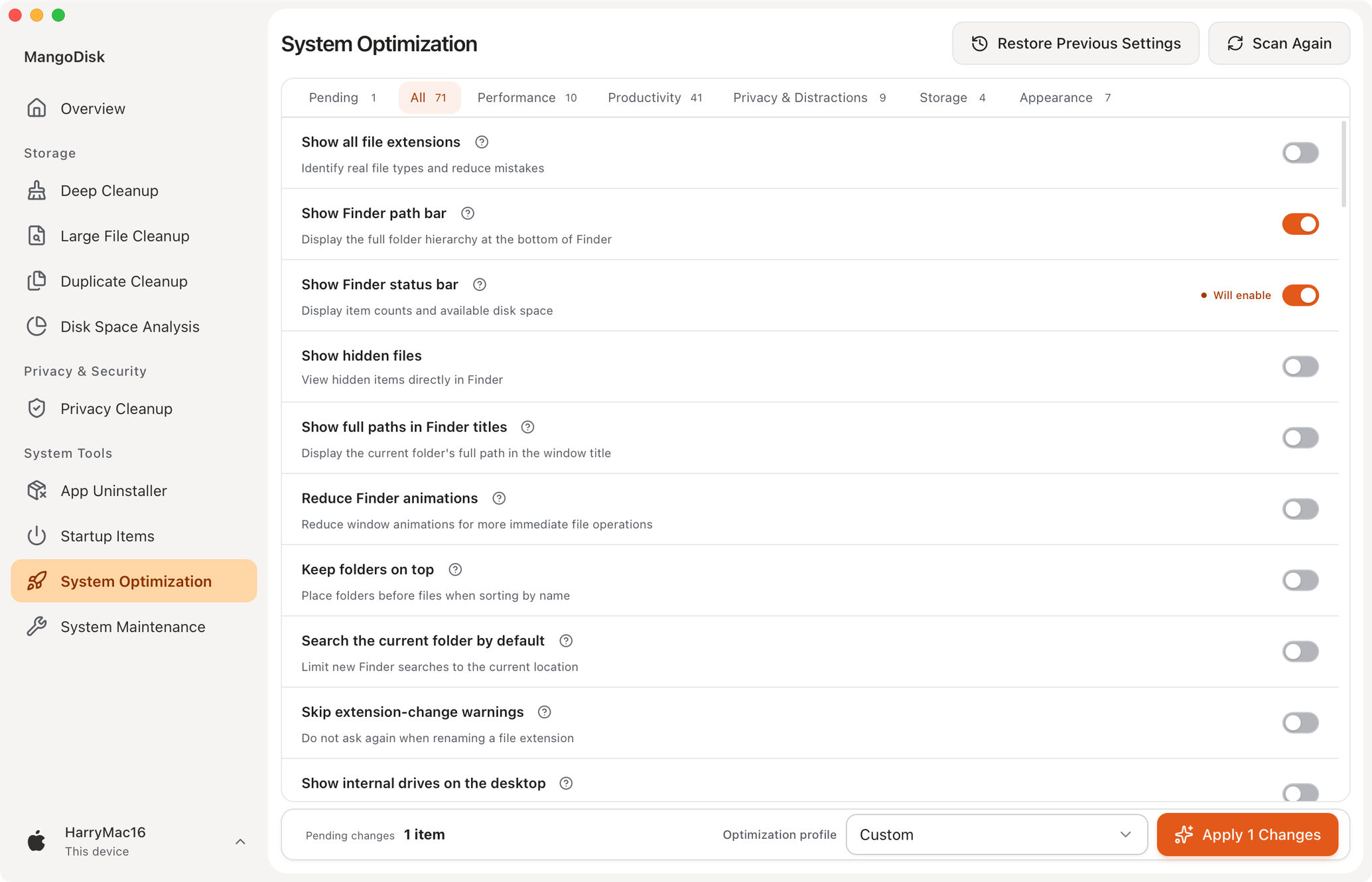
Reduce unnecessary settings that slow down your system or get in the way. Balance performance, privacy, and personal preferences so your computer feels faster and easier to use.
9. System Maintenance
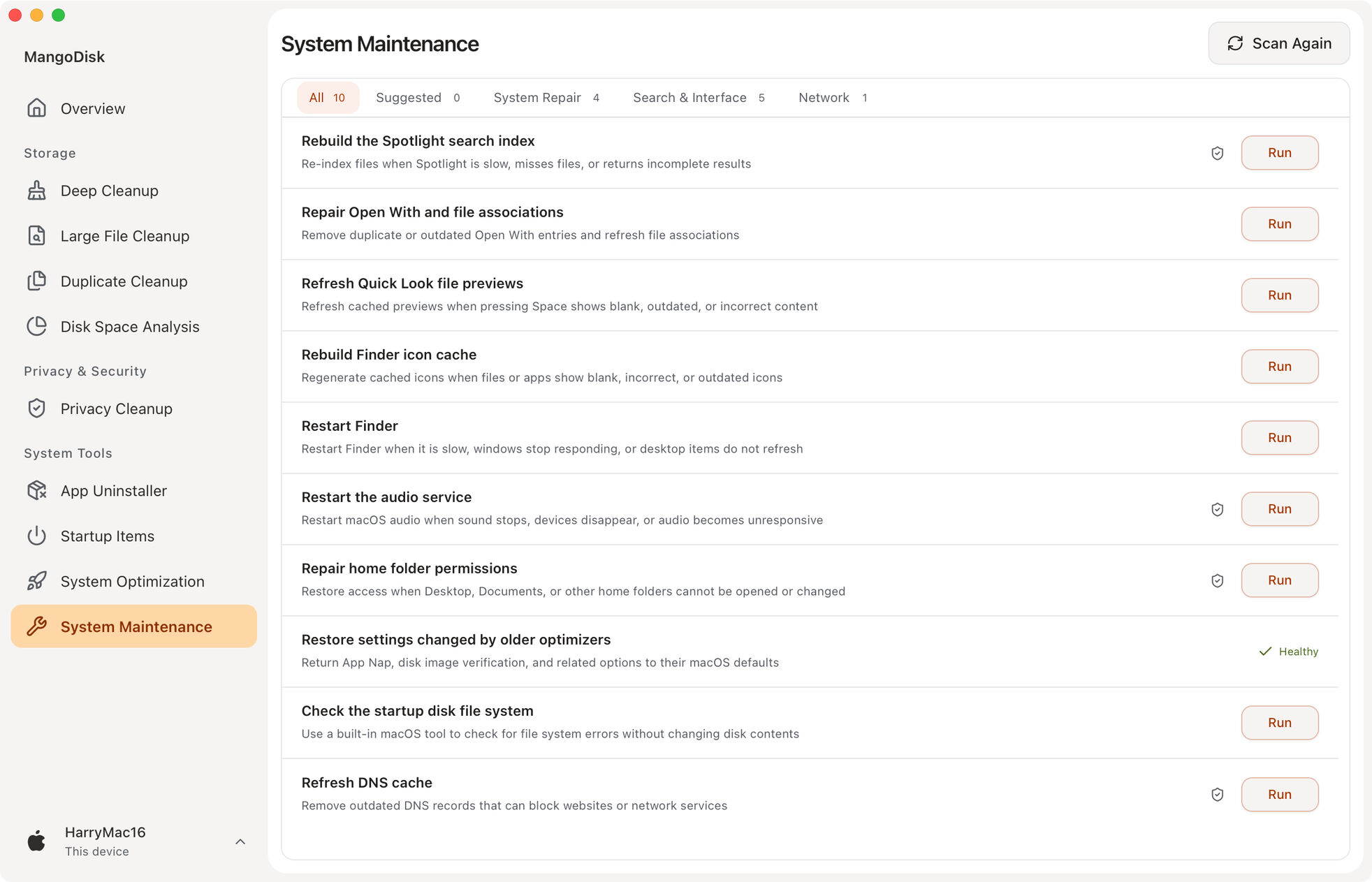
Fix common problems like missing search results, incorrect icons, no sound, or network connection failures—without hunting down fixes or typing complex commands. Get your computer back to normal sooner.
10. Context Menus (Windows)
Available since version 1.2.3
Keep right-click menus tidy and easy to use. Browse entries by menu location or app, disable, restore or remove supported items, and adjust menus for individual file types.
Add everyday actions such as copying paths and opening a terminal, along with shortcuts to system tools.
Activity
11. Operation History
Keep a clear record of every cleanup and system change. See how much space you recovered, what completed successfully, and whether anything still needs your attention.
Resource Usage and Memory Management
Available since version 1.1.1
Track CPU, GPU, memory, network speeds and disk activity in real time, with trends to help you understand resource use. On supported devices, you can also check temperatures, power usage, battery status and disk health.
Quickly find resource-heavy apps, quit those you no longer need, and free memory manually or automatically.
Display metrics in the menu bar, taskbar, system tray or a floating desktop window. Customize the content and appearance to keep an eye on your computer without opening the main window.
AI Explanations
Available since version 1.1.0
Unsure what an item does or what might happen if you change it? AI explanations use the item's description and current scan results to explain its purpose and what to consider before taking action. Spend less time looking things up and make more informed choices.
Get explanations directly from items in Deep Cleanup (built-in rules), Privacy Cleanup, Startup Item Management, System Optimization, and System Maintenance.
Official releases include free explanations each day, with the option to connect your own AI service. AI offers guidance; you decide which actions to take.
Safety and Rules
[!IMPORTANT]
MangoDisk puts data safety ahead of reclaiming more space.
Cleanup rules and system optimizations only ship after their safety boundaries are clearly defined and they pass validation on real systems.
MangoDisk scans in read-only mode by default. Before cleanup, deletion, uninstall, or system setting changes begin, you can review and confirm exactly what will happen. Results are saved to Operation History.
System Optimization only uses built-in, validated settings. It never accepts arbitrary registry paths, terminal commands, or scripts. MangoDisk reads each setting again after changing it and calls out high-impact items and changes that require administrator access or a restart.
MangoDisk maintains its own cleanup rules. Third-party projects may provide research leads, but a candidate rule is only accepted after reliable sources, safe boundaries, and real-system behavior have been verified. Anything without a clear safety boundary is excluded.
Prebuilt standalone CLI downloads are not yet available for Linux. Follow the Build from Source instructions below to build it yourself.
Usage Examples
If mangodisk is not immediately available after installation, open a new terminal, then verify the installation:
mangodisk --version
Common commands:
# Scan and show cleanable content without changing anything
mangodisk clean

# Apply the same smart recommendations as the desktop application
mangodisk clean --apply

# Preview all selectable content without deleting anything
mangodisk clean --apply --selection all --dry-run

# Produce machine-readable JSON output
mangodisk clean --format json --no-progress
mangodisk clean only scans and never modifies files by default. To perform cleanup in a non-interactive environment, you must also pass --yes to confirm explicitly. Run the following command for all available options:
git clone https://github.com/harry0703/MangoDisk.git
cd MangoDisk
pnpm install --frozen-lockfile
pnpm tauri:dev
Run the Required Checks
pnpm check
cargo test --manifest-path src-tauri/Cargo.toml -p mangodisk-core
Build the Desktop Installer
pnpm tauri:build
Build the CLI
pnpm cli:build
Local builds do not include the signing, notarization, or update metadata provided by official MangoDisk releases. Use them for local development and validation only.
Contributing
Issues, cleanup rules, fixes, and new features are welcome. Read CONTRIBUTING.md and AGENTS.md before getting started.
Routine cleanup coverage should use build-validated, declarative TOML rules. See src-tauri/crates/mangodisk-core/rules/README.md for the rule schema, safety constraints, and validation instructions.
Before submitting changes, run at least:
pnpm check
cargo test --manifest-path src-tauri/Cargo.toml -p mangodisk-core
Report security vulnerabilities privately through GitHub Security Advisories as described in SECURITY.md. Do not open a public issue for a security vulnerability.
What is this?MangoDisk is a safety-first disk cleaner and storage analyzer for macOS, Windows, and Linux. It finds reclaimable cache, large files, and duplicates, lets you uninstall apps and manage startup items, and includes system optimization and maintenance tools.
Is this a desktop app or a CLI tool?It's both: a Tauri-based desktop app with a Vue 3/TypeScript UI, plus a command-line interface that uses the same cleanup engine as the desktop app.
How do I install MangoDisk?On macOS and Windows you can install via Homebrew or WinGet/PowerShell, or download the DMG/Windows installer directly. On Linux it's available as .deb packages or AppImages, with an architecture-detecting install script for Debian/Ubuntu.
Is cleanup always safe and reversible?No — cleanup, permanent deletion, and uninstall actions may not be reversible, so you should review selections and keep backups first. The tool scans in read-only mode by default and only applies validated, built-in rules rather than arbitrary scripts or registry edits.
Which OS versions are supported?macOS Monterey 12.5+, 64-bit Windows 10+, and Linux (recommended Ubuntu 22.04 LTS+ on x64 or ARM64); other Linux distros depend on their system libraries.
Does it send my data anywhere?Scans and cleanup run locally with a read-only default, though the AI explanation feature can optionally connect to an AI service for context on items. There is no mention of scan data being uploaded for the cleanup engine itself.
How does duplicate file cleanup avoid deleting wrong files?It identifies true duplicates rather than files sharing just a name, and smart selection always keeps at least one copy in every group so cleanup stays safe by default.
What is the AI explanations feature?It uses an item's description and current scan results to explain what it does and what might happen if you change or delete it, helping you decide before taking action. Official releases include free daily explanations, with the option to connect your own AI service.
Can I run cleanup non-interactively from the CLI?Yes, but mangodisk clean only scans by default and never modifies files; you must pass --yes explicitly to confirm and actually perform cleanup.
How are cleanup rules validated before being added?MangoDisk maintains its own rule library where candidate rules are only accepted after reliable sources, safe boundaries, and real-system behavior are verified; anything without a clear safety boundary is excluded, and the full rule library is open for inspection.
 MangoDisk






 MangoDisk is a safety-first disk cleaner and storage analyzer for macOS, Windows, and Linux. It finds reclaimable cache, large files, and duplicates, lets you uninstall apps and manage startup items, and includes system optimization and maintenance tools.