K9s - Kubernetes CLI To Manage Your Clusters In Style!
K9s provides a terminal UI to interact with your Kubernetes clusters.
The aim of this project is to make it easier to navigate, observe and manage
your applications in the wild. K9s continually watches Kubernetes
for changes and offers subsequent commands to interact with your observed resources.
Note...
K9s is not pimped out by a big corporation with deep pockets.
It is a complex OSS project that demands a lot of my time to maintain and support.
K9s will always remain OSS and therefore free! That said, if you feel k9s makes your day to day Kubernetes journey a tad brighter, saves you time and makes you more productive, please consider sponsoring us!
Your donations will go a long way in keeping our servers lights on and beers in our fridge!
Thank you!






Screenshots
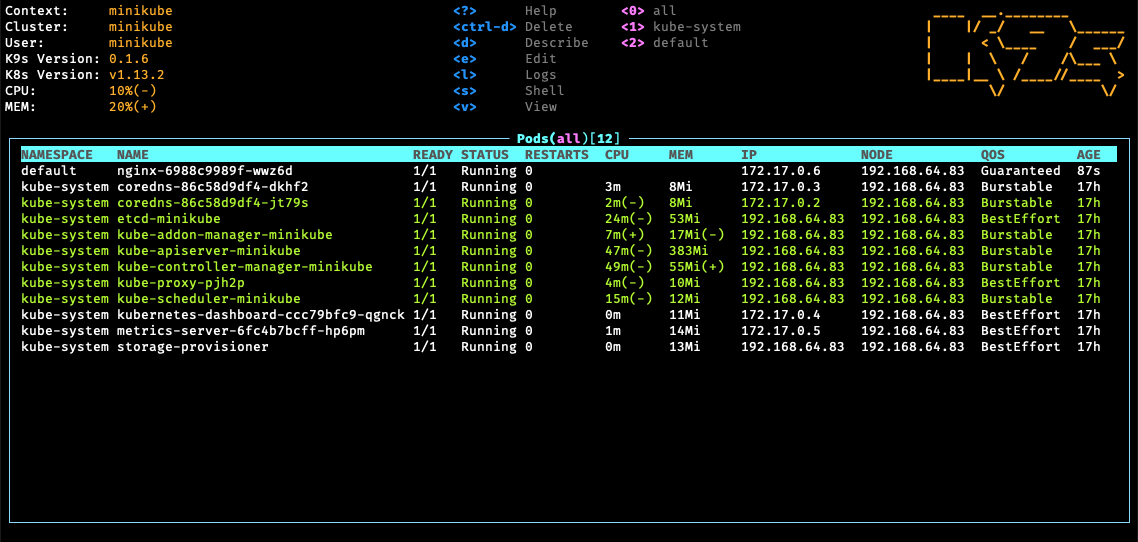
- Pods
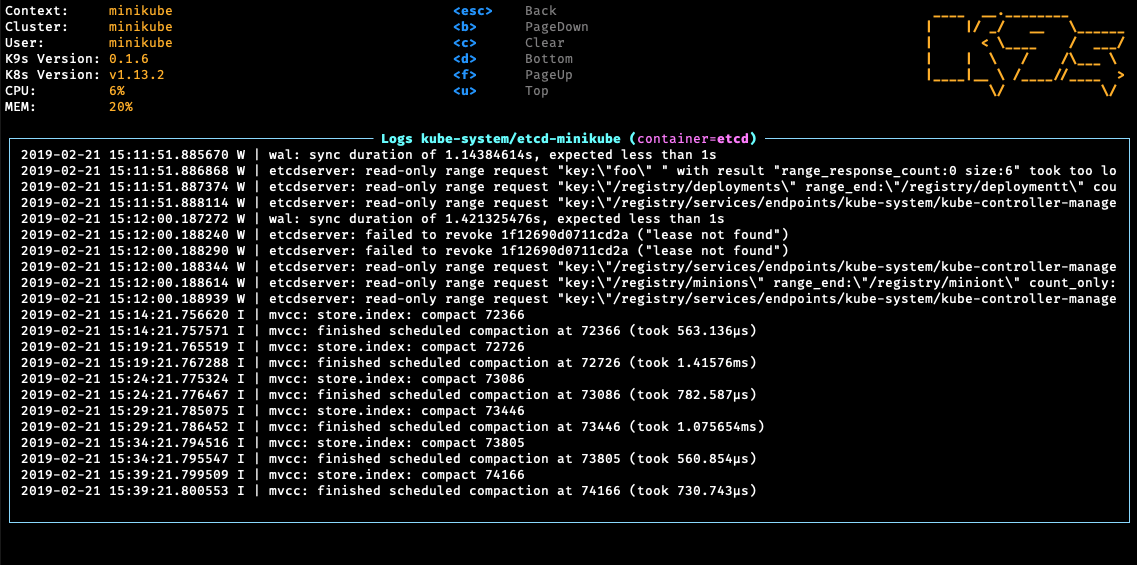
- Logs
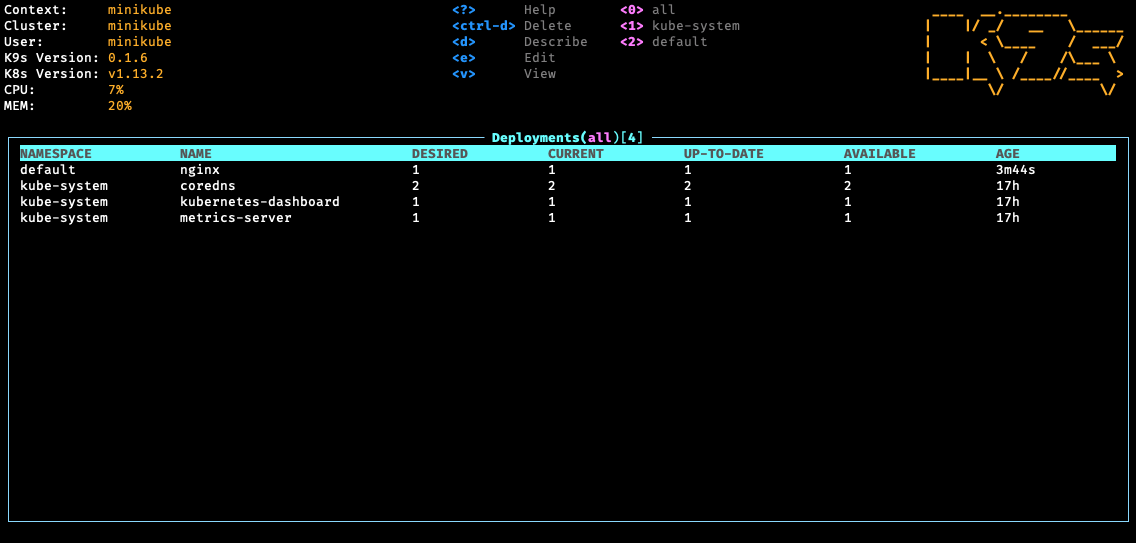
- Deployments
Demo Videos/Recordings
Documentation
Please refer to our K9s documentation site for installation, usage, customization and tips.
Slack Channel
Wanna discuss K9s features with your fellow K9sers or simply show your support for this tool?
Installation
K9s is available on Linux, macOS and Windows platforms.
Binaries for Linux, Windows and Mac are available as tarballs in the release page.
Via Homebrew for macOS or Linux
brew install derailed/k9s/k9s
Via MacPorts
sudo port install k9s
Via snap for Linux
snap install k9s --devmode
On Arch Linux
pacman -S k9s
On OpenSUSE Linux distribution
zypper install k9s
On FreeBSD
pkg install k9s
On Ubuntu
wget https://github.com/derailed/k9s/releases/latest/download/k9s_linux_amd64.deb && sudo apt install ./k9s_linux_amd64.deb && rm k9s_linux_amd64.deb
On Fedora (42+)
dnf install k9s
Via Winget for Windows
winget install k9s
Via Scoop for Windows
scoop install k9s
Via Chocolatey for Windows
choco install k9s
Via a GO install
# NOTE: The dev version will be in effect!
go install github.com/derailed/k9s@latest
Via Webi for Linux and macOS
curl -sS https://webinstall.dev/k9s | bash
Via pkgx for Linux and macOS
pkgx k9s
Via gah for Linux and macOS
gah install k9s
Via Webi for Windows
curl.exe -A MS https://webinstall.dev/k9s | powershell
As a Docker Desktop Extension (for the Docker Desktop built in Kubernetes Server)
docker extension install spurin/k9s-dd-extension:latest
Building From Source
K9s is currently using GO v1.23.X or above.
In order to build K9s from source you must:
Clone the repo
Build and run the executable
make build && ./execs/k9s
Running with Docker
Running the official Docker image
You can run k9s as a Docker container by mounting your KUBECONFIG:
docker run --rm -it -v $KUBECONFIG:/root/.kube/config derailed/k9s
For default path it would be:
docker run --rm -it -v ~/.kube/config:/root/.kube/config derailed/k9s
Building your own Docker image
You can build your own Docker image of k9s from the Dockerfile with the following:
docker build -t k9s-docker:v0.0.1 .
You can get the latest stable kubectl version and pass it to the docker build command with the --build-arg option.
You can use the --build-arg option to pass any valid kubectl version (like v1.18.0 or v1.19.1).
KUBECTL_VERSION=$(make kubectl-stable-version 2>/dev/null)
docker build --build-arg KUBECTL_VERSION=${KUBECTL_VERSION} -t k9s-docker:0.1 .
Run your container:
docker run --rm -it -v ~/.kube/config:/root/.kube/config k9s-docker:0.1
The make imgx target builds for linux/amd64 and linux/arm64 via Docker
buildx:
make imgx
Cross-architecture builds rely on QEMU emulation. Docker Desktop includes
this out of the box. On a plain Docker Engine install, see the
buildx multi-platform docs
for enabling emulation.
Override the defaults with BUILD_PLATFORMS, IMG_NAME and VERSION:
make imgx BUILD_PLATFORMS=linux/amd64,linux/arm64 IMG_NAME=your-org/k9s VERSION=v0.0.1
PreFlight Checks
K9s uses 256 colors terminal mode. On `Nix system make sure TERM is set accordingly.
export TERM=xterm-256color
In order to issue resource edit commands make sure your EDITOR and KUBE_EDITOR env vars are set.
# Kubectl edit command will use this env var.
export KUBE_EDITOR=my_fav_editor
K9s prefers recent kubernetes versions ie 1.28+
K8S Compatibility Matrix
| k9s |
k8s client |
| >= v0.27.0 |
1.26.1 |
| v0.26.7 - v0.26.6 |
1.25.3 |
| v0.26.5 - v0.26.4 |
1.25.1 |
| v0.26.3 - v0.26.1 |
1.24.3 |
| v0.26.0 - v0.25.19 |
1.24.2 |
| v0.25.18 - v0.25.3 |
1.22.3 |
| v0.25.2 - v0.25.0 |
1.22.0 |
| <= v0.24 |
1.21.3 |
The Command Line
# List current version
k9s version

# To get info about K9s runtime (logs, configs, etc..)
k9s info

# List all available CLI options
k9s help

# To run K9s in a given namespace
k9s -n mycoolns

# Start K9s in an existing KubeConfig context
k9s --context coolCtx

# Start K9s in readonly mode - with all cluster modification commands disabled
k9s --readonly
Logs And Debug Logs
Given the nature of the ui k9s does produce logs to a specific location.
To view the logs and turn on debug mode, use the following commands:
# Find out where the logs are stored
k9s info
 ____  __.________
|    |/ _/   __   \______
|      < \____    /  ___/
|    |  \   /    /\___ \
|____|__ \ /____//____  >
        \/            \/

Version:           vX.Y.Z
Config:            /Users/fernand/.config/k9s/config.yaml
Logs:              /Users/fernand/.local/state/k9s/k9s.log
Dumps dir:         /Users/fernand/.local/state/k9s/screen-dumps
Benchmarks dir:    /Users/fernand/.local/state/k9s/benchmarks
Skins dir:         /Users/fernand/.local/share/k9s/skins
Contexts dir:      /Users/fernand/.local/share/k9s/clusters
Custom views file: /Users/fernand/.local/share/k9s/views.yaml
Plugins file:      /Users/fernand/.local/share/k9s/plugins.yaml
Hotkeys file:      /Users/fernand/.local/share/k9s/hotkeys.yaml
Alias file:        /Users/fernand/.local/share/k9s/aliases.yaml
View K9s logs
tail -f /Users/fernand/.local/data/k9s/k9s.log
Start K9s in debug mode
k9s -l debug
Customize logs destination
You can override the default log file destination either with the --logFile argument:
k9s --logFile /tmp/k9s.log
less /tmp/k9s.log
Or through the K9S_LOGS_DIR environment variable:
K9S_LOGS_DIR=/var/log k9s
less /var/log/k9s.log
Key Bindings
K9s uses aliases to navigate most K8s resources.
| Action |
Command |
Comment |
| Show active keyboard mnemonics and help |
? |
|
| Show all available resource alias |
ctrl-a |
|
| To bail out of K9s |
:quit, :q, ctrl-c |
|
| To go up/back to the previous view |
esc |
If you have crumbs on, this will go to the previous one |
| View a Kubernetes resource using singular/plural or short-name |
:pod⏎ |
accepts singular, plural, short-name or alias ie pod or pods |
| View a Kubernetes resource in a given namespace |
:pod ns-x⏎ |
|
| View filtered pods (New v0.30.0!) |
:pod /fred⏎ |
View all pods filtered by fred |
| View labeled pods (New v0.30.0!) |
:pod app=fred,env=dev⏎ |
View all pods with labels matching app=fred and env=dev |
| View pods in a given context (New v0.30.0!) |
:pod @ctx1⏎ |
View all pods in context ctx1. Switches out your current k9s context! |
| Filter out a resource view given a filter |
/filter⏎ |
Regex2 supported ie `fred |
| Inverse regex filter |
/! filter⏎ |
Keep everything that doesn't match. |
| Filter resource view by labels |
/-l label-selector⏎ |
|
| Fuzzy find a resource given a filter |
/-f filter⏎ |
|
| Bails out of view/command/filter mode |
<esc> |
|
| To view and switch to another Kubernetes context (Pod view) |
:ctx⏎ |
|
| To view and switch directly to another Kubernetes context (Last used view) |
:ctx context-name⏎ |
|
| To view and switch to another Kubernetes namespace |
:ns⏎ |
|
| To switch back to the last active command (like how "cd -" works) |
- |
Navigation that adds breadcrumbs to the bottom are not commands |
| To go back and forward through the command history |
back: [, forward: ] |
Same as above |
| To view all saved resources |
:screendump or sd⏎ |
|
| To delete a resource (TAB and ENTER to confirm) |
ctrl-d |
|
| To kill a resource (no confirmation dialog, equivalent to kubectl delete --now) |
ctrl-k |
|
| Launch pulses view |
:pulses or pu⏎ |
|
| Launch XRay view |
:xray RESOURCE [NAMESPACE]⏎ |
RESOURCE can be one of po, svc, dp, rs, sts, ds, NAMESPACE is optional |
| Launch Popeye view |
:popeye or pop⏎ |
See popeye |
| Mark resource |
space |
|
| Mark range of resources |
ctrl-space |
|
| Clear all marks |
ctrl-\ |
|
| Save resources to file |
ctrl-s |
|
| Toggle faults/error display |
ctrl-z |
|
| Toggle wide columns |
ctrl-w |
|
| Toggle header |
ctrl-e |
|
| Toggle breadcrumbs |
ctrl-g |
|
| Move selected column left |
shift-left arrow |
|
| Move selected column right |
shift-right arrow |
|
| Sort by selected column |
shift-o |
|
| Sort by Name |
shift-n |
|
| Sort by Age |
shift-a |
|
| Sort by Namespace |
shift-p |
Only when viewing all namespaces |
| Sort by Status |
shift-s |
|
| Copy resource name |
c |
|
| Copy namespace |
n |
|
| View YAML |
y |
|
| View logs |
l |
Resource specific |
| View previous logs |
p |
Resource specific |
| Shell into container |
s |
Pods only |
| Attach to container |
a |
Pods only |
| Describe resource |
d |
|
| Edit resource |
e |
Not available in read-only mode |
| Show port-forwards |
f |
Pods/Services/Containers |
| Port forward |
shift-f |
Pods/Services/Containers |
| Warp to namespace |
w |
|

 K9s is a terminal UI that lets you navigate, observe and manage Kubernetes clusters in real time instead of typing raw kubectl commands.